
Rundocs › Vendors & Purchasing
Vendor imports
Last updated 2026-05-22
Vendor imports let you create or update many vendors at once by uploading a filled-in Excel template (the faster way to migrate a vendor list from your old system or roll out a bulk change, instead of clicking Add vendor one row at a time)!
In the POS mode, open the Vendors tab in the left sidebar. The importer lives in the top-right action cluster.
Finding the importer
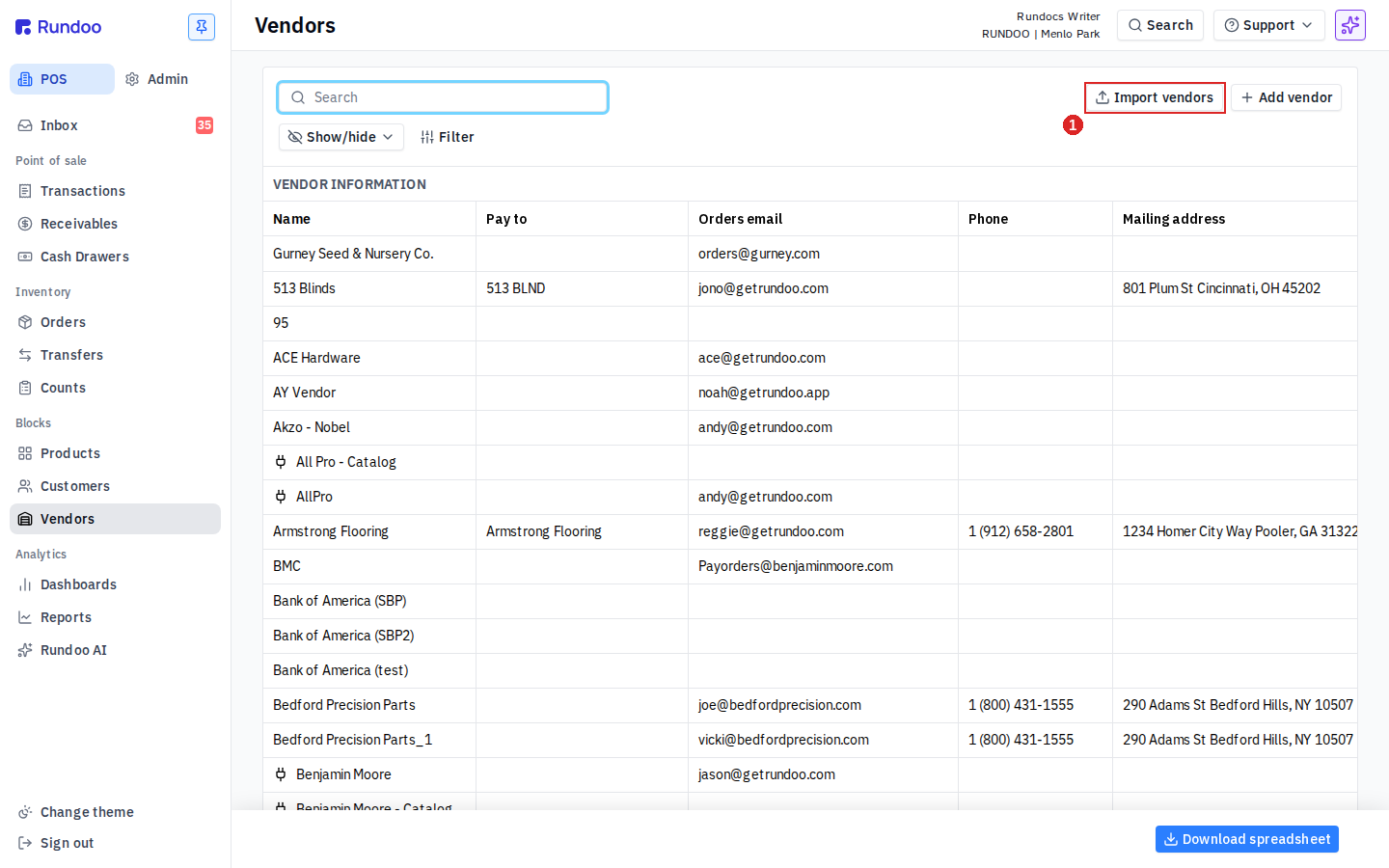
From the Vendors list, click Import vendors in the top-right action cluster (next to Add vendor). The Upload vendors modal opens.
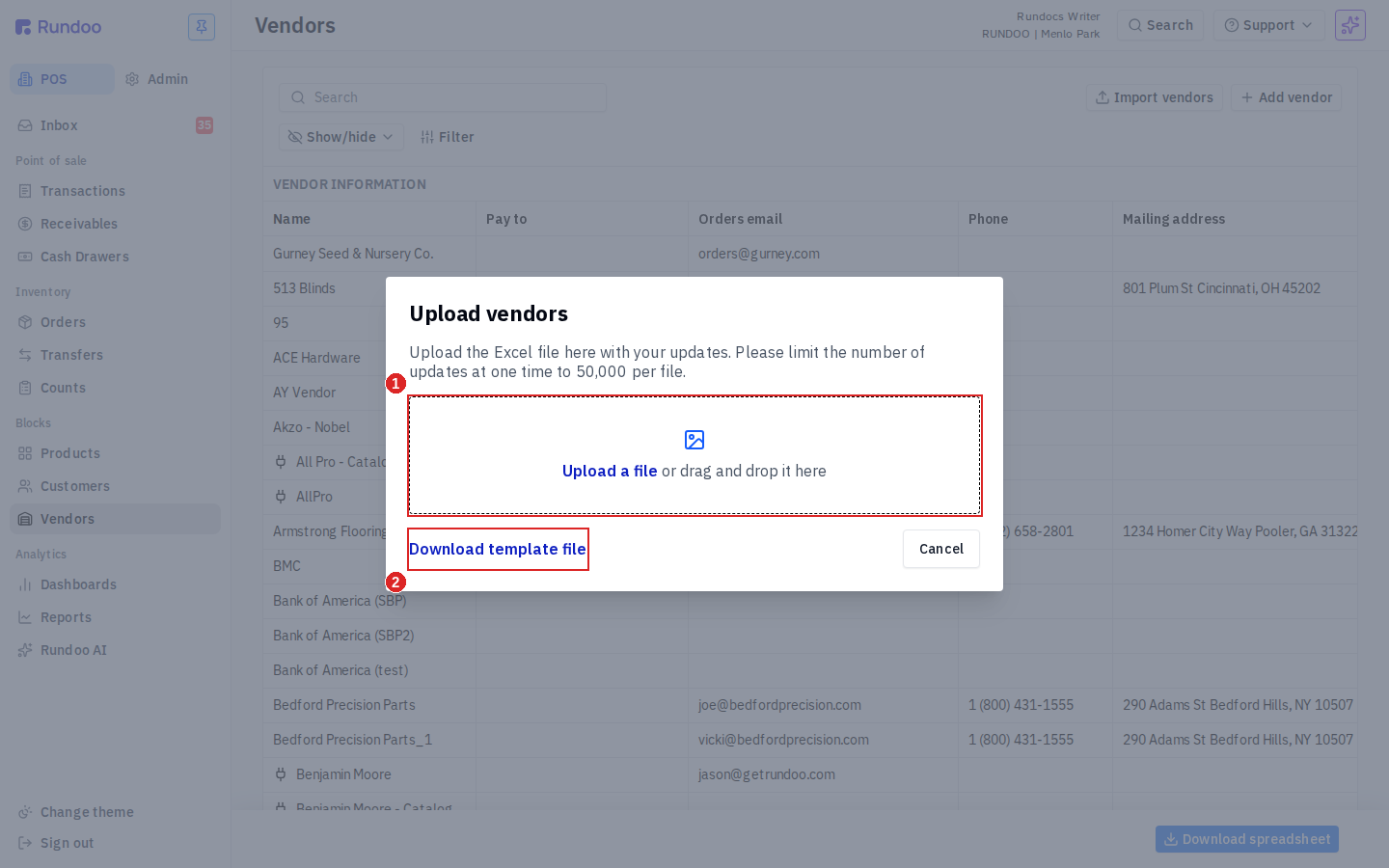
The modal has three controls:
-
Upload a file drop zone (click to open a file picker, or drag the filled-in template in).
-
Download template file link (bottom-left). Downloads the blank Excel template.
-
Cancel (closes the modal without importing).
Excel only. The importer accepts .xlsx files. CSVs and other formats are rejected with "Invalid file extension. Is your file's extension .xlsx?". Open your CSV in Excel and save as .xlsx first.
50,000-row ceiling per file. The modal copy notes "Please limit the number of updates at one time to 50,000 per file." If your list is longer, split it across multiple uploads.
Downloading the template
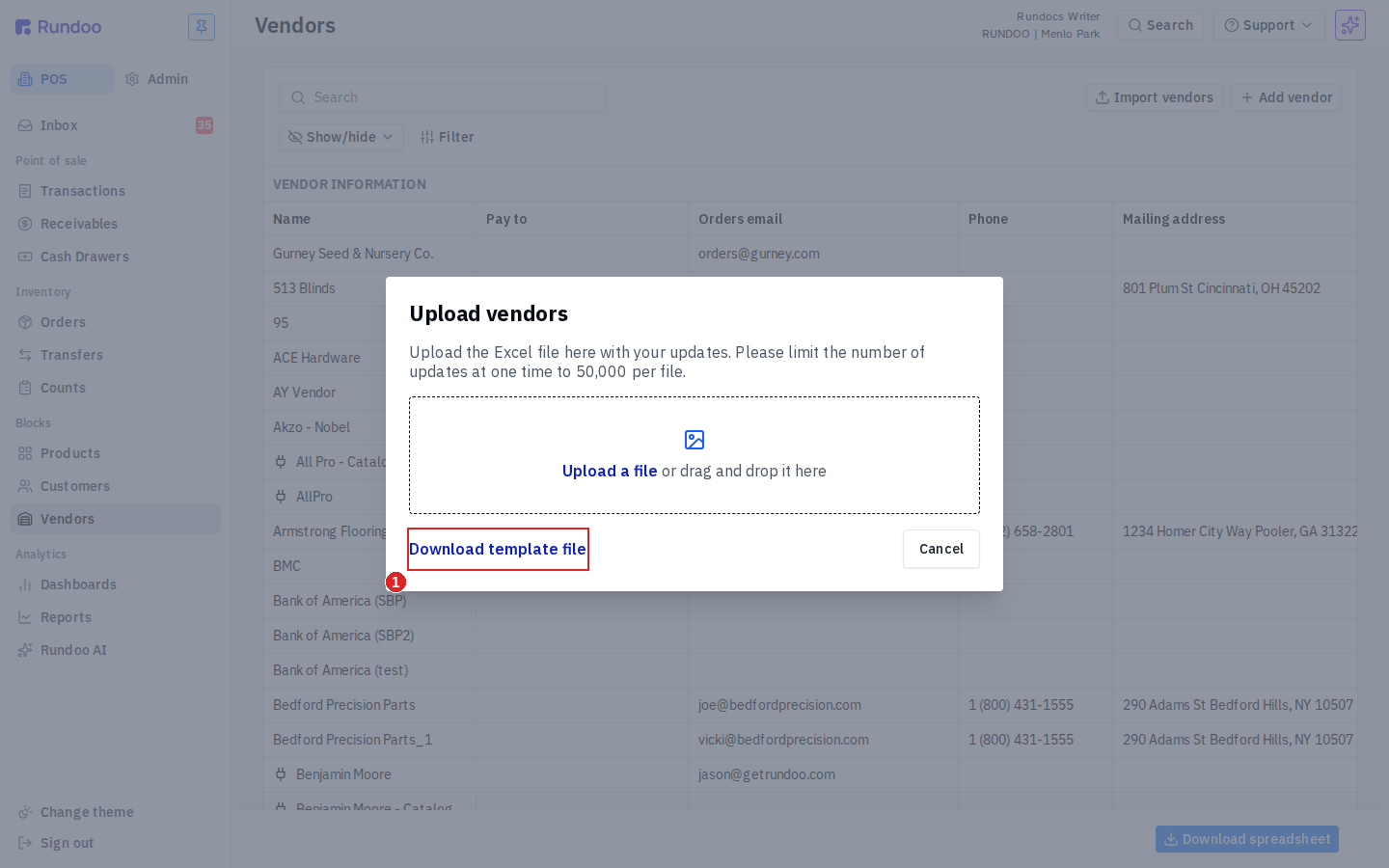
Click Download template file at the bottom-left of the modal. An Excel file downloads with a header row and no data rows. Fill it in locally, save, and come back to upload.
The template has hover-tip comments on most header cells (hover a column in Excel to see what it expects, the required/optional flag, and an example value).
What the columns mean
The template has 23 columns. Most are obvious; the ones worth calling out are at the top and the trio of integration-related flags near the right.
| Column | What it does | Required? |
|---|---|---|
Token |
Rundoo's internal identifier for the vendor. Leave blank when creating a new vendor. If the row is an update to an existing vendor, the Token is what pairs the row to that record, so don't edit or clear it. |
Only on updates |
Name |
Vendor name as it appears on POs and in the list. Must be unique across your vendor list. | Yes |
Pay To |
The name your accounting system writes checks to. Often the same as Name, but it can differ. E.g. Benjamin Moore vs Benjamin Moore & Co., Inc. |
Optional |
Orders Email |
Where Rundoo emails POs when you send them from the app. Needed if you plan to send orders directly; leave blank for walk-up vendors you only pay. | Optional |
Phone |
Primary phone for the account. | Optional |
Notes |
Free-text internal notes, visible to staff only. | Optional |
Address Line 1, Address Line 2, Address City, Address Zip, Address State |
Mailing address fields. Fill in what you have (partial addresses are fine). | Optional |
Address Country |
Leave this blank. Rundoo ignores any value you enter here (country is managed by Rundoo, not the importer). | No (leave blank) |
Active |
Whether the vendor is usable for new orders. Yes = active, No = deactivated. If you leave it blank, Rundoo auto-fills No. |
Optional |
Enable PDF Attachments, Enable Excel Attachments |
Match the two toggles in the vendor's Ordering section (whether PDF and/or XLSX attachments go out with emailed POs). Yes / No. |
Optional |
Account Number: 1, Account Number: B, Account Number: C, Account Number: E, Account Number: H, Account Number: NY, Account Number: R, Account Number: TPA |
Per-location account numbers with this vendor, one column per location code in your company. Fill only the ones you use. | Optional |
Don't reorder or rename columns. Rundoo matches by exact column header. A renamed header means "I don't know what this field is" and the row fails.
Uploading the file
Back in the Upload vendors modal, click Upload a file (or drag the filled-in .xlsx onto the drop zone). Rundoo processes the file and applies the changes.
Invalid file extension blocks the upload. Anything that isn't .xlsx (including .csv, .xls, .numbers), shows a red "Invalid file extension. Is your file's extension .xlsx?" banner and the file never uploads. Save-as .xlsx in Excel and retry.
Create vs update
The importer decides per-row whether to create a new vendor or update an existing one by looking at the Token column:
-
Create. Rows where
Tokenis blank. Rundoo generates a new token, creates the vendor using the rest of the row's fields, and theNamemust not collide with an existing vendor. -
Update. Rows where
Tokenis populated. Rundoo finds the vendor with that token and overwrites its fields with whatever you put in the row's other columns. Any field you leave blank is treated as "set this to empty", so if you only want to change one field on an existing vendor, still fill in the other fields with their current values.
The common update workflow: download your existing vendor list as an Excel export (the Download spreadsheet button at the bottom-right of the Vendors list), edit the rows you need to change, and upload the same file as the import template (the tokens are already in place from the export, so every row updates rather than creates).
If you're doing a big one-time migration from an old system, start with a clean blank template (leave Token empty on every row) and let Rundoo create everything fresh. If you're adjusting an already-loaded list, export first and edit the export.
Reviewing validation errors
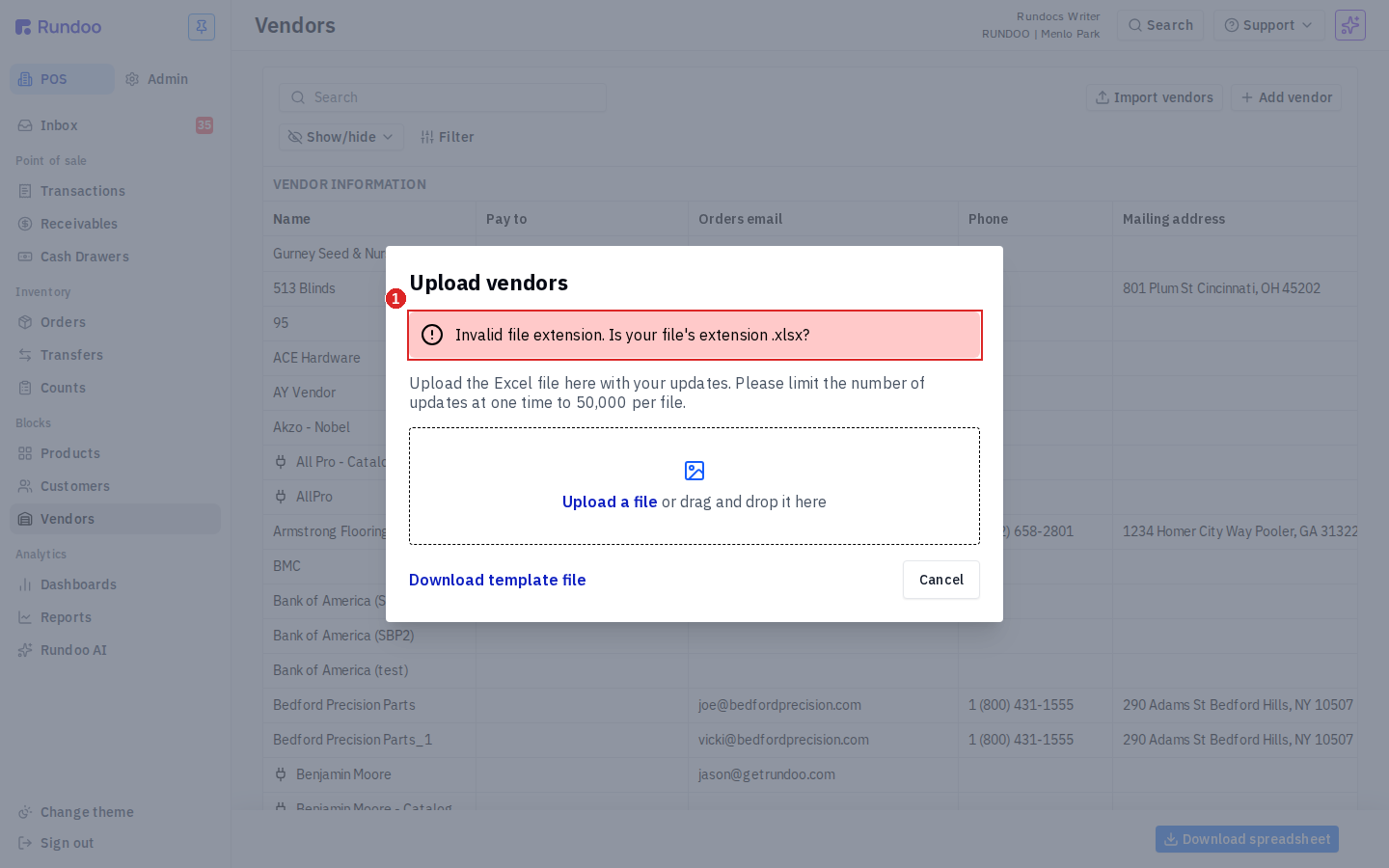
Validation happens in two layers:
-
Client-side. The modal rejects non-
.xlsxfiles immediately with an inline red banner. The file never reaches the server. -
Server-side. After a valid
.xlsxuploads, Rundoo parses each row. Rows with problems (duplicateName, missing required field, malformed email) are reported back; good rows commit. Expect a summary of what was accepted versus what needs fixing. Correct the offending rows in Excel and re-upload the file.
Duplicate names are rejected one row at a time. A row whose Name matches an existing vendor's name fails. Rundoo returns the same "A vendor with the same name already exists in the company" message you'd see on the single-vendor Add vendor modal. The rest of the file still imports.
Recommended Rundocs
-
Vendors, creating, editing, and deactivating vendors one at a time.
-
Product imports (the analogous bulk-upload flow for products).
-
Customer imports (bulk-uploading your customer list).