
Rundocs › Hardware
Zebra mobile printers
Last updated 2026-09-17
Background
Rundoo’s mobile app prints product labels on a Zebra mobile printer over Bluetooth, from an Android handheld or an iPhone. Both platforms work. These are wireless thermal label printers: you connect the printer in the Zebra setup app, lower one Bluetooth setting, then pair it to Rundoo with an NFC tap and print labels straight from the mobile app. Most setup failures trace to a printer setting or a label-stock choice, so this page walks the whole flow, printer first, then Rundoo.
If you want a wireless label printer that prints from a phone, the models below are what we recommend. For desktop or USB label printers (Dymo, network Zebra) see Product labels and Printer setup.
There is no USB path. The Rundoo mobile app connects to these printers over Bluetooth only, on both Android and iPhone. If NFC or Bluetooth won’t connect, a USB cable is not the fix, work through the Troubleshooting steps below instead.
Compatible models
-
Zebra ZQ521 (4" labels), the wider option, good for shipping-style labels.
-
Zebra ZQ620 Plus (3" labels), smaller and lighter, fine for shelf tags.
Source them from posguys.com/rundoo.asp.
These two are the models we've tested, not the only ones that can work. There's nothing model-specific in the setup below, it's the same Zebra setup app, the same drop of Bluetooth security to 1, the same NFC pairing, and the same black-mark label stock on any Zebra mobile label printer. Stores have set up unlisted models this same way, including a Zebra QLN220 that programmed just like the ZQ5-series. So a close cousin of a recommended model, like the 3" ZQ630 Plus sitting next to the 3" ZQ620 Plus, will very likely program the same way. If you've got a Zebra mobile printer that isn't on this list, it's worth running through these steps before ruling it out, and Rundoo Support can help confirm.
What you need before you start
| Item | Notes |
|---|---|
| A Zebra ZQ521 or ZQ620 Plus | Connects over Bluetooth only. It has an LCD menu you’ll use during setup. |
| An Android handheld or iPhone | A Zebra TC53/TC73 runs standard Android, so it runs the normal Rundoo app; any modern Android or iOS device works too. |
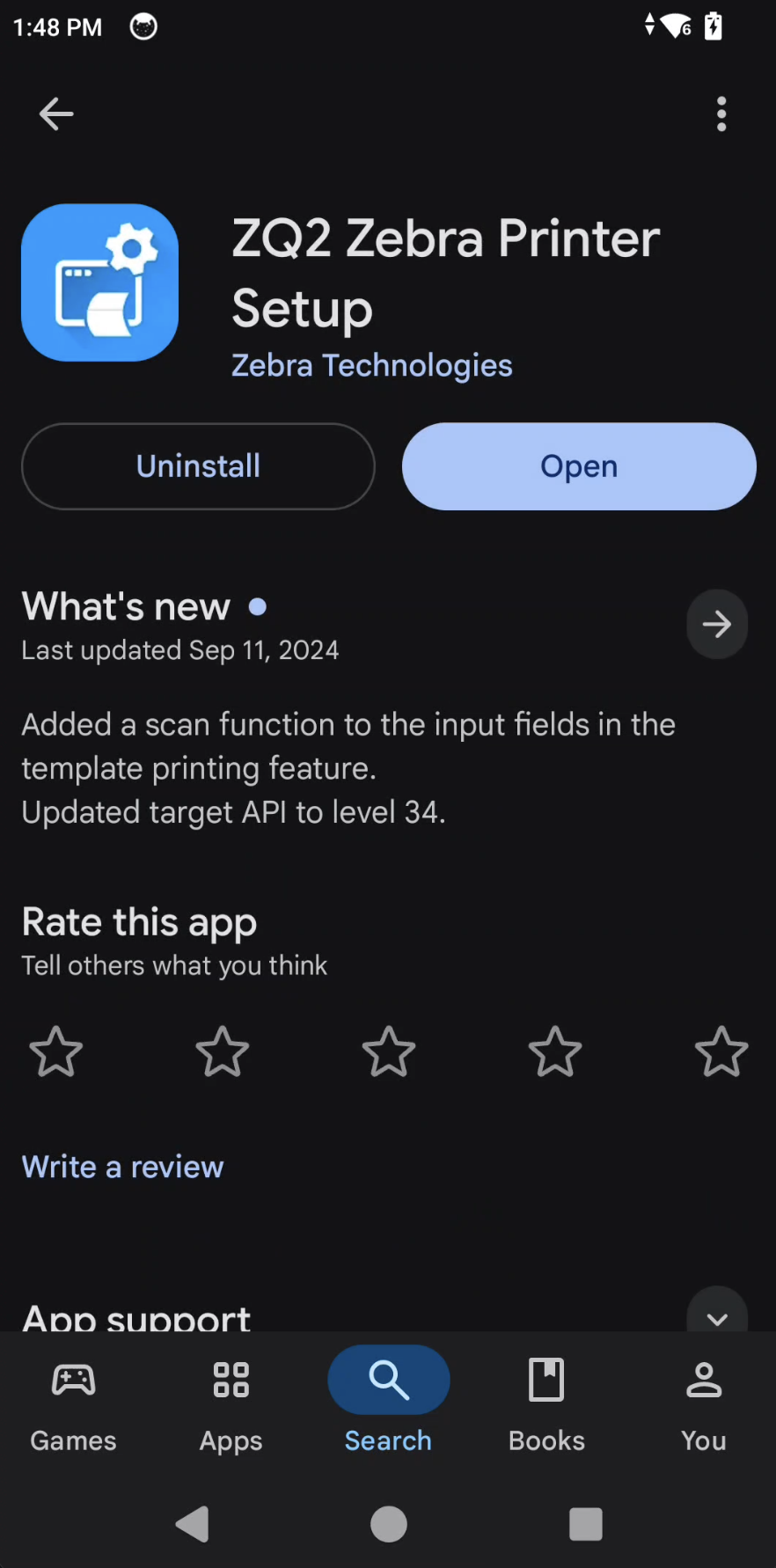
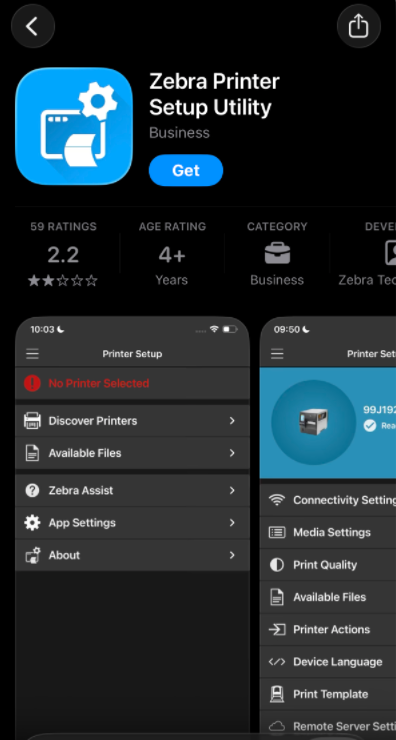
| The Zebra setup app | Free. It’s listed as ZQ2 Zebra Printer Setup on the Play Store and Zebra Printer Setup Utility on the App Store. Same tool, different store name. Install it on the same device you run Rundoo on. |
| Black-mark label stock | Perforated, 0.75" core, in one of the three sizes that have a preset template (below). |
Label media
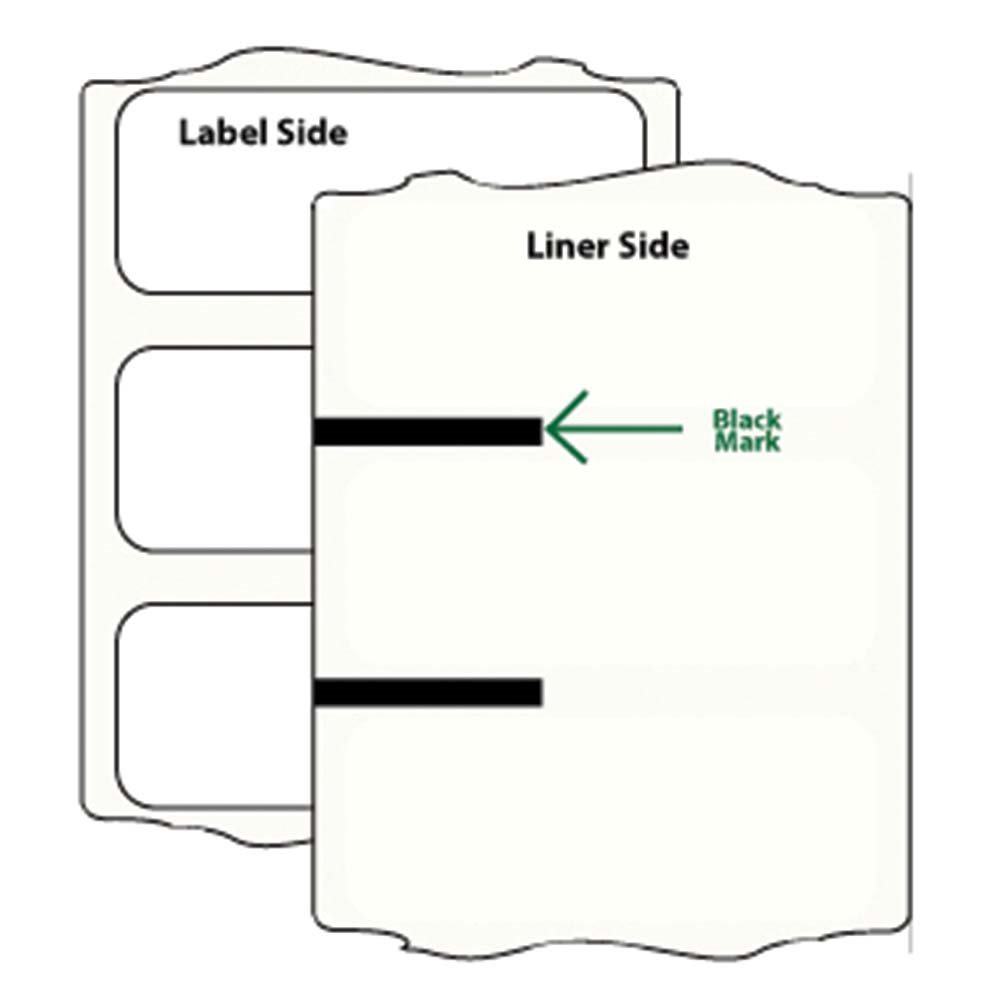
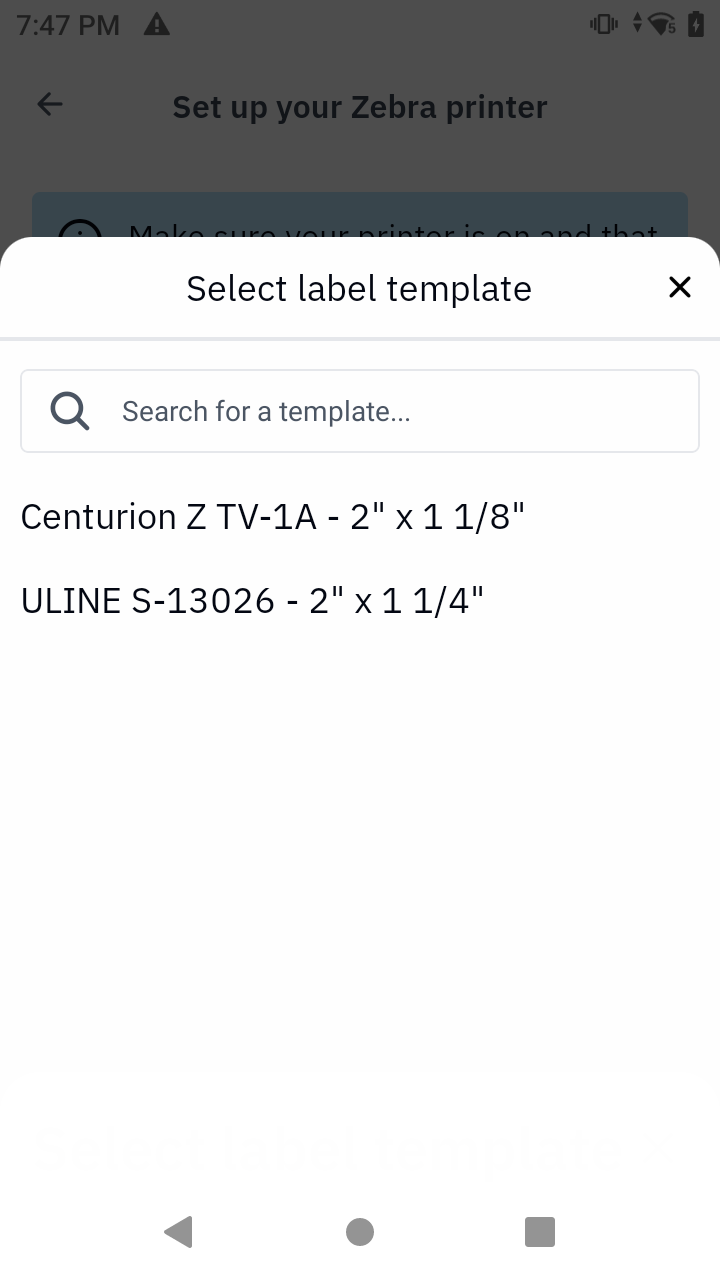
The printer finds where each label starts by reading a black timing mark printed on the back of the liner. Order stock that has that mark, plus a perforation and a 0.75" core, in one of these three sizes, each has a matching template in Rundoo:
| Template in Rundoo | Label size |
|---|---|
| Centurion ZTV1 | 2" × 1.125" |
| Uline S-13026 | 2" × 1.25" |
| Uline S-17071 | 3" × 1" |
Black timing marks are non-negotiable. Ordinary label stock gives the printer nothing to detect, so it never calibrates, it just feeds labels until it reports media out. Before assuming a printer is broken, flip the roll over and confirm there’s a repeating black bar on the liner. A different size is possible through the custom label builder, but one of the three preset sizes above is the safer choice whenever it fits.
Step 1: Prepare the printer
Everything in this step happens on the printer’s own hardware, before you pick up a phone.
-
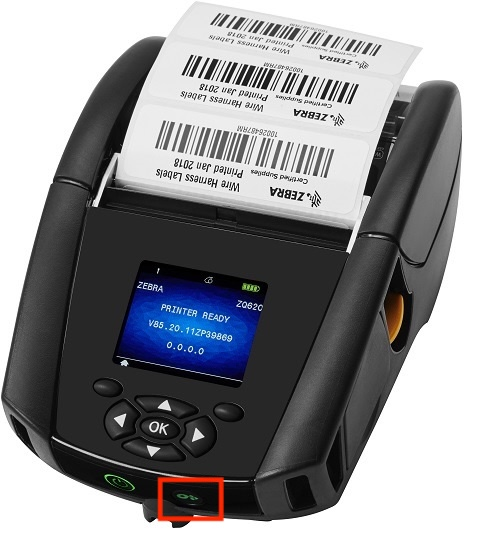
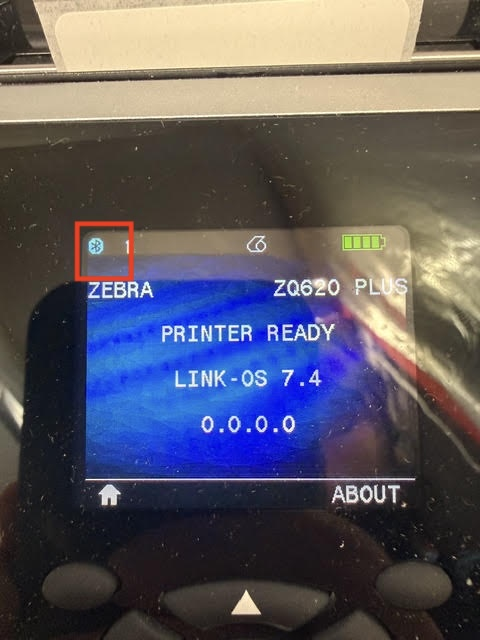
Wake it and confirm Bluetooth. Hold the printer’s Feed button (the small icon that looks like a roll) for about eight seconds, then watch the top-left of the printer’s screen. The Bluetooth icon will start blinking in the status bar, and that flashing icon (not just its appearance) is the sign the printer is discoverable. If the icon isn’t there, nothing else will connect.
-
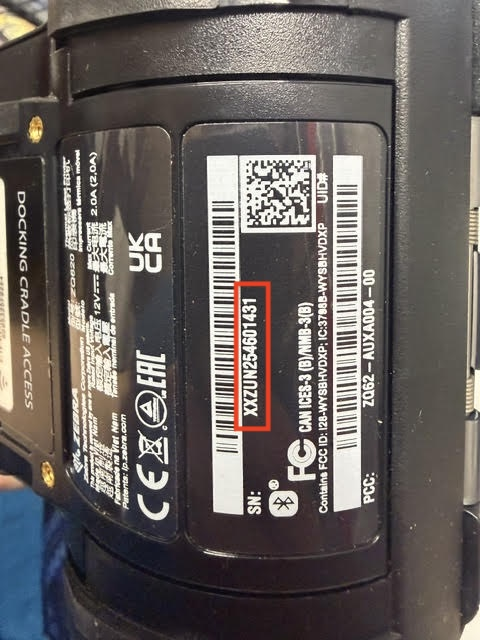
Note the serial number. It’s on the label under the battery door. Keep it in front of you, every list you’re about to use identifies printers by serial, and nearby units often differ by only a digit or two.
-
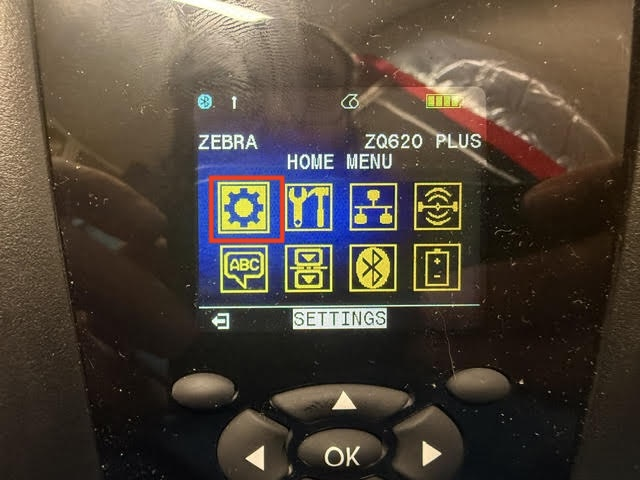
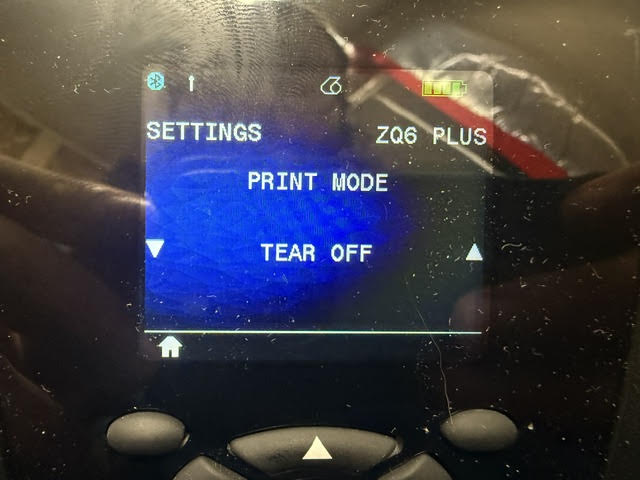
Set Print Mode to Tear Off. On the printer’s LCD, open the home menu and go to Settings > Print Mode > Tear Off (menu password 1234).
If labels feel impossible to tear off, the printer shipped in Rewind mode. In Rewind mode the label never advances to the tear bar. Set Print Mode to Tear Off on the printer’s LCD (password 1234) and it will present each label at the tear bar. Rundoo never changes this setting, so you only set it once.
Step 2: Lower the Bluetooth security to 1
This is the setting that most often blocks a working setup. Open the Zebra setup app and connect it to the printer first, this is where Android and iPhone differ:
-
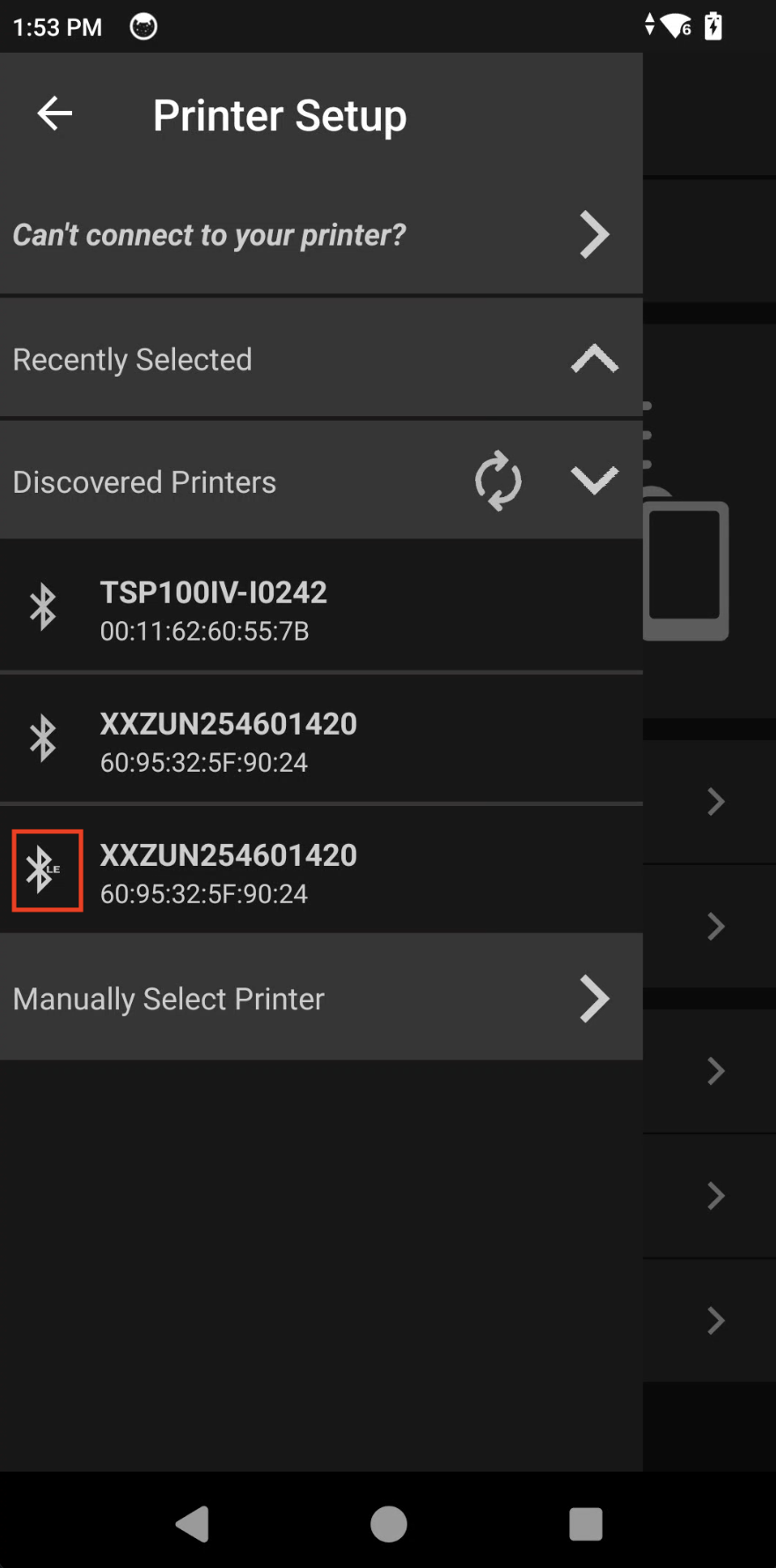
Android: no system-level pairing needed. Open the app, tap Discover Printers, and pick your printer from the list. It appears twice with the same MAC address, choose the entry whose Bluetooth icon carries the small LE badge. The plain entry won’t connect.
-
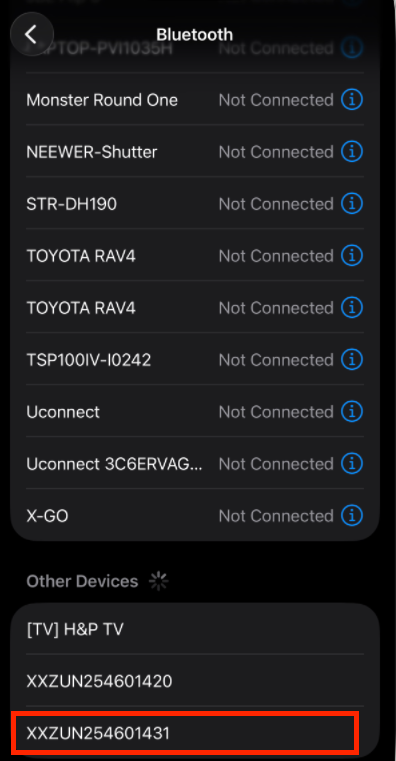
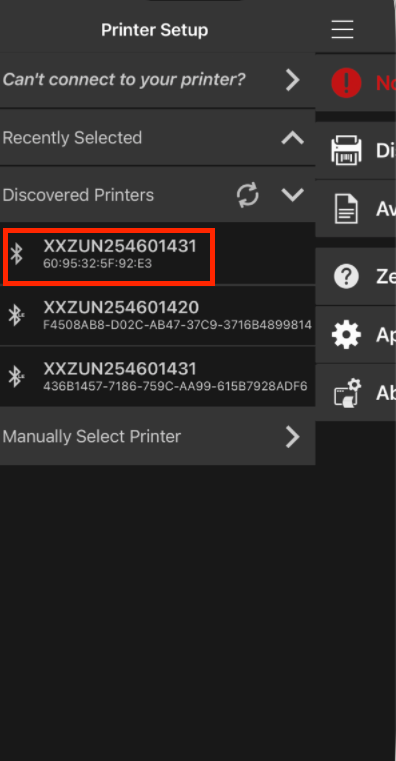
iPhone: pair in iOS Settings first. Go to Settings > Bluetooth, tap the printer under Other Devices, accept the prompt on the printer’s screen, then tap Pair on the phone. Then open the Zebra app, tap Discover Printers, and select the printer by serial number.
On Android, install ZQ2 Zebra Printer Setup and pick the LE-badged entry (the serial appears twice at the same MAC address):
On iPhone, pair in iOS Settings first, install the Zebra Printer Setup Utility, then select the printer by its serial:
With the printer showing Ready in the app, change the security mode:
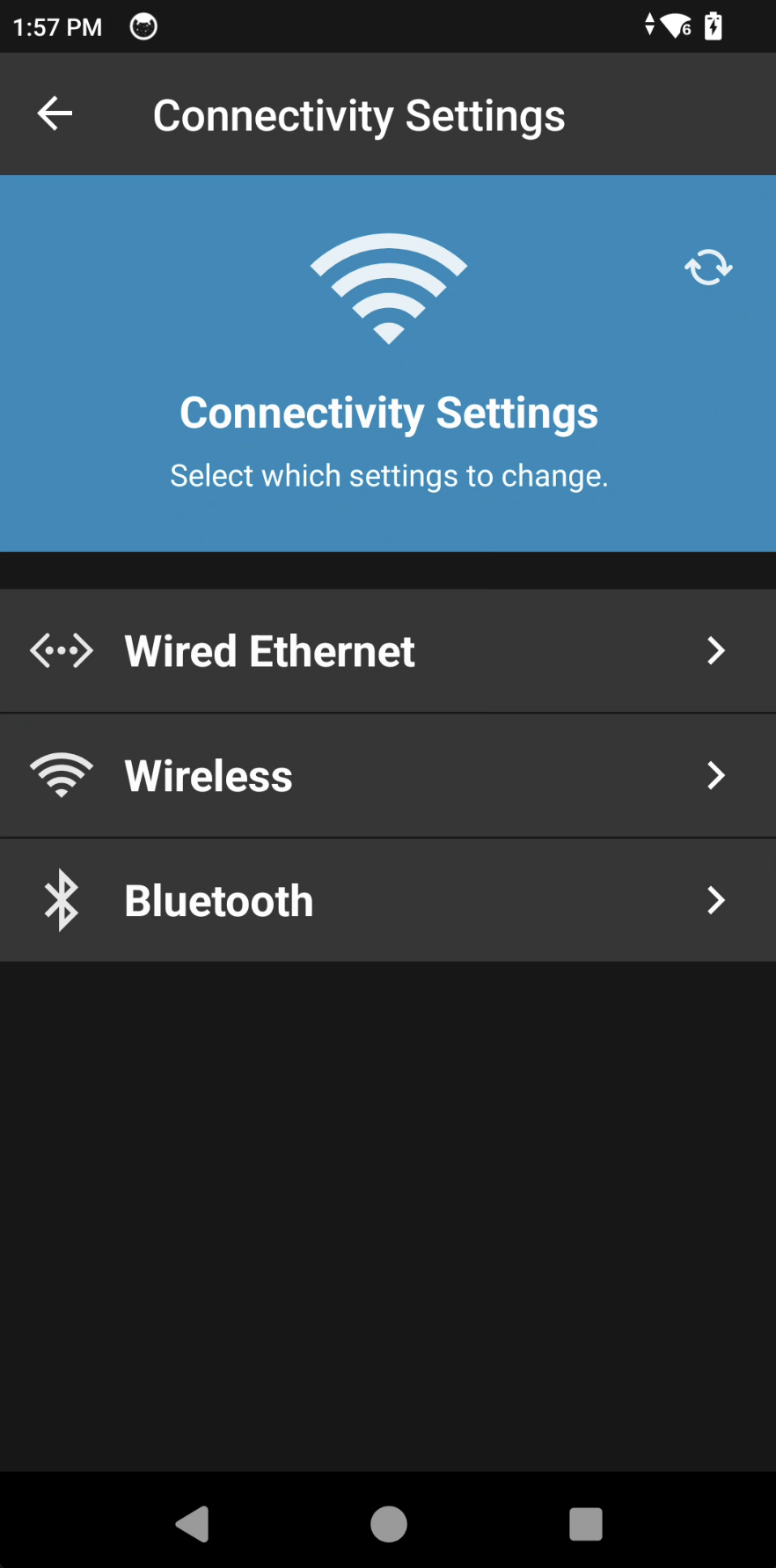
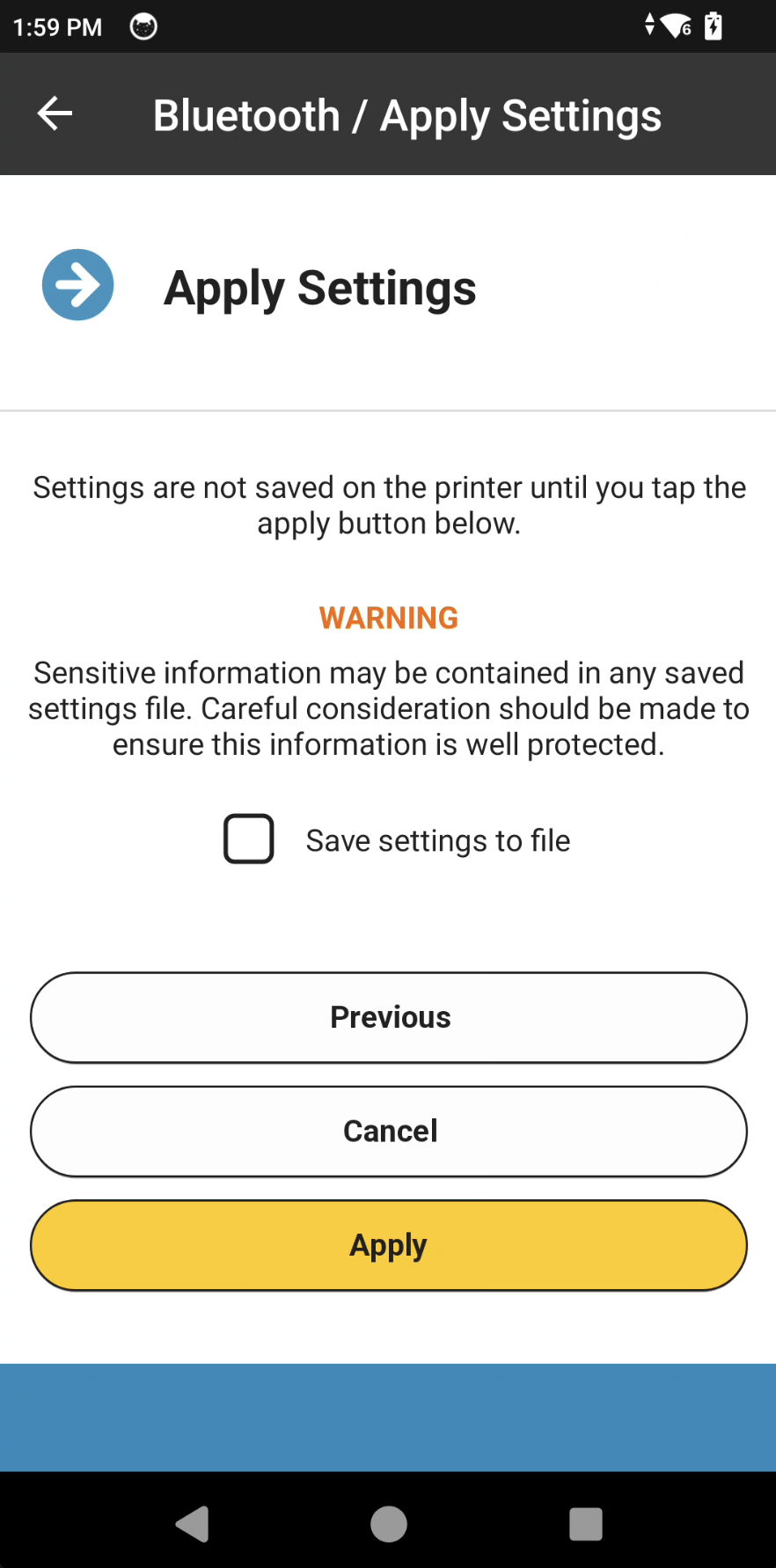
Connectivity Settings > Bluetooth, turn Discoverable on, tap Next. On the next screen, Minimum Bluetooth Security Mode reads 3, change it to 1, tap Next, then Apply. The printer restarts and the setting takes effect.
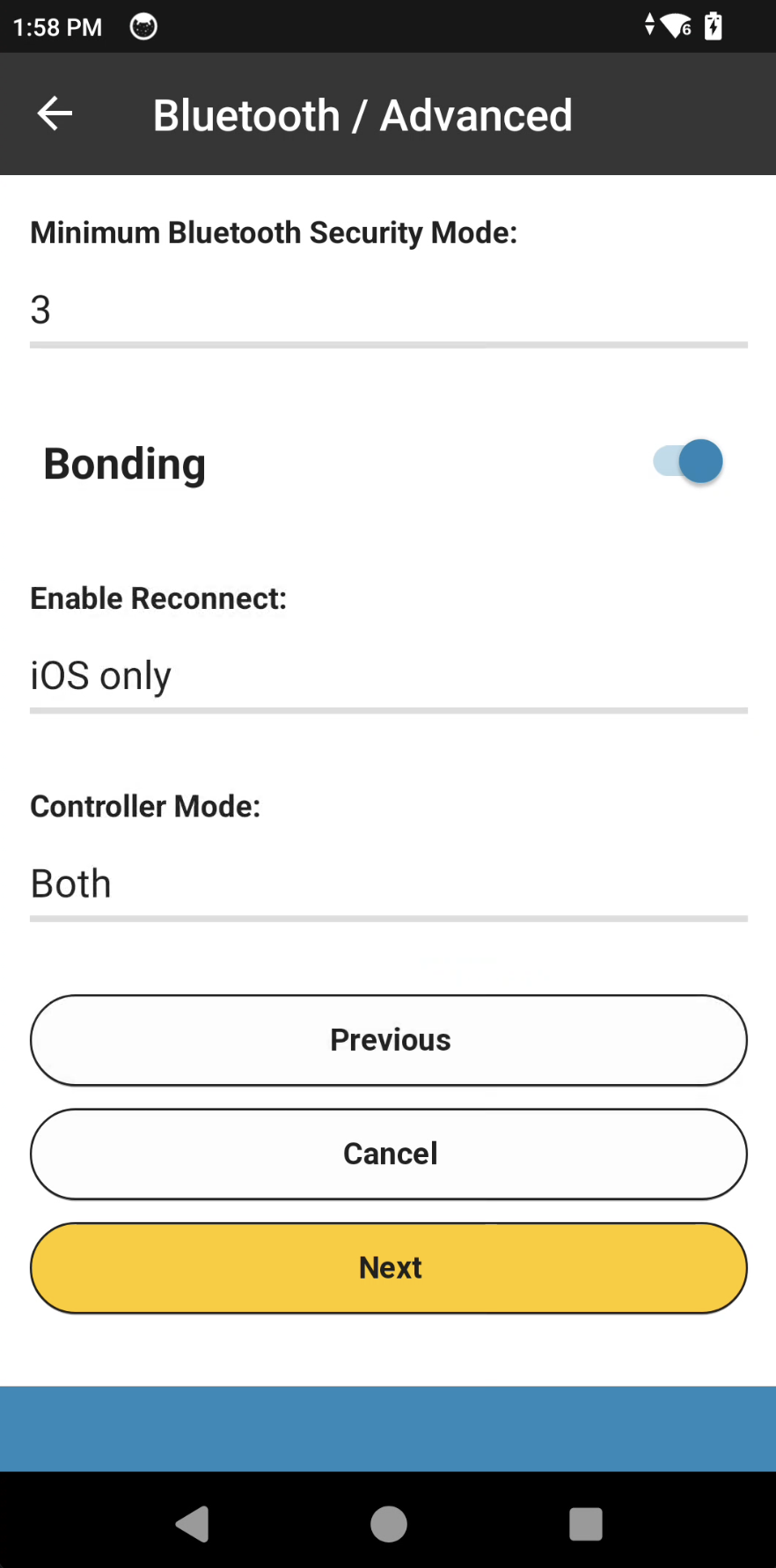
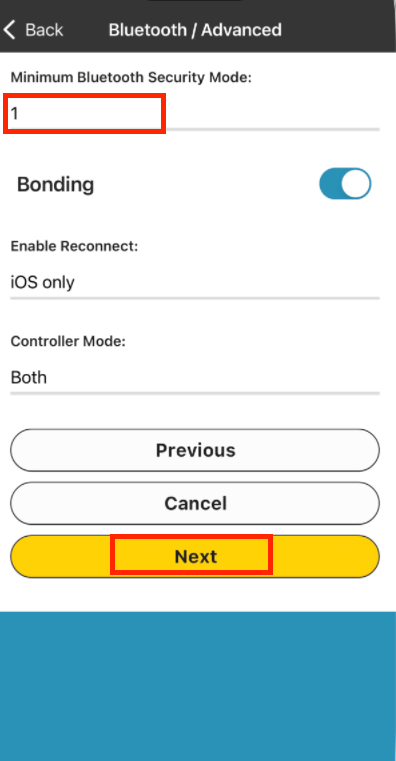
At the factory value of 3, Rundoo cannot connect, even though everything looks fine. The printer may still pair and show as Ready, which is what makes this hard to diagnose. The failure surfaces later, as a pairing error or a Calibrate that never completes. If a setup fails at Calibrate, check this value before anything else. Like Print Mode, you set it once and it sticks.
Step 3: Connect the printer in Rundoo
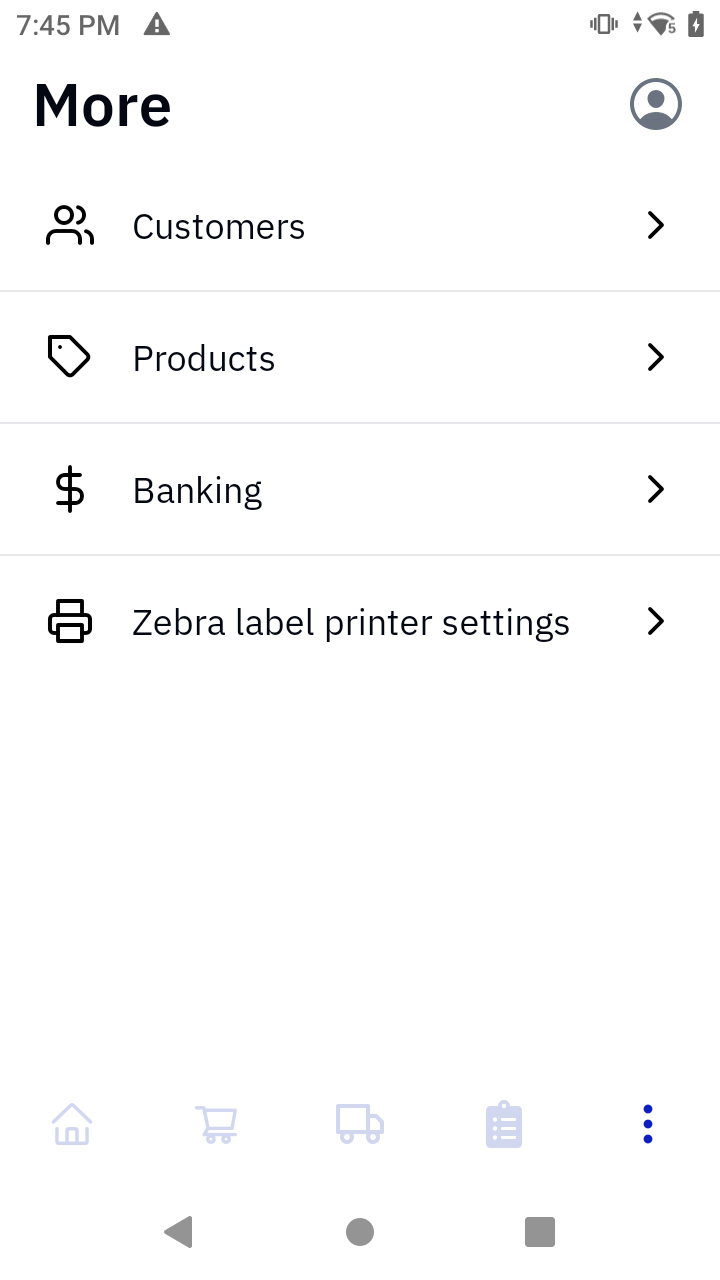
In the mobile app, open More > Zebra label printer settings and tap Scan to connect.
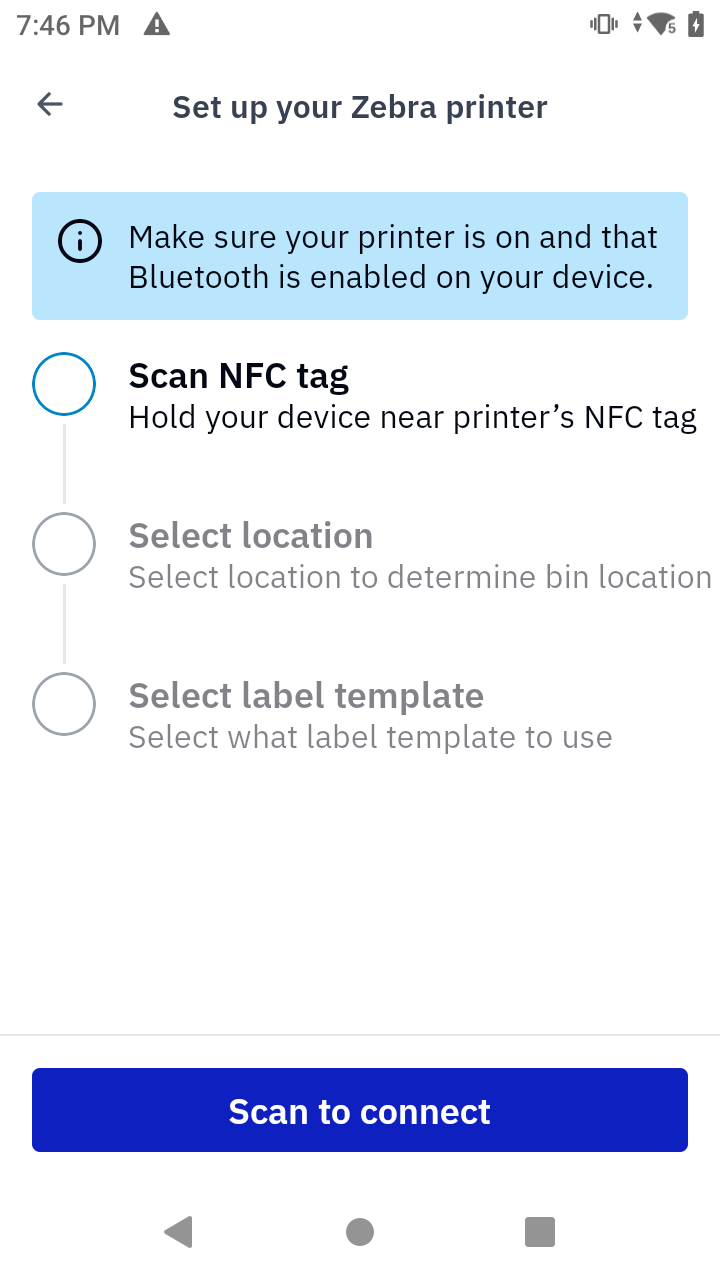
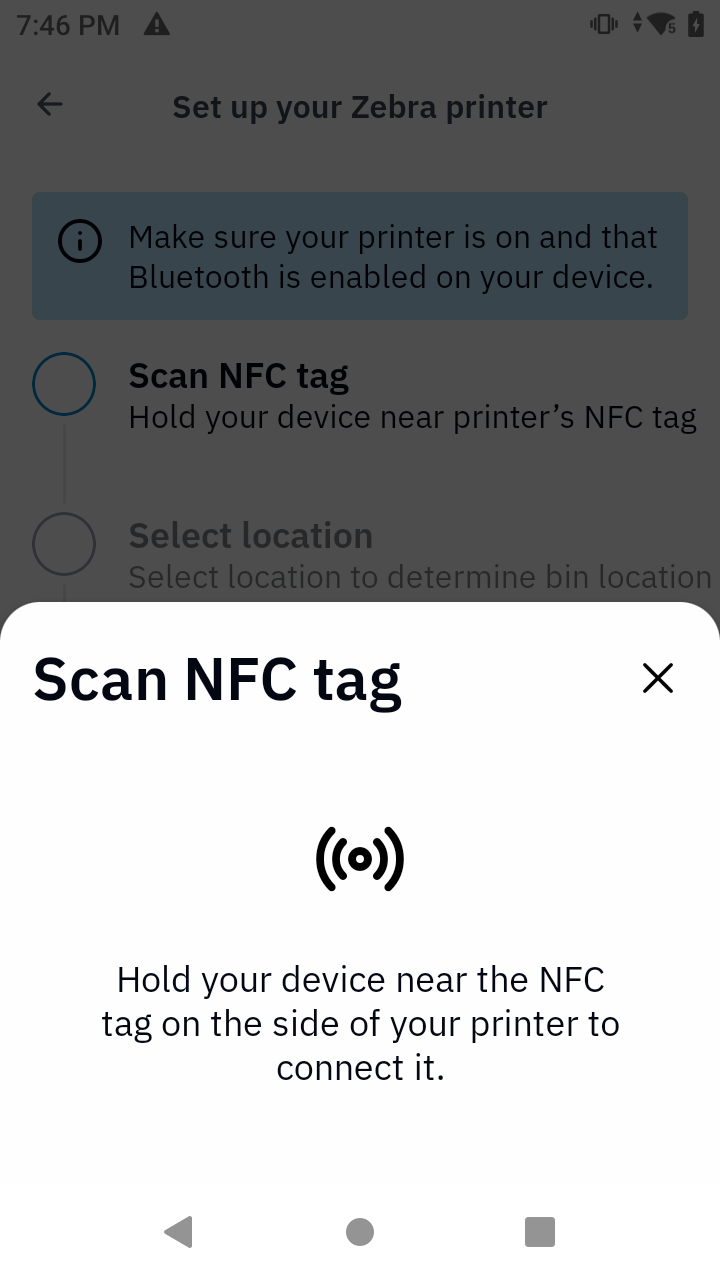
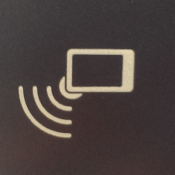
Hold the device to the NFC logo on the side of the printer. The NFC tag is marked with this icon:
Where you tap depends on the device. On a Zebra handheld the NFC antenna is under the screen, so tap the screen face to the printer, not the back, even though the app’s wording says otherwise. On an iPhone, use the top of the back, as the app describes.
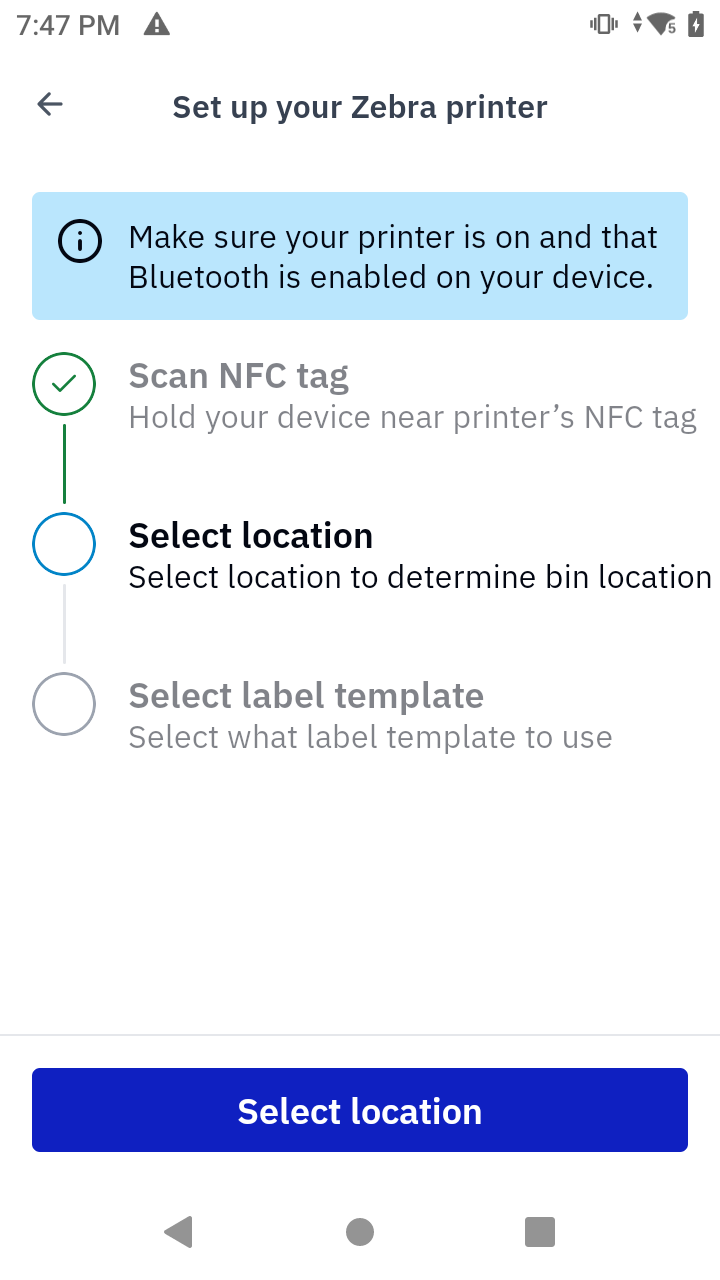
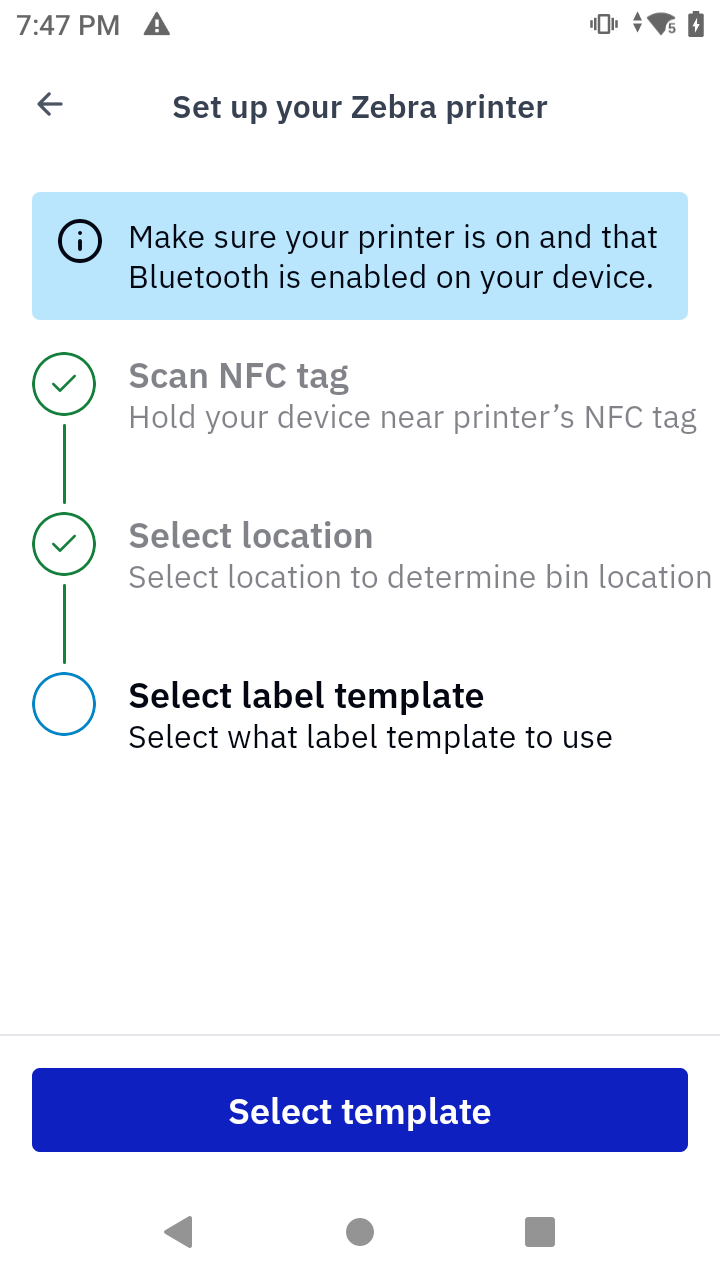
After the tap, the wizard walks the rest of the connection. On Android it shows three steps (Scan NFC tag, Select location, Select label template). On iPhone it shows four, adding a Connect via Bluetooth step, if the printer isn’t already paired, Apple’s accessory picker opens so you can finish pairing without leaving Rundoo.
Pick the location so labels print with the correct bin location:
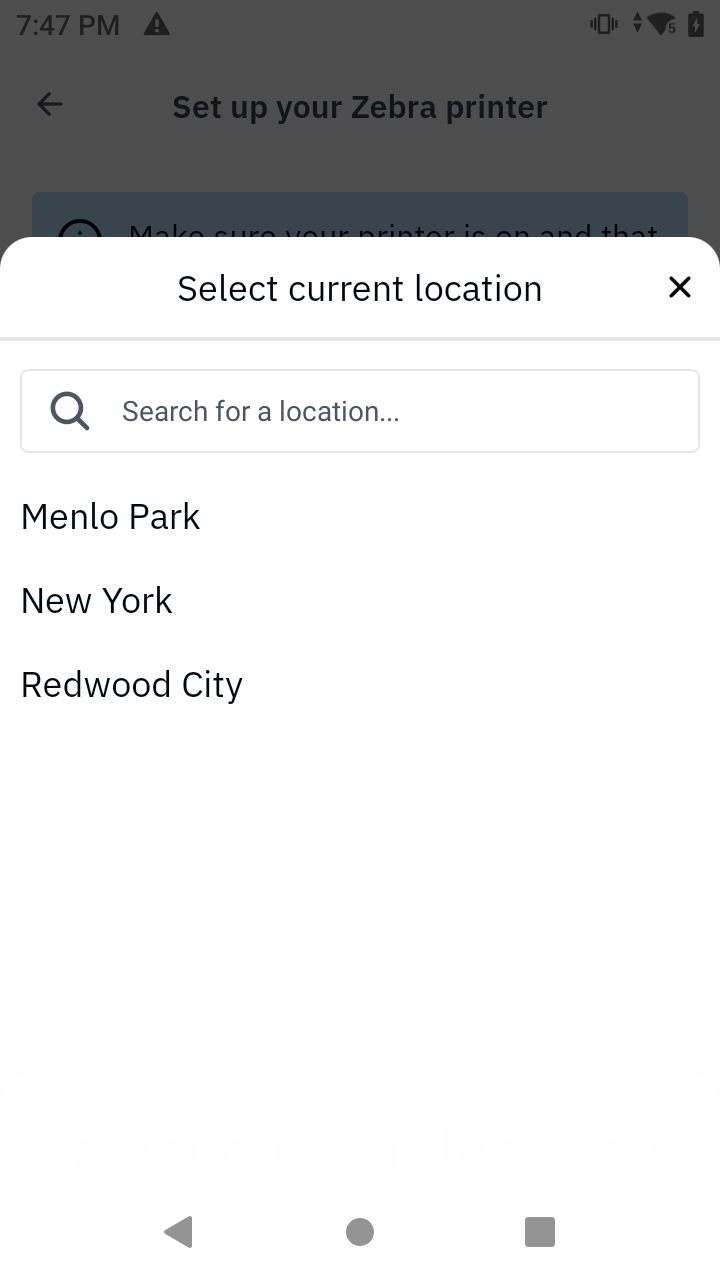
Then pick the label template. It has to match the roll you physically loaded, or the content lands in the wrong place, which looks like a printer alignment fault and isn’t one. If the template you need isn’t listed, reach out to support and we’ll add it.
Step 4: Calibrate and print a test label
Tap Calibrate. The printer should feed two or three labels while it finds the timing mark, then stop, that short feed is normal.
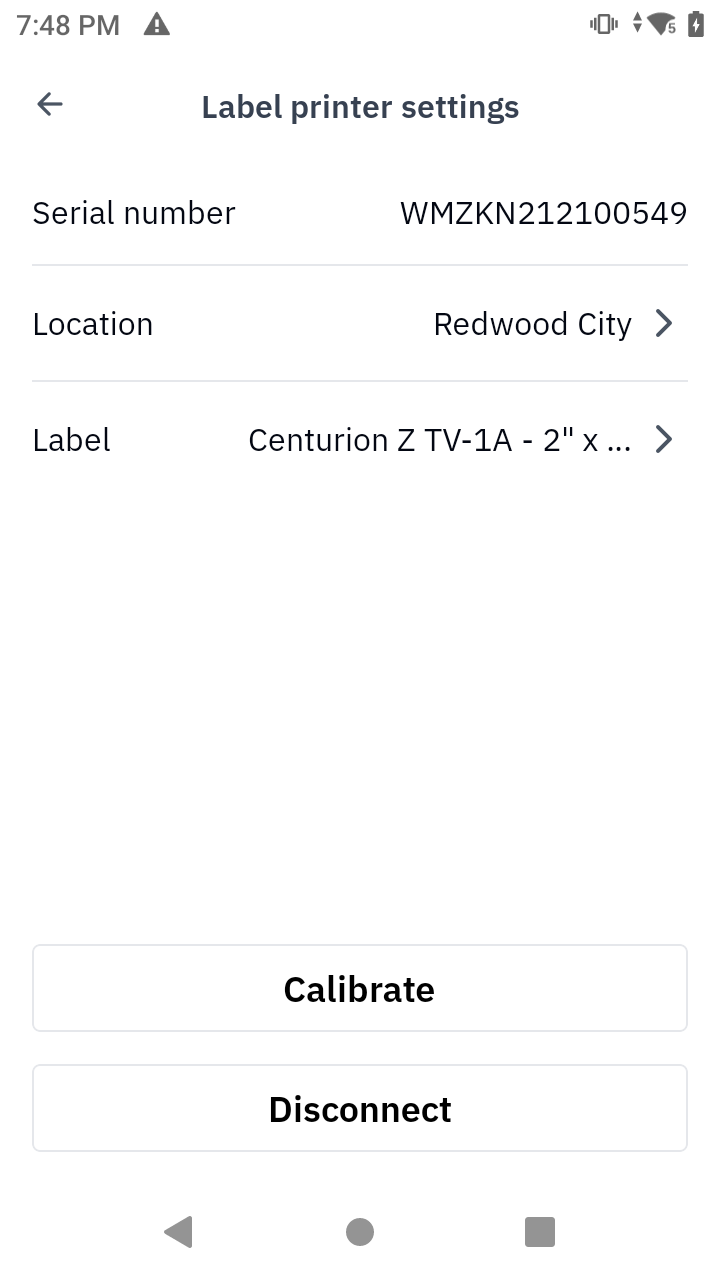
If Calibrate feeds label after label and ends in a media-out error, the roll has no black timing marks. No setting fixes that, swap in black-mark stock. Calibrate is also the first step that truly uses the Bluetooth connection, so a failure here is usually a connection problem: on Android, re-check that you picked the LE entry and that Minimum Bluetooth Security Mode is 1.
Then open any product and tap Print label.
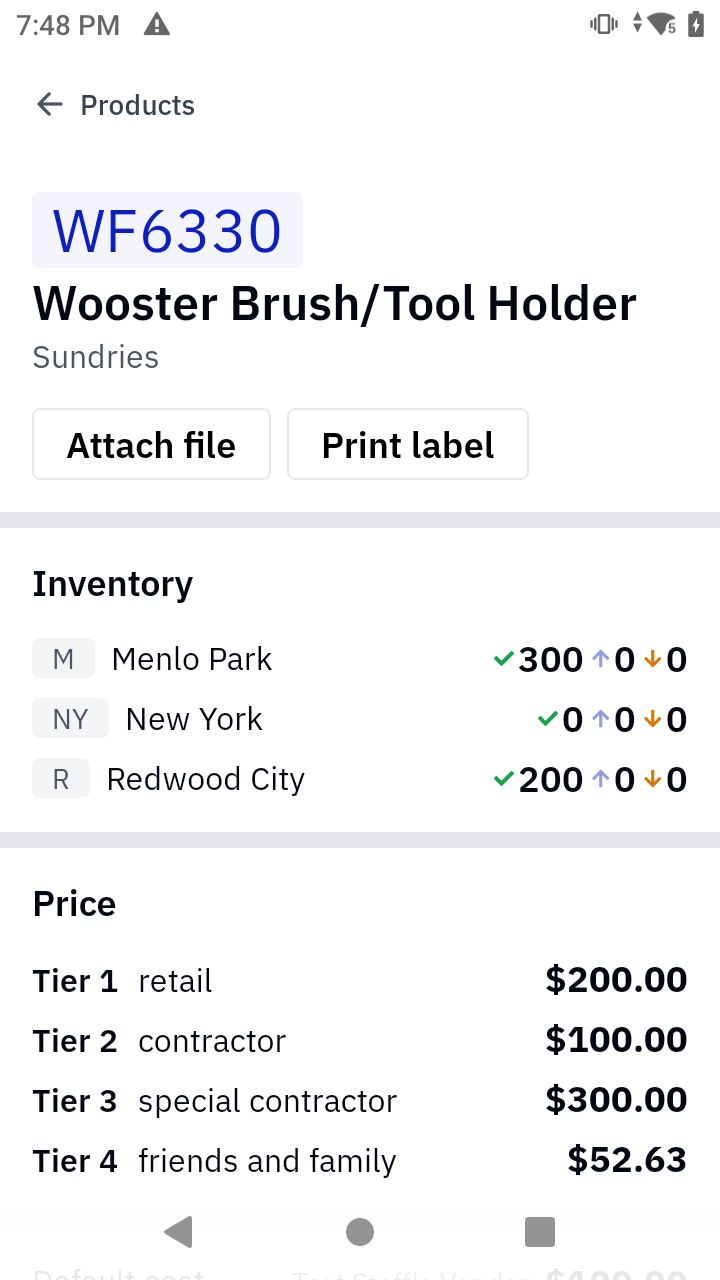
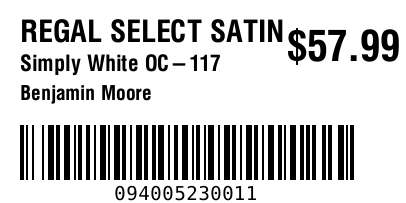
A correct label shows the product name, price, the identifier with the print date, and the barcode beneath it. Text sits centered vertically with roughly even space above and below, that’s by design, not a misprint.
Reconnection is the least reliable part of this system. Once a printer is connected and printing, avoid disconnecting it, letting the battery die, or wandering out of range. If it does drop, the fastest recovery is usually to hold Feed until the Bluetooth icon returns, reconnect in the Zebra app, then go back to Rundoo.
Where Android and iPhone differ
Only the connect step differs. Preparing the printer before it and everything in Rundoo after it are identical, so treat this as one process with a fork in the middle.
| Behavior | Android | iPhone |
|---|---|---|
| System-level Bluetooth pairing | Not needed, the Zebra app pairs on its own | Required before the Zebra app will connect |
| Which entry to pick in the Zebra app | The one with the LE badge (both show the same MAC) | Select by serial number |
| Steps in Rundoo’s setup wizard | Three, no Bluetooth step | Four, including Connect via Bluetooth |
| Where to tap for NFC | Zebra handhelds: the screen face. Other Android phones: usually the upper back | Top of the back, as the app describes |
| Setup app name in the store | ZQ2 Zebra Printer Setup | Zebra Printer Setup Utility |
Troubleshooting
Work top to bottom, most of these show up with a symptom that points somewhere other than the real cause.
| What you see | What it usually is | Fix |
|---|---|---|
| Printer never appears in the Zebra app’s list | Bluetooth isn’t on at the printer | Hold Feed about eight seconds until the Bluetooth icon shows on the printer’s screen. |
| Connects in the Zebra app, then fails in Rundoo | On Android, the plain Bluetooth entry was picked instead of the LE one, or security is still 3 | Reconnect using the LE entry and confirm Minimum Bluetooth Security Mode is 1. |
| Pairing or connection errors that come and go | Wrong printer selected, serials differ by a digit or two | Read the serial off the label under the battery door and match it exactly. |
| Labels feel impossible to tear off | Printer is in Rewind mode | On the printer’s LCD, Settings > Print Mode > Tear Off (password 1234). |
| NFC scan never connects | Tapping the wrong face of the device | Zebra handhelds: tap the screen. iPhone: top of the back. |
| Calibrate feeds labels until media out | The roll has no black timing marks | Replace the media with black-mark stock. No setting fixes this. |
| Printing starts partway down the label | The template doesn’t match the loaded roll | Match the template to the physical label size. |
Still stuck? Rundoo Support can walk the setup with you. Configuring the printer before it ships to a store, or remoting into the device, is far more reliable than a voice-only walkthrough, because a missed step early on usually surfaces as a failure much later.
Recommended Rundocs
-
Printer setup (desktop thermal receipt printers).
-
Printer troubleshooting (label and receipt printer issues after setup).
-
Hardware setup (the full store gear list, including which printer models are recommended).
-
Product labels (designing and printing labels, including desktop label printers).