
Rundocs › Admin & Settings
Units of measure
Last updated 2026-05-11
Units of measure (UOMs) are how Rundoo counts a product (EA, BOX, GAL, 5GAL, Board Foot) and every product has exactly one base UOM that governs how it's stocked, priced, and rung up.
In the Admin mode, open Product in the left sidebar, then scroll to the Units of measure section.
What a unit of measure is
A UOM is a unit Rundoo can count a product in. At the company level, you define the set of UOMs your store uses, EA, BOX, GAL, 5GAL, Board Foot, Pallet, anything you count. On each product, you pick which UOM governs each kind of transaction (stocking, pricing, sale, order, transfer) over on the product's own Settings tab (see Products).
UOMs have three fields: a full Name (5 Gallon Bucket), an Abbreviation (5GAL) that shows up on receipts and labels where space is tight, and optional Notes for internal context.
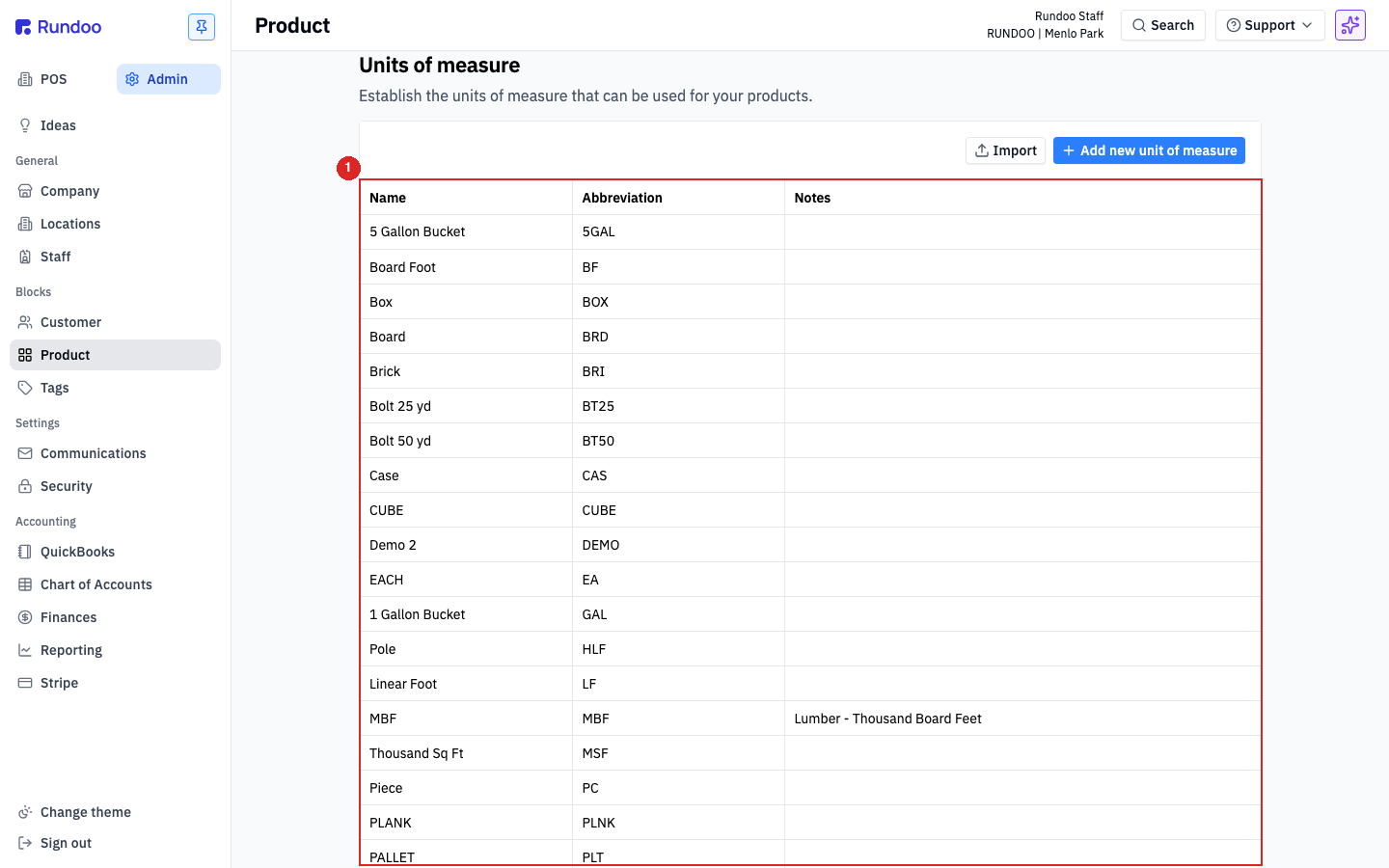
The list here is the full catalog of UOMs available across your company. Every product on the system can only use UOMs from this list.
Adding a unit of measure
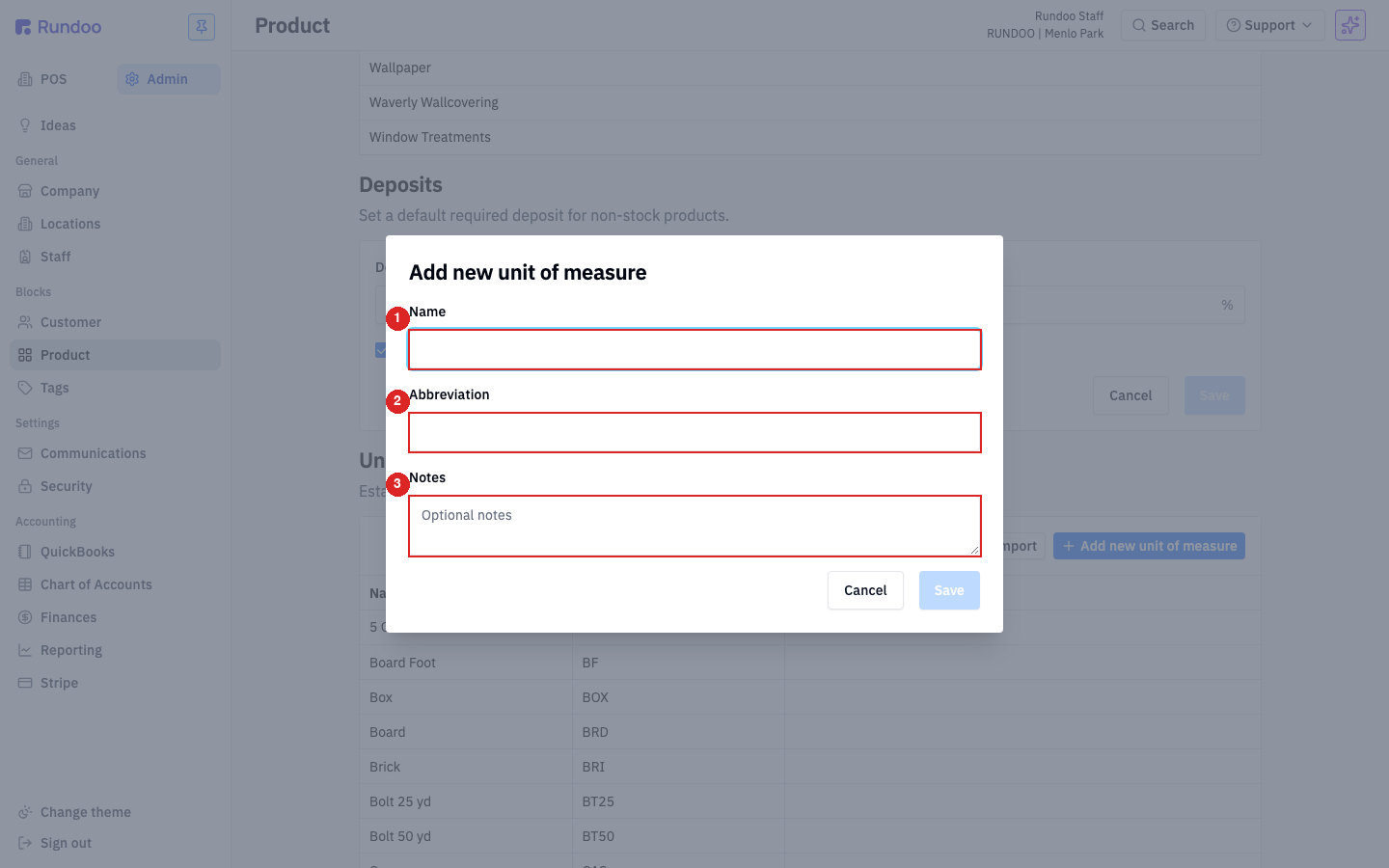
Click Add new unit of measure at the top-right of the section. A modal opens with three fields (Name, Abbreviation, Notes) and you fill in whichever ones apply.
-
Name (the full label). Use whatever reads cleanly to staff (
5 Gallon Bucket,Board Foot,Case). -
Abbreviation, the short form for receipts, labels, and anywhere the UI is space-constrained (
5GAL,BF,CS). Keep it under about 5 characters. -
Notes (optional). Internal context for other admins ("we only use this for the mill's pallet count," that kind of thing). Never shown to customers.
Click Save and the UOM is immediately available to assign to products.
If you have a spreadsheet of UOMs to bring over from another system, Import (top-right, next to Add new unit of measure) takes a CSV. Same pattern as Product imports.
Editing a unit of measure
Click any row in the UOM table. Rundoo opens the same modal as Add new unit of measure, pre-filled with that UOM's values, plus a red Delete button in the bottom-left.
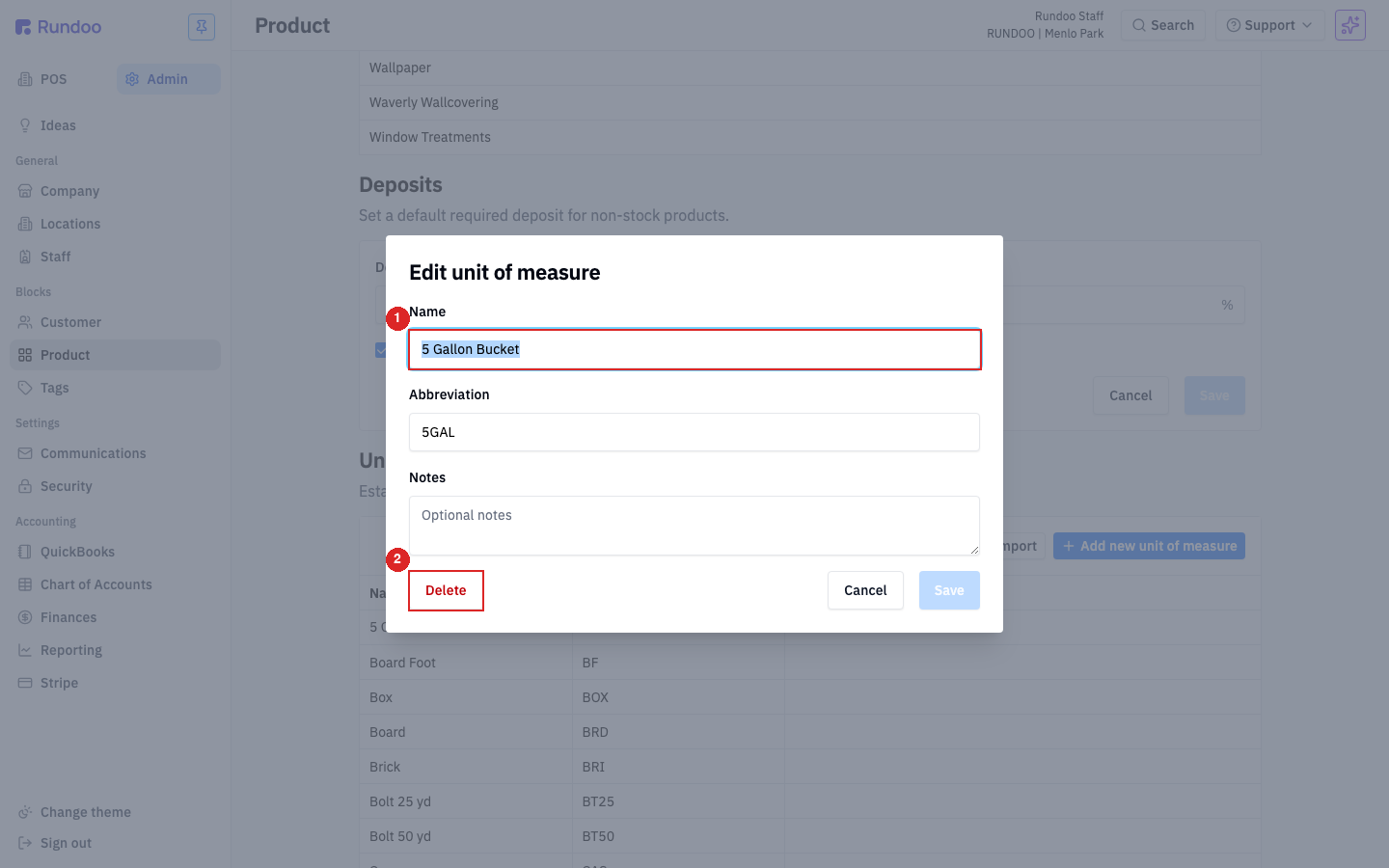
Rename, change the abbreviation, update notes, then Save. The change propagates to every product using this UOM (new sales and orders use the updated name, but historical receipts and documents show whatever was in place at the time of the transaction).
Deleting a UOM is permanent and may break things. If the UOM is still assigned to any product as its default for stocking, pricing, sale, order, or transfer, deleting here will leave those products with a missing default. Back out the UOM from every product first (see below), or leave it in place, a leftover UOM you no longer use is harmless.
Unit conversions on a product
UOMs defined here are the menu. What each individual product uses (its default UOMs for each kind of transaction, and any alternate UOMs it can be sold in) is configured on the product itself.
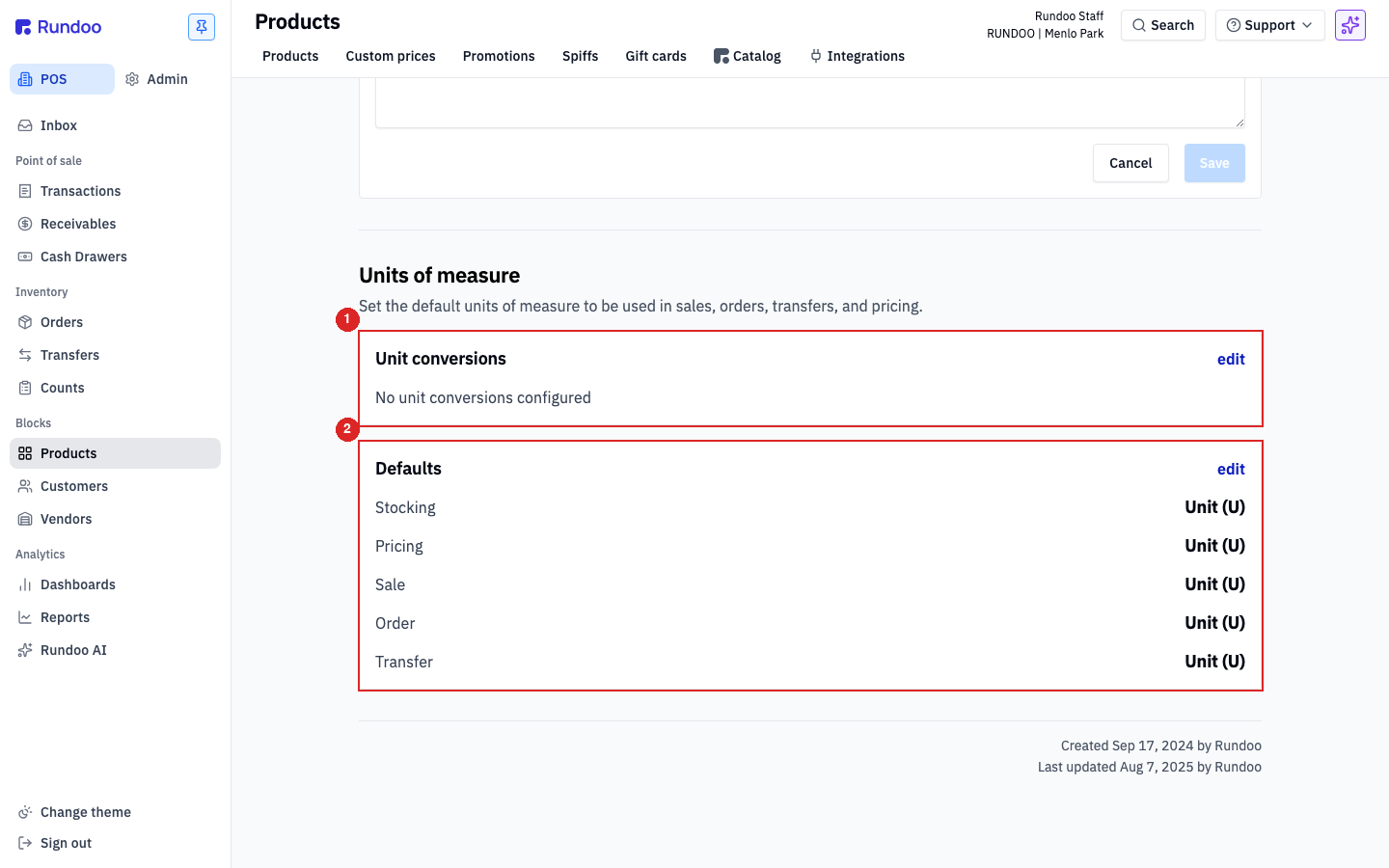
Open a product and click the Settings tab. Near the bottom you'll find the Units of measure section, split into two cards:
-
Unit conversions (alternate UOMs this product can be sold, ordered, or transferred in, each with a conversion factor back to the stocking UOM). Paint sold by the
Gallonbut also carried as a5 Gallon Bucketlives here (1 5GAL = 5 GAL). Click edit to add or adjust a conversion. Conversions are per-product. Defining1 BOX = 12 EAon one product does not create that rule anywhere else. -
Defaults (which UOM is used for each kind of transaction): Stocking (how inventory is counted), Pricing (what the price refers to), Sale (what the cashier rings up in), Order (what a PO is written in), Transfer (what an inter-location transfer moves in). These default to the product's base UOM and can be overridden per row.
Below the two cards is a toggle: Allow separate pricing unit selection in sales cart. Off by default, a cashier ringing this product up sees the Sale unit only, and pricing follows the Pricing default automatically. Turn it on for products whose pricing unit a cashier needs to override at cart-time, for example, paint normally priced per gallon but quoted per 5-gallon pail for a contractor on a big job. With the toggle on, the cart line exposes a separate pricing-unit dropdown so the cashier can pick which UOM the price refers to without leaving the cart.
This toggle has nothing to do with how often the product is sold in alternate UOMs. That's controlled by the Unit conversions card above. The toggle only controls whether the cashier can pick a different pricing UOM than the product's default at the moment of the sale.
See Products for the full product setup flow, including where UOM defaults sit in relation to the rest of product detail.
Recommended Rundocs
-
Products (where per-product UOM defaults and conversions are actually set).
-
Product imports, for bulk-loading UOMs and their product assignments via CSV.