
Rundocs › Admin & Settings
Company details
Last updated 2026-09-11
Company details are the name, branding, and contact info that show up on every receipt, invoice, and statement your customers see.
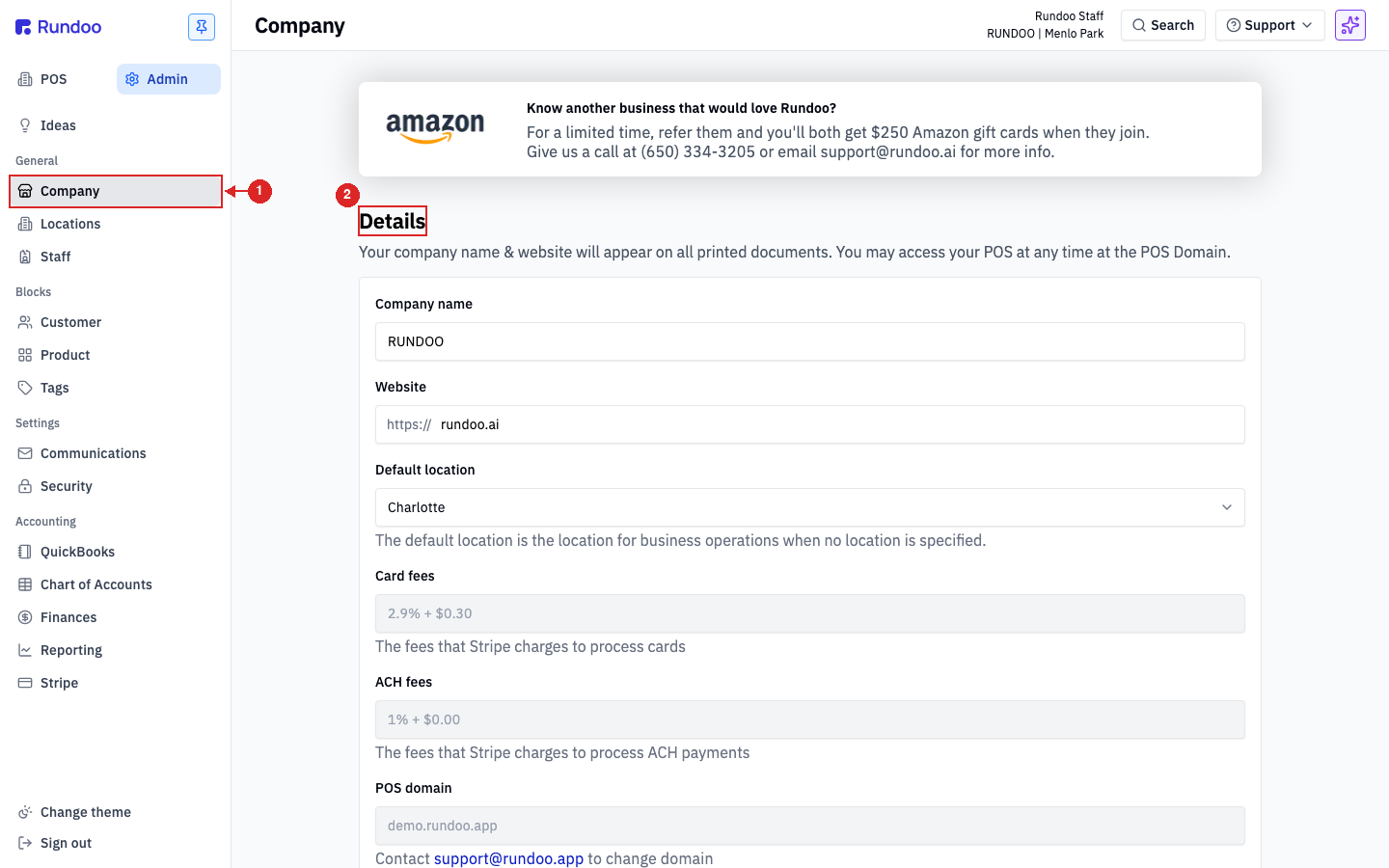
In the Admin mode, open the Company tab in the left sidebar. The Details section sits at the top of the page.
What's on the Company tab
The Company tab is a long settings page split into four sections. Each one saves independently. You edit, hit Save, and only that section commits.
-
Details, the fields covered in this Rundoc: company name, website, default location, Stripe fees, and POS domain.
-
Cost management, pick the costing method Rundoo uses for COGS and margin reporting (
Average costis the default) and control cost warnings at the register. AWarn if selling an item below costtoggle here flags the cashier when a line is about to ring up under the product's cost, so a mis-keyed price or an aggressive manual discount gets a second look before the sale completes. -
Benjamin Moore offers, Benjamin Moore CCP, RSD, and Contractor Rewards integration. Covered in [Benjamin Moore offers] (being written in parallel).
-
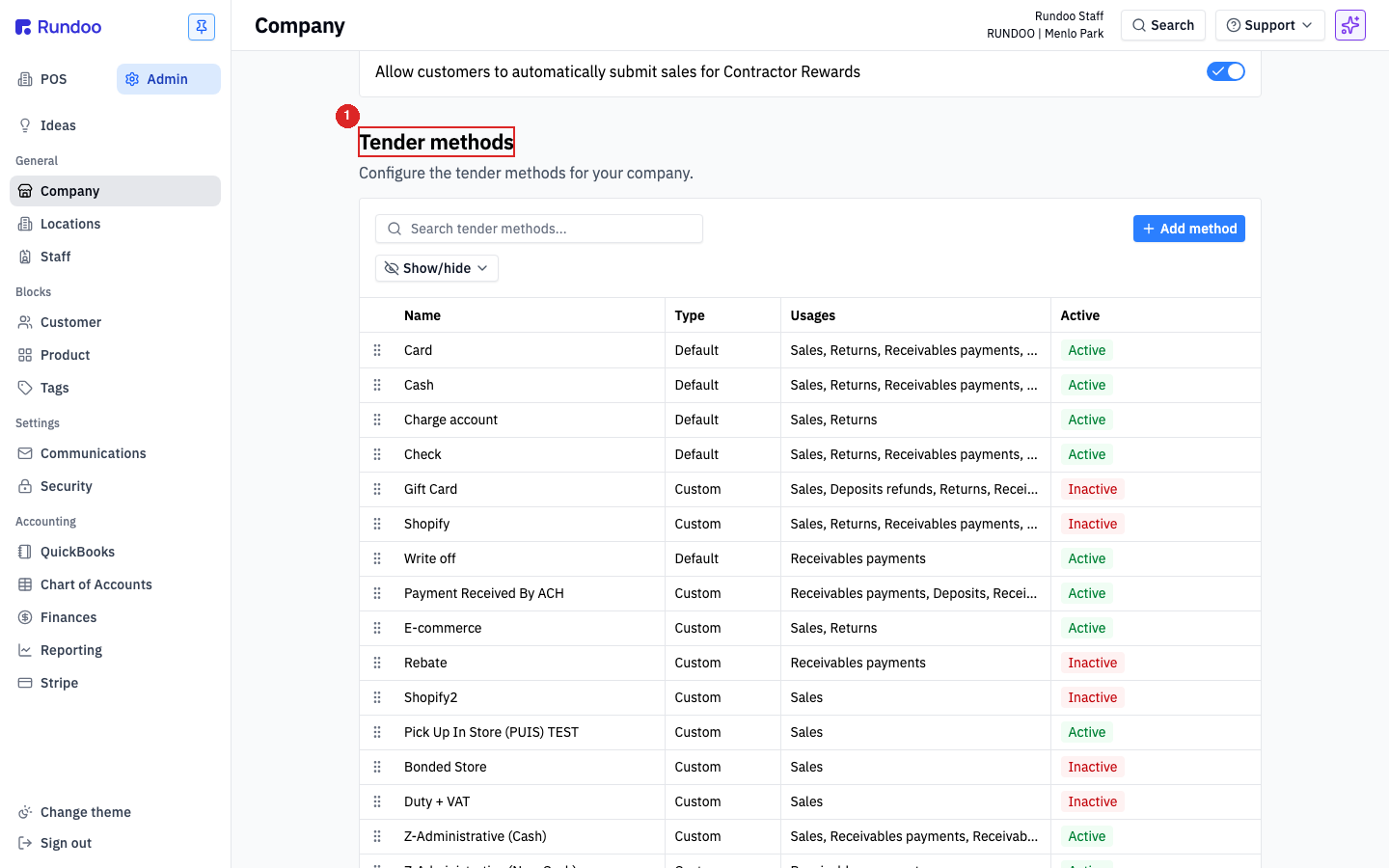
Tender methods (how customers pay). Covered in Tender methods.
A couple of settings that sound like they'd live here actually live elsewhere: tax rates live on the Locations tab (see [Tax], being written in parallel), and card surcharges + loyalty points live on the Communications tab.
Editing company details
The Details section is where the basics of your company live (the stuff that shows up on printed receipts, invoices, and statements).
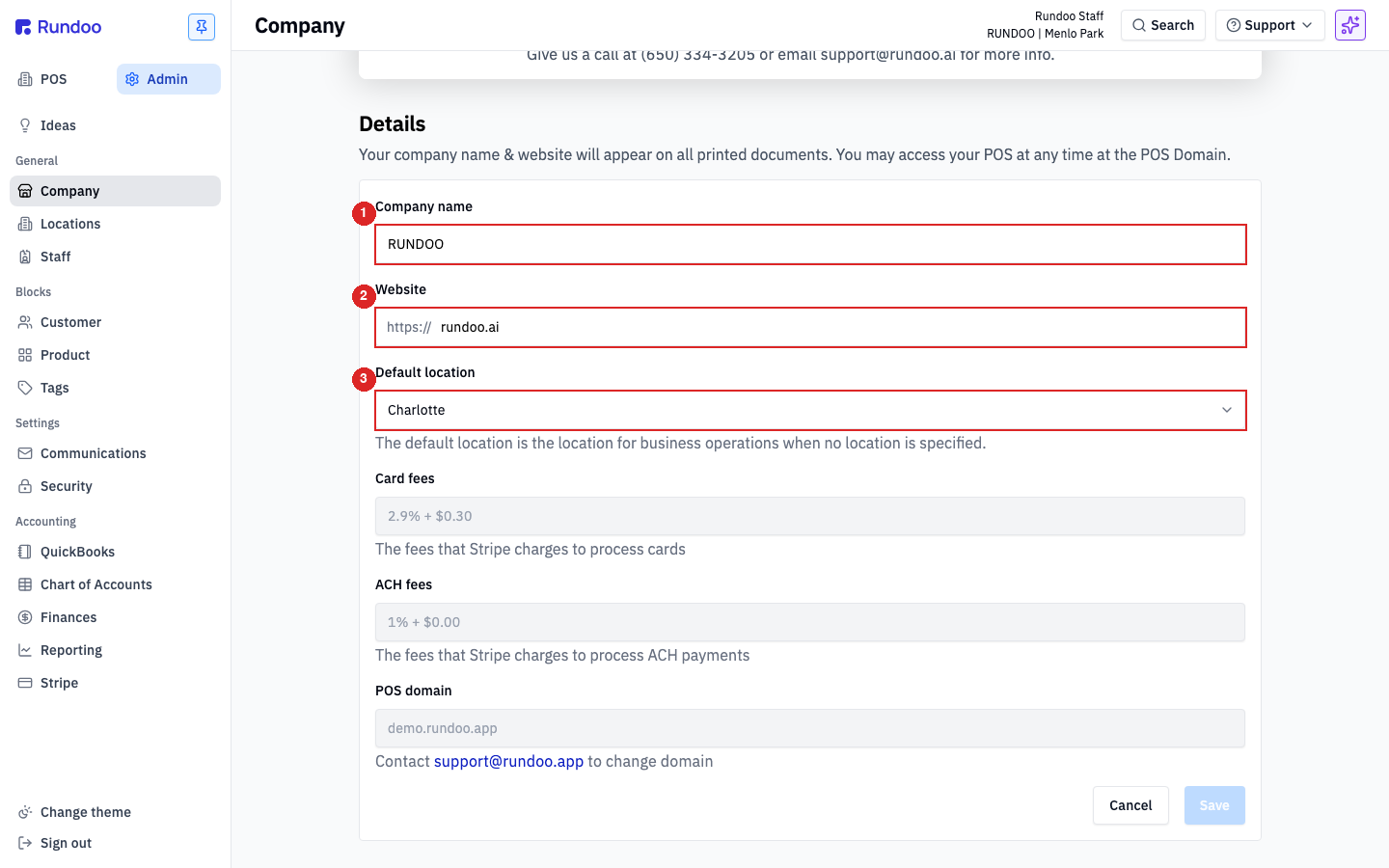
| Field | What it does |
|---|---|
Company name |
The name of your company. Prints at the top of every receipt, invoice, and statement. |
Website |
Your public website URL. Also prints on receipts and statements so customers can find you online. |
Default location |
The location Rundoo falls back to when a transaction isn't tied to a specific store, most commonly on receivables and accounting exports. |
Card fees |
Read-only. The Stripe processing fee on card tender (e.g. 2.9% + $0.30). Set by your Stripe agreement, not editable here. |
ACH fees |
Read-only. The Stripe fee on ACH bank-draft receivables payments. |
POS domain |
Read-only. Where your staff log in, {yourcompany}.rundoo.app. To change it, email support@rundoo.ai. |
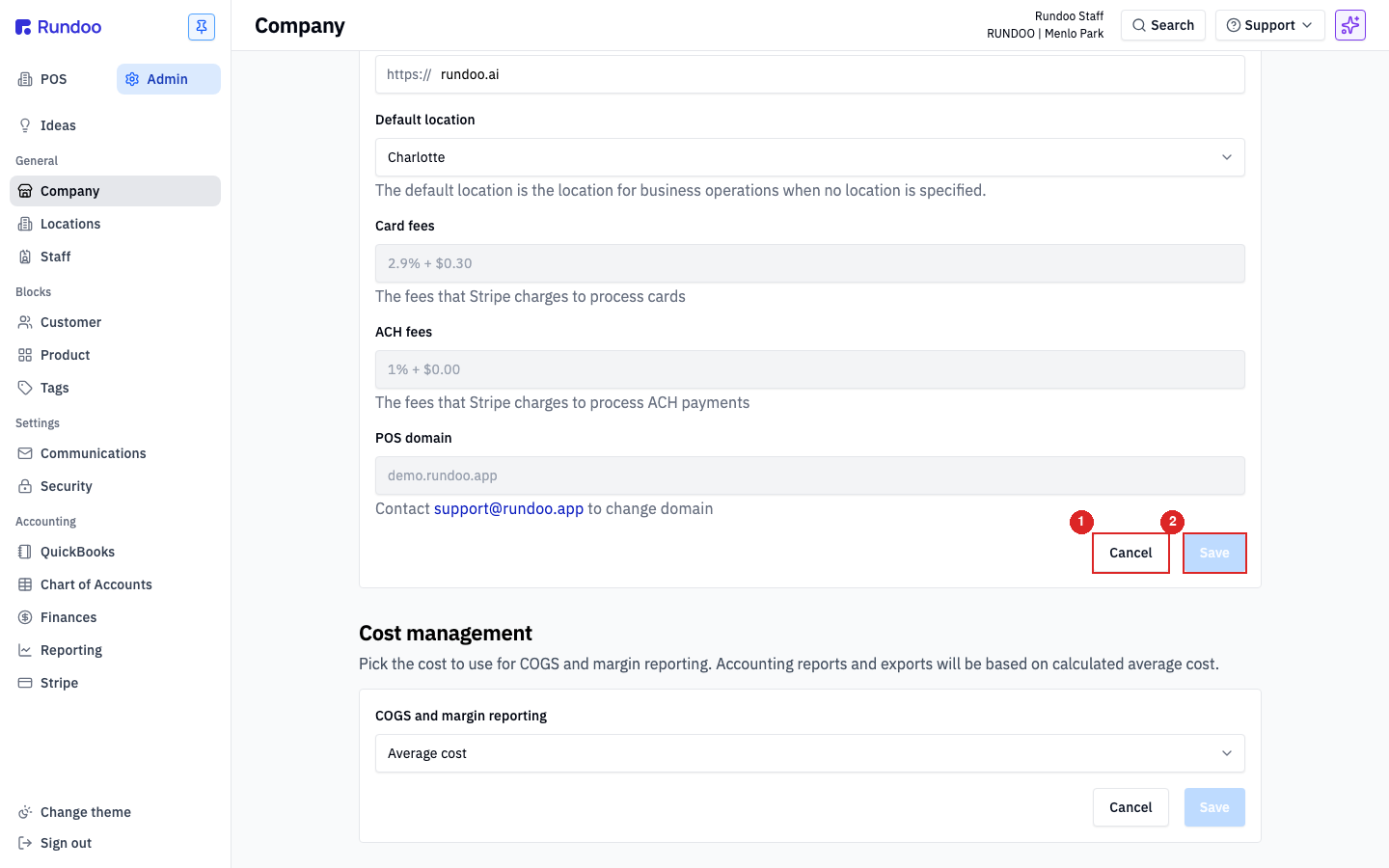
Click Save at the bottom-right of the section to commit your edits, or Cancel to discard them. The button is disabled until you've actually changed something.
Your logo is set per-location, not on Company. See Locations. Each location's General tab has a logo field. A location's logo appears on that store's receipts, invoices, thermal receipts, statements, emails, and vendor order emails. Your Default location's logo is what customers see on the sign-in screen when they land on your Rundoo URL. The card reader logo (the image on the Stripe reader itself) isn't configurable in the app. Email support@rundoo.ai a .jpg, .png, or .svg plus an optional background color to have the Rundoo team push it to your readers.
The other sections on this page
The Company tab keeps going past Details. Tender methods is the one most cashiers interact with day-to-day, it's the list of payment types that show up at checkout.
Cost management and Benjamin Moore offers are each short settings blocks. They work the same way as Details: edit the fields, hit Save in that section's footer, and the change commits for just that section.
Recommended Rundocs
-
Tender methods, how customers pay, configured at the bottom of this same page.
-
Sales, where the company name on a printed receipt actually renders.