
Rundocs › More
Customer statements
Last updated 2026-09-03
Customer statements summarize a charge-account customer's transactions and balance for a billing period. Rundoo generates a run automatically each month, but sending it (print, mail, or email) is always a step you do yourself, and you can also generate statements on demand.
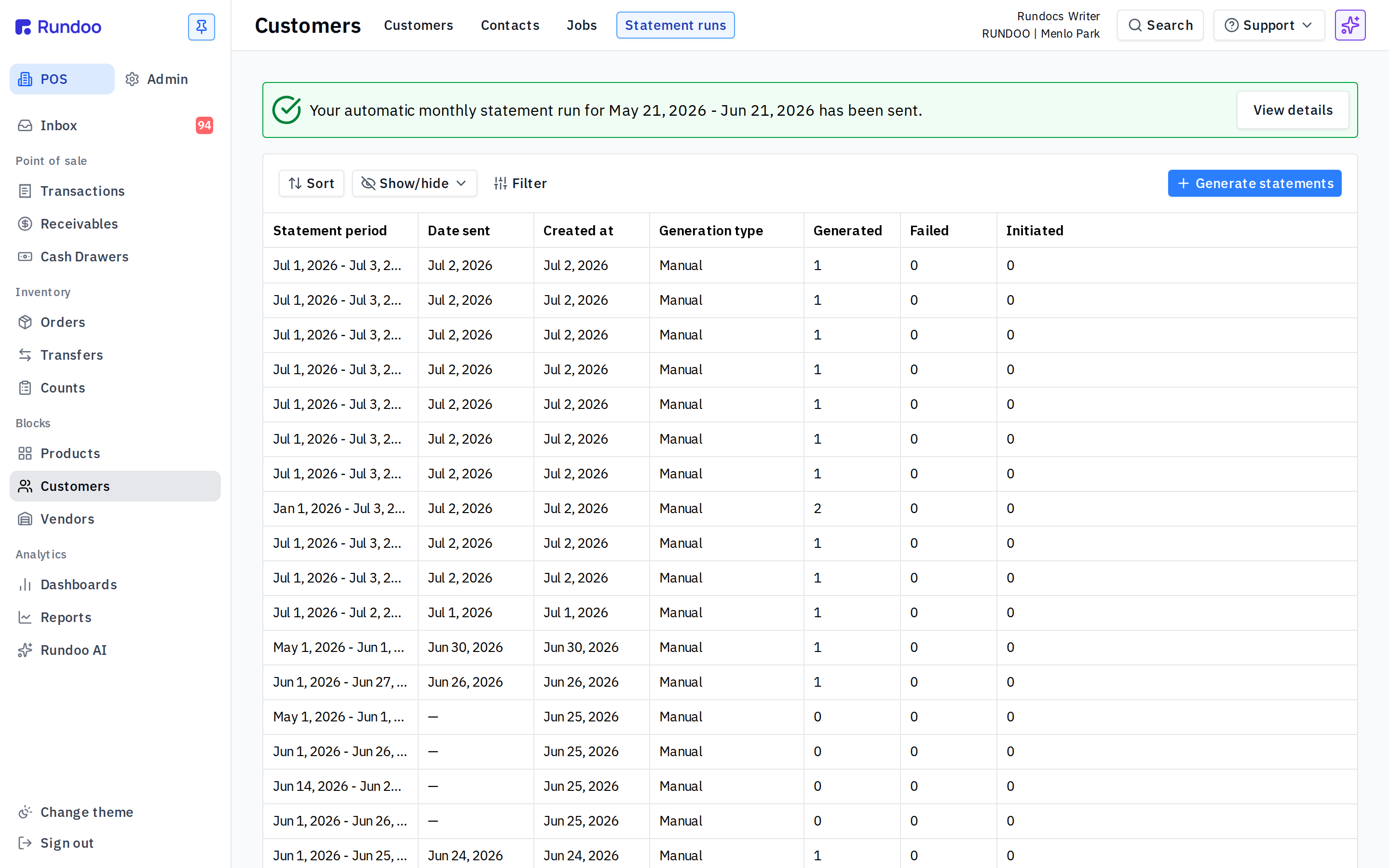
In the POS > Customers > Statement runs tab, you can view past runs, generate a new run, and send statements to customers.
Where to find statements
On the POS side, open the Customers tab, then select Statement runs at the top of the screen. This view lists every past statement run (the statement period, the date it was sent, when it was created, and whether it was generated automatically or manually).
Generate a statement run
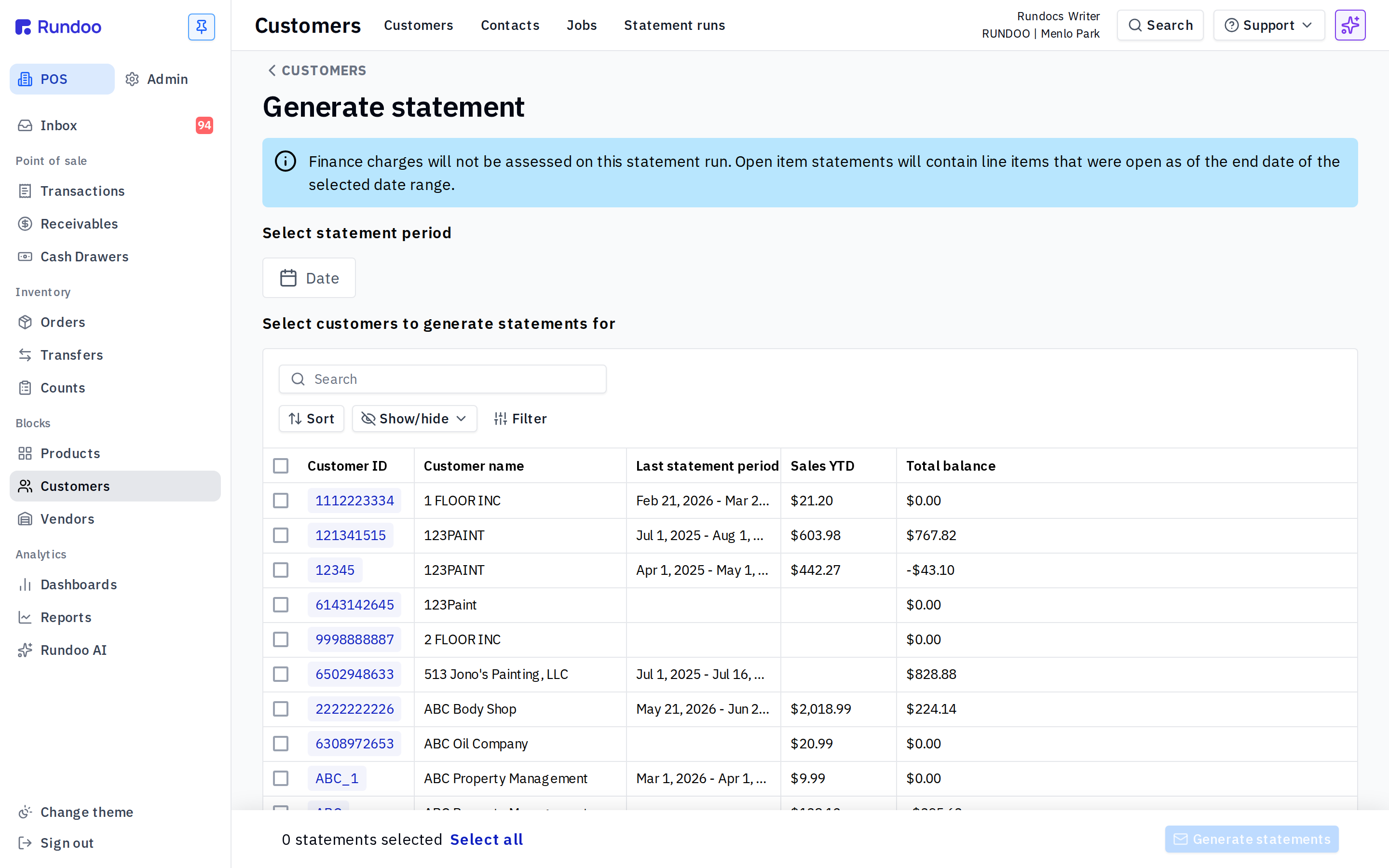
Step 1: On the Statement runs tab, click Generate statements.
Step 2: Select the statement period (the date range the statement covers).
Step 3: Select the customers to include. Check them individually, or use Select all.
Step 4: Click Generate statements to create the run.
Finance charges are not assessed on a manually generated run. Open item statements include the line items that were still open as of the end date of the selected period.
Print or mail statements
Only customers whose statements are set to be mailed to a physical address appear in the printed portion of a run, so the printed set is typically smaller than your full customer list. A customer's statement delivery preference lives on their profile: open the customer in POS > Customers, then the Settings tab.
Email statements
Email statements are not sent automatically when you generate a run. After generating, select Send statements on the email statements to send them to the customers who receive statements by email.
Automatic monthly runs
Rundoo generates a statement run automatically each month, on your Statement day. It does not send it for you. The Statement runs tab shows a banner when the latest automatic run is ready to send (for example, "Your automatic monthly statement run for [period] is ready to send") with a View details link. Click it to open the Send statements modal, then choose to download the printable packet or email each customer's copy. Nothing is mailed or emailed until you send it from there.
Recommended Rundocs
-
Finance charges
-
Bill payments
-
Customer credit