
Rundocs › Integrations
Pick Up In Store and National Accounts (NAPP)
Last updated 2026-04-24
Pick Up In Store (PUIS) and the National Accounts Partnership Program (NAPP) are two Benjamin Moore programs where the customer orders and pays Benjamin Moore directly, and your store fulfills the order and collects the reimbursement from BM. Rundoo handles the register side, a custom tender that tracks what BM owes you, mapped to a dedicated Accounts Receivable account on your chart of accounts.
In the Admin mode, Company left tab, scroll to the Tender methods section, that's where both programs start. From there you'll add a custom tender, add a matching GL account, and wire them together in Chart of Accounts.
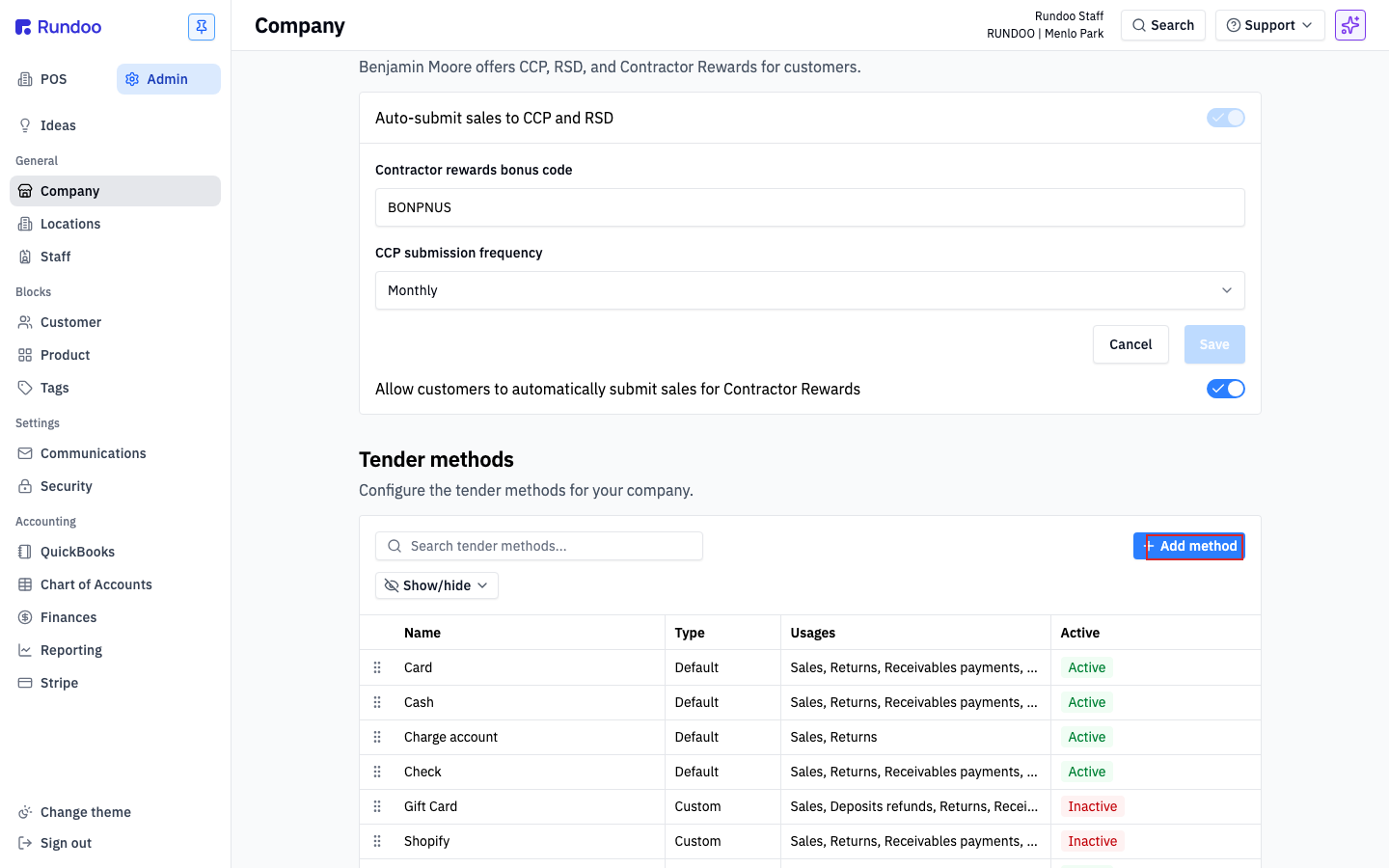
This is the current setup under Rundoo's Custom Methods of Tender. The prior setup (pre-2026) used a tax-exempt customer and a charge-account write-off, if you're on that flow, talk to Rundoo Support about migrating. Both programs are only for orders where BM has already issued a confirmation number through the Retailer Gateway; Rundoo covers the transaction, not the ordering.
Canadian retailers. This process is different. Reach out to Rundoo Support before setting up.
How these programs work
The retailer experience is nearly the same for both:
-
PUIS, the customer orders from
benjaminmoore.comand BM routes the order to an authorized dealer (you). The customer pays BM; you fulfill. -
NAPP (large national accounts (franchise painters, corporate customers)) order through BM's centralized process. Same fulfill-then-reimburse shape, but with a monthly tag-based report so BM knows which sales were NAPP.
In both cases BM collects sales tax and pays it through to the government. You mark the transaction tax-exempt, ring the sale against the custom tender, and wait for BM to settle up.
Both flows assume the BM confirmation number is already in hand, pulled from the BM Retailer Gateway before you walk up to the register. No confirmation number, no transaction. Questions about the ordering side go to your BM sales rep, not Rundoo Support.
Setting up Pick Up In Store (PUIS)
Three pieces: a custom tender method, a GL account to hold what BM owes you, and the mapping that ties them together.
Step 1: Add a custom tender method
In the Admin mode, Company left tab, Tender methods section, click Add method (top-right of the table).
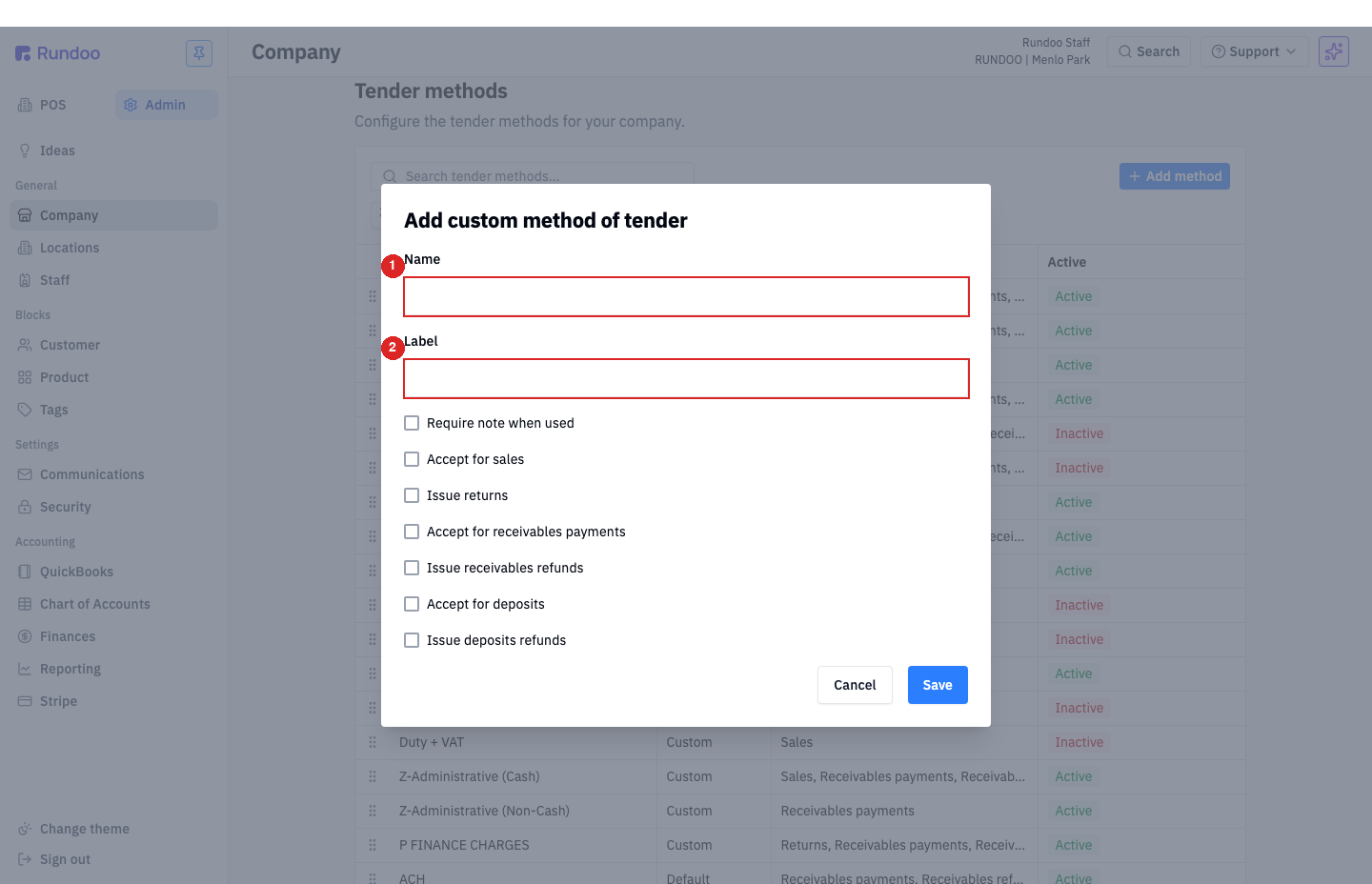
Fill in:
-
Name(internal identifier), e.g.BM Pick Up In Store. -
Label(what cashiers see on the sale).BM Pick Up In Storeworks; some stores useReference Numbersince that's what BM's invoice calls the tie-out number. -
Accept for sales(on). This makes the tender selectable at checkout. -
Leave
Require note when usedon if you want cashiers to enter the BM confirmation number at the register (recommended. It's what you'll reconcile against later).
Click Save. The new tender shows up in the Tender methods table with Custom in the Type column.
Step 2: Add the Accounts Receivable GL account
In the Admin mode, Chart of Accounts left tab, Accounts top tab, click Add account (top-right).
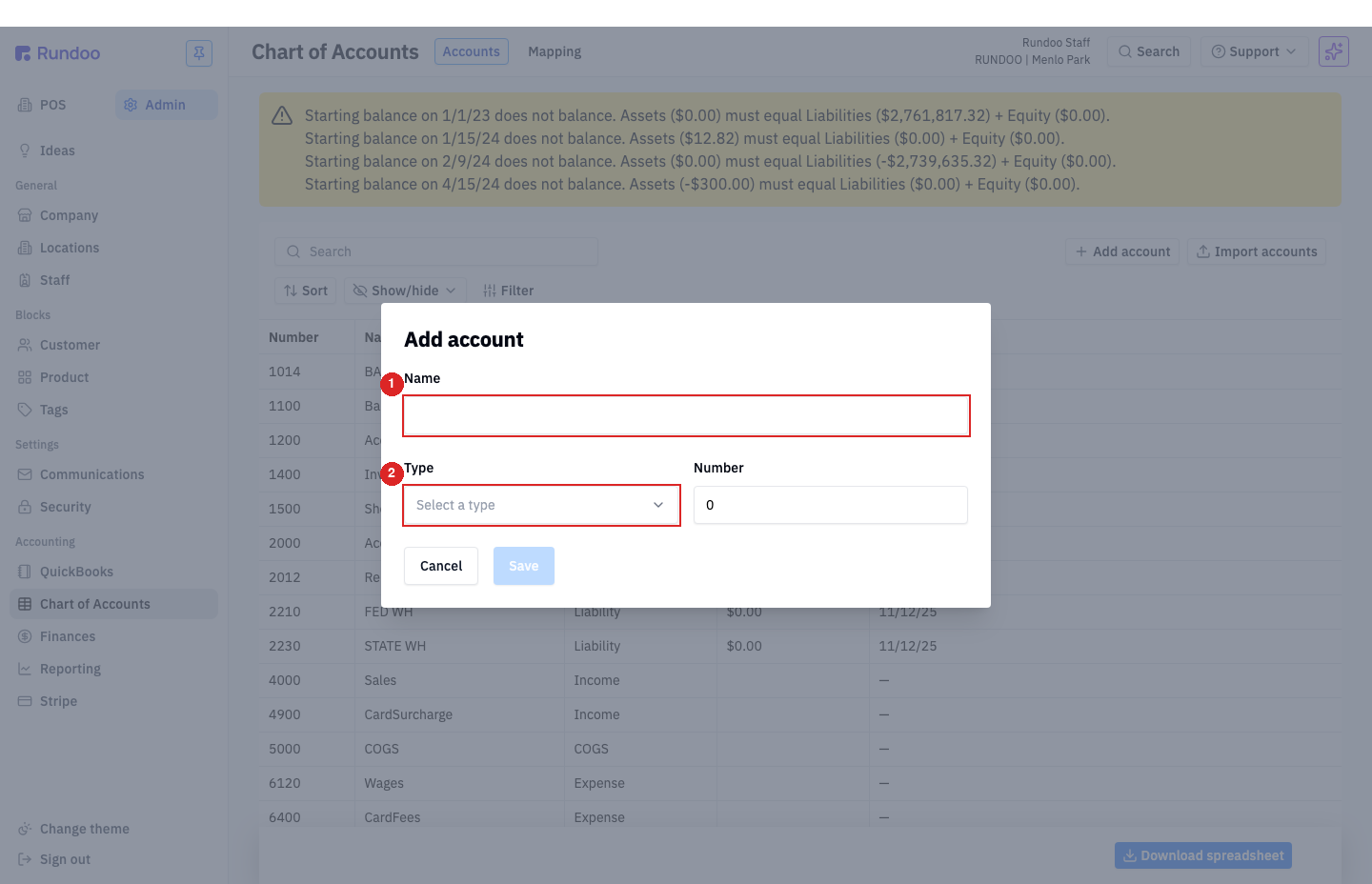
Fill in:
-
Name,Accounts Receivable - PUIS - NA(the same account can hold both PUIS and NAPP balances, so use a shared name). -
Type(Asset). -
Number(an unused number in your asset range), e.g.12010.
Click Save. This is the account BM's outstanding balance to you will live on until the credit clears.
Step 3: Map the custom tender to the GL account
Still in Chart of Accounts, click the Mapping top tab. The Mapping table lists every control account Rundoo posts to, plus the Department / Method column showing which tender or category it flows through.
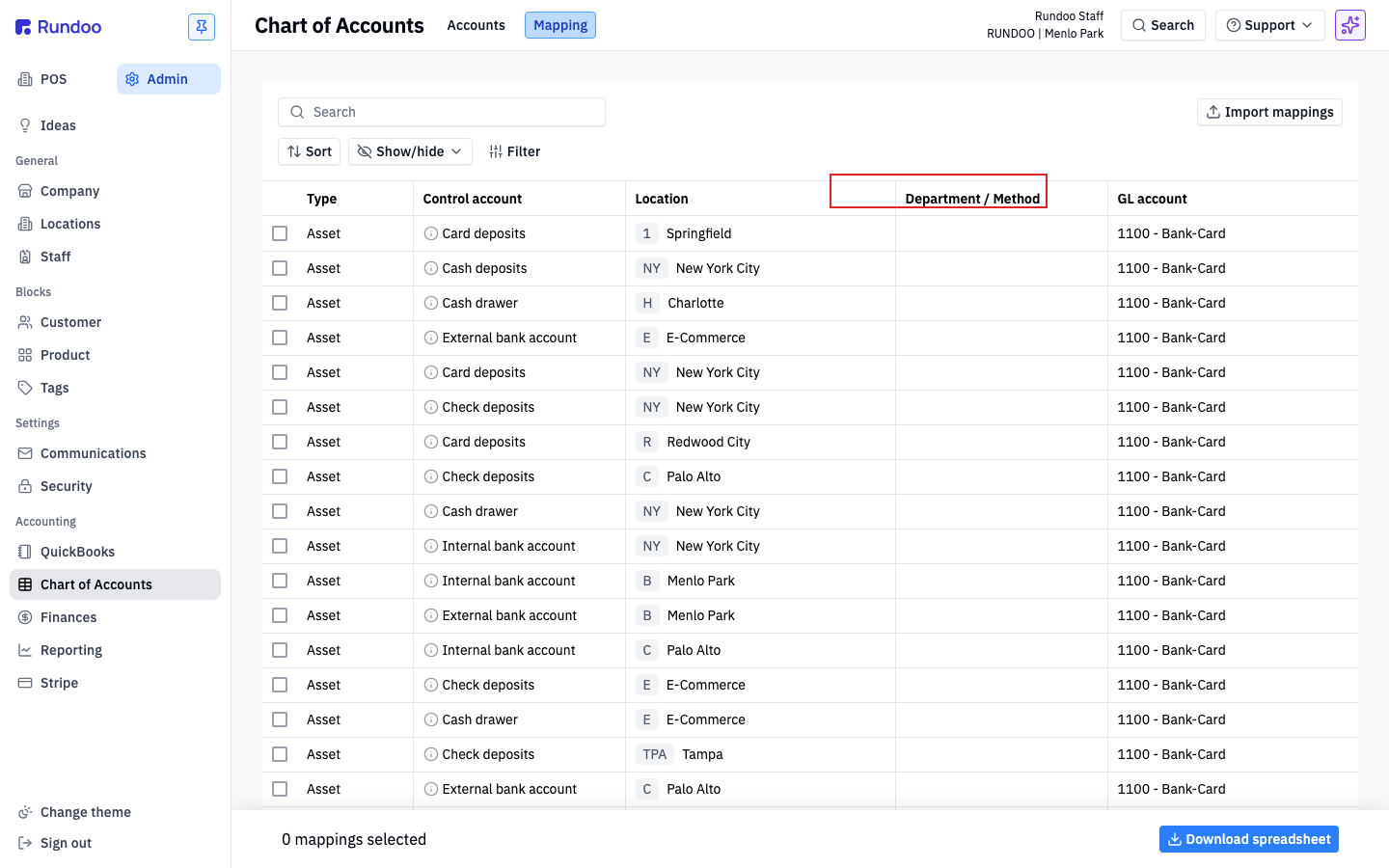
Find the row where Department / Method is BM Pick Up In Store. Click into it, set the GL account to 12010 - Accounts Receivable - PUIS - NA, and save. From that point forward, every sale rung on BM Pick Up In Store posts the outstanding balance to that asset account.
Step 4: Ring a PUIS sale
At the register, build the sale as normal. Add the products the BM confirmation lists, confirm prices and quantities match the confirmation, and mark the sale tax-exempt before charging. At tender time, pick BM Pick Up In Store as the tender method and (if you turned on Require note when used) paste the 6-digit BM confirmation number into the note. Complete the sale.
When BM settles up, reconcile the credit against the BM Pick Up In Store balance in Chart of Accounts. If the credit total doesn't match the sale total, flag it with your BM rep before clearing the balance.
Setting up the National Accounts Partnership Program (NAPP)
NAPP setup has the same three tender / GL / mapping steps as PUIS, plus one more (a customer tag that tells Rundoo which sales to report to BM monthly).
Step 1: Create the BM National Account tag
In the Admin mode, Tags left tab, click Add tag (top-right).
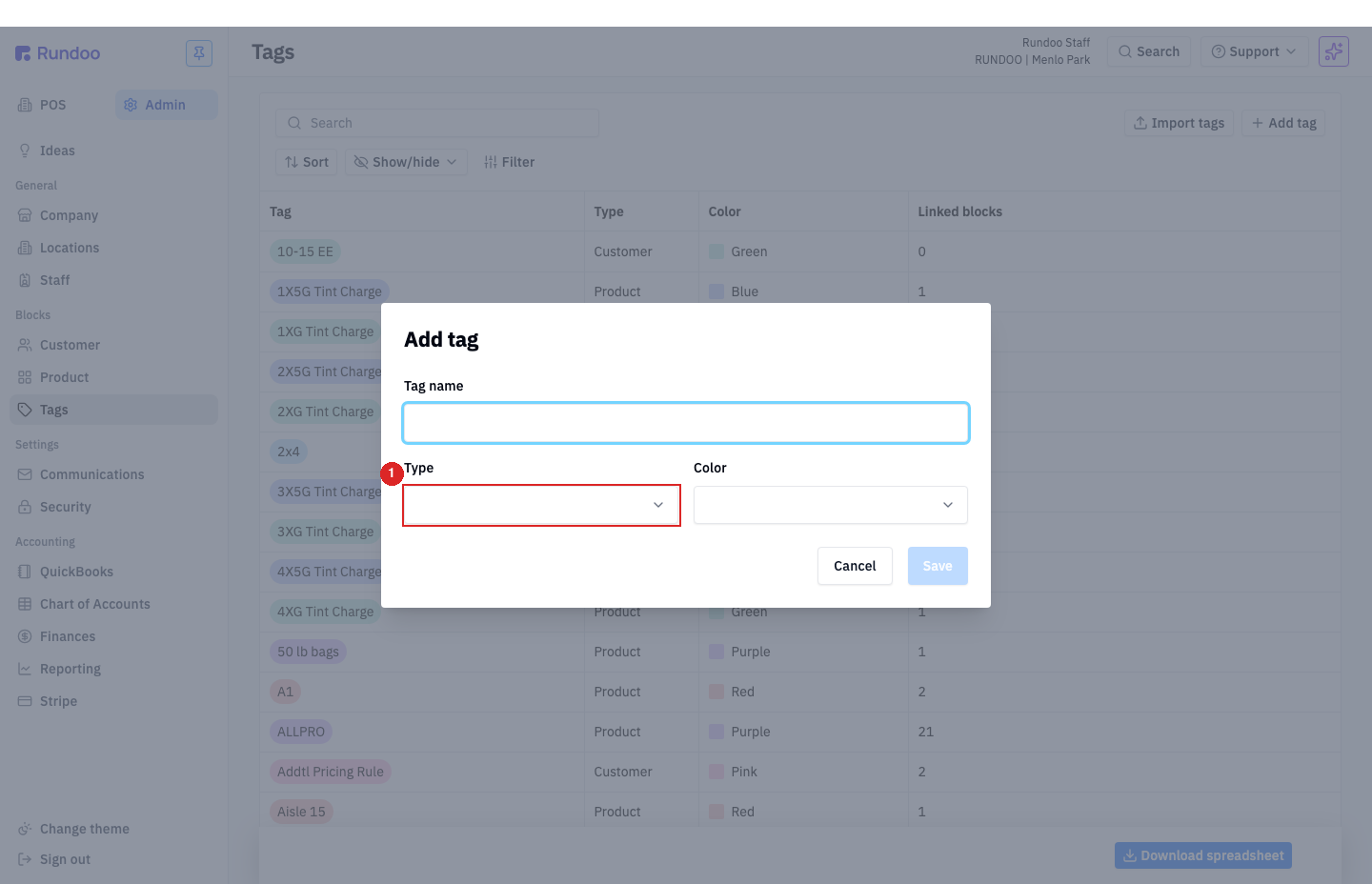
Fill in:
-
Tag name(BM National Account). -
Type(Customer). -
Color(your choice); the tag is just for filtering.
Click Save.
Step 2: Tag your NAPP customers
In the POS mode, Customers left tab, open each NAPP customer (See's Candies, CertaPro, etc.) and attach the BM National Account tag from their customer record. To tag many customers at once, use Customer imports with a BM National Account column.
Once tagged, Rundoo automatically bundles qualifying sales for these customers and sends them to BM monthly. You don't run a report or click submit.
Step 3: Add the NAPP custom tender method
Repeat Step 1 from the PUIS setup above, but name the tender National Accounts (or BM National Accounts). Settings are identical (accept for sales), and optionally require a note for the NAPP order number.
Step 4: Map to the same AR account
In Chart of Accounts > Mapping, find the National Accounts row and map its GL account to 12010 - Accounts Receivable - PUIS - NA (the same account you created for PUIS). One AR bucket is fine for both; BM credits reconcile one-to-one against the confirmation number on each sale either way.
If you already set up PUIS, you can skip Chart of Accounts > Accounts. The AR account is already there.
Step 5: Ring a NAPP sale
Build the sale as normal, confirm prices match the NAPP fulfillment amount on BM's email, mark tax-exempt, and pick National Accounts as the tender with the NAPP order number in the note. Complete the sale.
Don't hand the customer a receipt with prices on it. The price you charged on the Rundoo sale is the fulfillment amount BM owes you, it isn't what the customer paid BM for the product. If the NAPP customer wants to buy extra items outside the BM program, ring those as a separate sale.
Recommended Rundocs
-
Benjamin Moore, the umbrella BM integration: catalog sync, CCP / RSD, the
Bbadge. -
Benjamin Moore orders, placing BM purchase orders.
-
Purchase orders (the general PO lifecycle).
-
Special orders (non-stock products ordered for a specific customer).