
Rundocs › Vendors & Purchasing
Vendor invoices
Last updated 2026-08-05
A vendor invoice is the bill a vendor sends for stock you've already received. Rundoo calls recording one "vouchering," and it's the step that hands the PO over to accounting to get paid.
In the POS mode, open the Orders left tab, then the Vouchered top tab. That's where unpaid vendor invoices live, between Received (stock is in) and Paid (bill is settled).
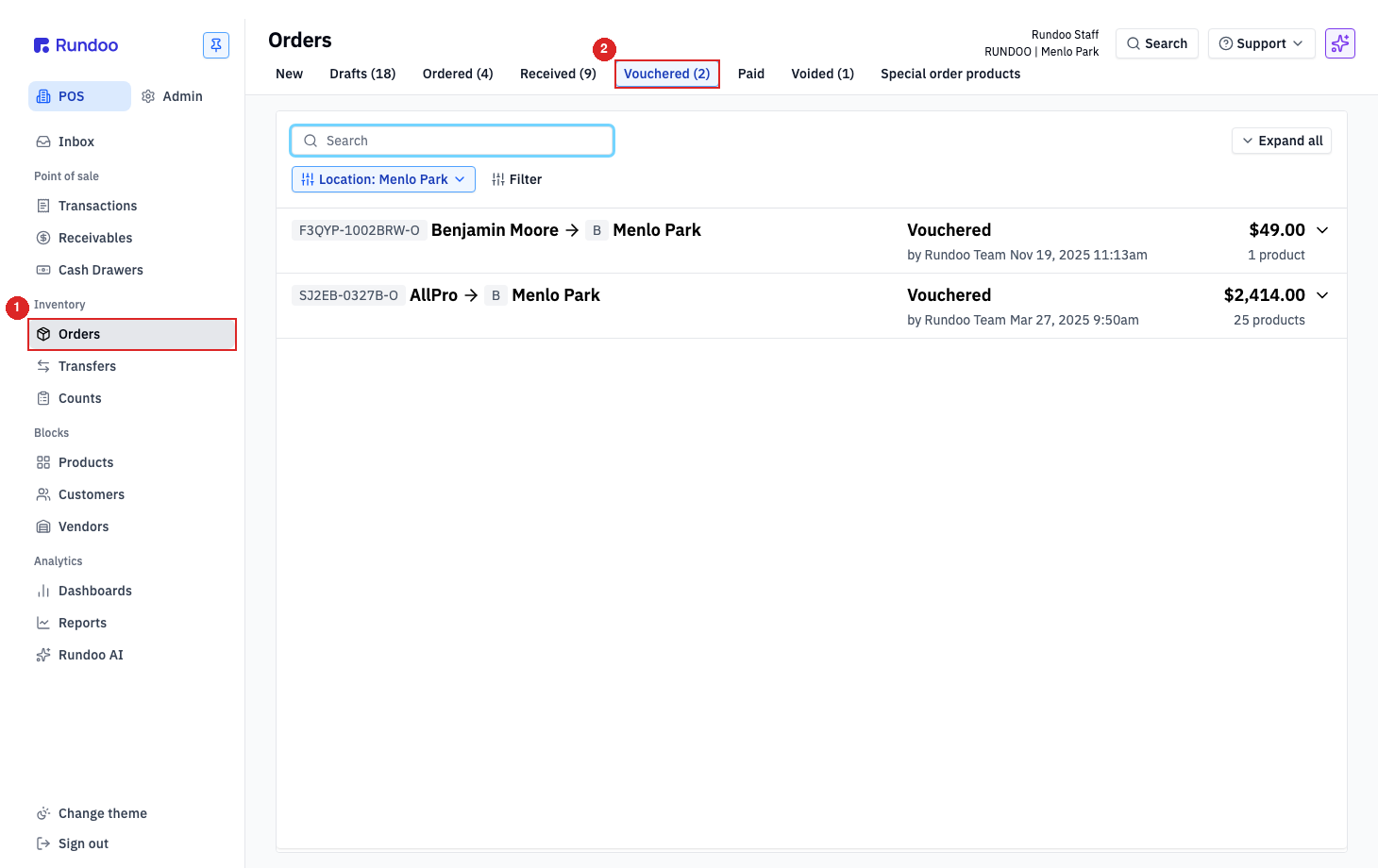
The vendor invoice lifecycle
The right-hand stretch of the Orders top-tab strip is the invoice lifecycle: Received → Vouchered → Paid. Each tab is a stage a PO moves through once the truck has shown up.
-
Received. Stock landed and on-hand counts are updated, but the vendor's invoice hasn't been recorded yet. The PO sits here waiting on invoice details. -
Vouchered(invoice recorded). The PO's amount owed is now on your books as an unpaid bill. This is the handoff point to your accounting side. -
Paid(payment recorded). The bill is settled and the PO is done.
Each tab shows a live count. The Vouchered tab doubles as your "what do I owe vendors" queue. Every open row is an invoice still to pay. See Tracking what you owe below for reading it.
Receiving stock is a separate step that happens before vouchering. See Order receipts for how to log what actually came off the truck. This Rundoc picks up where that one leaves off.
Vouchering a received PO
Open a PO from the Received tab and you'll see the PO detail with an empty Invoice panel on the left and a disabled Voucher button at the bottom right.
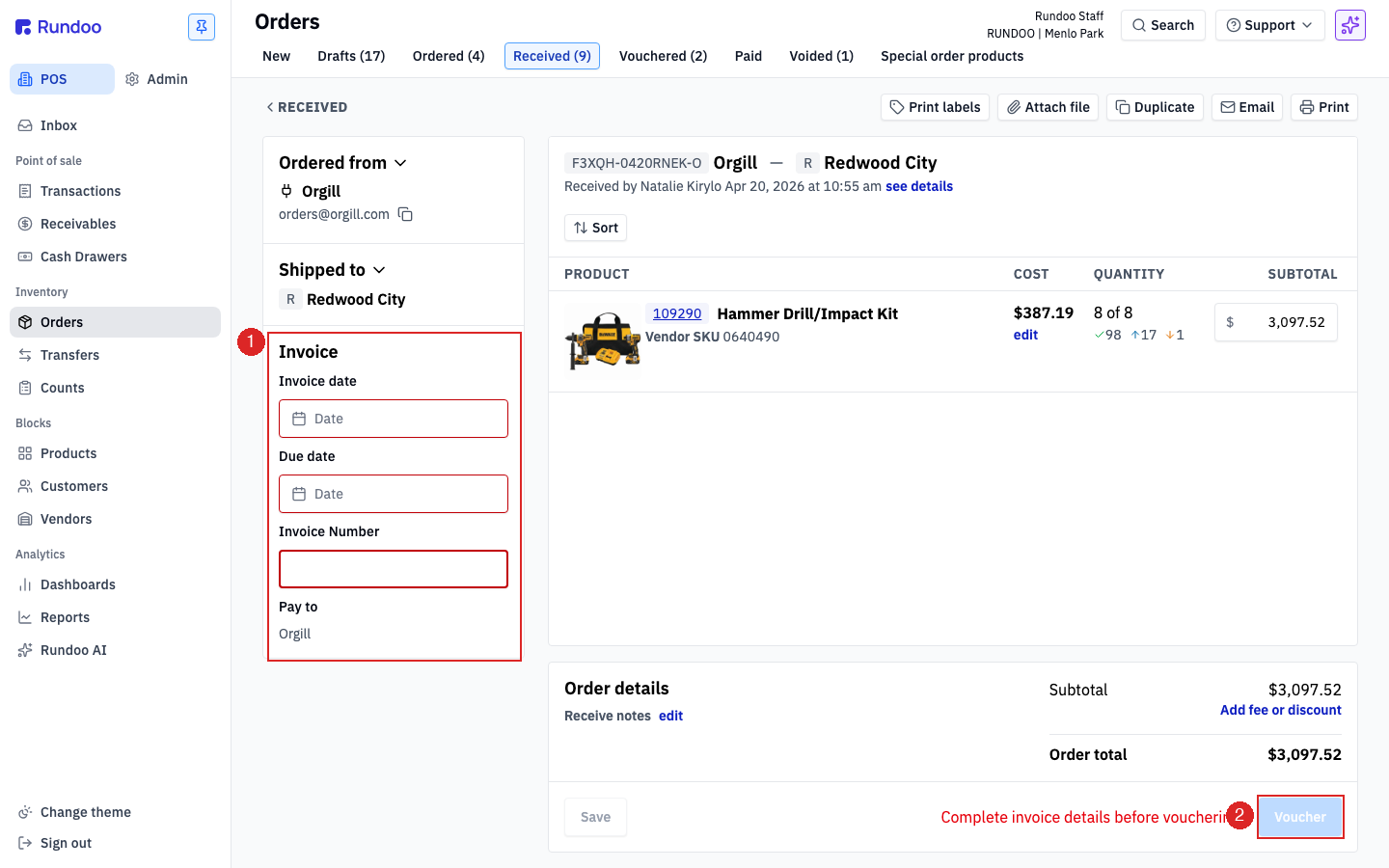
The Invoice panel has four fields, all required:
-
Invoice date(the date on the paper invoice from the vendor). This is the date the bill hits your GL, so it drives due-date math and period reporting. Use the date the vendor stamped, not today. -
Due date. When payment is due. Rundoo doesn't auto-compute this from your vendor's terms. Copy it from the invoice. -
Invoice Number(the vendor's invoice ID). Required for vouchering; also how Rundoo dedupes against the same vendor billing you twice for the same shipment. -
Pay to(who the check goes to). Defaults to the PO's vendor; change it if the invoice is payable to a parent entity or a different billing address on the same vendor record.
The Order details panel on the right holds Add fee or discount, a free-form line for freight, early-pay discounts, handling charges, or any other invoice-level adjustment that isn't tied to a single line. Use this when the invoice total doesn't match the sum of line costs. Line-level cost corrections (wrong unit price on a specific product) belong on the receiving side. See Order receipts for those.
Fill in all four fields and click Voucher at the bottom right. Rundoo drops a green confirmation banner, moves the PO to the Vouchered tab, and the bill is now on your books.
The Voucher button stays disabled until all four invoice fields are filled. Rundoo shows "Complete invoice details before vouchering." next to the button until you do (no toast, no red border). If the button isn't lighting up, scan the fields for a missing one.
Editing an invoice
A vouchered invoice locks. The Invoice panel shows values as read-only text rather than editable fields, and the action cluster at the bottom right swaps from Voucher to Revert voucher / Mark as paid.
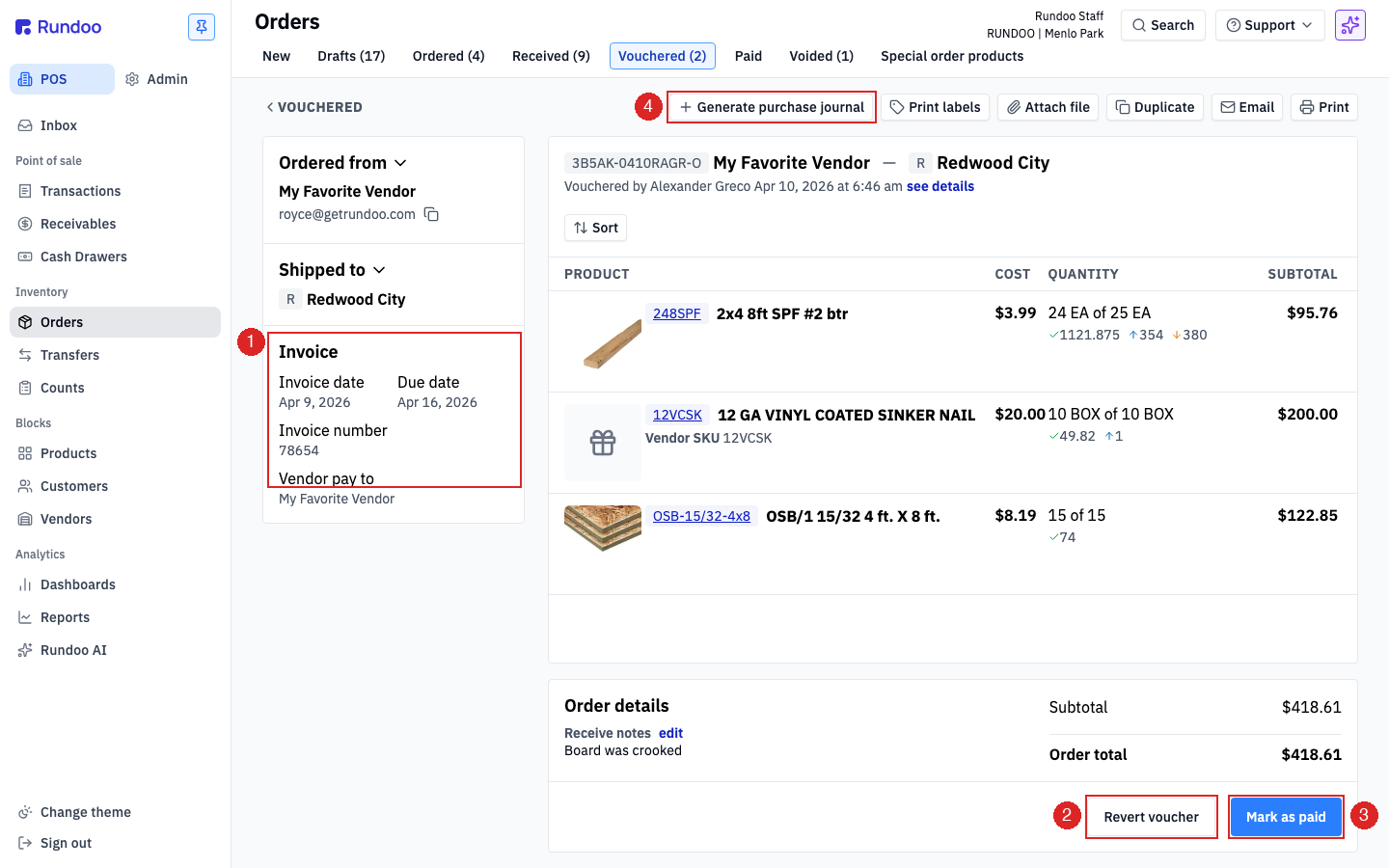
If you need to fix something (wrong invoice number, wrong date, wrong amount after the fact) click Revert voucher to drop the PO back to Received, edit the invoice fields, and re-voucher. The journal entry tied to the original voucher is reversed so your books stay clean.
A vouchered PO still shows the Generate purchase journal action in the header for pulling a printable journal entry summary (useful if your bookkeeper wants a paper trail).
Reverting only works while the PO is unpaid. Once you've marked it Paid, the invoice is frozen (unwinding a paid bill means recording an offsetting payment or credit, not reverting). Talk to your bookkeeper before touching a paid PO.
Recording payment
When the bill is settled (check mailed, ACH cleared, card run) click Mark as paid on the vouchered PO to log the payment. Rundoo opens the Mark as paid modal with the invoice amount and vendor pre-filled.
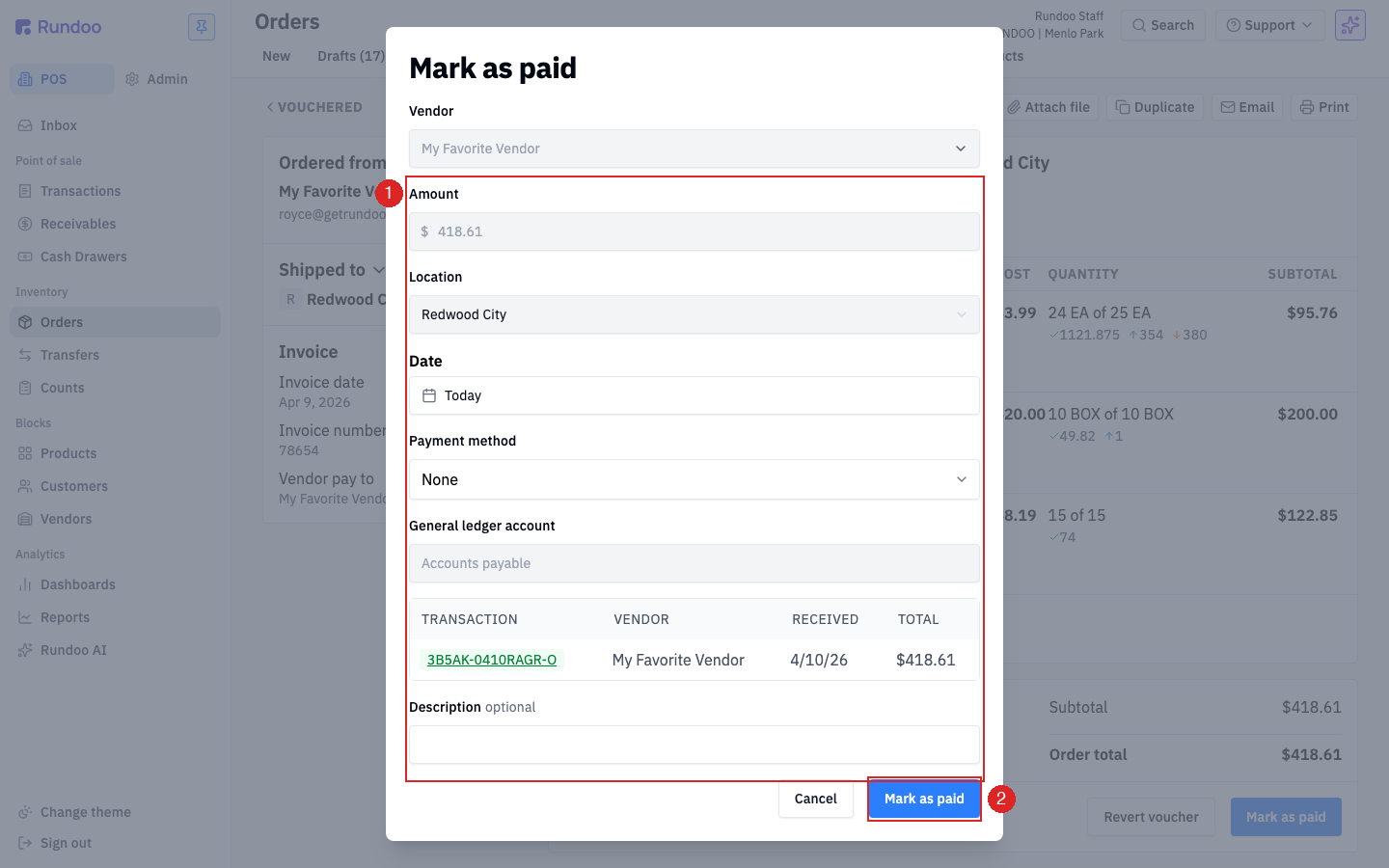
Fields in the modal:
-
Vendor, who you're paying. Pre-filled from the invoice. -
Amount, the full invoice total. This field is read-only in the Mark as paid modal, so this step always settles the bill in full. To pay only part of a bill, see the partial-payment callout below. -
Location, which location's books this payment is booked against. -
Date(defaults toToday). Change if you're back-dating a payment the bookkeeper already cut. -
Payment method(how you paid: check, ACH, card, etc.). Defaults toNone; pick from the dropdown. -
General ledger account(defaults toAccounts payable). Most payments leave this alone; change it only if your chart of accounts routes vendor payments elsewhere. -
Description. Optional free text for the journal entry (check number, reference ID, anything your bookkeeper wants to see later).
The modal also lists the transaction this payment applies to (invoice ID, vendor, received date, total), so you can confirm you're paying the right bill before committing.
Click Mark as paid in the modal to commit. The PO moves to the Paid tab and drops off your unpaid list. Rundoo posts a journal entry against the configured General ledger account (see Journal entries for how the GL side reads this).
Paying off only part of a bill. The Amount on Mark as paid is read-only, so you can't edit it down to record a partial payment here. Record partial vendor payments on the External account instead: in the Admin mode open the Finances left tab, then the External top tab, click Record transaction, toggle to Payment, pick the Vendor, enter the partial Amount, and set the General ledger account to Accounts payable. That lowers what you owe the vendor by the amount you paid. These entries post against the vendor's AP balance, not against the specific PO, so the vouchered PO stays in the Vouchered tab. See Bills & payments for the full External-register flow.
Tracking what you owe
The Vouchered top tab is your "unpaid invoices" list. Sort by invoice date or amount to work through what's due; each row shows the vendor, invoice total, and when it was vouchered.
Ways to read the list:
-
By vendor. Use the
Filtercontrol above the table to narrow to one vendor when you're cutting a batch of checks. Every row in the filtered view rolls into that vendor's next payment run. -
By due date. The detail view carries the
Due dateyou entered at voucher time. Sort the list by that field to see what's overdue. -
By amount. The
Expand allcontrol at the top right expands every row to show the total so you can scan for large bills that need approval.
For month-end, the Paid top tab shows every invoice that's been settled, with the payment date and method (handy when you're reconciling against the vendor's statement).
Recommended Rundocs
-
Bills & payments (the AP queue and how to pay a vouchered invoice via ACH or check).
-
Purchase orders (the full PO lifecycle, from drafting through sending to the vendor).
-
Order receipts, logging what actually came off the truck before you voucher.
-
Journal entries, how vouchering and payment hit your general ledger.