
Rundocs › POS
Drafts, quotes & will-calls
Last updated 2026-09-18
Three ways to hold a sale without finalizing it: a Draft when you need to pause the cart, a Quote when you want to share a price with a customer, a Will call when you're holding stock for a customer to come pick up.
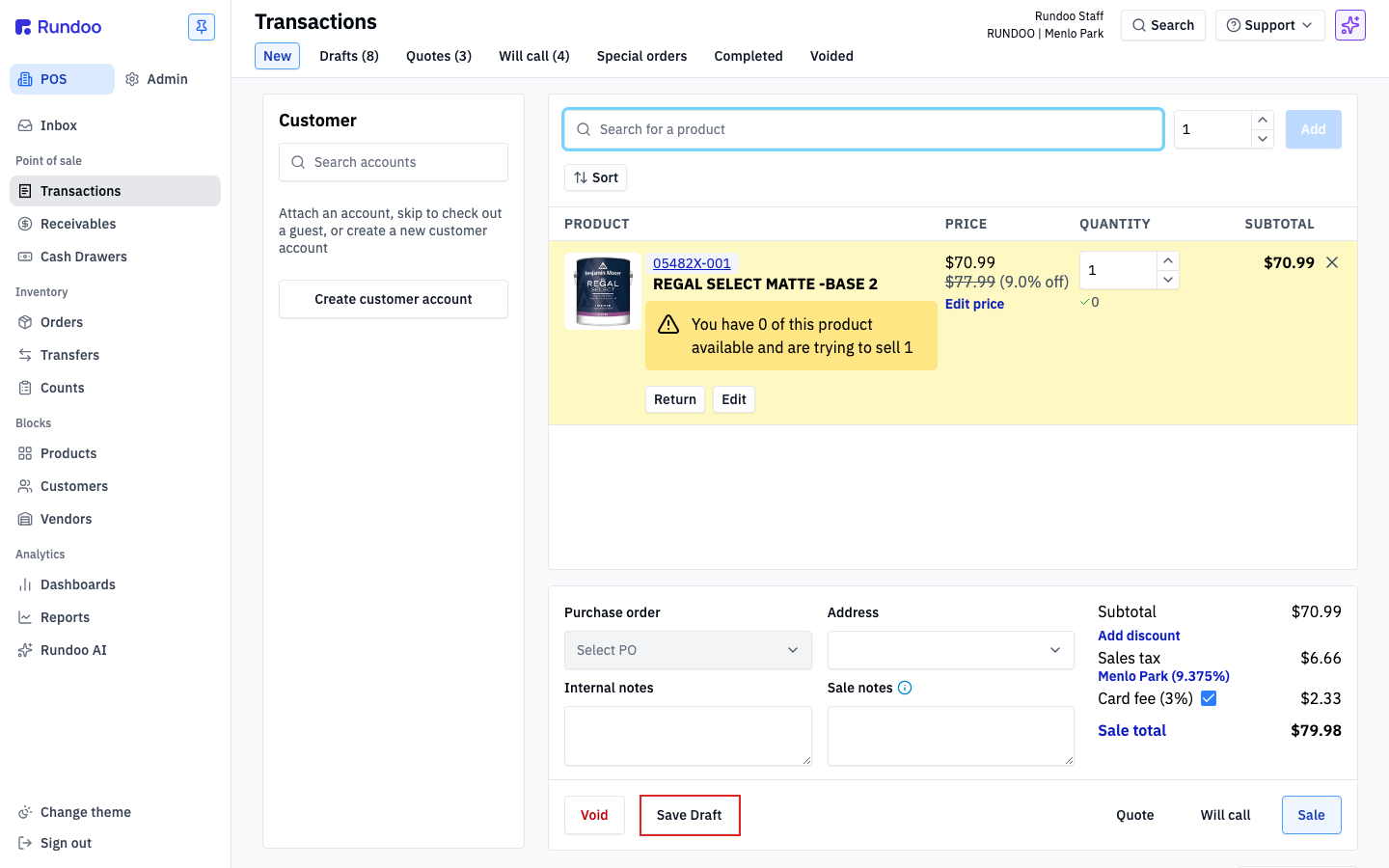
In the POS > Transactions tab, the top-tab strip has a tab for each of the three held-sale states (Drafts, Quotes, Will call), and the action cluster at the bottom of the cart has a button for each one (Save Draft, Quote, Will call).
Video walkthrough
Comparing the three
| Question | Save Draft |
Quote |
Will call |
|---|---|---|---|
| Customer required? | No | Yes | Yes |
| Inventory reserved? | No | No | Yes, stock committed to the customer |
| Shared with customer? | No, internal | Yes, print, email, or PDF | Yes, pickup receipt |
| Use when… | You have to step away from the cart | A customer asks "what would this cost?" | You're setting product aside for a known customer |
| Lives under top tab | Drafts |
Quotes |
Will call |
⚠️ Will call commits inventory; drafts and quotes don't. A will-call on the last of a SKU blocks other customers from buying it until the will-call is picked up or voided. Use Quote if you're just giving a price and the customer hasn't committed yet.
Saving any held sale with not-enough-on-hand pops a confirmation. If a line in the cart has insufficient inventory, Save Draft, Quote, or Will call all open a Confirm transaction details dialog, "Inventory will go negative for these products on completion of this sale." Click Confirm to save anyway, or Cancel to fix the line. This is also the prompt that flags a missing Special order line for ordering.
Draft
A draft is a paused cart (the internal one). No customer required, no inventory reserved, nothing shared outside the store. Use it when you have to step away from the counter and want to come back to the same cart, or when a cashier needs to hand a half-built sale to a colleague.
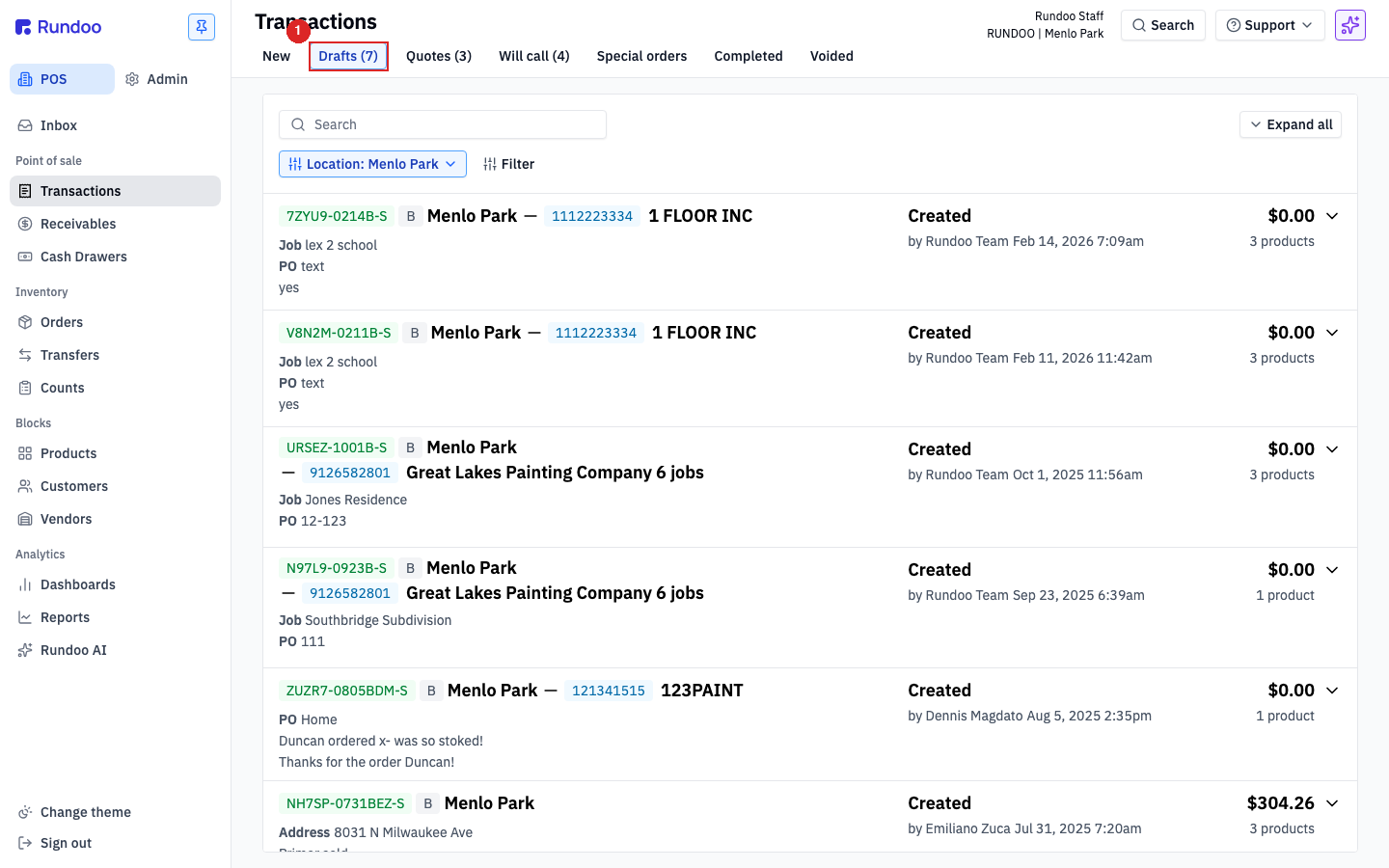
Save as a draft. Build the cart as you normally would. In the action cluster at the bottom, click Save Draft. The cart clears and the draft lands under the Drafts top tab.
💰 Taking a deposit toward a draft. There's no deposit affordance on a draft itself, the cart action cluster only has
Save Draft,Quote,Will call, andSale. To collect money against a draft, click Sale, then pick Deposit as the tender in the payment panel, enter the amount, and click Charge. That records a partial-tender deposit against the sale, the balance stays open on the customer's account until they come back to pay it off. A saved will-call or quote has it easier: it carries a dedicated Deposit button, see Deposits and partial close-out below.
How to print a draft (including a draft ticket not attached to a customer). To print a draft, open the saved draft and click Print in the page action bar (the button sits between Duplicate and Attach tag) which opens the Print modal. Use it to hand a coworker or customer a paper copy of the cart while the draft is still open. You don't need a customer on the draft to print it: a draft requires no customer account, and the Print button shows on every saved draft whether or not one is attached, so a walk-in "draft ticket" with no account prints the same way. If you don't see a Print option, make sure you've opened the saved draft from the Drafts tab first (the button lives on the opened draft's action bar, not in the cart's Save Draft / Quote / Will call cluster). Drafts were the last held-sale state without a print affordance; transfers and purchase orders already exposed the same button for any saved status.
Quote
A quote is a priced offer you can hand to a customer, on paper, over email, or both. No inventory is reserved; the customer can walk away and come back next week. Use it for "what would 40 gallons of ultra-white cost me?" conversations.
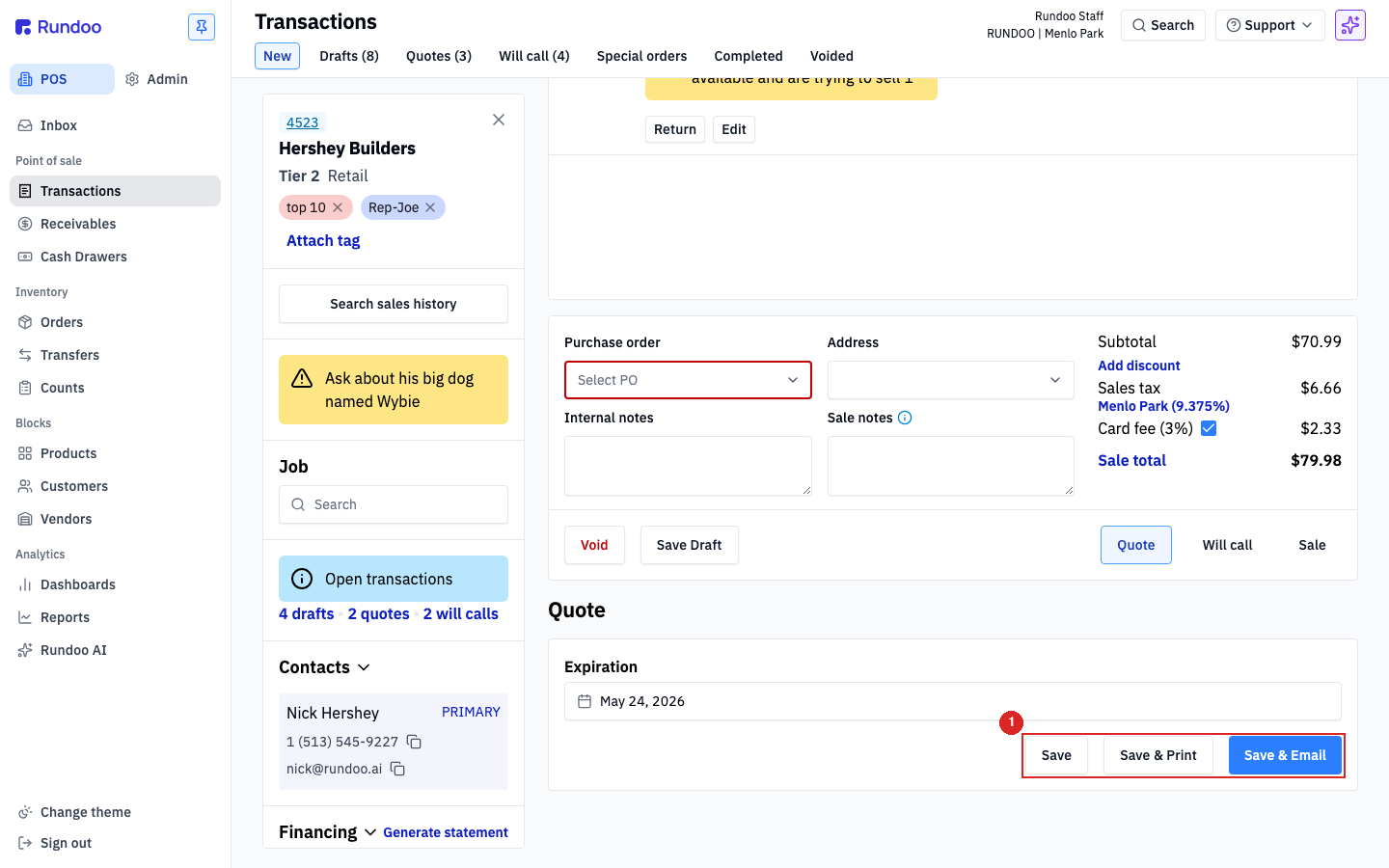
Save as a quote. Build the cart with the products and quantities you're quoting. Attach a customer, a quote has nowhere to go without one (see the gotcha below). In the action cluster, click Quote. A panel opens with an Expiration date and three options: Save (keep it internal), Save & Print (print a copy for the customer), or Save & Email (send directly).
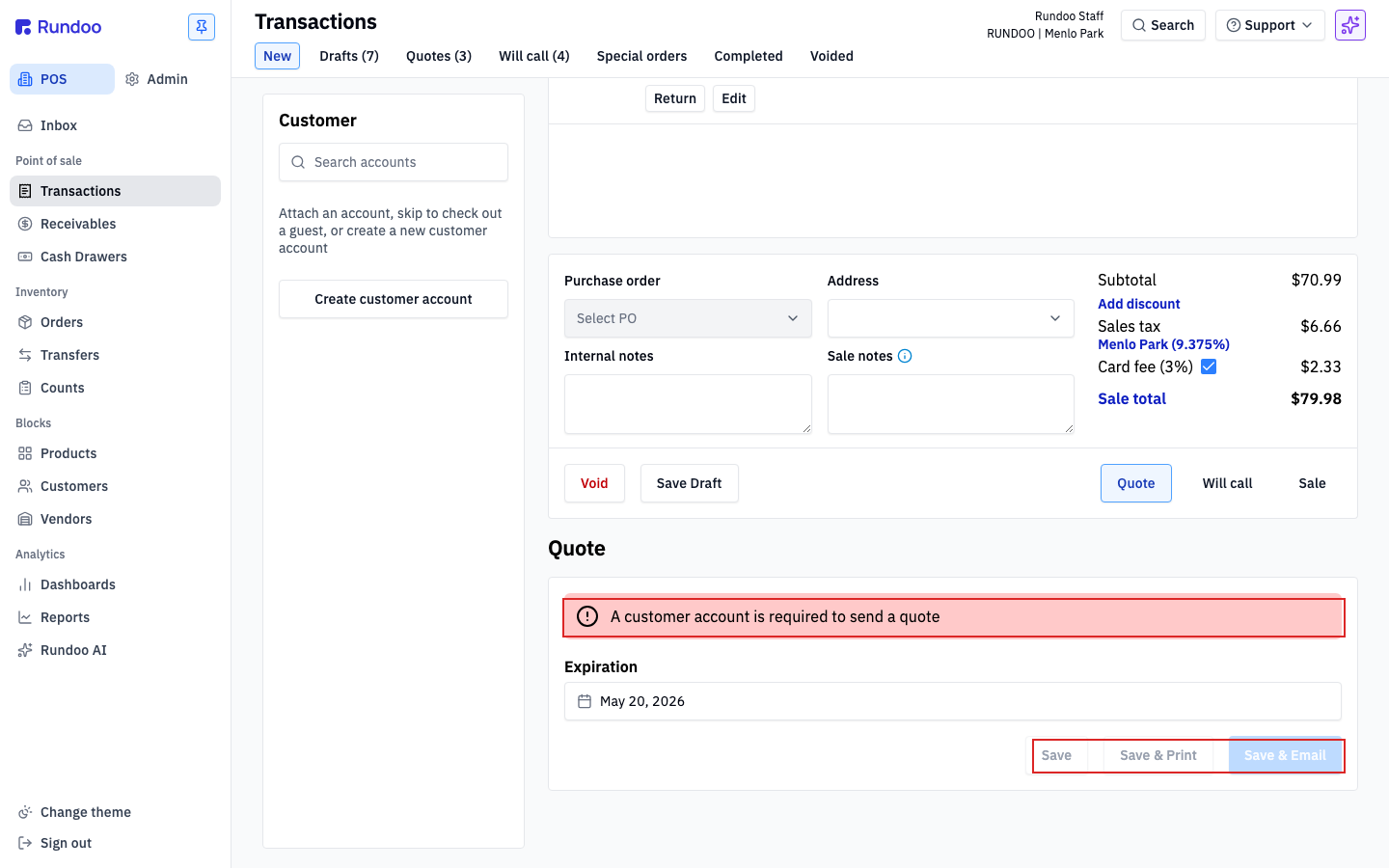
⚠️ A quote needs a customer. Click Quote without a customer attached and Rundoo opens the quote panel but shows a red error banner. "A customer account is required to send a quote", and disables all three save buttons. Attach a customer from the left panel first.
💡 Attaching a file to a quote. A saved quote carries an
Attach fileaction in its top action cluster (alongsideDuplicate,Quotestop tab to get back to that action cluster.
Convert a quote to a sale. When the customer comes back ready to buy, open the Quotes top tab and click the quote. The cart reloads at the quoted prices, those prices are what you committed to. Review, then click Sale to ring it up. See Sales for the full finalizing flow.
Quoted prices are pinned at quote-creation time. When you save a quote, Rundoo captures the price on each line right then. Vendor cost increases, MSRP edits, or expired promotions don't change what the customer sees when you re-open the quote. Tax still floats: the Sales tax line recomputes against current rates when the quote is finalized, so a jurisdiction change flows through. Cost doesn't pin: avg cost and standard cost update to current values at completion, so margin reporting reflects today's cost. To pick up new product pricing, re-quote (open the quote, click Quote to save a fresh one) or void it. The Expiration date is your safety net: a customer-honored shop typically prints EXPIRES ON {date} on the quote so they have an out when costs shift.
💰 Discounting a quote (or "estimate"). Rundoo calls it a quote; if you think of it as an estimate, it's the same thing. There's no separate discount field on the quote panel, you discount in the cart before you save. Build the cart, take the discount the same way you would on any sale (click a line's price for a dollar or percent off one line, use Add discount in the totals area to take a percent or flat amount off the whole cart, or let a configured promotion fire), then click Quote. Because a quote pins each line's price at save time (above), the discounted price is exactly what the customer sees when you reopen it. See Sales for the full set of discounting tools.
Changing the customer? Void and rebuild. Swapping the customer on a saved quote leaves the original pricing, and the original sales tax, in place, even if the new customer is tax-exempt or in a different jurisdiction. That's pricing-freeze working as intended, but it surfaces as a confusing Sales tax dollar amount sitting right above a Tax exempt line. If the customer needs to change, void the quote and build a fresh one with the new customer attached from the start.
Will call
A will-call is a committed hold. Unlike a draft or a quote, Rundoo reserves the inventory (the quantity is subtracted from what's available to sell) and expects the customer to come back to pick it up. Use it when a customer has said "hold these for me, I'll be back this afternoon."
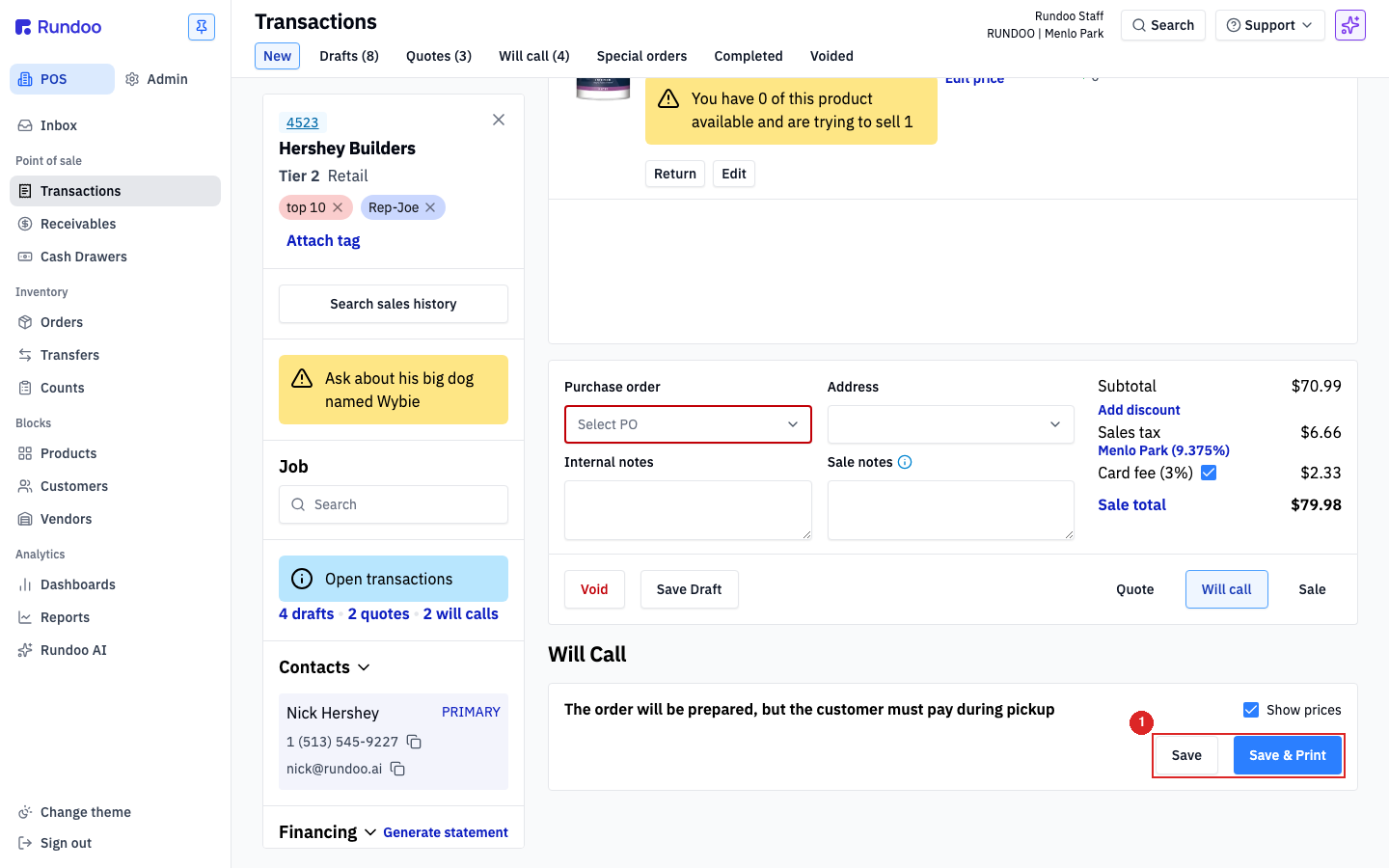
Save as a will-call. Build the cart. Attach a customer, will-call requires one because the hold is tied to the account. In the action cluster, click Will call. A panel opens: "The order will be prepared, but the customer must pay during pickup." Hit Save (internal only) or Save & Print (pickup receipt for the customer).
Rundoo texts and emails the customer automatically when a will-call order is ready for pickup. Putting an order on will call sends the customer an "your order is ready for pick up" text and email with a link to view the order.
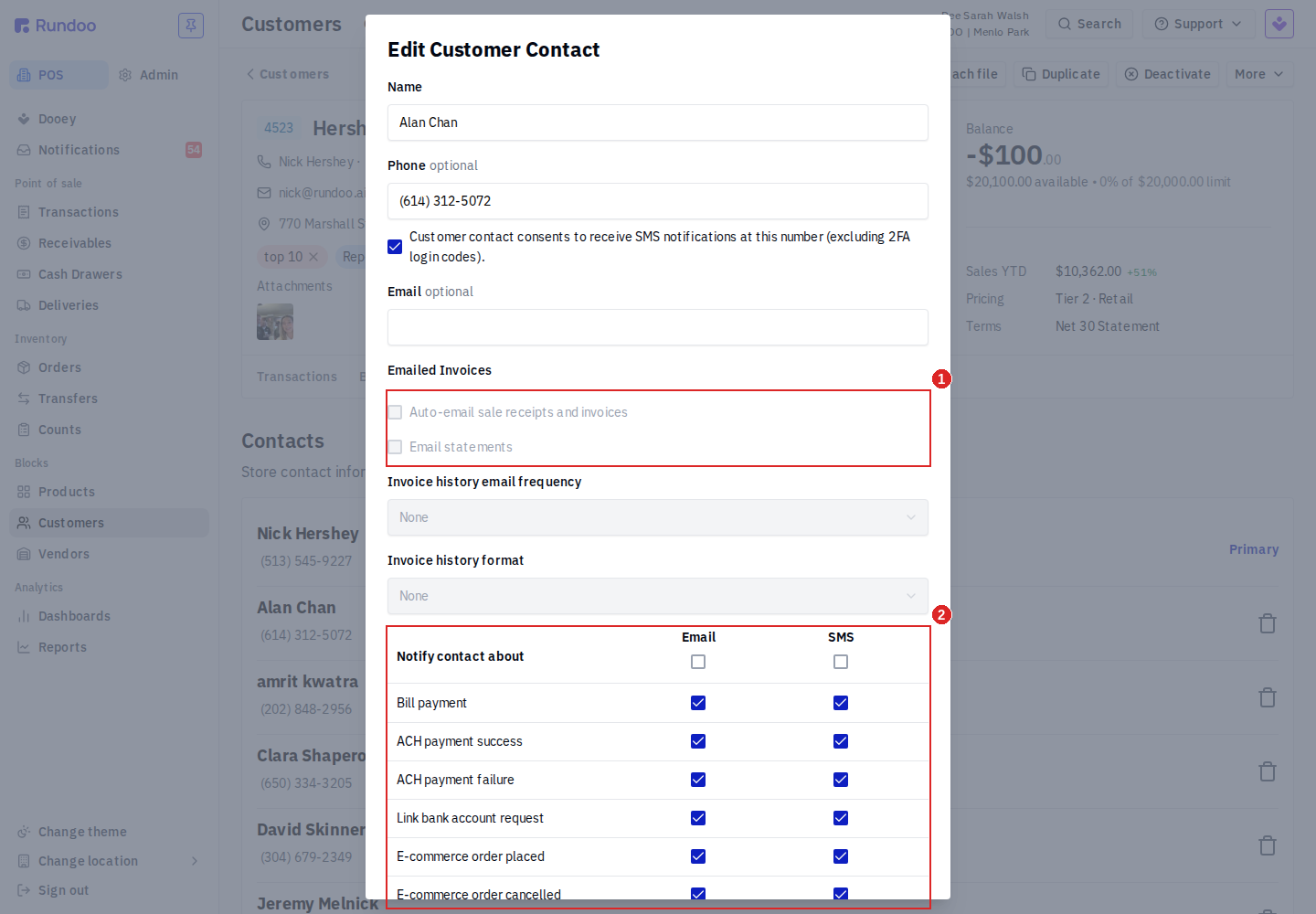
To stop those pickup messages, switch them off per contact, no Support ticket needed. If a customer is tired of getting a text or email every time you touch their will-call, turn it off on their own record. Go to POS > Customers, open the customer, click the Settings tab, and under Contacts click the contact to open Edit Customer Contact. In the Notify contact about grid, uncheck Order ready for pickup under Email, under SMS, or both. Each contact has its own settings, so you can keep one buyer subscribed and quiet another. To also stop the receipt and invoice emails, uncheck Auto-email sale receipts and invoices in the Emailed Invoices section just above (that one only applies to a contact who has an email address saved).
Printing a will-call. Click Print on a saved will-call to open the Print modal. It carries a Show prices checkbox. Toggle it per print, depending on whether you want the customer to see line prices on this copy. The system default is set at Admin > Communications > Printing > Show price on packing slips alongside the rest of the receipt-display toggles (Show crossed out original price on receipts, Show discount percent on receipts, Show balance on receipts). Flip that to default-OFF if your store treats the will-call printout as a packing slip; leave it ON if you want prices visible by default and only hide them on demand.
📦 Will call vs. special order. Will-call is for items you already have in stock that you're physically setting aside. If the customer wants something you don't have in stock and needs you to order it in, that's a Special order.
💰 What about prepaid orders they pick up later? Make a will-call, take a Deposit against it, and Close out the quantity the customer carries out on each visit. The will-call commits the inventory, the deposit records the prepayment, and each partial pickup draws down the balance until the order is fully closed out. See Deposits and partial close-out above. For products you don't stock (ordered just for them), use Special orders instead.
Will-call prices are pinned at save time. Same as a quote: when you save a will-call, Rundoo captures the price on each line right then. If catalog prices change later, the will-call keeps the original prices when the customer comes back for pickup. Tax still floats (recomputes against current rates at finalization) and cost doesn't pin (avg/standard cost update to today's values at pickup). To re-price the entire will-call against the current catalog, void it and re-build the cart.
Changing the customer? Void and rebuild. Same as a quote: swapping the customer on a saved will-call leaves the original pricing and the original sales tax line in place, even if the new customer is tax-exempt. To pick up the new customer's tax treatment, void the will-call and build a fresh one with the new customer attached from the start.
Deposits and partial close-out
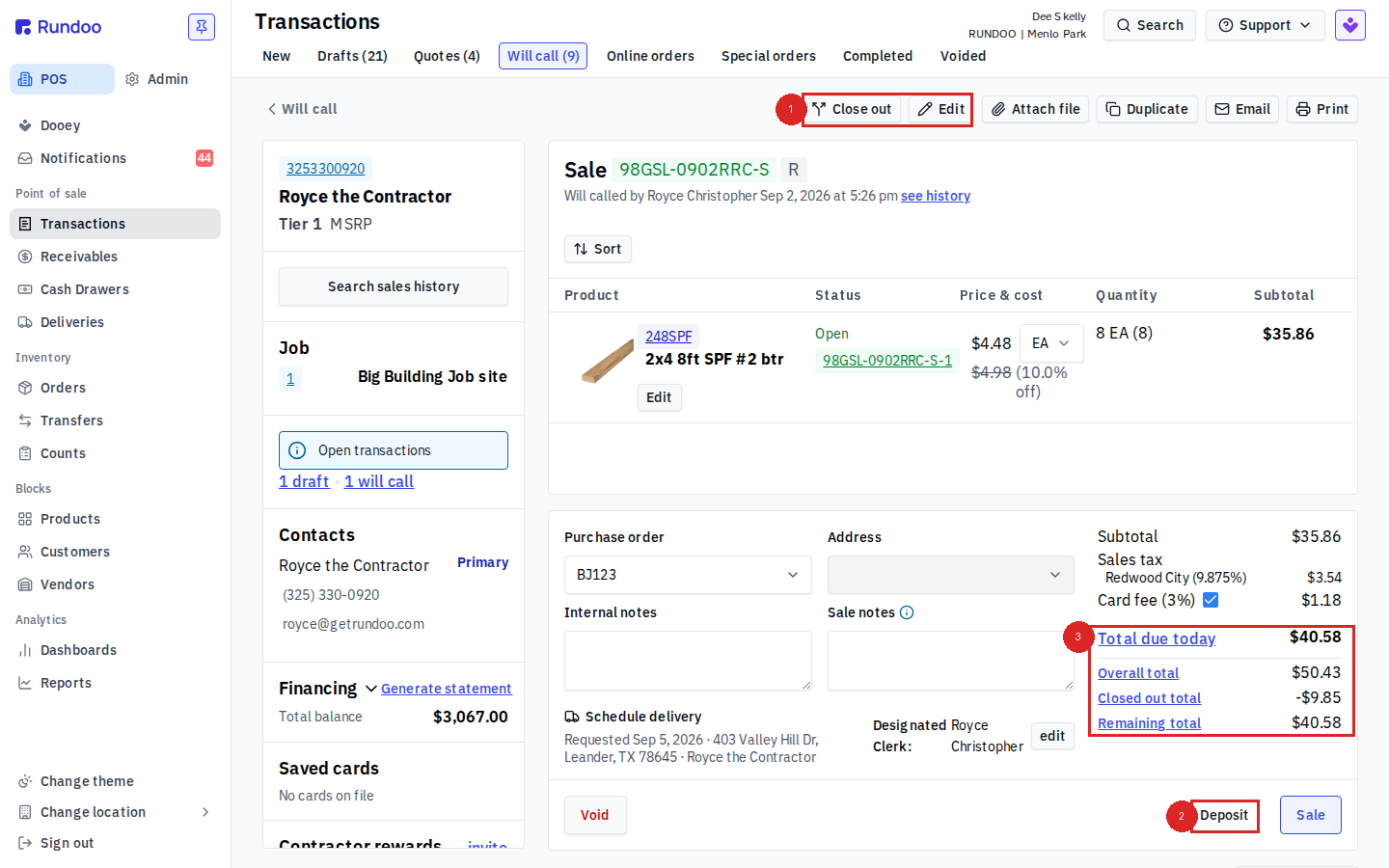
A saved will-call (and a saved quote or special order) opens read-only, its lines, quantities, and prices are locked so a committed hold can't drift by accident. Three buttons in the top action bar drive everything you do from there: Edit to change the order, Deposit to take money down before pickup, and Close out to hand over part or all of it. The totals panel on the right tracks the order across partial pickups: Overall total is the whole order, Closed out total is what's already been picked up and paid, Remaining total is what's still owed on the open lines, and Total due today is what the customer pays on this visit.
Edit the order
To change anything on a saved order, add a line, bump a quantity, edit a price, or take a line off, click Edit in the top action bar. The order turns back into an editable cart: the Search for a product bar returns, each line gets its quantity stepper back and its price becomes clickable again (that opens the Edit Price modal), and an ✕ removes a line. Make the changes, then click Save. Nothing sticks until you Save, and Cancel backs out with the order untouched.
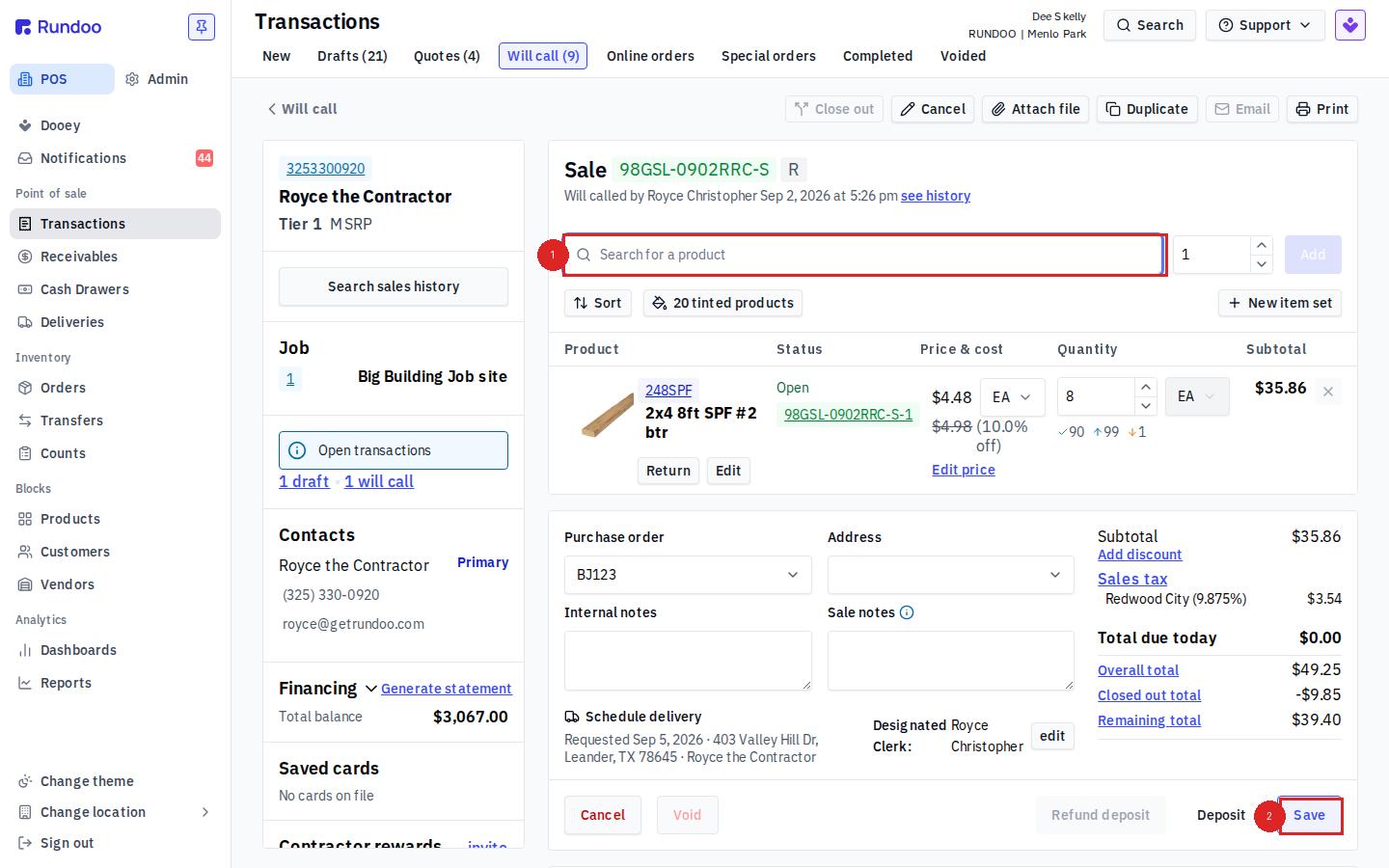
The saved order is read-only until you click Edit. If you open a will-call and can't change a quantity or add an item, that's by design, click Edit first. That guard is what keeps a committed hold from being changed by accident between the time it's saved and the time the customer comes in.
Take a deposit
Click Deposit to collect money against the order before it's picked up. An inline Deposit panel opens with an Amount field (the placeholder shows the balance still open, e.g. of $39.40), the usual tender picker (Cash, Card, Check, and so on), and, for a card, the reader and cash-drawer selectors. Enter what the customer is putting down and charge it. The deposit rides on the order and applies against the balance when you close it out, where it shows as Deposit to redeem. You can take more than one deposit over time; Refund deposit (in Edit mode) returns one if the order is cancelled or shrunk.
Forfeiting a deposit (customer cancels or never comes back)
When a customer walks away from a will-call (or a quote or special order) and your store keeps their deposit instead of handing it back, that's a forfeit, and Rundoo has a built-in step for it. You forfeit from the Void flow, not from Refund deposit.
Open the order from its top tab and click Void. Before the void finishes, Rundoo asks how to settle the deposit that's still on the order: a refund Amount at the top-left (defaults to $0) and the tender picker (Card, Cash, Check, Gift card, and Deposit).
-
To forfeit the whole deposit, leave the refund Amount at
$0and confirm. A confirmation modal spells out exactly what's happening, e.g. "You are forfeiting $2.00 of the $2.00 remaining deposit." Confirm it and the order voids with nothing refunded. -
To forfeit only part, put the amount you are giving back in the refund Amount, pick the tender you're returning it on, and confirm. The same modal breaks out how much is refunded and how much is forfeited.
-
To refund the whole thing (not a forfeit), set the refund Amount to the full deposit and pick a tender to pay it back on. Rundoo will want you to tender that amount the same way any refund does.
A forfeited deposit becomes income, it isn't a refund. A deposit you collect sits in the Customer deposits account (a liability, money you're holding for the customer). Forfeiting clears that liability and books the kept amount as income to the Forfeited deposits control account (44000 Forfeited deposits by default). Nothing goes back to the customer, so the cash you already took stays put; only the bookkeeping moves. You control which GL account forfeited deposits land in from Admin > Chart of Accounts > Mapping (the Forfeited deposits control-account row, one per location). See Account mapping.
Don't just leave a cancelled will-call open. A will-call keeps the inventory reserved until it's voided, so parking a dead order on the tab quietly holds stock off the floor. Void it (forfeiting or refunding the deposit as above) so the reserved inventory goes back to stock.
Close out part or all of the order
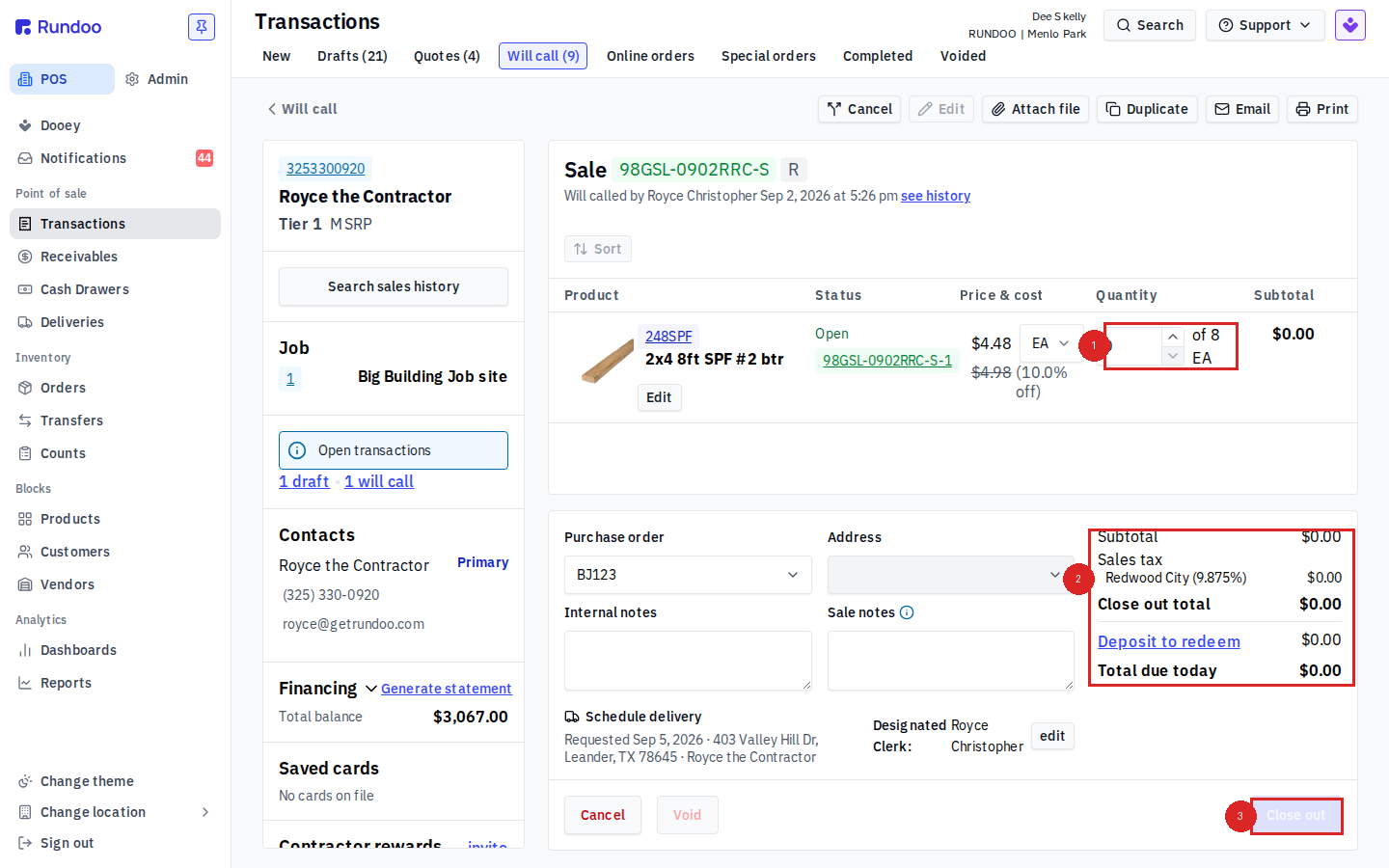
Close out is how a customer picks up and pays, and it doesn't have to be the whole order at once. Click Close out and each line gets a {n} of {total} quantity stepper. Set how many of each line the customer is taking today and leave the rest at 0. The Close out total and Total due today recompute to just what's being handed over (with any Deposit to redeem subtracted), and when you commit, the closed-out quantities move to a completed sale while the untaken quantity stays on the will-call as the Remaining total. Close out the rest whenever the customer comes back. To hand over the entire order in one go, set every line's stepper to its full quantity and close out.
This works on a cart that mixes special-order and stock items. One order can carry a special-order line and regular in-stock product together, and they stay in the same invoice. Take a deposit on the whole thing up front, then close out the stock the customer takes now and the special-order line when it lands, one order, one running balance, picked up in parts as the goods become available. See Special orders for ordering an out-of-stock item in the first place.
Resuming a saved sale
All three held-sale states live on the same page. In the POS > Transactions tab, the top-tab strip shows each one with a live count, so you can see at a glance what's waiting.
Click the top tab, click the held sale you want. The cart reloads and the full action cluster is available again. Finalize it as a Sale, promote it to a more-committed held state (a Draft can become a Quote or a Will call), or Void it to clear it out.
Each row is stamped with the staff member who saved it. On the Drafts tab you'll see "Created by {Name} {Date}"; on Quotes, "Quoted by {Name} {Date}"; on Will call, "Will called by {Name} {Date}". The name is the user logged in when the held sale was saved, so if a will-call has been sitting on the tab for a few days and you need to know who originally rang it up, the answer is right there on the list row.
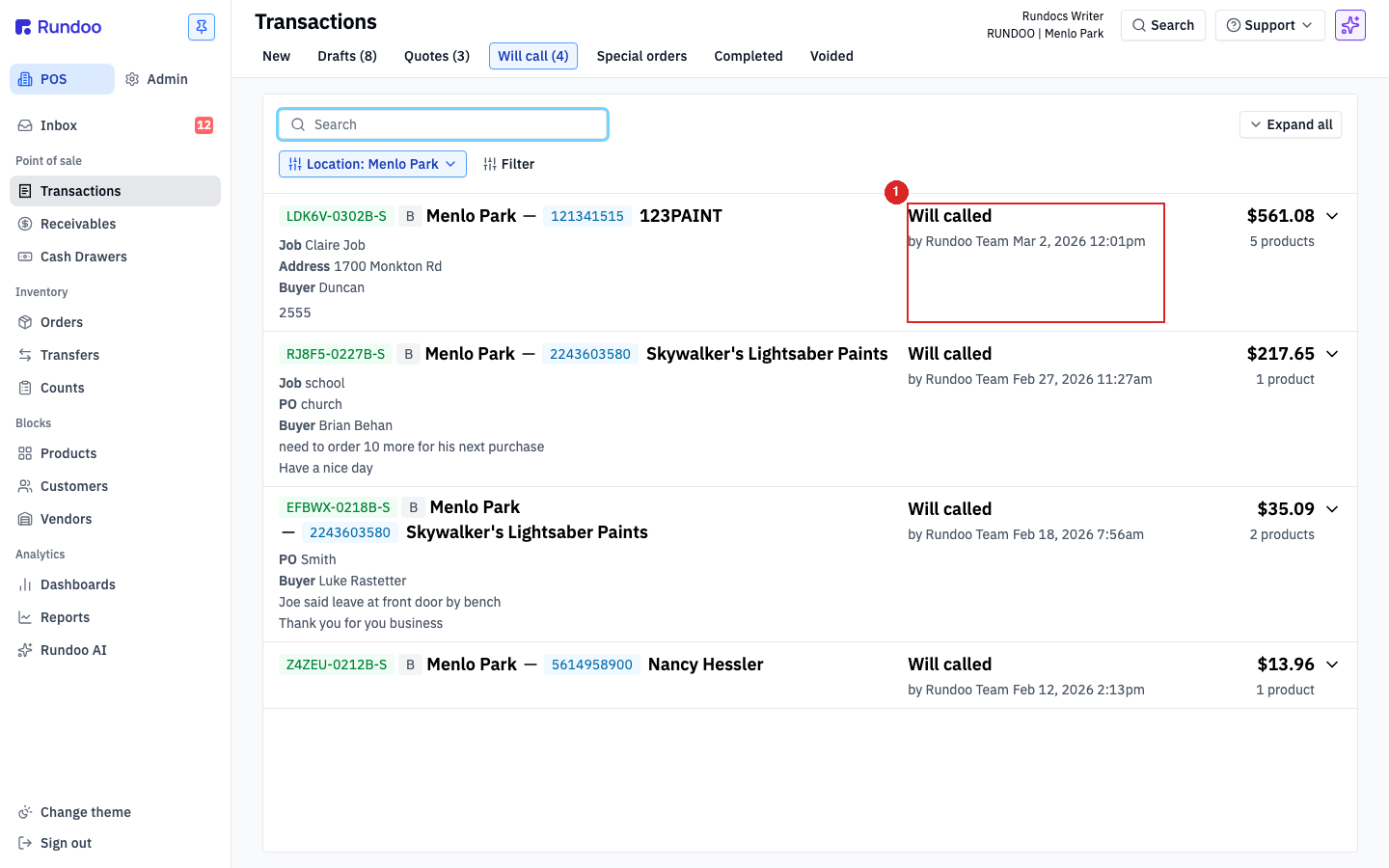
🔍 Stay on the list view to see the staff name. The staff stamp shows up on each row of the
Drafts/Quotes/Will calltabs. Clicking into a held sale reloads the cart but doesn't repeat the stamp, so don't open the held sale to look for it. If you've already opened one and need the name, click the top tab again to back out to the list.⚠️ Promotion isn't reversible. If you bump a held sale to a more-committed state (say a
Draftto aWill callso the inventory gets reserved) you can't downgrade it back. To unwind: void it and rebuild from theNewtop tab.
Letting you change a will-call back into a quote is a common request. Want this? Vote for it on the Idea board at rundoo.nolt.io/126.
Finalizing a will-call (completing pickup)
When the customer comes back to pick up their will-call, you finalize it by converting the hold into a completed sale and taking payment. In POS > Transactions, open the Will call top tab, click the will-call row to load the cart, then click Sale in the action cluster to take payment and complete the whole order at once. The reserved inventory transitions from the will-call to a completed sale; the customer leaves with their goods and a receipt.
If the customer paid a deposit when the will-call was created, that deposit applies automatically against the balance during finalization. They only pay the remainder.
💡 Picking up only part of the order? Use Close out instead of Sale, and set each line's stepper to just what the customer is taking today. The rest stays on the will-call as the
Remaining totalfor a later pickup. See Deposits and partial close-out above.⚠️ Don't void a will-call you're finalizing. Voiding releases the inventory back to stock, it's the opposite of pickup. Open the will-call from the top tab and click Sale to complete; reserve Void for cancellations.
Voiding a held sale
Voiding discards a held sale without completing it. The sale moves to the Voided top tab for your records, and if it was a will-call, the reserved inventory goes back to stock, making it available to sell again.
Void is also how you "delete" a quote, draft, or will-call. Rundoo doesn't have a separate Delete or Trash affordance, there's no kebab menu on the detail page and no bulk-delete on the list. If you need to clear out a stale quote or a draft a cashier abandoned, open it and click Void. It moves to the Voided top tab; nothing is hard-deleted (your records survive for audit).
To void: open the held sale from its top tab so the cart is loaded, then click Void in the action cluster.
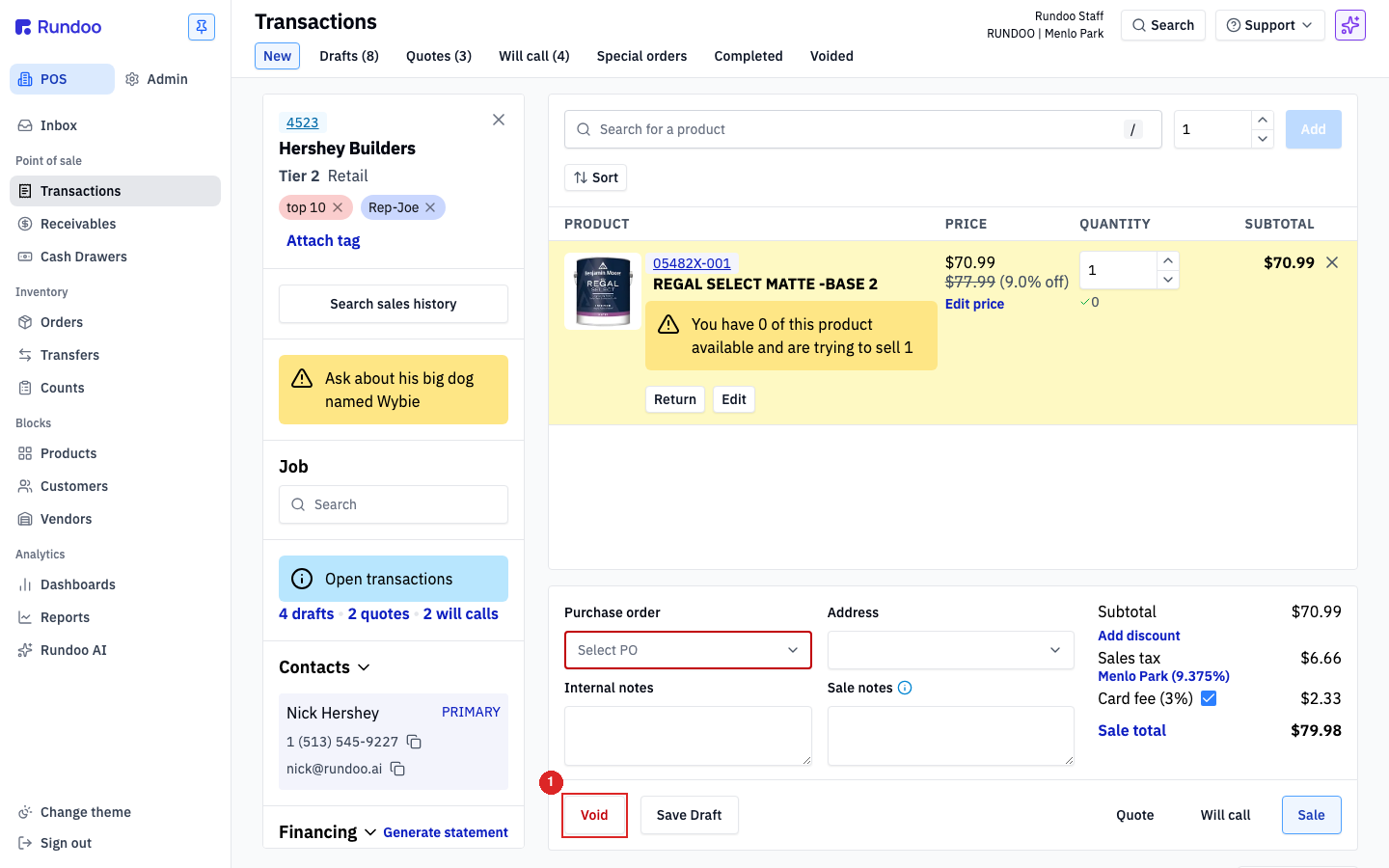
⚠️ Voiding a will-call is how you release the hold. If a customer cancels their will-call, void it. Don't just leave it sitting on the top tab, because the inventory stays reserved until you do.
💡 Voiding an order that has a deposit on it? The void step asks whether to refund or forfeit the remaining deposit before it finishes. See Forfeiting a deposit above.
Recommended Rundocs
-
Sales (finalizing a held sale, tender methods, split payment).
-
Special orders, when the customer wants something you don't have in stock.