
Rundocs › Accounting
Journal entries
Last updated 2026-09-11
Journal entries are the GL-level record of every transaction Rundoo posts (the nightly-generated, double-entry log your accountant reads to see exactly what debits and credits hit each account).
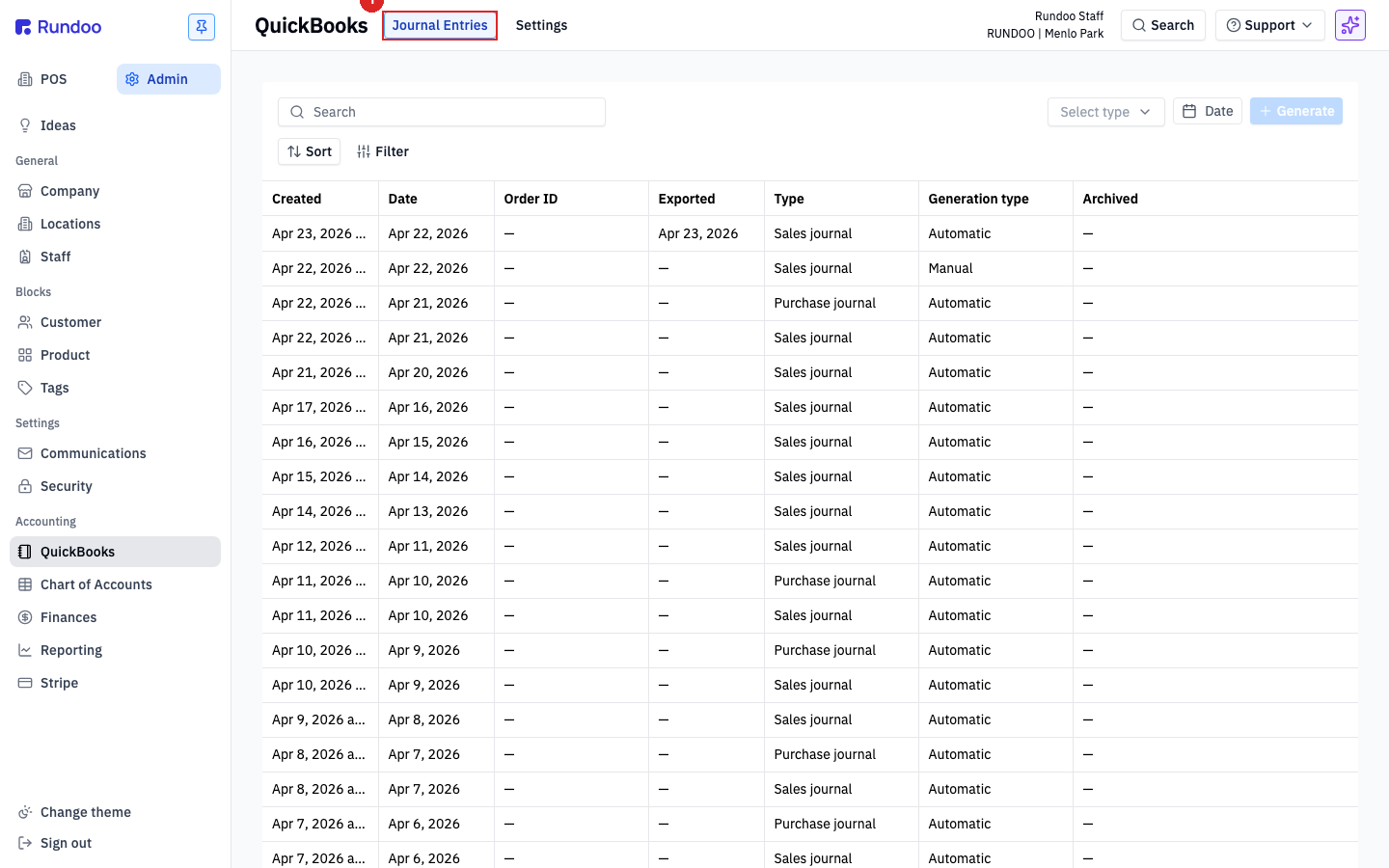
In the Admin > Reporting > Journal entries tab, you'll see every journal entry Rundoo has generated (each with its date, type, order ID (if any), and export status to QuickBooks). The same entries also appear under Admin > Integrations > Journal Entries, which is the QuickBooks-export-formatted view of the same data. See QuickBooks when that's the surface you want.
Looking to post your own entry? This page is about the entries Rundoo generates automatically. To create one by hand (for opening balances or an adjustment), that's a separate tool: see Manual journal entries.
How journal entries work
Rundoo builds journal entries automatically. You don't create them by hand, they're the accounting-system mirror of work you've already done at the POS, on purchase orders, and during inventory counts.
-
Sales journal. Rolls up every sale on a location for a given day into one entry. Debits the tender accounts (cash, card deposits, accounts receivable), credits
Sales, credits the sales-tax liability account, debitsCOGS, creditsInventory. -
Purchase journal (summarizes received purchase orders for the day). Debits
Inventory, creditsAccounts Payable. -
Other types appear as you run other workflows (refunds, transfers, voids, inventory adjustments). A finished entry is normally balanced (total debits equal total credits), and that's what a healthy entry shows. It isn't a guarantee, though: if a line can't resolve to a GL account, Rundoo can still save and display the entry with debits and credits that don't match. Check the totals card before you export, and if the two numbers differ, don't post to QuickBooks, go find the unresolved line first (see Common errors).
Generation is scheduled. Entries for yesterday's activity post overnight, so when you sign in the next morning they're already in the feed.
Which accounts each transaction hits is controlled by your Chart of Accounts mapping. See Account mapping for how a Sales tax payable credit finds the right tax account, and Chart of Accounts for the account types involved.
The entries on this page (the Sales and Purchase journals) are generated automatically and are read-only. You don't hand-edit them here; if a correcting entry is needed against the automatic feed, make it in QuickBooks (or your GL) after the entry has exported, or post a Manual journal entry if the adjustment belongs in Rundoo. That keeps Rundoo and your books in lockstep and avoids two sources of truth for the same number.
Viewing and filtering the feed
The Journal Entries tab opens to every entry Rundoo has generated, newest first. Each row shows:
| Column | What it shows |
|---|---|
Created |
When Rundoo generated the entry (usually the morning after the activity). |
Date |
The business date the entry is posted to (usually the day the activity happened). |
Order ID |
For entries tied to a single transaction (not the daily summary roll-ups), the source order number. |
Exported |
Blank or a timestamp (when Rundoo last handed this entry to QuickBooks). |
Type |
Sales journal, Purchase journal, etc. (tells you which workflow produced the entry). |
Generation type |
Automatic for the nightly-posted entries, or Manual for an automatic entry you re-created on demand with + Generate (see Regenerating an entry). Both kinds are still Rundoo-generated, order-linked entries on this feed. A Manual generation type here is not the same as a hand-posted Manual journal entry, which you write yourself from scratch on a separate page. |
Archived |
Blank unless you've archived the entry (see below). |
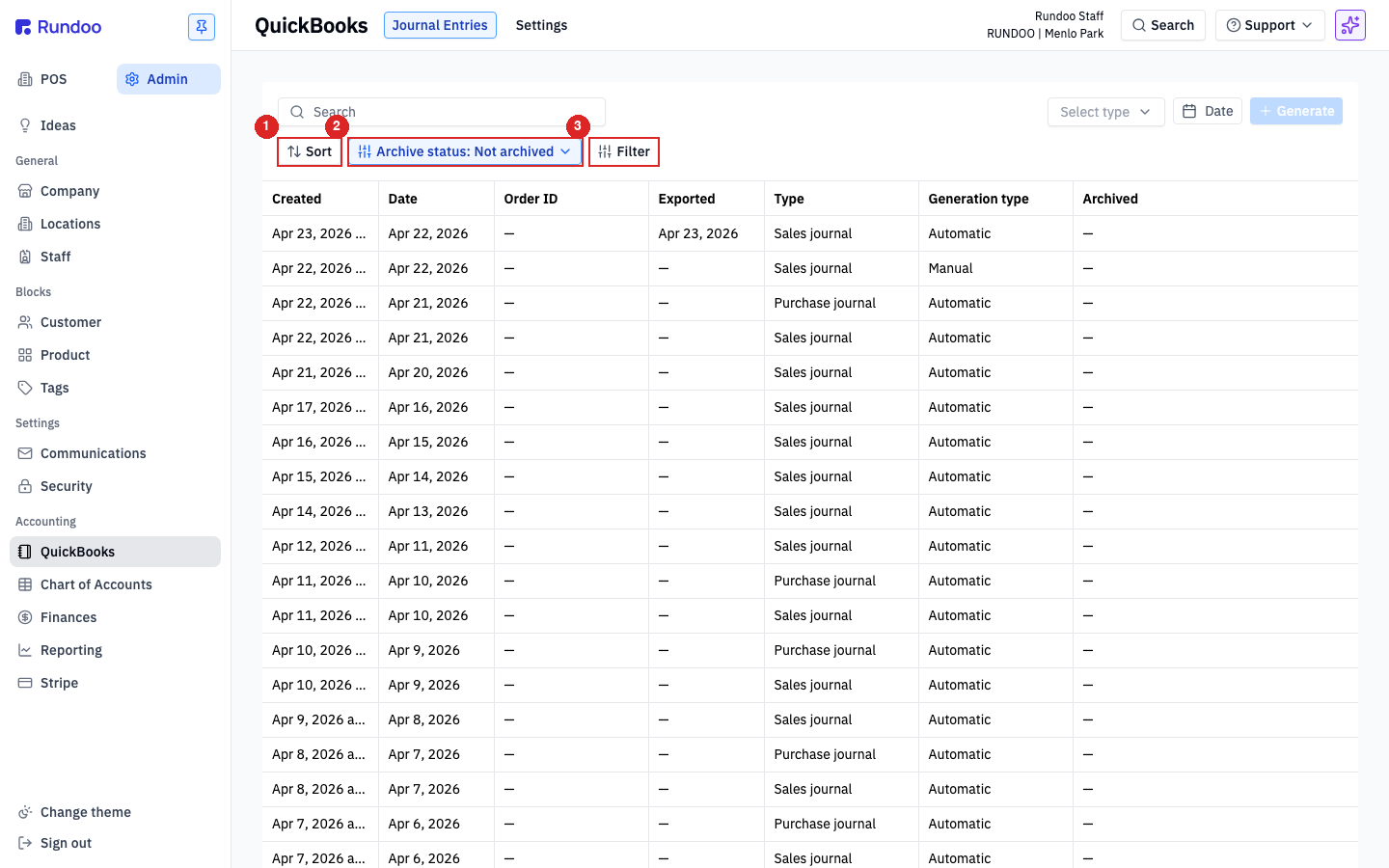
The Reporting > Journal entries tab and the Integrations > Journal Entries tab list the same entries. The Reporting view is the accounting-first surface (grouped alongside P&L, Balance sheet, General ledger), and the QuickBooks view exposes the same rows plus the export-formatted downloads covered below.
Narrow the feed with the control strip above the table:
-
Sort (flip chronological order).
-
Archive status,
Not archived(the default) orArchived. Archiving hides an entry from the active feed without deleting it; useful for old reconciled entries you don't want cluttering the view. -
Filter. Opens a popover to filter by
Type(e.g. justSales journal) orGeneration type. Good for isolating a single kind of entry while reconciling.
Above the control strip, the Search input matches on Order ID and dates. On the far right, Select type and Date narrow the feed from the top (the same filters exposed through the popover, just pinned to the page header).
Reading a journal entry
Click any row to open the full entry on its own page. This is the double-entry view your accountant cares about.
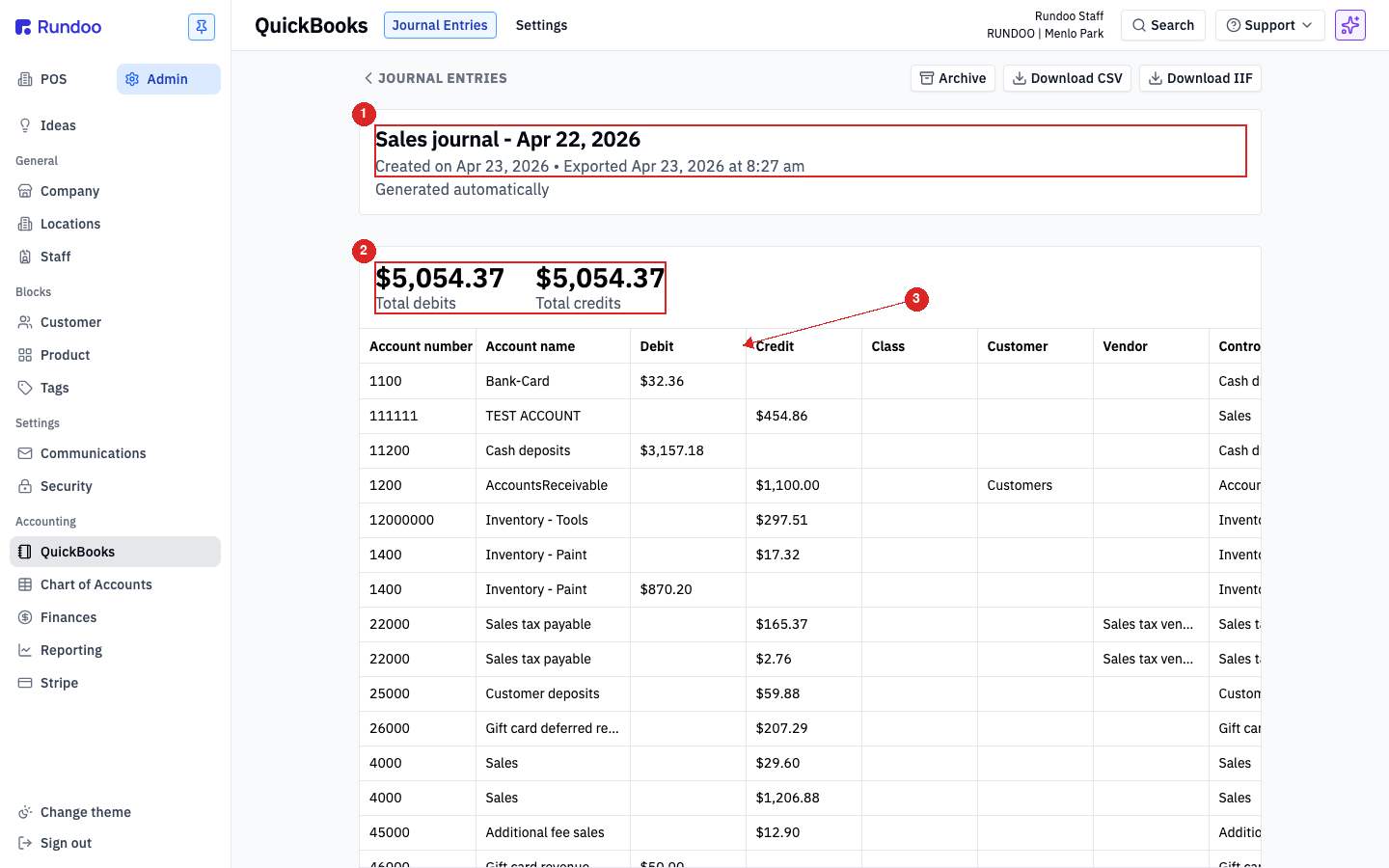
At the top you'll see:
-
The entry title (
Sales journal - {Date},Purchase journal - {Date}, etc.) -
The metadata line, when it was created, whether it's been exported, and whether it was
Generated automatically. -
The totals card (total debits on the left, total credits on the right). On a healthy entry the two match, and that's the normal, expected case. It isn't guaranteed, though: if a line can't resolve to a GL account, an entry can save and display here with the two numbers out of balance. So the totals card is the thing to check before you export. If total debits and total credits differ, don't post the entry to QuickBooks, find the unresolved line first (see Journal entry totals don't match in Common errors).
Below the totals, the line-items table lists every posting with:
-
Account numberandAccount name, which GL account each line hits (from your Chart of Accounts). -
Debit/Credit(the amount, in one column or the other). Every line is either a debit or a credit, never both. -
Class,Customer,Vendor,Control account. Extra dimensions when Rundoo has them (e.g. a customer name on anAccounts Receivabledebit, a vendor name on anAccounts Payablecredit). These flow through to QuickBooks so your AR and AP subledgers reconcile.
If a line hits an account you don't recognize, check Chart of Accounts for what that account means. And Account mapping if you want to change which account a given transaction type posts to going forward.
Exporting entries
Rundoo can hand journal entries straight to QuickBooks Online. The QuickBooks integration pushes exported entries into your QBO file on a schedule. For companies that use QuickBooks Desktop or a different GL, Rundoo produces a downloadable file per entry.
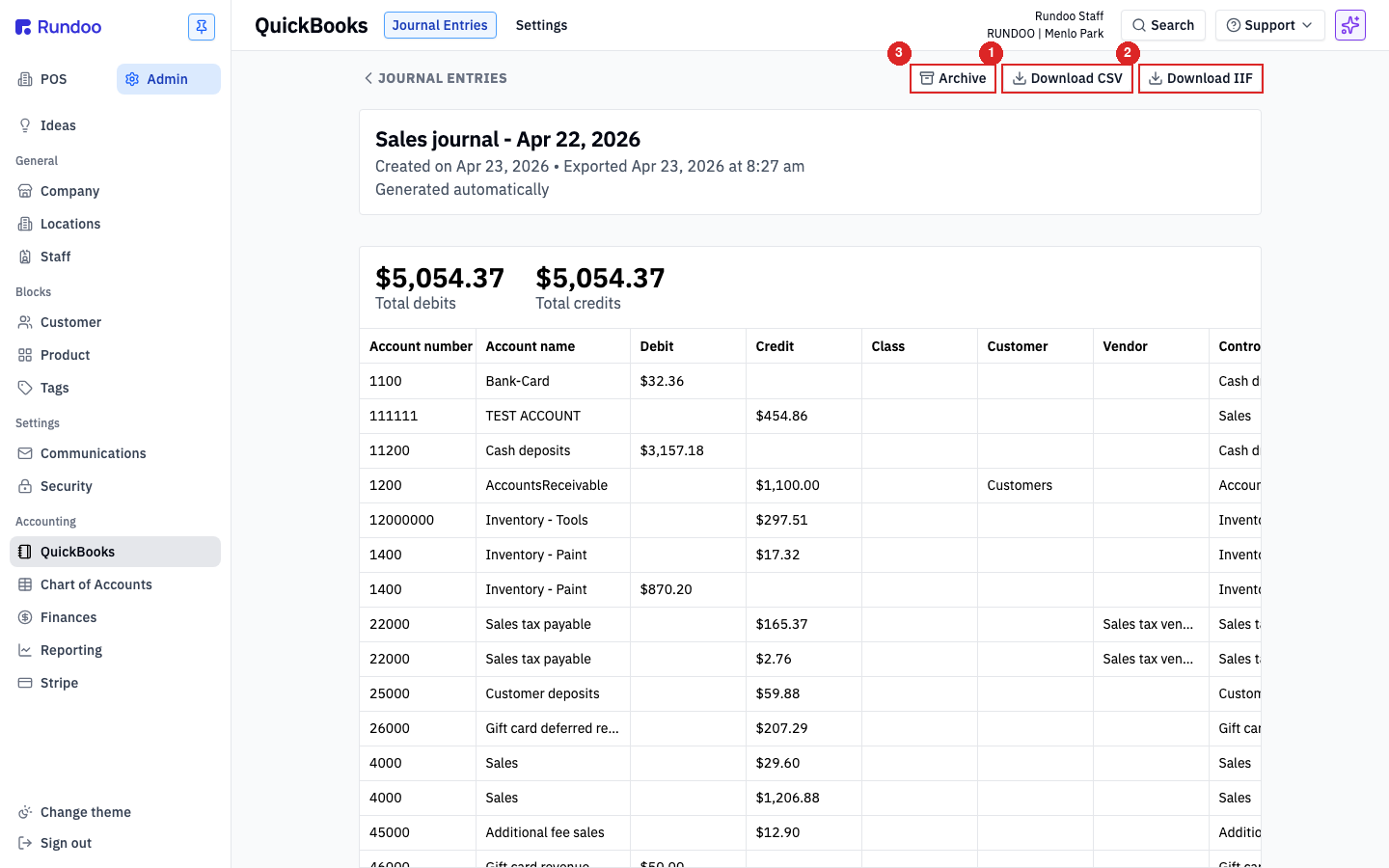
The detail view's top-right cluster has three actions:
-
Download CSV(the entry as a spreadsheet-friendly CSV). Good for quick pastes into any GL, or for sending an entry to your accountant for review. -
Download IIF, the entry in IIF format, QuickBooks Desktop's import file. Open QB Desktop and useFile > Utilities > Import > IIF Filesto load it. -
Archive(moves the entry out of the active feed). Archiving doesn't affect any prior export; it just hides the row from the defaultArchive status: Not archivedview. Use it once an entry is fully reconciled and you don't need to see it day-to-day.
Archiving isn't the same as voiding or deleting. Rundoo never deletes journal entries (the posting is a permanent record). Archiving is purely a view filter.
The Download CSV / Download IIF / Archive actions live on the Integrations > Journal Entries detail view (that's the export-formatted surface). The Reporting > Journal entries view is read-only and reconciliation-focused (grouped with the other accounting reports); when you need to push an entry to a GL, hop over to Admin > Integrations > Journal Entries.
If you're on the QuickBooks integration, the Exported column on the list fills in automatically as entries sync. If an entry's missing an export date you'd expect, the connection may have drifted. Check the Settings top tab inside Admin > Integrations to confirm the integration is still authenticated.
Regenerating an entry
Most journal entries are generated automatically the morning after the activity, but Admin > Integrations > Journal Entries also exposes a manual + Generate flow for re-creating an entry on demand (useful after you've corrected an account mapping and want the affected entries re-posted against the new GL).
The top-right of the Journal Entries tab carries a + Generate purchase journal button (and equivalents for other types). Clicking it opens a small composer with three controls:
-
Select type, the type of journal to regenerate:Sales journal,Purchase journal, or any other automatic type. -
Date(the business date you want regenerated). Rundoo rolls up that day's activity and produces a fresh entry. -
+ Generate(commits the regeneration). The new entry appears in the feed withGeneration typeofManual(rather thanAutomatic), so it's easy to spot in audit later.
Regenerating doesn't delete the original entry, it sits next to it as a separate row. If the original was already exported, the new one will export on the next QuickBooks sync as a fresh entry; reconcile the duplicate manually in QuickBooks (or void the original on the QBO side) before paying.
Regenerating produces a new journal entry; it does not retroactively unwind the original posting. If you regenerated an entry to fix a mapping error, your QuickBooks file now has both the wrong entry and the right one until you void or reverse the original on the GL side.