
Rundocs › More
Delete, void, or deactivate
Last updated 2026-08-17
Rundoo is built around preserving data. Every sale, transfer, payment, and adjustment forms part of your audit trail, so the default answer to "can I delete this?" is no. Instead, you'll see deactivate (soft-archive) or void (mark canceled) most of the time. Hard delete is reserved for records that don't carry historical weight (saved cards, contact rows, configuration entries).
This page is the lookup table. A single place to check whether a given record can be deactivated, voided, or deleted, and what each action means.
The three actions (what each one means)
-
Deactivate, the record stops appearing in active searches and default lists, but its history stays intact. Past sales, orders, transfers, and reports continue to reference it. Reversible (toggle the list's Status filter to
Inactive, open the record, click Reactivate). -
Void. The record appears in searches but doesn't roll up into reports. Used for transactions that were created but not finalized, or finalized in error and reversed.
-
Delete. Permanently removed from the system. Reserved for records without historical reporting weight.
What you can deactivate
Search results and most default lists hide deactivated records. Their history stays intact and shows up on past transactions.
-
Customers
-
Vendors
-
Products. Deactivate is as far as it goes; a product can't be permanently deleted, even the inactive ones, because past sales, receipts, and counts reference it. Deactivating hides it from search and product lists, which is the intended "remove it from my working inventory" outcome.
-
Staff accounts *
-
Locations (only by Rundoo Support); message support to request
-
Jobs
Reactivate via the Status: Active filter on the parent list, switch to Inactive, open the record, click Reactivate in the top-right action cluster.
Phone numbers can't be edited on staff accounts. If a staff member changes their phone, deactivate their record, change their Staff ID, and create a new account. See Staff.
What you can void
Void covers transactions and movements that were created but shouldn't roll into reports. Voided records remain in search results so you can find what happened, but the data side is reversed.
-
New transactions (sales)
-
Drafts
-
Quotes
-
Will calls
-
New orders (purchase orders)
-
Order drafts
-
New transfers
-
Transfer drafts
-
In-transit transfers
-
New inventory counts
-
Transactions (charge-account only). See Bills & payments for the void-a-charge-account-sale flow
A received purchase order can't be voided, but a draft or Ordered one can. The Void button is on drafts and on Ordered POs (an Ordered PO hasn't taken in any stock yet, so voiding just cancels the order). Once a PO is Received, Vouchered, or Paid, the Void button is gone. So if you received an order against the wrong vendor, or need to cancel or undo a received order for any other reason, you back the stock out instead of voiding it: create an offsetting receipt with negative quantities (or duplicate the PO with negative quantities on each line and receive that), then start a fresh PO under the right vendor. See Purchase orders for the step-by-step.
Voiding a sale. What happens to inventory
When you void a completed charge-account sale, Rundoo opens a Void Completed Sale dialog with a Return inventory to stock checkbox, checked by default. Leave it checked and voiding puts every product on the sale back to on-hand. Uncheck it if you don't want the stock returned, for example, the items were damaged, or you've already corrected on-hand by hand.
You also enter a Reason for void first (the Void Sale button stays disabled until you fill it in).
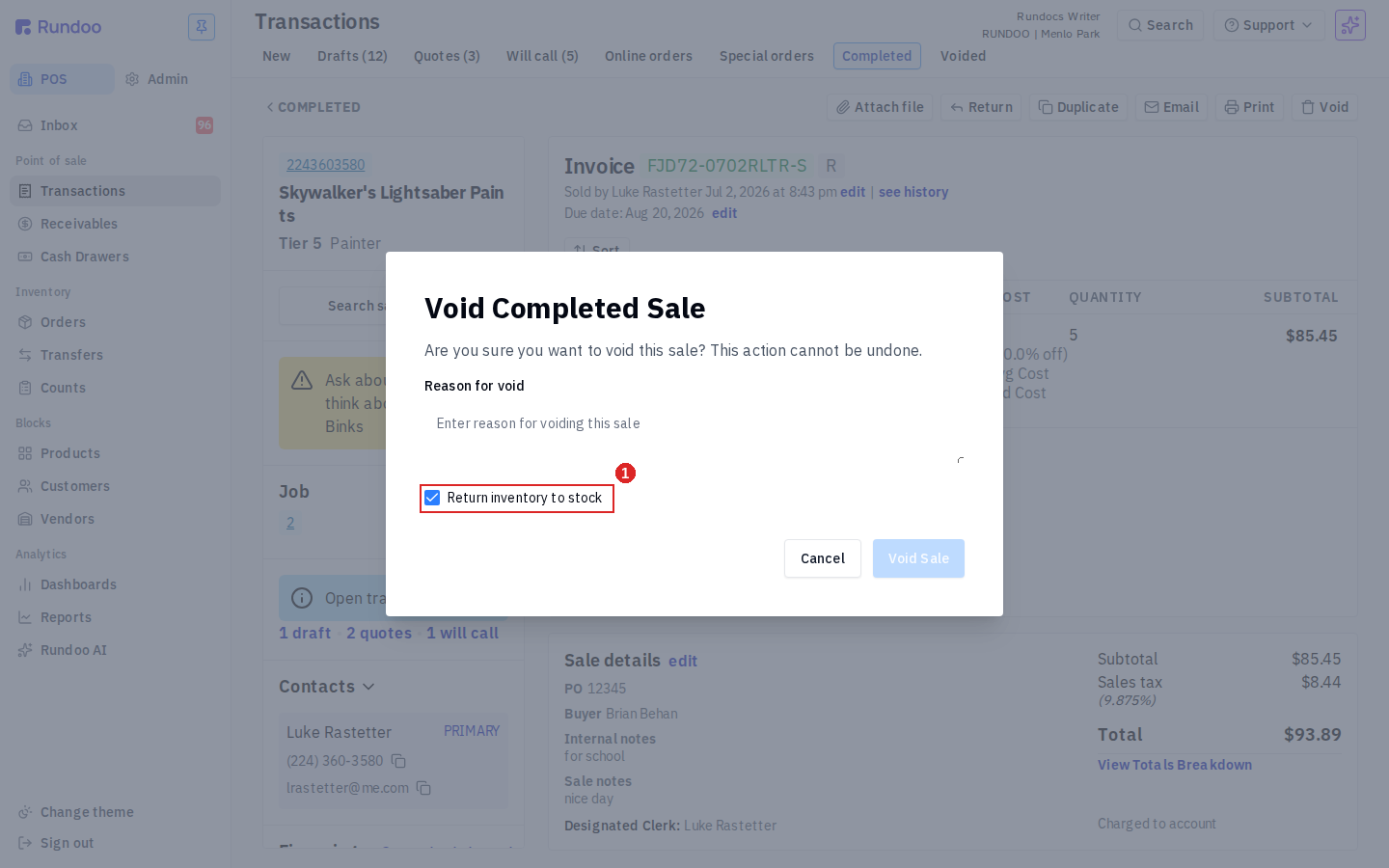
On-hand didn't go back up after a void? The Return inventory to stock box was unchecked, or that product's inventory had already been adjusted manually. Voiding only restores stock when the box is checked, and it won't stack on top of a manual edit.
What you can delete
Delete is permanent. The data is removed entirely. Reserved for records that don't carry transactional history.
-
Saved credit cards on a customer's profile
-
Customer contact details
-
Secondary customer contacts
-
Product tags *
-
Customer tags *
-
Product categories * (Department, Class, Fineline)
-
Custom tax rates *
-
Write-offs. Ask Rundoo Support
Notes on permissions
Items marked with * are admin-only. Staff need the Access admin to manage pricing tiers, financing terms, financing rates, product categories, and other company-level settings permission (see Staff). Items marked ** require contacting Rundoo Support; they can't be self-served because they reverse posted journal entries.
Void actions on completed sales and transfers also pair with POS security (some require a manager's PIN or Login key at the register even if the cashier has the permission).
If your question isn't in the lists above
Assume the answer is no. The record is part of the audit trail and can't be removed. The cleanest paths in that case are usually:
-
A reversing transaction (a deposit on the External account) for paid bills.
-
A write-off (reversed via Support) for uncollectible balances.
If you're not sure which path fits, message Rundoo Support with the specifics before doing anything destructive.
Recommended Rundocs
-
Bills & payments, the voiding flow for charge-account sales and bill payments.
-
Merging customers (cleanup for duplicate customer records).
-
Staff, deactivating a staff account.
-
POS security, manager-approval gates on top of permissions.