
Rundocs › Pricing
Creating Promotions
Last updated 2026-09-10
Promotions are how you put items on sale: a temporary price adjustment (percent off, margin target, or fixed dollar) that applies automatically at checkout. Reach for one to set up promotional pricing on your monthly sale items, a clearance rack, or a seasonal special, scoped to a vendor/department/class/fineline, a specific product, or everything in the store.
How to use this page: if you're setting up your first promotion, follow the Creating a promotion walkthrough. Already know the form and want a quick recipe? Skip to Common patterns.
Where to find Promotions
POS mode → Products in the sidebar → the Promotions tab.
The list page shows each active promotion by name, the products it covers, the locations it applies in, and when it was last updated. Click Add promotion to create a new one.
Can't see the Add promotion button? Two things to check:
-
You're on the right page.
Add promotiononly lives on POS > Products > Promotions (the list tab). There's noAdd promotionbutton on a specific product's detail page (promotions are set up company-wide, not from an individual product). -
Your staff permission is off. Creating and editing promotions is gated by the
Create, edit, and manage promotions and spiffspermission on your staff record. If it's unchecked, theAdd promotionbutton won't render for you. An admin can turn it on from Staff. Open the staff member, click the Permissions tab, and check the box. See POS security for how staff permissions and company-wide security toggles stack.
Creating a promotion
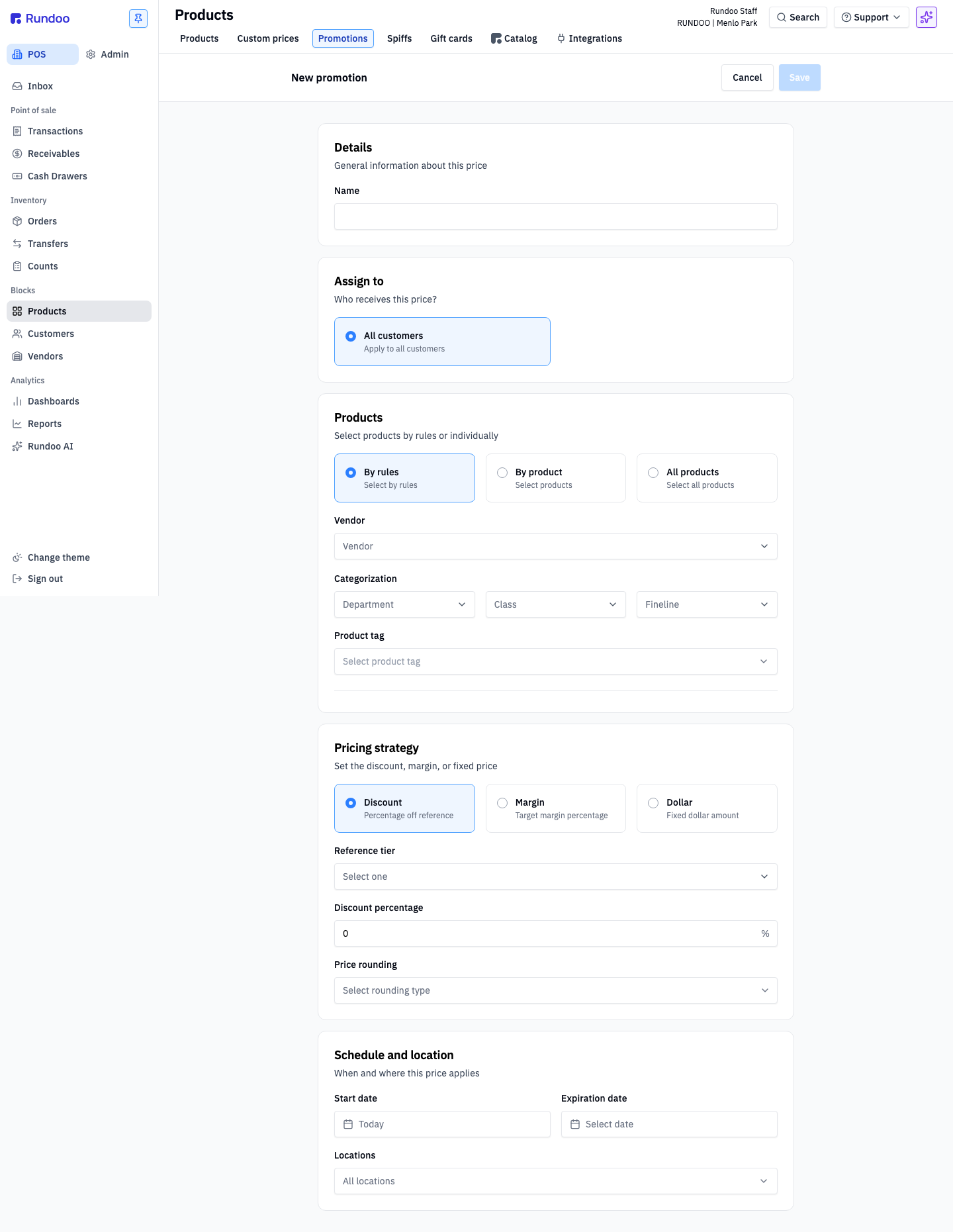
The form has five sections. You don't need to fill in every field (Rundoo uses sensible defaults).
Details
- Name (what the promotion shows up as in the list and on receipts).
Assign to
Who gets this price. By default, All customers. (Customer-specific pricing lives in the adjacent Custom prices tab. See Custom prices when a price should stick for one customer permanently, not run on a schedule.)
Products
Three ways to choose what's on sale:
-
By rules (the broad option). Pick a Vendor, Department / Class / Fineline (Rundoo's product categorization hierarchy), and/or a Product tag. Every product matching the filters gets the promotion. Good for "10% off Benjamin Moore" or "everything tagged summer clearance." A promotion carries one rule set, not several stacked rules. The three filters above combine on a single promotion, so for two different rule shapes (say
10% off Benjamin Mooreand15% off everything tagged summer clearance) create two separate promotions and run them side by side. -
By product (pick specific SKUs). Good for a handful of named items on sale.
-
All products, storewide. Good for tier-wide discounts (see Pricing strategy below).
Pricing strategy
What kind of adjustment this is (pick one):
-
Discount, a percentage off a reference price tier. Pick the Reference tier (e.g., base list price), the Discount percentage, and optionally a Price rounding rule to land the final price on a clean number.
-
Margin. Target a specific gross margin. Rundoo computes the sell price from current cost so the margin lands where you want. Good for keeping margin locked across cost changes.
-
Dollar, a fixed dollar amount. Overrides to a flat price regardless of tier or cost.
Schedule and location
-
Start date. When the promotion goes active. Defaults to Today.
-
Expiration date (optional). Leave blank for an open-ended promotion that stays active until you end it manually.
-
Locations (which stores honor this price). Defaults to All locations.
Click Save at the top right. The promotion applies to matching transactions from the Start date forward.
Common patterns
One-day percent-off a vendor
Pass through a vendor-offered promo for a limited window.
-
Products: By rules → pick the Vendor.
-
Pricing strategy: Discount → Reference tier = your base tier, Discount percentage = the markdown.
-
Schedule: Start today, Expiration = tomorrow (or whenever the window ends).
Storewide tier discount
Everything X% off this weekend.
-
Products: All products.
-
Pricing strategy: Discount → Reference tier = base tier, Discount percentage = the markdown.
-
Schedule: set a Start and Expiration.
Fixed price on a specific SKU
One product with a specific sale price regardless of tier.
-
Products: By product → search and select the SKU.
-
Pricing strategy: Dollar → enter the sale price.
-
Schedule: open-ended or windowed.
Free samples and giveaways
There isn't a native "free sample" promotion type, but stores run them three different ways depending on what they're tracking.
-
Sales notes tag. Ring the product at
$0by clicking the line's price and add aSales notelikeFree sample - Aura promoon the line. Lightest path; reporting comes from a Sales report exported to Excel and filtered on theSales notecolumn. Good when you don't sample often enough to want a dedicated SKU. -
Dedicated $0 SKU. Add a non-stock product (e.g.
SAMPLE Aura, Tier 1 =$0, non-taxable, non-stock) and ring it instead of the real product when handing one out. Cleanest for reporting (the Sold Products report filtered to the sample SKU is your giveaway count) and avoids touching the real product's sales numbers. -
Sample tag on a customer or job. If a single contractor is collecting samples for a project, attach a
Sampletag to the customer or job and run a Sales report filtered to that tag. Useful when one customer's samples have to roll up separately from yours.
Pick the lightest one that gives you the reporting you need. Most stores start with sales notes and graduate to a dedicated SKU once they're sampling weekly.
Excluding items from a discount
A common ask is "I want a discount on most of the store, but there are a few items I don't want it to apply to" (a military or contractor discount that skips special-order paint, say, or a storewide sale that leaves clearance alone). Rundoo scopes a promotion by what it applies to, not what it skips — the Products picker is positive-only (By rules, By product, or All products), and there's no "everything except these" exclusion list. There's also no per-product non-discountable flag that holds an item out of every sale.
So you exclude items by scoping the promotion to the set you do want discounted:
-
Leave out a whole department, class, or vendor. Use By rules and pick only the categories that should be on sale. If the items you want to skip are their own Department / Class / Fineline (or a specific vendor), just don't include them in the rule. See Product categories for setting up that taxonomy.
-
Skip a handful of named items out of a big group. There's no way to say "all products except these five," so tag the products that should get the discount with a product tag (e.g.
fall-sale) and scope the promotion By rules → Product tag. Tagging the discountable set is the workaround for "storewide minus a few." -
Only a short list is on sale. Use By product and pick those SKUs directly.
Because a saved promotion's product list can't be edited in place, get the scope right at creation. If you later need to add or remove items, deactivate the promotion and create a new one with the corrected scope (see Editing a saved promotion).
Running a BOGO coupon
The Promotions form doesn't have a native "buy-one-get-one" option, but stores run BOGOs cleanly with a small pattern. It's what Rundoo trainers walk customers through on every BOGO question.
Set up once:
-
Create a BOGO product. Add a new product (e.g.
BOGO Regal Select) with the coupon number in the Additional IDs field. Mark it non-stock, non-taxable, and set the default cost and Tier 1 price to$0. -
Make the real product non-nesting. On the paint (or whatever the promo is on), go to Settings > Checkout and flip on non-nesting so two of the same SKU show as separate cart lines instead of stacking to
Qty 2.
At the register, when the customer presents the coupon:
-
Scan or add the real product at full price.
-
Add the same product a second time, click its price to open Edit Price, and set it to
$0(that's the "get one" leg). -
Scan or search the BOGO [Product] SKU to attach the coupon record to the sale. Optional: add a Sales note like
Part of contractor BOGO couponso it shows up when you report on BOGO activity later. -
Complete the sale.
Reporting comes from either angle:
-
By coupon SKU. In POS > Analytics > Reports, open Sold Products, filter by the BOGO SKU, pick the date range. You'll see how many coupons got redeemed.
-
By sales note. Run the Sales report over your date range, export to Excel, and filter or sort the
Sales notecolumn. This is richer if you're pattern-matching multiple BOGO flavors or want to see who rang each one.
Managing existing promotions
From the Promotions list page:
-
Sort / Filter (narrow by date, location, or product).
-
Status: Active. Switch to
Archivedto see past promotions. -
Show/hide (column picker).
-
Download spreadsheet, export the list.
-
Import promotions, bulk-create from a CSV.
Editing promotions inline in the list
Click into the Price, Margin %, or Discount % cell on any row to adjust a promotion in place (no need to open the detail page). The editable column depends on the row's Strategy:
-
Dollar strategy → Price is editable.
-
Margin strategy → Margin % is editable.
-
Discount strategy → Discount % is editable.
Edit as many rows as you want and apply them all at once with the Update N… button + confirmation. Defaults lead with Name · Strategy · Price · Margin · Discount under the PROMOTION group; Start / Expiration tuck behind Show/hide if you need them on screen.
Use the detail page (next section) when you need to change anything other than Price / Margin / Discount. Schedule, Products, Locations, and the strategy itself are still detail-page edits.
Editing a saved promotion
Click any row in the list to open Edit promotion. A saved promotion is partially locked. Some fields can still be tweaked, others are baked in at creation time.
Editable after save:
-
Name
-
Pricing strategy. Swap between Discount / Margin / Dollar, and change the percentage, margin target, or dollar amount.
-
Start date and Expiration date.
Locked after save:
-
Assign to. The customer scope (All customers vs a specific group) is fixed at creation.
-
Products. You can't add or remove products from an existing promotion, whether it was built with By rules, By product, or All products. The Search input and the remove controls are disabled on the Edit promotion form.
-
Locations
If you need to change the product list, customer assignment, or locations on an already-saved promotion, you can't. Deactivate it and create a new one with the revised scope. Rundoo doesn't let you restructure a saved promotion in place, so scope matters at creation time.
Ending a promotion
Two ways, same outcome:
-
Click
Deactivatein the Edit promotion header. Immediate end, cleanest option. -
Or edit the Expiration date to today. Useful when you want a specific off-date on the record for reporting.
Recommended Rundocs
-
Custom prices (customer-specific pricing that doesn't expire).
-
Running Reports (use the Additional fees / Sales by day reports to see a promotion's impact).