
Rundocs › Integrations
Benjamin Moore
Last updated 2026-08-27
For any questions about this, please email rsos@benjaminmoore.com and support@rundoo.ai
The Benjamin Moore integration connects your Rundoo to Benjamin Moore. Once it's on, BM products show up in your catalog with real SKUs and pricing, your BM purchase orders go to Benjamin Moore (by email, or over EDI if your store is set up for it), and qualifying sales are reported back to BM for its rebate programs. What each Benjamin Moore program is and who qualifies come from your BM rep; Rundoo's side is the plumbing that carries the products, orders, and sales data.
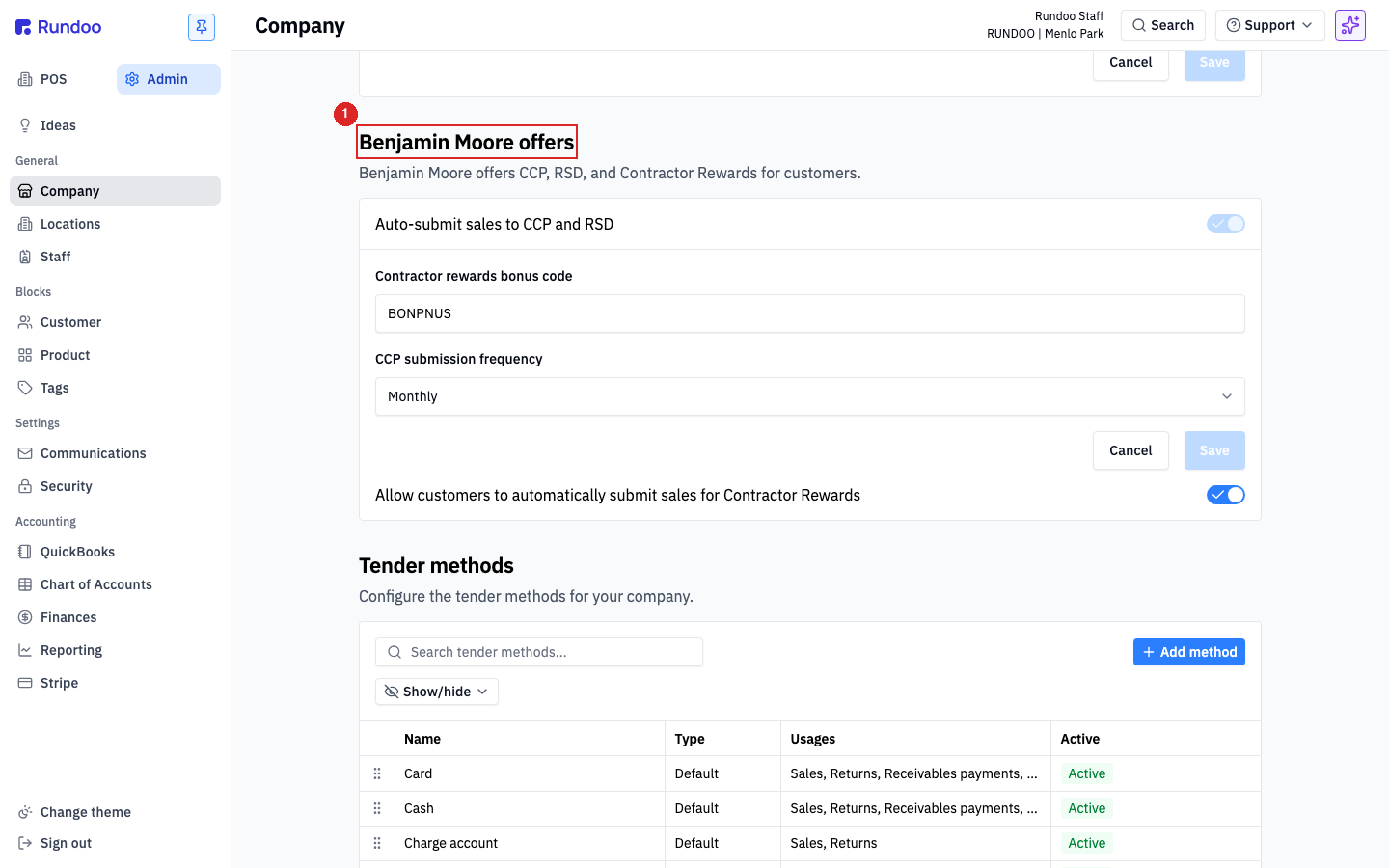
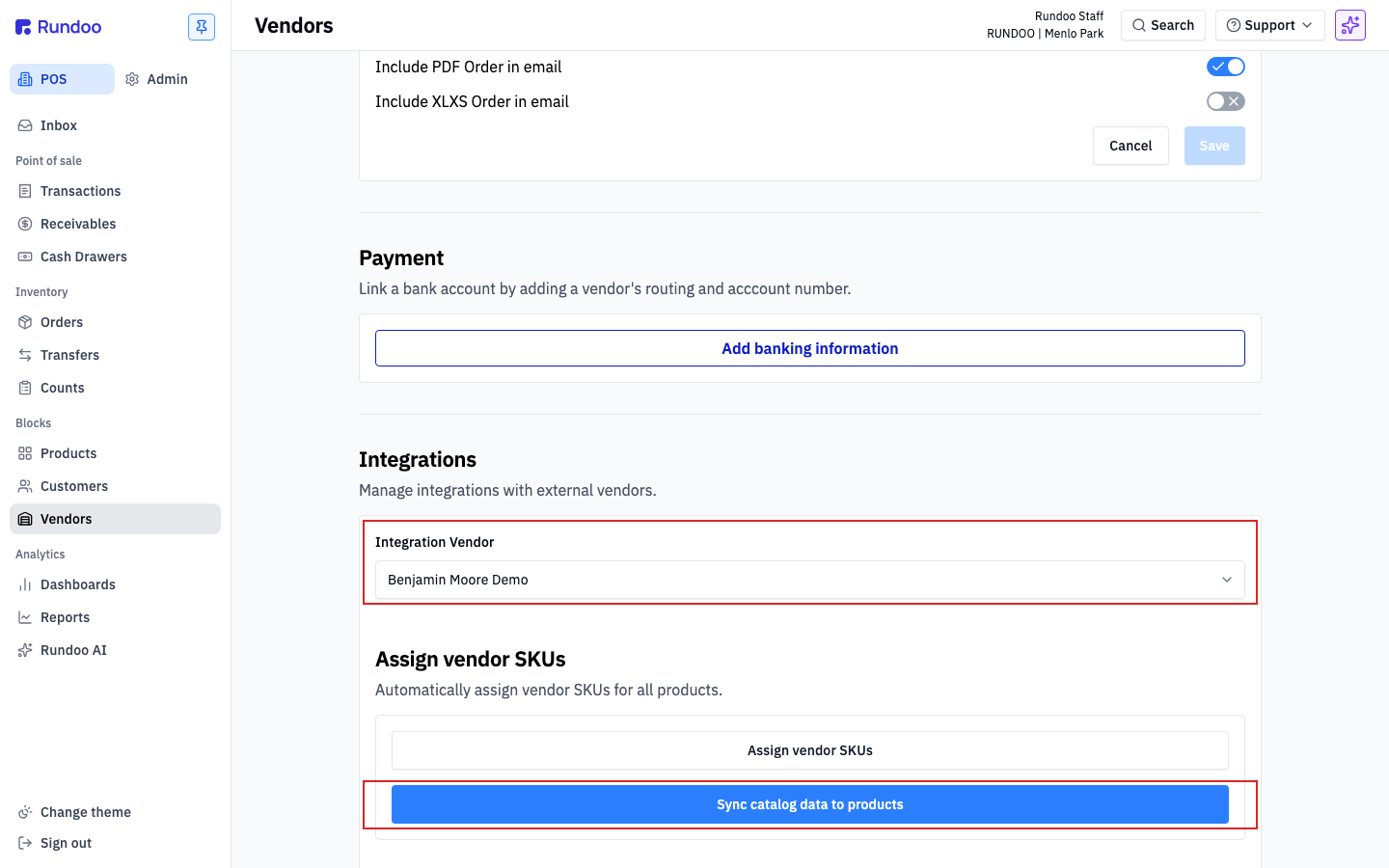
In the Admin mode, open the Company left tab and scroll to the Benjamin Moore offers section. That's where the rebate side of the integration gets configured. Catalog sync lives on the Benjamin Moore vendor in the POS mode, Vendors left tab.
What the Benjamin Moore integration does
Rundoo has a direct, always-on integration with Benjamin Moore. You don't install anything. It's part of your Rundoo. What it gives you:
-
Ordering. Send Benjamin Moore purchase orders straight from Rundoo. Most stores order by email; stores Benjamin Moore has set up for EDI send orders directly through the integration instead (a short reference code crosses the wire, not the full PO). See Benjamin Moore orders for both paths and how to place one.
-
Catalog sync. This is the list of Benjamin Moore products you can import into your inventory, kept current by Benjamin Moore (SKUs, descriptions, pricing) so you're not keying them in by hand. It's a product-catalog convenience and is separate from how your orders are sent. Paint Care Fees aren't part of the catalog; set those up as Additional fees on the BM products that need them.
-
Rebate reporting. Qualifying BM sales are reported to Benjamin Moore's programs (CCP, RSD, Contractor Rewards) automatically from your sales data, no spreadsheets to upload. See CCP & RSD and Contractor Rewards for what Rundoo submits and how to turn it on.
-
The
Bbadge. Rundoo surfaces aBpill on BM-integrated records (product rows, theOrderingcolumn on Products, PO lines paired to BM). It's a visual signal the record is running through the integration; coverage varies by product, so treat the badge as a hint rather than a guarantee every BM item carries it.
How a new Benjamin Moore retailer gets enabled
If you just became a BM retailer and don't see any BM plumbing in your Rundoo yet, no Benjamin Moore offers section, no Benjamin Moore vendor option, that's expected. Enablement isn't self-serve: it's coordinated between you, your Benjamin Moore rep, Benjamin Moore's RSOS (Retailer Sales Operations Support) team, and Rundoo.
The flow:
-
Contact your Benjamin Moore rep. Tell them which programs you want turned on (CCP, Contractor Rewards, direct ordering, RSD). The rep relays your request to Benjamin Moore internally; you don't need to cc Rundoo.
-
BM's RSOS team emails Rundoo. Once Benjamin Moore has you approved on their side, the RSOS team reaches out to Rundoo directly with your enrollment details. This step happens BM → Rundoo without any action from you.
-
Rundoo enables the integration on your tenant. After RSOS confirms, Rundoo wires the integration up on your side. The Benjamin Moore vendor record, the catalog pairing, and the Benjamin Moore offers section in Admin mode, Company left tab all appear. From there, you configure rebate toggles and start pulling BM products into your catalog.
Don't see Benjamin Moore offers in Admin > Company yet? That's the signal enablement isn't complete. Start by reaching out to your BM rep. Rundoo Support can confirm enablement status if you're unsure where your request sits, but we can't fast-track Benjamin Moore's internal process.
Connecting BM
Most of the BM integration comes pre-wired when Rundoo sets up your company (the API plumbing on BM's side, the Benjamin Moore vendor record in your Vendors list, and the catalog pairing that tells Rundoo which external catalog to sync from). Pairing happens server-side; on the vendor's detail page you'll see a plug icon next to the vendor name and the helper text "Orders will be sent through EDI" under the Vendor name field once it's live.
What you actually configure:
-
Set each location's Benjamin Moore outlet number. In the Admin mode, Locations left tab, open each location and scroll to the Integrations section. Paste your store's outlet number into the
Benjamin Moore outlet numberfield. It's the ID BM uses to key your CCP and RSD submissions to that store. Help text: "The Benjamin Moore outlet number is used for integrations like CCP." Rundoo's onboarding team usually fills this in during go-live; you'd only edit it if you opened a new location or BM reassigned your outlet. -
Pull BM products into your catalog. New BM SKUs and pricing flow in through the catalog sync. See Catalog sync below for the import flow, and Updating BM costs when prices change for the bulk-update step when BM raises wholesale costs (paint surcharges, annual increases, etc.).
-
Configure Benjamin Moore offers. The rebate side (CCP / RSD / Contractor Rewards) is configured separately on Company details. See the next section.
If Benjamin Moore doesn't appear as a vendor option on new POs, the vendor record hasn't been paired with the integration yet. Email support@rundoo.ai and we'll pair it server-side. If you're a new BM retailer and don't see any BM plumbing at all yet, see How a new Benjamin Moore retailer gets enabled above.
CCP and RSD reporting
Rundoo reports qualifying BM sales to Benjamin Moore's CCP and RSD feeds from your sales data. What these programs are, who qualifies, and how rebates pay out are Benjamin Moore's to explain, ask your BM rep. Rundoo's side is the reporting, and it's configured in the Benjamin Moore offers section (see CCP & RSD for the full setup, the RSD number routes, and troubleshooting).
The controls live in the Benjamin Moore offers section in the Admin mode, Company left tab:
-
Auto-submit sales to CCP and RSD, the master toggle. On: Rundoo bundles qualifying sales and sends them to BM on a set cadence (Monthly is BM's standard; Rundoo Support sets it, it isn't a customer-facing dropdown). Off: submissions don't go out automatically. Leave this on unless BM has specifically asked you to pause. -
Contractor rewards bonus code, your Contractor Rewards bonus code, issued by BM when your store enrolled. Rundoo stamps this on submissions so BM credits the right retailer. Set once at implementation; don't change unless your BM rep tells you to. -
Allow customers to automatically submit sales for Contractor Rewards, the per-customer auto-submit toggle. With this on, any painter customer flagged for Contractor Rewards has their qualifying sales forwarded to BM without extra work at the register.
Rundoo's job here is getting accurate sales data to Benjamin Moore on time. Questions about the programs themselves, enrollment, tiers, or payout timing, go to your BM rep, not Rundoo Support.
Signing a customer up for Contractor Rewards
Enrollment itself happens on Benjamin Moore's side. Your BM rep signs the painter up and issues them a PaxID. Your job in Rundoo is to attach that PaxID to the customer record so qualifying sales get forwarded to BM under the right painter. For the full program walkthrough (how points land, what painters see on BM's portal, and the Invite button that emails sign-up links from the counter) see Contractor Rewards.
In the POS mode, Customers left tab, open the customer's row, then the Settings top tab. Scroll to the bottom. The Contractor rewards section sits under Tax exemptions.
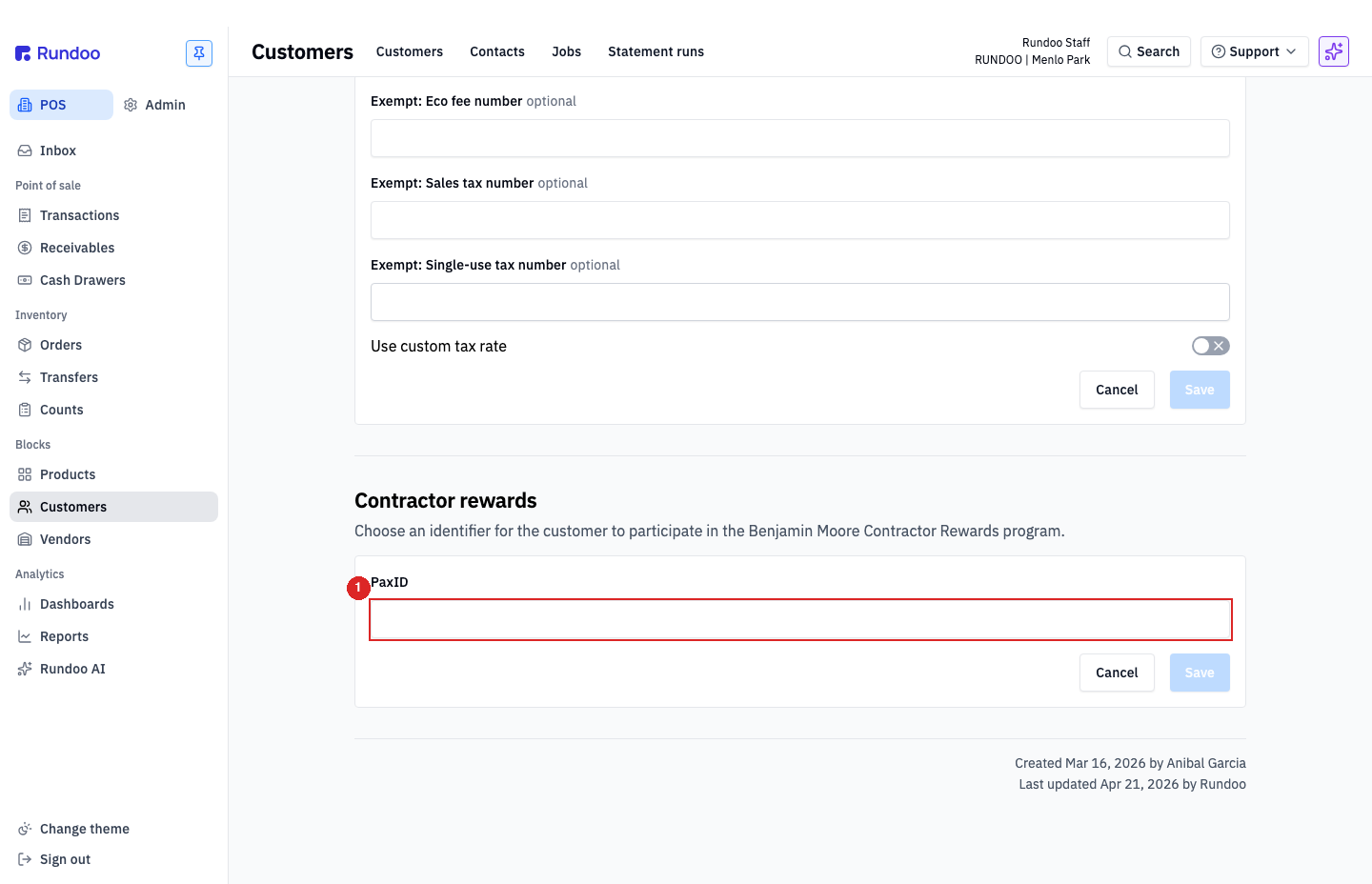
Paste the PaxID BM gave you into the PaxID input and click Save. From that point forward, every qualifying BM paint sale to this customer is bundled into the Contractor Rewards submission Rundoo sends on your CCP submission cadence (see the Benjamin Moore offers section above).
Don't have a PaxID yet? The customer isn't enrolled. Your BM rep needs to sign them up through Benjamin Moore directly. Rundoo doesn't enroll painters; it syncs sales for already-enrolled painters.
Double-check that Allow customers to automatically submit sales for Contractor Rewards is on in the Benjamin Moore offers section (see above). Without that master toggle, Rundoo won't forward this customer's sales to BM even if the PaxID is set.
Updating BM costs when prices change
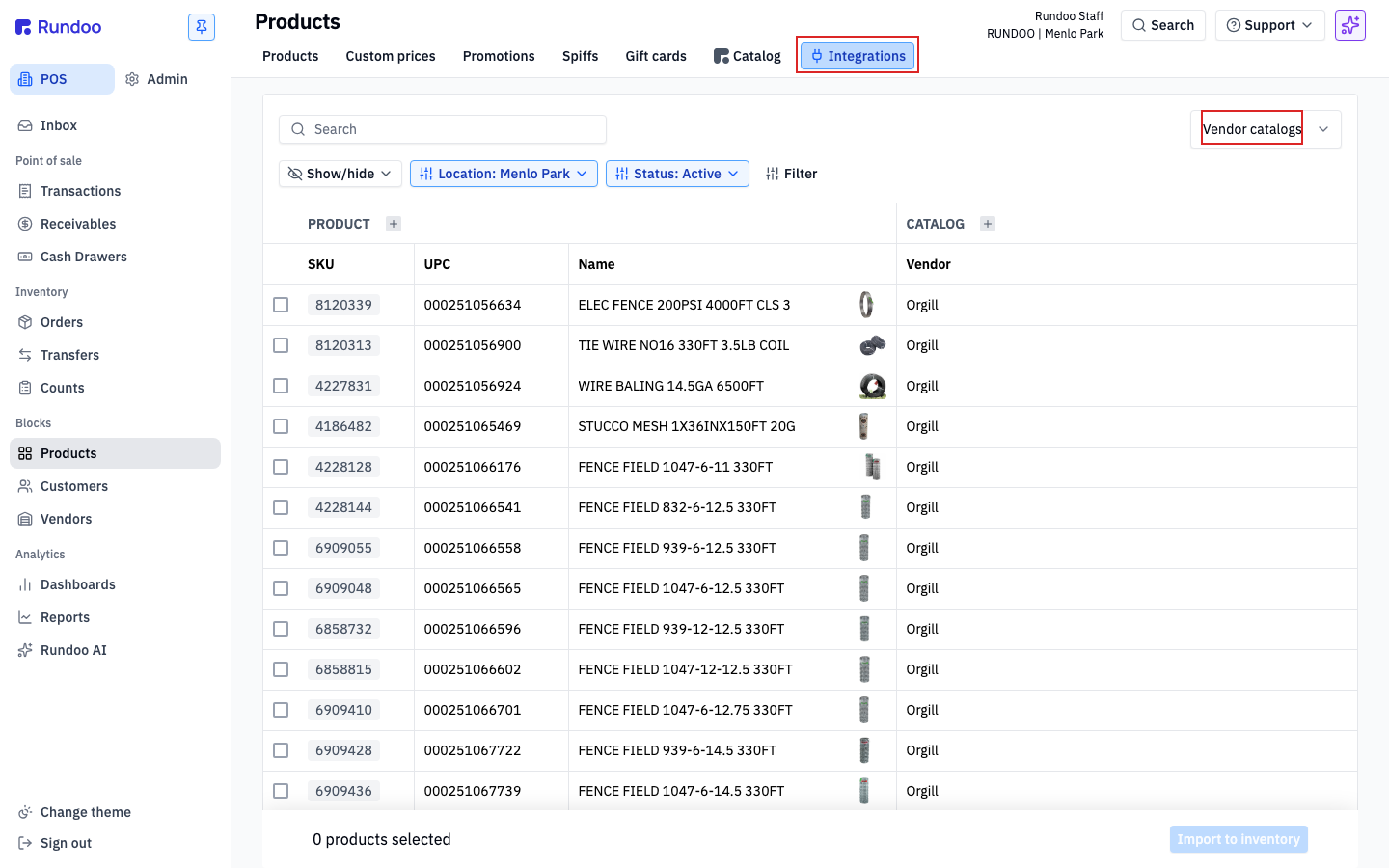
When Benjamin Moore raises wholesale costs (a paint-product surcharge, an annual price increase, a new can size) your existing BM products in Rundoo keep ringing at their old cost until you update them. The bulk-update path lives at POS mode, Products left tab, Integrations top tab, then pick Price changes from the Vendor catalogs dropdown at the top-right.
The Price changes page lists every product where the synced vendor catalog has a different cost or price than what's currently saved on the product. Each row shows New price, Price change %, Current Price, New cost, Cost change %, Current cost, and Margin change so you can scan the deltas before committing.
Filter to Benjamin Moore via the Filter control if you want to limit the view to BM's changes (handy when multiple vendors push catalog updates at once). Tick the checkbox on each row you want to update, or Select all to grab every BM row, then click one of the three bulk-action buttons at the bottom:
-
Update costs. Applies only the
New costcolumn to the selected products. Use this for a vendor surcharge where you want to keep your selling prices where they are and let margin compress, or where you'll re-run pricing rules separately. -
Update prices (applies only the
New pricecolumn). Rare on its own; usually you want costs and prices moving together. -
Update prices and costs. Applies both, so your tier prices follow the new MSRPs and your costs reflect the new wholesale. Most common after a Benjamin Moore price action.
After committing, the rows drop off the Price changes queue. Re-run the catalog sync (see below) if BM has pushed a fresh update and you don't see expected deltas yet.
BM surcharges typically show up as Cost change % increases on every paint SKU, a 1–3% bump across the catalog. Filtering the Price changes list to Vendor = Benjamin Moore and sorting by Cost change % is the fastest way to spot which products are affected. If you don't see any Benjamin Moore rows after a surcharge announcement, BM hasn't pushed the updated catalog to Rundoo yet. Give it a day, then ping your BM rep.
Catalog sync
The Benjamin Moore catalog is the list of BM products, with BM's own SKUs, descriptions, and pricing, that you import from when you stock a BM item, instead of typing it in by hand. It's just the product list Benjamin Moore keeps current for you; it has nothing to do with how your orders are transmitted.
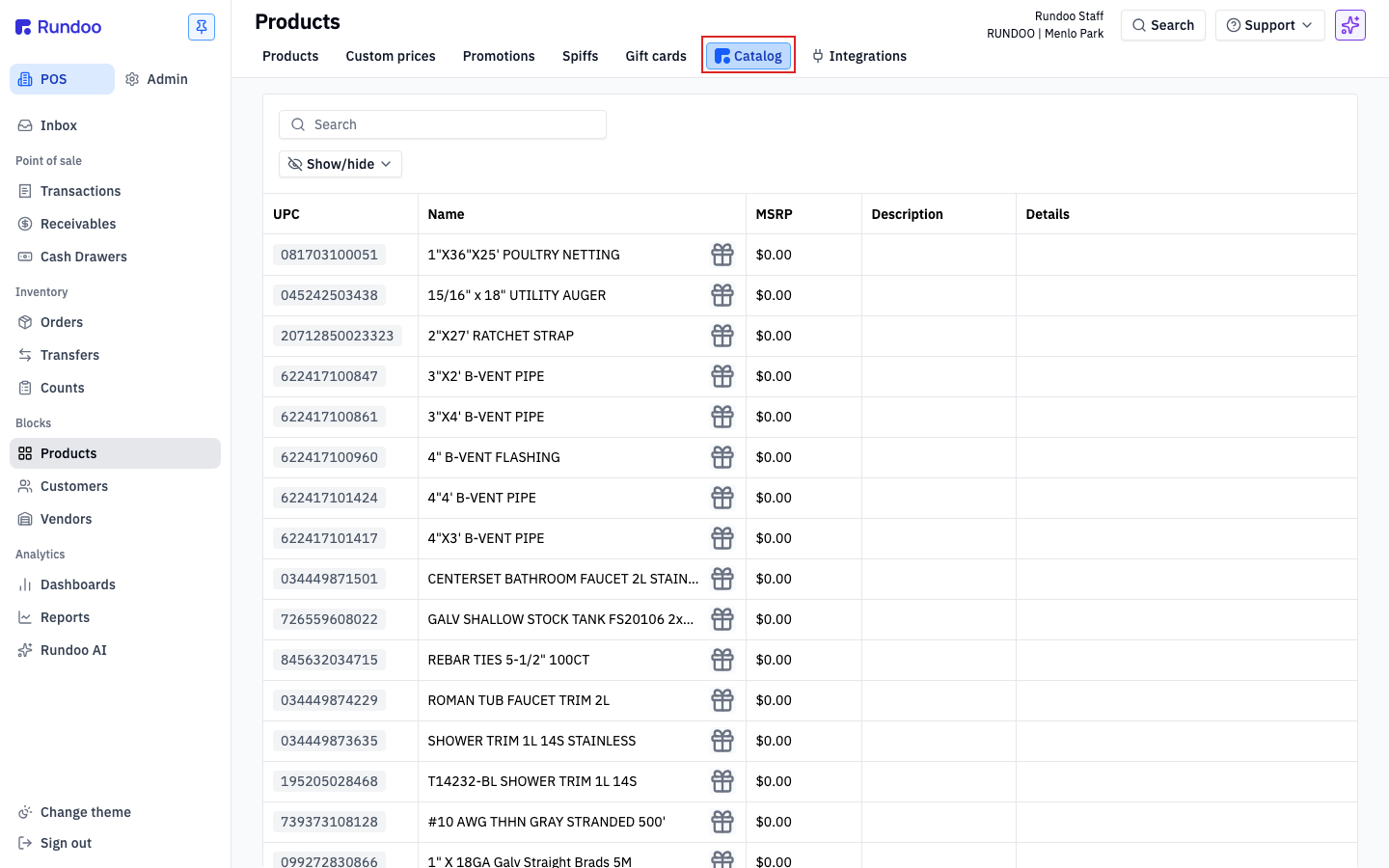
In the POS mode, Products left tab, the Catalog top tab shows BM's full catalog with the items you haven't yet added to your inventory. Each row has a UPC, a Name, an MSRP, and BM's description. Pick the items you stock and add them to your products.
The Integrations top tab (one tab to the right) shows the raw vendor-catalog view. Use the Vendor catalogs dropdown at the top right to switch between vendors (Benjamin Moore, Orgill, etc. if you run multiple integrated vendors). Select rows and click Import to inventory at the bottom-right to pull them in. This is where you'd bulk-import a batch of new BM SKUs after a catalog refresh.
For the broader catalog workflow (adding items, keeping your store-level pricing, reviewing what's stocked) see Product catalog.
Don't hand-create a product that already exists in BM's catalog. You'll end up with two records (one with the correct BM SKU and pricing from catalog sync, one you typed in yourself) and the BM integration won't know which one to match against. If a BM product isn't showing up in your catalog yet, it likely hasn't been pulled into your inventory. Check the Catalog top tab on Products, or the Integrations top tab → Vendor catalogs view, and import it from there.
Placing BM orders
With the integration connected and the catalog synced, placing a BM order works like any other PO, but with BM-specific plumbing behind the scenes (direct submission, Paint Care Fee calculation, automatic rebate logging). Full walkthrough: Benjamin Moore orders.
Recommended Rundocs
-
Contractor Rewards, how to set up and run Benjamin Moore's Contractor Rewards in Rundoo: the bonus code, PAX IDs, and the Invite button at the counter.
-
Benjamin Moore orders (placing, receiving, and vouchering a BM PO).
-
Product catalog (the Catalog and Integrations top tabs, importing catalog items into your inventory).
-
Company details, the Admin > Company page where the Benjamin Moore offers section lives.