
Rundocs › Admin & Settings
Tags
Last updated 2026-05-01
Tags are flat, multi-assignment labels you attach to products and customers for reporting and filtering. Use them for anything your categories can't express cleanly (aisle numbers, vendor programs, seasonal groupings, contractor affiliations) and pile on as many as you need; a product can carry a dozen tags without any hierarchy to worry about.
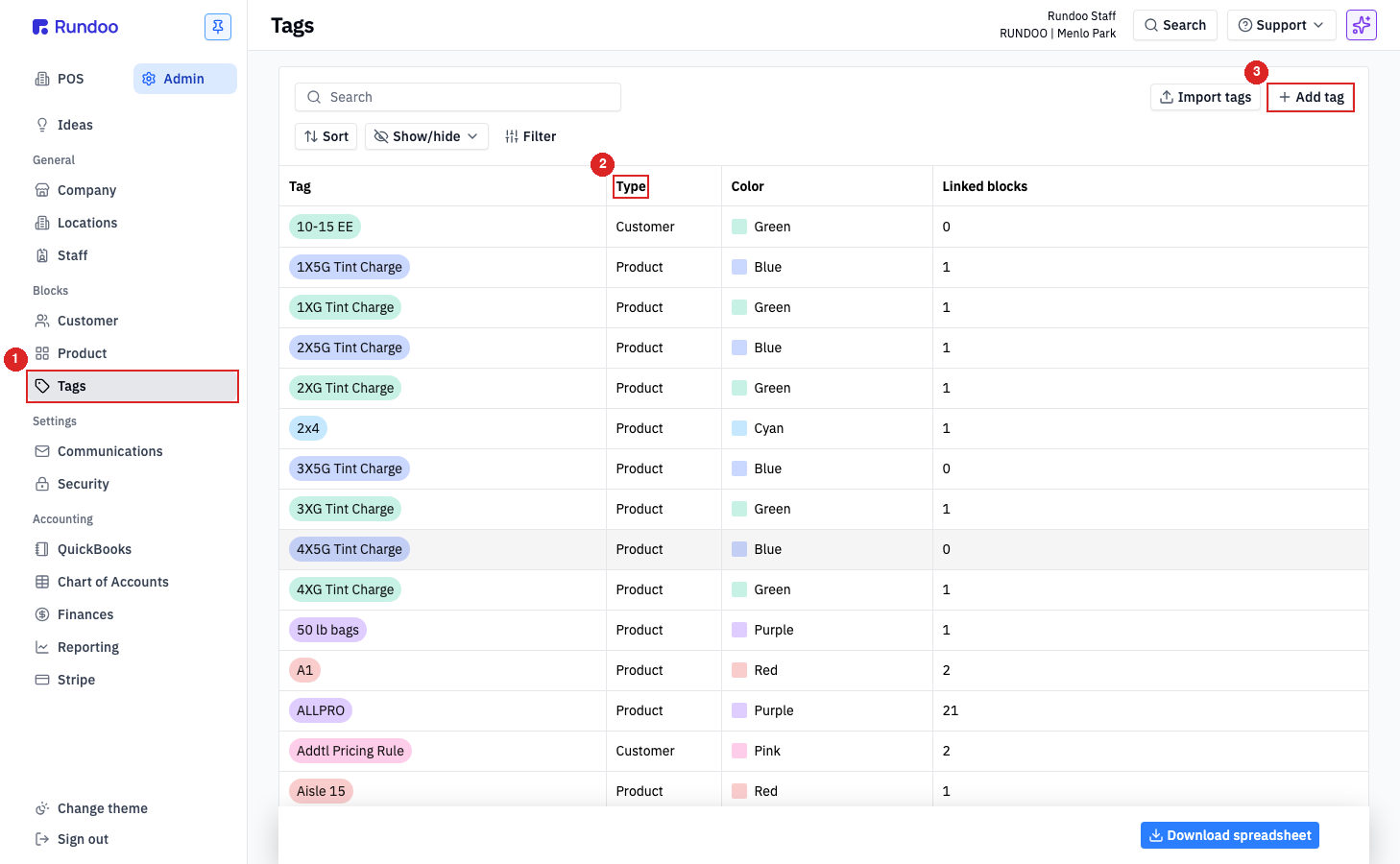
In the Admin mode, open Tags in the left sidebar.
Tags vs Product categories
Both taxonomies let you group records for reporting, but they work differently and exist for different reasons.
| Attribute | Tags | Product categories |
|---|---|---|
| Shape | Flat (no parent/child). | Hierarchical (Department > Class > Fineline). |
| Assignment | Multi (a product can carry many tags). | Single (one Department, one Class, one Fineline per product). |
| Applies to | Products and Customers. | Products only. |
| Best for | Cross-cutting labels that don't fit a strict hierarchy (aisle, promo, vendor program, loyalty tier). | Stable, top-down taxonomy for reporting margin and turns by product family. |
Use categories when every product must land in exactly one bucket. Use tags when a product might legitimately belong in several buckets at once. They're complementary, not competing, see Product categories for the hierarchical side.
Creating and editing tags
The Tag · Type · Color · Linked blocks table at Admin > Tags lists every tag in the company. Each tag has three fields set at creation:
-
Tag name, what the tag reads as wherever it's attached or filtered.
-
Type, what the tag can be attached to. The two types are Product and Customer, picked from a dropdown at create time. A tag's type is fixed at creation. A
Producttag can never be attached to a customer, and vice versa. -
Color (visual pill color on the tag). Eight swatches:
Red,Orange,Yellow,Green,Cyan,Blue,Purple,Pink. Pick a convention (e.g. green for loyalty, blue for aisle) and the table becomes scannable.
The Linked blocks column shows how many records currently carry each tag. Useful for spotting dead tags before pruning.
To create a tag, click Add tag in the top-right. Fill in name, pick a type, pick a color, Save. To edit or delete, click the tag row to open the edit modal.
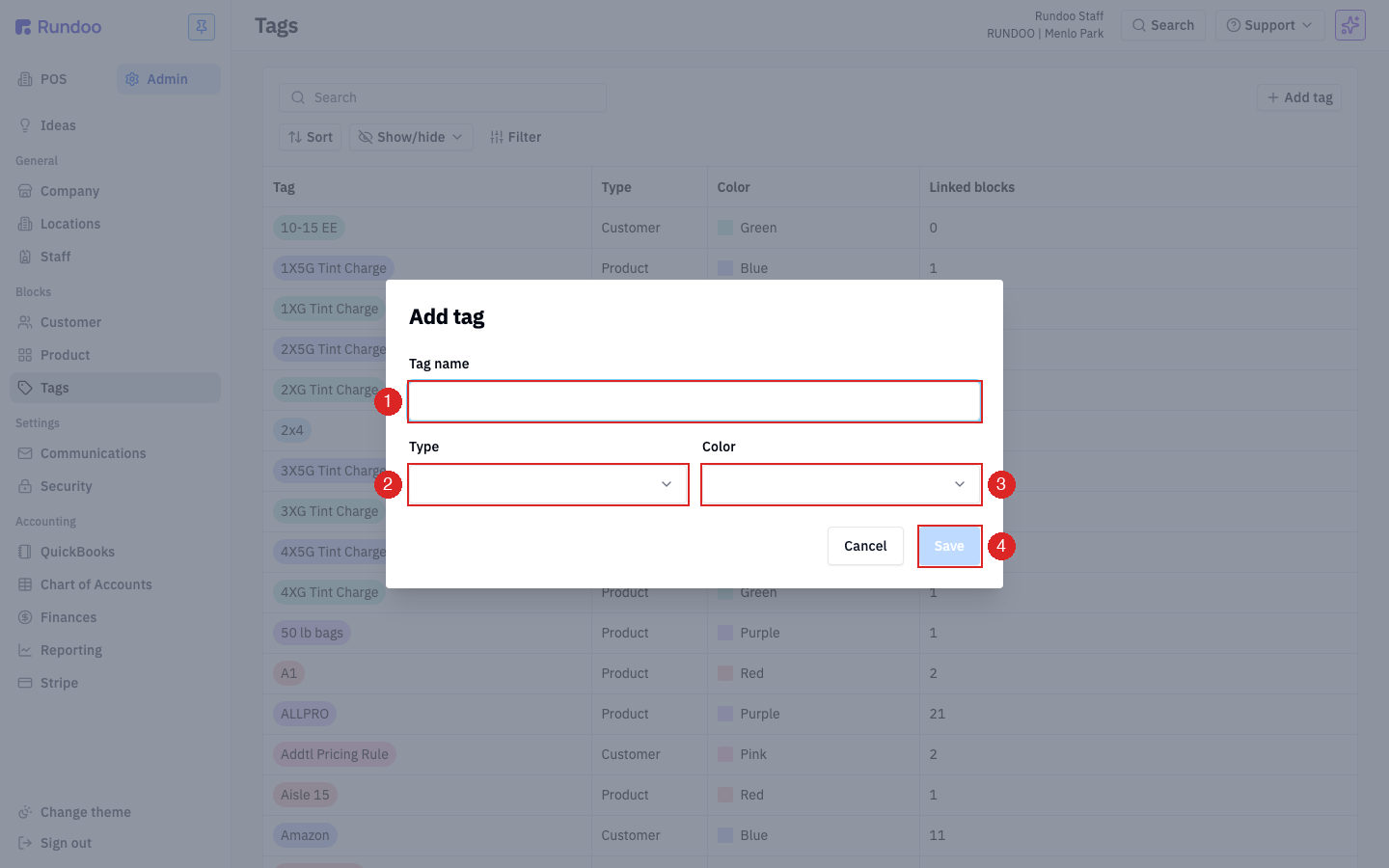
You can't change a tag's Type after creation. If you created a Customer tag when you meant a Product tag, you'll need to delete it and recreate under the right type. Pick the Type before you save.
Attaching a tag to something
You attach tags from the record you want to label, not from Admin > Tags. The pattern is the same everywhere: look for Attach tag under the page header, click it, pick from the list.
On a product, it's the Attach tag link under the product image. Clicking it opens a search-and-pick combobox showing every tag of type Product.
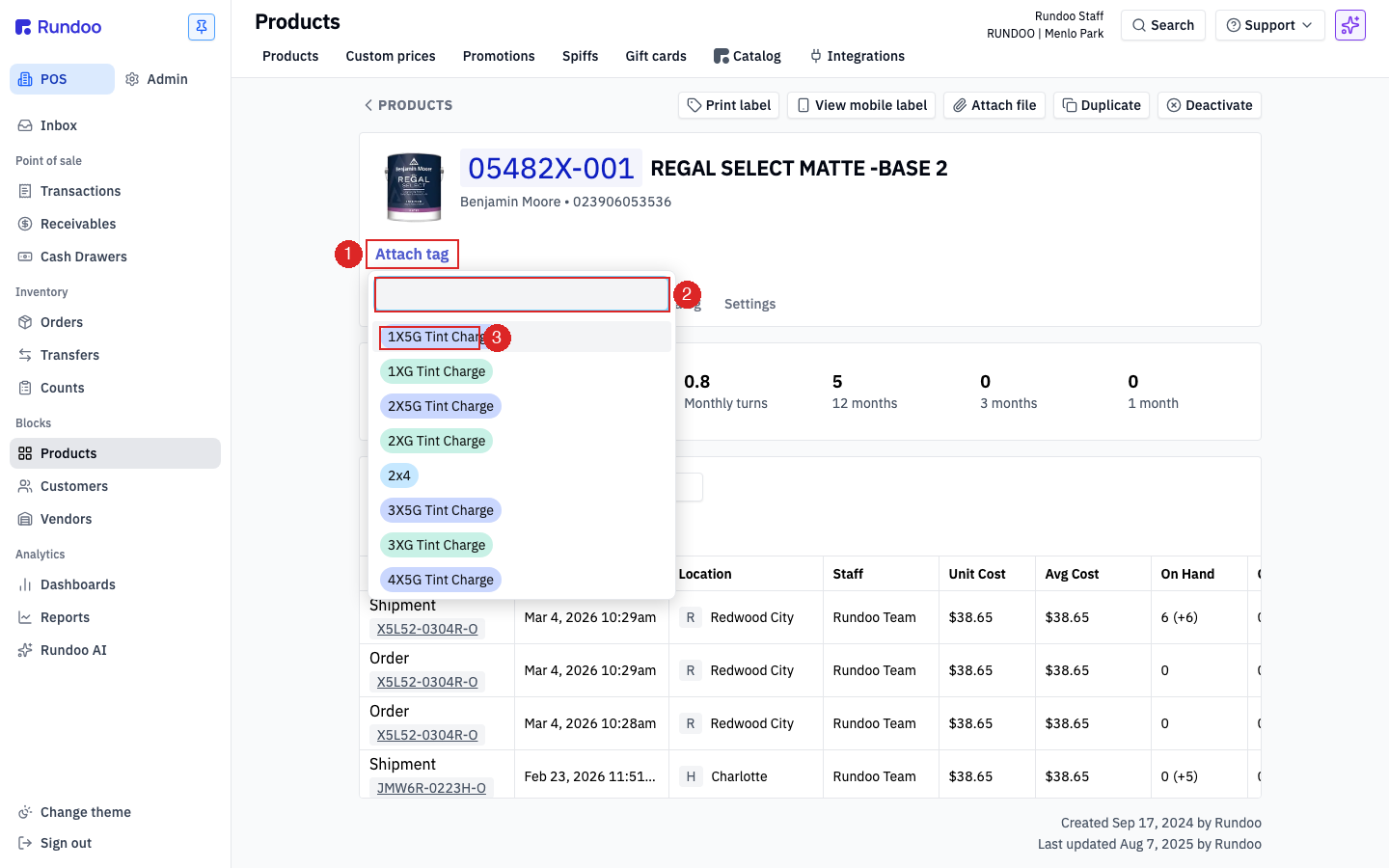
Type to narrow the list, click a pill to attach it. The pill appears in the header next to Attach tag; click the pill's × to remove it. A product can carry many tags at once.
Customers work the same way. Open the customer's detail page, find Attach tag near the top, pick from the list. The picker only shows tags of the matching type, so you can't accidentally attach a Product tag to a customer.
Filtering by tag
Tags pay off on the list pages and reports where you can narrow by them.
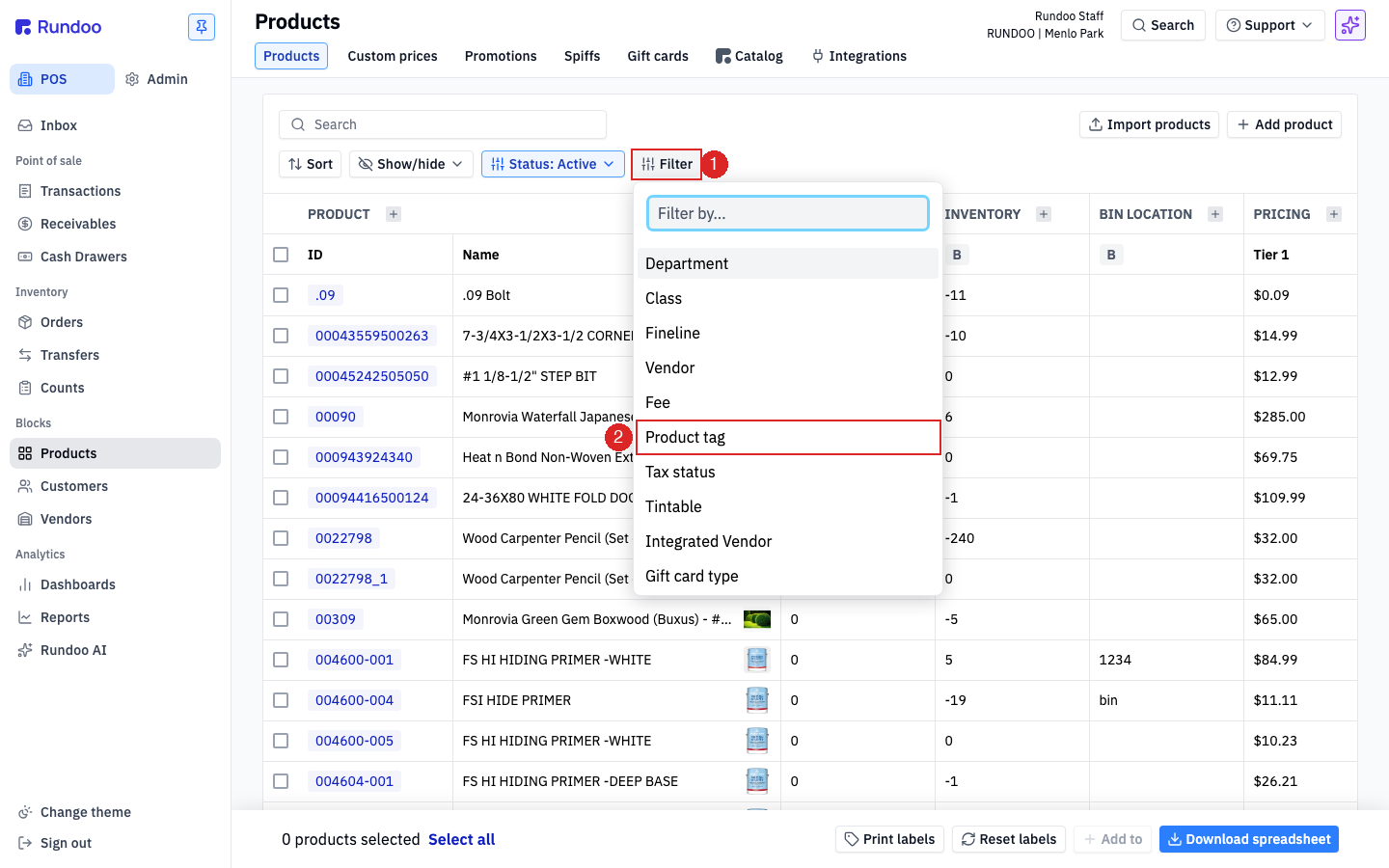
In the POS > Products tab, click Filter in the control strip above the table and pick Product tag from the column list. Rundoo adds a filter pill. Click it to pick one or more tags and the table narrows to products carrying any of them. The same pattern applies to Customers (filter by customer tag).
Tags also flow into reports. In the Admin > Reporting tab and in Running Reports, tag filters let you cut sales, margin, or inventory by any tag you've built, which is the reason to maintain them in the first place.
A tag filter is an any-of match, not all-of. Filtering by Loyalty and Aisle 5 returns products that carry either tag, not only products that carry both. Build narrower tags if you need the intersection.
Recommended Rundocs
-
Products, the product detail page where product tags get attached.
-
Customers (customer tags live on the customer detail page).
-
Product categories, the hierarchical
Department > Class > Finelinetaxonomy that tags complement.