
Rundocs › Hardware
Login keys
Last updated 2026-05-11
A login key is a hardware security key (a YubiKey or similar WebAuthn device) that lets a staff member sign in by tapping the key against a register. No code to read, no phone to dig out. One tap and they're in. Faster than email or text-message codes at a busy counter, and more secure than a PIN.
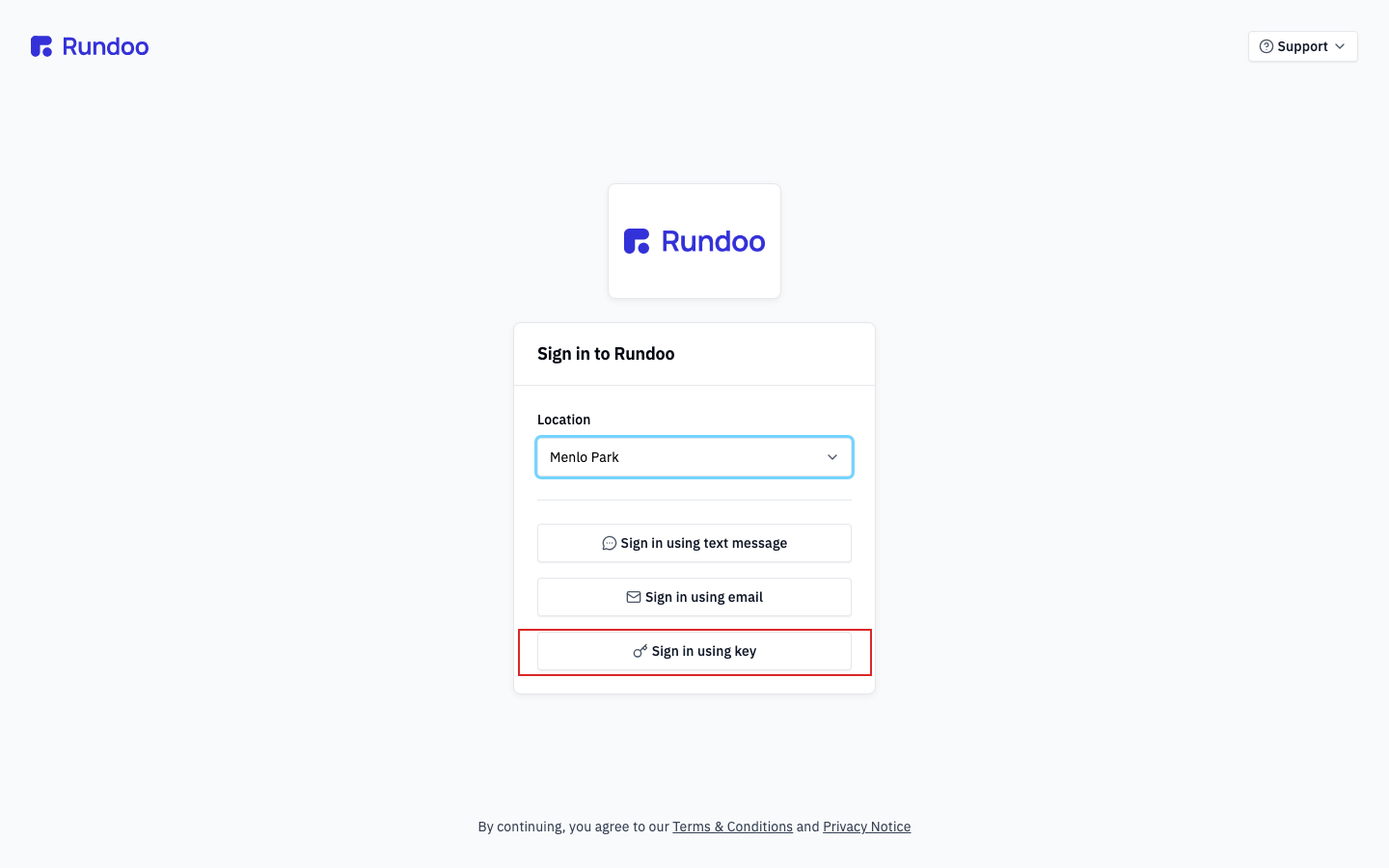
In the Admin mode, open Staff (each row's Login Key column carries the Add key action that starts the pairing flow). To sign in with a key once it's paired, pick a location on the sign-in card and tap Sign in using key.
Hardware
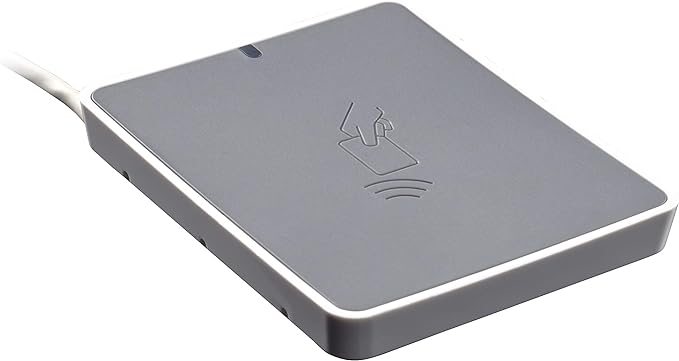
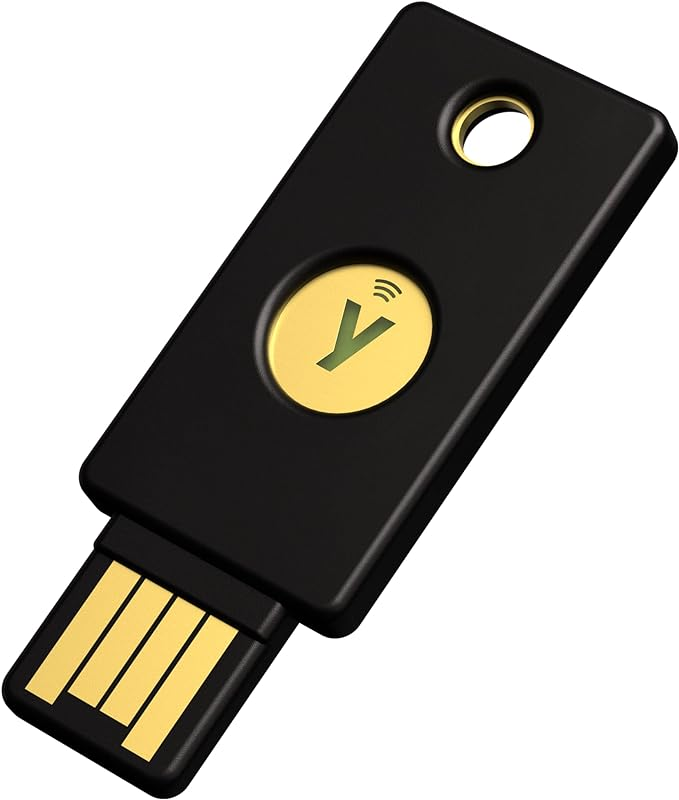
Two pieces of gear cover the standard setup: an NFC reader plugged into the register's USB port, plus per-staff YubiKeys. The reader is what staff tap their key against; the YubiKey is the key itself. Direct USB also works without a reader, the YubiKey doubles as a USB device, so a register without a reader can still take key sign-ins.
-
YubiKey (e.g. YubiKey 5 NFC). The physical key (small, keychain-sized, with a metal
Ycontact pad). Each staff member gets their own; Rundoo pairs the key to a Staff record, and from then on that key signs that staff in. -
NFC reader (e.g. Identiv uTrust 3700 F). A small USB puck staff tap their YubiKey against. Optional (keys also work plugged directly into a USB port) but a reader speeds up rotations at a busy counter, since clerks tap without unplugging between shifts.
For sourcing and the broader register-station gear list, see Hardware setup.
Setting up a key
Setup is a one-time flow an admin runs per staff member: plug in the NFC reader, pair the staff's YubiKey, test the sign-in. Plan on five minutes per person, most of that spent waiting for the browser's security prompts.
Step 1: Plug in the NFC reader
Connect the NFC reader to an open USB port on the register computer. The reader is plug-and-play on macOS and on current Windows builds, no driver install for the common path. If you're adding readers to more counters, order them through your implementation lead.
Step 2: Open the staff list in Admin
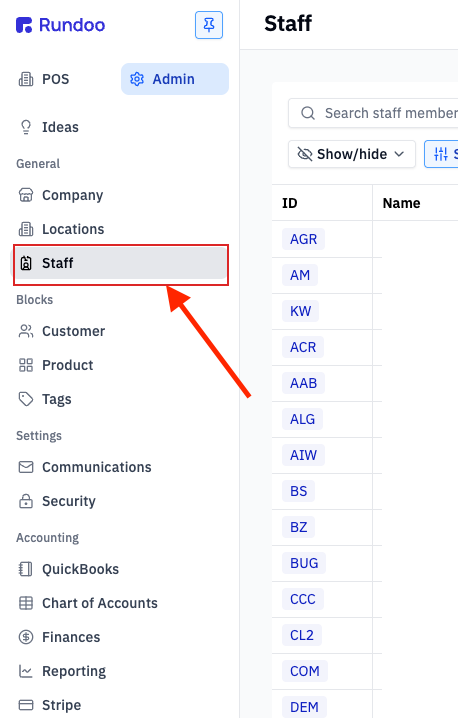
In the Admin mode, open the Staff tab from the left sidebar. Each staff row has a Login Key column with an Add key action when no key is paired, or Edit key once one is.

Deactivate and reuse keys between staff. When someone leaves, open their row and deactivate the key (you can then walk through this same flow to pair the same physical YubiKey with a different staff member). The hardware doesn't need to be discarded.
Step 3: Start the pair from the Set up staff key modal
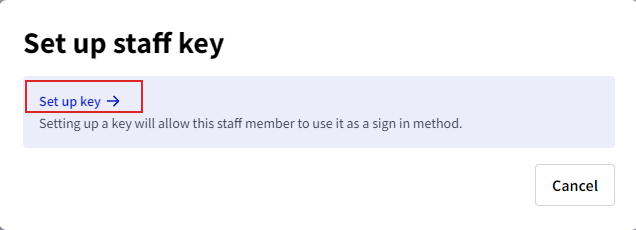
Clicking Add key opens the Set up staff key modal. Tap Set up key → to begin the pair. Rundoo hands off to your browser's security prompt from here.
Step 4: Pick Security key in the browser's security prompt
Your browser opens a system-level dialog asking where to save the passkey. Under More choices, pick Security key (not "iPhone, iPad, or Android device," and not the default phone option). Hit Next to continue.
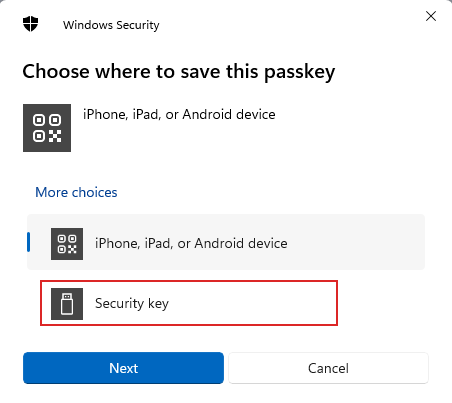
Plug the YubiKey directly into the computer, not the NFC reader, for this first pair. The NFC reader is for ongoing sign-in; initial pairing needs a direct USB connection. If you see an "unknown device" error, that's almost always the cause.
Step 5: Confirm the setup and touch the key
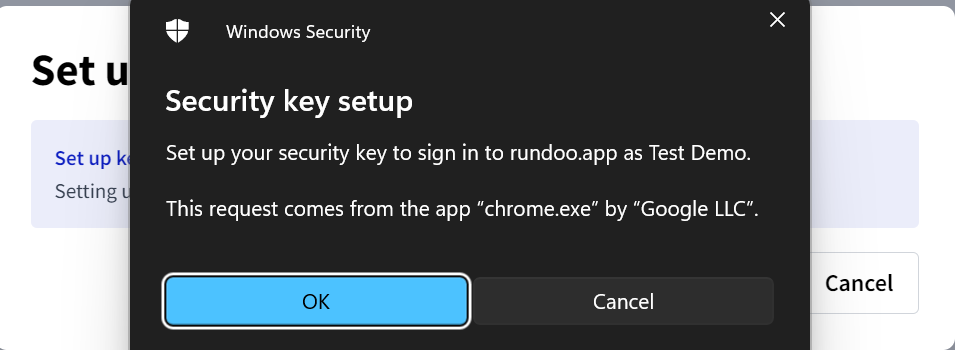
The browser shows a Security key setup confirmation with the text "Set up your security key to sign in to rundoo.app as {staff name}." Click OK.
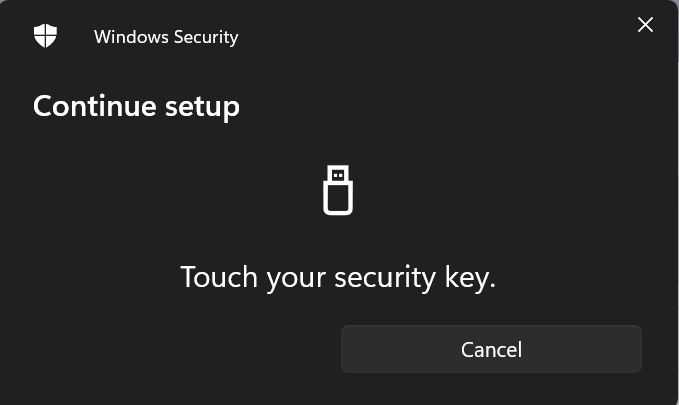
A Continue setup prompt appears asking you to Touch your security key. Touch the lit gold Y on the face of the YubiKey. The browser only accepts a physical touch, not a mouse click.
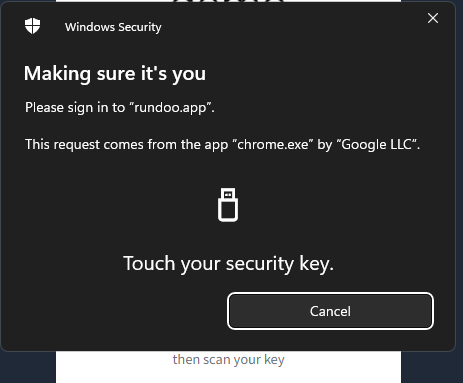
A second Making sure it's you prompt may follow asking for another touch. This verifies the key after registration. Tap the Y again.
Step 6: Save the passkey
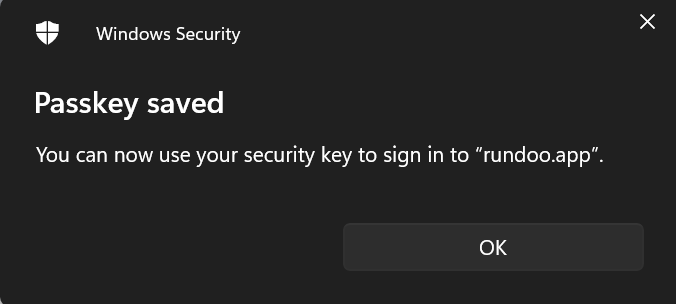
On success the browser shows a Passkey saved confirmation: "You can now use your security key to sign in to 'rundoo.app'." Click OK to close the prompt.
Step 7: Test it from the sign-in card
Sign out, pick the location, and tap Sign in using key on the sign-in card. Tap the YubiKey to the NFC reader. The staff member should land signed in without entering a code.
Direct USB works too. If a register doesn't have an NFC reader (or the reader is acting up), plug the YubiKey straight into a USB port and touch the Y when prompted.
Troubleshooting
On Windows, disable the Bluetooth adapter. Windows Hello tends to intercept WebAuthn prompts and ask whether to use a phone or PIN, which forces staff to click past the same prompt on every sign-in. Disabling the Bluetooth adapter in Device Manager (right-click the adapter > Disable device) stops the prompt and lets the NFC reader pick up the tap directly. Don't do this if the register uses Bluetooth for anything else, a wireless scale, a Bluetooth scanner, wireless headphones.
NFC reader not recognizing taps. Work through three checks in order. First, update the uTrust 3700 F drivers and restart the computer. Second, test the reader on a different USB port, or plug it into a different computer to rule out the port or cable. Third, clear the area around the reader, large metal objects, other fobs, or a phone resting on it can all interfere with the NFC signal.
Key setup prompt hangs. The browser's WebAuthn dialog occasionally stalls, especially with certain extensions installed or on older Chrome/Safari versions. If the Set up key handoff doesn't complete, close the modal and have the staff member sign in with email-OTC or text-message code instead, both always work. You can retry key setup later from the same modal; nothing about a failed attempt gets stuck on the staff record.
"unknown device state" when you tap the key. The YubiKey already has a Rundoo credential on it (usually a brand-new key that was test-paired before shipping, a returned key from a prior staff member, or a second pairing attempt after a first one half-completed). The fix is to clear the existing credential on the key: open the Yubico Authenticator app (free from yubico.com) on the same computer, go to Setup → Manage credentials → FIDO2 → Reset FIDO, confirm the reset (this wipes all WebAuthn credentials on that key), then retry Add key from the Rundoo Staff list. If the key was paired to another staff member previously, also open that staff member's row in Rundoo and Deactivate key so it's not orphaned in Rundoo's records.
Recommended Rundocs
-
Sign-in, the broader sign-in flow (location picker, email and text codes, shared sign-in PIN, signing out).
-
Staff (adding people, permissions, deactivating staff).
-
Hardware setup (gear at a register station, including authentication keys).