Rundocs › Support & Help
Inbox
Last updated 2026-04-24
The Inbox is where Rundoo delivers the system notifications tied to you as a staff member (shipment notifications, vendor-order confirmations, and anything else the app wants to tell you about after the fact).
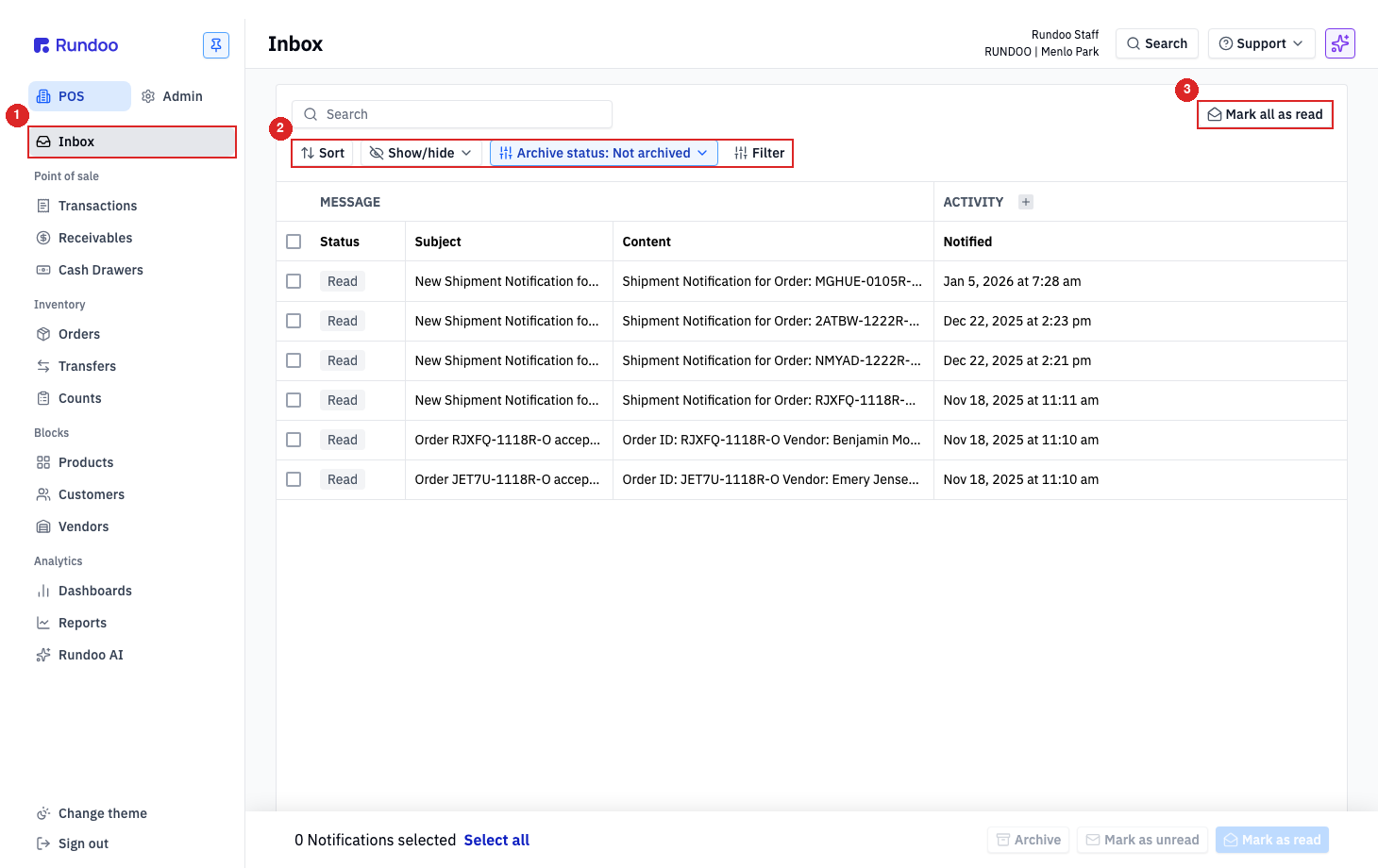
In the POS > Inbox tab, you'll see every notification for your staff account in one scrollable list.
What's in the Inbox
Each row is one notification. The table columns are:
-
Status, aReadorUnreadpill. New notifications land asUnread; opening or marking them flips them toRead. -
Subject, the short headline (e.g.New Shipment Notification for Order: MGHUE-0105R-…orOrder RJXFQ-1118R-O accepted). -
Content, the one-line detail (order ID, vendor, shipment ID). -
Notified, the timestamp when Rundoo generated the notification.
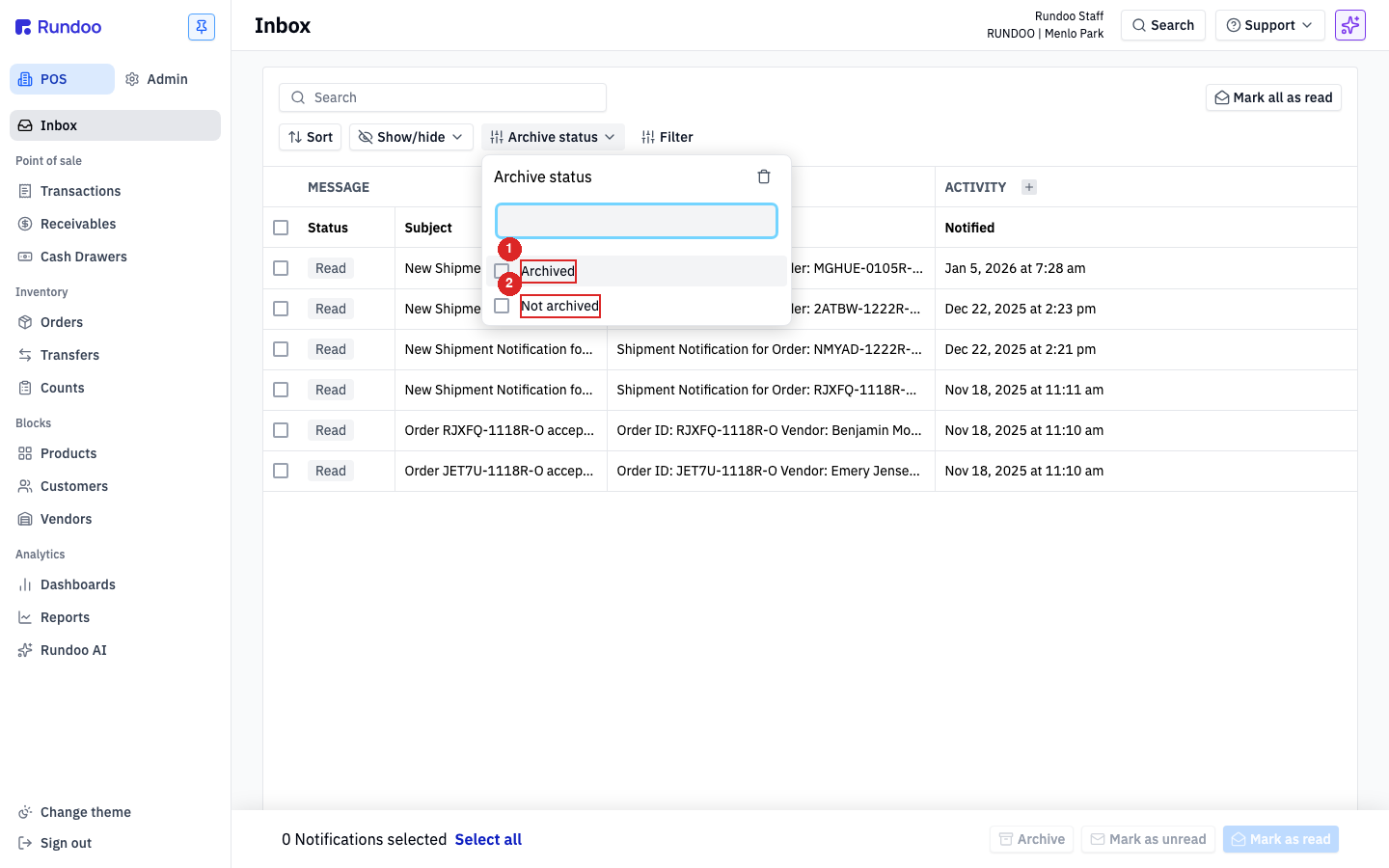
The filter strip above the table lets you narrow the list down: Sort, Show/hide (column visibility), Archive status: Not archived, and Filter. The Archive status pill defaults to Not archived, archived notifications are hidden until you flip it.
Notification types
The notifications currently flowing into the Inbox come from the vendor-integration stack, mostly Benjamin Moore and other connected wholesalers. Two patterns show up most often:
-
New Shipment Notification (fires when a vendor marks an order as shipped). The
Contentline includes the order ID so you can jump back toOrdersand line up the receipt. -
Order accepted. Fires when a vendor accepts the purchase order you submitted (e.g.
Order RJXFQ-1118R-O accepted). TheContentline shows the order ID and vendor name.
Both types are informational (nothing in the Inbox needs a response). Treat them like an audit trail: proof that a vendor action actually happened, with a timestamp you can cite.
Reading and dismissing
Select notifications with the checkbox at the left edge of each row (or Select all in the bulk-action row at the bottom). Once you have one or more selected, the bulk-action row lights up with Archive, Mark as unread, and Mark as read.
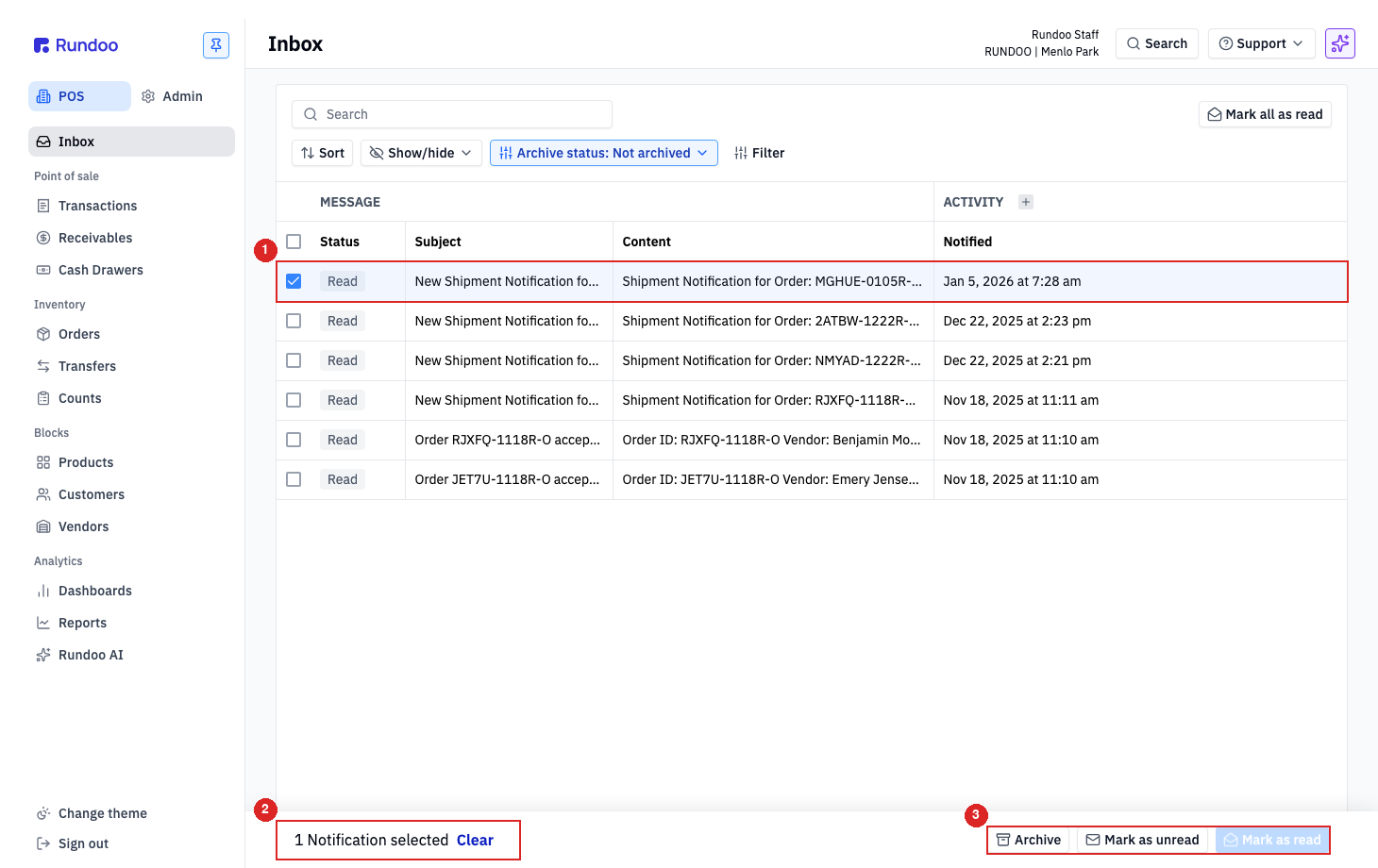
Three ways to clear the Inbox:
-
Mark as read (flips the
Statuspill fromUnreadtoRead). The row stays in the list. -
Mark as unread (reverses it).
-
Archive. Removes the row from the default view. Archived notifications aren't deleted; flip the
Archive statuspill toArchivedto see them.
If you want to zero out everything at once, Mark all as read sits at the top-right of the page. It only touches read status, not archive status.
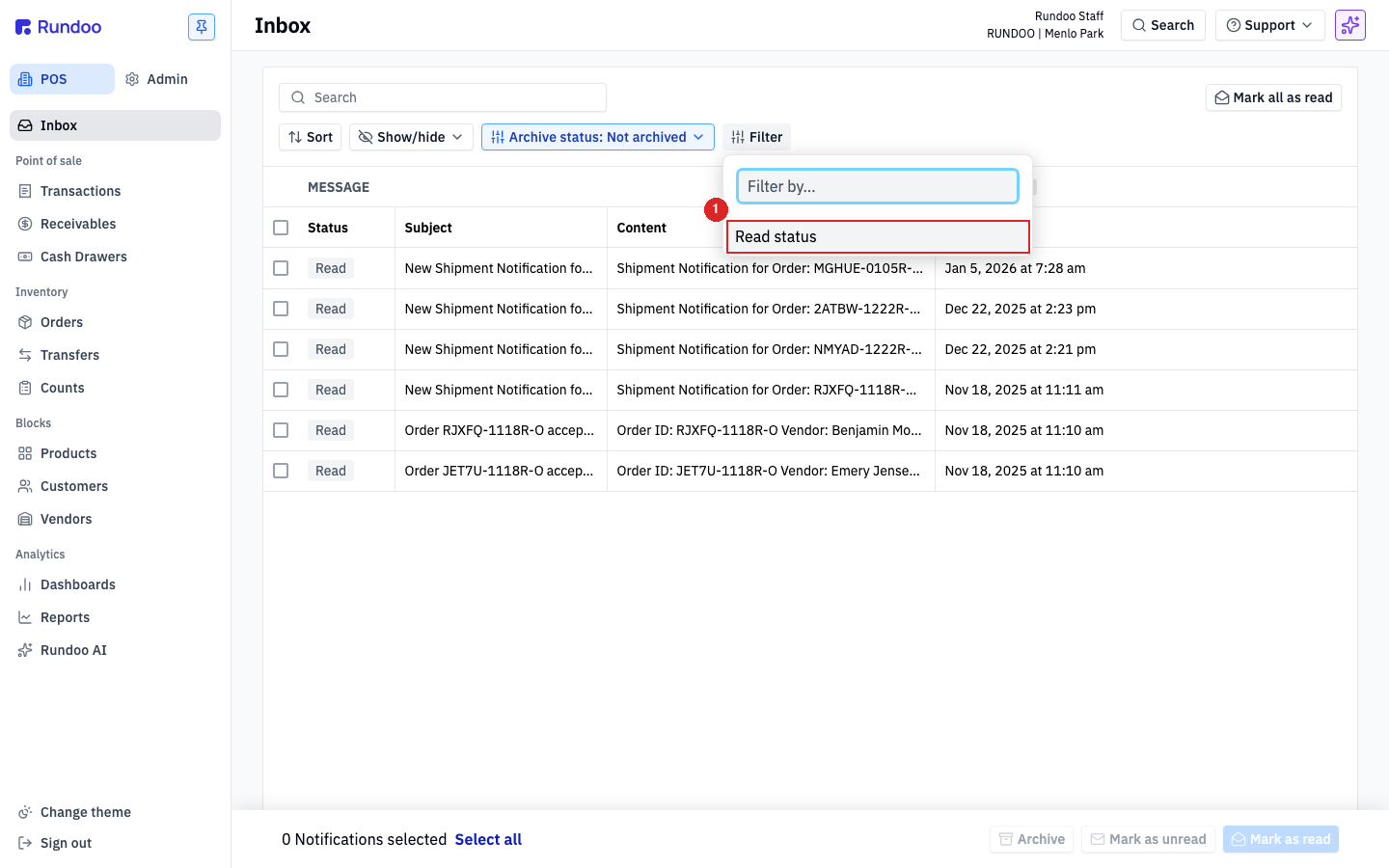
The Filter popover adds one extra knob (Read status) so you can narrow the list down to just unread (or just read) rows when you're catching up after a long stretch away.
The Archive status pill on the control strip is the other half of the same story: toggle between Archived and Not archived to see one or the other.