
Rundocs › Integrations
QuickBooks
Last updated 2026-08-27
The QuickBooks integration sends Rundoo's journal entries (sales, purchases, the whole ledger) into QuickBooks every night, so your bookkeeper opens QuickBooks in the morning and the numbers are already there.
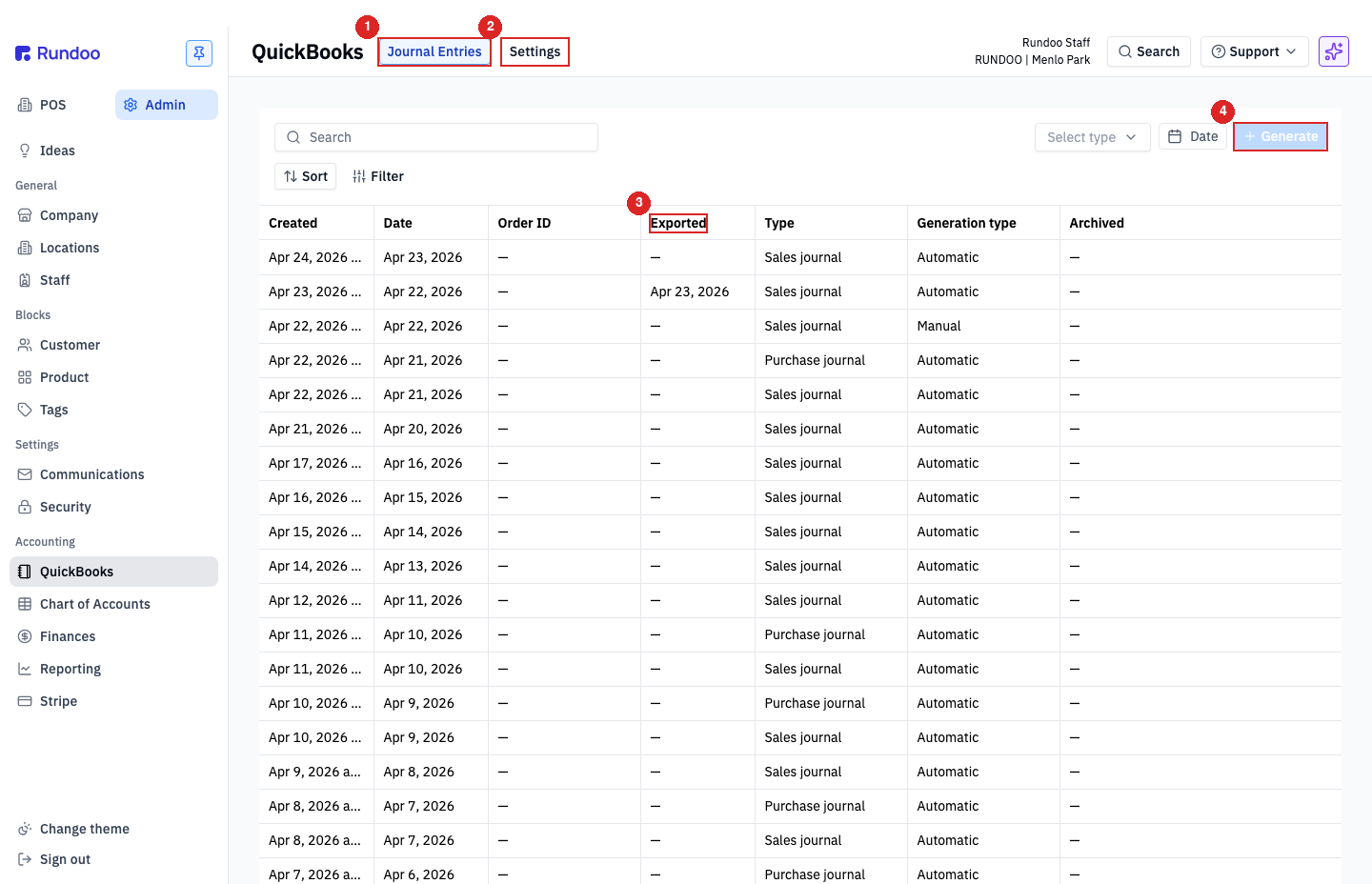
In the Admin > Integrations > Journal Entries tab, you'll see every journal entry Rundoo has generated, whether it's been exported yet, and whether it was auto-generated on the nightly schedule or manually triggered. The Settings top tab is where you connect QuickBooks, pick which accounts the export lands in, and turn the nightly automation on or off.
Can't find the QuickBooks tab? It's not where it used to be. The QuickBooks sync used to be its own QuickBooks item in the Admin sidebar. It now lives under Admin > Integrations (in the Accounting section, right below Ideas / Company), with the same Journal Entries and Settings tabs. Nothing about the connection changed, just the menu label.
Connecting QuickBooks
Rundoo talks to both flavors of QuickBooks, QuickBooks Online (QBO) and QuickBooks Desktop (QBD). The mechanic is different for each, so the first thing you pick on the Settings tab is which version you use.
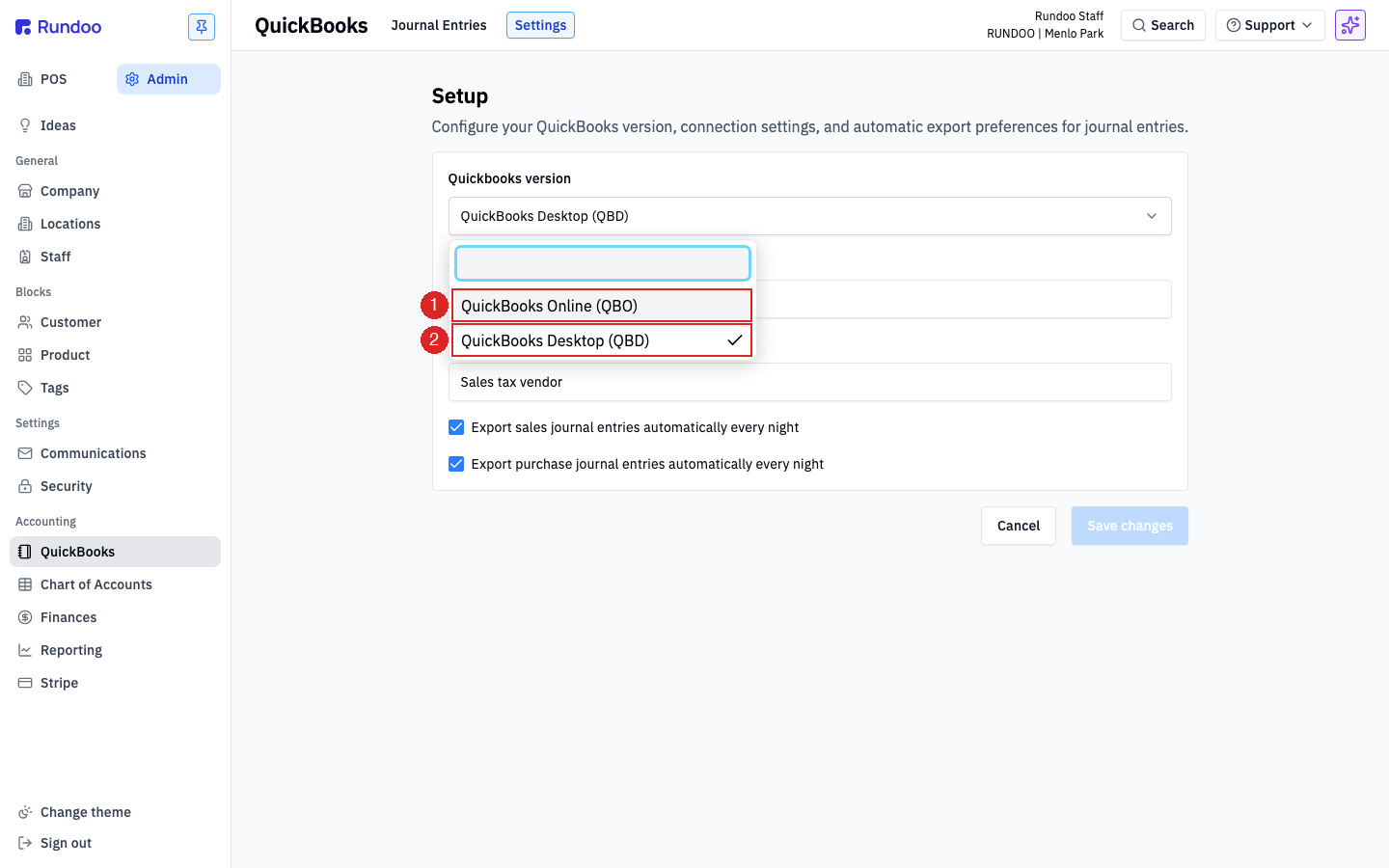
In the Admin > Integrations > Settings tab, open the Quickbooks version dropdown at the top of the Setup card:
-
QuickBooks Online (QBO)(cloud QuickBooks). Connecting opens an OAuth handshake with Intuit where you log into your QuickBooks company and authorize Rundoo to post journal entries on your behalf. Once connected, nightly exports post directly into QBO with no manual step. -
QuickBooks Desktop (QBD), the installed-on-a-PC version. There's no live connection; Rundoo generates journal-entry files that your bookkeeper imports into QBD. Nightly export still runs on the Rundoo side. What you're "connecting" is the export format, not a live link.
Pick the version that matches what your business actually uses, then hit Save changes.
QBO (OAuth connect)
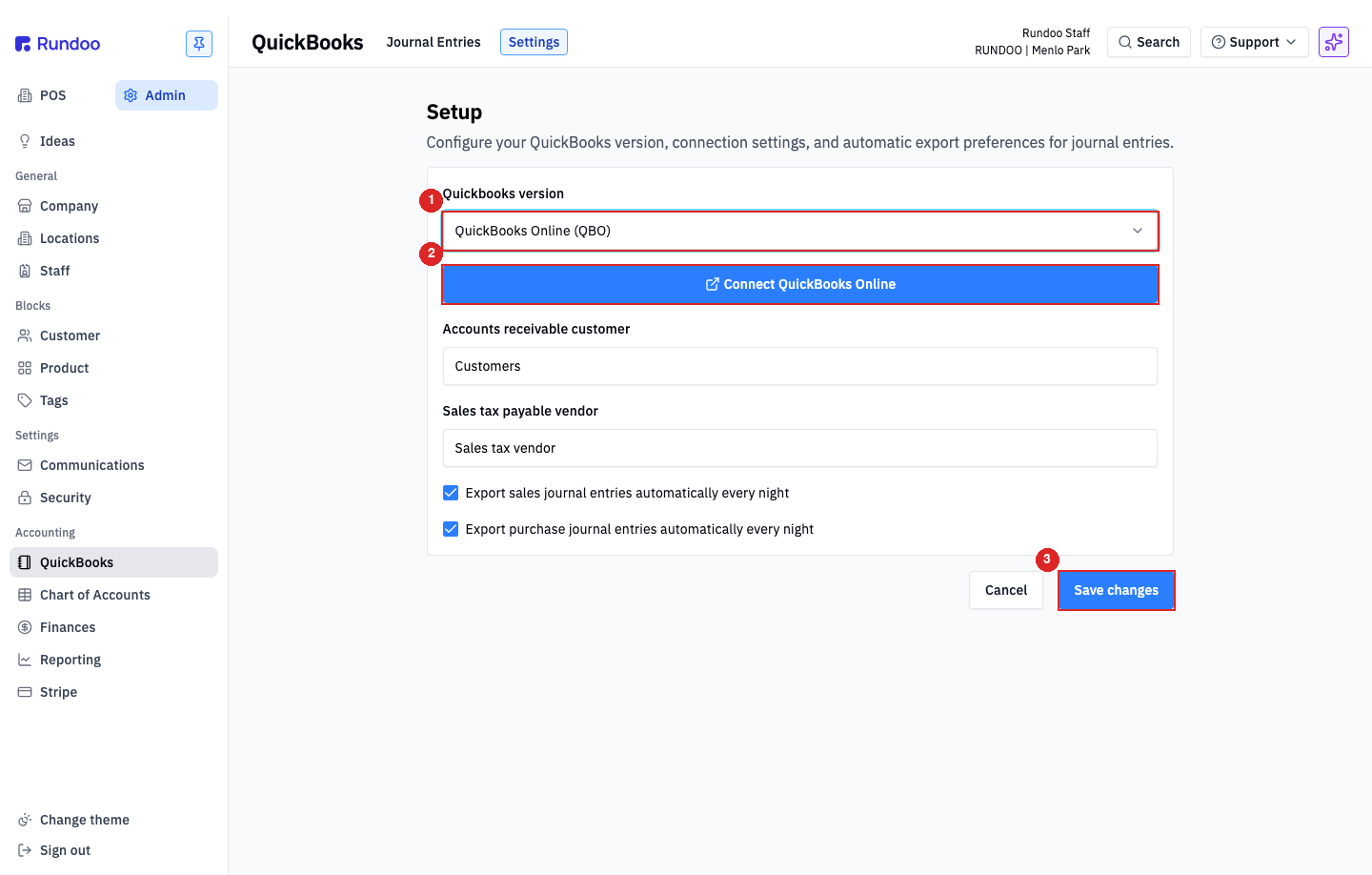
Once QuickBooks Online (QBO) is selected, a blue Connect QuickBooks Online button appears right under the version picker. Clicking it opens Intuit's authorization flow in a new tab: sign into QuickBooks with your Intuit credentials, pick the company file you want Rundoo to post to, and approve the permissions. When the flow finishes you land back in Rundoo and the Setup card shows the connected company.
Use an Intuit login that has posting rights in the QBO company you're connecting. If you have a bookkeeper who owns the QuickBooks file, do the OAuth handshake from their login, or have them add you as a user with posting rights first.
QBD. No handshake, just the export
With QuickBooks Desktop (QBD) selected, there's no Connect button to click. Rundoo generates journal-entry files on the nightly schedule and surfaces them on the Journal Entries tab; your bookkeeper downloads them and imports into QuickBooks Desktop. Setup is really just about mapping the right Rundoo accounts to your QBD Chart of Accounts so the import lines up, see Mapping Rundoo accounts to QuickBooks accounts below.
What syncs to QuickBooks
Rundoo exports two kinds of journal entries to QuickBooks, on the schedule you turn on in Settings:
-
Sales journal, everything that happens at POS during the day. Cash sales, on-account invoices, card payments, bill payments from charge-account customers, customer credits, refunds, taxes collected. Debits and credits are aggregated per account so QuickBooks gets one clean journal entry per day per location, not hundreds of per-transaction lines.
-
Purchase journal (everything on the inbound side). Received purchase orders, vendor invoices, vouchers. Debits inventory, credits Accounts Payable, with vendor-level detail so your AP aging in QuickBooks stays accurate.
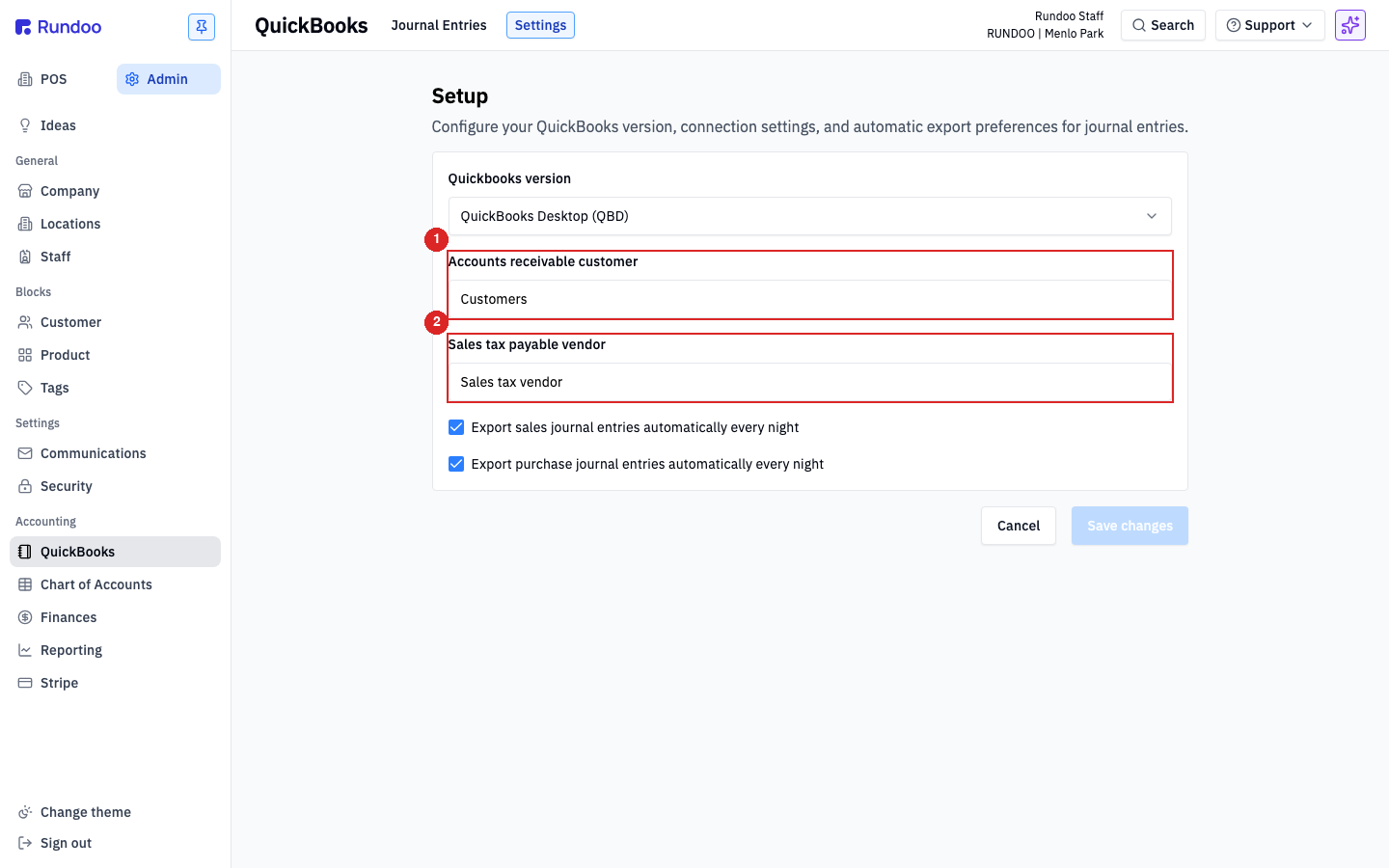
The Accounts receivable customer field on Settings tells Rundoo which QuickBooks customer to post AR journal entries against (typically a generic Customers lump). The Sales tax payable vendor field tells Rundoo which QuickBooks vendor to credit for sales tax collected (typically a single Sales tax vendor entity that represents your state/local tax authority). These two defaults keep your QuickBooks file from filling up with one customer or vendor per Rundoo customer.
Rundoo posts aggregated journal entries, not per-transaction detail. If you need customer-level AR detail inside QuickBooks, keep that in Rundoo. The In the POS > Customers tab shows each customer's full transaction history and open balance without needing to duplicate it in QuickBooks. Rundoo is the book of record for operational detail; QuickBooks is the book of record for the GL.
Mapping Rundoo accounts to QuickBooks accounts
The translation layer between "Rundoo rang up a sale" and "debit this QuickBooks account, credit that one" lives on the Mapping tab inside Chart of Accounts, not on the QuickBooks page. Every kind of transaction, cash sale, card sale, AR invoice, bill payment, PO receipt, inventory variance, has a line on the Mapping tab that says "when this happens, debit account X and credit account Y."
Mapping is scoped by location, so a card deposit at your Menlo Park store can land in a different bank account from a card deposit at your Palo Alto store. The accounts themselves, names, numbers, types, live on the Accounts tab. You set up your Chart of Accounts in Rundoo to mirror the accounts your bookkeeper already uses in QuickBooks so the export lines up; once they match, the nightly journal entries drop into QuickBooks against the right GL buckets with no reconciliation work.
See Chart of Accounts for how accounts are structured and numbered, and the Account mapping Rundoc for the full mapping table (which transaction types route where).
If you're mid-migration from an existing accounting system, tell your Rundoo onboarding team the Chart of Accounts your bookkeeper uses in QuickBooks and they'll mirror it inside Rundoo. Matching account names and numbers up-front is much cheaper than fixing a month of misrouted journal entries later.
Adding a new department
When you add a new product Department in Admin > Product > Categories, Rundoo auto-creates the new Sales, Inventory, and Inventory COGS mapping rows for that department at every location, defaulting each to the highest-numbered GL account of the appropriate type in your existing Chart of Accounts. That auto-mapping is a placeholder, it keeps the nightly QuickBooks export from breaking, but the new department's revenue, inventory, and COGS will land in whatever the highest-numbered Sales / Inventory / COGS account happens to be, which is rarely where your bookkeeper wants it.
Fix it from Admin > Chart of Accounts > Mapping: filter the table by the new department, click each row, and pick the right GL account in the Edit mapping modal. Same flow as any other mapping edit. See Account mapping for the full walkthrough. Update the mapping before the next nightly export so the first day of activity for the new department posts to the right buckets.
The in-app warning when you add a department reads: "This department will automatically use the highest-numbered GL account for each account type. Update this mapping in your Chart of Accounts." Nothing breaks if you ignore it (journal entries still post) but they'll route to the wrong GL accounts until you update the mapping. Take a minute to fix it now rather than reversing a week of misrouted entries later.
Sync frequency and status
Rundoo's QuickBooks export runs every night, automatically (no manual step in the normal case). The two toggles on Settings control what the nightly job does:
-
Export sales journal entries automatically every night. Generates and (for QBO) posts the sales journal for that day. -
Export purchase journal entries automatically every night(generates and (for QBO) posts the purchase journal).
Leave both on and Rundoo takes care of the rest. Turn one off if you want to handle that side of the ledger another way (e.g. you export sales automatically but enter purchases into QuickBooks by hand).
If you need to generate a journal entry off-cycle (catching up after fixing a mapping, or pulling a specific date range) use the Select type, Date, and Generate controls at the top of the Journal Entries tab. See Exporting a sales journal manually below for the full walk-through.
Every entry in the list shows:
-
CreatedandDate(when Rundoo made the entry and which business day it covers). -
Order ID, the specific order or invoice the entry is tied to, if any. -
Exported, the date the entry was successfully pushed to QuickBooks. Blank means the entry is queued but hasn't posted yet. -
Type,Sales journalorPurchase journal. -
Generation type,Automatic(nightly) orManual(you clicked Generate). -
Archived(whether the entry has been archived out of the active view).
Exporting a sales journal manually
Most shops let the nightly job do the work. It runs every night and posts the prior day's sales journal (and purchase journal, if you've left that toggle on) into QuickBooks without anyone lifting a finger. But sometimes you need to regenerate or push an entry yourself: after fixing a mapping that misrouted yesterday's activity, after pulling a multi-day window to cover a weekend, or after a QuickBooks Online hiccup left an entry stuck with a blank Exported column.
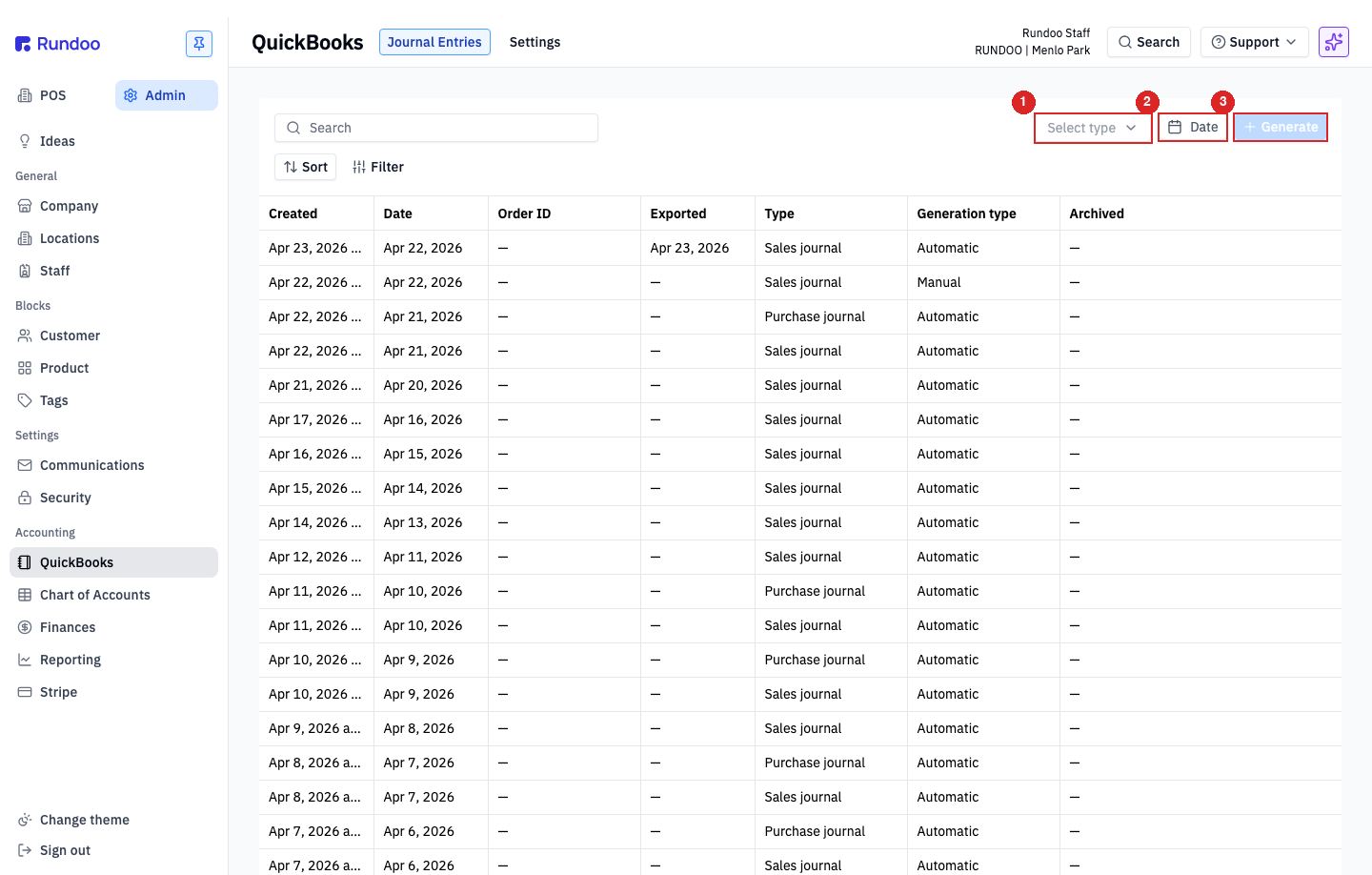
In the Admin > Integrations > Journal Entries tab, the filter row at the top-right drives a manual export:
-
Select type(pickSales journalorPurchase journal). You run them one at a time; manual generation is scoped to one type per run. -
Date(pick a day or a range). The picker has a calendar plus presets:Today,Yesterday,Last week,Week to date,Last month,Month to date,Last year,Year to date. Range picks cover every business day in the window. -
+ Generate. Stays gray and disabled until you've picked both a type and a date. Once both are set, the button lights up blue. Click it to generate the entry.
The new entry lands at the top of the list with Manual in the Generation type column (vs. Automatic for nightly runs) and the same Date, Created, Type, and Exported columns every other entry has. For QuickBooks Online, the entry posts to Intuit in-band, the Exported column fills in as soon as the push lands. For QuickBooks Desktop, nothing posts automatically; you open the entry and download the file for your bookkeeper to import.
Click the new row to open the entry. The detail view shows everything the export will send: total debits and total credits (they should always match), and an itemized table of every account the entry touches (Account number, Account name, Debit, Credit, Class, Customer, Vendor, Control account, Departments / Methods). The three buttons in the top-right let you:
-
Download CSV(a spreadsheet of the entry), useful for a reviewer to eyeball before anything posts. -
Download IIF(the QuickBooks Desktop import format). Hand this file to your bookkeeper if you're on QBD. -
Archive. Pull the entry out of the active view without deleting it. Use this for entries you regenerated and don't want staff to re-export by accident; the originals stay reachable by flipping the archive filter at the top of the list.
Regenerating doesn't remove any earlier copies of the same-day entry from the list. It adds a new one. If you've already posted a bad entry to QuickBooks Online, you may need to void or reverse it on the QuickBooks side before the regenerated entry makes the ledger right. Archive the old Rundoo entry once the QB side is clean so it doesn't get re-exported.
Diagnosing missing data in an export
"Missing data" errors on a QuickBooks Online push almost always mean one of two things:
-
A GL account Rundoo is trying to post to doesn't exist in your QuickBooks company file (QBO rejects any line that references an account it's never heard of).
-
A control account on Rundoo's side isn't mapped to a GL account, so the entry's debit or credit lands with no account number at all.
Both show up on the same surface: the journal entry's detail page.
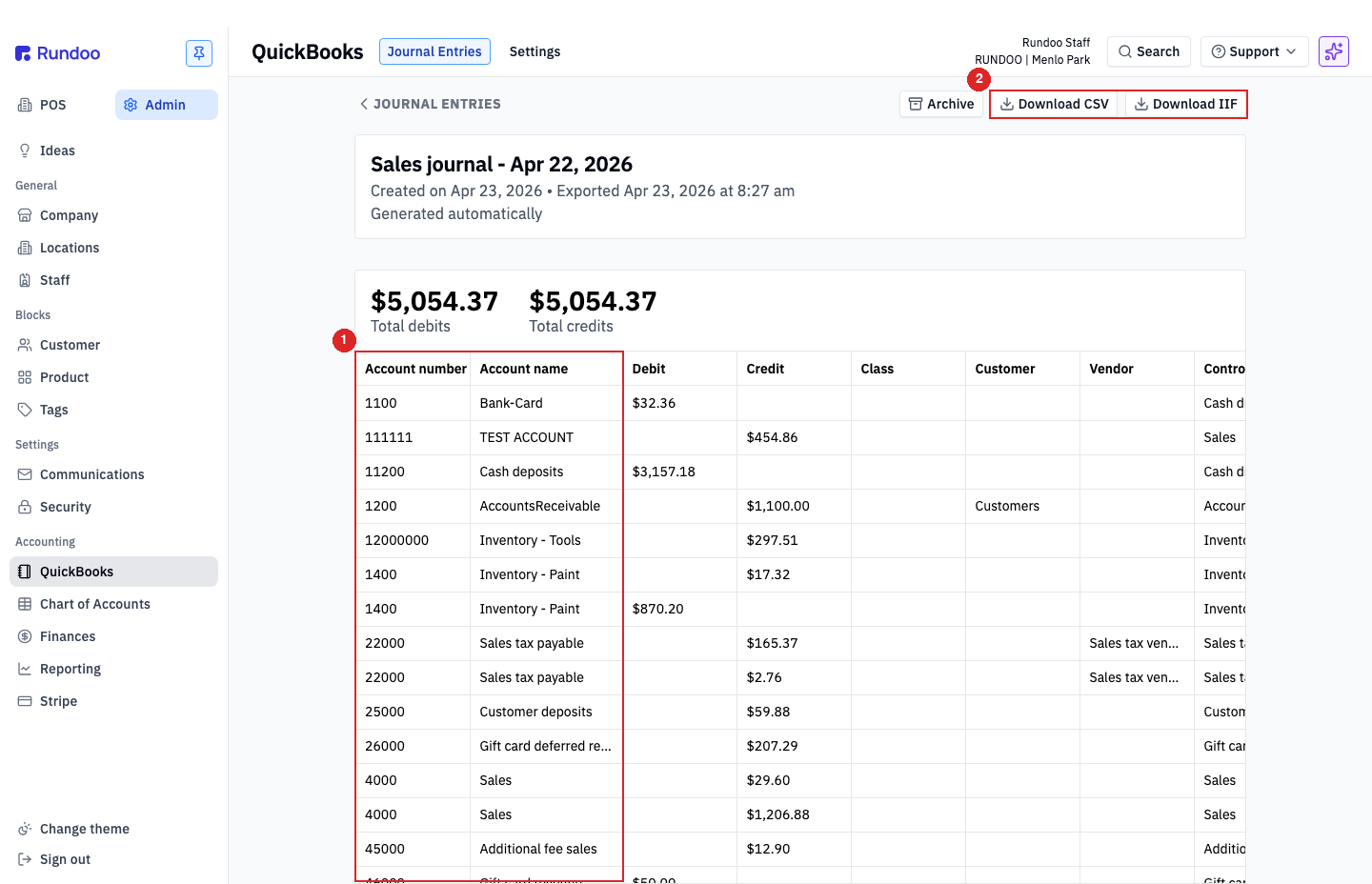
Open the problem entry from the Journal Entries tab and scan the Account number and Account name columns in the line-item table. Every line should have both filled in. That's the account Rundoo is asking QuickBooks to debit or credit. A line with a blank Account number is the tell: Rundoo knows what happened (you can see the control account, debit, and credit) but not where to post it in your GL.
-
If a line has a blank account number or name, the control account on that line isn't mapped. Go to Admin > Accounting > Chart of Accounts > Mapping, find the control account (matches the
Control accountcolumn on the detail page) for the location in question, and set it to the right GL account. Then come back to the Journal Entries tab and regenerate the entry for the affected date usingSelect type+Date+Generate; the corrected entry lands with the missing line filled in. -
If every line has an account number but the QBO push still fails. The account exists in Rundoo but not in QuickBooks. Copy the account number and name off the detail page, add the matching account in QuickBooks's own Chart of Accounts (see the next section for the ACH walk-through, the mechanic is the same for any missing account), then regenerate and re-export.
Blank cells in the Class, Customer, or Vendor columns are not errors. Those are optional dimensions Rundoo only fills in for line types that use them (AR lines get a Customer, sales-tax lines get a Vendor, etc.). Only Account number and Account name being blank is a problem.
The Download CSV button on the detail page is useful here too. Export the spreadsheet, sort by Account number, and any rows with a blank number sort to the top for easy spotting.
Fixing a mapping in Rundoo doesn't back-fix the QuickBooks side of an entry that already pushed. If a broken entry already landed in QuickBooks Online, reverse it on the QB side first, then regenerate in Rundoo and let the clean version post. For QuickBooks Desktop the fix is easier, re-download the IIF and re-import.
Setting up accounts in QuickBooks to match Rundoo
The most common version of "the QuickBooks export is missing data" is really the other direction: Rundoo is sending a valid account reference, but the account doesn't exist yet in QuickBooks. The fix is to add the matching account on the QuickBooks side so the next export has somewhere to land. The canonical example is the ACH deposit account, Rundoo posts your ACH receivables payments against an account named ACH deposits (number 11500 in the default Chart of Accounts), and on a fresh QuickBooks file that account won't exist out of the box.
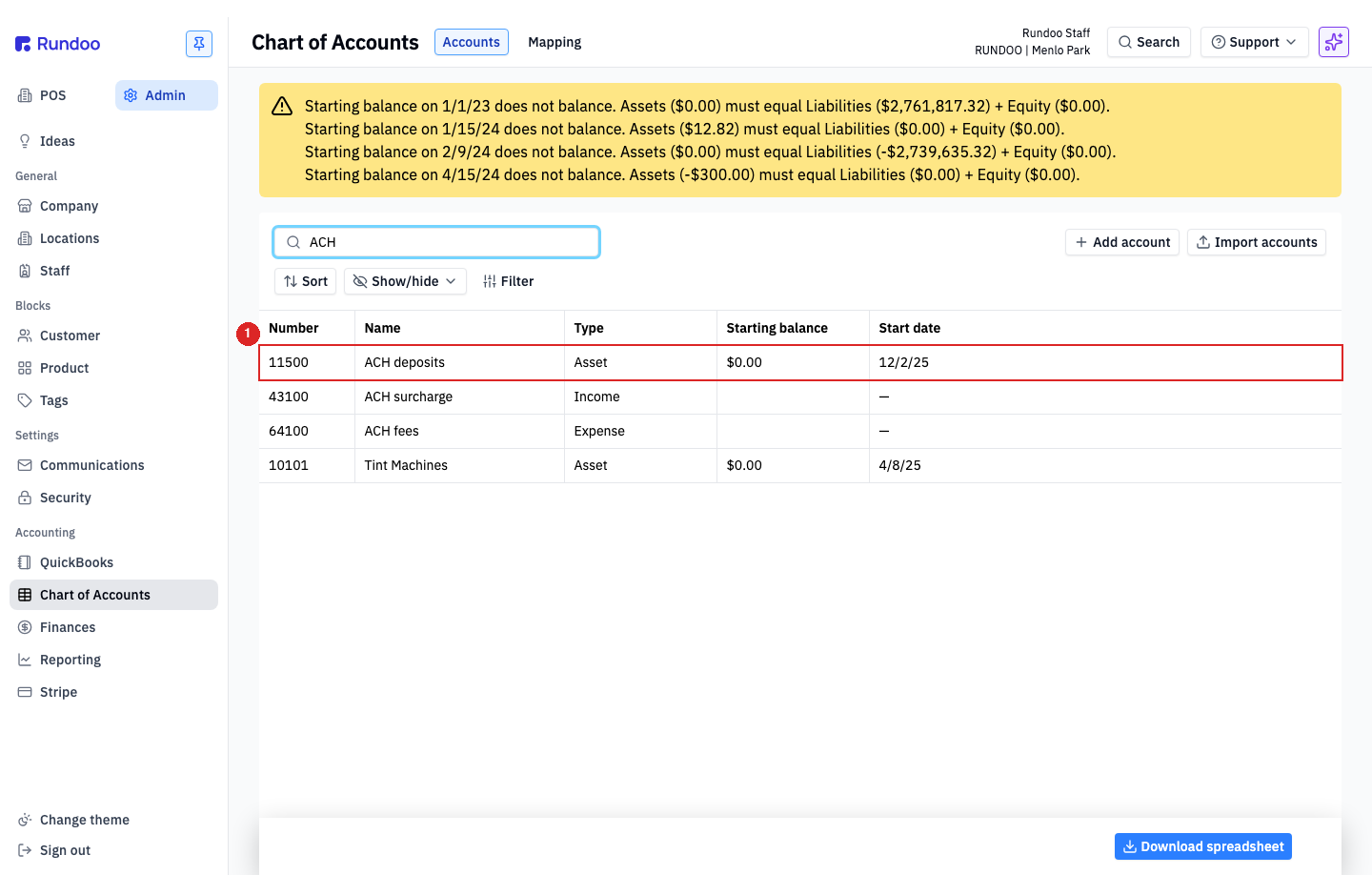
To find the exact account name and number Rundoo is looking for, open Admin > Accounting > Chart of Accounts > Accounts, type ACH (or whatever the missing account is about) into the search bar, and note the Number, Name, and Type. For ACH, you're looking for:
-
11500,ACH deposits(Type:Asset), the clearing account where Stripe-initiated ACH customer payments are recorded when they come in through Rundoo's receivables flow. This is the one the "ACH deposit account is not in my QuickBooks" error is usually about. -
43100,ACH surcharge(Type:Income). Surcharges billed to customers who pay by ACH, if your store charges them. -
64100,ACH fees(Type:Expense), the processing fee Stripe charges you per ACH transaction.
Add whichever of those you're actually missing on the QuickBooks side. The flow in QuickBooks Online:
-
Sign into QuickBooks Online, open the gear menu in the top-right, and pick Chart of accounts (or go straight to Transactions > Chart of accounts in the left nav).
-
Click New in the top-right.
-
Fill in the account using Rundoo's values so the export lines up: - Account type,
BankforACH deposits(it's a clearing account for real money coming in),IncomeforACH surcharge,ExpensesforACH fees.
-
Detail type,
Checkingis the safe pick for a clearing account; your accountant may preferOther Current Assets, either works as long as it's consistent. -
Name, the exact name from Rundoo (
ACH deposits). -
Number, the number from Rundoo (
11500). If you don't see a number field, enable account numbers under Settings > Advanced > Chart of accounts > Enable account numbers.
- Click Save and close.
For QuickBooks Desktop, the equivalent path is Lists > Chart of Accounts > Account > New, same fields, same values. If you're mid-onboarding and setting up several accounts at once, your bookkeeper can import a spreadsheet into QuickBooks instead of adding them one at a time.
Once the account exists in QuickBooks, come back to Rundoo's Journal Entries tab and regenerate the affected entry. It should post without the missing-data error.
Keep Rundoo's numbers and names in sync with QuickBooks. If your accountant renamed ACH deposits to something else in QuickBooks (e.g. Stripe ACH clearing), rename the Rundoo account to match in Admin > Accounting > Chart of Accounts > Accounts. Drift between the two sides is the #1 source of future export errors.
Disconnecting
Rundoo's QuickBooks integration doesn't have a standalone Disconnect button. If you want to stop the nightly export, you have two levers on the Settings tab:
-
Turn off both auto-export toggles (uncheck
Export sales journal entries automatically every nightandExport purchase journal entries automatically every night, thenSave changes). Rundoo stops generating and pushing entries on the nightly schedule. Your mapping and (for QBO) your connected QuickBooks company stay in place, so turning the toggles back on later resumes where you left off. -
Switch the version to the other flavor. Changing
Quickbooks versionfrom QBO to QBD (or back) ends the OAuth connection on the QBO side. If you later reconnect, you'll run through the OAuth handshake again.
If you're moving to a different QuickBooks company file (e.g. your bookkeeper is migrating to a new QBO instance), the cleanest path is: turn off both auto-export toggles, switch your QBO file on the Intuit side, switch back, and reconnect against the new company. Call Rundoo Support first. We'll help time the switch so no journal entries fall through the cracks.
Common questions about the sync
A few things that come up on every training call:
-
Does the sync go both ways? No. Data only flows from Rundoo to QuickBooks, never the other direction. Payments entered in QuickBooks don't appear in Rundoo; invoice-status changes in QuickBooks don't update Rundoo; invoices archived in QuickBooks stay visible in Rundoo.
-
If I mark an invoice paid in Rundoo, does QuickBooks update? The invoice status itself doesn't change in QuickBooks. The payment posts as part of the next journal entry, but the original invoice line stays. Rundoo is the book of record for per-invoice status; QuickBooks sees the aggregated ledger.
-
Can I edit an invoice in Rundoo and have the edit sync to QuickBooks? No. Invoice-level fields aren't synced individually. Rundoo exports aggregated journal entries; individual invoices and their fields live only on the Rundoo side.
-
Can I create new invoices in Rundoo that flow to QuickBooks? Sales rung up in Rundoo create invoices in Rundoo, and those invoices roll into the nightly sales-journal export as aggregated journal entries. But there's no per-invoice sync, you won't see a one-to-one invoice in QuickBooks for each Rundoo sale.
-
What about partial payments or sorting outstanding invoices? Both live in Rundoo only. For AR aging, outstanding balances, and payment allocation, use the customer's detail page or the aging reports in Rundoo.
Troubleshooting sync issues
Most QuickBooks sync hiccups fall into a handful of categories. Start here before escalating.
-
Read the QuickBooks error text on the failing entry first. When a nightly or manual push to QuickBooks Online fails, Rundoo surfaces the exact reason QuickBooks gave, typically a one-line Intuit message like Business Validation Error: When you use Accounts Receivable, you must choose a customer in the Name field or Duplicate Document Number Error. This number has already been used. DocNumber=727230 is assigned to TxnType=Bill with TxnId=11267. Most of these are self-fixable from the hint itself: a missing customer or vendor on the entry, a duplicate doc number, a QBO account that doesn't exist. Work through the category-specific bullets below based on what the message tells you; escalate to Rundoo Support if the reason text isn't actionable.
-
An entry sat in the list with a blank
Exportedcolumn all day. For QBO, that usually means the OAuth connection expired (Intuit tokens time out periodically). Open the Settings tab, if theConnect QuickBooks Onlinebutton is back, click it and re-authorize. For QBD, a blank Exported column just means your bookkeeper hasn't imported the generated file into Desktop yet. -
An entry posted to the wrong QuickBooks account. The issue is on the Mapping tab in Chart of Accounts, not in QuickBooks. Fix the mapping in Rundoo first, then manually regenerate the affected journal entries using
Select type+Date+Generateon the Journal Entries tab. The corrected entries re-post to QuickBooks. -
Sales tax is landing against the wrong vendor in QBO. Check the
Sales tax payable vendorfield on Settings. It points to the QuickBooks vendor used for every location's sales-tax credit. If your state has multiple tax authorities and you need per-authority vendors, flag it with Rundoo Support; the default field is one-to-one. -
Customer-level detail is missing in QuickBooks. That's by design. Rundoo aggregates AR against the single
Accounts receivable customeryou picked on Settings. Customer-level detail lives inside Rundoo on the Customers tab and on Statements, not inside QuickBooks. -
A manual
Generaterun didn't do anything. TheGeneratebutton is disabled until you pick both aSelect type(Sales journal or Purchase journal) and aDaterange. If the button looks grayed-out, that's why.
If you're stuck after those, call Rundoo Support (we can look at the QuickBooks-side logs and tell you exactly which entry failed and why).
Recommended Rundocs
-
Account mapping