
Rundocs › Customers & Jobs
Customer imports
Last updated 2026-05-01
Customer imports are how you bulk-create or bulk-update customers from a spreadsheet. Useful when you're migrating off an old POS, onboarding a new location, or making a sweeping change like re-tiering your whole contractor book.
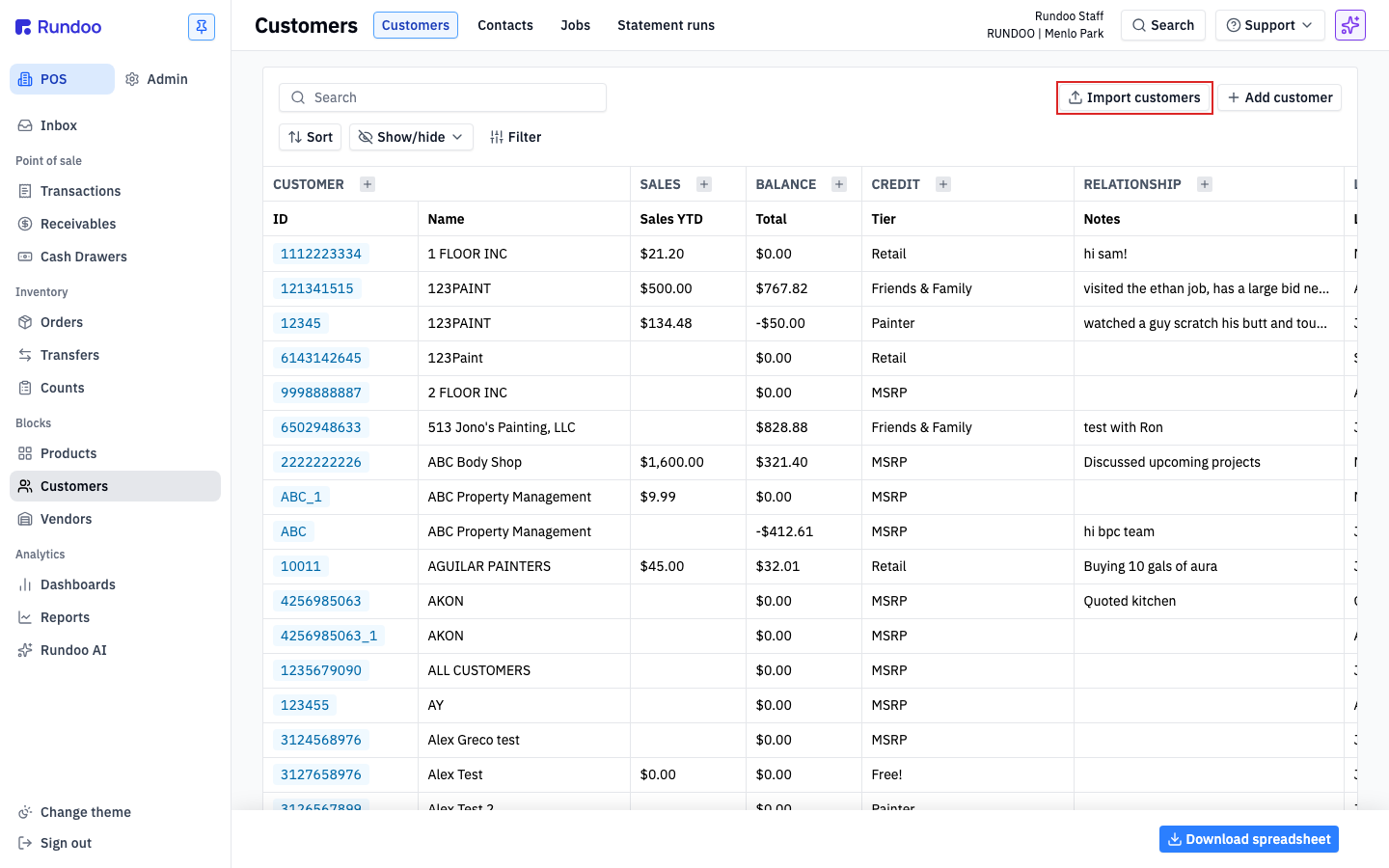
In the POS mode, open Customers in the left sidebar. Import customers sits in the top-right action cluster, next to Add customer.
Downloading the template
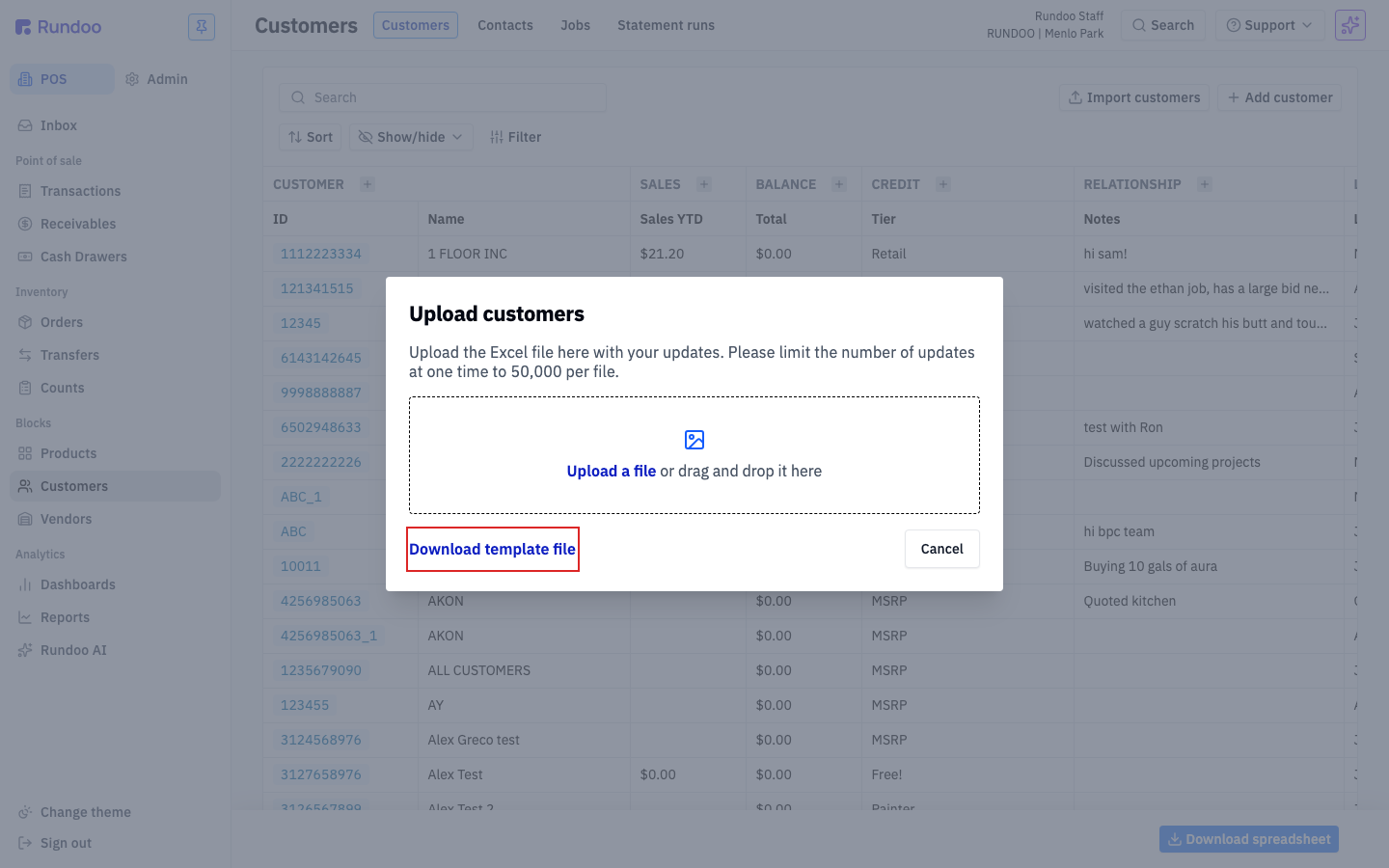
Rundoo expects an Excel file (.xlsx) that matches the shape of its template. The fastest way to get that shape right is to download Rundoo's template and fill it in. Don't hand-roll a CSV from a different system's export.
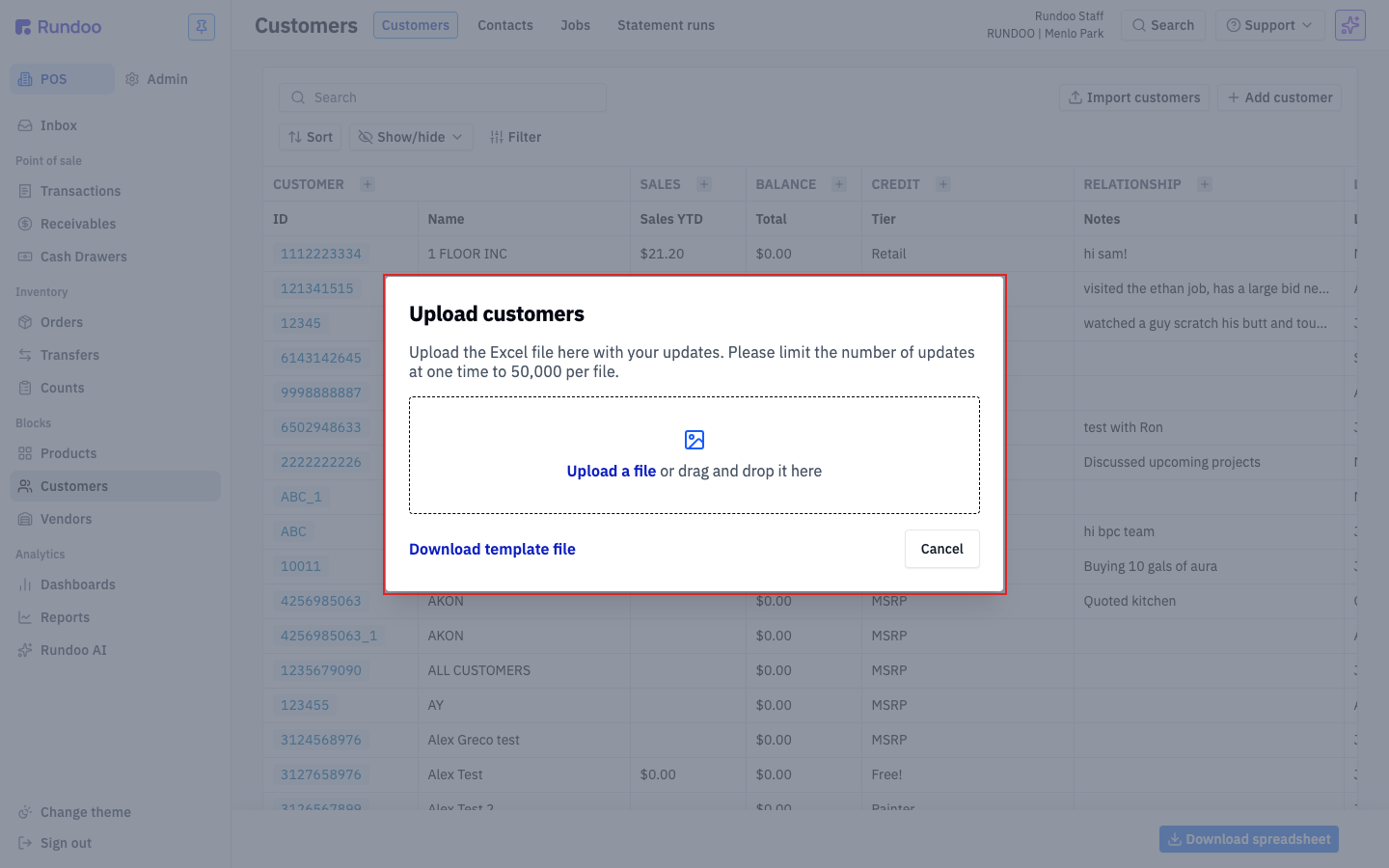
Click Import customers to open the Upload customers modal, then click Download template file at the bottom-left. A file named customers_template.xlsx downloads with the right header row and dropdown-validated reference tabs.
The workbook has two kinds of sheets:
-
Sheet1, the data sheet. One row per customer, with 45 columns (see below). This is the sheet you fill in.
-
Reference sheets. One tab each for the dropdown-validated values Rundoo expects:
Pricing Tier,Financing Term,Finance Charge,Primary Location,Sales Representative,Statement Invoices Format,Custom Tax Rate,Statement Type. Open these to see the exact strings your Rundoo tenant accepts. They vary by company. Type any of these values into Sheet1 exactly as they appear on their reference tab.
The template reflects your tenant. The Pricing Tier, Financing Term, and Sales Representative sheets are populated with your tiers, terms, and staff. If you add a new pricing tier or finance term later, re-download the template before the next import so the dropdowns match.
What the columns mean
The 45-column template covers every customer-level field Rundoo stores. You don't need to fill every column (only Name is strictly required) but filling more upfront means less clean-up later.
The columns group into five areas:
Identity
-
Token, Rundoo's internal customer ID. Leave blank to create a new customer; fill in to update an existing one (see "Create vs update" below). -
Name(the customer's name as it appears on receipts, statements, and in the list). This is the only strictly required column. -
ID, your own customer number (account code, old-system ID, phone). Shown in theIDcolumn of the list and indexed for search. -
Tags(comma-separated tags for grouping), likepainter, commercial. See Tags. -
Notes(free-text internal notes visible to staff, not to the customer). -
Active,TRUEorFALSE. SetFALSEto create the customer deactivated (hidden from search). See Customers for what deactivation means.
Pricing and terms
-
Pricing Tier(which price column this customer sees at POS). Must match thePricing Tierreference sheet exactly. See Pricing tiers. -
Financing Term, the term that determines whether they're retail or a charge account.Cashkeeps them retail; anyStatement-based term (Net 30 Statement, etc.) makes them a charge account. See Finance terms. -
Finance Charge, interest applied to overdue balances (1.5% compounding,No finance charge, etc.). Must match theFinance Chargereference sheet. -
Credit Limit(dollar cap) on unpaid balance.Charge accounttender blocks at POS when a sale would push the customer past this. -
Credit Hold,TRUEorFALSE. BlocksCharge accounttender regardless of credit limit. Use when you're pausing a contractor. -
Statement Type(Open itemorBalance forward). How their statement shows unpaid invoices. See Statements. -
Statement Invoices Format(None,Condensed, orFull page). How much invoice detail prints on statements. -
Restrict Outstanding Invoices To Statement Period(TRUEorFALSE). IfTRUE, statements only list invoices from within the statement period. -
Print Invoices(TRUEorFALSE). Whether charge-account sales print an invoice at the counter. -
Autopay Statement Balances(TRUEorFALSE). Automatically charges the card on file when statements run. -
Mail Statements(TRUE) orFALSE. Include this customer in the physical-mail statement run. -
Hide Prices On Printed Invoices(TRUEorFALSE). Prints invoices without line-item prices (requested by contractors invoicing their own customers).
Address
-
Address Line 1,Address Line 2,Address City,Address State,Address Zip,Address Country(billing and mailing address). Used for mailed statements and, on some tenants, for destination-based tax calculation. -
Primary Location(the store this customer defaults to). Must match thePrimary Locationreference sheet.
Tax and compliance
-
Sales Tax Exemption Number(resale certificate number). Having a value here generally exempts the customer from sales tax at POS. -
Eco Fee Exemption Number, for markets with eco or environmental fees (California paint, etc.). Exempts this customer from those fees. -
Single-use Tax Exempt Number(for one-time tax-exempt sales that aren't tied to a permanent resale cert) -
Custom Tax Rate(override the default tax rate). Must match a value from theCustom Tax Ratereference sheet (jurisdiction strings likeMENLO PARK, SAN MATEO, CA). -
Exempt From Card Surcharge(TRUEorFALSE). Skips the card surcharge on this customer's card payments. See Card surcharges.
Workflow requirements
-
Require PO(TRUEorFALSE). Blocks sale completion until a PO number is entered. -
Require Job,TRUEorFALSE. Blocks sale completion until a Job is attached. -
Require Buyer,TRUEorFALSE. Requires a named buyer/contact on each sale. -
Require Receipt Signature(TRUEorFALSE). Forces a signature pad on every receipt for this customer. -
Require Sale Notes,Require Internal Sale Notes(TRUEorFALSE). Block completion until a sale note (customer-visible or internal) is entered. -
Sales Reminder(free-text note that pops on the cart when this customer is attached). Good for "check references before charging on account." -
Sales Representative, staff member assigned as this customer's rep. Must match theSales Representativereference sheet. -
PaxID(identifier used by Pax card readers for this customer). Rarely set by hand.
Primary contact
-
Primary Contact Name,Primary Contact Phone,Primary Contact Email. Name, phone, and email of the first contact under this customer. These power SMS receipts, emailed receipts, and customer notifications. -
Primary Contact Email Invoices(TRUE) orFALSE. Emails invoices to this contact when charge-account sales close. -
Primary Contact Email Statements(TRUEorFALSE). Emails monthly statements to this contact. -
Primary Contact Notes(free-text notes about this specific contact).
Dropdown columns reject typos silently. If a value in Pricing Tier, Financing Term, or any other reference-validated column doesn't match its reference sheet exactly (case and spacing included), the row fails. Copy values straight from the reference tab rather than re-typing.
A few customer fields can't be imported, they have to be added by hand on the customer's detail page after import. Saved cards on file, contacts beyond the primary, customer-credit balances, interaction history (the Relationship tab's notes log), per-customer custom prices, and tax-jurisdiction certificates that need uploading. Plan to do a second pass for high-touch contractor accounts where these matter; for the bulk of retail customers, the importable fields cover everything.
Uploading the file
Once your spreadsheet is filled in, come back to the Upload customers modal.
Click Upload a file in the dashed drop zone, or drag the .xlsx onto it from your desktop. Rundoo validates the file as soon as it's selected; there's no extra "next" step.
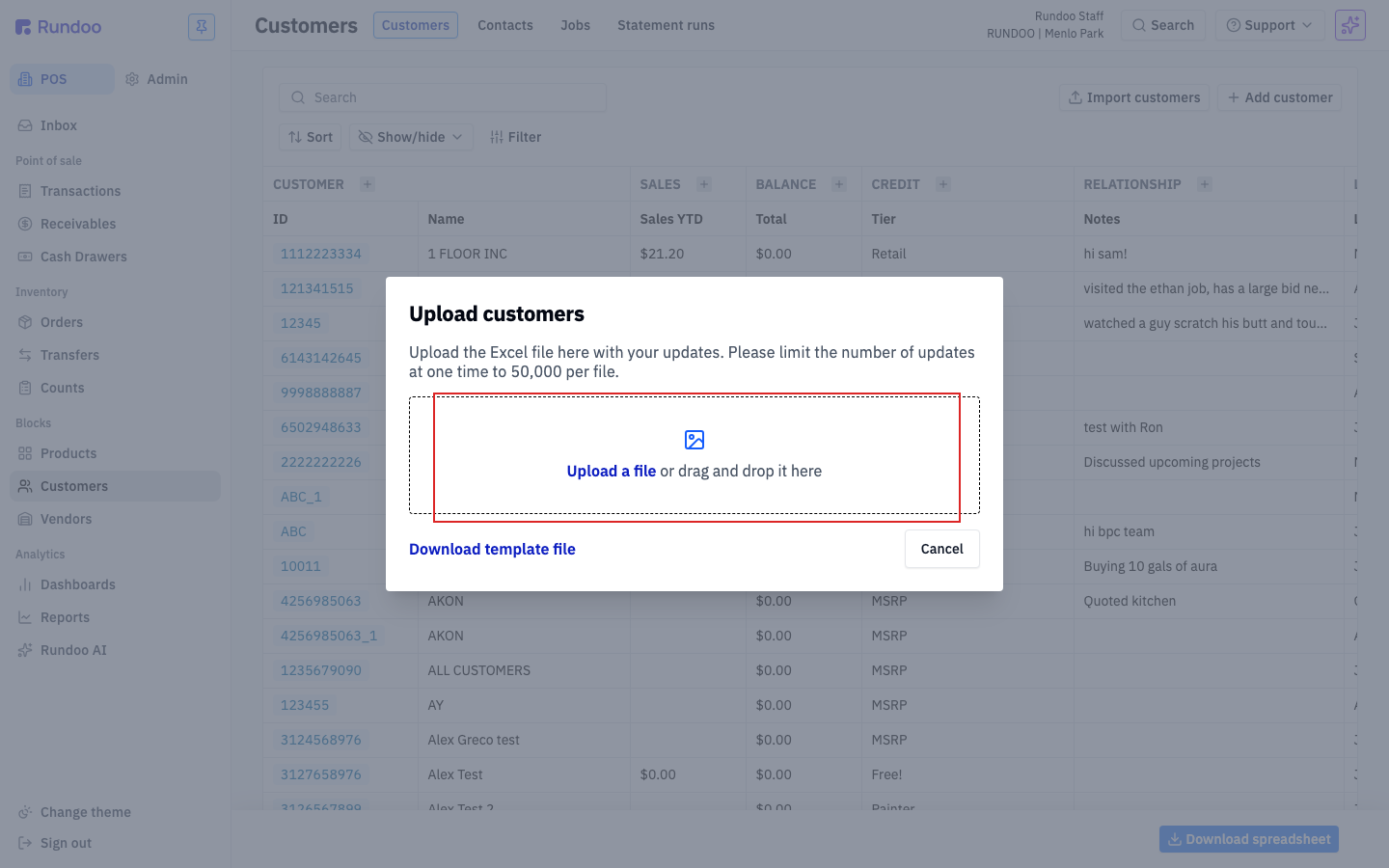
Rundoo caps each import at 50,000 rows per file. If you're migrating a book bigger than that, split the spreadsheet into multiple files and upload them one after another.
Create vs update
The Token column is what decides whether a row creates a new customer or updates an existing one.
-
Blank
Token(Rundoo creates a new customer from the row's values). -
Filled
Token. Rundoo looks up the customer with that token and overwrites matching columns.
To update customers in bulk, first export or copy their current Tokens from the Customers list, paste them into the Token column, and change only the columns you want to update. Columns you leave blank on an update row are left alone, blanks don't wipe existing values.
Don't invent tokens. A Token that doesn't match an existing customer won't create a customer with that token. It'll fail the row. Leave it blank for new customers and let Rundoo assign the token on creation.
Reviewing validation errors
If Rundoo catches problems in the file (a bad Pricing Tier value, a missing Name, a Token that doesn't match an existing customer) it shows them per-row at the top of the modal after upload. The valid rows don't import until the whole file passes.
When you see errors:
-
Note the row numbers and what each one says. Rundoo's messages are field-specific ("Pricing Tier ‘Contrctor’ not found").
-
Cancel the upload, fix the rows in your spreadsheet, and re-upload. There's no in-modal editor (corrections always happen in Excel).
-
If a reference value looks right but still fails, re-download the template: the reference sheet may have updated since you last pulled it.
After a clean upload, open the Customers list and spot-check a few rows. Sort by Last updated descending to see freshly-imported customers at the top. Look at their Settings tab to confirm the Financing Term, Pricing Tier, and Credit Limit came in as expected.
For very large migrations, do a dry run with 5–10 rows first. Fixing one typo across 10 rows is cheap; fixing it across 10,000 is not.
Recommended Rundocs
-
Customers, creating and editing a single customer, plus what retail vs. charge-account means.
-
Product imports. The same bulk pattern, for products.
-
Vendor imports (the same bulk pattern, for vendors).