
Rundocs › Accounts Receivable
Bill payments
Last updated 2026-08-06
Bill Payments is how a charge-account customer pays down their balance. They hand you a check (or run a card), you apply it to their outstanding invoices, and Rundoo does the math.
In the POS mode, open Receivables in the left tab. The Payment top tab is where Bill Payments happens.
Step 1: Find the customer
The Payment tab opens with a blank Customer panel on the left, the Bill Payments surface. Click into Search accounts and type a name, phone, or customer ID. Only customers with a charge-account finance term appear in results. Retail walk-ins pay at the register in Sales, not here.
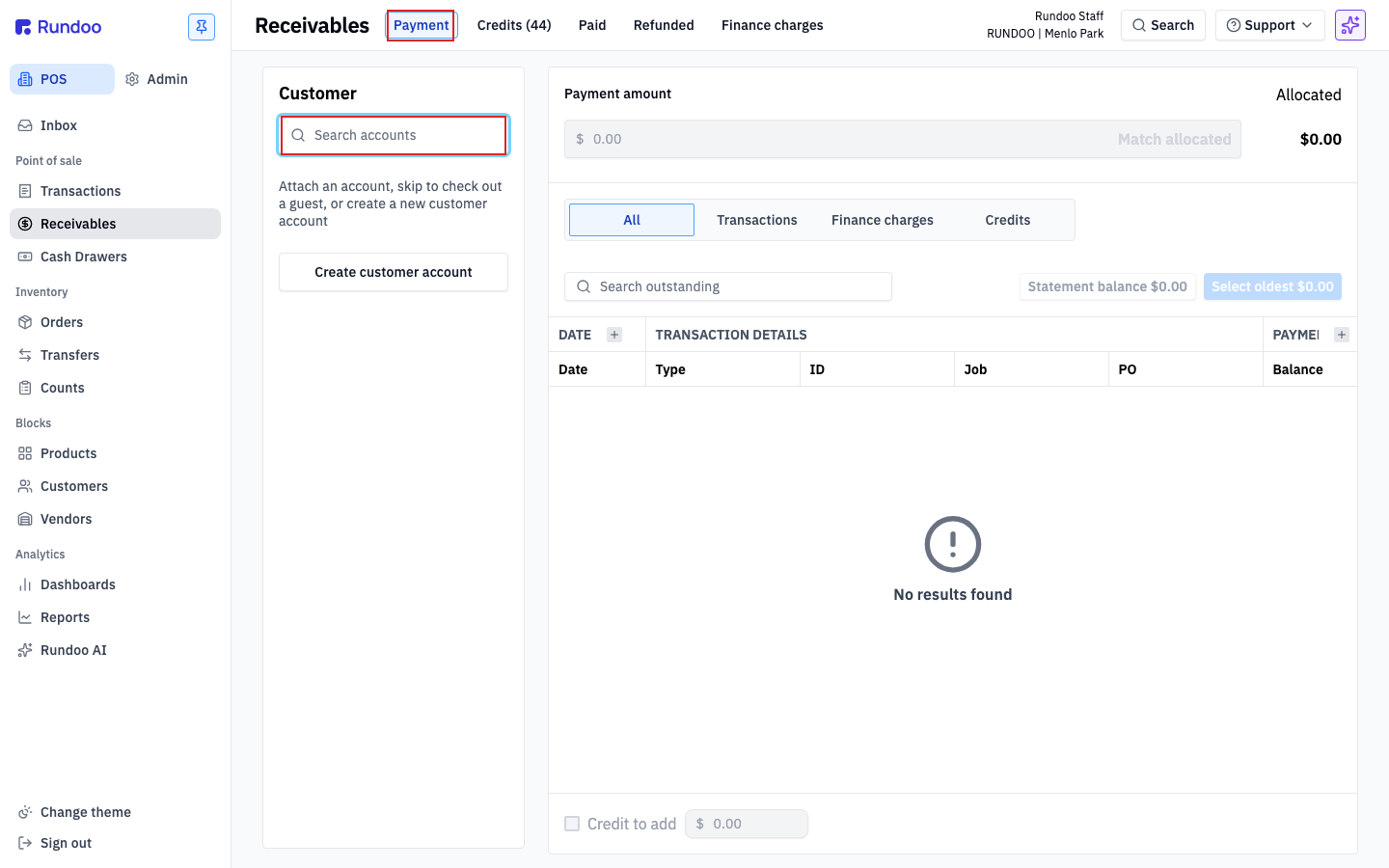
💡 No account yet? Create customer account at the bottom of the panel opens the new-customer form without losing your place. See Customers for what to fill in.
Step 2: Pick from the search results
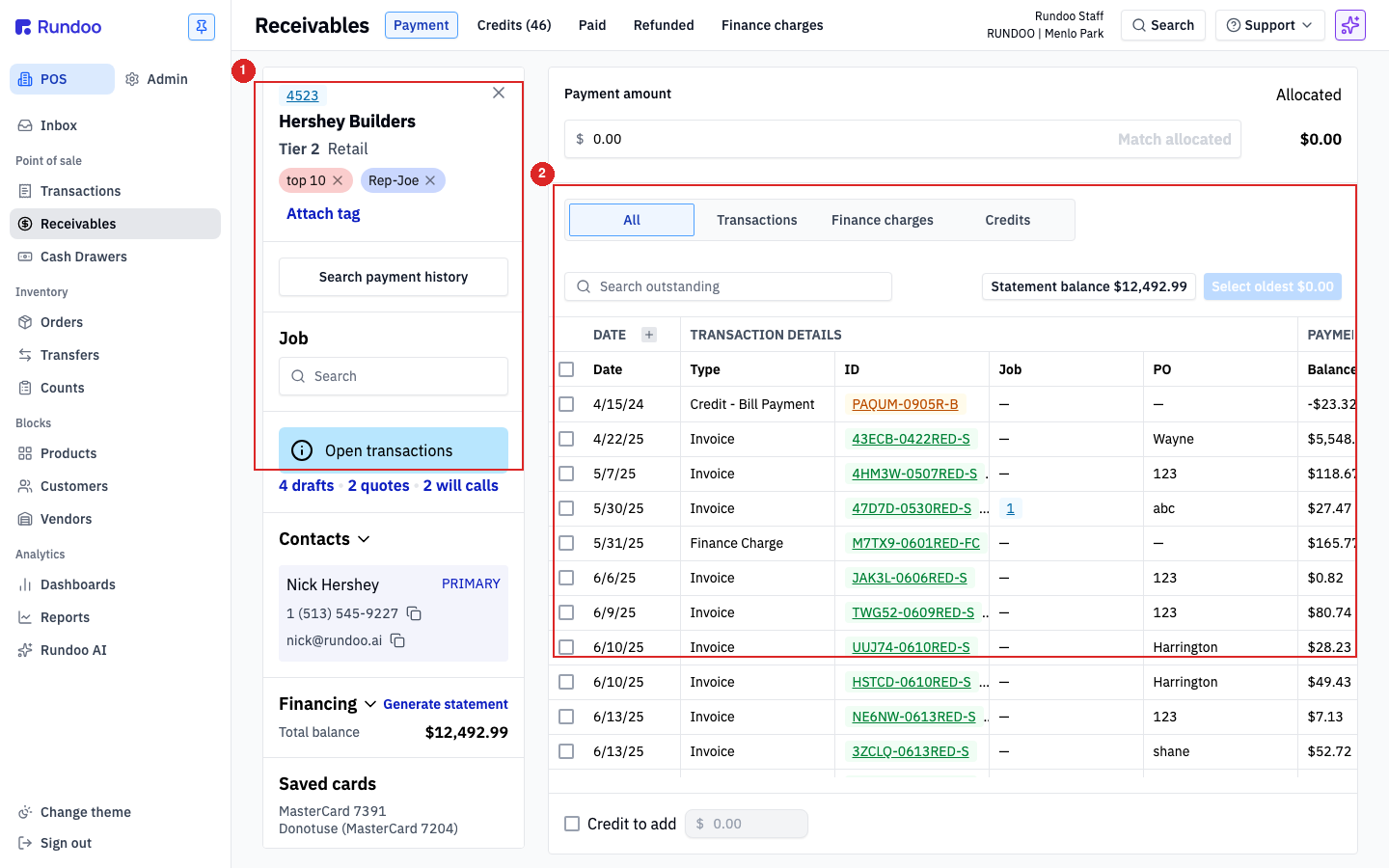
Click the customer's row in the dropdown to attach them. The left panel fills in with their name, tier, contact info, Financing summary (their Total balance), and any saved cards. The right panel populates with their outstanding transactions.
⚠️ If the dropdown doesn't show the customer you're looking for, check their Finance terms. A customer without a charge-account term (like
Net 30 Statement) won't appear here. See Finance terms.
Step 3: Review outstanding transactions
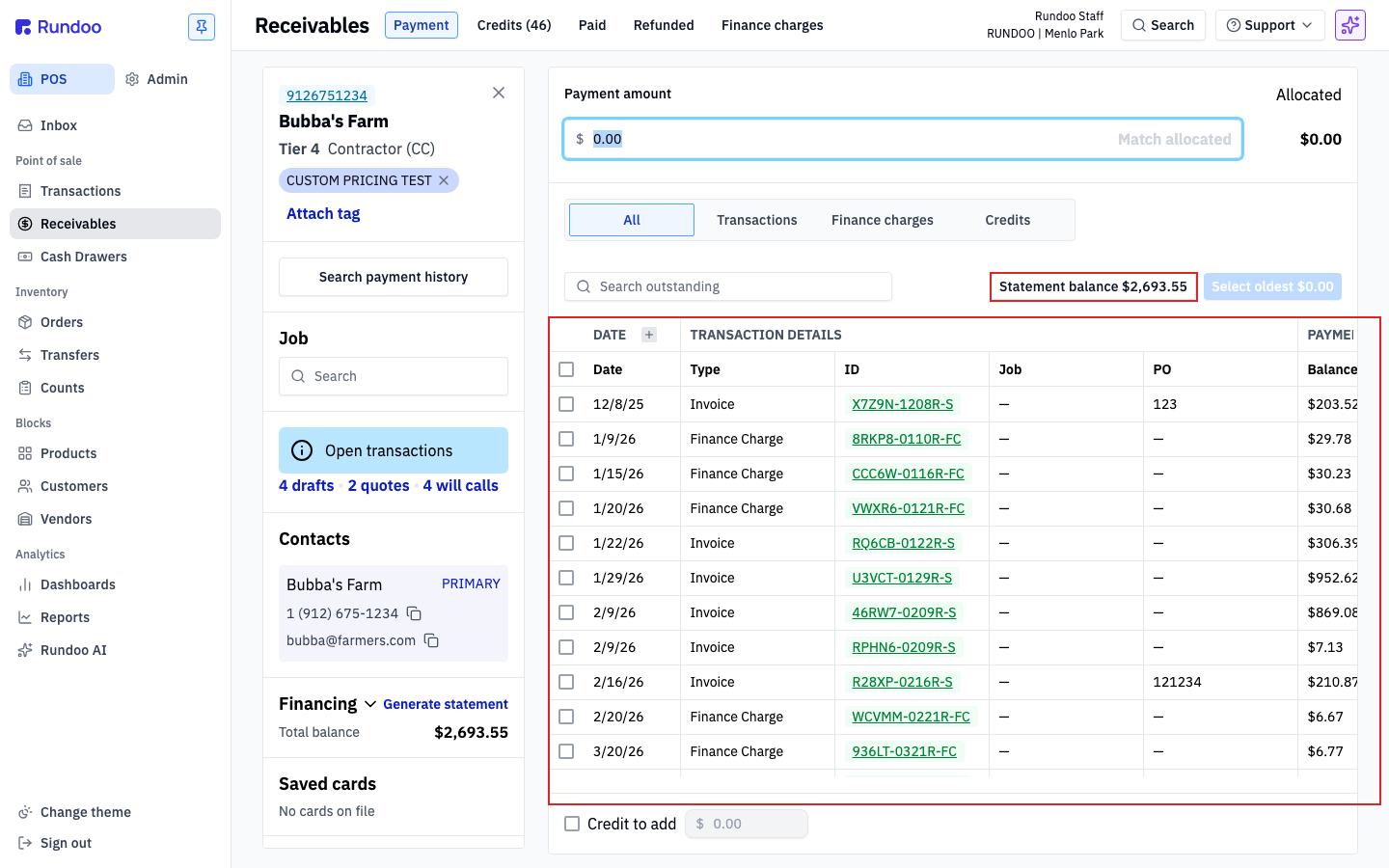
The center table lists every unpaid invoice and finance charge for this customer, oldest first. Columns:
-
DATE, when the transaction was rung up. -
TRANSACTION DETAILS(Date),Type(Invoice or Finance Charge),ID,Job,PO. -
PAYMENT(the original amount and the remainingBalance). -
ALLOCATIONS, a checkbox per row and anAllocatedamount, for marking how much of the payment applies to each line.
The Statement balance $X.XX pill above the table shows the customer's balance as of their last statement. Click it to set the Payment amount to exactly that figure. Handy when a customer is paying off their most recent statement in full.
Step 4: Allocate the payment
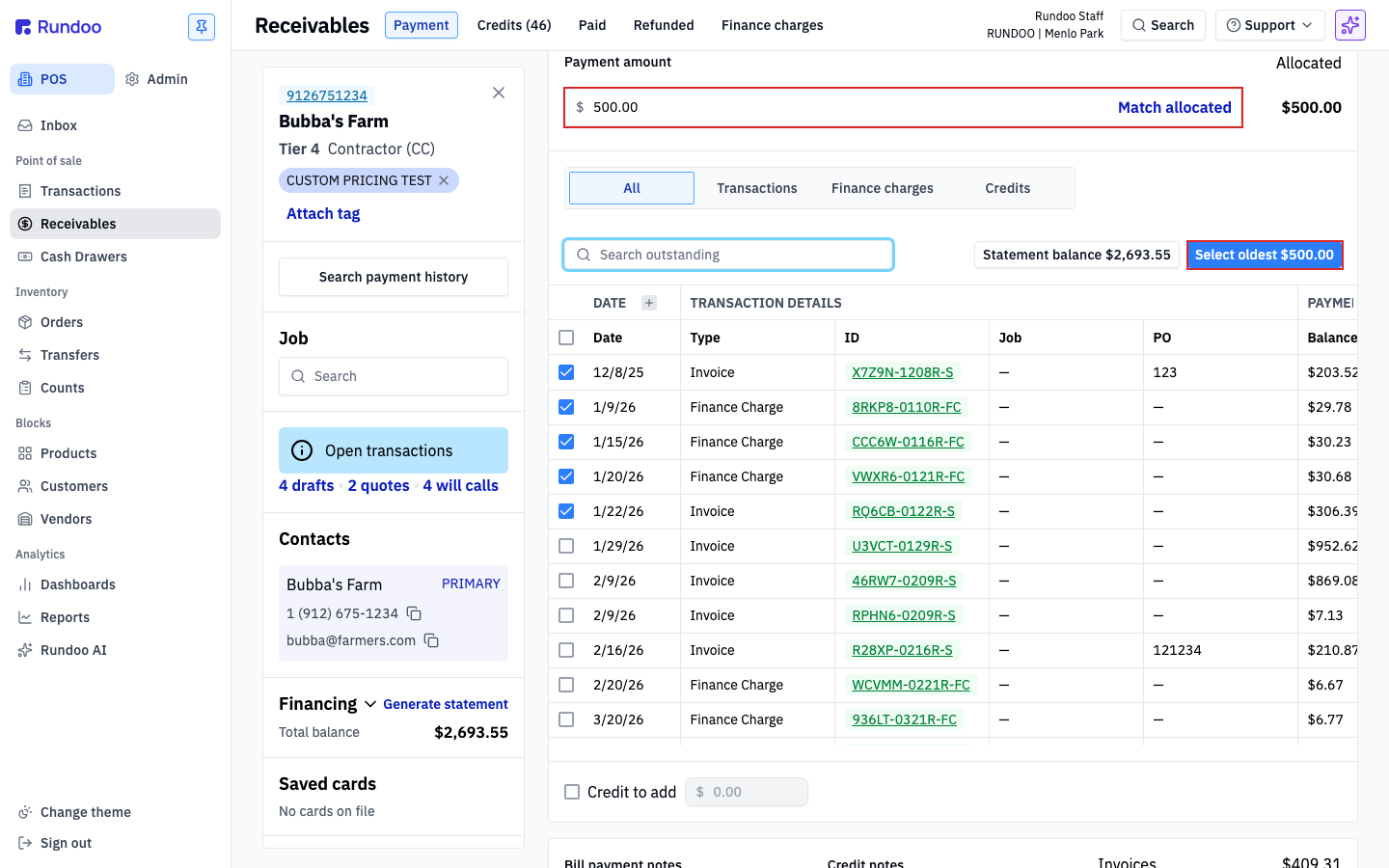
Type the amount in Payment amount at the top. Then tell Rundoo which invoices it covers. Three ways:
-
Select oldest $X.XX (top right of the table), apply the payment to the oldest balances first. Rundoo walks down the list and checks rows until the full amount is allocated. This is the right default for most bill payments.
-
Match allocated (on the
Payment amountrow). Set the payment amount equal to the sum of rows you've already checked. Useful when the customer is paying specific invoices (say, everything on a particular job) and you want the payment total to follow. -
Manual per-row, check the box on individual rows and type an amount in the row's
Allocatedfield. Use when the customer is paying part of a single invoice, paying invoice 1 in full and invoice 2 partially in the same transaction, or splitting across non-consecutive invoices. ThePayment amountandAllocatedrunning totals have to match before the payment can be accepted, the Match allocated chip on thePayment amountrow will set the total to whatever you've checked.
The Allocated total in the top-right updates live. Payment amount and Allocated have to match before the payment can be accepted. If they don't, a banner reminds you.
Step 5: Choose a tender method and complete the payment
Below the allocations, the tender list is a radio group: Card, Cash, Check, ACH, Write off, and, if your company uses them, Gift card, Deposit, and any custom tender methods you've set up (see Tender methods). The ones you see depend on which tenders are active for Receivables payments.
Each tender reveals its own capture fields:
-
Card. Choose a reader to swipe, or type card number /
Expiration/CVV/ZIPto enter manually. Optionally check Save card to account to keep it on file. -
Cash, enter the amount tendered. Rundoo calculates change against the payment total.
-
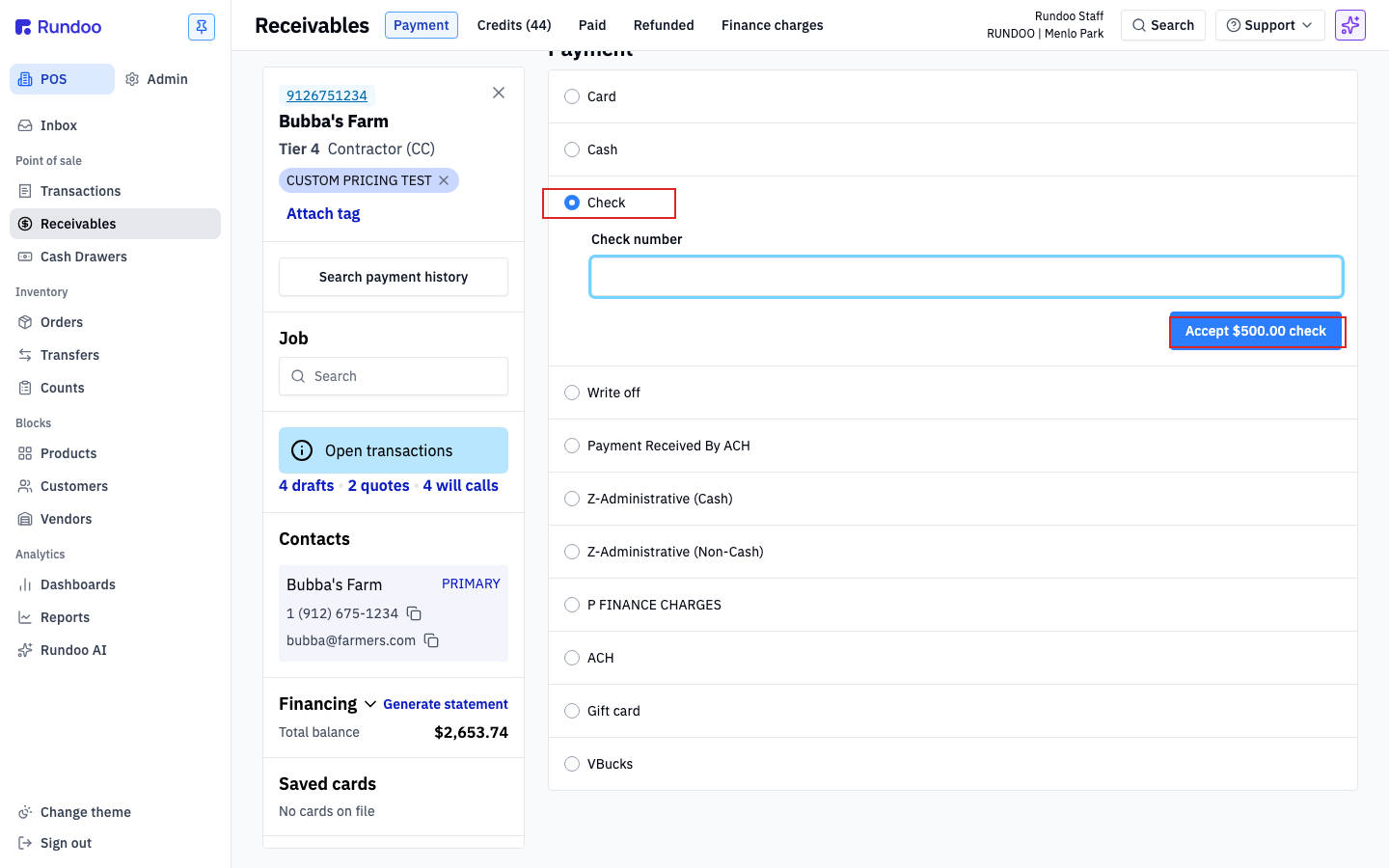
Check, enter the Check number in the input and the amount. The number gets logged against the payment so the drawer reconciles at close-out.
-
ACH, drafts the payment straight from the customer's bank account through Rundoo (the same bank-draft the customer app uses, it holds a few business days before it clears). Use this to collect an ACH payment. To record a direct deposit or transfer the customer already sent you outside Rundoo, don't use this tender, see Recording a payment received outside Rundoo below.
-
Write off. Applies the balance against a write-off tender instead of collecting money. Typically used for small finance-charge waivers; confirm with your manager before writing off a real balance.
⚠️ Write-offs are irreversible. Unlike a regular bill payment, a
Write offtender can't be voided or refunded, once it lands, it's on the books permanently. The corrective path is a new offsetting transaction (manual journal entry, or a re-rung sale crediting the customer), not an undo. Get the manager sign-off before clicking Accept on a write-off, and double-check the customer and amount.
The commit button updates live with the tender and amount: Accept $X.XX check, Charge $X.XX for a card, Accept $X.XX cash. Click it to finalize the payment.
💡 The payment shows up on the customer's next statement as a credit against their balance. See Statements for how monthly balances roll up.
Recording a payment received outside Rundoo
Some customers pay you directly, a direct deposit, ACH, wire, or bank transfer straight into your business bank account, so the money never runs through Rundoo. You still record it here, otherwise the invoice stays open and their statement is wrong. Attach the customer (Steps 1 and 2), allocate the amount to the right invoices (Step 4), then pick the tender that matches how the money actually arrived.
Two tenders look alike but do opposite things:
-
ACH(the built-in tender) pulls the money. Selecting it drafts an ACH payment from the customer's bank account through Rundoo. Use it to collect a payment, never to log one that's already in your account. -
A custom offline tender (a Support-set-up method like
Payment Received By ACH,Direct Deposit,Bank Transfer, orWire) just records the payment. No money moves, Rundoo only marks the balance paid against that tender, so a deposit already sitting in your bank isn't collected a second time.
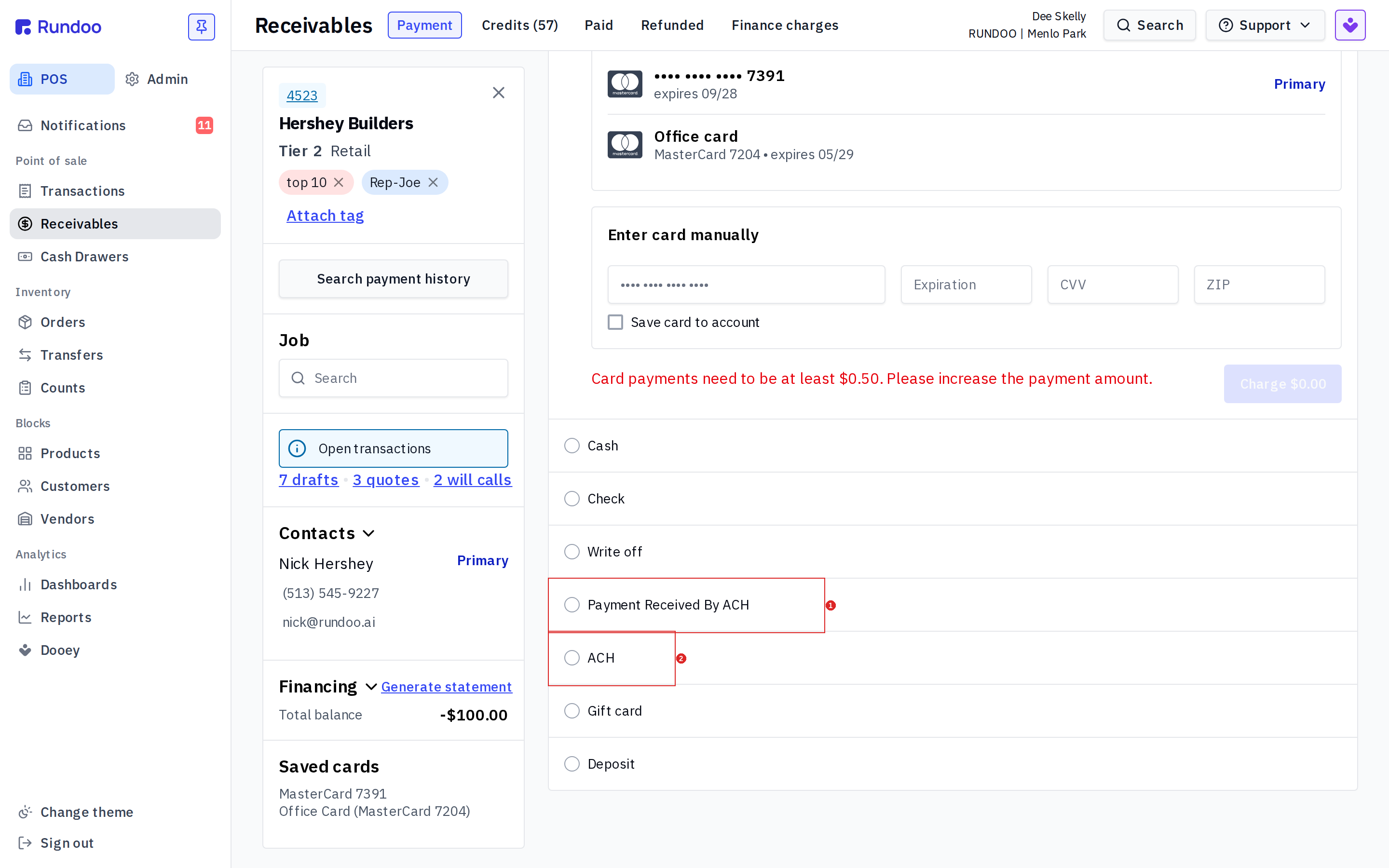
Don't record an off-platform deposit on the built-in ACH tender. That tender initiates a real ACH draft from the customer's bank, so you'd pull the money a second time. For cash or a check you're physically holding, Cash and Check work; for a direct deposit, wire, or transfer, use a custom offline tender.
If none of your tenders fit how a customer pays you outside Rundoo, Rundoo Support adds one. Email support@rundoo.ai with the name (Direct Deposit, Bank Transfer, whatever you'd call it on a report) and ask for it to cover Receivables payments. See Tender methods for the full request format.
Partial payments and overpayments
If the payment is less than the customer's total outstanding balance, allocate it to the invoices they want paid down and the rest carries forward on the account. No extra step required. Nothing gets closed out that they didn't pay for.
Underpayment where the shortfall is a credit, not a write-off. If the customer is short by a planned discount or rebate (a Benjamin Moore national-account discount, a prompt-pay discount, a vendor rebate the books need to reflect as a credit) finalize this bill payment for what the customer actually paid, then issue a separate credit on their account for the difference. The payment and the credit are two transactions, not one. Combining them by selecting Write off as the tender on a partially-allocated bill payment doesn't credit the customer; it permanently writes the difference off as bad debt. See Customer credits → Issuing a misc credit / credit on account for the step-by-step on the second transaction.
Don't combine the two. It's tempting to keep the books balanced inside the same Bill Payment by letting the cash tender cover the customer's portion and Write off cover the discount. Rundoo will accept it, but the discount lands in the write-off bucket (bad debt) instead of as a customer credit, and there's no clean trail back to the rebate or discount that drove it. The two-transaction flow above keeps each side of the ledger labeled correctly.
If the payment exceeds the outstanding balance, the difference becomes a customer credit. Check Credit to add at the bottom of the center panel and enter the credit amount (Rundoo posts it to the account so the next sale can draw against it). See Customer credits for how those get applied.
⚠️ A check written for more than owed is the most common overpayment case in the field. Mark the credit at payment time rather than "fixing it later". Credits created via manual adjustment are harder to trace back to the originating check.
Seeing prior bill payments
Three places to look, depending on what you're after.
One customer at a time, mid-Payment. With the customer attached on the Payment surface, click Search payment history at the top of the customer panel. The Recent Payments modal opens listing every bill payment for that customer with date, tender, and amount; click the chevron on a row to expand the allocations and see which invoices the payment was applied to.
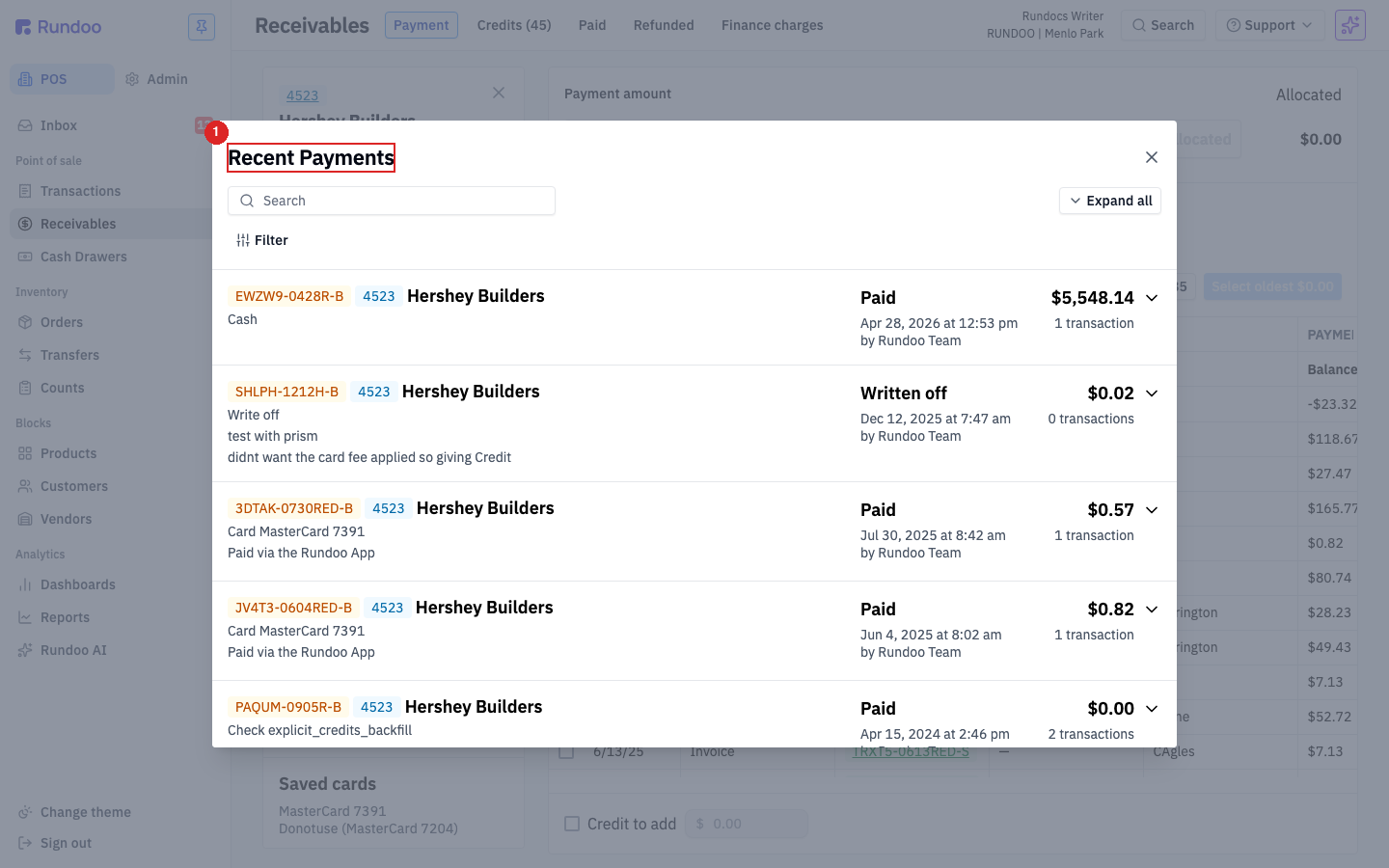
💡 Write-offs show up in the Recent Payments modal as a
Written offstatus pill. They're real ledger entries, not erased. The void-irreversibility caveat from the Write off tender still applies.
One customer's full history. In the customer's record (Customers block, open the customer, Balance tab, History sub-tab), the ledger lists every invoice, finance charge, and bill payment in chronological order. Bill payments show Bill Payment in the Type column with the amount in the Credit column. Sibling sub-tabs: Aging shows balance bucketed by age (current / 1–30 / 31–60 / 61+), Statements lists prior statement runs.
Store-wide. The Paid top tab on the Receivables surface lists every bill payment across all customers, newest first. Use Filter to narrow by date, tender, or staff member.
⚠️ Looking up a payment by its ID? The
Searchbar onReceivables > Paidmatches customer name, not payment ID. Pasting a full payment code likeP9KMM-05081GMC-Breturns no results. Same for the header Search bar. To pull up a specific bill payment, find the customer first (Customersblock, search by name or ID), then open their record and go toBalance > History(every bill payment shows up there with itsCredit - Bill Paymenttype and*-BID).
Reversing a bill payment
Three paths, picked by what actually went wrong:
-
Wrong amount, wrong customer, or duplicate keying. Open the bill payment from
Receivables > Paid, click Void in the action cluster, and re-key from scratch. Void unwinds the bill payment entirely. -
Customer is actually getting money back (refund of a real overpayment, returning store-credit-paid balances, etc.). Open the bill payment and click Issue refund. See Refunds › Refunding a bill payment for the tender selector and what each option means.
-
The underlying sale is the issue (returned merchandise, billing error on the original charge-account sale). Don't touch the bill payment. Run a return against the original sale and refund to Charge account, which credits the customer's balance and leaves the bill payment intact for the audit trail.
Voiding a charge-account sale (the underlying invoice, not the payment) lives in Sales. Only the original Charge account sale is voidable, and it's gated by a permission and a return-to-stock confirmation. Don't try to use a bill-payment void to fix a bad sale.
Paying a bill in the Rundoo customer app
Bill payments don't have to happen at the counter. Customers with the Rundoo customer app can pay their own balance from their phone (same ledger, same allocations; the customer just initiates instead of you). Useful when a contractor wants to clear their balance without driving over.
💡 The customer app is a separate download from the staff POS app. See Mobile apps for the customer-vs-staff distinction and how contractors get it.
Step 1: Open the Billing tab
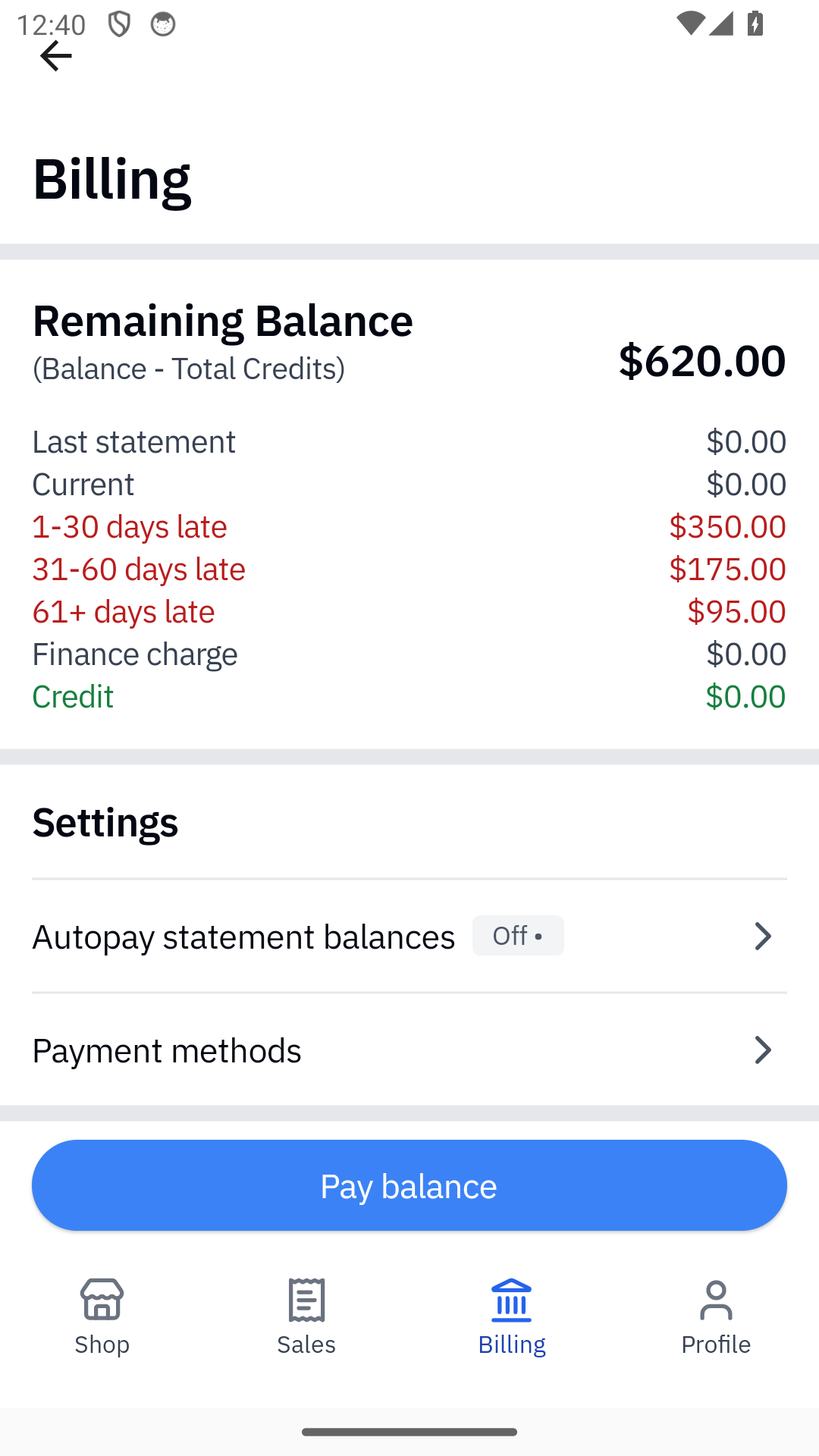
The Billing tab shows the contractor's remaining balance broken into the same aging buckets you see on the web Receivables > Aging view (Current, 1-30, 31-60, 61+ days late, Finance charge, and Credit). Below that are two settings rows: Autopay statement balances (configure recurring statement-day charges) and Payment methods (manage saved cards and bank accounts).
The Pay balance button at the top is disabled when the total balance is $0. A contractor with nothing owed simply can't start a bill payment.
Step 2: Pick what to pay
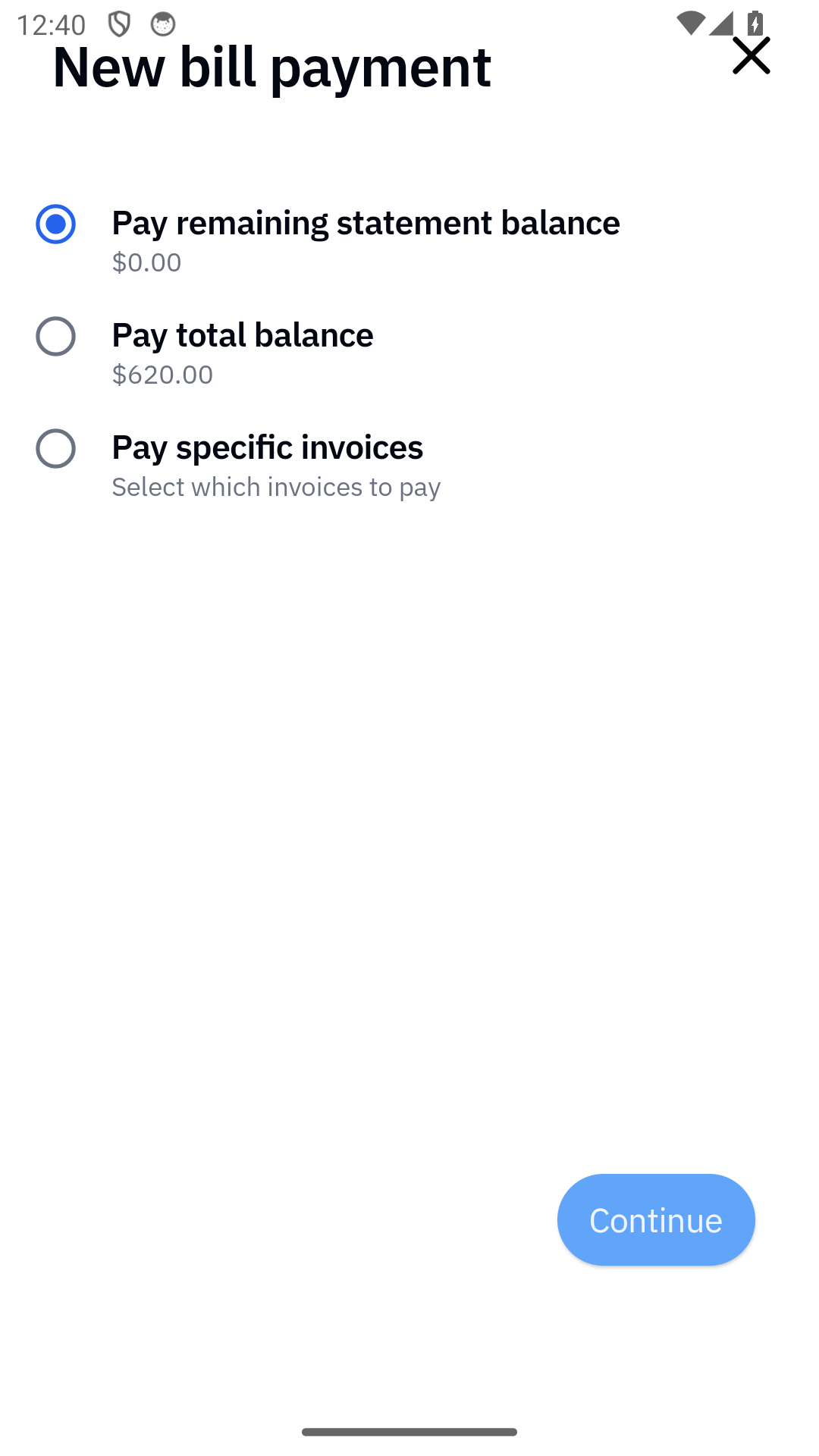
Tapping Pay balance opens a three-option chooser:
-
Pay remaining statement balance. Pays everything on the contractor's most recent statement. Dollar amount shows under the option.
-
Pay total balance. Pays every open invoice plus any finance charges accrued since the last statement. Equivalent to Select oldest $X.XX in the web POS flow.
-
Pay specific invoices (picks individual invoices to pay, the way the cashier checks rows manually on the web POS).
Step 3: Review the allocation
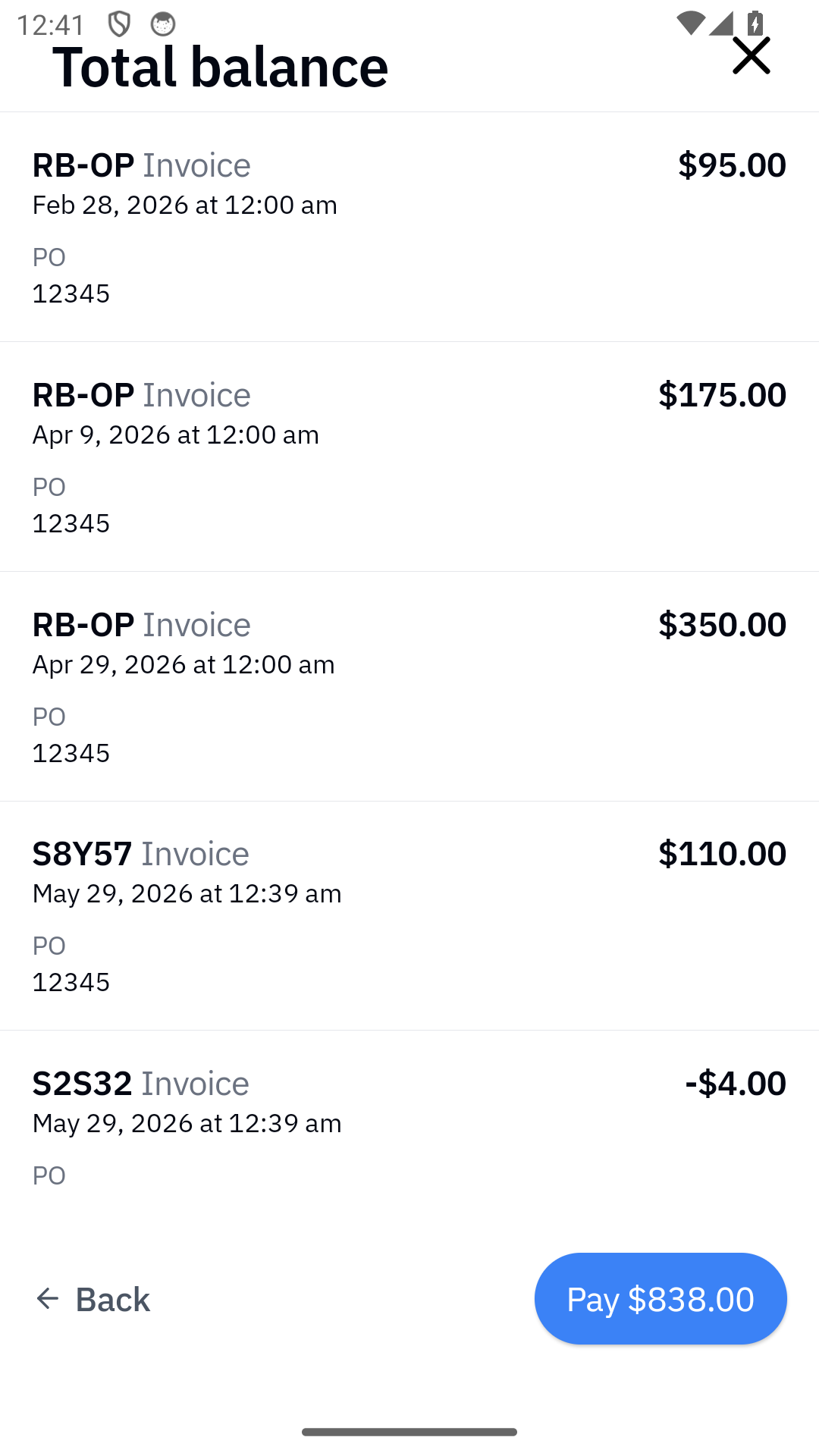
The next screen lists what's being paid (invoice ID, date, original amount, what's being allocated against it). Same data as the TRANSACTION DETAILS column on the web. The contractor scrolls through every line, then taps the Pay $X.XX button to advance to the tender step.
Step 4: Pick a tender
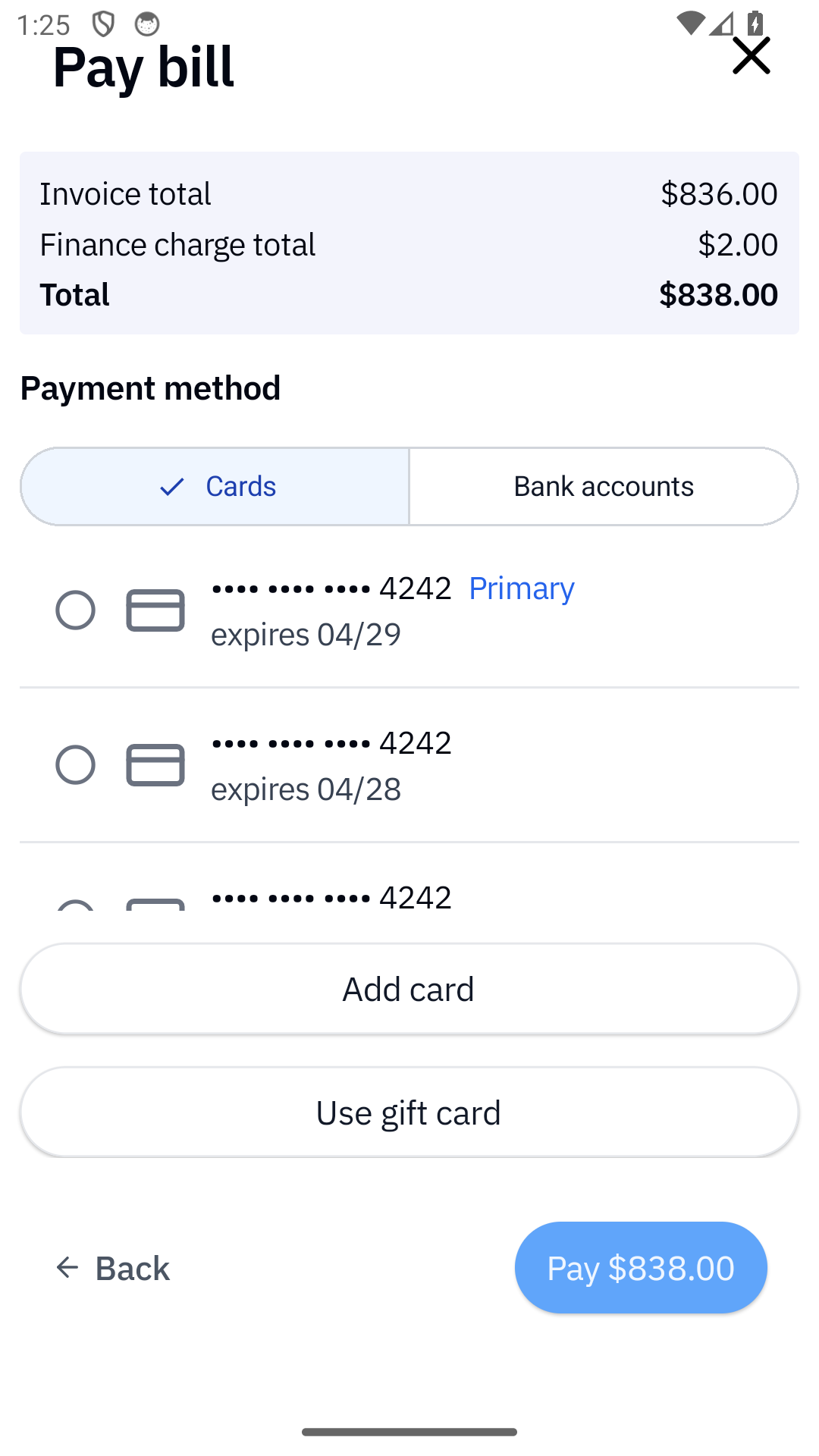
The tender step lists every saved payment method the contractor has on file (Stripe cards and ACH bank accounts). Add card opens the Stripe card-entry form inline; Add bank account does the same for ACH.
Step 5: Add a card (if none saved)
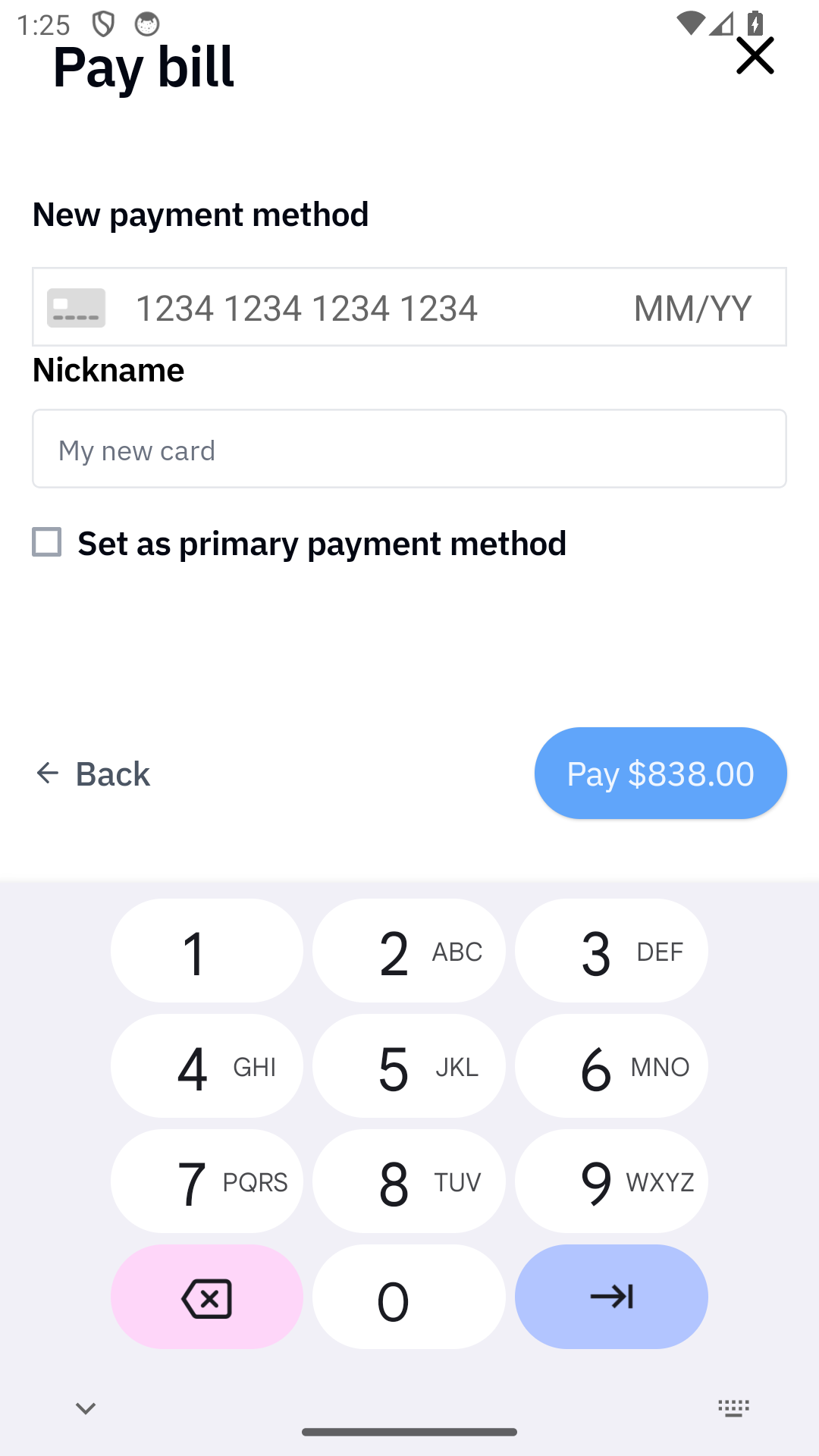
Stripe's CardField widget collects card number, expiration, CVC, and ZIP. The contractor can save the card to their account by toggling Set as primary payment method before submitting. The next bill payment skips this step.
Step 6: Confirm
After confirming, Rundoo posts the payment to the customer's ledger immediately and lands it under your Receivables > Paid view with the contractor's name and the tender used.
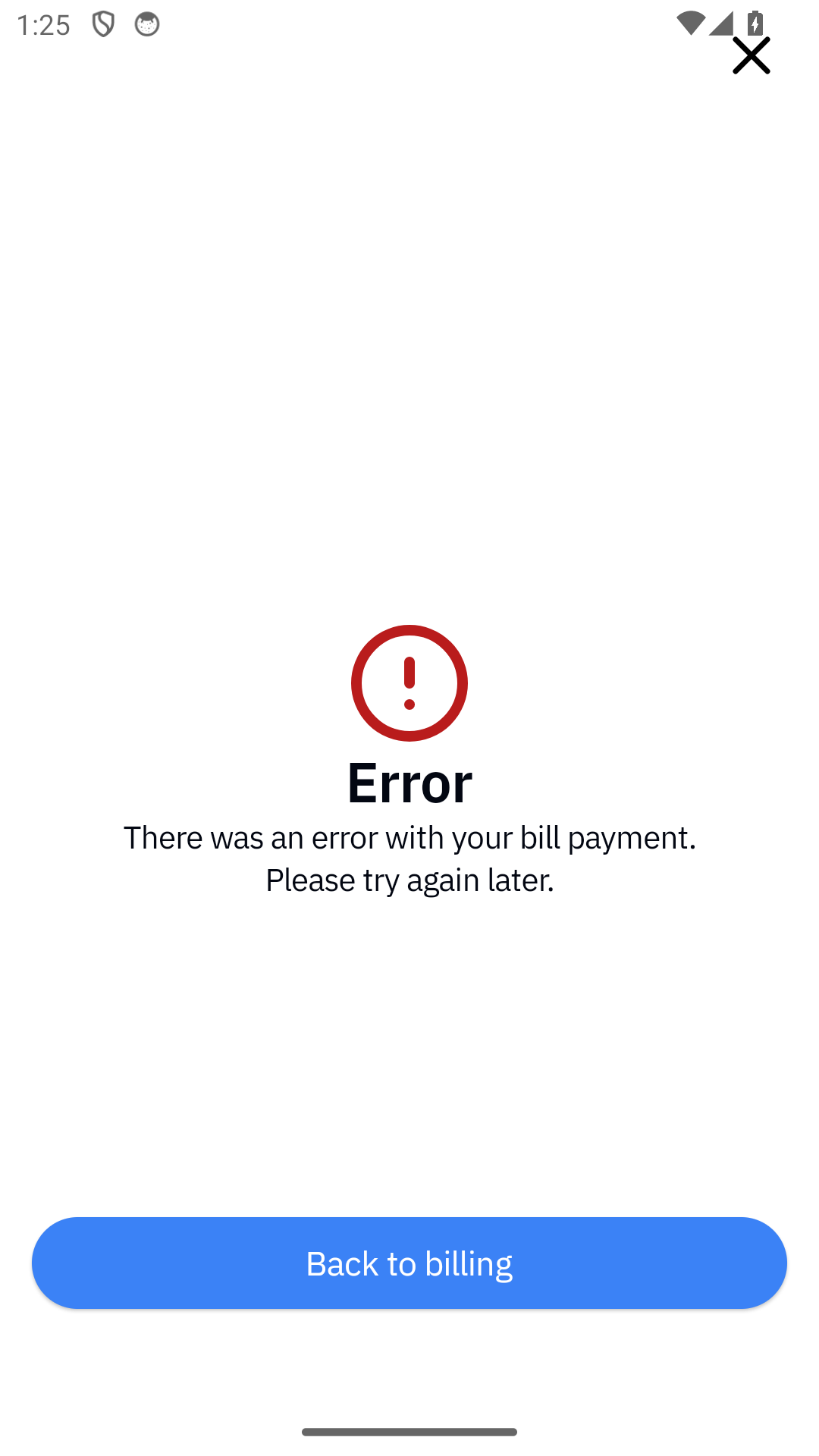
💡 Card-paid bill payments are real Stripe charges. The contractor's saved card is charged when they confirm; declines bounce back to the app with an error. ACH payments hold for a few business days before clearing, same as ACH on the web.
⚠️ Contractors can't use Write off from the app. That tender stays counter-only.
Recommended Rundocs
-
Customers (setting up a charge-account customer in the first place).
-
Statements, how monthly balances roll up and get sent.
-
Refunds, reversing a payment that went wrong, including bill-payment refunds.
-
Sales, voiding the underlying charge-account sale (not the payment).