
Rundocs › Admin & Settings
Loyalty programs
Last updated 2026-11-20
Rundoo runs two separate loyalty programs at your counter: Orgill's Fan Builder (for Orgill dealers), and Rundoo's own store loyalty points, where customers earn points on every purchase and redeem them for a dollar discount at checkout.
They are independent of each other, and independent of the Astro Loyalty integration and Benjamin Moore Contractor Rewards. Pick the one your store runs, or run both.
Fan Builder
Fan Builder is Orgill's own customer loyalty program, run through Rundoo. If your store is an Orgill dealer, you enroll a customer once in Rundoo and from then on their Fan Builder points and coupons earn and redeem at the counter, with no double entry into a separate system.
Orgill dealers only. Fan Builder is Orgill's program, not Rundoo's, so the enrollment and the point rules live with Orgill. Ask your Orgill rep to get your store set up before you turn it on in Rundoo.
Video walkthrough
Running Orgill's Fan Builder loyalty through Rundoo: how enrolled customers earn and redeem their Fan Builder points and coupons right at your counter.
There's a printable Fan Builder walkthrough and glance card under the video on the Training videos page if you want a counter cheat sheet.
Enrolling a customer
Open the customer (POS mode, Customers, pick the customer), go to the Settings tab, and scroll to the Loyalty programs section. Next to Fan Builder, click Enroll. That's a one-time step per customer.
The customer's Customer ID at the top of their Rundoo record (usually their phone number) is their Fan Builder ID, so the same person pulls up in Orgill's Store Systems Manager under that same number.
One ID across all your stores. A customer's ID works at every location you run, so points earned at one of your stores redeem at another. A competitor who also runs Fan Builder keeps their own separate account.
Redeeming a coupon at the counter
On a new sale, add the customer and the products, then scroll to Loyalty and expand Fan Builder. Click Dashboard, then Copy on the coupon you want (or Scan a printed one), paste the code, and click Add. The coupon shows as a Discount at the top of the sale. Finish with Sale and take payment. The coupon is spent once the sale is paid.
Store loyalty points
Rundoo's own loyalty points program: customers earn points on every purchase and redeem them for a dollar discount right at checkout, all inside the POS. Points and balances live on each customer's record, and the register applies the reward for you.
On screen, this section is still labeled Rundoo Rewards. The product UI for store loyalty points (the admin toggle, the customer tab, and the reward on the sale) currently reads Rundoo Rewards, so look for that label while the naming catches up. It is the same store loyalty points program described here, not a separate feature.
Turning store loyalty points on
In Admin mode, open the Customer tab and scroll to the store loyalty points section. Flip the enable toggle on, then set the five fields underneath it:
- Points earned per dollar spent (default
1): how many points a customer earns for each dollar they spend. - Points expire after (default
Never): leave it onNeverto let balances carry indefinitely. - Discount per reward (default
$5.00): what one reward is worth as a discount. - Points required per reward (default
100): how many points a customer spends to cash in one reward. - Minimum sale to redeem (default
$10.00): the sale has to be at least this much before a reward can be applied.
With the defaults, a customer who spends $100 earns 100 points, which is one reward worth $5.00 off a future sale. The section spells out that math as Spend $100.00, get $5.00 back · 5%.
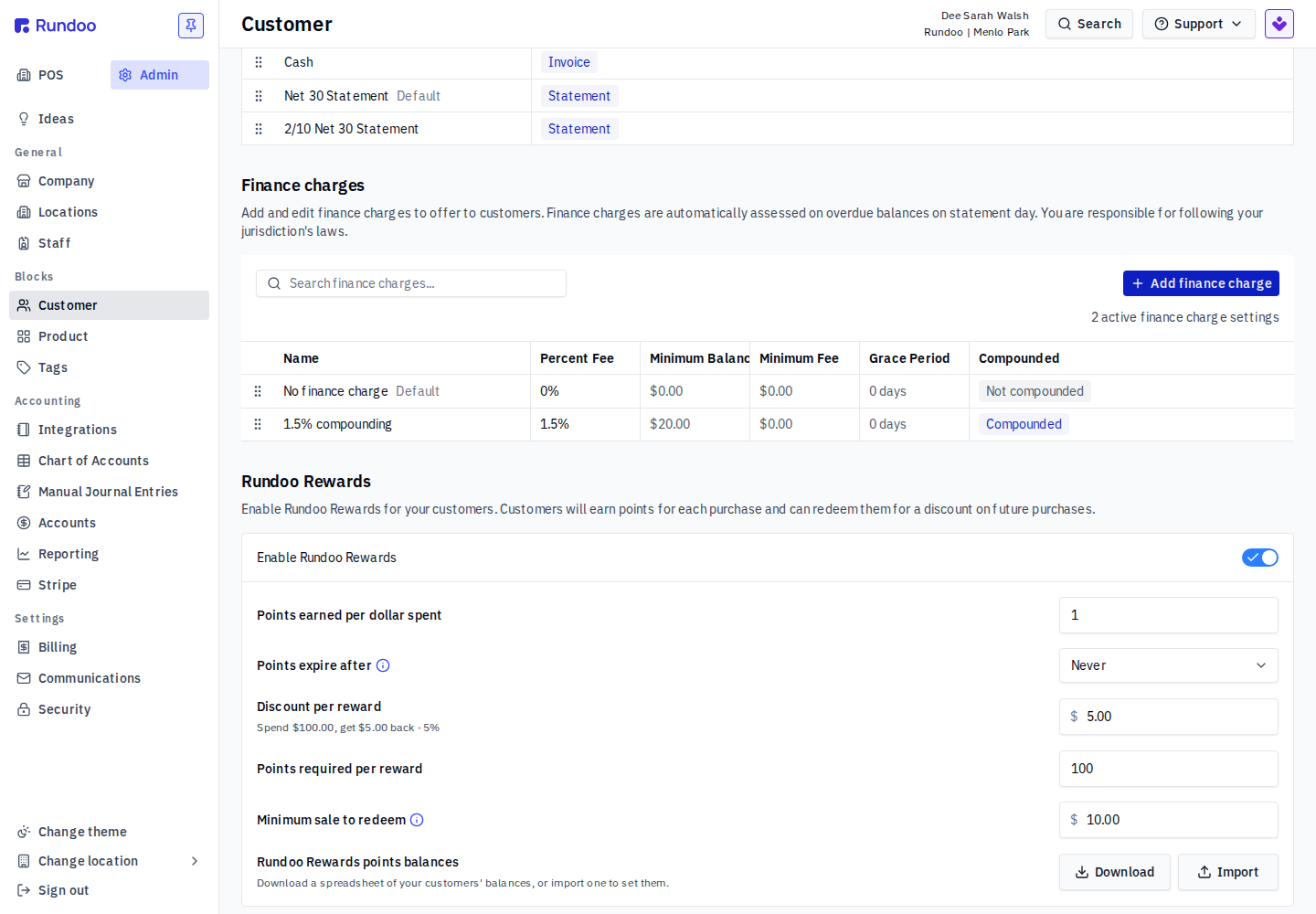
Starting customers with a balance? The points balances row at the bottom of the section lets you Download a spreadsheet of every customer's current balance, or Import one to set balances in bulk, handy when you are moving an existing points program over to Rundoo.
Excluding customers or products from earning points
Not every customer or product has to earn points. You can carve out exceptions through Dooey, Rundoo's built-in assistant: tell it in plain language which customers or products should stop earning loyalty points, and it sets up the rule for you.
Two common exclusions:
- A whole pricing tier of customers. Ask Dooey to exclude every customer on a given pricing tier from earning points, so trade accounts that already get, say, contractor pricing don't also stack up rewards.
- Products carrying a certain tag. Ask Dooey to exclude every product with a given tag from earning points, so lines you don't want to reward (clearance, low-margin, or promotional items) stop building a balance.
How to phrase it. Dooey takes plain English, so you can say something like "exclude all customers on the Contractor pricing tier from earning loyalty points" or "exclude all products tagged clearance from earning loyalty points." Name the pricing tier or tag you want left out and Dooey handles the rest.
Checking a customer's points and rewards
Open a customer (POS mode, Customers, pick the customer) and click their loyalty tab. It shows their Points balance, how many Rewards available they have, and the line Each is worth $5.00 and costs 100 points so you can see the conversion at a glance. The Points history table below logs every change, its Type (Added or Removed), Subtype (Granted, Deducted, and so on), the point Amount, and the linked Transaction.
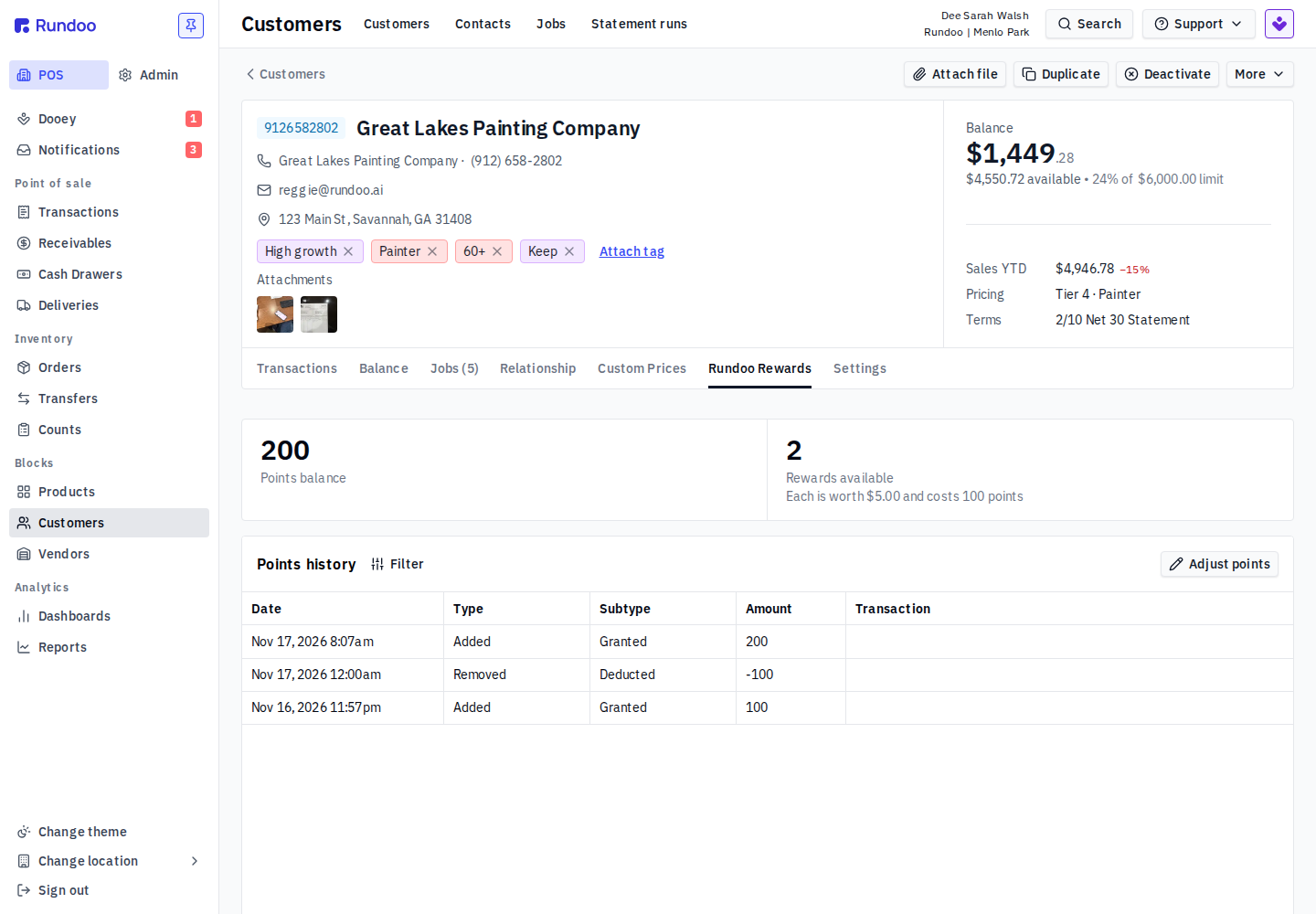
To add or remove points by hand (a goodwill bump, a correction, or an opening balance for one customer), click Adjust points, enter the change (a negative number removes points), and Save.
Who can adjust points. Manually adjusting a customer's points is gated by a staff permission. The user's role needs Access admin to manage pricing tiers, financing terms, financing rates, product categories, and other company-level settings turned on. Without it they can still see a customer's points and rewards, but the Adjust points option won't be available. Set it per role in Staff.
A manual adjustment can't be undone. The Adjust points modal says so, and shows you the previous and new balance before you save. If you fat-finger a number, fix it with a second adjustment in the opposite direction, there is no undo button.
Redeeming a reward at checkout
On a new sale, add the items and attach the customer, then look at the Payment panel. Under Loyalty you will see the reward that is ready (for example $5.00 ready) and the customer's point total. Click Add to sale to apply one reward.
The reward comes off before tax, so the amount due drops by the reward's value (and the tax that would have been charged on it). A Reward applied note appears, and a Remove link takes it back off if you change your mind before you charge.
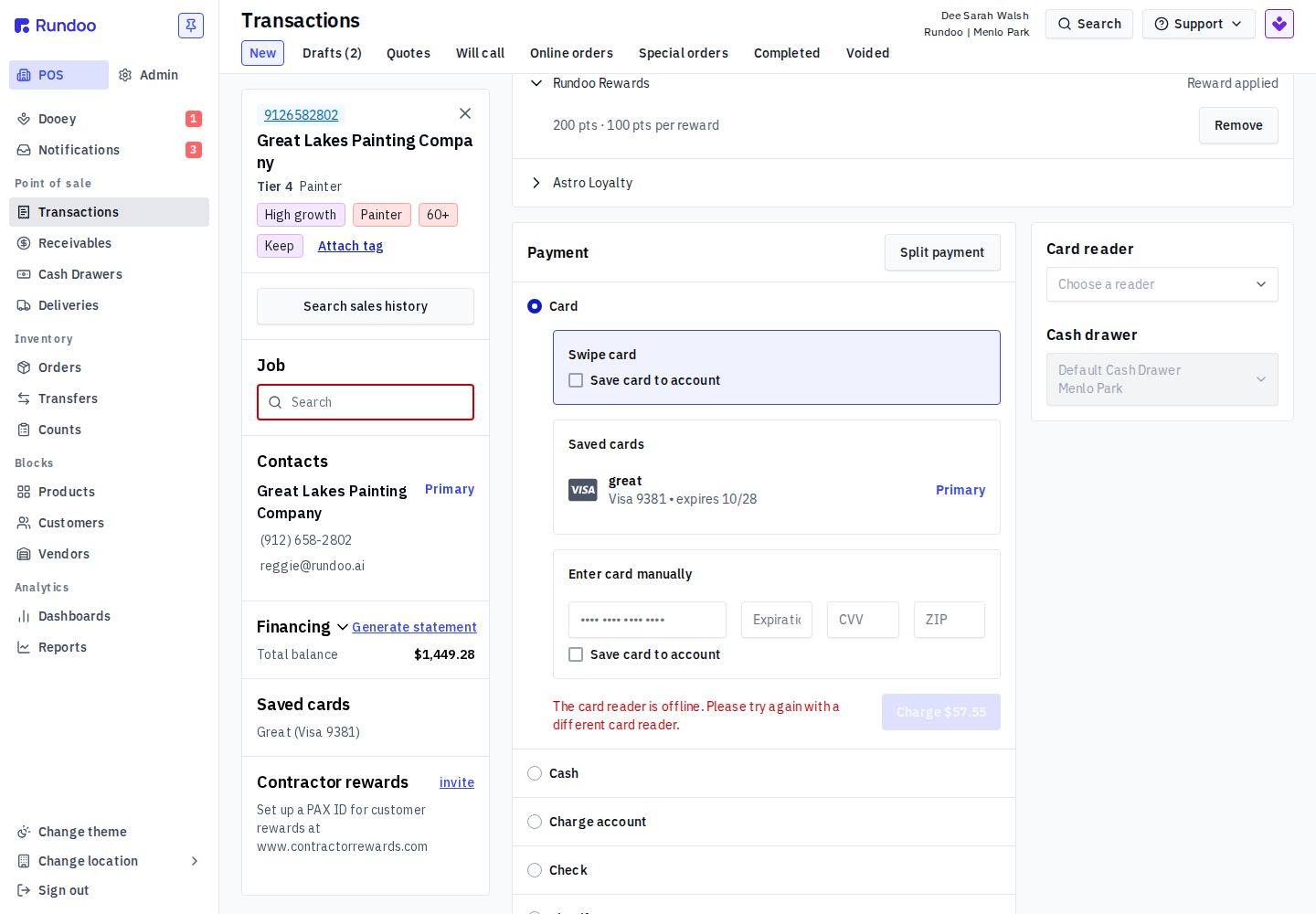
No reward showing up? Three things gate it: the customer has to be attached to the sale, they need at least Points required per reward points (100 by default), and the sale has to clear the Minimum sale to redeem amount ($10.00 by default). Below the minimum, the reward won't be offered.
Replacing the old display-only points? An earlier loyalty-points feature only showed contractors a running point total in the Rundoo app and never processed a redemption. Store loyalty points replaces it: points are tracked in Rundoo and the reward comes off the sale at the register.
Recommended Rundocs
-
Customers, where a customer's loyalty points and Fan Builder enrollment live on their record.
-
Tender methods, the tenders a reward discount pairs with when you finish the sale.
-
Astro Loyalty, the separate pet-focused loyalty integration, if that's the program you run.