
Rundocs › Accounting
Bills & payments
Last updated 2026-08-05
Bills & payments are how you settle what you owe vendors. Every received purchase order becomes an unpaid bill, and you mark it paid one PO at a time once the ACH clears, the check goes out, or the card is run.
In the POS mode, open the Orders left tab, then the Vouchered top tab. That's your accounts-payable queue, the list of bills sitting unpaid on your books.
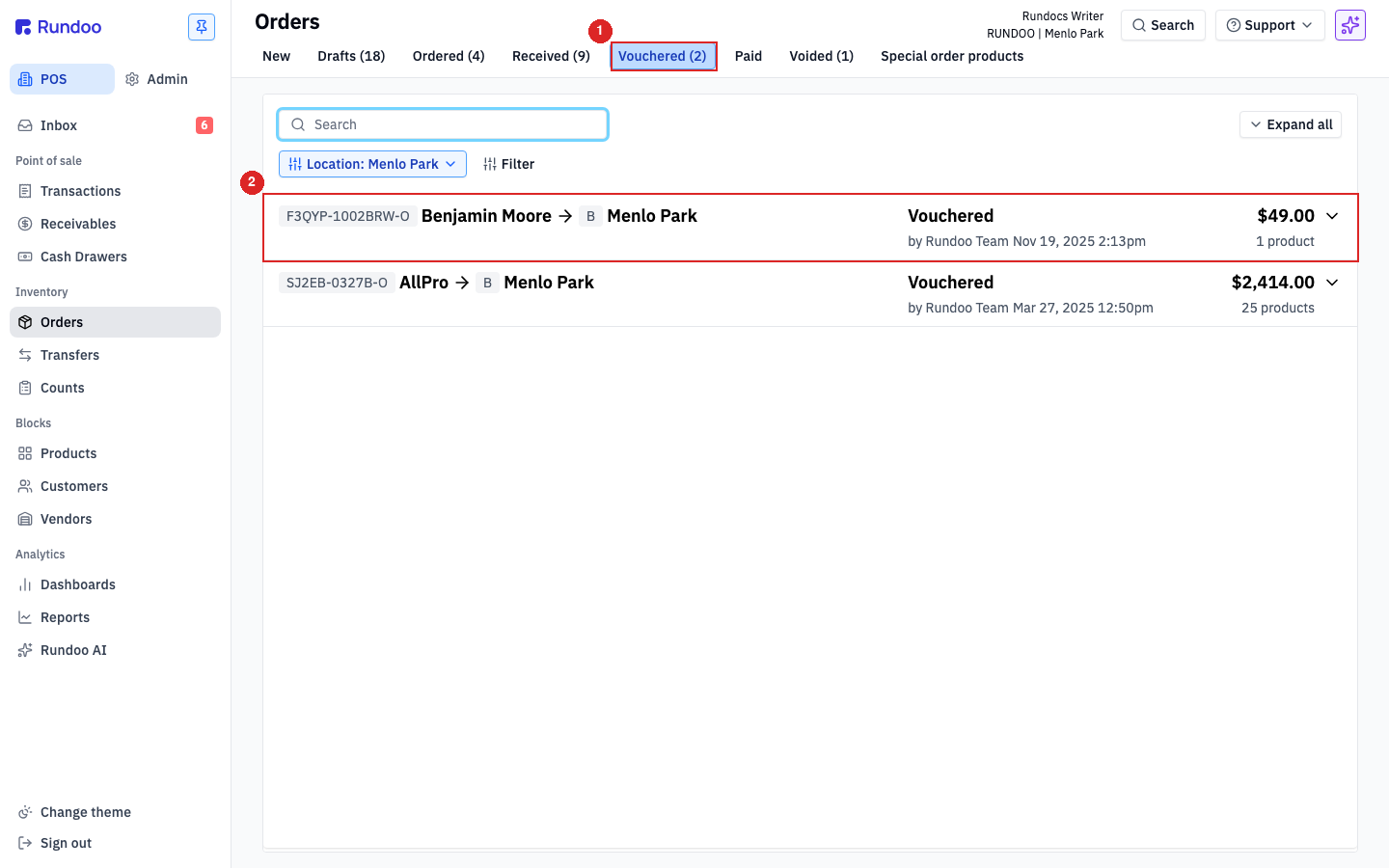
Step 1: See what you owe
A vouchered PO is a recorded vendor invoice waiting to be paid. The Vouchered top tab is the live "what do I owe" list. Every row is a bill, sorted by when it was vouchered, showing the vendor, the location, the invoice total, and the count of products on the order.
This is the one place to track payables: there's no separate accounts-payable list elsewhere in Rundoo. Because each row is a real PO, every payable also carries the underlying invoice (date, due date, invoice number) and the line items behind the bill. See Vendor invoices for how a PO becomes a vouchered invoice in the first place.
Ways to work the queue:
-
By vendor. Use the
Filtercontrol above the table to narrow to one vendor when you're cutting a batch of payments. -
By due date. Open a row and the
Due datefrom the invoice tells you what's overdue. -
By amount. The
Expand allcontrol at the top right shows totals on every row at once for a quick scan.
Step 2: Open the bill and pick how you're paying
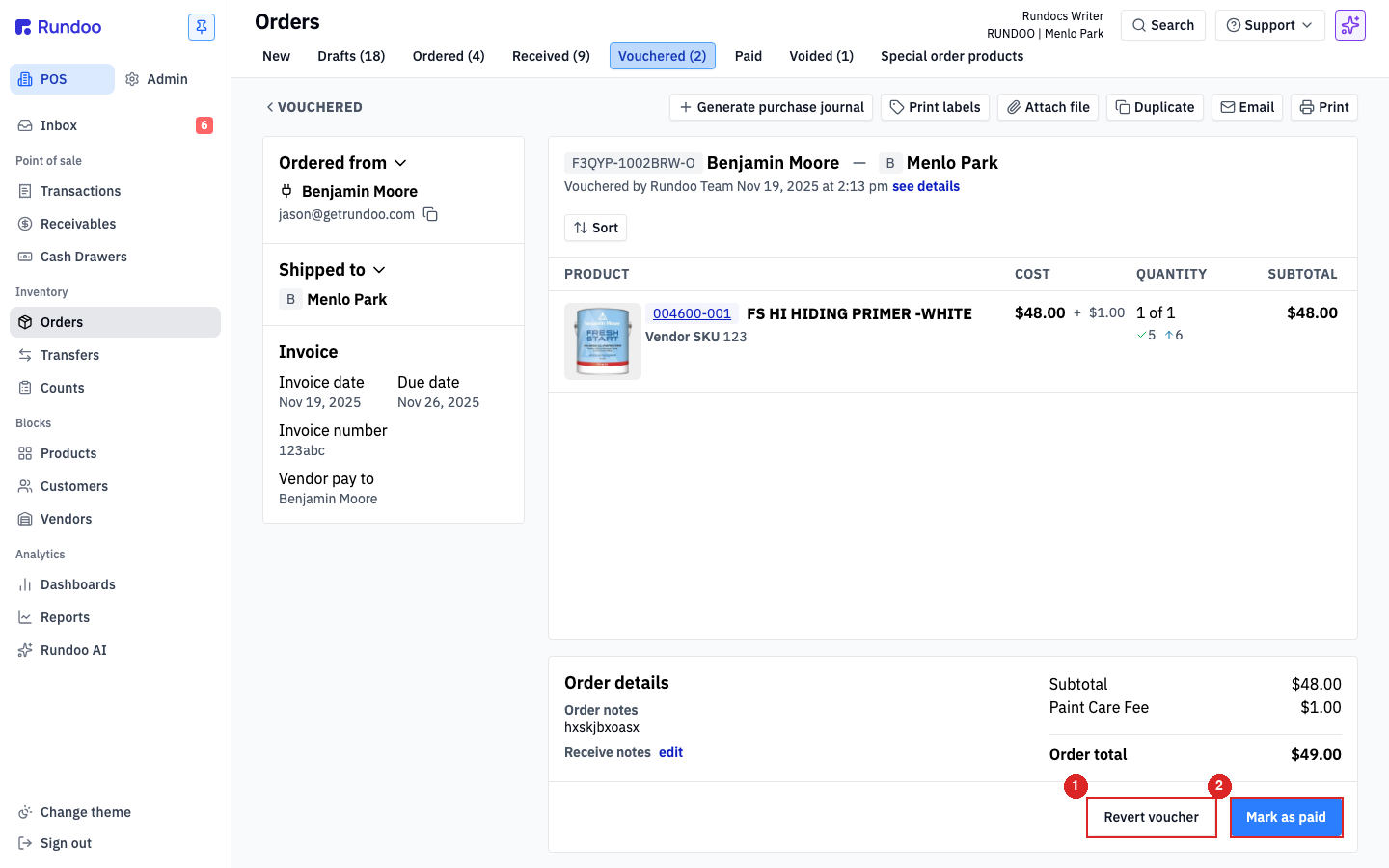
Click into a vouchered PO. The header shows the invoice panel on the left (date, due date, invoice number, vendor pay-to) and the line items on the right. Two action buttons sit at the bottom:
-
Revert vouchersends the PO back to Received if the invoice was wrong and needs editing (see Vendor invoices). -
Mark as paidrecords that this bill has been settled. Click it.
Step 3: Record the payment
The Mark as paid modal opens with the vendor, amount, and location pre-filled from the invoice. Date defaults to today; change it if you're back-dating a payment your bookkeeper already cut. The General ledger account defaults to Accounts payable, leave it unless your chart of accounts routes vendor payments somewhere else.
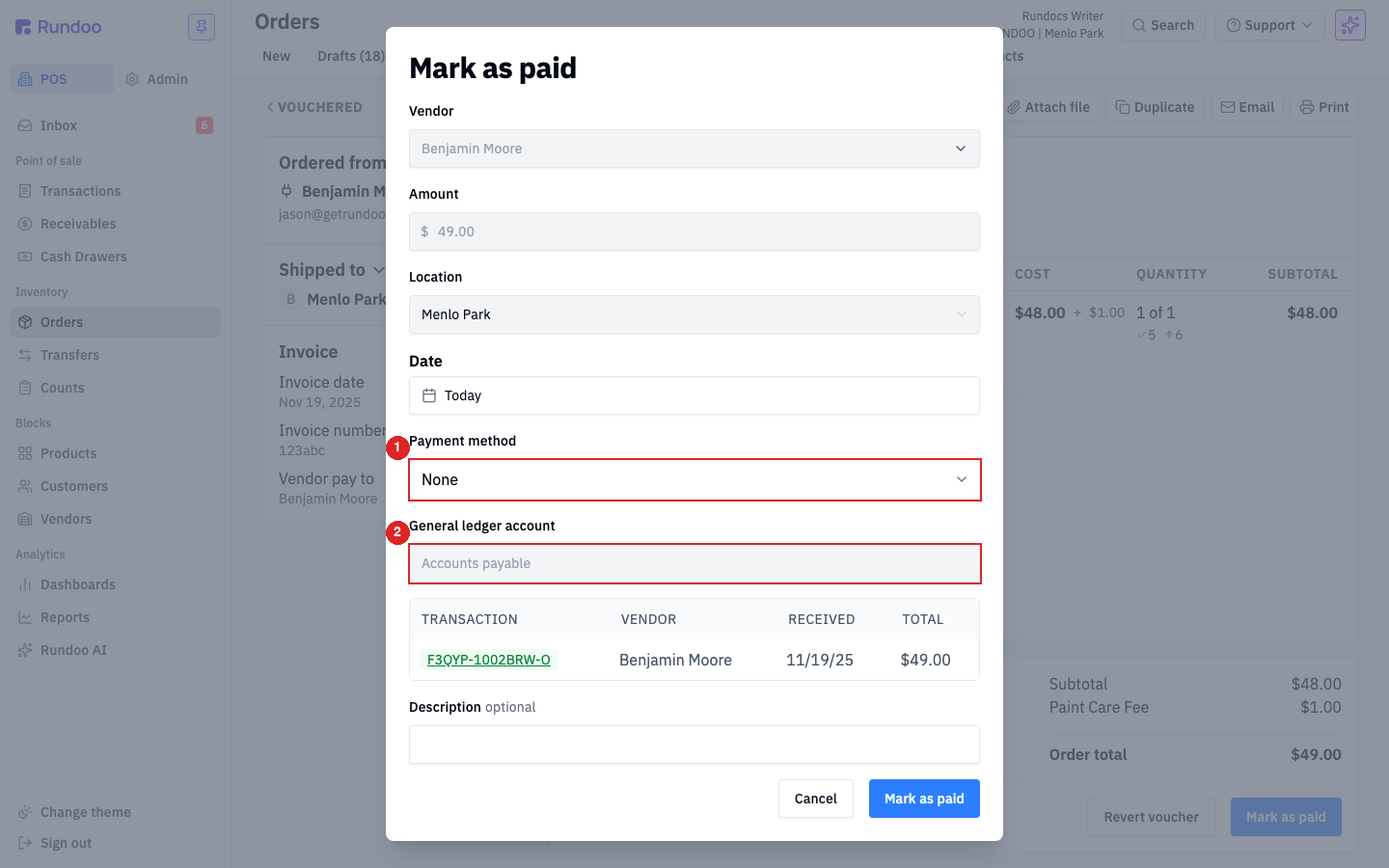
The remaining decision is Payment method. Pick how the money actually moved:
-
Card(paid with your Rundoo card or a personal/business card). -
Cash(petty cash or a counter payment to a small vendor). -
Check(you cut a paper check). Reveals aprint checklink (see Step 4). -
Bank transfer(ACH, wire, or any other bank-to-bank move). This covers ACHs sent through Rundoo's Internal account (see Banking) as well as ACHs you sent from a separate business bank.
Use the Description field for a check number, ACH confirmation, or any reference your bookkeeper wants on the journal entry.
Click Mark as paid at the bottom. The PO moves to the Paid top tab, your accounts-payable balance drops by the payment amount, and Rundoo posts the journal entry against the chosen GL account.
Partial payments go through the External account, not this modal. The Amount field on Mark as paid is read-only, so this step always pays the bill in full. To pay off only part of a vendor bill, record the payment on the External account: in the Admin mode open Finances > External, click Record transaction, toggle to Payment, pick the Vendor, enter the partial Amount, and set the General ledger account to Accounts payable. That lowers what you owe the vendor by the amount you paid. Because the entry posts against the vendor's AP balance rather than the specific PO, the vouchered PO stays in the Vouchered tab, settle the remainder the same way.
Step 4: Print a check (optional)
If you picked Check as the payment method, a blue print check link appears under the dropdown.
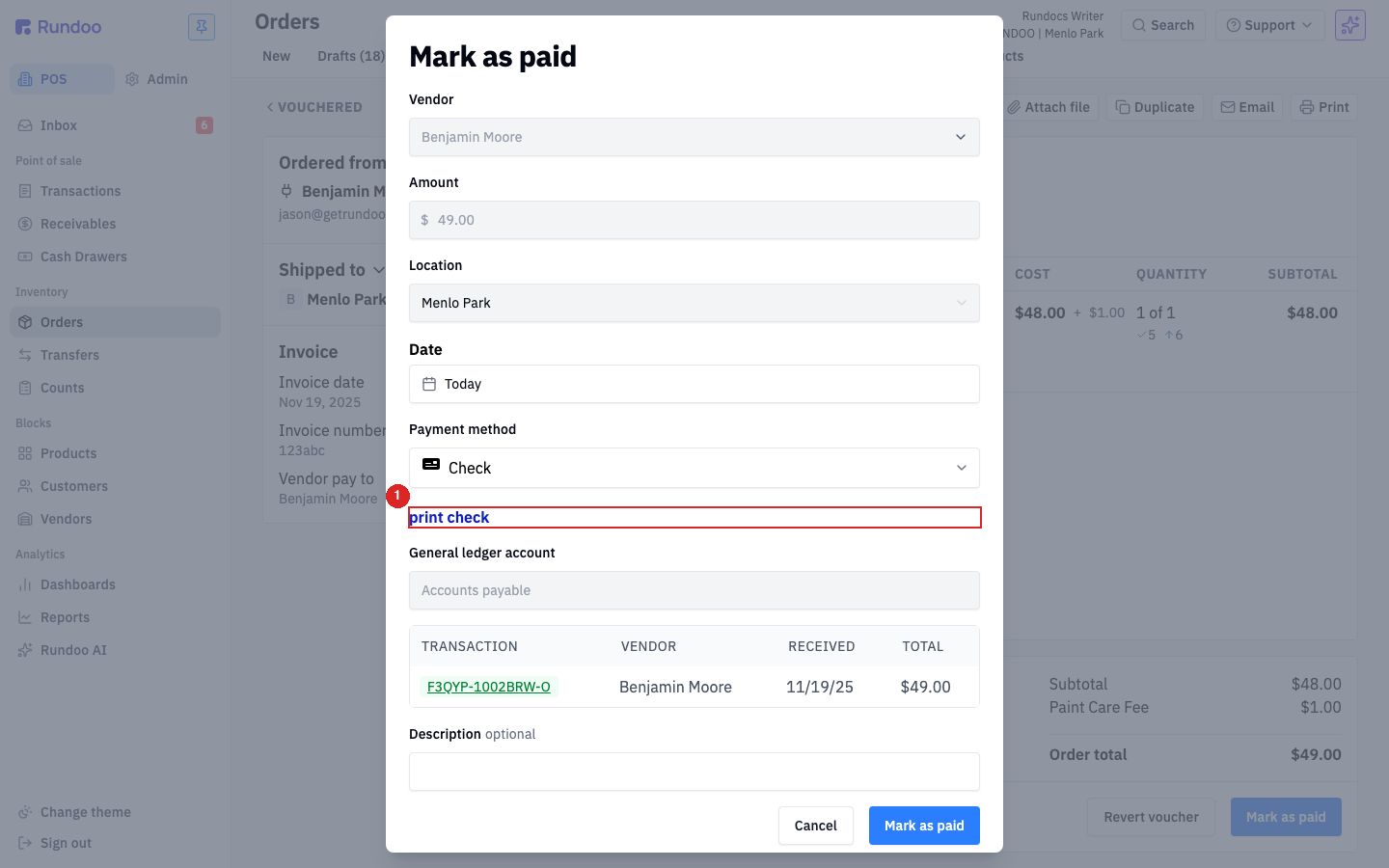
Clicking it generates a PDF that prints the payee and amount onto a pre-printed 8½×11" check (the kind with your account and routing numbers already on it, with the payee and amount fields blank). Order printable check stock from any vendor that sells them, Walmart Checks, Costco Checks, and Intuit Market are common sources.
Print check is for paper checks only. If you wrote the check by hand, picking Check as the payment method still records the journal entry, you just don't need the PDF. Skip the link and click Mark as paid at the bottom of the modal.
Recording a payment that didn't come from a PO
Some bills aren't tied to a vouchered PO (rent, utilities, insurance, a non-inventory invoice your vendor sent). Record those on the External account instead.
In the Admin mode, open the Finances left tab, then the External top tab. The External account is a checkbook register: every transaction your business made outside Rundoo, with the running balance at the top.
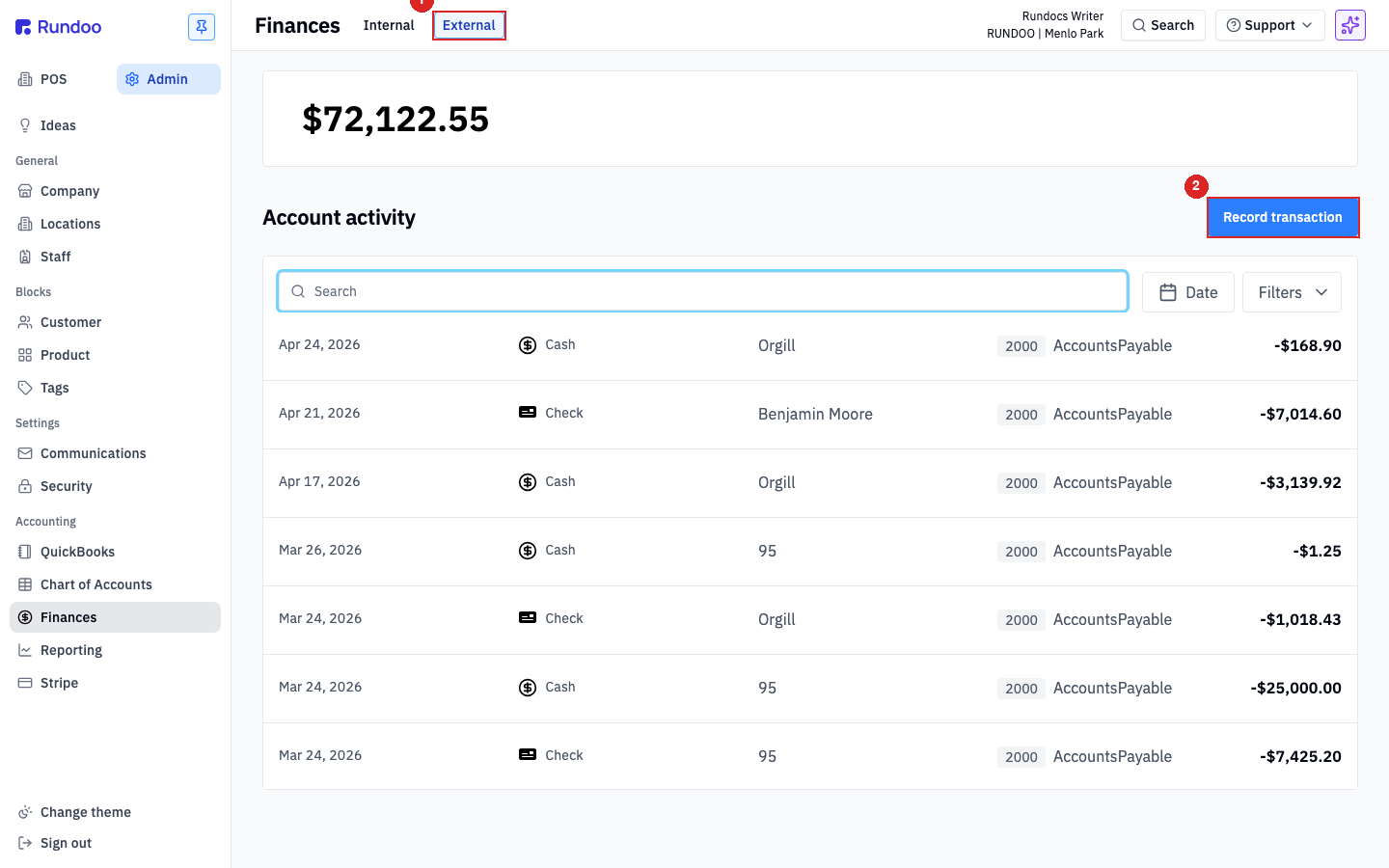
Click Record transaction, toggle to Payment, and fill in the vendor, amount, date, and payment method. Use the Description field for the invoice number or reference. Categorize the GL account to whichever expense account fits, Rent, Utilities, Insurance, etc., not Accounts payable, since this payment isn't reconciling against a vouchered PO.
Picking Check as the payment method here works the same as it does on a vouchered bill. The print check link appears, you load pre-printed 8½×11" check stock, and Rundoo generates the payee + amount PDF. Same flow as Step 4 above; just the GL account routes to your expense account instead of Accounts payable.
For ACH or virtual-card payments through Rundoo's Internal bank account, see Banking. Money moved through the Internal account shows up here automatically (the External register is only for payments made from a separate business bank).
Voiding a charge-account sale (the customer's invoice)
Different from voiding a bill you paid, this is voiding a sale your customer charged to their account but hasn't paid yet. Common when a sale rang on the wrong customer, the cart had the wrong items, or the customer's about to dispute.
To void the invoice:
- Find the sale. Two paths:
- In POS > Transactions > Completed, search by customer name, invoice total, or product. The payment method shows in the row, only
Charged to accountrows are voidable.
- Or from the customer's profile: open the customer, click the Transactions tab, find the row, click in.
-
Click
Voidin the top action cluster. If the Void button is greyed out, hover over it. The tooltip explains why the sale isn't voidable (already paid, wrong tender, missing permission). -
Choose whether to return inventory. A confirmation modal asks if the items should go back into stock at the location performing the void.
Yesis the default for genuine mistakes;Nois right when the items walked out the door and aren't coming back. -
Confirm. Rundoo removes the open invoice from the customer's balance and posts the reversing journal entry. The voided sale shows in the Voided top tab in Transactions.
Voiding the bill payment instead of the sale
If the customer paid you and you need to undo the payment (not the invoice), the flow is Issue refund, not void:
-
Find the bill payment in POS > Receivables > Paid (search by customer, amount, check number, etc.). Or from the customer's profile, Balance > Bill payments.
-
Click
Issue refundon the payment. -
Add a note explaining the refund ("customer disputed, refunded by check #5022").
-
Confirm the refund amount. Rundoo restores the invoice to open / unpaid and posts the reversing entry.
Write-offs work the same way. Refund the write-off if it was applied in error.
Voiding or correcting a paid bill
Once a PO is marked Paid, the bill is frozen. Rundoo doesn't expose a void button on a paid PO. Unwinding a paid bill means recording an offsetting payment, not reverting the original entry, so the audit trail stays clean.
The right path depends on what went wrong:
-
Wrong amount, paid too little or too much. Record a second
Mark as paidpayment for the difference (positive or negative as a refund line on the External register). -
Wrong vendor or wrong PO. Record an offsetting payment against the original vendor on External as a deposit (which reverses the entry), then mark the correct PO as paid.
-
Vendor sent a credit memo or refund. Record it as a deposit on External, categorized to
Accounts payable. This brings your AP balance back up so the next invoice nets out cleanly.
Talk to your bookkeeper before unwinding a paid bill. The journal-entry reversal needs to happen in the same accounting period the original payment posted. Otherwise period reports get noisy. If the original payment is more than a month old, the cleaner fix is usually a credit-memo entry, not an unwind.
If the bill is still in Vouchered (not yet marked paid), use Revert voucher on the PO instead. That drops it back to Received and reverses the journal entry cleanly. See Vendor invoices.
Recommended Rundocs
-
Vendor invoices (vouchering a received PO so it shows up here as a payable).
-
Banking (sending ACHs through Rundoo's Internal account).
-
Deposits, the inverse flow for cash and check payments coming in.