
Rundocs › Inventory
Gift cards
Last updated 2026-09-17
Sell and activate a gift card, redeem one at checkout, track its balance and history, void it when a card needs to come out of circulation. All off one Gift cards surface and one Gift card tender.
Rundoo doesn't sell the physical cards themselves. You order branded blanks from one of Rundoo's two card vendors (CARDSource or Duracard), then load the card numbers into Rundoo to issue them. See Set up → Order physical cards below for the vendor links and Rundoo promo codes.
Physical cards only, and balances don't expire. Rundoo gift cards are the physical cards you issue from your ordered pool. There's no digital gift card to email or text a customer, and no gift-card balance ever expires: a card holds its value until it's spent down or you void it.
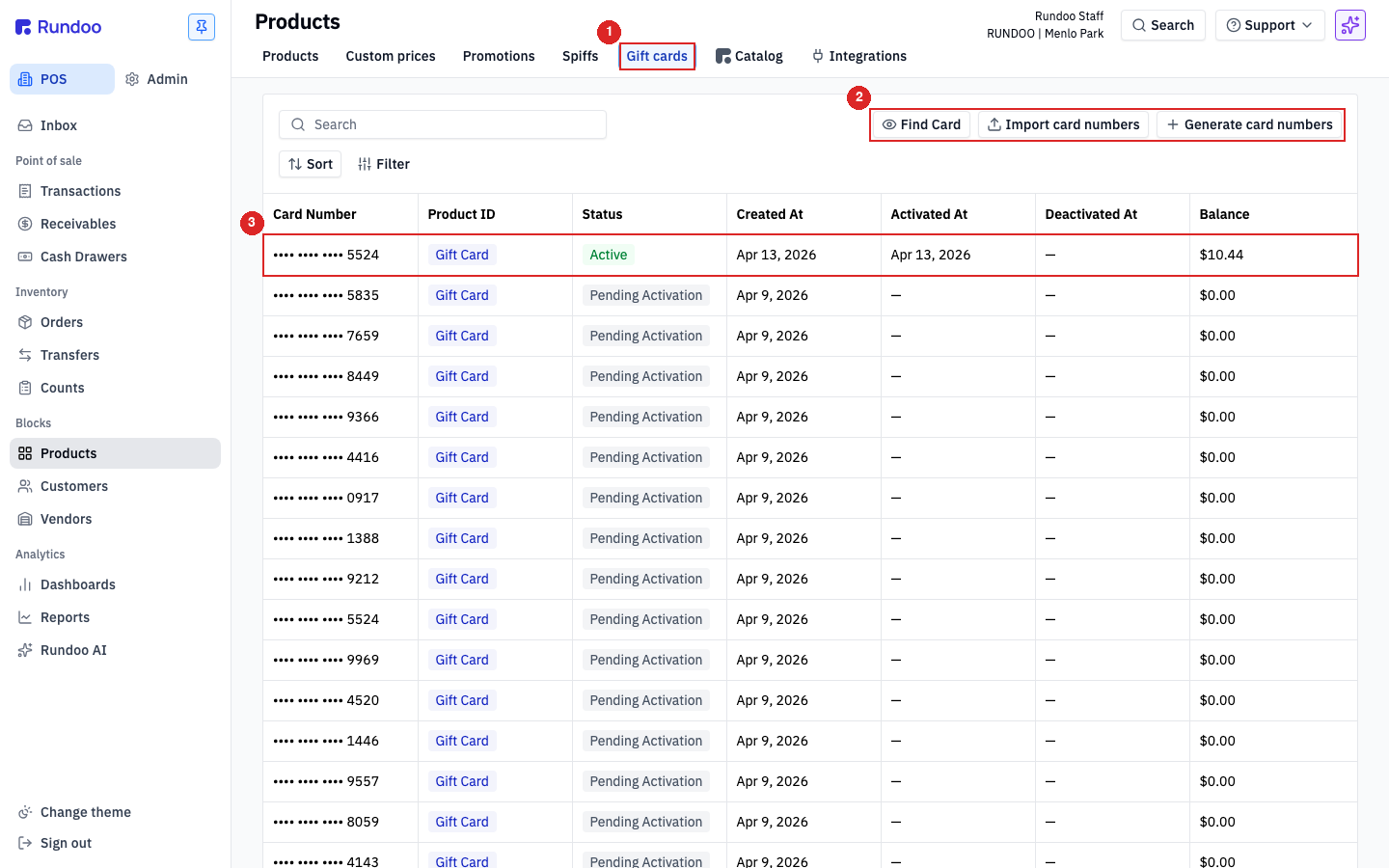
In the POS mode, open the Products left tab and switch to the Gift cards top tab. Every issued card lives there. From anywhere else in Rundoo, hitting Search in the header and typing “gift cards” is the fast way in. Redemption and sales happen in the Transactions left tab, on the New top tab, like any other sale.
Set up
Before selling, four one-time pieces need to be in place: gift card as a tender method, GL account mapping, staff permissions, and physical cards from a vendor.
Turn on the tender. From Admin > General settings, toggle Enable gift cards on. That adds Gift card as a tender method so it shows up at sale and refund checkout. Flip it off to block new card generation and imports; existing cards stay Active and redeemable.
Map the GL accounts. Rundoo seeds two default gift-card GL accounts in Admin > Chart of accounts: Gift card deferred revenue (the running balance on active cards (increases when a card is activated, decreases as it's redeemed)) and Gift card revenue (the balance from deactivated cards that still had value, plus the gap when a card is loaded at a different value than the customer is charged). Confirm both are mapped to the right QuickBooks accounts before activating cards in volume.
Set staff permissions. By default any staff member can generate, import, or deactivate gift cards. To restrict that, open Admin > Staff, click the staff member, and toggle the Generate, import, and deactivate gift cards permission off.
Order physical cards. Rundoo partners with two card vendors who can design, print, and ship branded cards with Rundoo-compatible numbering:
-
CARDSource, fully integrated self-serve ordering, retail-grade print quality, fast turnaround. One-time promo codes:
rundoo10(10% off) andrundoo25(25% off). -
Duracard (alternate vendor).
Gift cards use a 16-digit randomized card number, encoded as a Code 128 barcode for scanner compatibility. Two ways to load the numbers into Rundoo:
-
Generate in Rundoo first. From POS > Products > Gift cards, click Generate card numbers, pick the gift-card product, enter the quantity, and click Generate. Rundoo downloads a spreadsheet of new numbers in
Pending Activationstatus that you submit to the vendor alongside your artwork. -
Import after the vendor mints them. If the vendor supplies their own numbers, click Import card numbers instead, pick the gift-card product, and upload an Excel sheet with a single
Card numbercolumn.
Import file format: a .xlsx file with one sheet named Sheet1 (no space), one column with the header Card number (case-sensitive), and one 16-digit card number per row. Match this format exactly. Any deviation fails the import.
Migrating balances from a previous system? Pad short card numbers to 16 digits. Rundoo requires a 16-digit number, so a legacy card that carried fewer digits on your old POS (a 12- or 14-digit number) has to be padded with leading zeroes to import (a 14-digit number becomes those 14 digits with two zeroes in front, a 12-digit number gets four). The catch: once you add leading zeroes, the number no longer matches the barcode printed on the physical card, so it won't scan. Staff have to key the full padded number in by hand every place a card is looked up (activation, redemption, refund, Find Card). Train the team so that when an old short card comes across the counter, they type the number with its leading zeroes instead of scanning it.
⚠️ Save the card-number spreadsheet either way. Rundoo doesn't expose full card numbers in the UI after import (for security), so the spreadsheet is your only authoritative record.
Sell and activate
Selling a gift card isn't a dedicated flow. It's a product you ring up like any other. Selling and activating happen in one motion: add the gift-card product to the cart, bind a physical card number to the loaded balance in the Activate Gift Card modal, and take payment. The card flips from Pending Activation to Active the moment the sale commits.
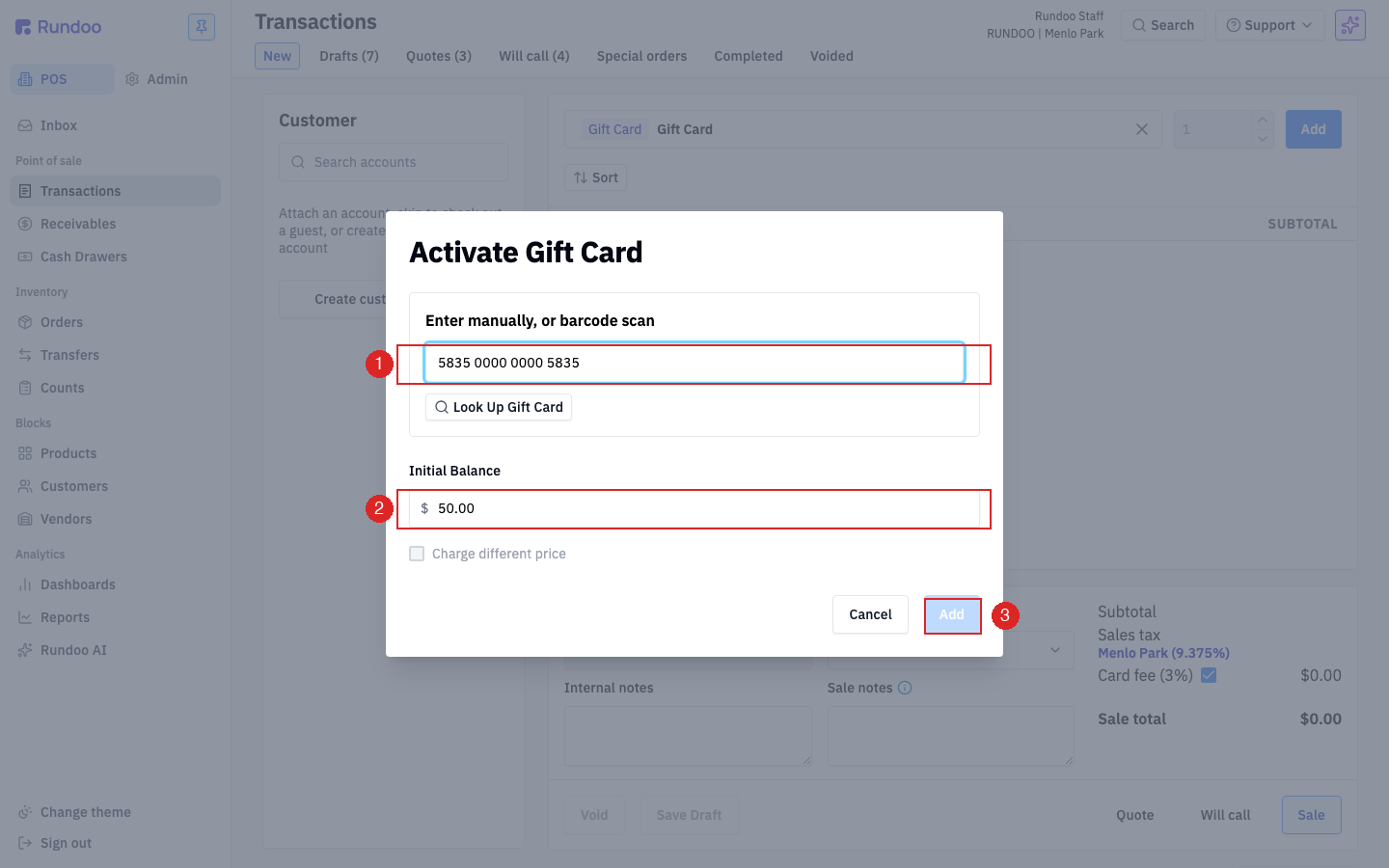
On a new sale, search for Gift Card in the product bar and pick the gift-card product your store configured. Click Add. The Activate Gift Card modal opens.
Scan the physical card or type its number into Enter gift card number, then click Look Up Gift Card to confirm it's a valid, unactivated card from your issued pool. Enter the Initial Balance, the value being loaded onto the card. If the customer's paying a different amount than the face value (e.g. $50 card charged at $45 on a promotion), tick Charge different price and enter the charge amount.
Click Add to drop the line into the cart. Ring up payment the normal way (Cash, Card, Charge account, Check). On Charge success, Rundoo flips the card's status from Pending Activation to Active with the loaded balance.
💡 Where do the card numbers come from? Cards are pre-provisioned from the Gift cards top tab before you sell any. Click Generate card numbers to mint a batch (pick the gift-card product + count), or Import card numbers to upload a vendor-supplied list. Rows stay in
Pending Activationuntil a sale flips them toActive.⚠️ If the card number doesn't resolve in Look Up Gift Card, it's either already activated, already deactivated, or not in your issued pool. Check the Gift cards top tab and filter by card number to confirm.
Redeem
Redemption is a tender method, not a special flow. Build the cart like any sale, then pick Gift card at checkout.
Ring up the products and apply any discounts. Click Sale in the action cluster to open the tender panel, then pick Gift card from the tender list. Scan or type the card number in Enter gift card number and click Look Up Gift Card, Rundoo pulls the current balance onto the sale. Click Accept $X.XX to commit. The button's amount updates live with what's being applied from the card.
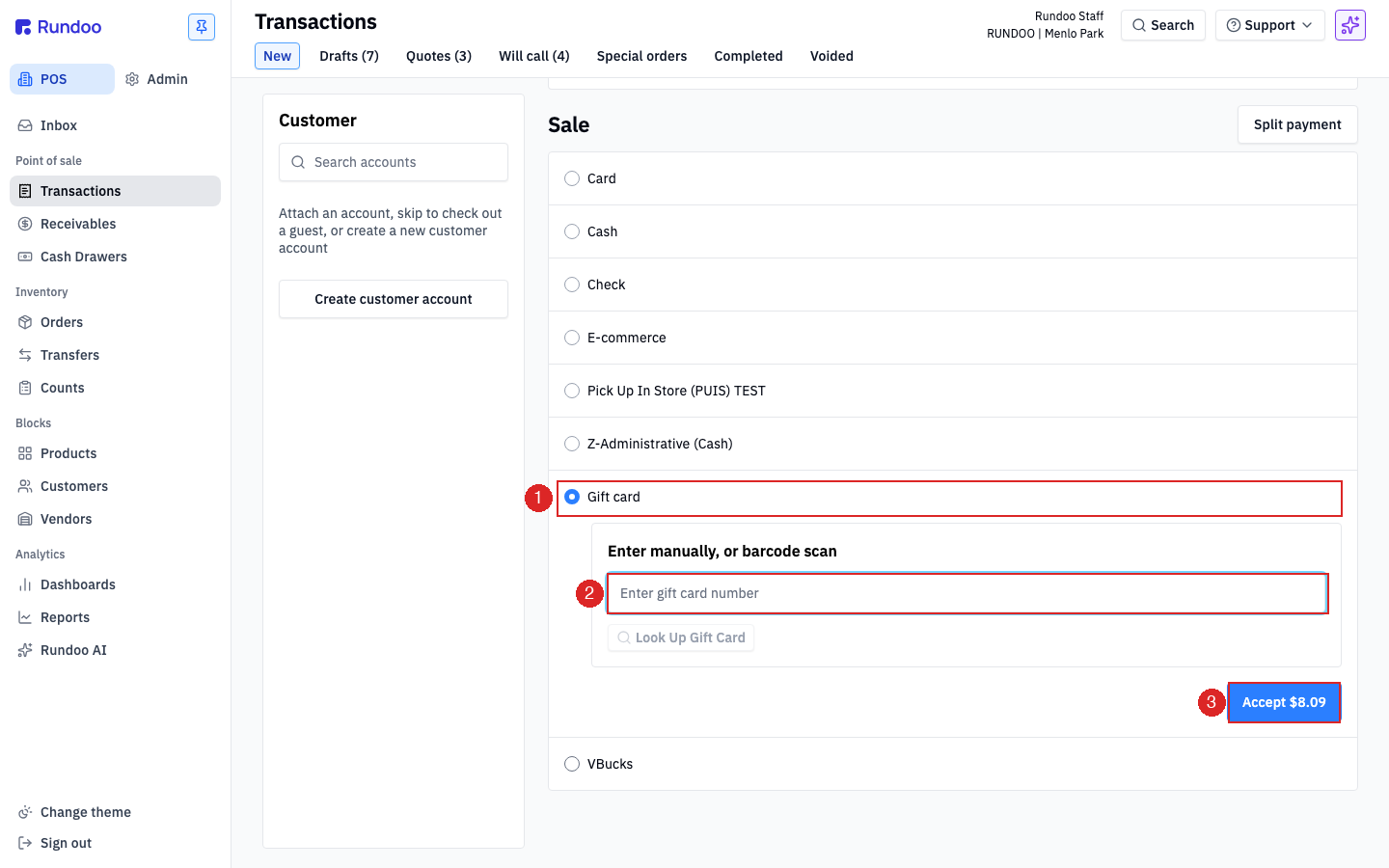
If the card doesn't cover the full sale, the remainder stays on the Sale total. Click Split payment at the top of the tender panel to add a second tender (Cash, Card, Charge account) for the balance. See Sales for the full split-payment mechanic. Gift cards combine with any other tender.
⚠️ A gift card is tender only, not a line item.
Gift cardshows up alongsideCash,Card,Check, and the rest both when ringing up a sale and when issuing a refund (see Refund to a gift card below). If a customer wants store credit without a physical card to hand over, that's a different surface. See Customer credits.
Refund to a gift card
Gift card works as a refund tender just like it works as a sale tender (refund balance credits onto an existing card via the same Look Up Gift Card flow used at redemption).
From the Completed sale's detail page, click Return in the top-right action cluster. Set the quantity to return on each line, fill Reason for return, then click Return at the bottom of the form. The page scrolls to a Return tender panel below the sale.
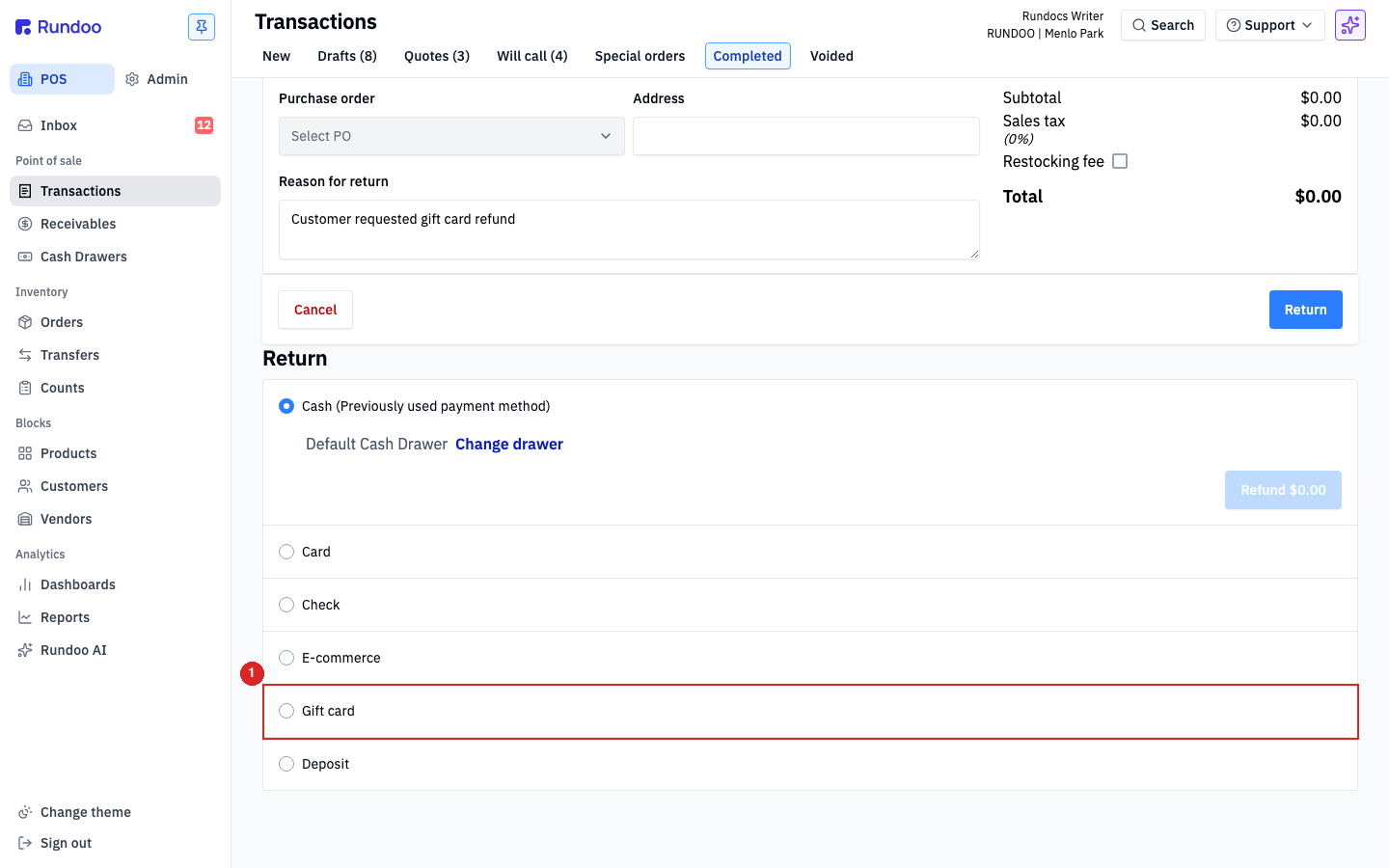
The refund tender list mirrors the sale tender list (Cash, Card, Check, E-commerce, Gift card, Deposit). The original sale's tender pre-selects (and shows (Previously used payment method)), but you can pick any of them. A Cash-tendered sale can refund onto a gift card, and a gift-card-tendered sale can refund as Cash.
Pick Gift card. The panel exposes Enter manually, or barcode scan with Enter gift card number and a Look Up Gift Card button. Scan or type the card the customer wants the balance loaded onto (must be an Active card already in your issued pool) then click Look Up Gift Card to confirm. Click Refund $X.XX to commit. The refund balance credits onto that existing card and the sale flips to Returned.
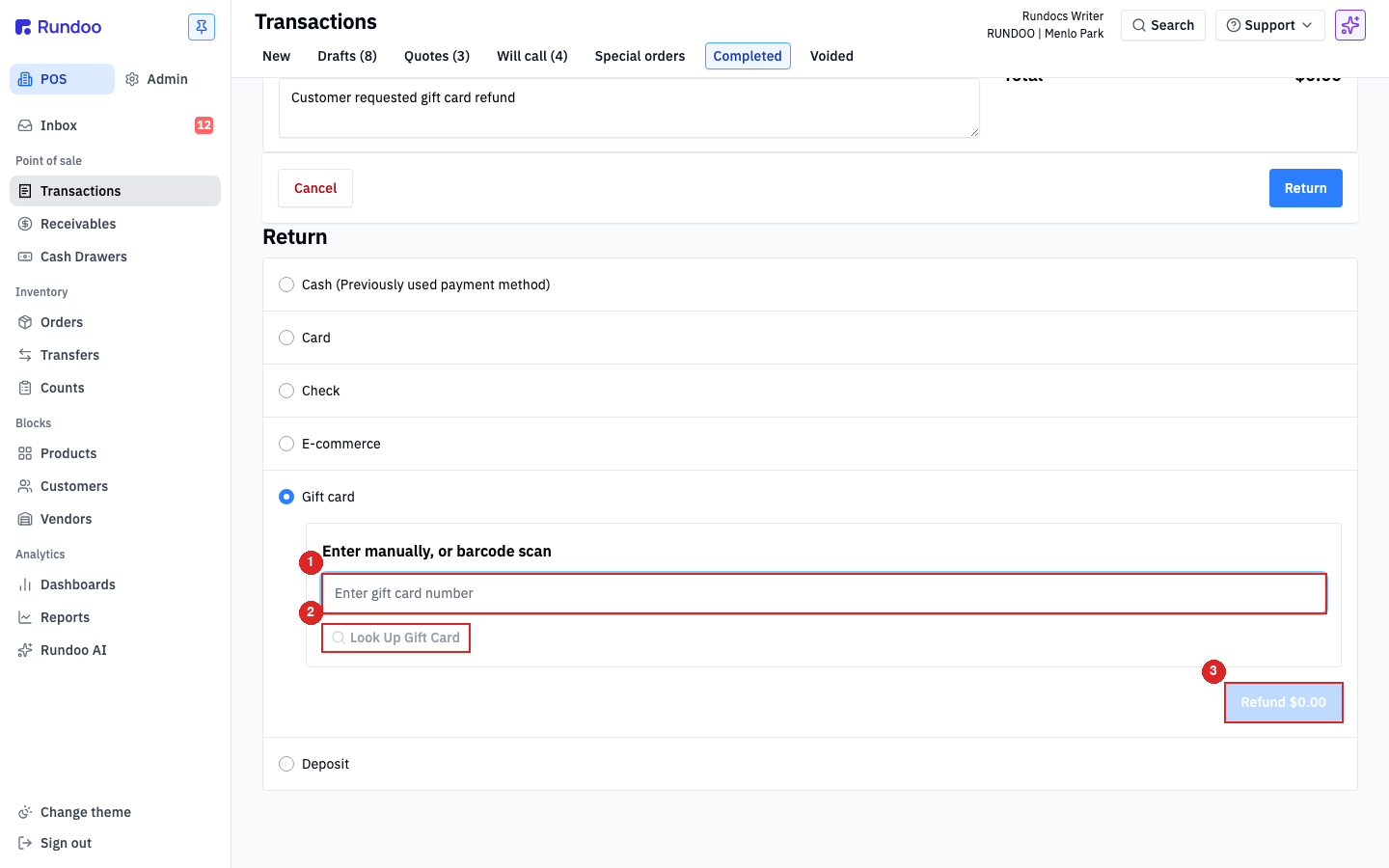
⚠️ If Gift card doesn't appear in the refund tender list, the tenant has the feature toggled off. Flip Enable gift cards back on in Admin > General settings (see Set up above). Cards already in circulation keep redeeming either way.
💡 The refund logs as
Redemptionof a negative amount on the receiving card's Activity table. Same audit trail as a redemption, just with the opposite sign. See Track below to read it.
Track
Track a card’s balance and full redemption history from the POS > Products > Gift cards tab. The header Search is the fastest way in from anywhere, type “gift cards” to jump straight to the list, “gift card transactions” / “gift card balances” to jump to either gift-card report, or a full 16-digit card number to land directly on that card. Once you’re on the list, two more ways into a specific card, depending on how much detail you need.
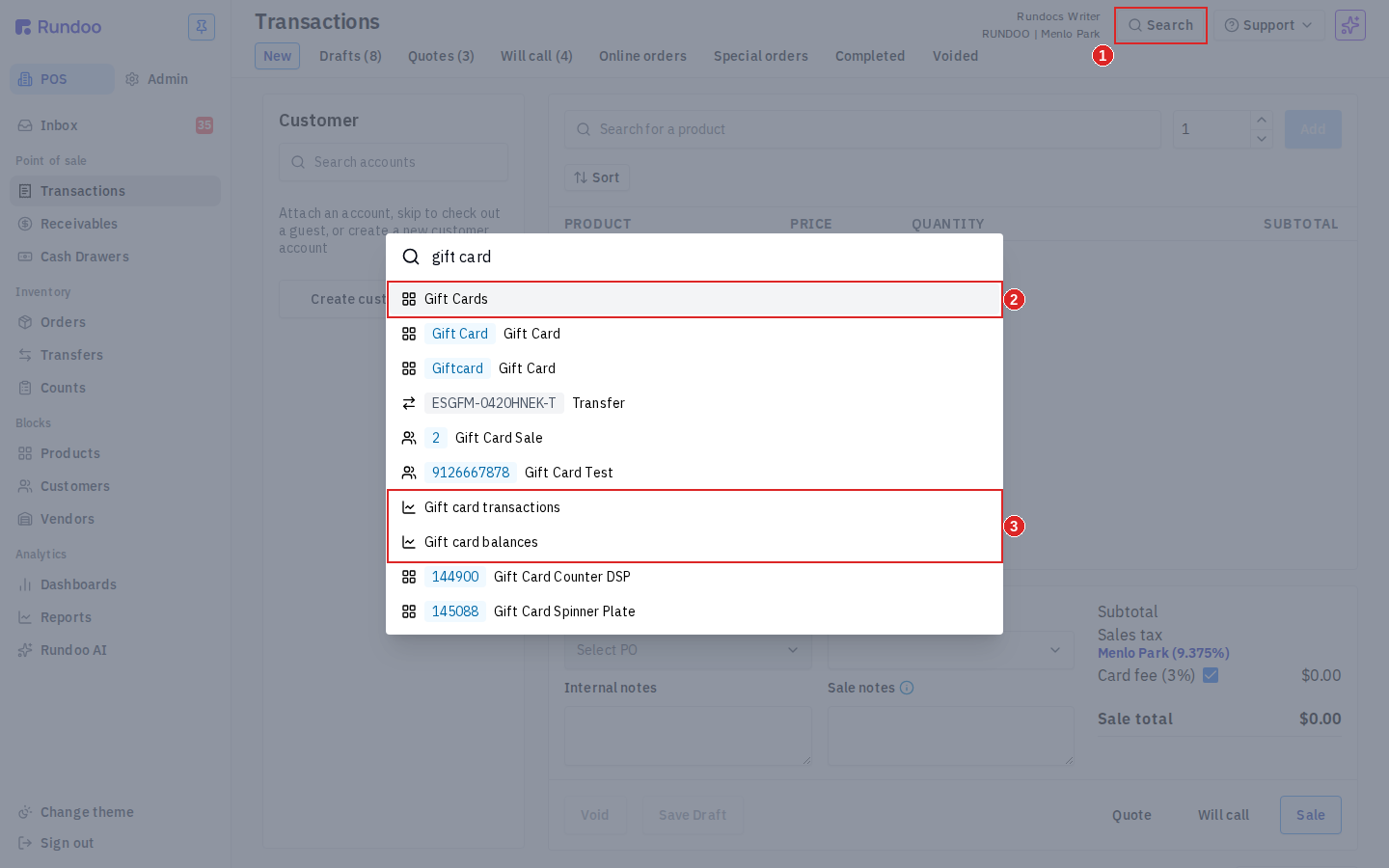
Typing a full 16-digit card number into header Search returns the gift card with its current status (Active / Pending Activation / Deactivated). Click the row to land on the card detail page. Handy when you’re elsewhere in Rundoo; Find Card below is the natural pick once you’re on the Gift cards list.
Find Card modal (fastest). Click Find Card in the action cluster, scan or type the card number, then click Look Up Gift Card. Rundoo shows the current balance right in the modal. Click See Card Page to jump to the card's detail for full history.
Card detail page. Click any row in the list. The header shows card number, Active / Pending Activation / Deactivated status, and Balance. The Activity table below logs every Activation and Redemption with transaction ID, date, location, amount, and running balance (so you can trace exactly how the card got to its current value).
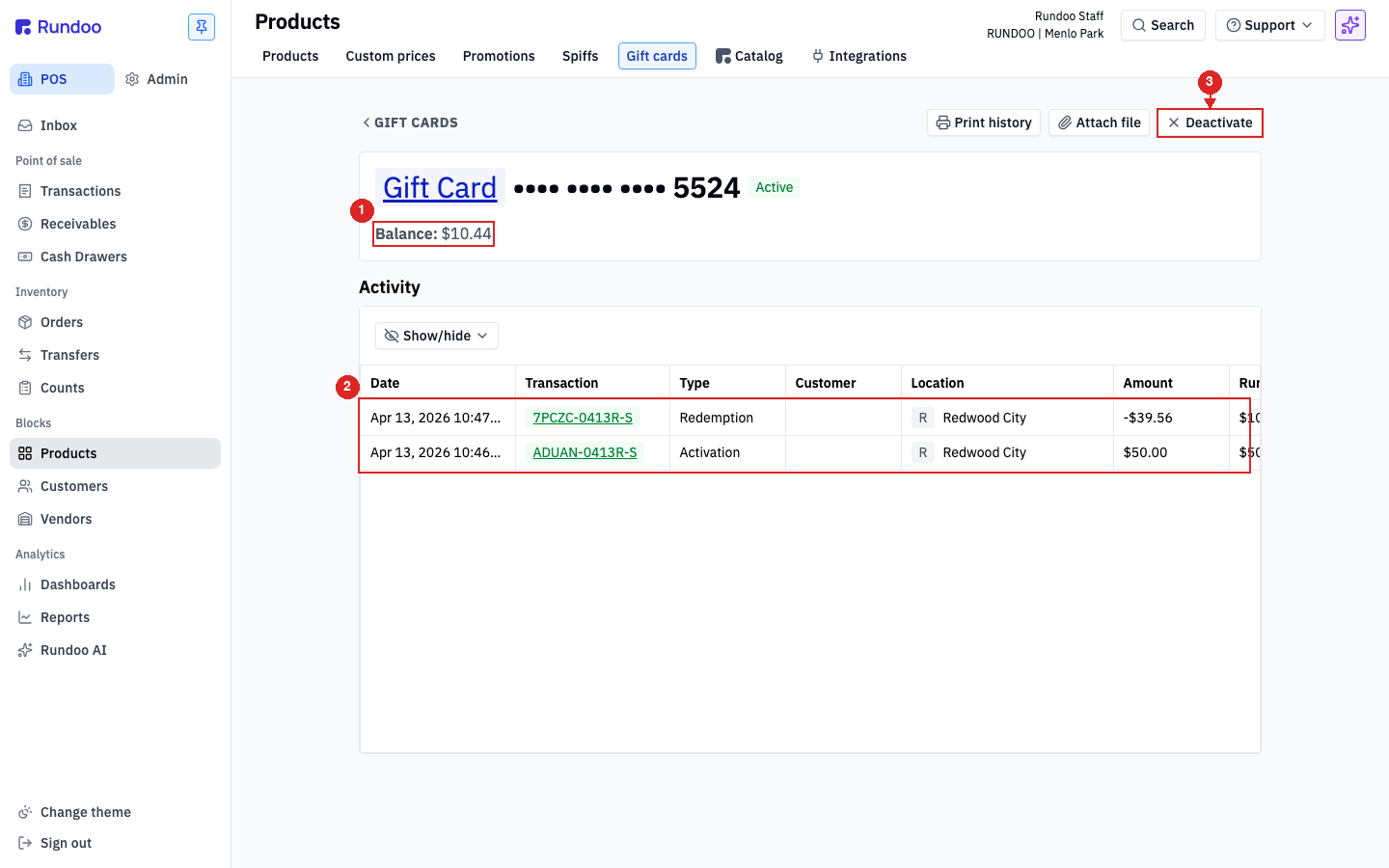
💡 Every redemption and every activation shows up in
Activitywith a link to the underlying Sale. If a balance looks wrong, the running-balance column is your audit trail (it'll point you at the transaction that changed things).
Void
Gift cards don't get "voided" like sales do. The equivalent action is Deactivate, which takes the card permanently out of circulation. Open the card's detail page from the Gift cards tab and click Deactivate in the top-right action cluster. Deactivation freezes the balance (no more redemptions, no more activations on that card number). The card stays in the list with status Deactivated so the history survives for auditing.
Voiding the underlying sale. If a customer returns a just-sold gift card for a refund, that's a void/refund of the Sale that activated it, not an action on the card. Walk through the normal Sales refund-and-void flow on the activating transaction, refund the payment first, then void the sale. The card itself reverts to Pending Activation when the activation sale is voided.
Adjusting a balance. There's no direct "add $10 to this card" button. To top up an existing card, run a new sale with the gift-card product, enter the same card number in the Activate Gift Card modal, and the new balance adds to the existing balance on that card. To reduce a balance outside of a sale, deactivate the card and reissue a fresh one for the corrected amount.
⚠️ Deactivation is not reversible from the UI. If you deactivate a card by mistake, you'll need to generate a fresh card number and move the balance onto it via a manual adjustment sale. Confirm before clicking.
Recommended Rundocs
-
Sales (the full checkout flow gift-card redemption rides on).
-
Tender methods, how
Gift cardshows up alongsideCash,Card,Charge account, andCheck. -
Customer credits (the other "store-held balance" concept), for returns-to-credit instead of purchased cards.