
Rundocs › Integrations
Integrating with COLORx 6
Last updated 2026-05-26
COLORx is Benjamin Moore's color-matching and tint-formula software. When you pair it with Rundoo, a cashier tints a gallon at the counter, clicks Send to POS, and the tinted product lands in the Rundoo cart with the color, formula, and quantity already populated. No retyping.
This guide covers COLORx 6 only. If you're on COLORx 7, see Integrating with COLORx 7 instead.
In the Admin > Locations > [Location] > Integrations tab, the Benjamin Moore outlet number field carries the ID COLORx needs for setup. The COLORx-side wiring lives on the tint machine itself.
What COLORx does with Rundoo
| Direction | Trigger | What moves |
|---|---|---|
| Send to POS | Cashier finishes a tint in COLORx and clicks Send to POS | Color, base paint, formula, and quantity flow into the active cart in Rundoo as a tinted product ready to ring up |
| Retrieve from POS | Cashier types a past tint number in COLORx and clicks Retrieve From POS | COLORx looks up that exact tint by its number and re-dispenses a match |
The connection runs one way: tints flow from COLORx into Rundoo. Rundoo doesn't send tints back the other direction. What links the two is the tint number, so to re-dispense a past color you type its number into COLORx and it pulls up the exact original tint (see Retrieve from POS below).
Setup
Setup happens once per location and has two parts: the COLORx workstation generates a site key, then someone on the Rundoo team registers that key against your location's subdomain. After that, Send to POS and Retrieve From POS just work.
Step 1: Generate the site key on the COLORx workstation
Done on the Windows machine running COLORx. Close COLORx first, then run the Benjamin Moore key generator. Enter your Benjamin Moore Outlet Number under Site Number and click Get Key.
You'll find your Outlet Number in Rundoo under each location's Benjamin Moore outlet number field. See Step 3 below.
Step 2: Create the .ini and .xml files
Still in the key generator:
-
Click Create INI and save as
rnet_Decor.inito the desktop. -
Click Create XML and save as
posDecor.xmlto the desktop. -
Move both files into
C:\Program Files (x86)\Benjamin Moore & Co\ColorTech\ColoRx\POS.
Reopen COLORx. It will show a "cannot connect to a server" error on launch. Ignore it, that's part of setup. Then click File > Modify Store Options, go to the DecorFusion tab, set the URL to https://api.rundoo.app/colorx, and click OK.
If the DecorFusion tab isn't showing up, the .ini and .xml files landed in the wrong folder. Re-check the path in Step 2.
Step 3: Send the key to Rundoo
Email the generated site key and the store address to your Rundoo Account Executive (or support@rundoo.ai). We register the key against your location's subdomain and confirm it's live.
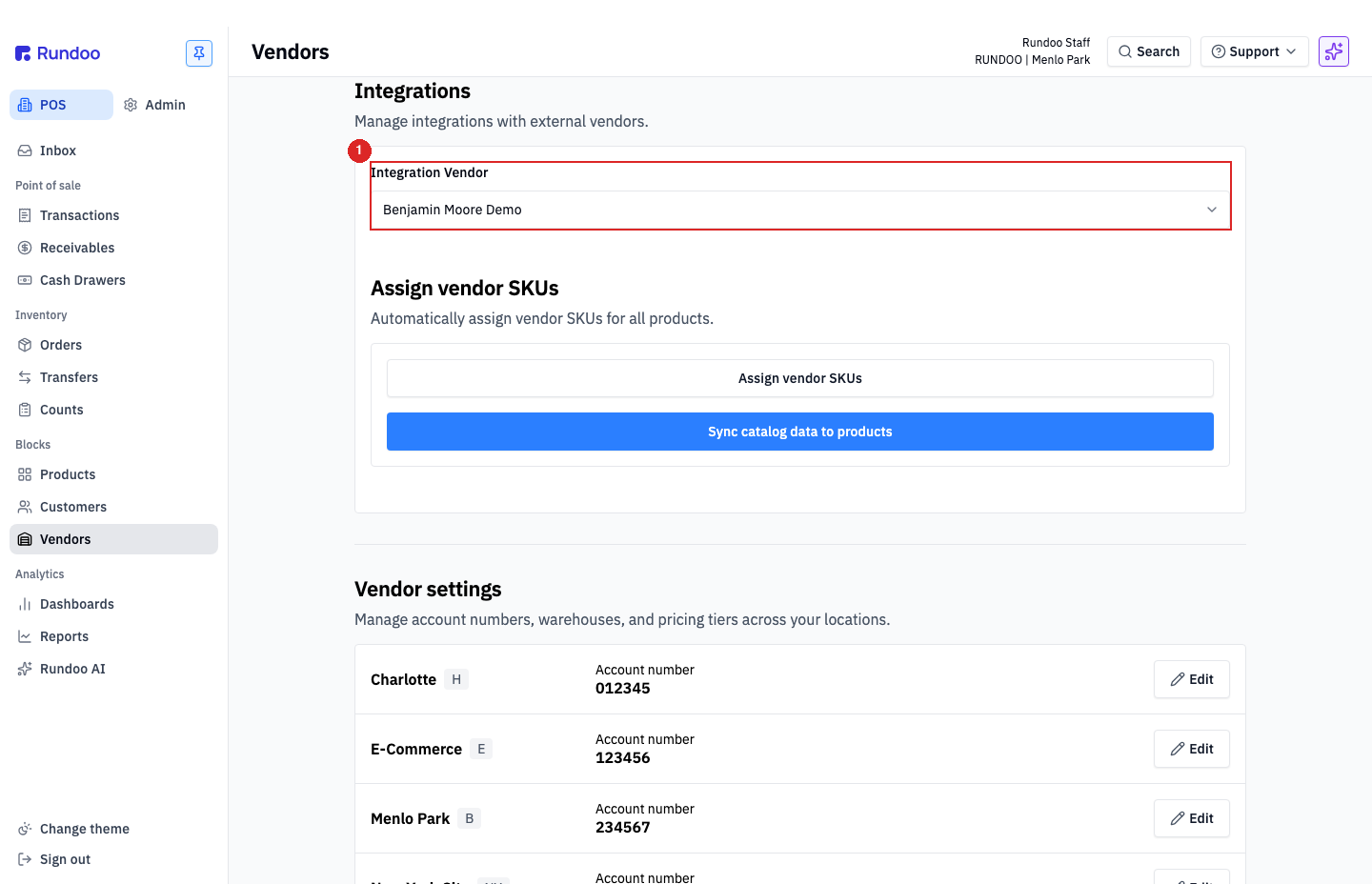
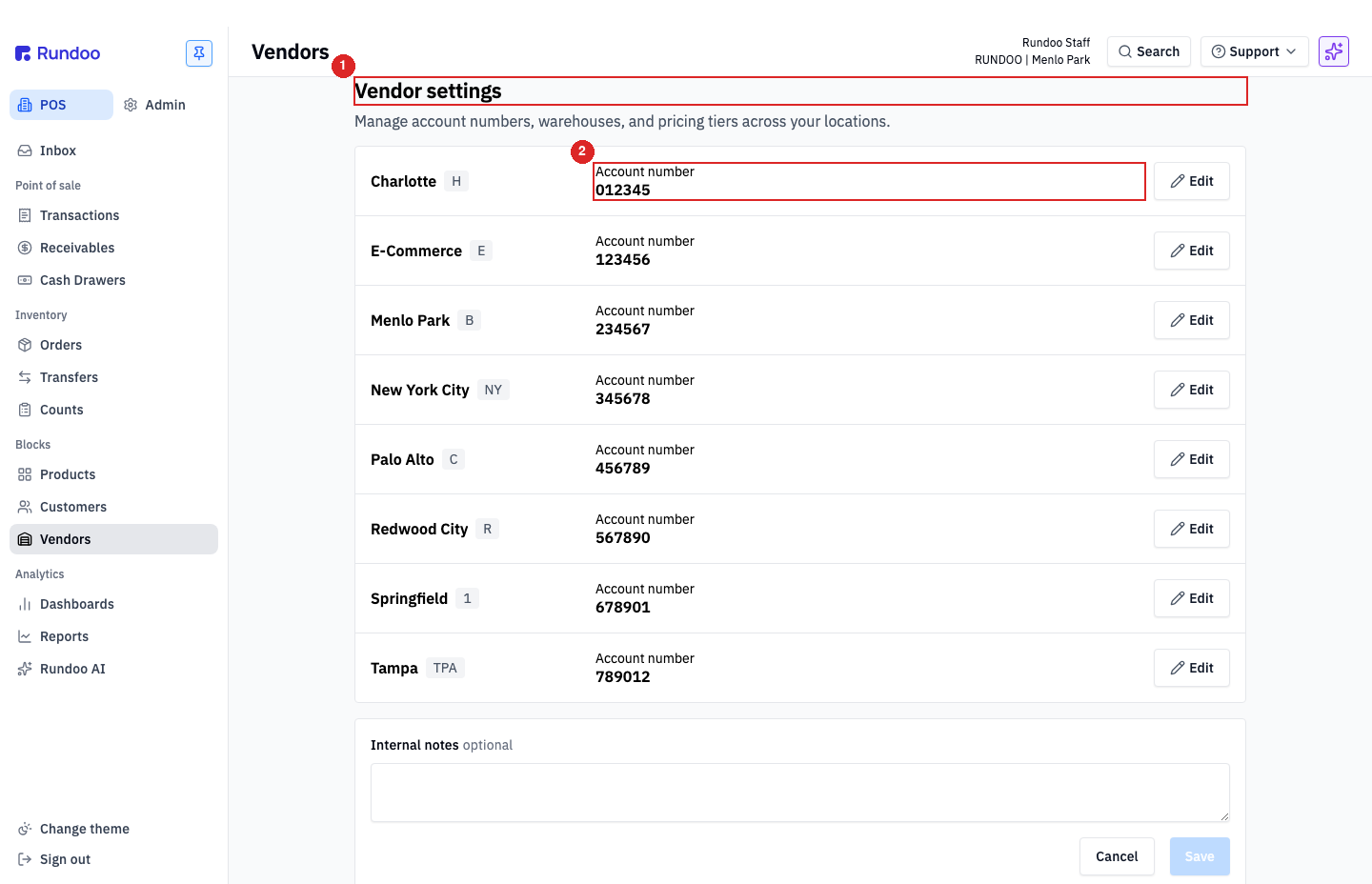
The Benjamin Moore Outlet Number you'll need: in the Admin > Locations tab, open the location's detail page and scroll to the Integrations section. The Benjamin Moore outlet number field is your Outlet Number. Help text reads: "The Benjamin Moore outlet number is used for integrations like CCP."
Send to POS (tint, click, ring up)
This is the day-to-day flow once setup is done.
-
Tint in COLORx as usual. Enter the base product, pick the color, dispense.
-
Click Send to POS. COLORx packages the tint data and ships it to Rundoo.
-
Open a new sale in Rundoo. In the POS > Transactions > New tab, start a sale. A
X tinted productslink appears below the product search. -
Click the tinted-products link to see the tint COLORx just sent over. Select the matching tint and click Add to sale.
The line lands in the cart with the color pill, base SKU, and quantity pre-populated. The cashier can edit price, add notes, and ring up as a normal sale.
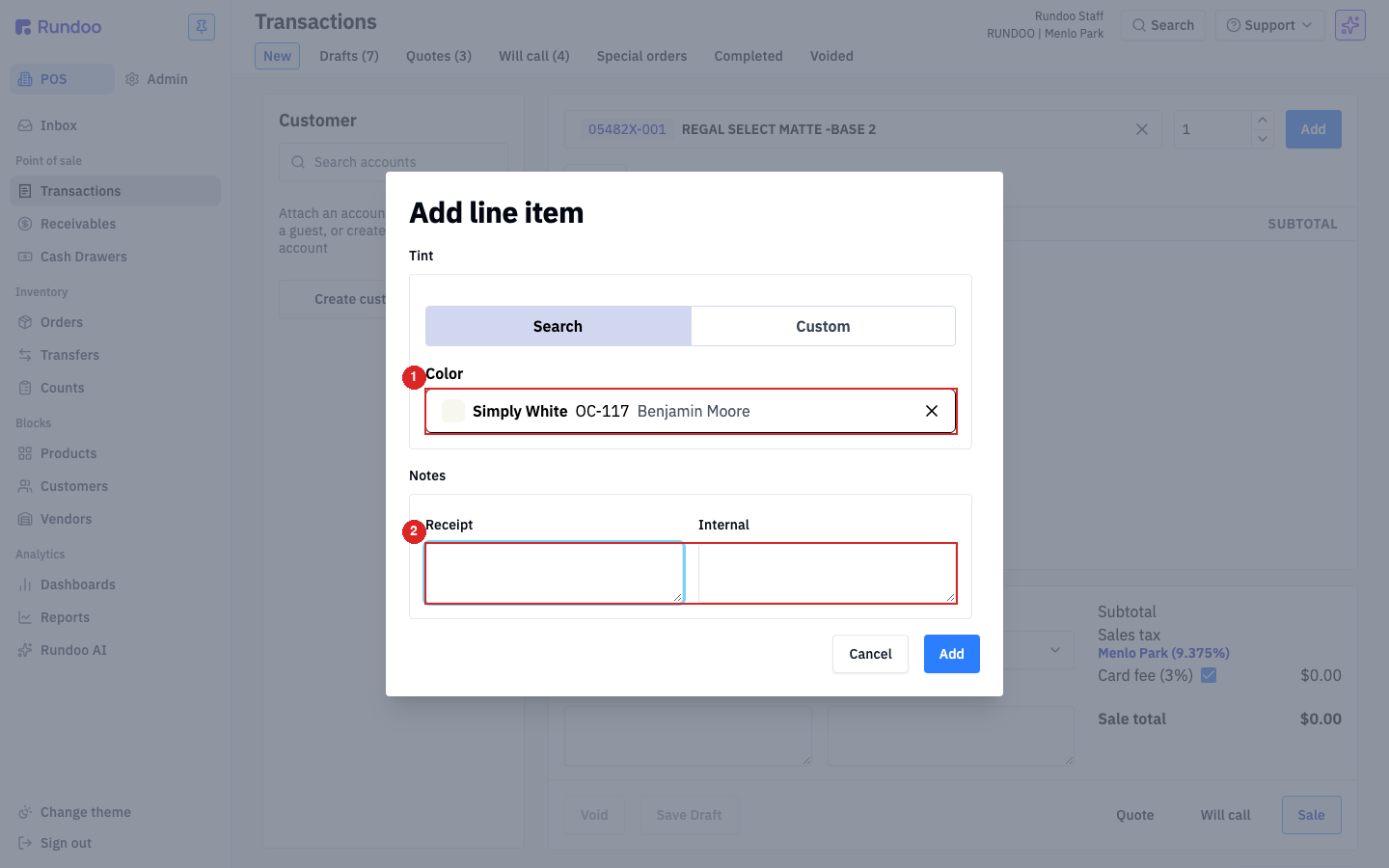
The Add line item modal that opens is the same one you get when adding any tintable Benjamin Moore product by hand. The Tint section shows the color, base, and formula; the Notes section has a Receipt field (prints on the customer's receipt) and an Internal field (doesn't).
Retrieve from POS (re-dispense a past tint)
When a customer comes back for more of the same color, you don't re-match. You pull the exact formula off the original tint number.
- Find the Tint number in Rundoo. - If the tint hasn't been rung up yet: in the POS > Transactions > New tab, click the X tinted products link beneath the product search.
- If it was part of a completed sale: open the receipt, the tint number is on it.
-
In COLORx, click Retrieve From POS.
-
Enter the tint number. COLORx finds that exact tint by its number and re-dispenses it, no re-matching.
Troubleshooting
"Invalid Site Key" error in COLORx
The .ini and .xml files aren't in the folder COLORx expects. Move them to:
C:\Users\Fluid Management\AppData\Local\VirtualStore\Program Files (x86)\Benjamin Moore & Co\ColorTech\ColoRx\POS
You followed every setup step and still get an error
-
Make sure you're on the latest COLORx build. Log into your Benjamin Moore retailer portal, go to the COLORx page, and download the newest version.
-
Unplug the tint machine, wait 30 seconds, plug it back in.
Where do I find past tint colors in Rundoo?
In the POS > Customers tab, open the customer record and filter offline customer files by Color. Past tints show up with the formulas attached so you can retrieve them into COLORx.