
Rundocs › Admin & Settings
POS security
Last updated 2026-07-24
POS security is the company-wide knobs that make the register a little stricter (sign out after X minutes, require a reason when a sale gets voided, require a customer on every sale, hide the category browser so cashiers search instead of browse) plus how linked returns behave when a cashier rings a negative line. It's a short page; most of the granular "who can do what" lives on the staff record, not here.
In the Admin mode, open Security in the left sidebar. It's a single page with two sections: POS settings and Linked returns.
What POS security controls
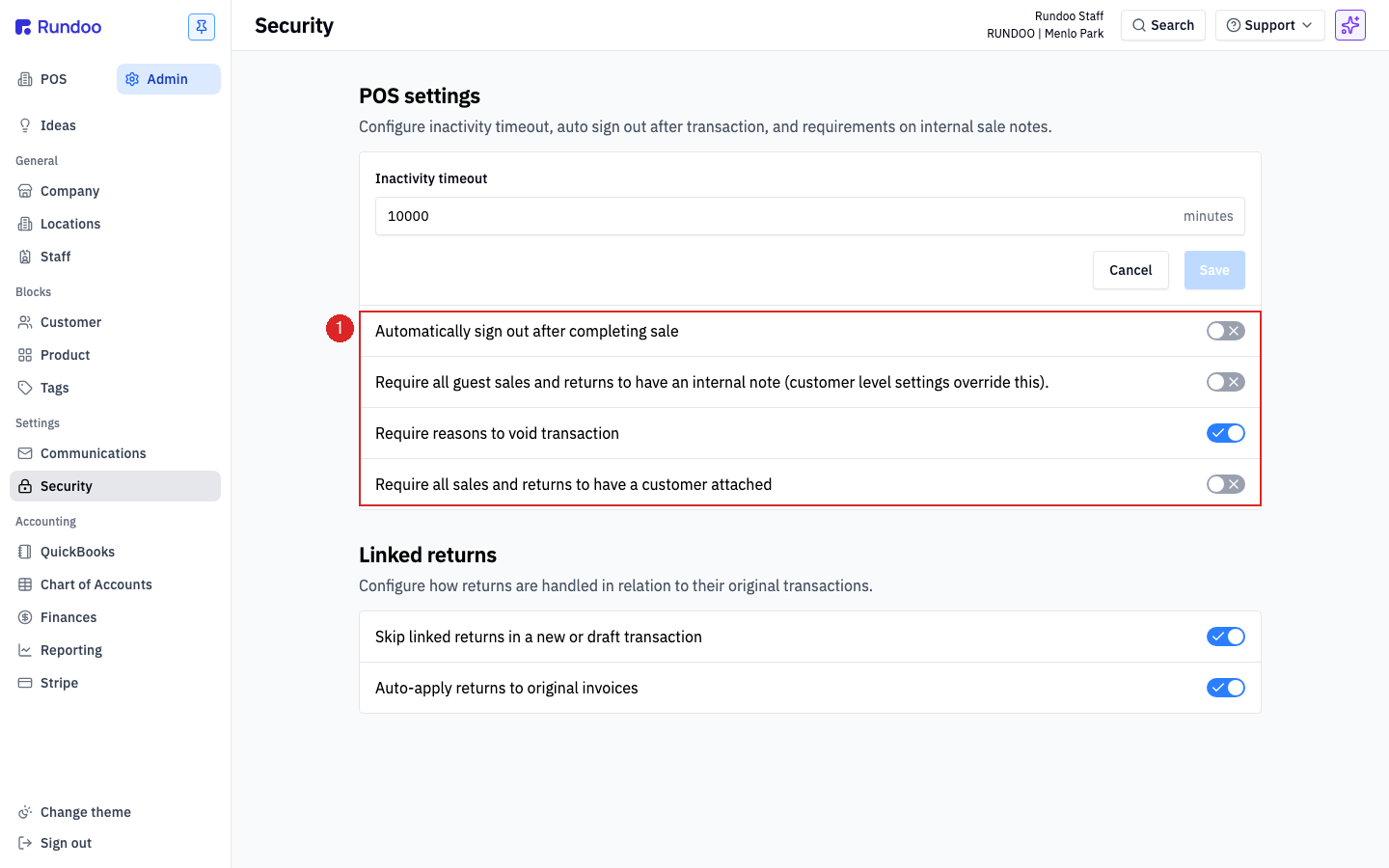
The top section, POS settings, has one numeric input and five toggles. Each is company-wide. Flipping one affects every location and every cashier.
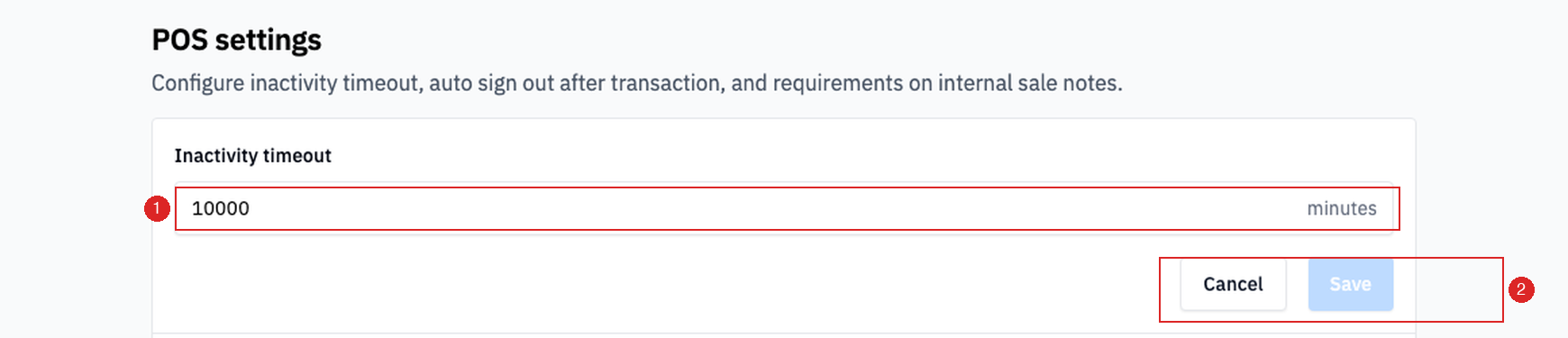
Inactivity timeout. How long a Rundoo tab can sit idle before the staff member gets signed out. Value is in minutes; tune it for how your counter runs (a busy paint desk that steps away to mix wants a longer window than a single-terminal hardware counter that should auto-lock fast). Click the field, type a new number, and hit Save (Cancel backs out without applying).
Automatically sign out after completing sale(when on), Rundoo signs the staff member out at the end of each sale. Use this at shared terminals where the next cashier should re-ID before ringing. Leave it off if one cashier runs a register for their whole shift.
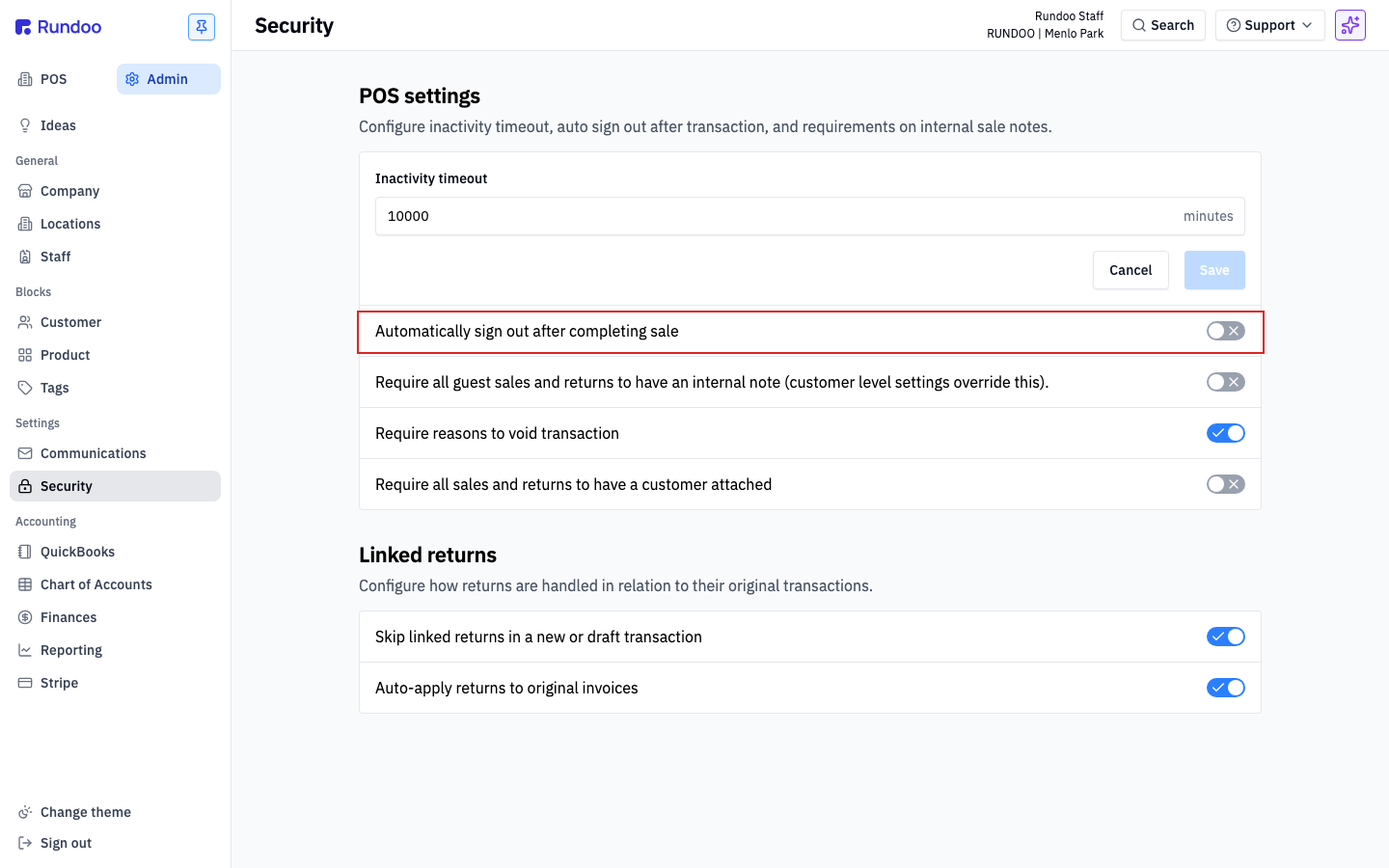
Flipping this toggle off doesn't reach cashiers who are already signed in. Their POS tab keeps auto-signing-out after each sale until they hard-refresh the page (or sign out and back in once). Plan for a quick Cmd+R / Ctrl+R on every active register after you change the setting, so the next sale picks up the new value.
-
Require all guest sales and returns to have an internal note (customer level settings override this). When on, a guest (no-customer) sale or return can't complete until the cashier types something into theInternal notesfield. Good for stores that want a reason-code trail on cash-and-carry walk-ins. Per-customer overrides on the customer record can loosen this for specific accounts. -
Require reasons to void transaction, when on, clickingVoidon a sale or draft pops a confirmation modal instead of voiding silently. See the section below for how that surfaces at the counter. -
Require all sales and returns to have a customer attached(when on),Saleand any return action stay disabled until a customer is attached to the cart. Hard-closes the door on guest sales. Most stores leave this off (walk-ins are real); charge-account-only businesses turn it on. -
Hide category browser on sales, orders, and transfers, when on, the grid of department tiles stops appearing in theSearch for a productbox, so the cashier goes straight to typing. See Hiding the category browser below for what changes at the counter.
Below these, the Linked returns section controls how Rundoo handles negative lines. See How linked returns behave below.
How security toggles interact with staff permissions
POS security is company-wide; staff permissions are per-person. They stack rather than replace each other.
A cashier can void a sale only if:
-
Their staff record has the void permission (checked on their Permissions tab), and
-
If
Require reasons to void transactionis on company-wide, they click through the confirmation modal at the register.
Same pattern for other gated actions (price overrides, below-cost sales, refunds, tax changes). The staff permission answers "is this person allowed to do it?" and the POS security toggle answers "what friction do we put in front of it?" An admin gets the permission checked on their staff record; a cashier doesn't. POS security doesn't override permissions. A cashier without the void permission can't void even when the toggle is off.
This is why most stores configure both layers together: set the toggle for the friction you want every cashier to see, then lock the permission for the staff who shouldn't have the action at all.
Permissions themselves (the per-feature checkboxes that describe who can do what) live on each staff member's detail page. See Staff for the full list and how to set them.
How a secured action surfaces at POS
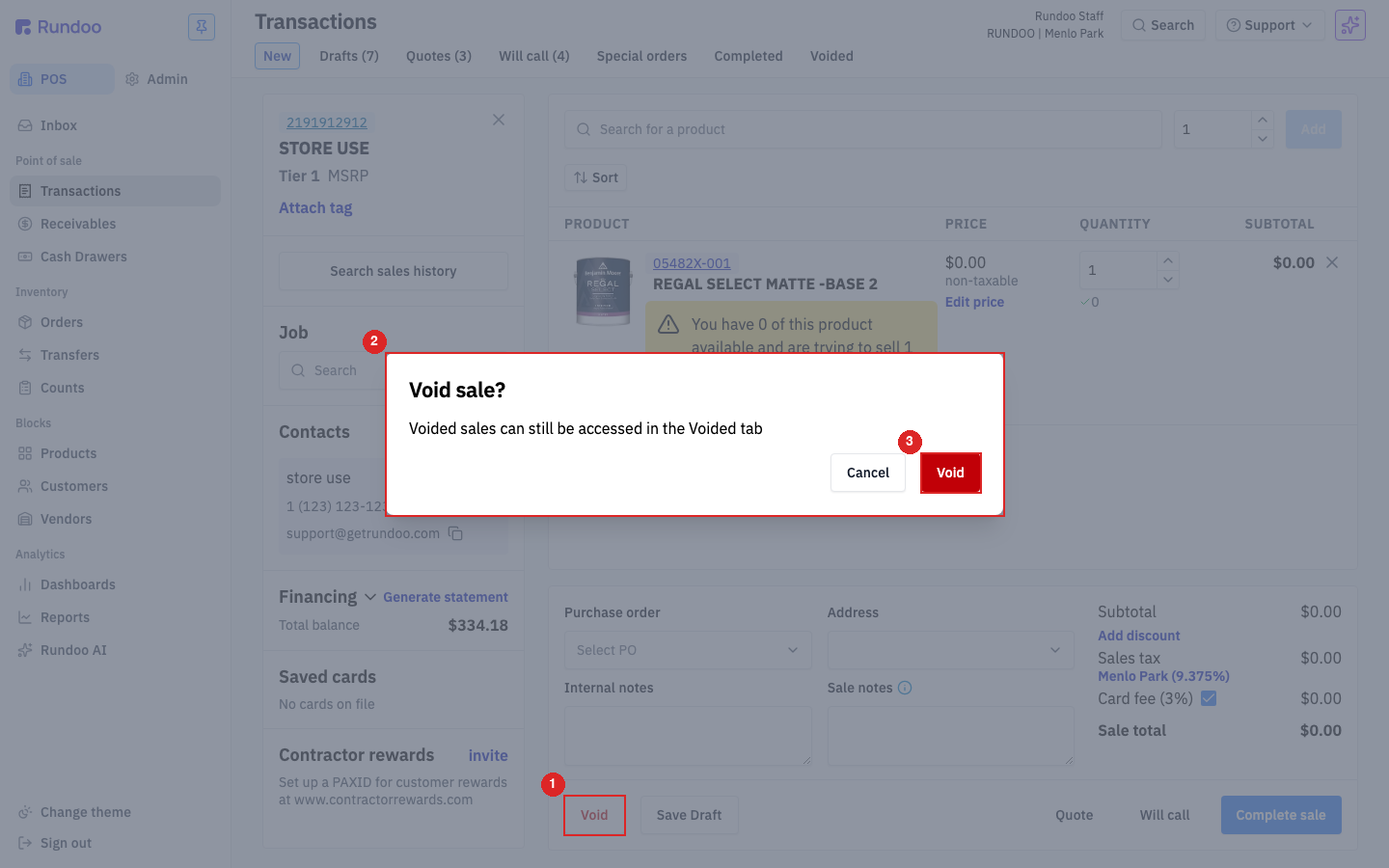
With Require reasons to void transaction on, here's what a cashier sees when they click Void on a sale in progress:
-
They click
Voidin the action cluster at the bottom of the cart (same strip asSave Draft,Quote,Will call,Sale). -
A
Void sale?modal opens, reminding them the sale will still be accessible in theVoidedtab. -
They click the red
Voidbutton in the modal to confirm, orCancelto back out.
The modal is the guardrail. It keeps a stray click from wiping a cart the customer is still deciding on. If the toggle is off, the first click voids immediately with no prompt.
Other toggles surface similarly at the counter:
-
Require all guest sales and returns to have an internal note. If the cashier tries to complete a guest sale without a note, theSalebutton stays disabled and theInternal notesfield is flagged. -
Require all sales and returns to have a customer attached,Sale,Save Draft,Quote, andWill callall stay disabled until a customer is on the cart. -
Automatically sign out after completing sale. The instant the sale completes, Rundoo drops the cashier back to the sign-in screen. The next person has to re-enter their Staff ID to ring the next customer. -
Inactivity timeout. After the configured minutes of no activity, the tab signs out and shows the sign-in screen. Anything in the cart survives as a draft if the cashier had saved it; unsaved carts are gone. -
Hide category browser on sales, orders, and transfers(clicking intoSearch for a product) no longer drops open a grid of department tiles. Nothing appears until the cashier types or scans, and then it's the normal results list.
Hiding the category browser
Out of the box, clicking into Search for a product on a sale (or a purchase order, or a transfer) opens a grid of department tiles before anything is typed. Clicking a tile opens a browser that drills down through your product categories, Department, then Class, then Fineline, until you reach a list of products you can drop straight onto the cart. It's the "I don't know the SKU, show me what we carry" path, and it's handy for a new hire who knows the aisle but not the item.
Turning Hide category browser on sales, orders, and transfers on removes that path everywhere it shows up:
-
No department tiles. Clicking into the search box shows no menu at all until the cashier starts typing. From the first character on, search behaves exactly as it always has (SKU, name, or barcode).
-
No drill-down browser. The tiles are the only way into it, so hiding them retires the whole thing.
Reach for this when your category data isn't clean enough to browse (imported departments nobody has curated yet, or a Fineline tree that would send a cashier down a dead end). It also suits a fast counter where everyone scans or types and the grid is just something to click past.
Leave it off if your staff lean on browsing to find products, or if you're still training new hires who don't know the catalog yet.
This is company-wide, like everything else in POS settings. It applies to every location and every cashier, not just the terminal you flip it from. If a register already has a sale open, refresh the page so the change takes hold before the next customer.
How linked returns behave

The Linked returns section is a different beast. It's not a permission gate, it's how Rundoo wires negative lines to their original sales.
-
Skip linked returns in a new or draft transaction. When on, a cashier adding a negative quantity to a cart can complete the return without Rundoo trying to link it back to an original sale. Useful when the original sale isn't in Rundoo (an old paper receipt, pre-migration history) or the customer just wants a simple refund without touching the historical invoice. -
Auto-apply returns to original invoices. When on, Rundoo automatically credits the customer's original invoice when a linked return is rung (rather than leaving the credit floating on their account). Most stores want this on (it keeps AR tidy by reducing the outstanding balance on the exact invoice that was partially returned).
Both toggles default on for new companies. Flipping them off typically only makes sense if your workflow deliberately separates returns from their originals.
See Linked returns for a full walkthrough of how a cashier rings a return against an existing invoice. This section is the admin-side switchboard for that flow.
Recommended Rundocs
-
Staff (adding staff, tuning their permissions, and deactivating them).
-
Return policy, restocking fees, return windows, and receipt requirements (a different admin page, but a neighbor of POS security).
-
Sales, the POS counter flow that these toggles gate at the register.