
Rundocs › Inventory
Product imports
Last updated 2026-08-12
Product imports create or update your product catalog in bulk from a spreadsheet, product names, IDs, costs, prices, taxes, departments, and vendors, but they can't change your on-hand inventory numbers (those only move when you run an inventory count), and any rows that fail come back as a downloadable error report telling you exactly what went wrong on each one. Reach for them when you're onboarding, loading a new vendor's line, or pushing a bulk price change (faster than adding products one at a time).
If you imported a corrected spreadsheet and the on-hand numbers didn't change, that's expected, not a bug: imports never write inventory quantities. The Inventory: {Loc} column is read-only, so to fix counts you run an inventory count at POS > Counts instead (more under What the columns are). If a bulk import "keeps getting errors" or fails outright, jump to Reviewing errors, Rundoo lists every failing row with the exact reason and hands them back as a fixable spreadsheet.
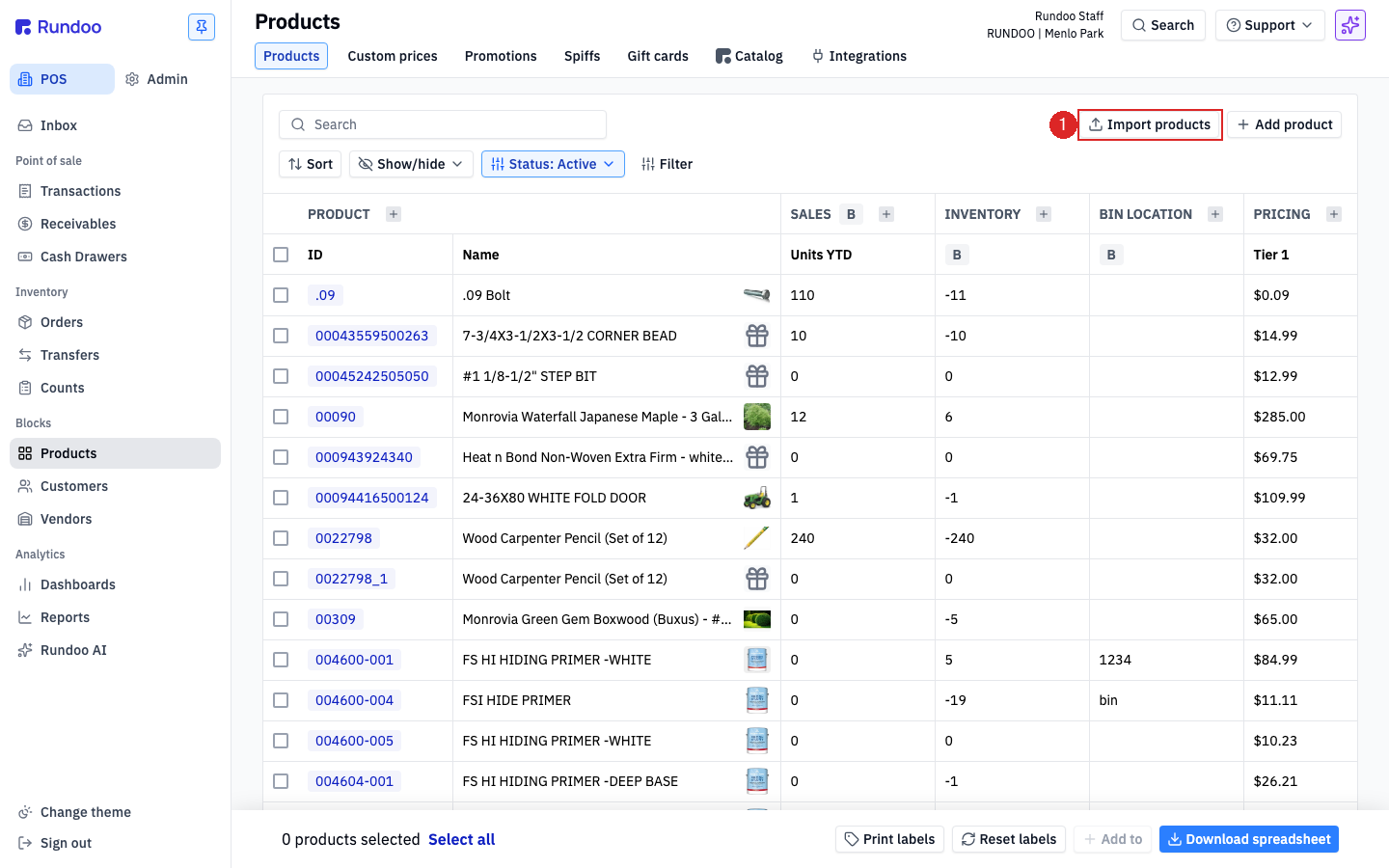
In the POS mode, open Products in the left sidebar. The Import products button sits in the top-right of the list, next to Add product.
Downloading the template
Click Import products top-right of the Products list. The Upload products modal opens with a dashed drop-zone in the middle and a Download template file link in the bottom-left.
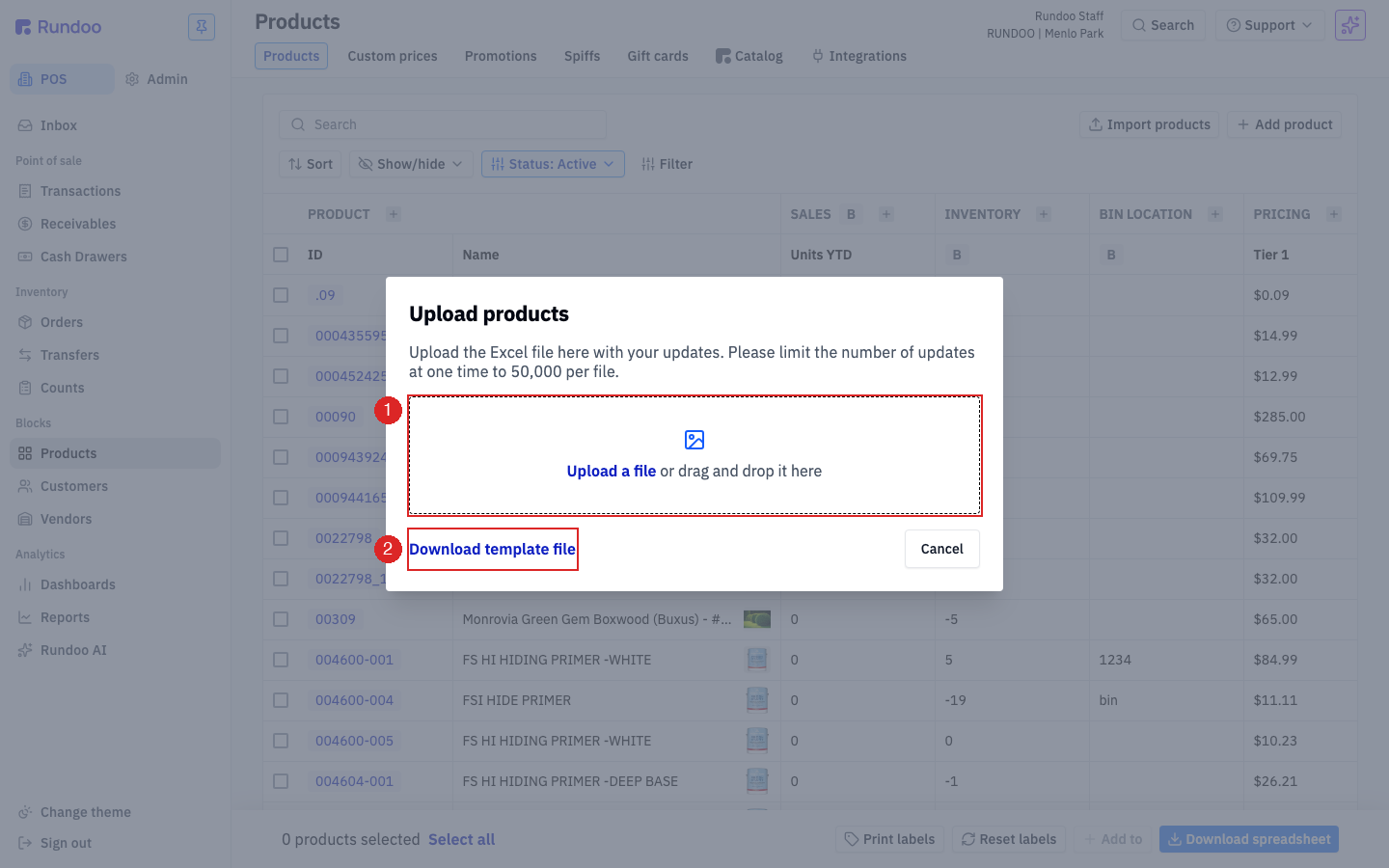
Click Download template file and Rundoo saves products_template.xlsx to your downloads folder. The template is a pre-formatted Excel workbook with your company's actual department list, pricing-tier names, and location codes baked into dropdown tabs, so you edit it in Excel, save, and upload it back.
.xlsx only. The uploader rejects .csv, .xls, or any other extension with the error "Invalid file extension. Is your file's extension .xlsx?" Open the template in Excel, Numbers, or Google Sheets, but save or export it as .xlsx before uploading.
Don't rename Sheet1. The uploader expects the data on a sheet literally named Sheet1. If you rename the tab, to Products, Catalog, the date, anything, the upload silently reads zero rows and nothing imports. The companion tabs (Department, Class, Fineline, etc.) can stay named whatever they are; only the data sheet has to be Sheet1.
50,000 rows per file. Rundoo caps each import at 50,000 products. If you have more than that, split the file into batches (the second batch can include the same ID column and Rundoo will just update whatever it already created on the first pass).
What the columns are
The template ships with 95 columns on the first sheet (Sheet1) covering everything you can set on a product (far more than you'll ever fill for a single import). Only Product Name and Primary ID are required to create a product; the rest are optional and can fill in on later passes as your data matures. Here's every column, grouped by purpose.
Identity and classification
| Column | What it does | Required? |
|---|---|---|
Token |
Rundoo's internal unique ID for the product. Leave blank when creating new products (Rundoo fills it in). Populated when updating products you already exported. | Blank to create |
Product Name |
The name that prints on sale receipts and purchase orders. | Yes |
Primary ID |
The product's canonical identifier (usually a SKU or UPC). What cashiers scan or type at POS. Must be unique; if it starts with 0 (like a UPC), keep the leading zero. |
Yes |
Additional IDs |
Alternate IDs that also find the product at the counter. Semicolon-separated. Must be unique across your catalog. | Optional |
Tags |
Report/search tags. Semicolon-separated. Tags must already exist in Rundoo, create them first at Admin > Product. |
Optional |
Department, Class, Fineline |
The three-level product taxonomy. Each must match an existing entry (dropdowns in the template). Create new ones at Admin > Product > Product categories. |
Optional |
Additional Fee |
A fee attached to this product (Eco Fee, California Paint Fee, Tint Fee). Must match an existing fee at Admin > Product > Additional fees. Blank defaults to None. |
Optional |
Tax Status |
One of Taxable, Non-taxable, or Single-use (waives tax only for customers with a resale or job-specific exemption). Blank defaults to Taxable. |
Optional |
Commissionable, Tintable, Non-stock, Active |
Per-product Yes/No flags. Active controls whether the product can be added to new sales and POs. Blank defaults to No. |
Optional |
Internal Notes, Sale Reminders, Template Sale Product Notes, Template Order Product Notes |
Free-text fields for counter staff, shown at different points in the sale or PO. Use \n for line breaks. |
Optional |
Costs and vendors
| Column | What it does | Required? |
|---|---|---|
Cost Match Primary ID |
The Primary ID of another product whose costs and vendors this product should mirror. When set, Rundoo ignores this row's cost/vendor fields and uses the reference product's. |
Optional |
Standard Cost, Standard Cost UOM |
The cost used for COGS and margin when your company is set to standard cost at Admin > Company > Cost management. |
Optional |
Default Cost, Default Cost UOM |
The cost used when pricing by margin and the fallback on a PO if the vendor has no cost for this product. Blank defaults to $0.00. |
Optional |
Default Vendor |
The vendor the product is ordered from by default. Must match an existing vendor name. Blank defaults to No Vendor. |
Optional |
Additional Costs, Additional Cost UOMs, Additional Vendors |
Extra cost / UOM / vendor triples for products ordered from multiple vendors. Semicolon-separated, with the same number of entries across all three columns. Order is paired (first cost + first UOM + first vendor, and so on). | Optional |
Vendor SKUs, Vendor SKU Vendors |
Vendor-specific SKUs and the vendors they map to. Semicolon-separated, same count in both columns, paired by position. This is how you capture per-vendor catalog numbers without making them scan-able Primary IDs. | Optional |
Pricing
| Column | What it does | Required? |
|---|---|---|
Price Match Primary ID |
The Primary ID of another product whose prices this product should mirror. When set, Rundoo ignores this row's pricing fields. |
Optional |
Price Strategy |
One of Dollar, Margin, or Discount. Dollar treats each tier as an absolute price; Margin treats each tier as a % margin off cost; Discount treats tier 1 as a dollar price and tiers 2+ as a % off tier 1. Blank defaults to Dollar. |
Optional |
Price Rounded |
For Margin / Discount strategies, rounds the computed price. One of To $0.99, To $0.09, To $0.05, or No. Ignored when Price Strategy is Dollar. |
Optional |
Is Special Orderable, Is Non-nesting |
Yes/No flags. Blank falls back to the product's existing setting. |
Optional |
Gift Card Type |
For gift-card products, the gift-card type defined at Admin > Product > Gift card types. |
Optional |
Sale Form |
The sale form shown at checkout when this product is added to a cart (paint-tint notes, serial capture, etc.). Must match a sale form at Admin > Product > Sale forms. Blank defaults to None. |
Optional |
Pricing: {Tier} |
One column per pricing tier defined in your company (e.g. Pricing: MSRP, Pricing: Retail, Pricing: Painter, Pricing: Contractor (CC), Pricing: Volume Contractor(CC)). Format depends on Price Strategy: dollars ($60.78) for Dollar; percent (40%) for Margin; dollars for the first tier and percent for the rest for Discount. Rule-based tiers ignore updates here. Edit those in the web app. |
At least one tier filled when creating |
Quantity Break IDs, Quantity Break Quantities, Quantity Break Discounts, Quantity Break Markups, Quantity Break UOM Codes |
Semicolon-separated parallel columns defining automatic quantity-based discounts or markups (e.g. buy 4, take 10%). Same count across all columns, paired by position. Use either Discounts or Markups for each break, not both. |
Optional |
Inventory (per-location)
| Column | What it does | Required? |
|---|---|---|
Case Quantity |
Minimum multiple you can order (if the product only comes in cases of 4, enter 4). Rundoo rounds suggested-order quantities up to the nearest multiple. Blank defaults to 1. | Optional |
Min: {Loc}, Max: {Loc} |
Per-location reorder points used by suggested ordering. One pair of columns per location in your company (e.g. Min: 1, Max: 1, Min: NY, Max: NY). |
Optional |
Inventory: {Loc} |
Read-only. Rundoo exports your current on-hand here; it ignores any changes. Leave blank when creating. To change levels, run a count at POS > Counts > Start new inventory count (see Inventory counts). |
Leave blank |
Bin Location: {Loc} |
Aisle/shelf label for where the product lives in each store (e.g. A1S4). |
Optional |
Units of measure
| Column | What it does | Required? |
|---|---|---|
Allow Decimal Quantities |
Yes/No. When No, unit-conversion factors must be whole numbers. |
Optional |
Unit Conversion UOM Codes, Unit Conversion Factors |
Semicolon-separated parallel columns. For each alternate unit, the UOM code and the multiplier to convert it into the base unit (e.g. BOX;CASE and 12;144 means 1 Box = 12 base units, 1 Case = 144). |
Optional |
Default UOM Stocking, Default UOM Pricing, Default UOM Sale, Default UOM Order, Default UOM Transfer |
The default unit used for each flow (e.g. stock in cases, price per each, order in pallets). Must be one of the product's Unit Conversion codes or blank for the base unit. | Optional |
The template also ships with companion tabs at the bottom of the workbook (Department, Class, Fineline, Additional Fee, Tax Status, Standard Cost UOM, Default Cost UOM, Default Vendor, Price Strategy, Price Rounded, Gift Card Type, Sale Form, and one tab for each of the five Default UOM flows) listing the exact valid values for those columns. Pick from the dropdown when editing in Excel; typos become "not found" errors on upload.
Hover a column header for help. Every header cell in Sheet1 has a pinned comment with the field's purpose, whether it's required, and an example value. Excel shows it on hover; Google Sheets shows it when you click the comment indicator.
Don't delete columns you don't use. Leave them blank. Rundoo reads the header row to know which field each column maps to. Removing columns shifts the layout and the import will read the wrong data into the wrong fields.
Uploading the file
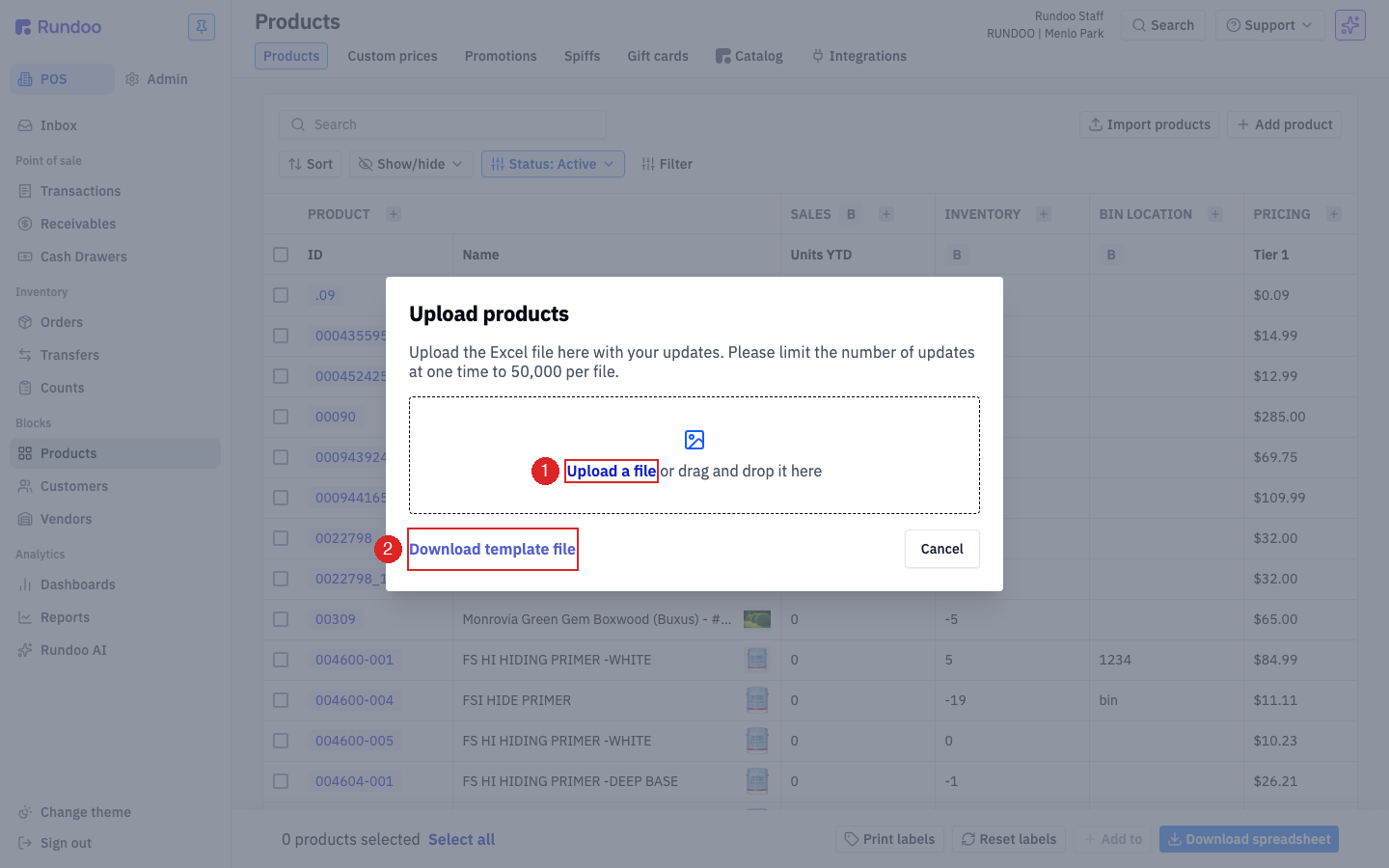
With the filled-in .xlsx saved, click Import products again, then either:
-
Click Upload a file inside the dashed drop-zone and pick the file from your computer, or
-
Drag the
.xlsxfile from your desktop straight onto the drop-zone.
Rundoo parses the file and shows a Ready for update preview modal with four counts (how many products will be updated, created, edited, and unchanged). Nothing posts to your catalog yet.
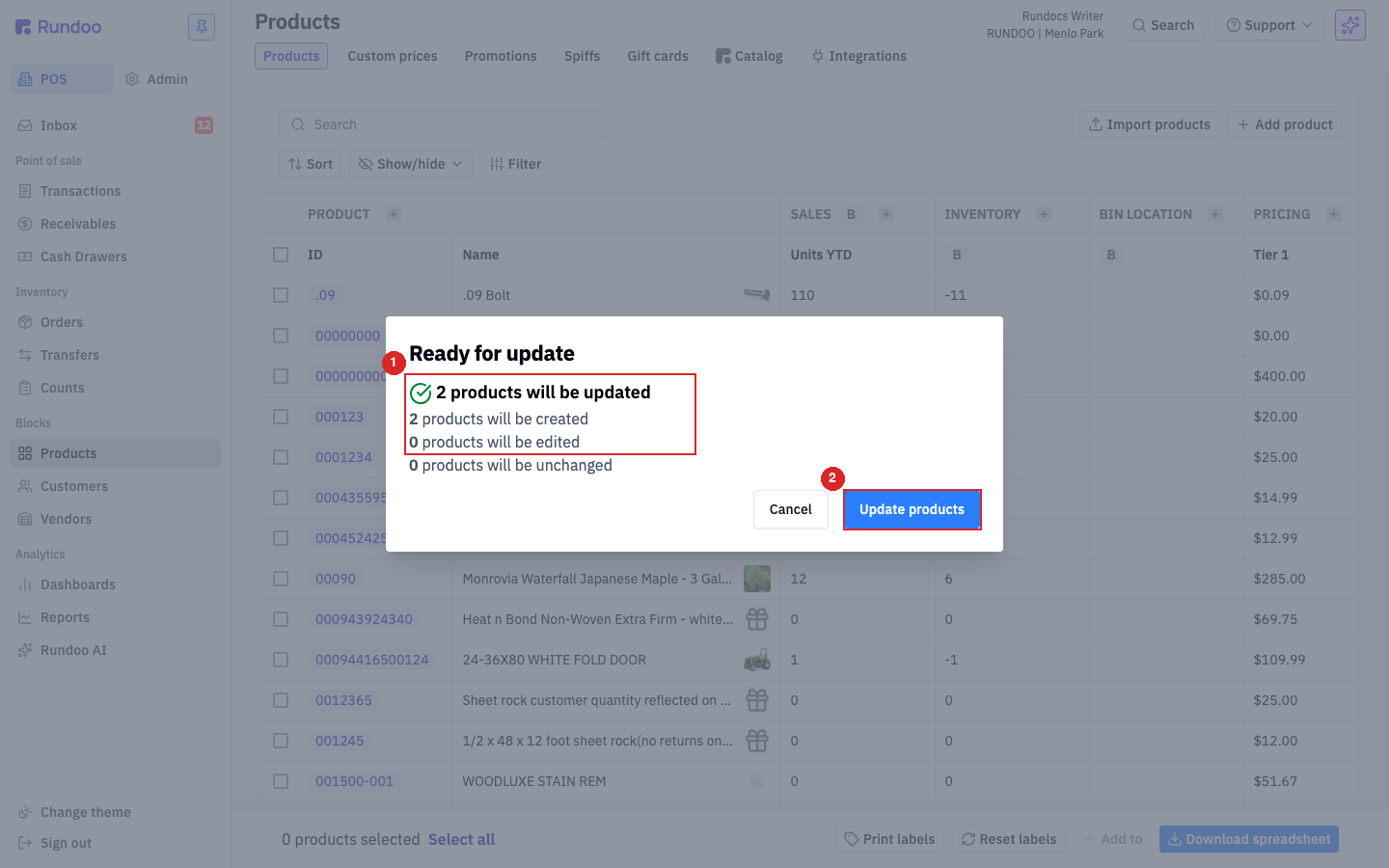
Review the counts. If they look right, click Update products to commit; click Cancel to back out and adjust the file.
After you click Update products, Rundoo processes the import and shows a result modal. There are three shapes:
-
Full success (every row landed). The modal confirms the four counts and notes "It may take up to 30 minutes to see the successful changes reflected in your system."
-
Partial Success. Some rows landed, some failed. Same four counts, plus a separate
{N} products could not be updatedline, aFailed entries:list of the failing Primary IDs, and a Download error report button. -
Failed. Every row was rejected. Modal title reads
Failed/All updates failed, with the sameFailed entries:list and Download error report button.
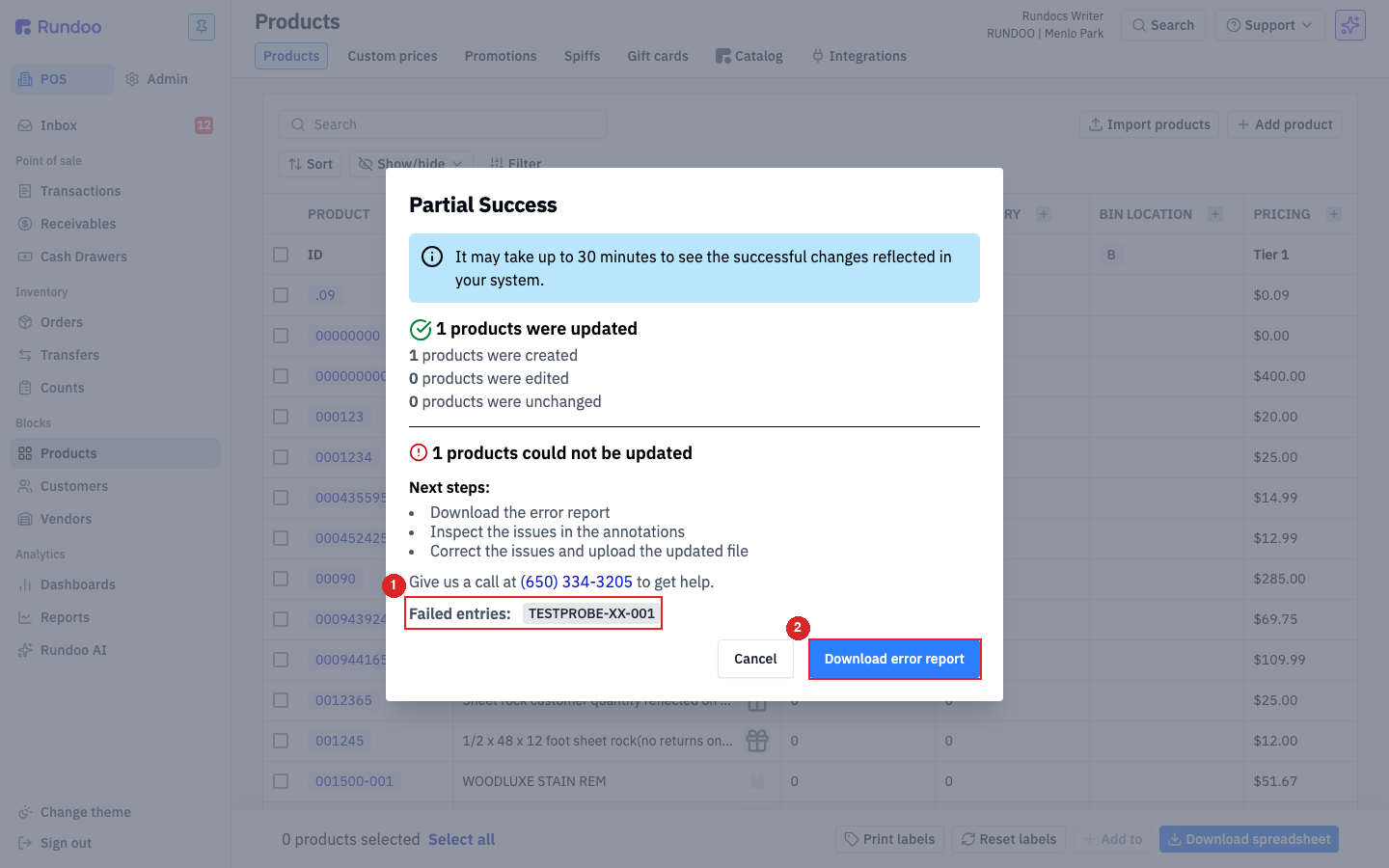
For smaller files (a few hundred rows) the result lands within seconds; 10,000-row imports can take a minute or two. The modal stays open until you dismiss it or download the error report.
How duplicates are handled
Rundoo treats Primary ID and Additional IDs as a single uniqueness namespace across your whole catalog. Any value used as the Primary ID of a product cannot also appear as the Primary ID or any Additional ID of any other product. And the same is true for Additional IDs. This is what makes a UPC scan unambiguous at the counter.
What that means for an import:
-
Duplicate
Primary IDwithin the file. If two rows share the samePrimary ID, one row will succeed and the other(s) will land inFailed entries:on the result modal. The error report's offending cell carries a comment that reads "identifier already in use." -
Additional IDcollides with another row'sPrimary ID(or anotherAdditional ID). Same outcome, same"identifier already in use"error on the offending row'sPrimary IDcell. -
Tokenblank, butPrimary IDalready exists in your catalog. Rundoo will not silently overwrite. The row lands inFailed entries:. To update an existing product, populate theTokencolumn for that row (use the Download spreadsheet action on a filtered Products list to pull currentTokenvalues pre-filled, see Create vs update below).
Multiple UPCs on one product? Yes, put them all in Additional IDs on a single row, separated by semicolons (e.g. 670750948565;697285030121). Cashiers can scan any of them and Rundoo resolves to the same product. Each ID still has to be unique across your whole catalog.
Create vs update
Rundoo uses the Token column (column A) to decide what each row does:
-
If
Tokenis blank, Rundoo creates a new product from the row's fields.Product NameandPrimary IDare required; everything else is optional. -
If
Tokenis populated with a value Rundoo generated on an earlier export, Rundoo updates that existing product. Any cell you filled in overwrites the current value; any cell you left blank is left alone.
The fastest way to bulk-edit is to first export the catalog you want to change (from the Products list's Download spreadsheet action), open it, edit only the cells you care about, and upload. The Token column comes back pre-filled, so Rundoo updates the right products.
Don't edit Token. Rundoo uses it as the internal identity key. Changing a value can misroute an update onto the wrong product. The header comment on column A says the same: "🛑 DO NOT CHANGE THIS FIELD."
Blank cells don't clear fields, they're ignored. If you want to actually empty a field on an existing product (e.g. remove a bin location), you need to clear it on the product's detail page. The importer treats blank as "leave unchanged."
Reviewing errors
There are two places errors surface. At upload time, and after you click Update products.
File-shape errors (at upload)
If Rundoo can't parse the file at all (wrong extension, missing Sheet1, header row corrupted) the modal shows a red banner at the top with the reason. The most common one is a wrong file extension:
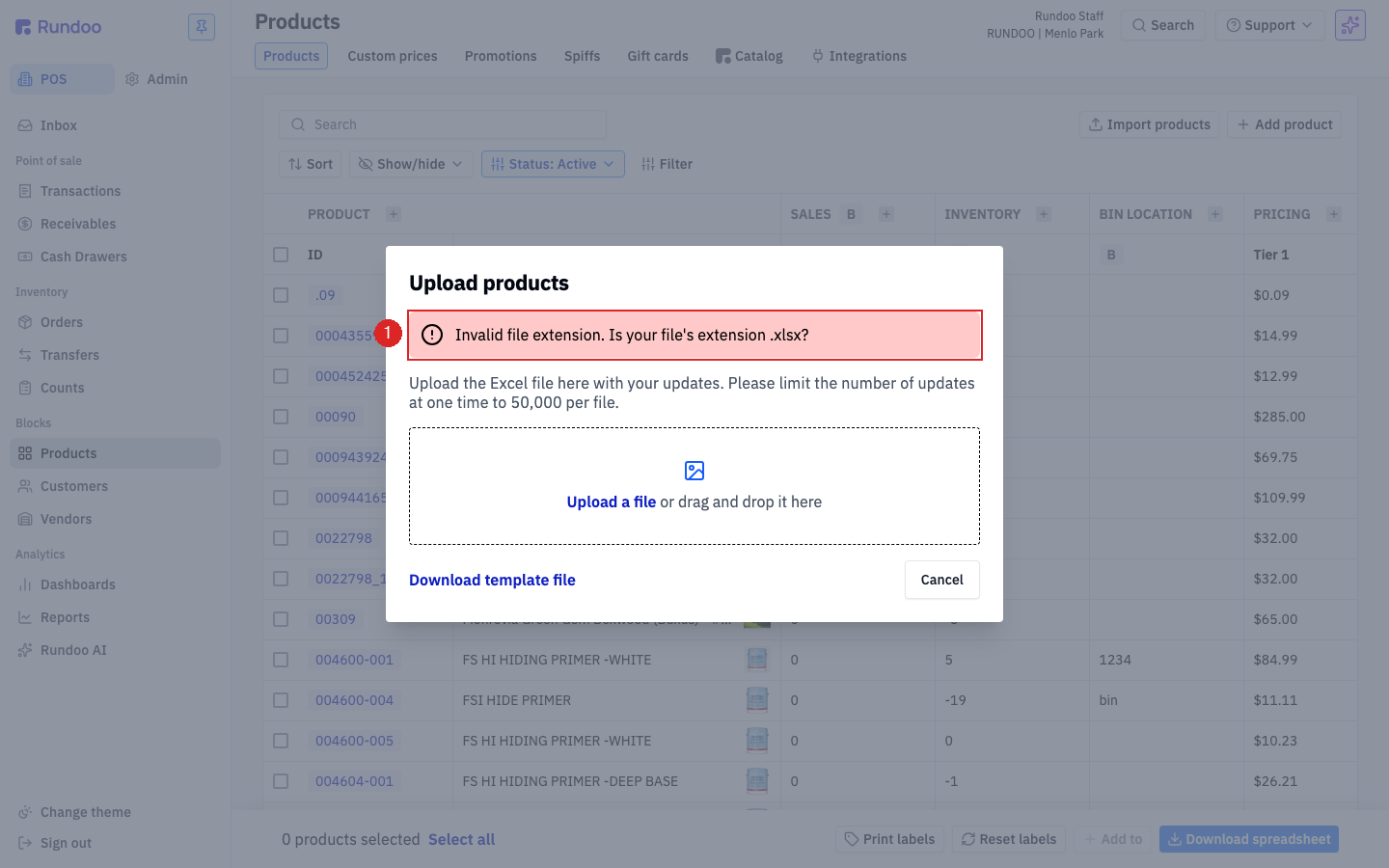
Fix the file in Excel, save, and retry. The modal stays open until the upload succeeds or you click Cancel.
Row-level errors (after commit)
When the file parses cleanly but individual rows don't pass validation (a wrong department on row 47, a duplicate Primary ID on row 312, a numeric field with a typo) Rundoo lands the rows that pass and lists the rest under Failed entries: on the Partial Success (or Failed) result modal. The Primary IDs of the rejected rows render as chips inline so you can spot patterns at a glance.
Click Download error report to grab the failing rows back as a fresh .xlsx. Each failing row carries a hover comment on the offending cell explaining what's wrong, for example "Department \"Stagigng\" doesn't exist; expected one of: Paint, Hardware, ..." for a typo'd department, or "identifier already in use" for a duplicate Primary ID or Additional ID. Fix the cells the comments call out, save, and re-upload the error file as a follow-up import. The rows that already landed are safe; you only need to fix and re-submit the rejects.
Build a partial import: filter-then-export
When you're updating a slice of the catalog (a vendor's lineup, one department's prices), don't download the full company catalog and edit it. Filter the Products list to the slice you want, by Default vendor, by Department, by tag, then click Download spreadsheet in the top-right. The download respects the filter and ships only the matching rows, with the Token column pre-filled, ready to edit and re-upload as updates.
Test with a small batch first. Before uploading 5,000 new products, try 5. It's faster to catch a wrong department name or a misread price column on a handful of rows than to unwind a large import.
Recommended Rundocs
-
Products, the product detail page, where everything you set in the template lives after import.
-
Customer imports, the same bulk-upload pattern for customer records.
-
Vendor imports, the same pattern for vendors.