
Rundocs › Accounts Receivable
Customer credits
Last updated 2026-08-07
A customer credit is a stored-value balance tied to a customer's account, money you owe them, applied against future invoices in Receivables. If you're trying to give a credit to a customer, add a credit to a customer's account, or apply and clear the credits already sitting under Receivables → Credits, this is the page. Whatever your store calls it (store credit, account credit), in Rundoo it's one thing: a customer credit. There's no "Customer credit" tender in the POS checkout drawer when you ring a sale, but you can refund a return straight to a customer credit, credits live on the customer record and draw down through the Receivables flow.
In the POS mode, open Receivables in the left tab. The Credits top tab lists every outstanding credit across all customers, with columns for ID, Type (Bill Payment or Return), Date, Customer, Status, and Credit amount. To see one customer's credit balance, open their detail page and look at the Balance tab. The aging row shows a Credits bucket on the far right with the total stored-value on file.
How customer credits work
A customer credit is a negative-balance line item attached to a Customer. Rundoo holds the money on their behalf, and the balance applies against the customer's next bill payment in Receivables. Credits come from three places:
-
Overpayments on a bill payment, a charge-account customer hands over a check for more than they owe. The overage becomes a credit via the
Credit to addfield. See Bill payments. -
Issued manually during a bill payment. You can attach a customer, skip the payment side entirely, and create a credit from scratch by toggling
Credit to addand entering an amount with a note. -
Refunding a return to customer credit. When you process a return and pick Customer credit as the refund tender, the money parks on the customer's account as store credit instead of going back to cash or a card. See Refunds.
Every credit shows up in two places: the company-wide Receivables > Credits list, and on the customer's Balance tab in the Credits aging bucket. Its Type tells you where it came from, Bill Payment (ID ends in -B) or Return (ID ends in -S), so a customer with credits from both an overpayment and a returned order sees both rows side by side. The credit applies as the customer pays down outstanding invoices through Receivables, Original is the full issued amount, Allocated is what's been applied so far, Balance is what's left.
Customer credit is not the same as a charge-account balance reduction. Charge account is credit you extended to the customer (they owe you); customer credit is money you owe them. Don't let the shared word "credit" conflate them.
Two ways a return becomes store credit. Refund the return to Customer credit and it parks on the customer's account as a spendable credit (Type Return, ID ending -S), listed in Receivables > Credits right alongside bill-payment credits. See Refunds. Or refund to Charge account, which reduces what a charge-account customer owes on their AR balance rather than creating a stored-value credit. Both keep money off the counter; pick Customer credit when they'll spend it later, Charge account when it should net against their balance.
Viewing a customer's credit balance
Open the customer from Customers in the left tab, then click the Balance top tab. The aging row at the top summarizes where their money sits, the Credits bucket on the far right shows the total stored-value balance across every unallocated or partially-allocated credit on the account.
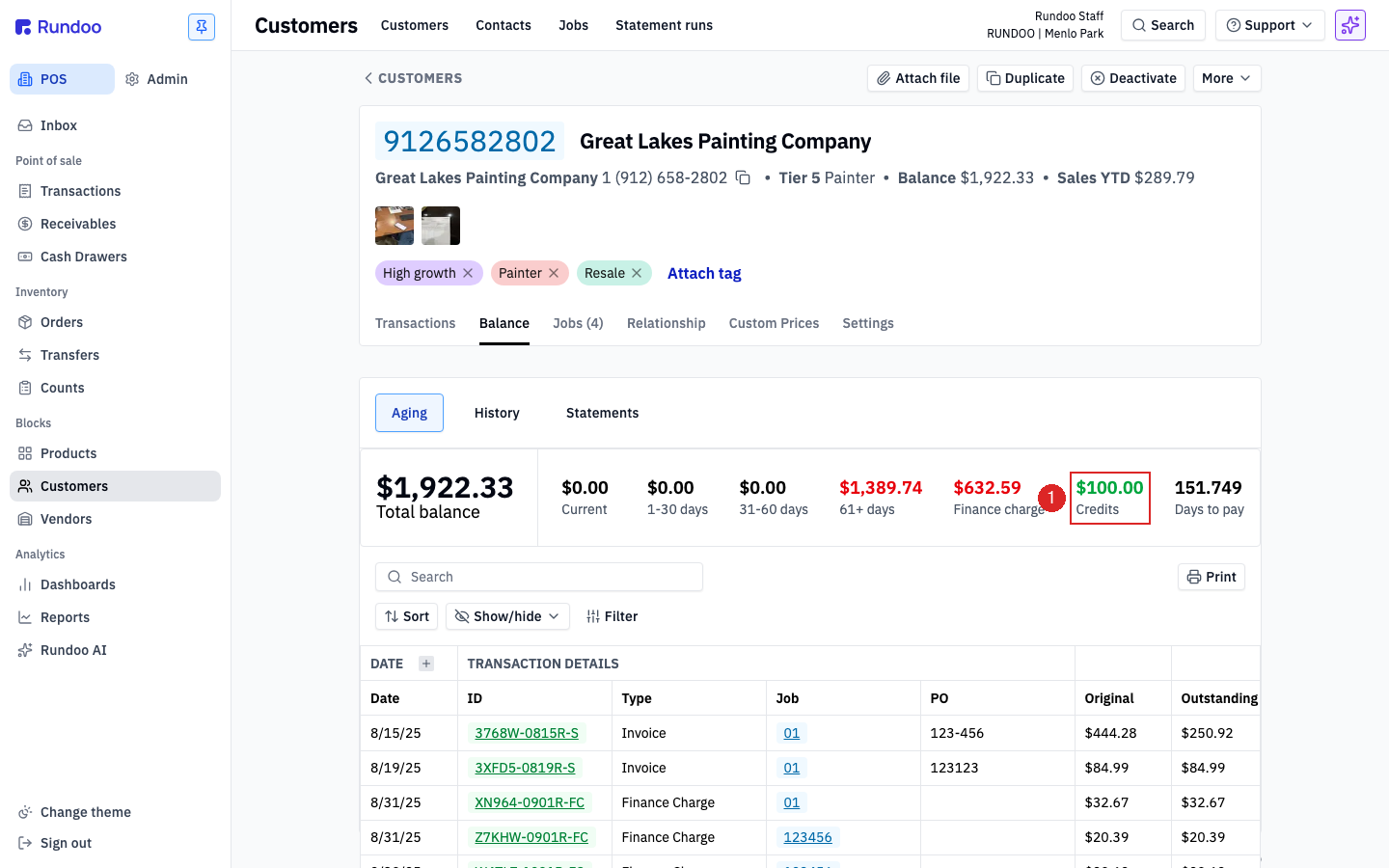
If Credits reads $0.00, the customer has no credits on file. Non-zero means there's something to spend.
Credits live on the customer, not on a job. Even when an invoice is scoped to a specific Job, the credit pool it draws from is on the parent customer. There's no per-job balance.
For the full audit trail, every credit, every debit, the order they were applied, click the History sub-tab (covered below under Credit transaction history).
💡 The company-wide list of every outstanding credit (across all customers) lives at Receivables > Credits. Useful when you're reconciling AR and want to see which credits are floating around, sorted by customer or date.
Issuing a misc credit / credit on account
A misc credit (also called a credit on account or stored-value credit) is issued through the bill payment flow (there's no separate "Issue credit" screen). Skip the payment side, enable Credit to add, select Write off as the tender, and you've issued a standalone credit on the customer's account with no money changing hands.
Common use case: applying a discount that the check doesn't cover. When a charge-account customer pays by check but is entitled to a percentage discount, their check is short of the invoice total by the discount amount. To balance the books without a refund or product return, issue a credit on account for the discount amount and select Write off as the tender, the customer owes nothing extra, the discount lands on their account as store credit they can spend on a future bill payment, and the books reconcile.
In the POS > Receivables > Payment tab:
-
Search for the customer in the left panel using the
Search accountsfield and attach them. -
Leave Payment amount blank. Don't check any invoice rows.
-
Scroll to the bottom. Check the Credit to add checkbox and enter the credit amount.
-
Fill Credit notes (required, explains why the credit was issued; Rundoo blocks issuance without it).
-
In the Payment section below, select Write off as the tender method. A blue info banner reads
Selected outstanding balances and finance charges will be cleared. That's fine when no invoices are checked, since nothing actually gets written off; theWrite offtender is what lets the transaction commit without an inbound payment. -
Fill Bill payment notes above (also required (Rundoo flashes
Please explain the write off in bill payment notes section aboveif you skip it)). It's a separate field fromCredit notes; both must be filled. -
Click Write off $X.XX at the bottom-right to commit. The credit is now on the customer's account.
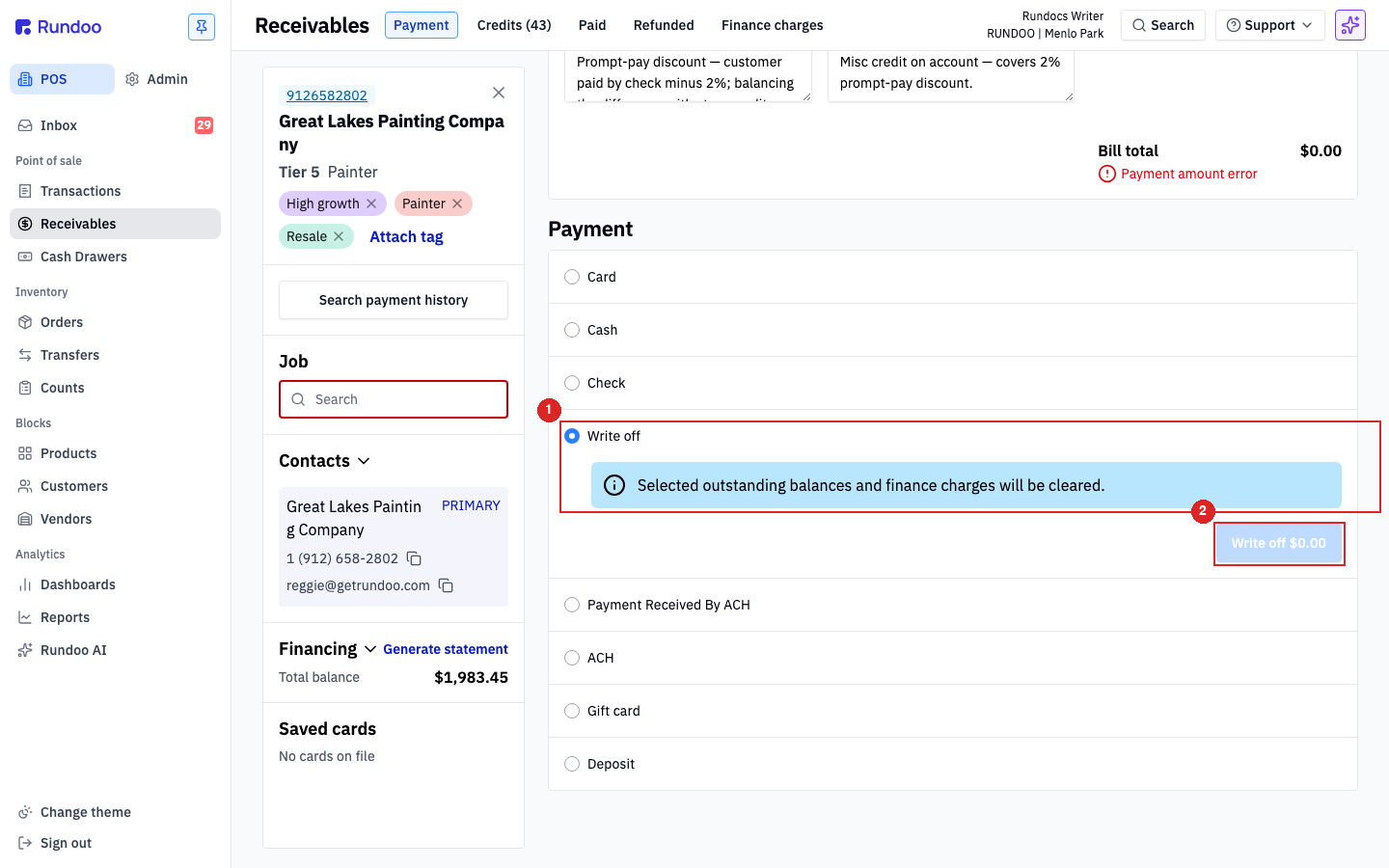
Submitting with Credit to add = $50.00, Write off as the tender, and notes in both fields means the customer owes nothing extra but now has $50 of store credit on file, applied automatically against their next outstanding bill payment.
⚠️ Both the
Credit notesandBill payment notesfields are required, and both are worth writing something specific. Rundoo distinguishes them because the bill-payment ledger and the credit ledger are separate audit trails. Write the why (e.g. "Prompt-pay discount, balancing check shortfall") in both. "Gift card for Bob's birthday" or "Return #1234 (cash refund unavailable)" beats "credit" three years from now when someone asks why this customer has $400 of stored-value nobody remembers.
Applying a credit to a balance due (or a new sale)
There is no Customer credit tender in the POS checkout drawer. The tender options on a sale are Card, Cash, Charge account, Check, E-commerce, Gift card, and Deposit (credits live in the Receivables tab on the customer record, not in the POS tender picker).
Applying an unallocated credit to a balance the customer already owes is one step (step 2 below): allocate it against their open invoices in Receivables. Ringing a new sale to Charge account first (step 1) only comes into it when the credit is paying for a brand-new purchase. Applying a credit to a new sale takes two steps:
-
Ring the sale to Charge account. In the POS > Transactions tab, build the sale as usual, attach the customer, and pick Charge account as the tender. The sale posts as an invoice on the customer's AR balance. The customer must be a charge-account customer (a statement-based finance term like
Net 30 Statementassigned). See Sales for the full POS flow. -
Apply the credit in Receivables. Open POS > Receivables, stay on the Payment top tab, and attach the same customer using
Search accounts. Switch the segmented control above the transactions list fromAllto Credits. The customer's outstanding credits appear as rows with negative balances; the Statement balance -$X.XX pill at the top right reflects the credit on file. Click Select oldest credits $X.XX to allocate the credit against the customer's outstanding invoices, then click Charge $0.00 at the bottom-right to commit (the allocation runs without moving any new money).
Credits apply at their balance, not their original value. A $100 credit that already had $30 applied only has $70 left to allocate. Rundoo enforces this; you can't overdraw a credit.
Clearing credits against specific invoices (partial allocation). To apply a credit to a particular invoice rather than the oldest balances, check both the invoice row and the credit row, then use the Allocated column on the right to set exactly how much of each applies. The invoice's allocated amount and the credit's allocated amount have to net to $0.00 before the transaction will commit (the Match allocated helper fills the balancing figure for you). Example: allocating a $40 credit to a $10 invoice, the invoice reads $10 and the credit defaults to -$40, so change the credit's allocated amount to -$10 so the two net to zero; the remaining $30 stays on the credit for next time. Committing marks that portion of the credit Allocated and clears it off the Credits list.
The Credits sub-tab is where the negative statement balance shows. The All sub-tab (the default landing view) shows the customer's regular Statement balance as a positive number (the outstanding finance charges and invoices), so a customer with a $100 credit on file but $1,952.66 in past-due charges will read Statement balance \$1,952.66 on the All tab and Statement balance -\$100.00 on the Credits tab. Both are correct. Just scoped to different views.
Transferring a credit to another customer
There's no direct "move this credit to a different customer" button in Rundoo. Credits live on the customer they were issued to; the credit detail page offers Email and Print, nothing else.
To effectively transfer a credit from one customer to another, do it in two steps:
-
Zero out the credit on the original customer. Find the credit's source bill payment on its detail page (the
Created by Bill Payment:link at the top). Open that bill payment and Void it. The credit reverses cleanly off the original customer's account. -
Re-issue the credit on the new customer. In POS > Receivables > Payment tab, attach the new customer, leave Payment amount blank, check Credit to add, enter the same amount, write a
Credit notesentry that points at the original (something likeTransferred from {Original customer name}, credit {ID}) select Write off as the tender, and fill Bill payment notes with a parallel reference. See Issuing a misc credit / credit on account above for the full sequence.
The note matters. Three years from now, someone reconciling the books will want to see why the first customer's credit vanished and the second customer's credit appeared. Leave them the trail.
A credit issued through the bill-payment flow traces back to that bill payment (ID ends in -B), and voiding it cleanly reverses the credit. A credit that came from a return (Type Return, ID ends in -S) traces back to the return instead, reverse it by voiding or re-refunding that return, which also handles the inventory side. See Bill payments and Refunds for the respective void mechanics.
Fixing a stuck or negative credit
If a customer's credit balance is negative, won't apply to a bill payment, or otherwise looks wrong, there are two ways to clear it:
-
Void the originating bill payment. Find the bill payment that generated the credit (its ID ends in
-B, see Bill payments). Voiding reverses the credit cleanly. Re-enter the payment from scratch if it was real. -
Write off the credit with a dummy transaction. For orphaned credits you can't trace back, a zero-sum write-off zeroes the balance. This posts a journal entry, talk to your accountant before you use this path.
When Support asks for a credit ID: they may need the bill's ID or the ledger-entry's ID. They're different. Either is fine if you say which one you're sending.
Credits from overpayments
The most common way a credit appears on a customer's account isn't a manual issuance, it's an overpayment on a bill payment. When a charge-account customer hands you a check that's larger than what they owe, use the Credit to add field on the bill-payment screen to stash the overage as a credit rather than refusing the check or trying to hand cash back. See Bill payments for the full flow.
Overpayment-driven credits and manually-issued credits both land in the same place, the credit shows up on the customer's Balance tab in the Credits aging bucket and in the company-wide Receivables > Credits list. Both read Type Bill Payment with an ID ending in -B, whether the credit was an intentional overpayment or a misc credit issued through the bill-payment flow. A credit that came from a return instead reads Type Return with an ID ending in -S (see How customer credits work above).
Credit transaction history
Every debit and credit against a customer's account rolls up on the Balance > History sub-tab. It's the append-only ledger view: Date, ID, Type (Bill Payment, Invoice, Finance Charge, Discount, etc.), Debit, Credit, and a running balance.
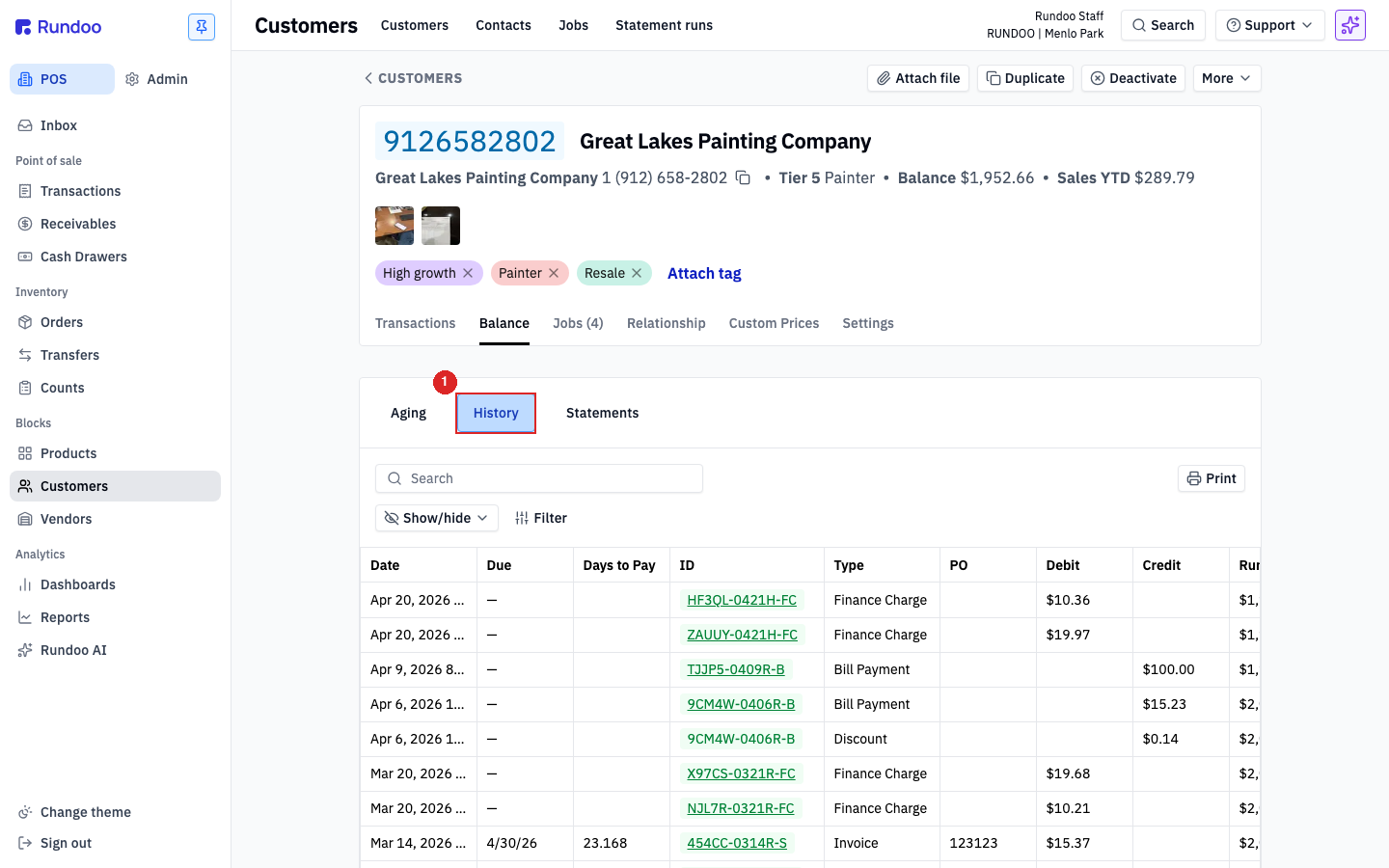
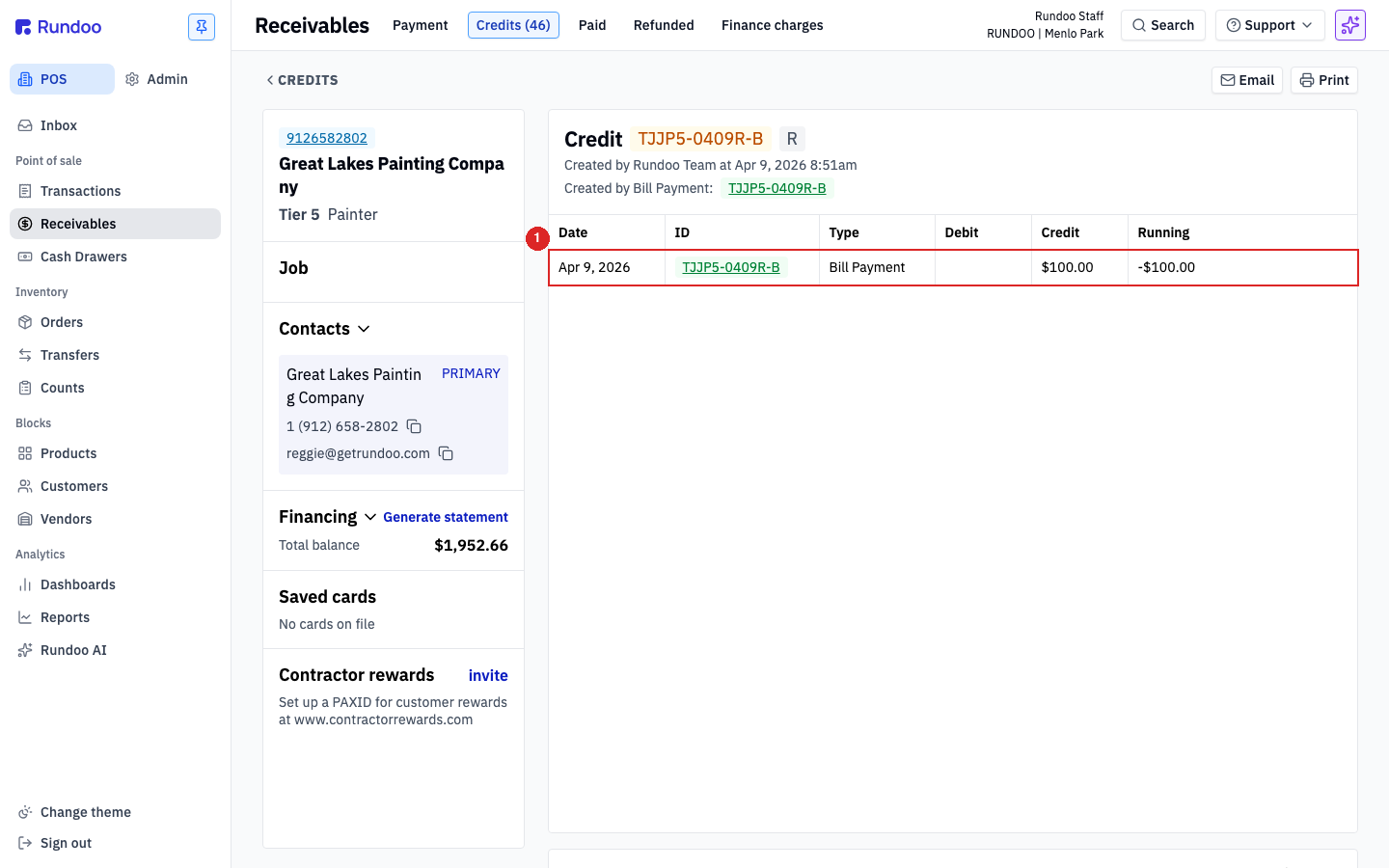
To see the detail behind a single credit, where it came from, what's been applied against it, what's left, click its ID from either this History tab or the Receivables > Credits list. The credit detail page shows the origin bill payment (Created by Bill Payment:), the ledger of debits and credits against it, the note you wrote when issuing it, and the running balance.
💡 Rundoo doesn't expire credits. A customer credit sits on the account until it's allocated against an invoice or manually voided. If your store policy expires credits after a fixed window, you'll have to track that outside Rundoo and zero them out manually.
Finding a credit on a past statement
A credit appears as a line item on the statement covering the date it was issued. On every statement after that one, the credit is no longer a line item. It has already been applied to the customer's balance, so subsequent statements reflect the reduced balance, not a fresh credit line.
To find a customer's prior statements, in the POS > Customers tab, open the customer, click the Balance top tab, then the Statements sub-tab. Each row shows the Statement period (e.g. Apr 30, 2026 - May 6, 2026), the Total balance at generation, and download / email actions on the right.
A credit issued in one period that has been spent against invoices in later periods will appear as a line item on the original period's statement only, not on the current one. To answer "where did my June 2025 credit go," open POS > Receivables > Credits and find the credit by ID or customer. If Status reads Allocated, the credit was already applied to invoices between then and now, and the corresponding payments and balance reductions show on the customer's Balance > History sub-tab.
To confirm whether a specific credit is still spendable, in the POS > Receivables left tab, the Credits top tab, the Status column reads Allocated (showing $0.00 in the Credit column, meaning the full amount has been spent) or Unallocated (with a remaining negative balance, meaning it's still on file). An unallocated credit applies on the customer's next bill payment or sale; an allocated credit is done.
Two customers can both have a 2023 credit and a 2025 credit on file with different fates: the older one might be Unallocated because nothing in their account has consumed it yet, while the newer one is Allocated because invoices in between absorbed it. Status, not age, is what determines whether a credit shows up on a current statement.
For the per-credit audit trail, click the credit's ID from either Receivables > Credits or the customer's Balance > History sub-tab. The credit detail page shows every debit and credit applied against it, in order.
Recommended Rundocs
-
Customers (setting up the customer account that credits attach to).
-
Bill payments (how overpayments become credits, and the surface where manual credits are issued).
-
Refunds. How refunds actually work in Rundoo (not via customer credit; tender options are Card, Cash, Charge account, Check, Gift card, E-commerce, Deposit).