
Rundocs › Hardware
MCPRINT thermal printer (legacy hardware)
Last updated 2026-05-10
Legacy hardware. MCPRINT is a discontinued thermal printer SKU. For new installs, see Hardware setup. This page exists for stores still running MCPRINT units.
The MCPRINT is a Star Micronics thermal receipt printer Rundoo used to ship before moving to the current hardware line. It connects over your network (not to a workstation) and prints via Star CloudPRNT pointed at Rundoo's print service.
Before you start
You'll need the Star Quick Setup Utility on your phone to configure the printer.
You will not plug the printer into a workstation over USB. The MCPRINT talks to Rundoo over the network.
Step 1: Power on and load paper
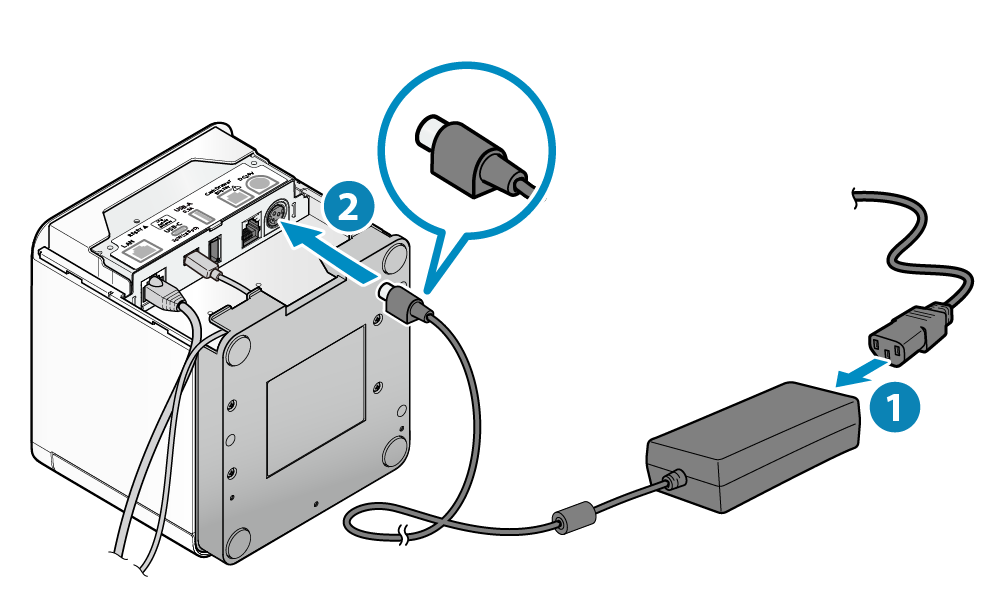
Plug the power cord into the AC adapter, then plug the adapter into the printer. Turn the printer on.
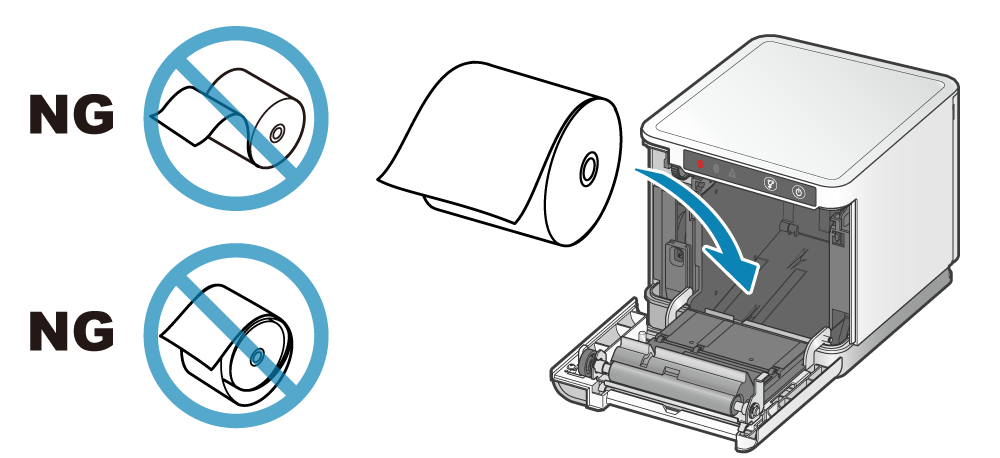
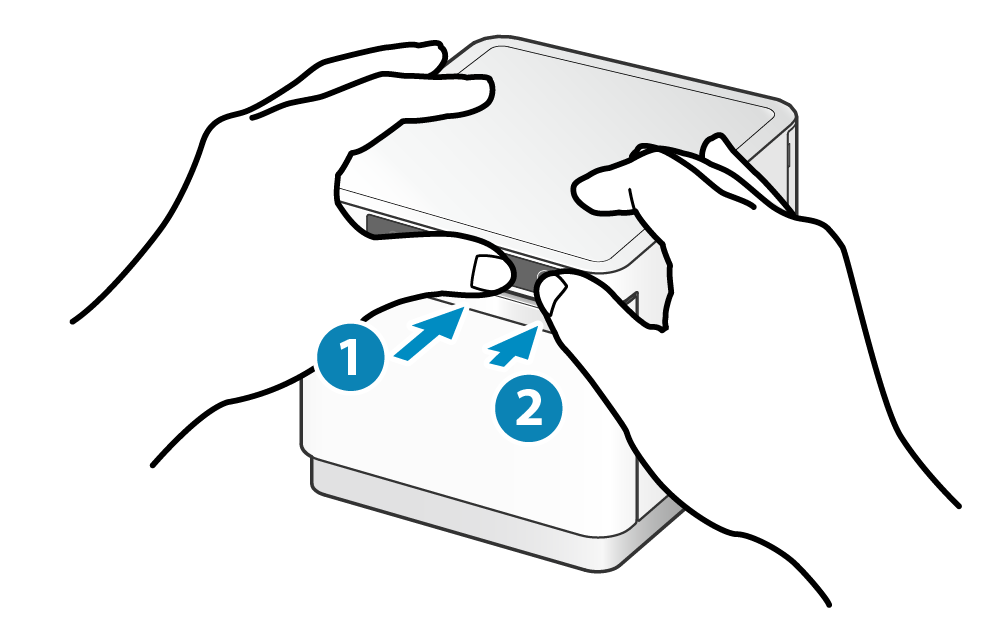
To load paper, pull the opening lever to open the cover, drop the roll in with the paper feeding off the top, pull the end straight out, and press the cover closed on both sides. The printer auto-feeds and cuts when it's set correctly.
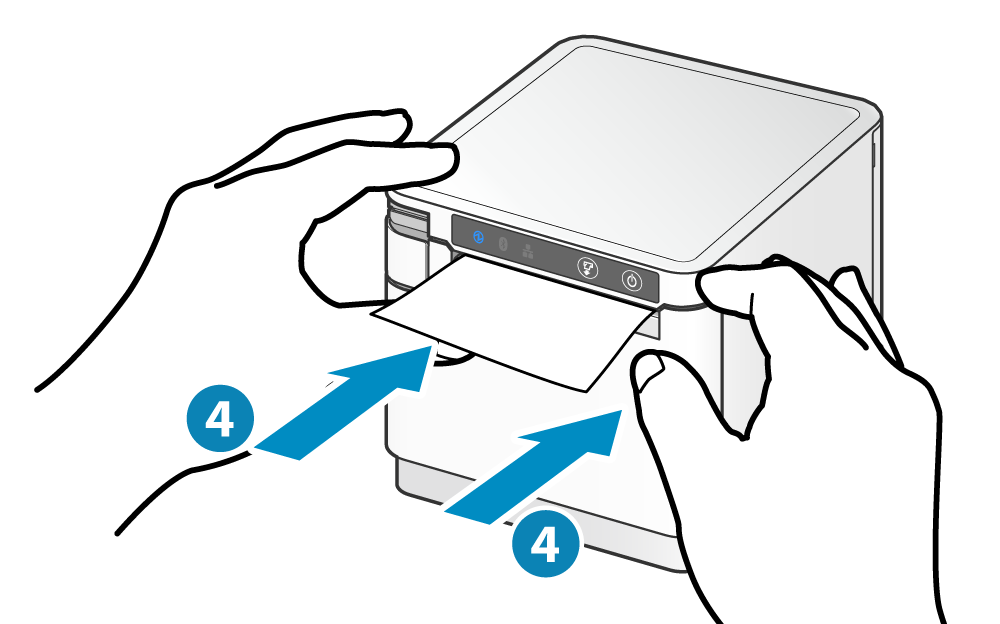
Use paper that matches the printer's spec (79.5 mm wide by default, or 57.5 mm with the separately sold roll guide). Full spec is in the Star paper roll reference.
Step 2: Connect to the network (wired)
Plug one end of an ethernet cable into your hub or router (not directly into a computer), and the other end into the LAN port on the back of the printer.
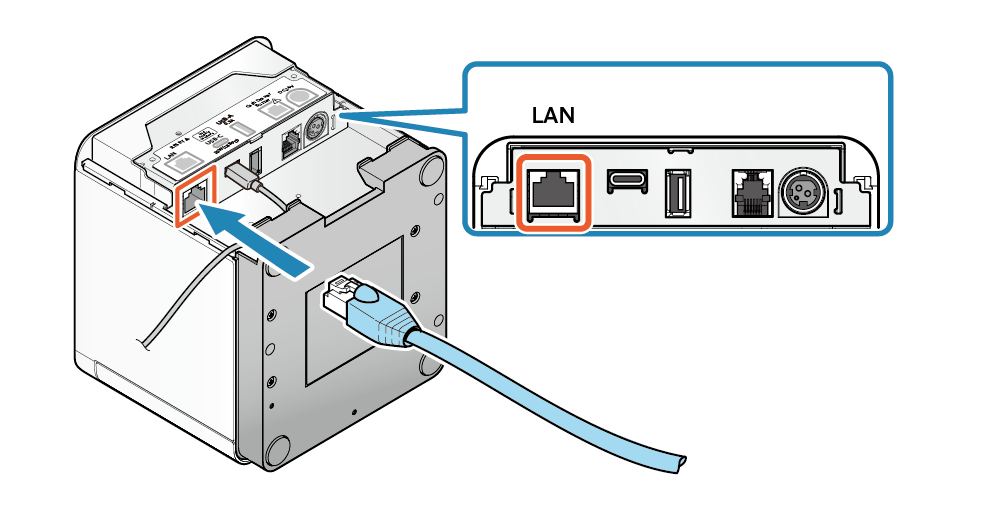
DHCP needs to be on for the printer to get an IP. It's on by default. If the printer never connects, check DHCP in the Star app under Network Settings.
Step 3: Print the pairing QR code
Hold the Power button for one second or more to turn the printer off.
With all lights off, hold down the FEED button, then press the Power button. Release Power but keep holding FEED. Self-Printing starts, let go of FEED once it does. Several sheets print; wait for the printer to cut twice.
The 2nd sheet (or 5th sheet if a wifi dongle is attached) has the Bluetooth pairing QR code. Open Star Quick Setup Utility and scan it to pair.
Step 4: Update firmware and point at Rundoo
In the Star app, open Printer Settings > Firmware Update and let it run. It takes up to about 10 minutes.
Then open Printer Settings > Star CloudPRNT Settings and set:
-
CloudPRNT Service: on
-
Server URL:
https://api.rundoo.app/printer -
Change User Name and Password: on
-
Username:
public -
Password:
rundoo -
Polling Time (Sec.):
1
Tap Apply. The printer restarts.
If the app asks for a password to open settings, it's public.
Step 5: Send us the MAC address
Near the top of the Star app, find Selected Printer. The MAC address is the bottom line (e.g. 00:11:62:1e:86:ec). It's also printed on the self-print receipt from Step 3.
Send the MAC address to your account executive or to Rundoo Support (they'll wire it to your company's subdomain and location so print jobs route correctly).
Step 6: Test it
In the POS mode, ring up a test item at $0.01, complete the sale, and pick the MCPRINT from the printer dropdown on the post-sale modal. You should see Print thermal receipt run, and a receipt should print.
If it prints, return the test sale so it doesn't affect accounting or inventory. If it doesn't, see troubleshooting below.
Troubleshooting
Nothing prints after a sale
-
Check that CloudPRNT Service is on in the Star app and the Server URL is exactly
https://api.rundoo.app/printer. -
Confirm the printer has an IP (DHCP on, network cable in the hub/router, not a computer).
-
Confirm the MAC address Rundoo has on file matches the printer. Mismatches are the most common setup bug. Resend the MAC to Support.
The logo prints blocky, huge, or as a black square
Happens with multi-color or transparent logos. Re-upload a flat, single-color logo from the Admin mode under company settings.
Paper jam, or a flashing blue / red / purple light
Turn the printer on if it isn't, open the cover via the opening lever, and pull out every fragment of paper. Do not leave any behind. Reload the roll per Step 1.
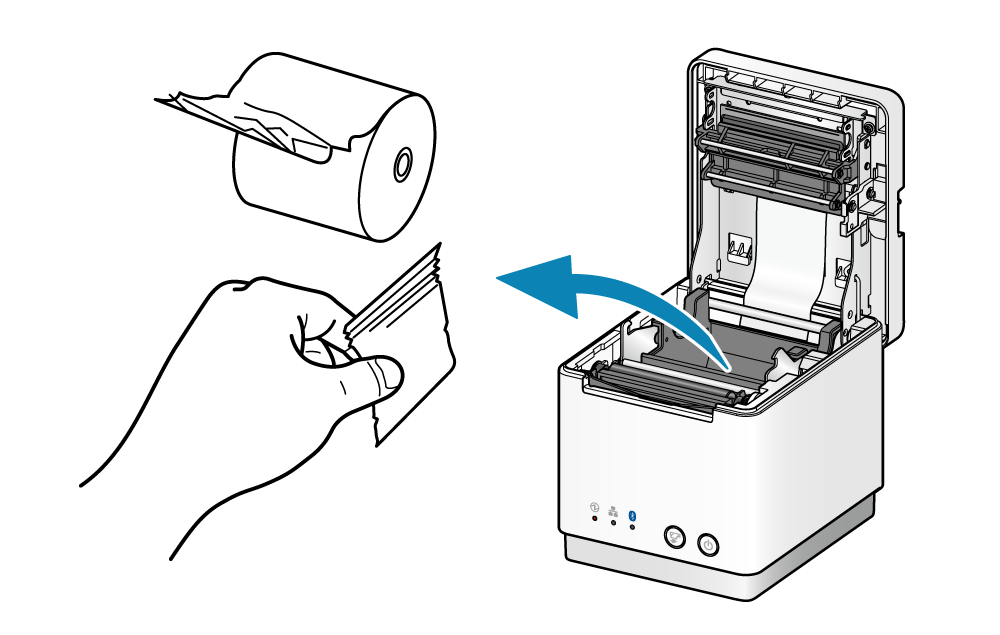
The print head gets hot during and right after printing. Don't touch it while clearing a jam.
To prevent future jams: wind loose rolls tight before loading, pull the paper edge out straight, and don't touch the paper while it's feeding or being cut.
Compatible cash drawers
Most standard POS cash drawers work with the MCPRINT. Known-compatible lines: APG Vasario, Star Micronics, Epson, M-S, POS-X. Check the drawer's spec sheet against your MCPRINT model before buying.