
Rundocs › Accounting
Bank reconciliation
Last updated 2026-11-20
Bank reconciliation lets you upload a statement from your bank or card account and match each line against the transactions Rundoo already recorded, so your books agree with what the bank actually cleared.
In the Admin mode, open Reconciliation in the left sidebar (it sits in the accounting group, near Chart of Accounts, Manual Journal Entries, and Accounts).
What reconciliation does
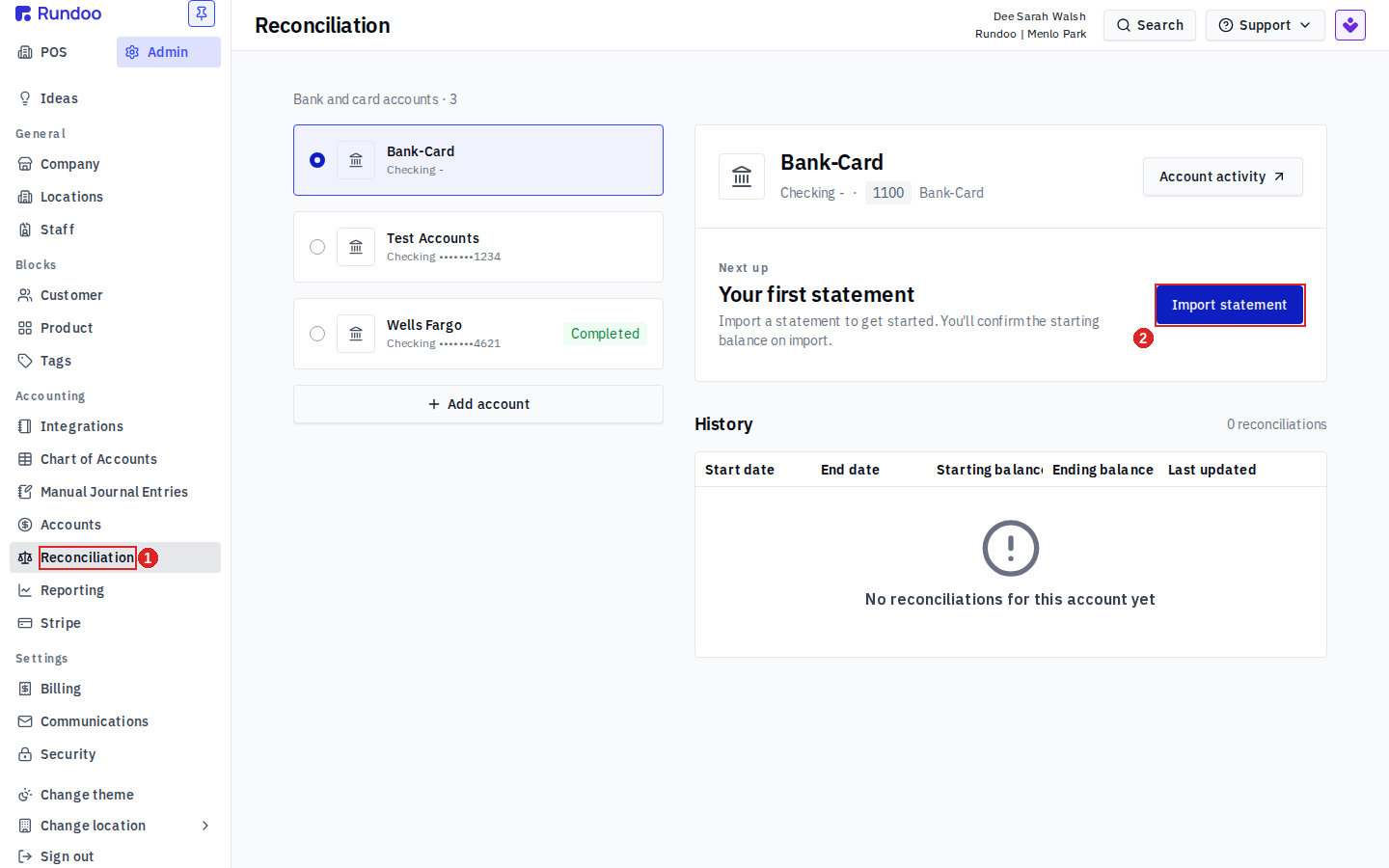
The page is split in two. On the left is Bank and card accounts, a list of every checking or card account you've set up to reconcile, with an Add account button at the bottom. Click an account and the right side shows that account's reconciliation work: its starting balance, an Import statement button, and a History of every reconciliation you've run against it.
A brand-new account reads 0 reconciliations with No reconciliations for this account yet, prompting you to import your first statement to get started. Reconciliation is one of the first steps toward Rundoo being a full accounting platform, so this is the surface that will grow as more of the workflow lands.
Step 1: Add a bank or card account
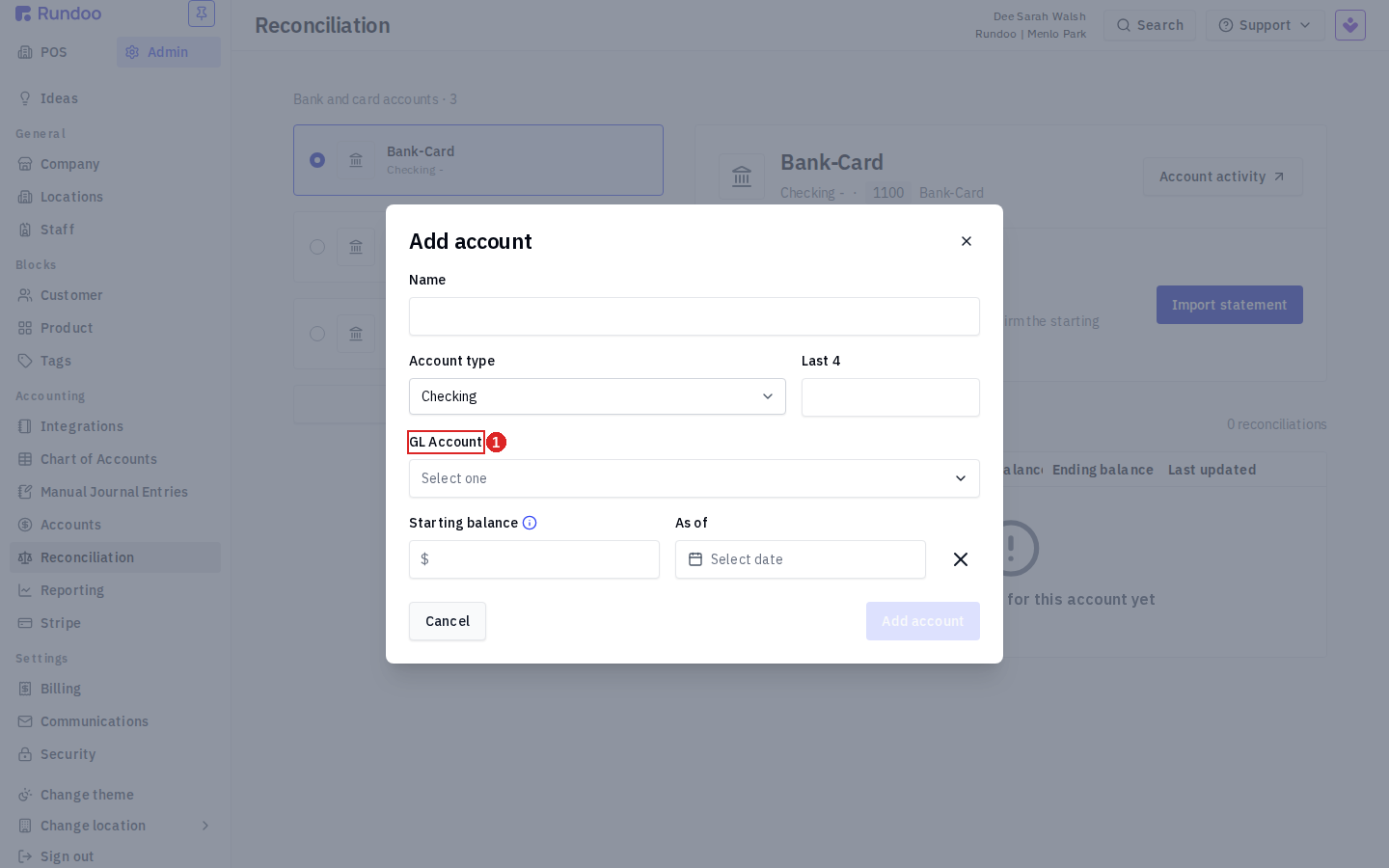
Click Add account and fill in the modal:
- Name. What you'll call this account in the list (for example, your store's operating checking account).
- Account type.
Checkingis the default. - Last 4. The last four digits of the account or card number, so you can tell two accounts apart at a glance.
- GL Account. The account in your Chart of Accounts that this bank or card account posts to. This is the tie that lets Rundoo compare the bank's balance against your ledger.
- Starting balance and As of. The balance on the account as of a date you pick. This is the point Rundoo reconciles forward from.
Pick the GL account carefully. Reconciliation compares your bank's cleared activity against the activity Rundoo posted to this one GL account. If you point two bank accounts at the same GL account, their activity mixes together and nothing ties out.
Step 2: Import a statement
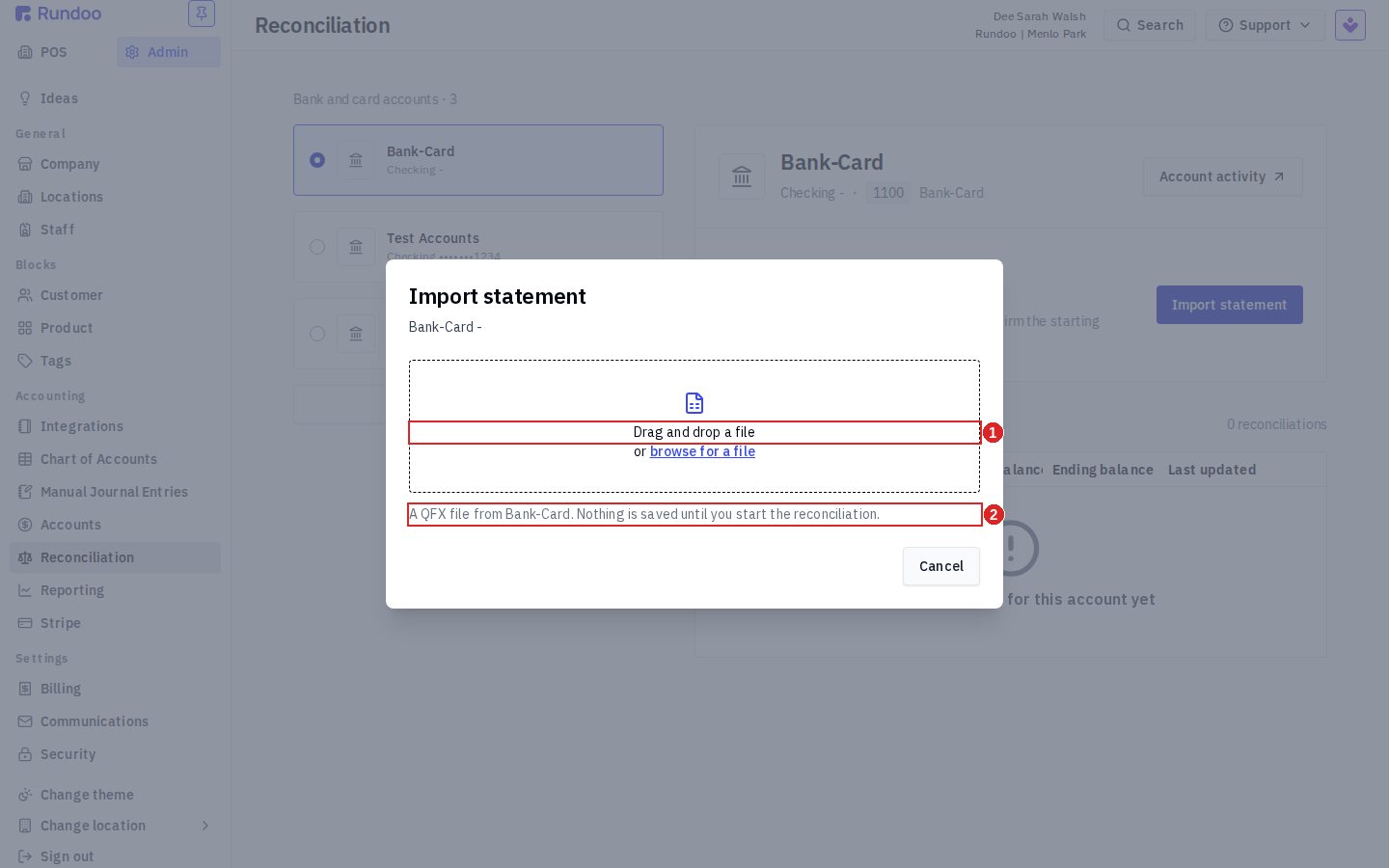
With an account selected, click Import statement. The modal lets you drag and drop a file or browse for a file. Rundoo expects a QFX file downloaded from that bank, the standard statement-export format most banks offer under a "download" or "export transactions" option in online banking.
Two things to know before you upload:
- Nothing is saved until you start the reconciliation. Importing the file only loads the bank's lines for you to review. You can back out with Cancel and nothing is written.
- You confirm the starting balance on import. Rundoo shows the balance it's reconciling forward from so you can check it against the statement before you begin.
QFX only, for now. The import reads a QFX file. If your bank offers several export formats, choose QFX (sometimes labeled "Quicken" or "Web Connect"). A CSV or PDF statement won't import.
Step 3: Match the bank feed to Rundoo
Once the statement is loaded, you match each line from the bank feed to the transaction Rundoo already recorded for it, a deposit, a payout, a card batch. A line that matches confirms the two systems agree on that item; anything left unmatched is where your books and your bank disagree and needs a look.
Rundoo matches one bank line to one recorded Rundoo transaction. Matching several Rundoo transactions to a single lumped bank line (a deposit that batches a day's worth of sales into one number, say) isn't built yet, it's on the idea board as a next step. Until then, split or itemize on the bank side where you can so lines pair up one-to-one.
Reviewing past reconciliations
Each account keeps a History of the reconciliations you've completed against it, so you can see when the account was last reconciled and open a prior statement. An account you've never reconciled shows No reconciliations for this account yet until you finish your first one.
Recommended Rundocs
- Chart of Accounts, where the GL account each bank account points at lives.
- Deposits, how the cash and card money you take in posts to your ledger.
- Account mapping, how Rundoo decides which GL accounts a transaction posts to.