
Rundocs › Accounts Receivable
Refunds
Last updated 2026-08-17
A refund is the money-movement side of a return: how a customer gets their money back to a card, to cash, or as store credit, and why a card refund is sometimes restricted or blocked. Every return creates a refund to some tender method, and the method you pick is what actually moves money (or balance, or credit) to the customer.
Refunds go back to the original card or tender by default. If you can't refund a payment to a card, or a tender you expected is missing from the refund list, it is almost always because that tender can't be refunded to (see Some tenders can't be refunded to below), not because Rundoo is broken. And if the customer would rather have store credit than money back on a card, you can refund to a customer credit instead (see Refunding to store credit).
In the POS mode, refunds aren't a standalone route. They're the Return section at the bottom of the return builder. Anywhere a return happens, the refund tender selector is right below it. See Returns for the procedural walkthrough.
How refunds work
Rundoo ties refunds to returns. You don't refund in the abstract, you open the original Sale, click Return, set the lines coming back, and then pick how the customer gets their money. The refund amount is whatever the return totals to (minus any restocking fee): negative subtotal, negative tax, negative total.
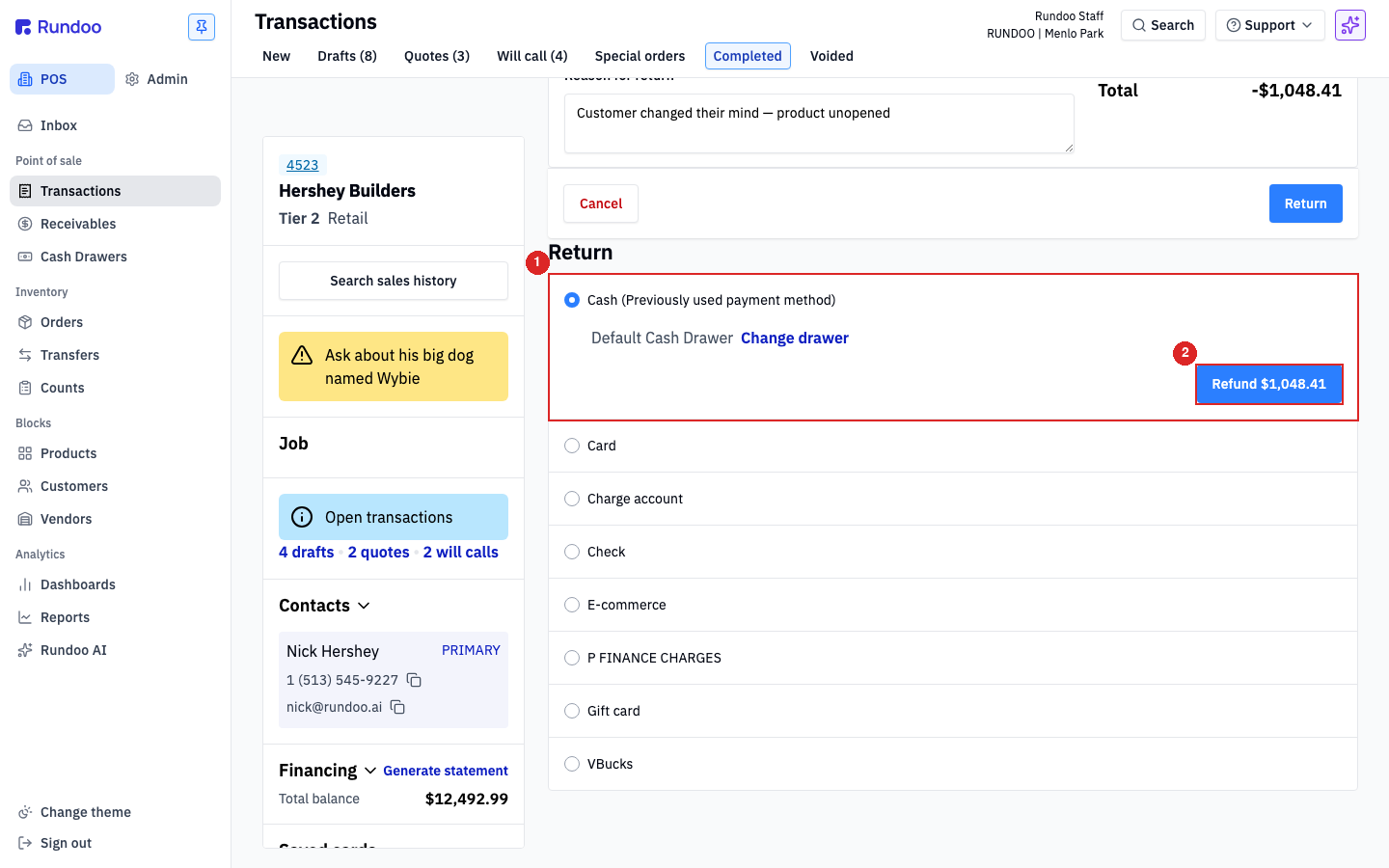
The Return section at the bottom of the return builder lists every tender method your company has enabled (see Tender methods) as a row of radio options. The original tender used on the sale is preselected and labeled (Previously used payment method), Rundoo's default is to send the money back the way it came. The blue Refund $X.XX button sits inside the selected tender's row so the action is tied to the method you picked.
Refunds are final once you click that button. There's no "undo refund". Reversing one means ringing a new sale for the returned lines to put them back on the customer's books.
Where past refunds live
Every refund Rundoo has processed shows up in the Receivables left tab, under the Refunded top tab, by date, amount, customer, and the tender it went back to. That's your audit trail for anything money-back.
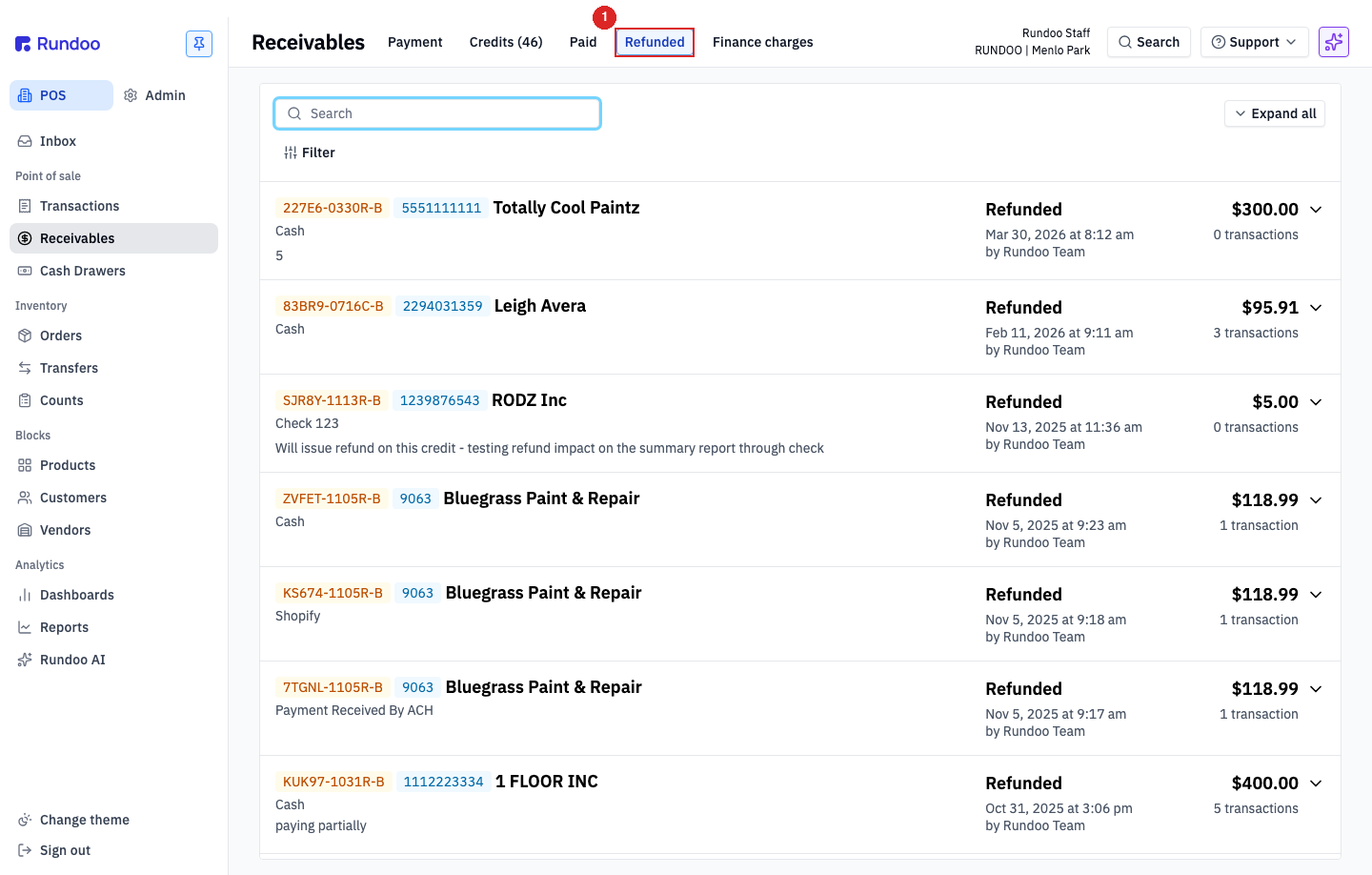
💡 Use the
Filtercontrol strip on the Refunded list to narrow by tender, date range, or location when you're reconciling a day's refunds against your cash drawer or payouts.
Refunding to the original tender
This is the default and usually the right call. If the customer paid Cash, they get cash back. If they paid by Card, the refund goes back to that card. If they paid on Charge account, it credits their AR balance.
Rundoo preselects the original tender with (Previously used payment method) next to the label (you can just click Refund $X.XX and be done).
-
Cash. Rundoo picks the default cash drawer. Click Change drawer on the Cash row if you need to refund from a different register's drawer (end-of-day balancing on a different till, for example).
-
Card. If the sale was charged to a card, refunding to that card runs the reversal through your payment processor. Card refunds go back to the original card; Rundoo doesn't accept partial refunds smaller than what the processor will accept (typically a few cents). Refund-to-a-different-card requires the customer present their card so Rundoo can capture it like a fresh tender.
-
Charge account. Credits the customer's outstanding balance (covered below under Refunding a charge-account sale).
-
Check. Rundoo marks the refund as issued by check (your staff physically writes and hands over the check). Rundoo doesn't print checks.
⚠️ Some tenders can't be refunded to. Tenders with no reverse capture flow, for example certain custom check-only tenders or tenders configured as inbound-only, won't show up in the refund row. If you're refunding to something other than the original tender and don't see it, check the tender's setup in Tender methods.
Refunding to a different tender
You can override the default and pick any enabled tender method in the list. Common reasons:
-
Customer wants cash back on a card sale. Your store may allow this for small amounts; some stores don't as policy. Rundoo doesn't block the switch. Your return policy decides.
-
Cash drawer is short. If the original sale was Cash but you don't have enough in the drawer to cover the refund, push it to a different tender (Check, Gift card, Charge account credit).
-
Customer wants store credit instead of money back. Refund to a Customer credit line item (covered below under Refunding to store credit).
-
Original tender is no longer available. Expired card on file, closed check account, etc. Pick a different tender.
Clicking a different tender row expands that tender's input UI. Picking Card on a non-Card sale, for example, opens the Swipe card / Enter card manually panel. The customer has to present a card for you to refund onto, because Rundoo doesn't have one on file from a Cash sale.
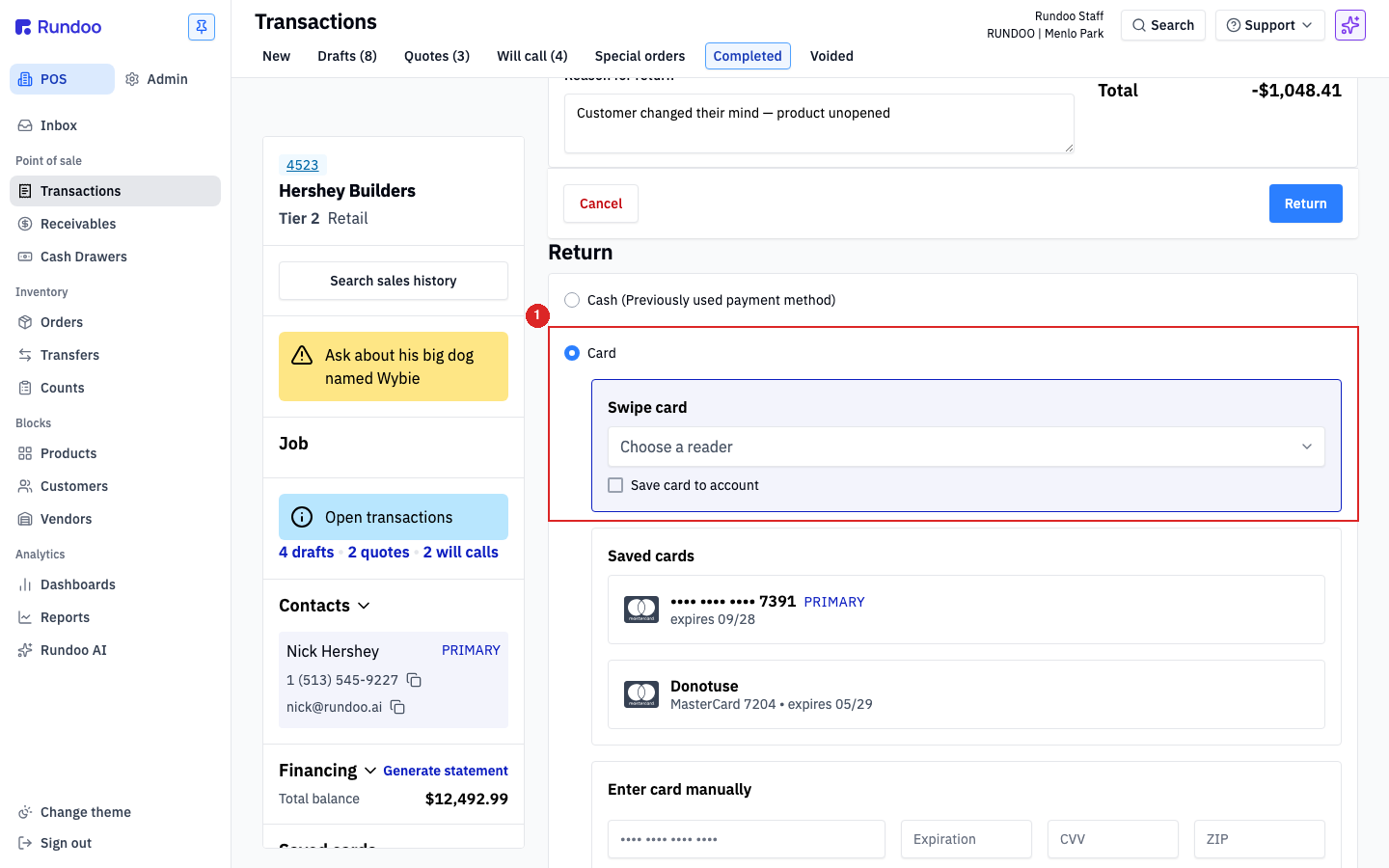
⚠️ Rundoo will let you refund a Card sale to Cash (or to a different card) at the UI level. Whether that's allowed by your card brand's rules, your store policy, or PCI constraints is on you. The software doesn't enforce it. When in doubt, refund back to the original card.
Refunding a charge-account sale
When the original sale went on Charge account (the customer's AR balance), refunding to Charge account credits the balance (it doesn't put cash in the customer's pocket). The total they owe goes down by the refund amount.
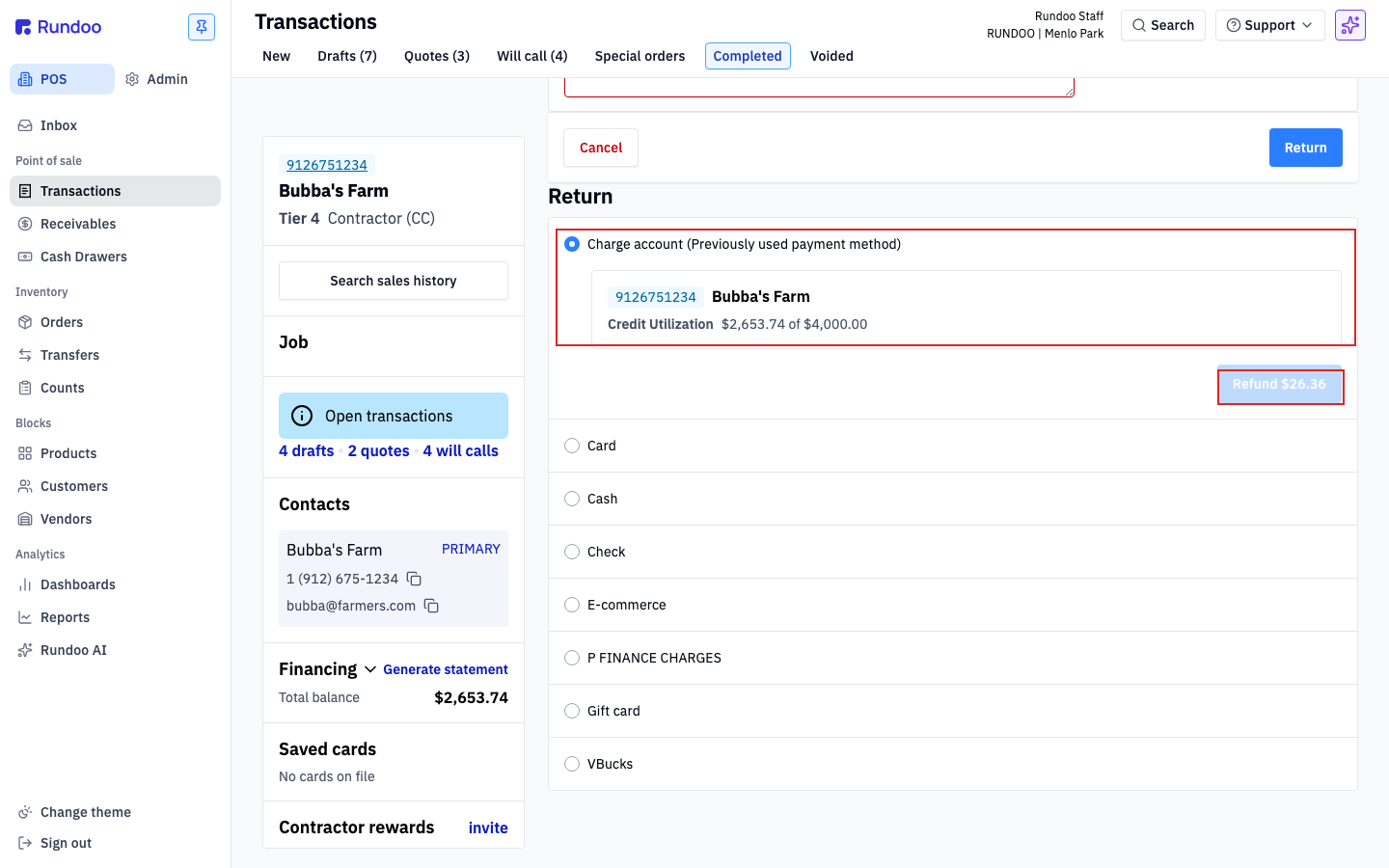
The Charge account row shows the customer's ID, their name, and their current Credit Utilization, balance owed out of their credit limit ($2,653.74 of $4,000.00 for Bubba's Farm above). After the refund fires, the balance drops and the credit utilization readout reflects the lower number.
The credit shows up on the customer's next statement as a negative line, netting against whatever else they owe. When they pay down the balance, the credit is already baked into the amount due. See Bill payments for how customers pay down a statement.
💡 If the customer paid on account and now wants cash in hand instead of a balance reduction, pick Cash (or Check) in the tender selector instead of Charge account. Rundoo won't force the refund back to AR just because the sale was on account.
Refunding to store credit
If the customer wants store credit they can spend on a future sale, not cash now, not a card reversal, not a balance adjustment, refund to a Customer credit. A customer credit is a stored-value balance tied to the customer's account that spends like a tender at checkout.
See Customer credits for the full mechanics (creating a credit, setting an expiration, spending one at POS, and the difference between store credits and AR balance reductions).
💡 Customer credit vs Charge account: Charge account is credit you extend to the customer (they owe you, you reduce their debt). Customer credit is credit you owe the customer (you hold their money, they spend it later). They're opposites, don't let the shared word "credit" mix them up.
Refunding a bill payment
A bill payment that was rung incorrectly (wrong customer, wrong amount, applied to the wrong invoices) can be refunded directly from its detail page. This is different from refunding a sale's return: there's no return builder, no line items coming back, just the money moving back out.
In the POS mode, open Receivables in the left tab and click the Paid top tab (the list of every bill payment that's settled). Click the bill payment's row to open its detail page. The action cluster at the top shows six buttons: Re-allocate, Attach file, Issue refund, Email, Print, Void. Click Issue refund to open the refund flow (same tender selector and behavior as a return-driven refund, just scoped to the bill payment's amount and originating tender).
⚠️ Issue refund vs Void. Both reverse the payment, but they're not interchangeable. Issue refund moves money back to the customer (or onto store credit), keeping the bill-payment record intact for the audit trail. Void undoes the bill payment entirely, appropriate when the payment shouldn't have happened at all (wrong customer, duplicate keying). Pick
Voidfor a clean reversal of a mistake; pickIssue refundwhen the customer is actually getting their money back. Some tenders' irreversibility (write-offs in particular) meansVoidisn't always available, see the irreversibility callout under Bill payments.💡 Refunding an invoice, not a payment. If the issue is the underlying charge-account sale (returned merchandise, billing error on the original sale), don't refund the bill payment, return the sale via Returns and refund to Charge account. That credits their balance and creates a clean accounting trail. Refunding the bill payment leaves the original invoice still owed.
Linking a return to a sale after the fact
Receipt-less returns and unlinked returns rung up off-flow can be linked to the originating sale later (useful when a cashier processes a return on faith and the original receipt surfaces later). Open the return from the Transactions list, find the Linked sale field on its detail page, and attach the original sale by ID. The return's tender and amount stay as rung; linking is metadata only. It doesn't reprice or re-refund. See Returns for the receipt-less return walkthrough up front.
Refund IDs
Every refund Rundoo processes gets its own ID, suffixed -R (for Refund). It shows on the refunded transaction in Receivables > Refunded and on the customer's Balance tab, useful for cross-referencing when a customer disputes a charge or when you're reconciling against your processor's payout.
Recommended Rundocs
-
Returns, the procedural return flow that every refund is part of.
-
Customer credits, stored-value balances as a refund destination.
-
Tender methods. Setting up which tenders are available to refund to.
-
Bill payments, how charge-account customers pay down balances, including ones with refund credits baked in.