
Rundocs › Getting Started
Hotkeys
Last updated 2026-07-28
Hotkeys speed up the keystrokes a busy cashier hits dozens of times a day. Keep your hands on the keyboard, finish a sale faster.
In the POS mode, hotkeys live mostly on the Transactions tab (the page where you build a sale). A few work elsewhere too. Press a key while focus is on the page background (not inside a text field); if your cursor is already in an input, the key just types.
Search shortcuts
Two keys jump your cursor straight into the search box you're about to use, with no mouse trip:
-
/, focuses the product search at the top of the cart. -
C(focuses the customer search in the left panel (Search accounts)).
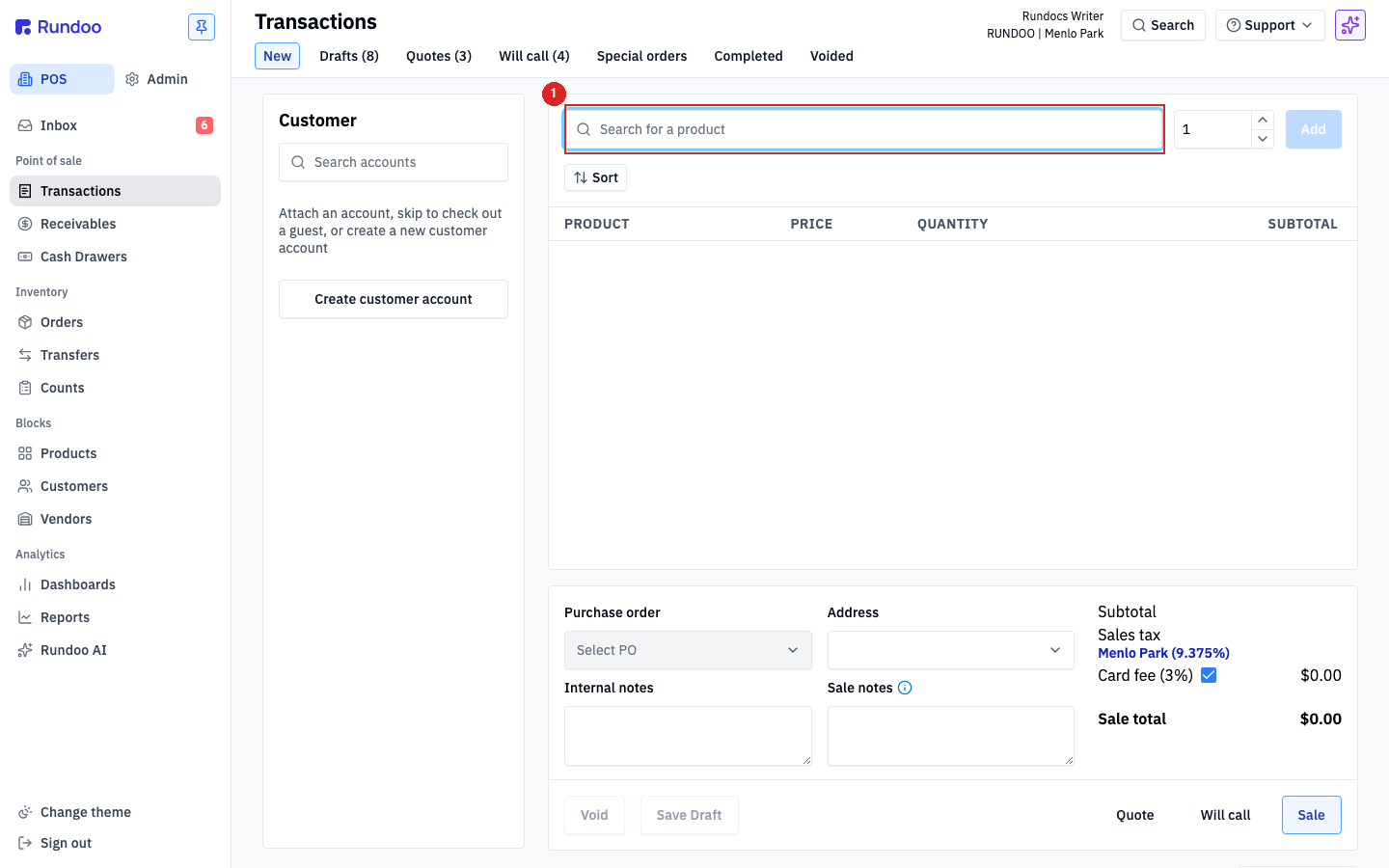
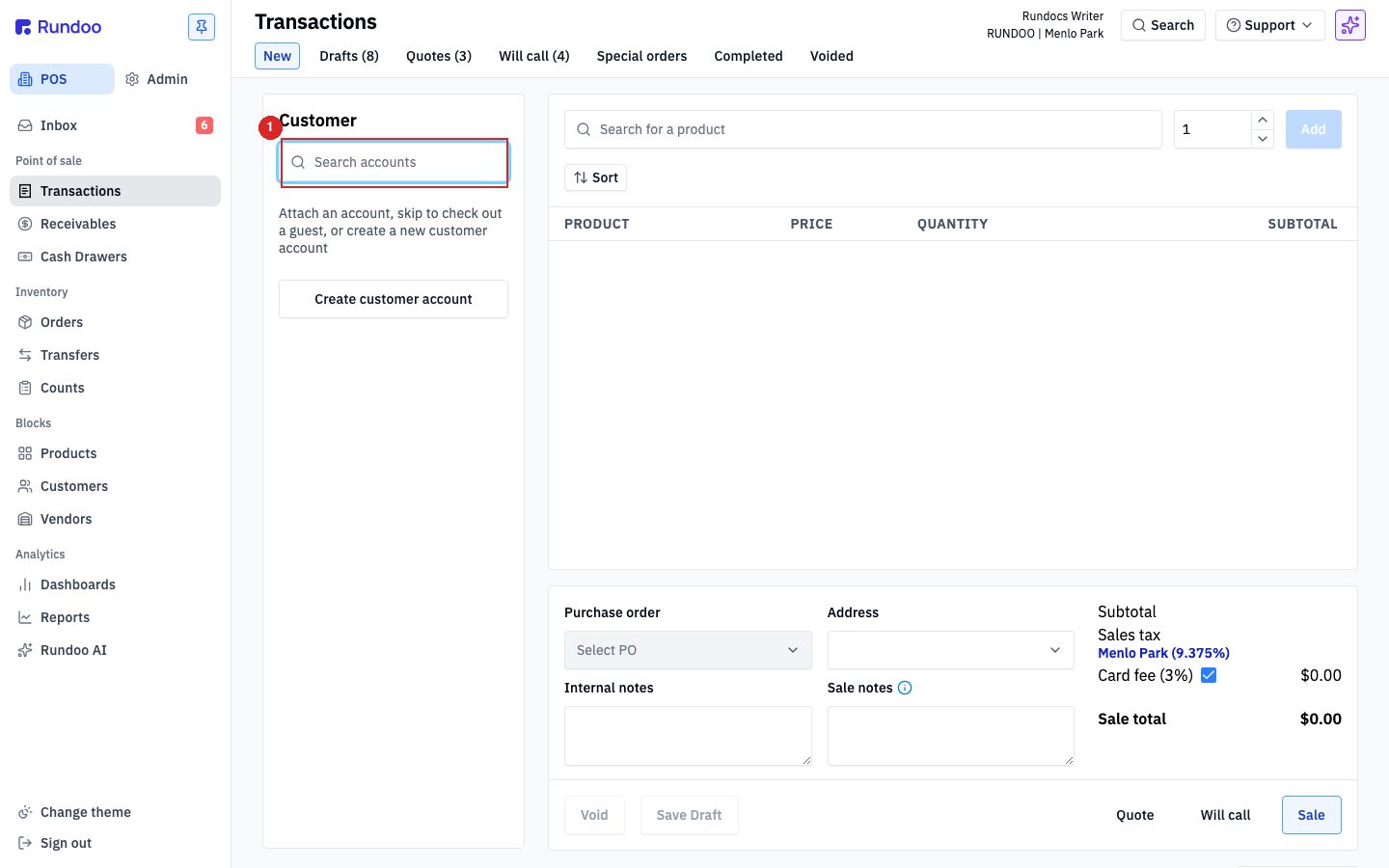
These two shortcuts are the highest-value pair on the page. Most of building a sale is "find a product, find a customer," and skipping the click between them adds up over a busy day.
/ and C also work on a couple of other pages where the same surfaces show up:
-
In the POS > Receivables > Payment tab,/focusesSearch outstanding(the invoice search) andCfocusesSearch accounts(the customer picker). -
In the POS > Inbox tab,/focuses the inboxSearchfield.
On other pages (the Customers, Products, and Vendors lists, Orders, Transfers) there's no / or C shortcut today; click into the page's search box.
If your cursor is already inside a text field when you press / or C, Rundoo treats it as typing, not a shortcut. The slash or letter shows up in whatever field you were in. Click on the page background (or hit Esc) first, then press the key.
Cart-intent shortcuts
In the action cluster at the bottom-right of the cart, three buttons set what kind of transaction you're committing (Quote, Will call, and Sale). Each has a one-key shortcut:
-
S. Switches the cart to Sale (the default, whatComplete salewill commit as a finished sale). -
Q, switches to Quote (the cart turns into a saved Quote when you commit; no money changes hands). -
W(switches to Will call (customer pays now, picks up later)).
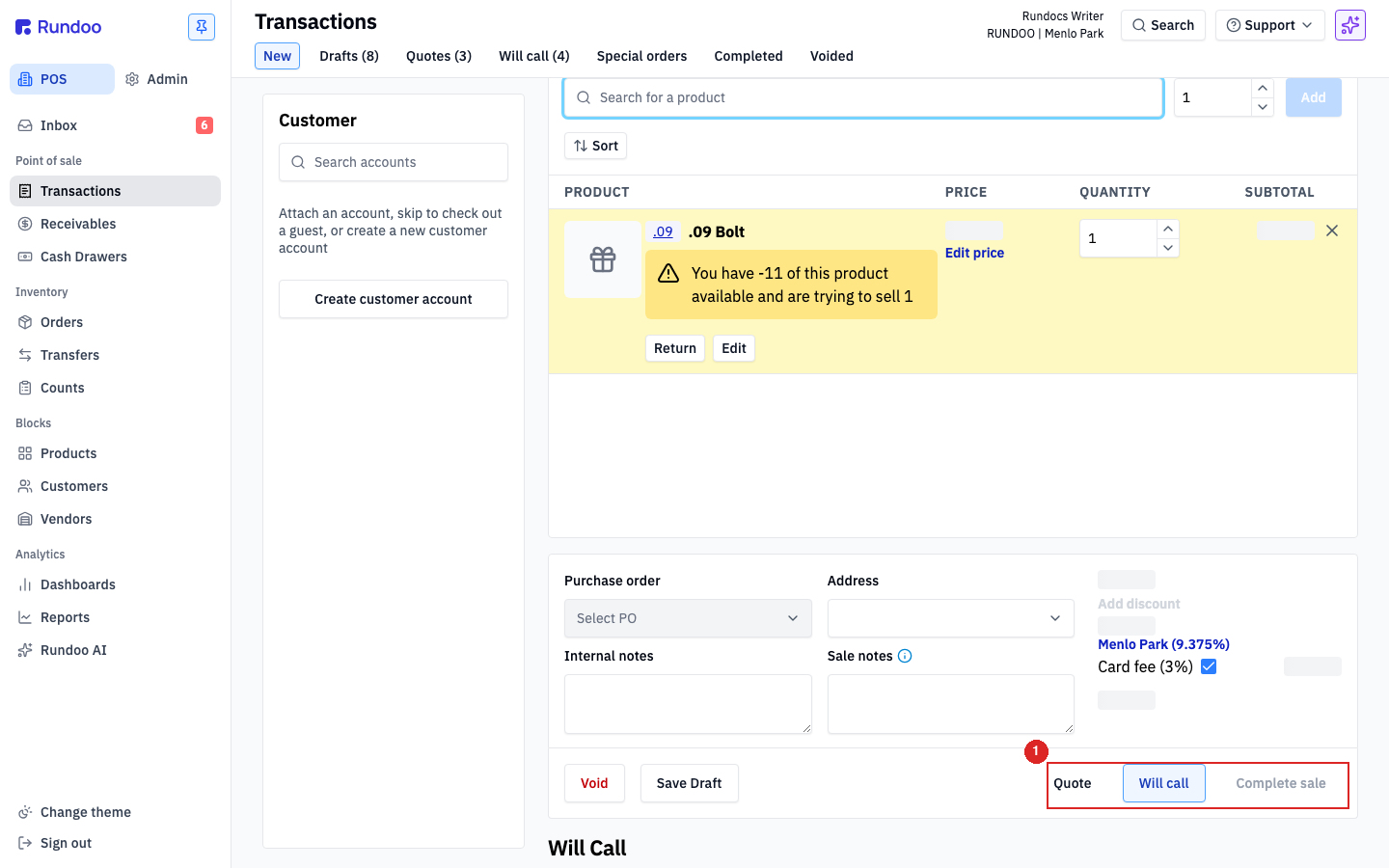
These shortcuts pick the intent; they don't commit the transaction. The big button on the right (Complete sale, Save quote, or Save will call, depending on intent) is what actually finishes it. Once the intent is right and the cart's ready, click the big button to commit, there's no keyboard shortcut for the final commit step.
The cart-intent shortcuts only fire while you're on the New transaction page with focus on the page background. Inside the product search or customer search, S/Q/W just type into the field.
The Void and Save Draft buttons in the same action cluster have no keyboard shortcut. Click them with the mouse.
See Sales for what each intent does and when to use it.
Field navigation
Standard browser shortcuts work everywhere in Rundoo:
-
Tab. Moves focus to the next button or input. -
Shift+Tab(moves focus backwards). -
Esc. Closes the modal you're in (Edit price, Add line item, Sale reminder, the Search overlay) without saving. -
Enter(commits the focused button or submits the focused form). In a search dropdown,Enterpicks the highlighted result; in Search,Entersends your typed question to Dooey.
Tab order on the cart starts at the action cluster top-left and walks right and down through the form fields. It's the fastest way to step through Purchase order, Address, Internal notes, and Sale notes once a customer is attached.
What's not a hotkey
A few things you might expect to be keyboard-driven aren't (listing them so you don't burn time hunting):
-
The Search overlay (the magnifier in the header, Rundoo's Omni Search) doesn't have a global open shortcut yet.
Cmd+KandCmd+Shift+Pdon't open it. Click the Search button. -
Mode and tab navigation (switching between POS and Admin, jumping to Receivables or Products, opening a top tab like Drafts or Will call) is mouse-only. There's no
1/2/3-style tab-jump shortcut. -
The
Addbutton on a product line, theApplystep inside Edit price, and theChargebutton on the tender panel are mouse-only. -
List pages (Customers, Products, Orders, Vendors) have a search box at the top. Clicking into it works, but
/andCdon't focus it.
If a workflow you do every day is missing a hotkey you'd want, post it on the Idea Board (Rundoo prioritizes the keyboard work that customers ask for).
Quick reference
| KEY | WHAT IT DOES | WHERE IT WORKS |
|---|---|---|
/ |
Focus product search | In the POS > Transactions tab (cart product search), Receivables > Payment (search outstanding), Inbox (search). |
C |
Focus customer search | In the POS > Transactions tab (cart customer panel), Receivables > Payment (search accounts). |
S |
Switch cart to Sale | In the POS > Transactions tab, page-background focus, action cluster visible. |
Q |
Switch cart to Quote | Same as above. |
W |
Switch cart to Will call | Same as above. |
Tab / Shift+Tab |
Move focus forward / back through inputs and buttons | Everywhere. |
Esc |
Close the open modal or overlay | Everywhere. |
Enter |
Commit the focused button; pick the highlighted dropdown row; send a question to Dooey from Search | Everywhere. |
Recommended Rundocs
-
Sales, the cart workflow these hotkeys plug into.
-
Search, the global search overlay (clickable, no hotkey today).
-
Navigation, the header, modes, and sidebar that hold these shortcuts.