
Rundocs › Pricing
Spiffs
Last updated 2026-08-07
A spiff is a per-unit kickback attached to a product or a slice of your catalog, every time a qualifying item sells inside the date window, Rundoo records the spiff amount against the sales clerk who rang it. Think $2 per gallon of Aura sold in April, set it once, let it accrue, pay the clerks at month-end from a report.
In the POS mode, open Products in the left sidebar, then click the Spiffs top tab.
How spiffs work
A spiff is a named, time-bounded, per-unit incentive. You define one at the catalog level ("which products, how much per unit, when it starts, when it expires") and Rundoo handles the rest. When a clerk rings a matching product on a sale inside the window, the spiff fires: the sale stores the clerk who rang it, the quantity, and the per-unit amount, ready to total up on the spiff reports. The Count column in the list is a different number: it shows how many products the spiff currently covers, not how many units have sold.
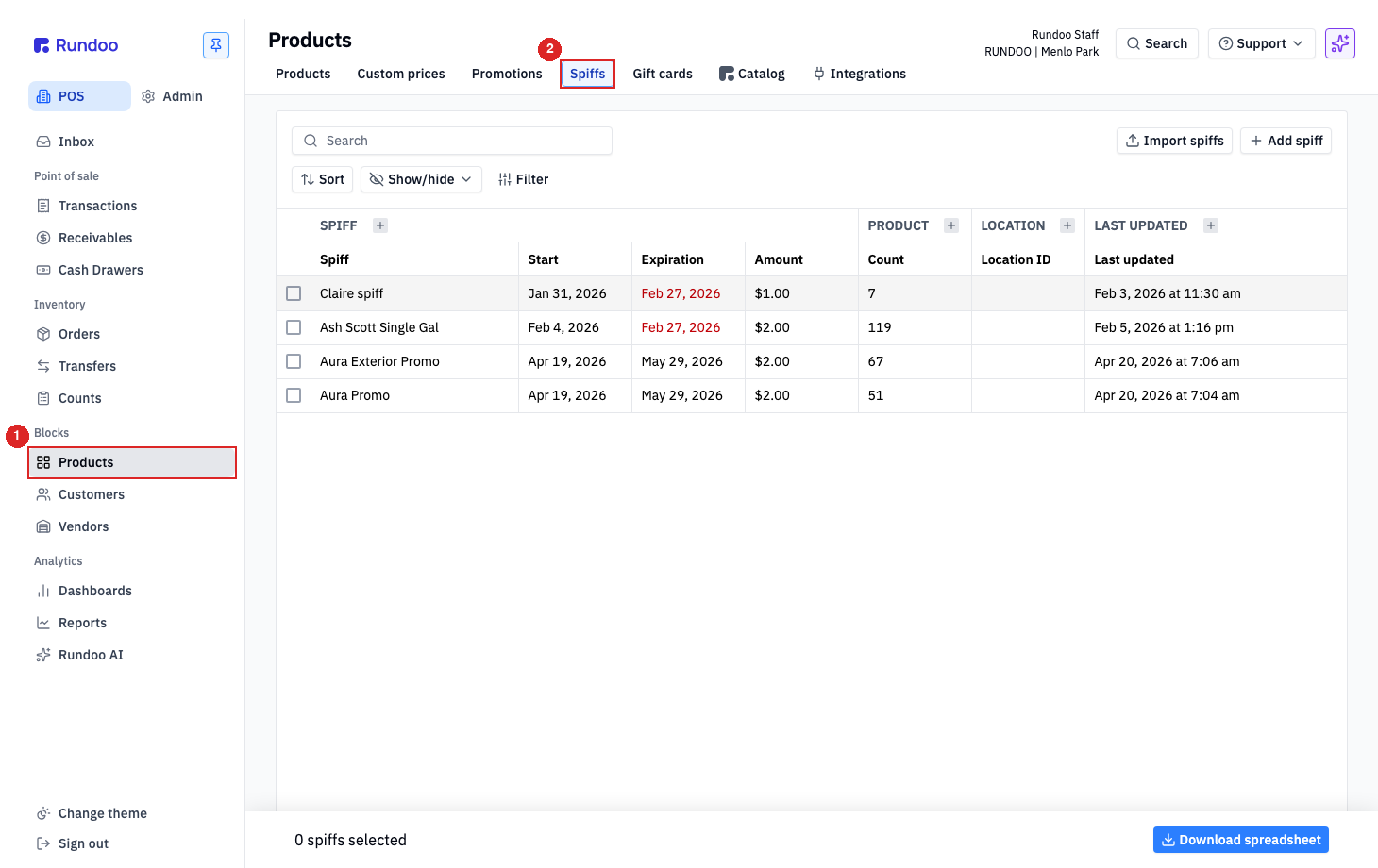
The list on this tab shows every spiff in the system with its window, per-unit amount, and product count. The Count column is the number of products the spiff currently applies to (the same figure as N products match current rules shown inside the spiff), not the number of units sold. To see units sold and dollars owed, run the spiff reports covered below.
| Column | What it shows |
|---|---|
Spiff |
The spiff's name. Click the row to edit. |
Start / Expiration |
The window the spiff fires during. Sales outside this window (even of matching products) don't accrue. |
Amount |
Per-unit payout ($2.00 /U = two dollars per unit sold). |
Count |
How many products the spiff currently applies to (the size of its catalog slice). A by-product spiff on one SKU reads 1; a rules-based spiff over a whole department reads the number of products the rule catches. It is not units sold, and Count × Amount is not dollars owed. For units sold and payout, run the reports covered below. |
Location ID |
Empty when the spiff is global (All locations). A specific location shows here when scoped. |
Count is a product count, not a sales count. It tells you how many products the spiff covers right now, so a spiff on a single SKU stays at 1 no matter how many units you sell, and a rules-based spiff over a department shows every product the rule catches. To see units sold and what you owe, use the Spiffs by sales clerk / Spiffs by vendor reports below, where Spiff units net × Amount is the actual payout.
Spiffs accrue on the sale, not on customer payment. When a clerk rings a matching product the spiff fires and the units accrue on the reports, whether the sale is paid in cash, on a card, or charged to a customer's account to settle on a later statement. There's no toggle to delay accrual until the customer pays their statement. Returns and voids back the accrued units off; payment status doesn't move them. (This is about the accrued units on the reports, not the list's Count column, which only counts matching products.)
Spiffs don't carry a staff picker. A spiff fires for any clerk who rings a matching product (the per-clerk attribution happens at report time). This is deliberate: the vendor (Benjamin Moore, Sherwin, etc.) funds the program, and the goal is to motivate whichever clerk pushes the product, not to hand-assign kickbacks person by person.
Adding a spiff
Click + Add spiff in the top-right of the list. The Add spiff modal opens.
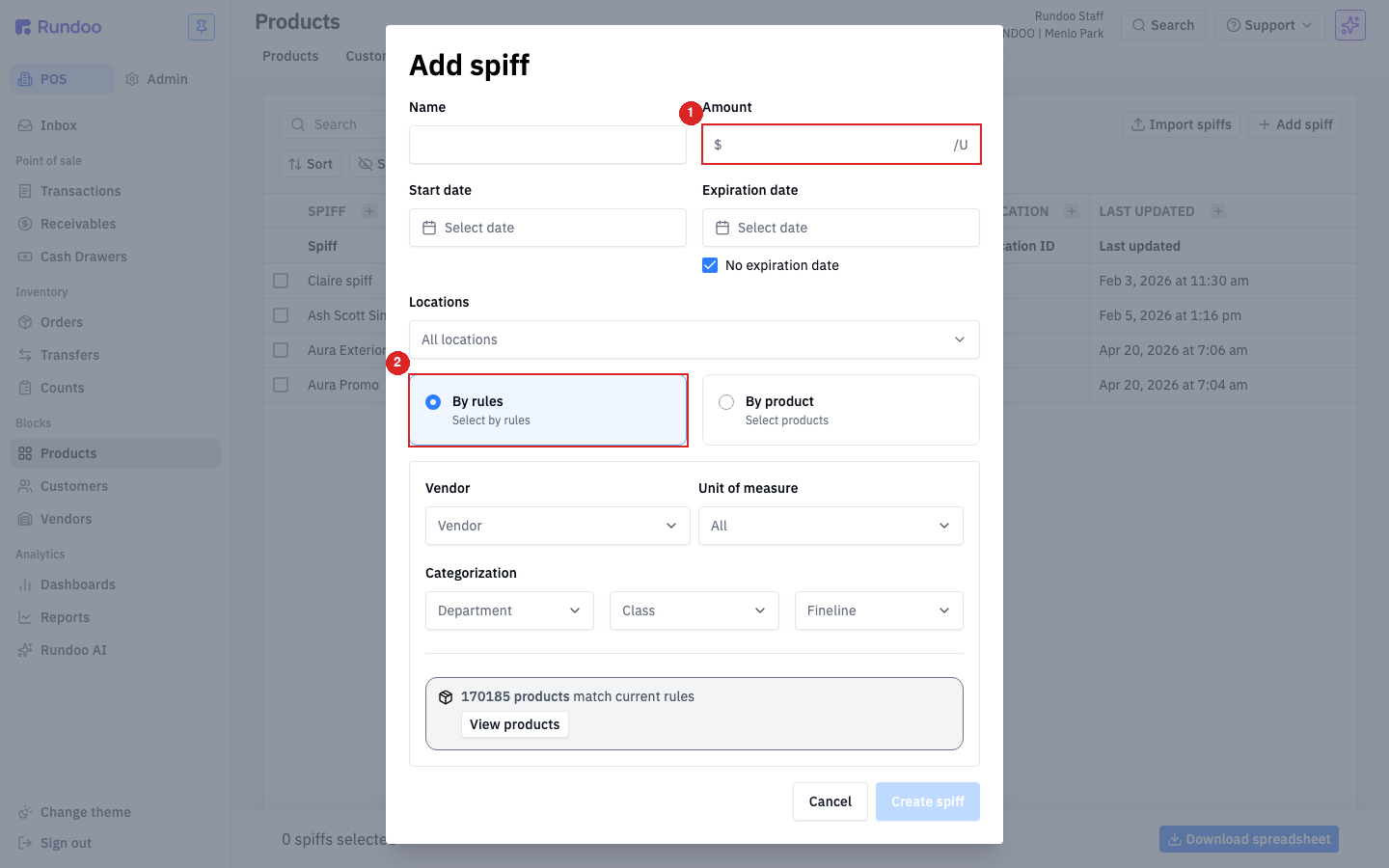
Fill the form top-to-bottom:
| Field | What it does |
|---|---|
Name |
Shows in the Spiffs list and on the reports. Use something recognizable (Aura Promo April, BM Co-op Q2, Contractor bonus). |
Amount |
Per-unit payout. The /U suffix is the unit of measure, each can, each gallon, each linear foot, so a $2.00 amount on paint means two dollars per gallon. |
Start date / Expiration date |
The firing window. Check No expiration date to run it open-ended until you deactivate. |
Locations |
Defaults to All locations. Pick specific locations if the vendor is only funding the program for certain stores. |
By rules / By product |
The scope toggle. By rules = every product matching a filter (Vendor, Unit of measure, Department, Class, Fineline). By product = a hand-picked list of specific SKUs. |
Rules-based is how most spiffs are written. Vendor co-op programs cover a whole line (Vendor: Benjamin Moore, Department: Benjamin Moore, Class: AURA INTERIOR), not a handful of SKUs. As you narrow the filters, the modal shows a live count (51 products match current rules) so you can see the blast radius before you save.
By-product flips the modal to a product-search. Pick one or many SKUs explicitly. Good for a one-off push on a specific new-arrival SKU.
Unit of measure matters for mixed-pack vendors. If a vendor sells in both gallons and quarts and you want to spiff gallons only, set Unit of measure to the gallon UOM. Leave it at All and the spiff fires on any unit of a matching product. You'll end up paying $2 on a quart.
Click Create spiff. It lands in the list immediately and starts firing on the next matching sale (there's no separate "activate" step).
Editing / removing
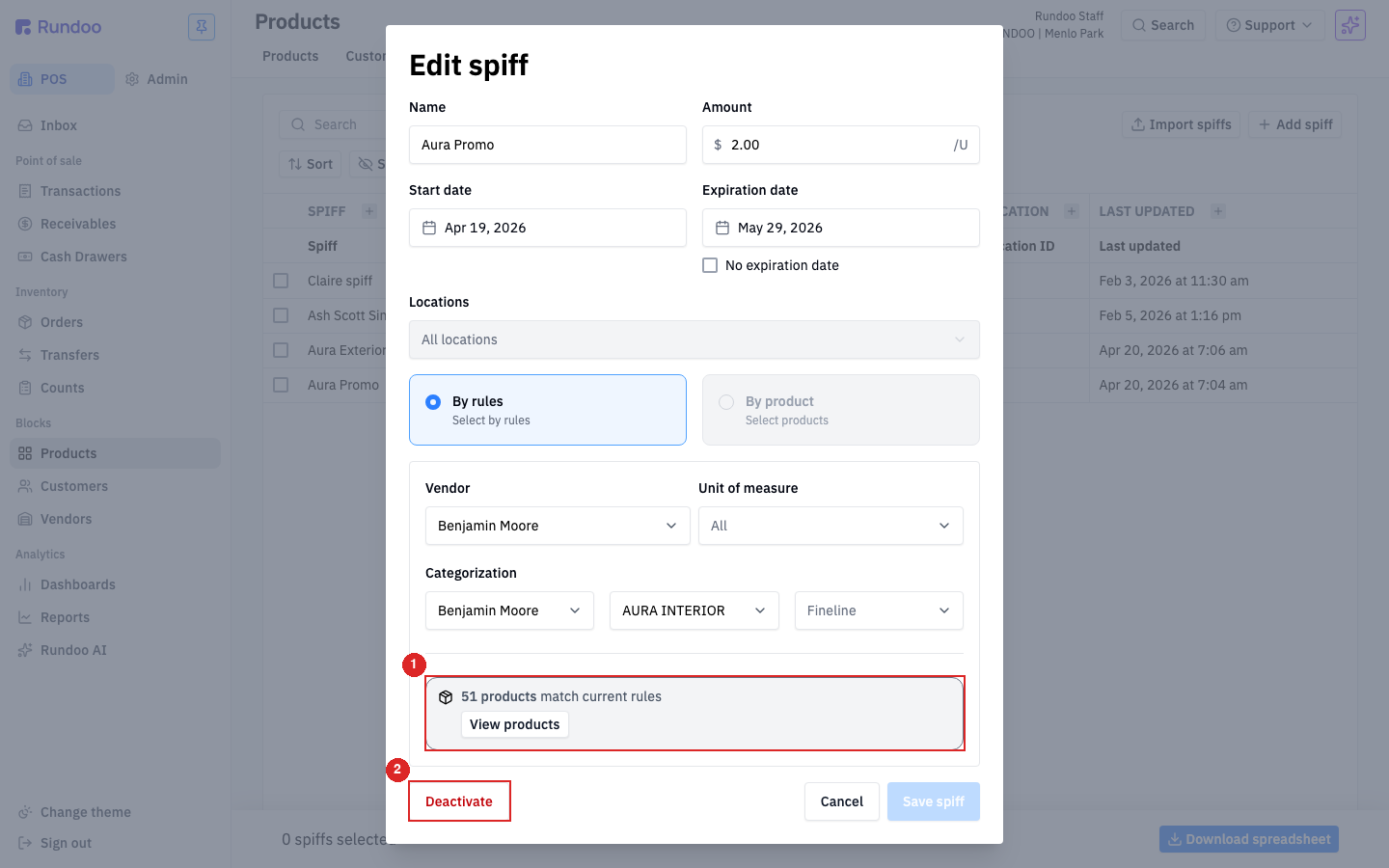
Click any row in the Spiffs list to reopen it as an Edit spiff modal. Every field above is editable, plus one new affordance:
-
N products match current rules/ View products. Live-counts the catalog slice the current rules are selecting. Click View products to see the actual list. Use it to sanity-check a rule change before saving (e.g., you tightened theClassand want to confirm nothing important got dropped). -
Deactivate (the red button at bottom-left). Ends the spiff's firing window immediately, without deleting it. The row stays in the list (under
Status: Inactivevia the Filter), the historicalCountand its payouts stay intact on reports, and no new sales accrue.
There's no destructive delete on spiffs. Deactivation is the terminal state. That's a feature: once a spiff has fired on even one sale, its history matters for the clerks you owe, and Rundoo preserves it.
Edits to Amount aren't retroactive. Changing $2.00 to $3.00 mid-window means sales from the change forward accrue at $3.00; prior sales keep the $2.00 they fired at. Same for the product scope. Tightening rules stops new sales of removed SKUs from accruing, but doesn't claw back past accrual.
Spiff reporting and payouts
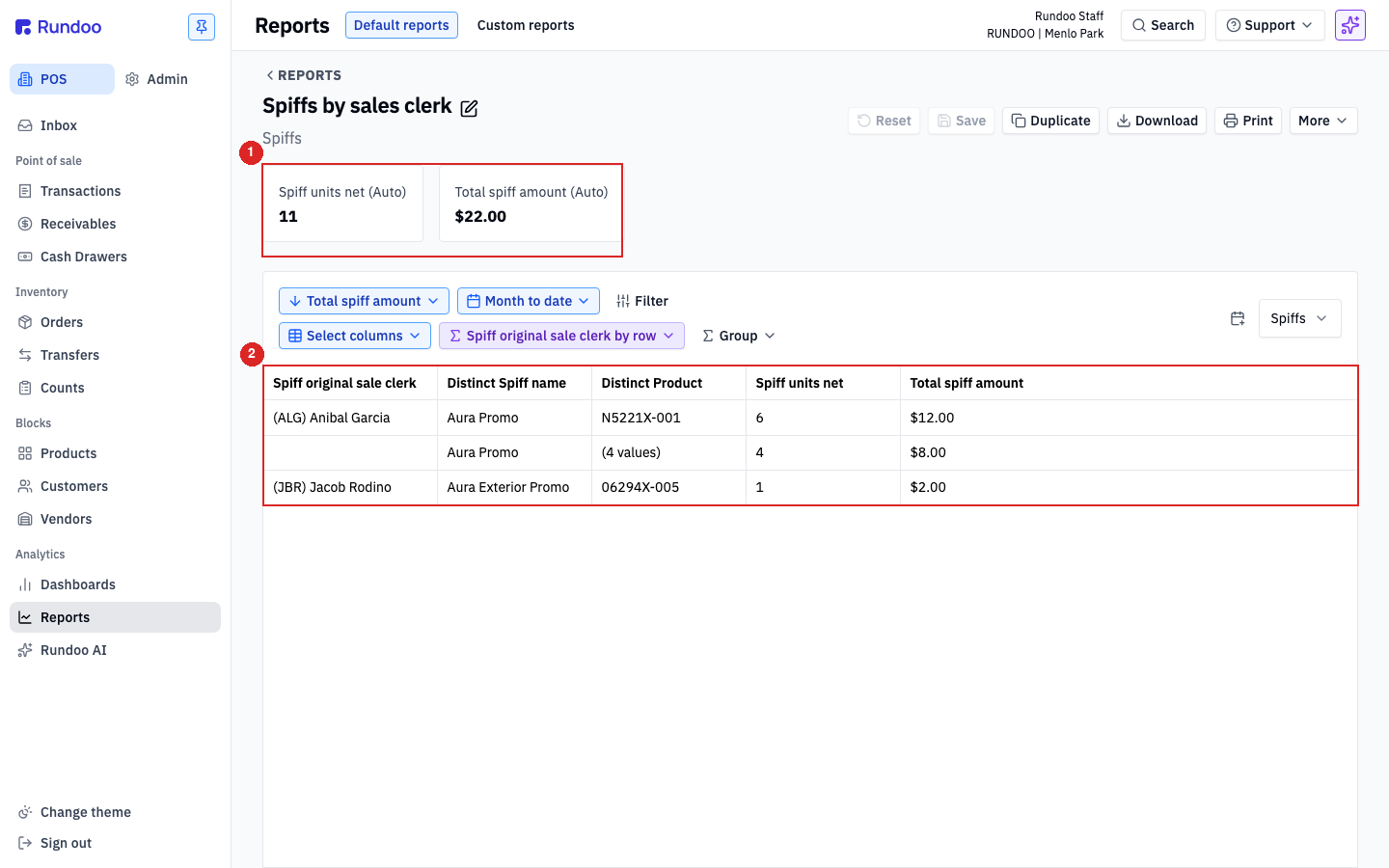
Rundoo ships two default reports that turn accrued spiffs into a payout sheet. Both live in the POS mode, Reports in the left sidebar, under Default reports.
| Report | Groups by | Use for |
|---|---|---|
| Spiffs by sales clerk | Designated clerk → Distinct Spiff name → Distinct Product |
Cutting the payout by clerk. Each row says “this clerk is owed N units of this product under this spiff.” The clerk column is the designated clerk on the sale, defaults to whoever rang it, but admins can reassign on the sale’s detail page (see Designated clerk vs. original ringer below). Sum by clerk for the paycheck add-on. |
| Spiffs by vendor | Product default vendor → Distinct Spiff name → Distinct Product |
Reconciling vendor co-op billing. Every row rolls up to "Benjamin Moore owes us this much under Aura Promo." Submit it to the vendor's co-op portal. |
Both reports share a common set of columns:
| Column | Meaning |
|---|---|
Distinct Spiff name |
Which spiff drove this row (in case a clerk or vendor is covered by several running concurrently). |
Distinct Product |
The SKU that rang. Handy for auditing. You can trace a payout back to a specific transaction line. |
Spiff units net |
Units sold minus units returned/voided. This is what drives the payout. |
Total spiff amount |
Spiff units net × Amount. Dollars owed. |
Change the date range with the date-range pill at the top of the report (Month to date → Last month, Custom, etc.). Typical payroll rhythm: run Spiffs by sales clerk for Last month on the first of the month, hand it to the bookkeeper, add to the next paycheck. Then run Spiffs by vendor and send to each vendor's co-op contact for reimbursement.
No built-in "mark paid" state. Rundoo tracks accrual; it doesn't track whether you've paid the clerk or been reimbursed by the vendor. Keep your payout log somewhere else, a spreadsheet, your payroll system, and reconcile against the report. Running the report twice doesn't charge anyone twice; it's a read-only view of accrued units.
Designated clerk vs. original ringer
Each sale carries a designated clerk (the staffer credited on the Spiffs by sales clerk report). It defaults to whoever rang the sale, but admins with the Edit designated clerk on a sale permission can reassign it from the sale’s detail page. Useful when the staffer who actually pushed the product wasn’t the one at the register. The original ringer stays on the sale’s receipt and audit trail; only the report’s clerk attribution shifts.
Sales rung by Dooer staff (Rundoo’s own team, occasionally signed in for support) don’t resolve a designated clerk. The field reads "None" and the sale doesn’t appear under any clerk in Spiffs by sales clerk.
Recommended Rundocs
-
Products, where the catalog, vendor, and category fields that spiff rules filter on are set.
-
Staff, the clerks who ring sales and show up in the
Spiffs by sales clerkreport. -
Running Reports. How to change date ranges, save, duplicate, and download default reports like Spiffs by sales clerk and Spiffs by vendor.