
Rundocs › Inventory
Product catalog
Last updated 2026-04-24
The product catalog is a unified, vendor-synced search index of every SKU your connected vendors sell, millions of products, all searchable at the counter even if you've never stocked one. Find a catalog product and you can pull it into your own inventory with two clicks. Rundoo calls this family of integrations Vendor Catalogs.
In the POS mode, open Products in the left sidebar, then click the Catalog top tab.
What's a product catalog
A product catalog is the full list of everything a vendor sells (their entire SKU universe, not just what you currently stock). Rundoo's Vendor Catalogs pull these catalogs directly from vendors who publish a feed and keep them in sync, so when Benjamin Moore adds a new color or Orgill drops in a new fence gauge, it shows up in your catalog without you lifting a finger.
The distinction that matters: catalog products are searchable; your own products are stocked. A catalog product lives in the search index with its vendor-published UPC, name, and description. It won't ring up at POS, you can't count it, it has no price tier, no cost, no on-hand quantity. It's just findable. When a customer asks about a SKU you've never carried, you can search the catalog, find it, and know whether it exists before you promise anything.
To actually sell a catalog product, you have to bring it into your inventory (see Adding a catalog product to your inventory below). That's the move that turns a catalog entry into a first-class Product record with your cost, your price, and your stock levels.
Which vendors have catalogs
Not every vendor publishes a catalog (the vendor has to support a Rundoo-readable feed). Today's Vendor Catalogs include:
-
Benjamin Moore, the full BM SKU list (tintable bases, specialty coatings, sundries). This is also what feeds the native Benjamin Moore order flow; see Catalog + Benjamin Moore ordering below.
-
Orgill, the hardware distributor's full catalog, covering fence, plumbing, electrical, lawn & garden, and more.
-
All Pro, paint-sundry and janitorial supply catalog used by independent paint retailers.
-
Emery Jensen, Ace Hardware's wholesale distribution catalog, for stores affiliated with Ace.
Each catalog product carries the vendor's brand badge in the row, so at a glance you can tell which vendor a row came from without opening the detail panel. If your store works with a vendor that isn't in Vendor Catalogs yet, you can still bring their products in by Product imports from a spreadsheet. Vendor catalog sync is about continuous sync, not one-time loads.
Finding a catalog product
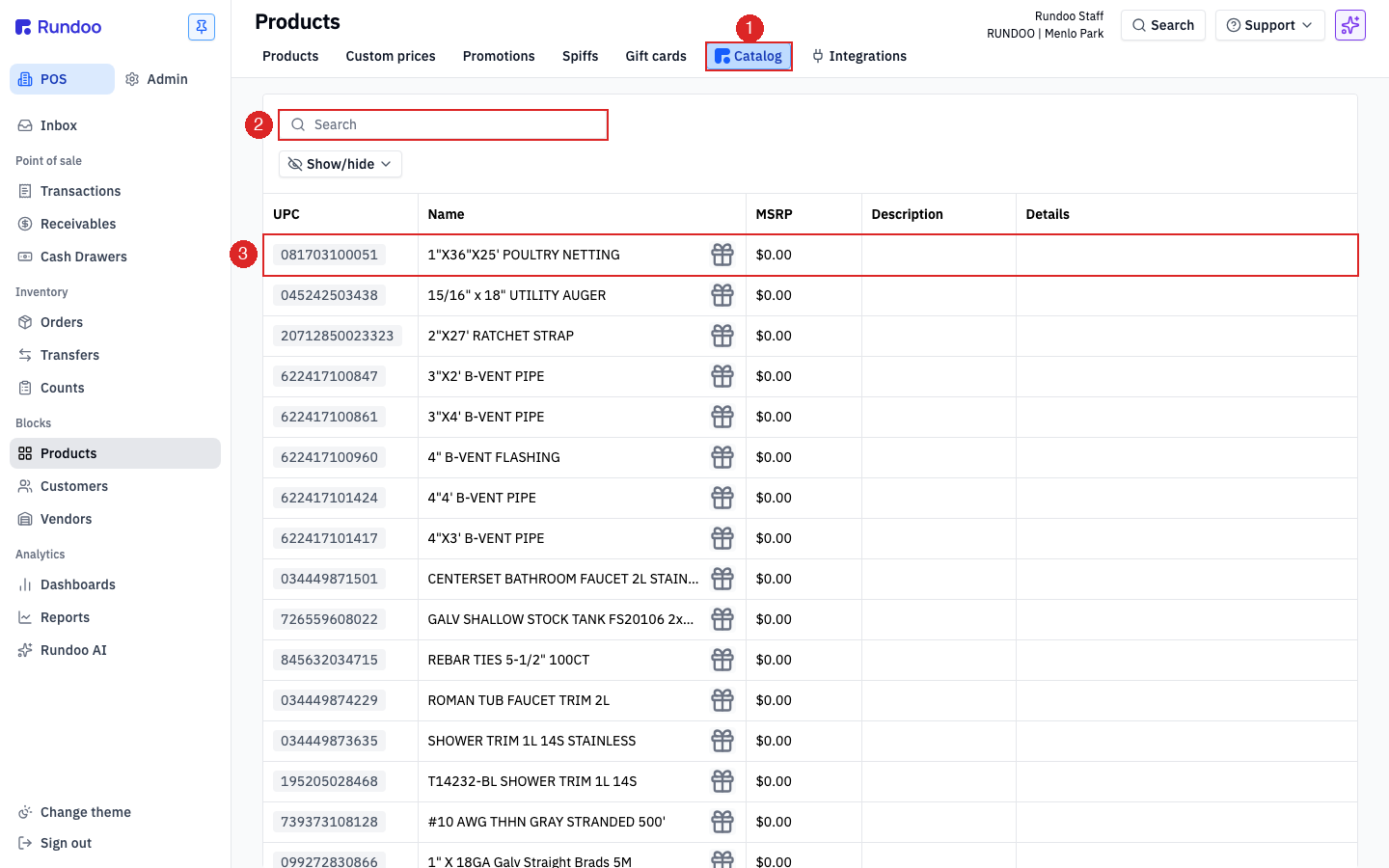
Open the Catalog top tab to land on the full, unified catalog. Rows from every connected vendor, interleaved. Columns are UPC, Name, vendor badge, MSRP, Description, and Details. It's a large index (tens of thousands of rows), so you'll almost always narrow it with the search before scrolling.
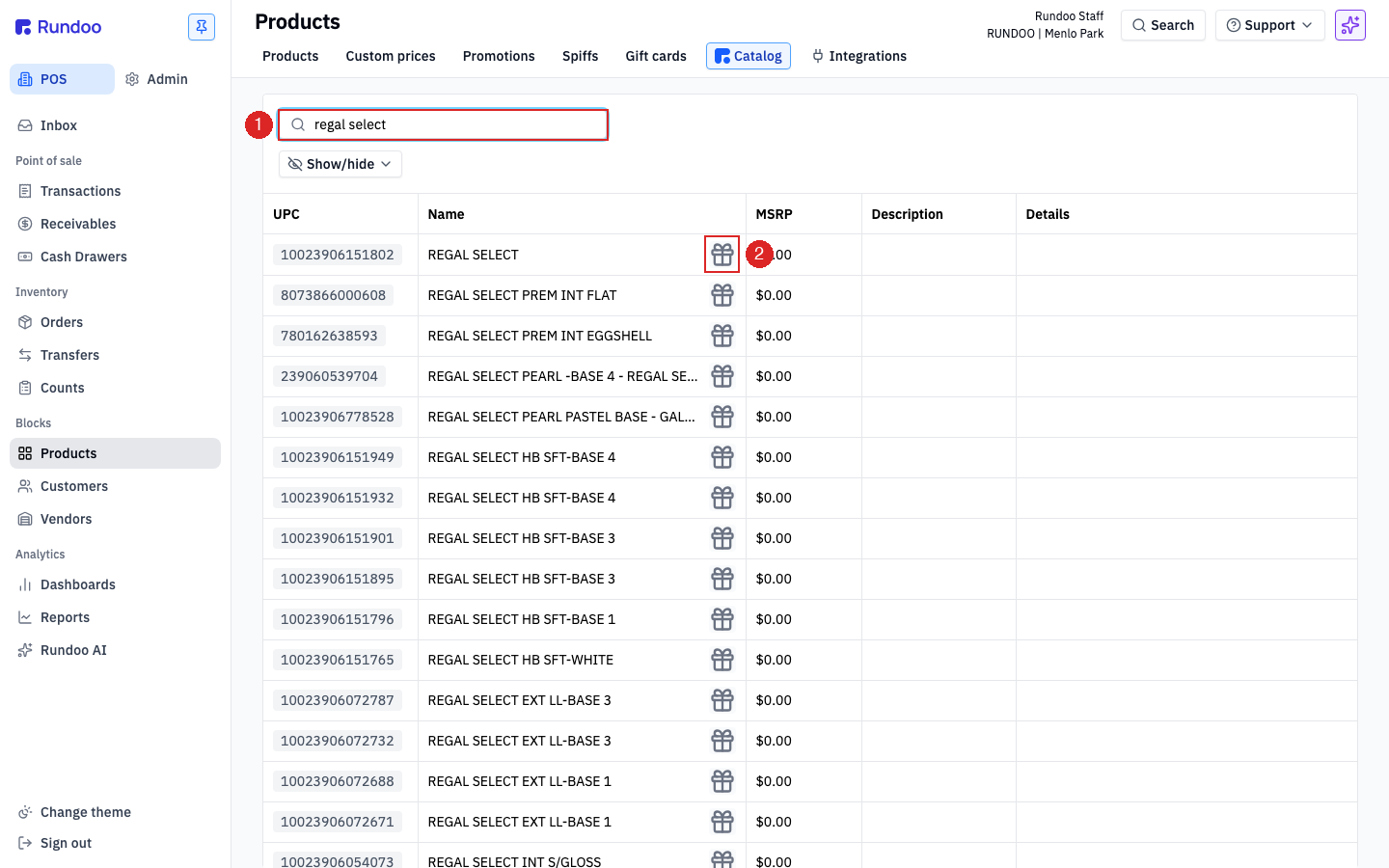
Type into the Search input at the top. Matches run against UPC and product name simultaneously, so 052807011246 and regal select both work. Results refresh live as you type. The vendor badge on each row tells you which catalog the row came from; a Benjamin Moore badge next to a row means that SKU ships from BM, not from whatever vendor happens to be selected elsewhere.
Catalog search is vendor-agnostic on purpose. There's no "pick a vendor first" step, if you type "regal select", you'll see Benjamin Moore's Regal Select lines alongside any catalog-matching SKUs from other vendors. The vendor badge is how you disambiguate. This matters when two vendors carry similar commodity items (fence staples, paint trays), search shows them side by side so you can compare.
Adding a catalog product to your inventory
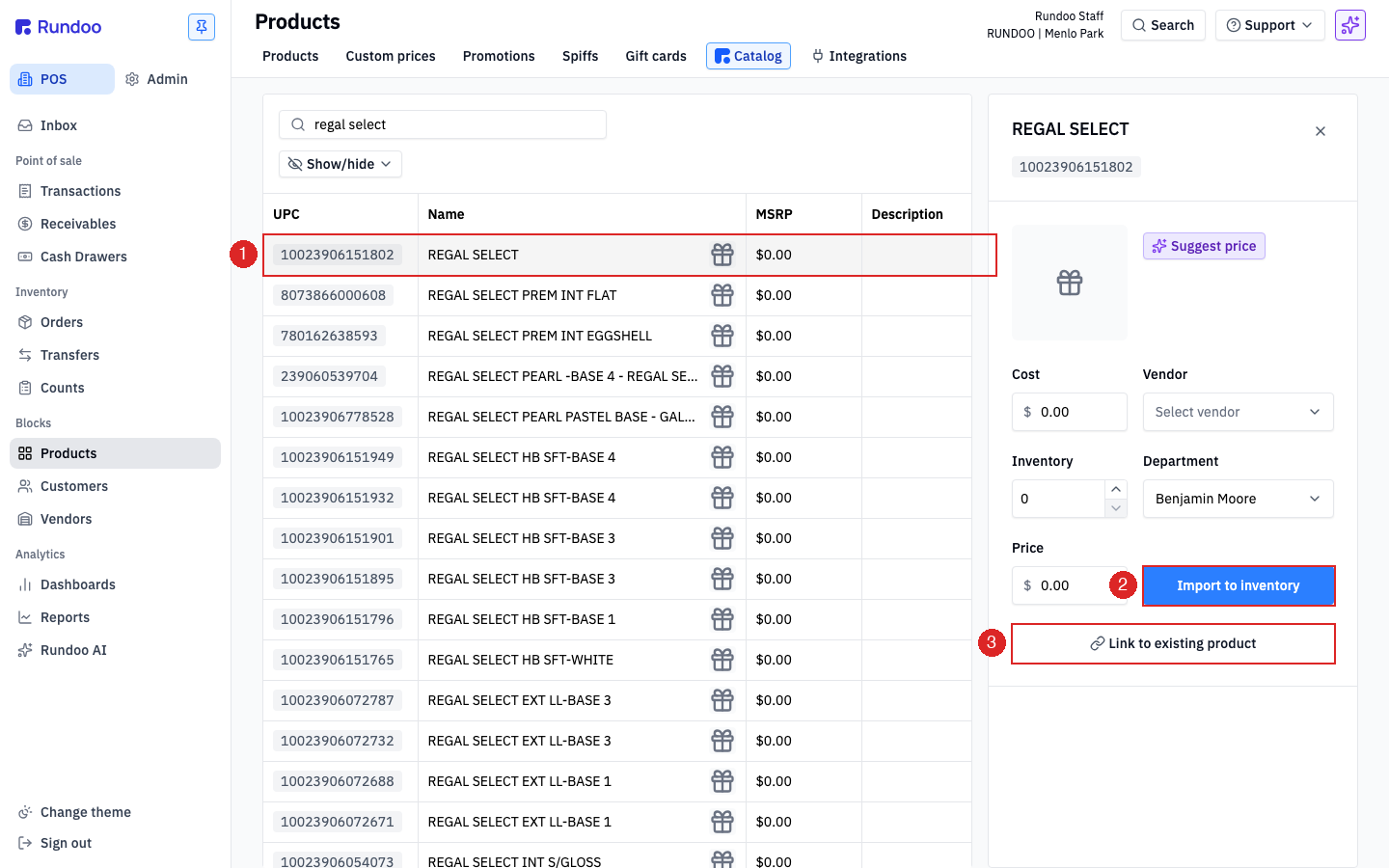
Click any catalog row to open the right-side detail panel. The panel shows the catalog product's name, a Suggest price AI action, and fields for Cost, Vendor, Inventory, Department, and Price. Two actions sit at the bottom:
-
Import to inventory (the common case). Rundoo creates a new
Productrecord in your store using the catalog row's UPC, name, and vendor as the starting point. You set the cost, price, department, and initial inventory count on the panel, then click the button; Rundoo creates the product and drops you on its detail page for any final tweaks. This is how you go from "that SKU exists in the BM catalog" to "I can ring it up right now." -
Link to existing product. For when you already have a
Productrecord for this item (created manually or via import) and want to connect it to the catalog entry so future catalog updates flow into your record. Linking lets Rundoo sync vendor-side changes (description updates, image changes, color-family metadata) into the product you've already priced and stocked.
Import to inventory creates a brand-new product record. If the SKU already exists in your inventory, maybe you created it manually months ago before the catalog integration was on, Import to inventory will make a duplicate. Use Link to existing product instead when you have a match, or check the Products list first. Rundoo doesn't auto-dedupe on UPC across the two paths.
Once a product is in your inventory and linked to the catalog, its own Catalog top tab (on the product detail page) shows the catalog side of the link:
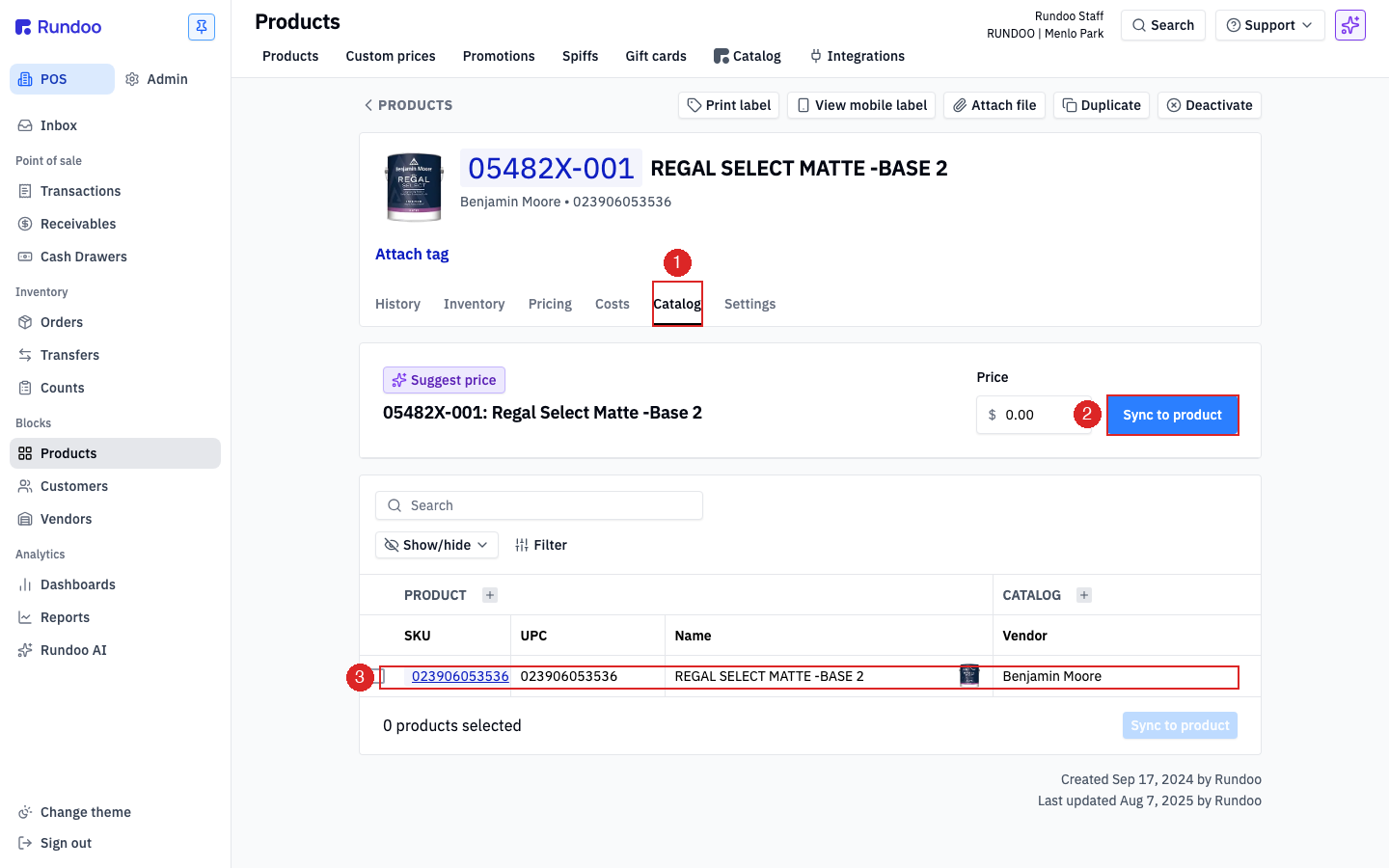
You'll see the catalog's suggested price, a Price input, a Sync to product button that pulls the latest catalog data into your product record, and a PRODUCT | CATALOG comparison table showing your side (SKU, UPC, Name) next to the catalog side (UPC, Name, Vendor). This is the view to use when you want to refresh a product's name or description after a vendor catalog update. Click Sync to product and your record picks up the catalog's current values.
Catalog + Benjamin Moore ordering
The catalog isn't just search, it's also the data layer that makes Benjamin Moore orders work. When you place a BM order through Rundoo, the ordering flow uses the BM catalog to:
-
Validate every line against BM's live SKU list (no guessing at part numbers).
-
Pull live availability and warehouse-specific pricing at order time.
-
Keep BM-catalog changes (new products, renamed SKUs, discontinuations) flowing into the order screen automatically.
That's why the BM ordering flow looks different from a generic purchase order. It's reading straight from the BM catalog rather than from your own product records. Stores that are set up with the BM integration get the ordering flow and the catalog together; you can't really have one without the other.
For everything the BM-specific order form does differently (the shipment picker, the View catalog drill-in on an order line, the color-code validation) see Benjamin Moore orders.
Recommended Rundocs
-
Products, how the
Productrecords that catalog rows promote into actually work day to day. -
Product imports (bulk-creating products from a spreadsheet for vendors that don't have a live catalog feed).
-
Benjamin Moore orders, the BM-specific order flow that reads straight off the BM catalog.