
Rundocs › Vendors & Purchasing
Vouchers
Last updated 2026-08-27
A voucher is the "OK to pay" state for a received purchase order (the moment you've recorded the vendor's invoice and the PO becomes an unpaid bill on your books). "Vouchered" is Rundoo's word for it; in plain English, a vouchered PO is a vendor bill waiting to be paid.
In the POS mode, open the Orders left tab, then the Vouchered top tab. That's where every PO sits between Received (stock is in) and Paid (bill is settled).
What a voucher is
Every PO moves through the same accounting lifecycle once the truck has shown up: Received → Vouchered → Paid. The voucher is the middle step, and it's the one that hands the PO over to accounting.
-
Received. Stock landed, on-hand counts are updated, but the vendor's invoice hasn't been recorded yet. -
Vouchered(invoice recorded). The PO's amount owed is now on your books as an unpaid bill sitting in Accounts Payable. This is the "OK to pay" state. -
Paid(payment recorded). The bill is settled and the PO drops off your unpaid list.
Vouchering is the handoff from the warehouse side (what came in) to the accounting side (what you owe). The action that performs vouchering, filling in invoice date, due date, invoice number, and pay-to vendor on a Received PO, then clicking Voucher, is covered end-to-end in Vendor invoices. This Rundoc picks up after that click: what the vouchered state actually means, how to read the list, and how to get back out of it.
The Vouchered tab
Every PO in the Vouchered tab is an unpaid bill. Open the tab and the rows list, in one place, everything you owe vendors right now.
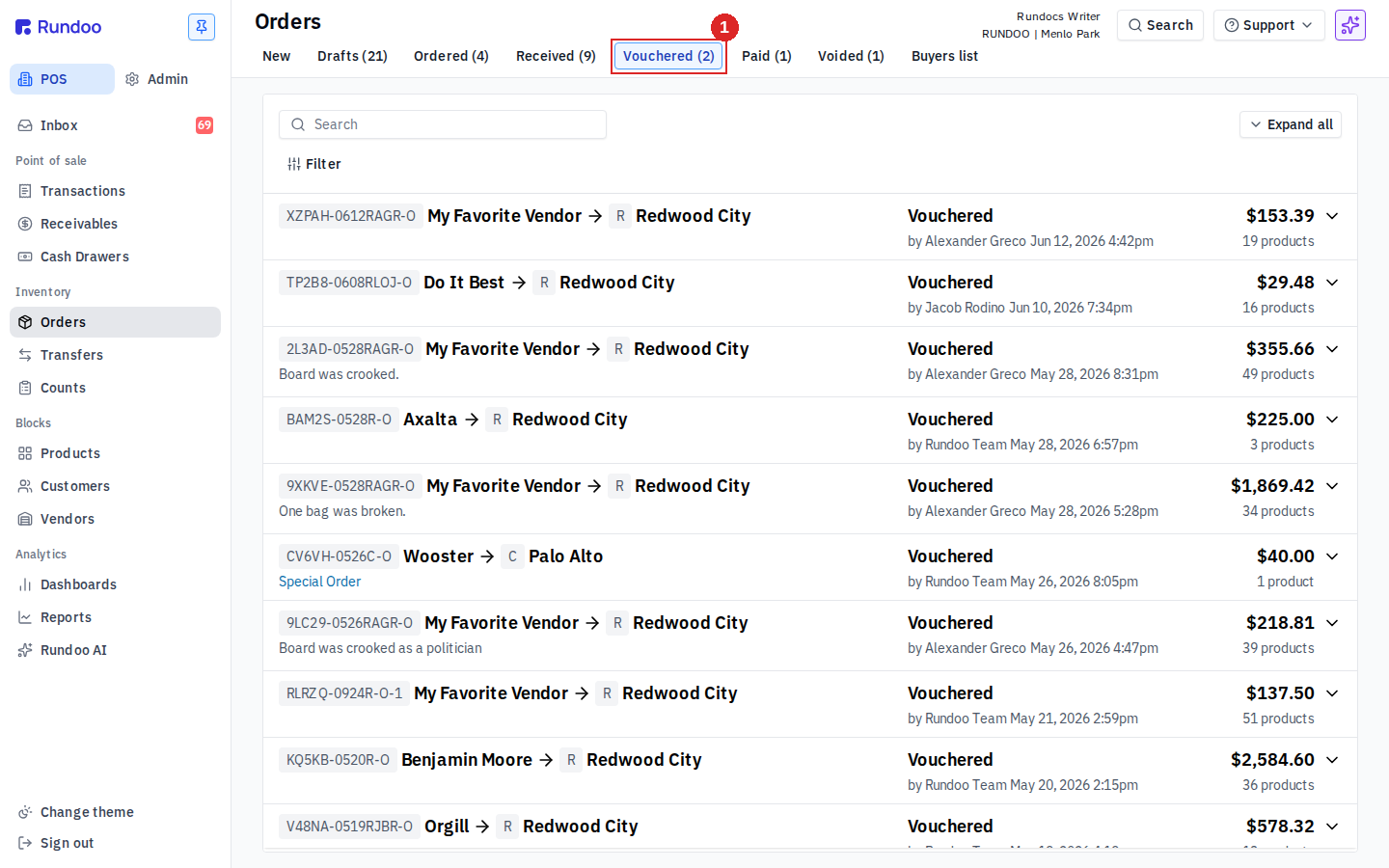
Each row shows:
-
The PO number and vendor name.
-
The location the stock was received to.
-
Who vouchered it, and when.
-
The
Statuspill (Vouchered). -
The invoice total on the far right.
The tab label carries a live count (Vouchered (N)) so you can tell at a glance how many bills are in flight. Use the Filter control above the table to narrow by vendor when you're cutting a batch of checks; sort by date or amount to work through the queue.
Voucher to payment
Clearing a vouchered PO means marking it paid. That's the single action that moves the PO off the Vouchered tab and onto the Paid tab (the sibling top tab immediately to the right, at /pos/purchase-orders/paid). Both states live under Orders; they're not separate pages or separate PO types. One PO, one lifecycle, two tabs.
Click any vouchered row to open the PO detail. The Invoice panel on the left is read-only now (values locked as text rather than editable fields) and the action cluster at the bottom right swaps to Revert voucher and Mark as paid.
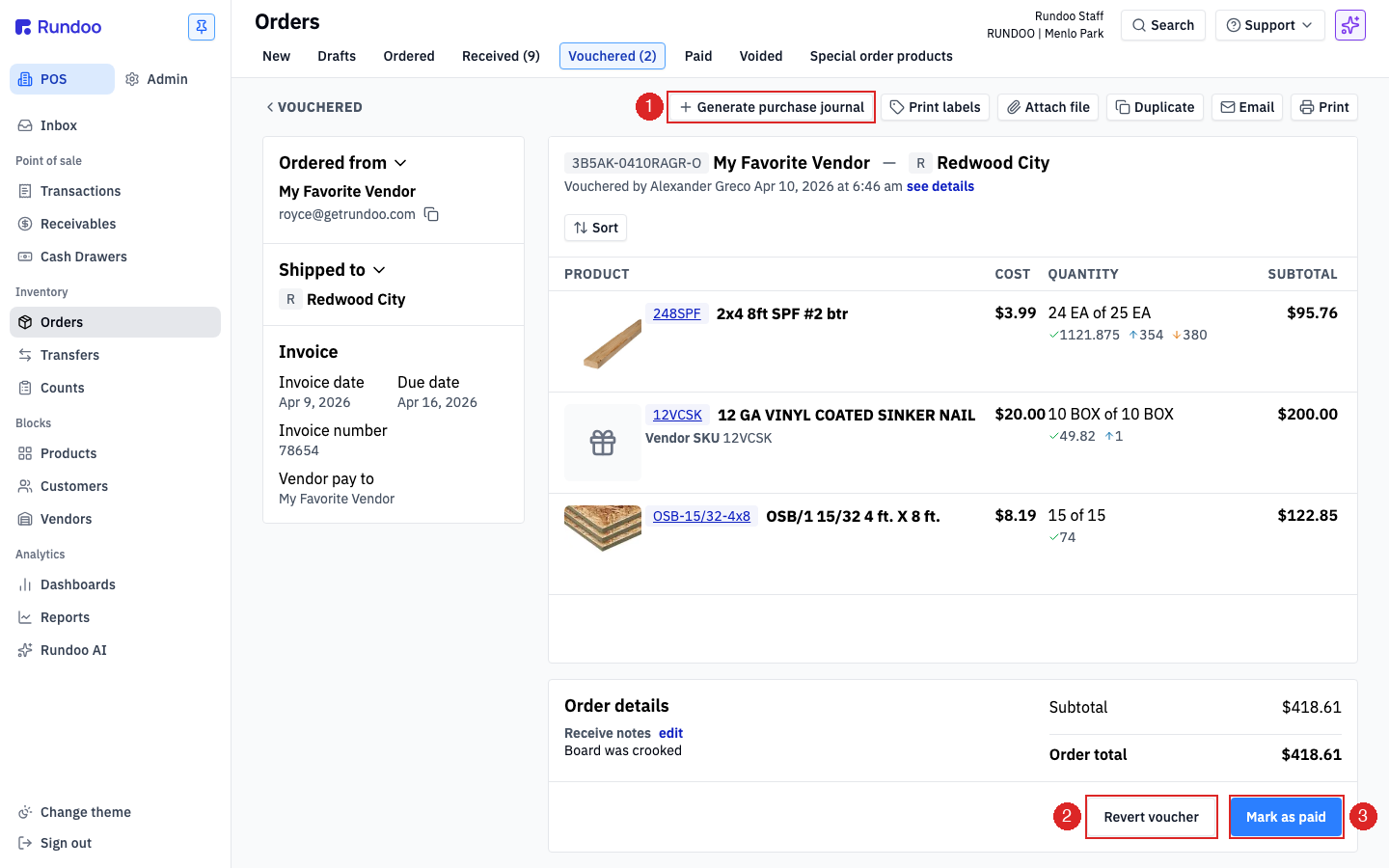
The three actions to know on this screen:
-
Mark as paid(the happy path). Opens the Mark as paid modal with vendor, amount, location, date, payment method, and GL account. Commit and the PO moves to the Paid tab. Fields and journal-entry details are covered in Vendor invoices. -
Revert voucher(undoes the voucher). See below. -
Generate purchase journal, in the top action cluster. Pulls a printable journal-entry summary for this PO. Useful when a bookkeeper wants a paper trail tied to a specific invoice rather than the daily roll-up in the GL feed.
Duplicate, email, print labels, and attach file live in the top cluster as well. Everyday PO actions that don't change the voucher state.
Does marking a PO paid clear it from the Vouchered tab? Yes. Clicking Mark as paid and committing the modal is the only way a PO leaves Vouchered. It moves to Paid in the same click. There's no separate "clear" action, no status toggle, no bulk mark-paid. One PO at a time, through this modal.
Reverting a voucher
If you vouchered a PO with wrong invoice details, typo in the invoice number, wrong date, wrong pay-to vendor, missed a fee, click Revert voucher to drop the PO back to the Received tab. The Invoice panel becomes editable again; fix the details and re-voucher.
What reverting does, under the hood:
-
Moves the PO from the Vouchered tab back to Received.
-
Reverses the journal entry posted at voucher time, so your GL balances stay clean. No orphan debit to
Inventoryor credit toAccounts Payable. -
Leaves stock counts alone. The received quantities are tied to the receiving step, not the voucher; reverting doesn't un-receive anything.
Reverting only works while the PO is unpaid. Once you've marked it Paid, the invoice is frozen (unwinding a paid bill means recording an offsetting payment or credit, not reverting). Talk to your bookkeeper before touching a paid PO.
Vouchering a short shipment (items that didn't come)
Sometimes the truck shows up light: a few lines you ordered didn't arrive, and the vendor left them off the invoice too. You don't reconcile that at voucher time. You reflect items that didn't come when you receive, so the PO you voucher already shows only what actually shipped and lines up with the vendor's invoice in hand.
-
Handle the short at receiving, before you voucher. When you open the
OrderedPO to receive it, edit each line'sQUANTITYstepper down to what physically arrived, and set any line that didn't come at all to0. Then clickReceive and close(Rundoo writes off the units that never came) if you're not expecting the rest, orReceive and backorderif the vendor still owes you the balance. Either way the received PO now carries only what landed, so the invoice fields you fill in toVouchermatch the vendor's paper invoice, nothing left over to reconcile. The full receive-short flow, quantity steppers, the-Nshort delta, and the write-off behavior, lives in Order receipts. -
Already received (or vouchered) at the full quantity before you caught the short? Received quantities lock once you commit the receipt, so you can't reopen the PO and type a smaller number, and
Revert voucheronly reopens the invoice details (date, number, pay-to, fees), not the line quantities. To correct a quantity after the fact you post an offsetting corrective receipt: on the received PO clickDuplicate, zero out every line that was right, set the wrong line to just the negative correction (for example-4on a line that should have been 1 instead of 5), and clickReceiveon the draft. That posts the delta against on-hand without disturbing the original PO. See Order receipts for the corrective-receipt steps.
Short ship vs wrong invoice total. If the items are simply missing (short shipment), fix the quantities at receiving as above. If the count is right but the invoice total is off (freight, a surcharge, an early-pay discount the vendor applied), that's an invoice-level change, use Revert voucher and Add fee or discount instead (next section).
Adding a fee, freight, or discount to a bill you've already vouchered
You need to add a delivery fee, a freight charge, a surcharge, or an early-pay discount to a PO, and you catch it after the PO is already vouchered. Once a bill is vouchered it's locked: the Invoice / Order details panel is read-only and the Add fee or discount button isn't there, so you can't add the charge on top of it directly. (If the help pointed you at an Add fee or discount button and you don't see one on your vouchered order, that's why, the button only shows while the PO is still editable.) The fix is to back the PO out one step, add the fee or discount, and voucher it again:
-
Open the PO while it's in Vouchered status. This only works while it's still unpaid. If it's already on the Paid tab, reverting is off the table.
-
Click
Revert voucher. That reverses the original journal entry (so your books stay clean) and drops the PO back to Received, where the Invoice panel is editable again and theAdd fee or discountbutton reappears. -
In the Order details panel, click
Add fee or discount. Enter a positive amount to add a charge (a delivery fee, freight, a surcharge) or a negative amount to take a discount (like an early-pay discount). It's the same free-form adjustment line for all of them. See Vendor invoices and Order receipts for the full fee-and-discount flow. -
Click
Voucheragain. The PO goes back to Vouchered at the new total, and its journal entry re-posts to match.
Same path for any invoice-level change you missed (a delivery fee, a freight charge, a surcharge, a credit). Reverting to Received, editing, and re-vouchering is how you correct any already-vouchered bill as long as it hasn't been paid.
How vouchers show up in accounting
Every voucher posts a journal entry to your general ledger. Vouchering a PO debits Inventory and credits Accounts Payable for the invoice total (the classic "bill received, stock booked" entry).
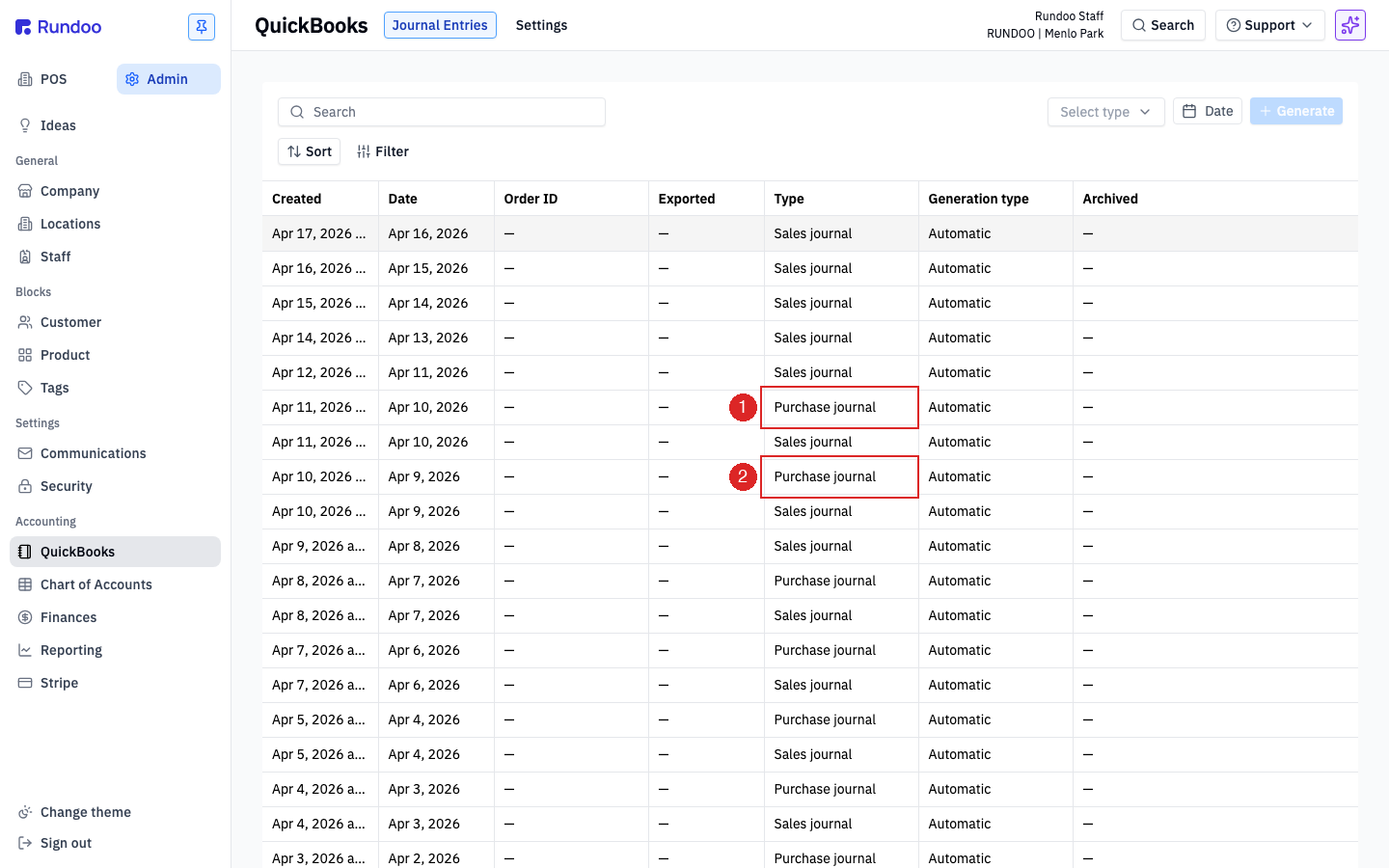
You can see the entry in the journal-entries feed under Admin > Integrations > Journal Entries as a Purchase journal row dated the day the PO was vouchered. Entries generate overnight for the previous day's activity, so a PO you voucher today shows up in the feed tomorrow morning. Click the row to see the full double-entry detail, every line, every account, every debit and credit. See Journal entries for how to read one.
Vouchered PO missing in QuickBooks? Journal entries sync overnight, not in real time, a voucher posted today won't appear in QBO until the next morning's feed. If a PO has been vouchered for more than a day and still isn't in QuickBooks, check the sync status under Admin > Integrations; see QuickBooks for how to review and replay missed entries.
The printable per-PO version (useful when your bookkeeper wants an invoice-level summary instead of the daily roll-up) comes from the Generate purchase journal action on the vouchered PO detail.
When you later Mark as paid, Rundoo posts a second journal entry: debit Accounts Payable, credit the tender account you paid from (bank, card clearing, etc.). Both entries flow through to QuickBooks if you're on the QBO integration (see Journal entries).