
Rundocs › Accounting
Purchase journal
Last updated 2026-08-27
The purchase journal is Rundoo's GL-level view of the buy side. Every vouchered PO line, rolled up into the debits and credits that hit your inventory and accounts-payable accounts.
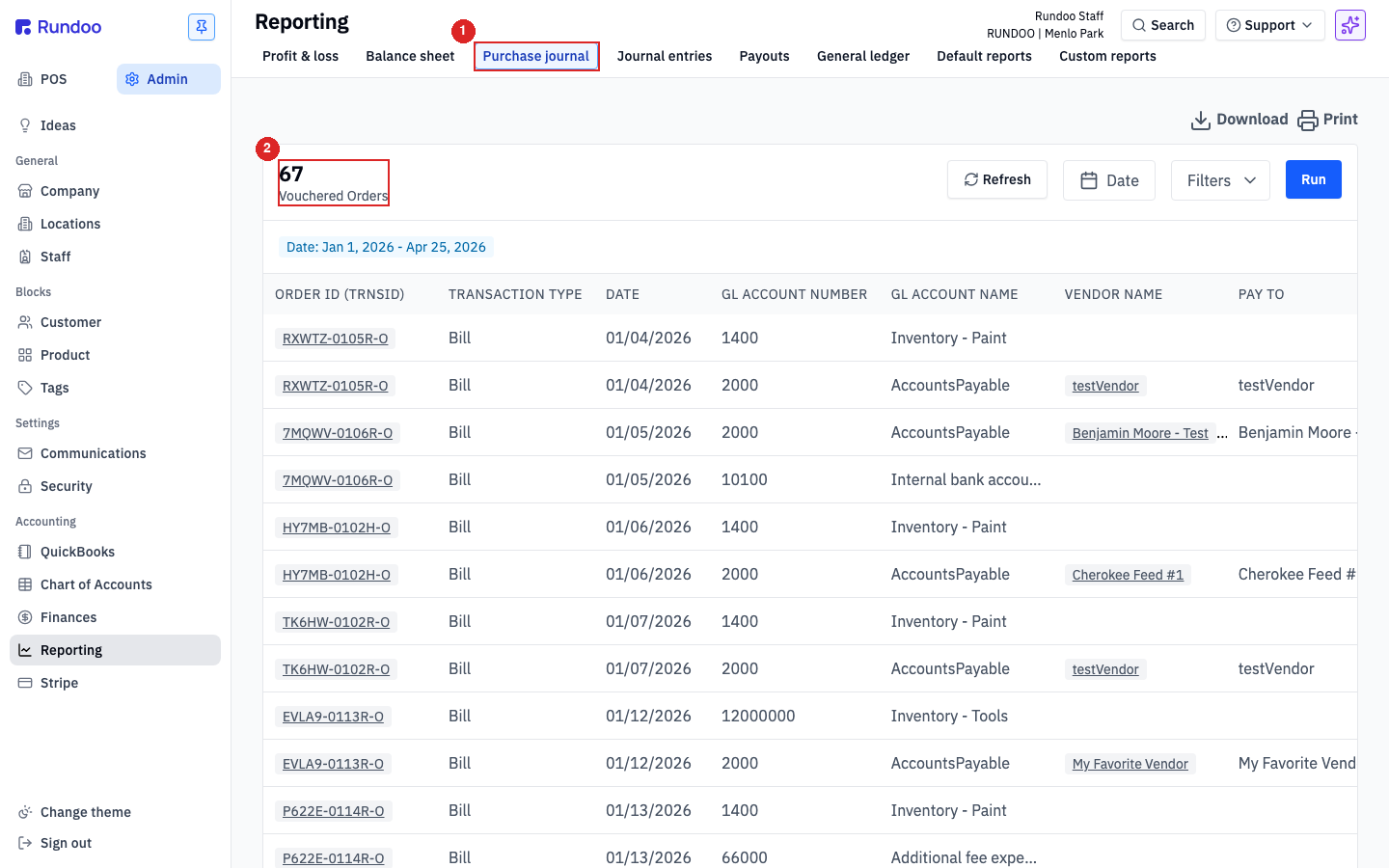
In the Admin > Reporting > Purchase journal tab, you'll find the report itself, a vouchered-order-level feed filtered to purchase activity. Entry-level detail for a given day lives alongside other journal entries in Admin > Integrations > Journal Entries.
What the purchase journal is
The purchase journal is the subset of journal entries that records purchases, specifically, the GL impact of vouchering a received PO. When you record a vendor invoice on a received PO (see Vendor invoices for the workflow), Rundoo posts a journal entry that debits your inventory accounts and credits Accounts Payable. That entry is a purchase journal entry.
Two places surface it:
-
Admin > Reporting > Purchase journal, a report that lists every line of every purchase entry over a date range. Each row is one GL posting (one account, one vouchered PO), so a single invoice typically produces several rows (one per inventory class touched, plus the offsetting
AccountsPayablecredit). Good for reconciling purchases against vendor statements or for spotting vouchered POs that didn't route to the account you expected. -
Admin > Integrations > Journal Entries, the journal-entry feed, which includes
Purchase journal - {Date}entries alongsideSales journal, refunds, and other types. This is where the balanced double-entry view lives (useful when you want to look at one day's purchases as a single accounting document instead of a flat row-per-posting report).
Purchase journal entries are generated automatically. You don't create them by hand. Vouchering a PO is what produces the entry. The one case where you'd touch the workflow directly is pulling a printable summary from a specific vouchered PO (see Generate a purchase journal entry manually below).
How entries are grouped
Rundoo rolls up purchases into one Purchase journal entry per business day per location. Every PO you vouchered that day at that location, whether it's one invoice or twenty, lands in the same entry, with one line per account touched. That's why the Journal Entries list shows at most one Purchase journal row per date, while the Purchase journal report can show many rows for the same date (the report is line-level; the entry is day-level).
A few consequences of the day-level grouping worth knowing:
-
No vouchered POs that day = no entry that day. If you don't see a
Purchase journalrow for Friday or Saturday, the most likely reason is that no vendor invoices were vouchered on those dates. Weekends are a common culprit for shops that only voucher during the week. Check POS > Orders > Vouchered and confirm theVouchered atdates before assuming the entry is missing. -
One entry per location. Multi-location companies get one
Purchase journalentry per location per day, not one combined entry across the company. -
Account-level aggregation inside the entry. If three different POs on the same day all posted to
Inventory - Paint, the entry shows a singleInventory - Paintdebit for the combined total, not three separate lines. The per-PO breakdown is in the Purchase journal report, not the entry.
Purchase journal entries are read-only in Rundoo, like every journal entry. Correcting a mis-vouchered PO means reverting the voucher (see Vendor invoices). If an entry's lines are hitting the wrong GL account, class, or department, the fix is in Account mapping, the entry itself isn't editable, and updates to mapping apply to future entries (regenerate past entries from the Generate control on Admin > Integrations > Journal Entries to pick up a mapping correction on old dates).
Viewing the purchase journal
Open Admin > Reporting > Purchase journal. The report is empty until you run it (pick a date range, then click Run).
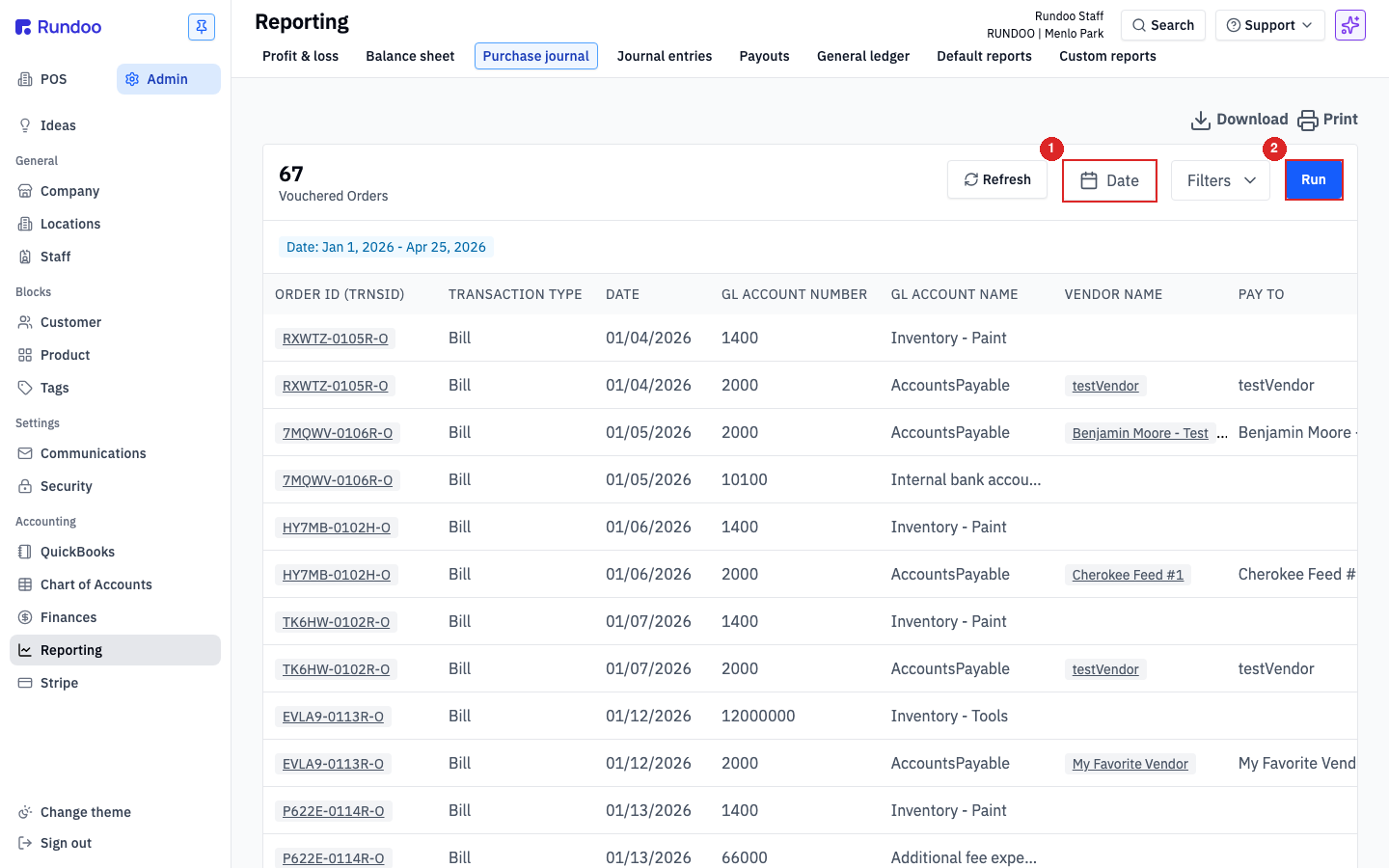
The report header shows the count of Vouchered Orders matching the range (e.g. 8 Vouchered Orders) next to the active Date pill. The table below lists one row per GL posting, so a single vouchered invoice that touches three inventory classes plus Accounts Payable produces four rows. That's different from the Journal Entries tab, which shows one day-level entry and rolls those four postings into the entry's lines. Use the report when you want line-level detail across a range; use Journal Entries when you want the balanced document for a single day.
Columns in the report:
| Column | What it shows |
|---|---|
Order ID (TRNSID) |
The PO's transaction ID. Click to jump back to the PO. |
Transaction type |
Bill for a standard vouchered invoice. |
Date |
The invoice date you entered at vouchering. |
GL account number / GL account name |
Which account this line posts to (e.g. 1400 Inventory - Paint, 2000 AccountsPayable). |
Vendor name |
The vendor on the PO. |
Pay to |
Who the check goes to (usually matches the vendor, sometimes a parent billing entity). |
Vouchered at |
When vouchering happened. |
Class |
Extra dimension when Rundoo has one (flows through to QuickBooks so class-level reporting reconciles). |
Amount |
The dollar amount of this single GL posting. |
Invoice No (DOCNUM) |
The vendor's invoice number, the one your bookkeeper ties back to the paper invoice. |
Order ID (MEMO) |
Rundoo's PO reference, repeated here to land in the QuickBooks memo field on import. |
Vendor address |
The mailing address on file for the vendor. Useful for cutting checks. |
Due date |
When the invoice is due per the vendor's terms. |
Controls across the top-right of the report:
-
Refresh. Re-pulls data without changing the range. Handy after vouchering a new PO mid-reconcile. -
Date(opens a date-range popover).Month to date,Year to date,Custom, and similar. -
Filters, narrows the result by vendor, class, or GL account. Good for cutting the report down to one vendor when reconciling against their statement. -
Run(populates the table). The report stays empty until you click it, even if a range is set. -
DownloadandPrint(top-right of the panel), export the currently-run report as a spreadsheet or send it to the printer. UseDownloadfor sending to your bookkeeper.
For the balanced double-entry view of a single day's purchases (with total debits, total credits, and every posting on one page) open Admin > Integrations > Journal Entries and click the Purchase journal - {Date} row. See Journal entries for how to read an individual entry.
Generate a purchase journal entry manually
There's one manual path into the purchase journal: the + Generate purchase journal action in the header of a vouchered PO's detail page.
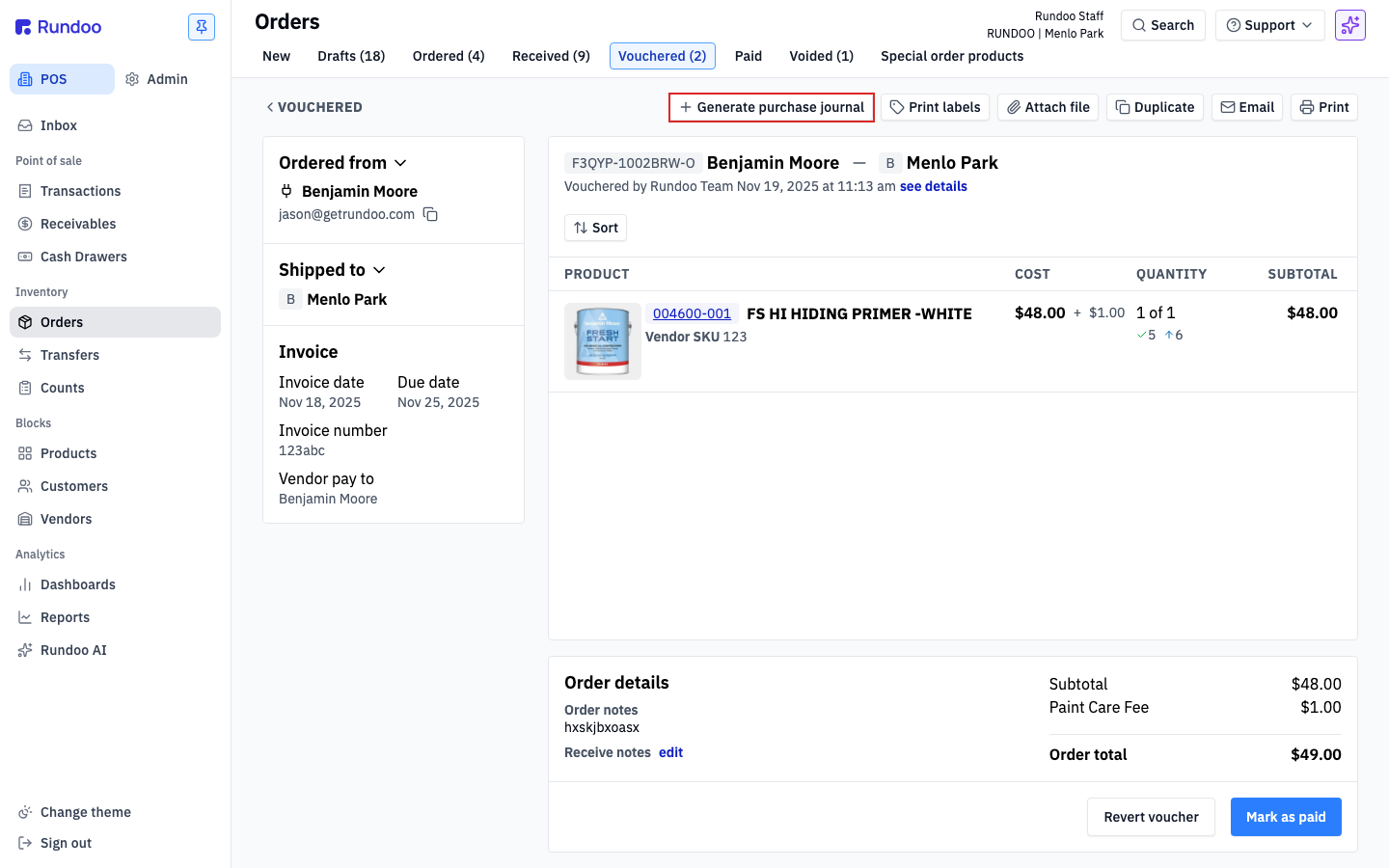
From POS > Orders > Vouchered, open any PO. At the top-right of the detail page, next to Print labels and Attach file, you'll see + Generate purchase journal. Clicking it produces a printable purchase-journal summary for that one PO, the lines that got posted, the accounts they hit, and the total owed to the vendor. Useful when your bookkeeper asks for a paper trail on a specific invoice, or when you want to double-check what Rundoo actually booked against your GL before payment goes out.
Generating a printable summary doesn't re-post anything to your GL. The journal entry tied to the voucher was already created when you vouchered the PO. This action just surfaces a human-readable version of it.
How purchase journal feeds QuickBooks sync
If you're on the QuickBooks Online integration, purchase journal entries export the same way every journal entry does (they flow through Admin > Integrations > Journal Entries and get pushed to your QBO file on a schedule). The Exported column fills in as entries sync; any row without an export date is a candidate to investigate (connection drift, unmapped account, etc.).
For QuickBooks Desktop and other GLs, use Download IIF (QBD format) or Download CSV from the entry's detail page to pull the file, then import it into your GL. Either way, the purchase journal lives in the same container as the rest of your accounting, no separate export pipeline, no separate reconciliation step.
Which accounts each vouchered invoice posts to is controlled by your Chart of Accounts mapping. If a purchase is routing to the wrong inventory account, the fix is in Admin > Chart of Accounts > Mapping. See Account mapping for the walkthrough, and Chart of Accounts for what each account is for.
Regenerating a purchase journal entry
If a date you expected to see in QuickBooks isn't there (Friday and Saturday are the classic gap) the Select type, Date, and + Generate controls at the top-right of Admin > Integrations > Journal Entries are how you fix it.
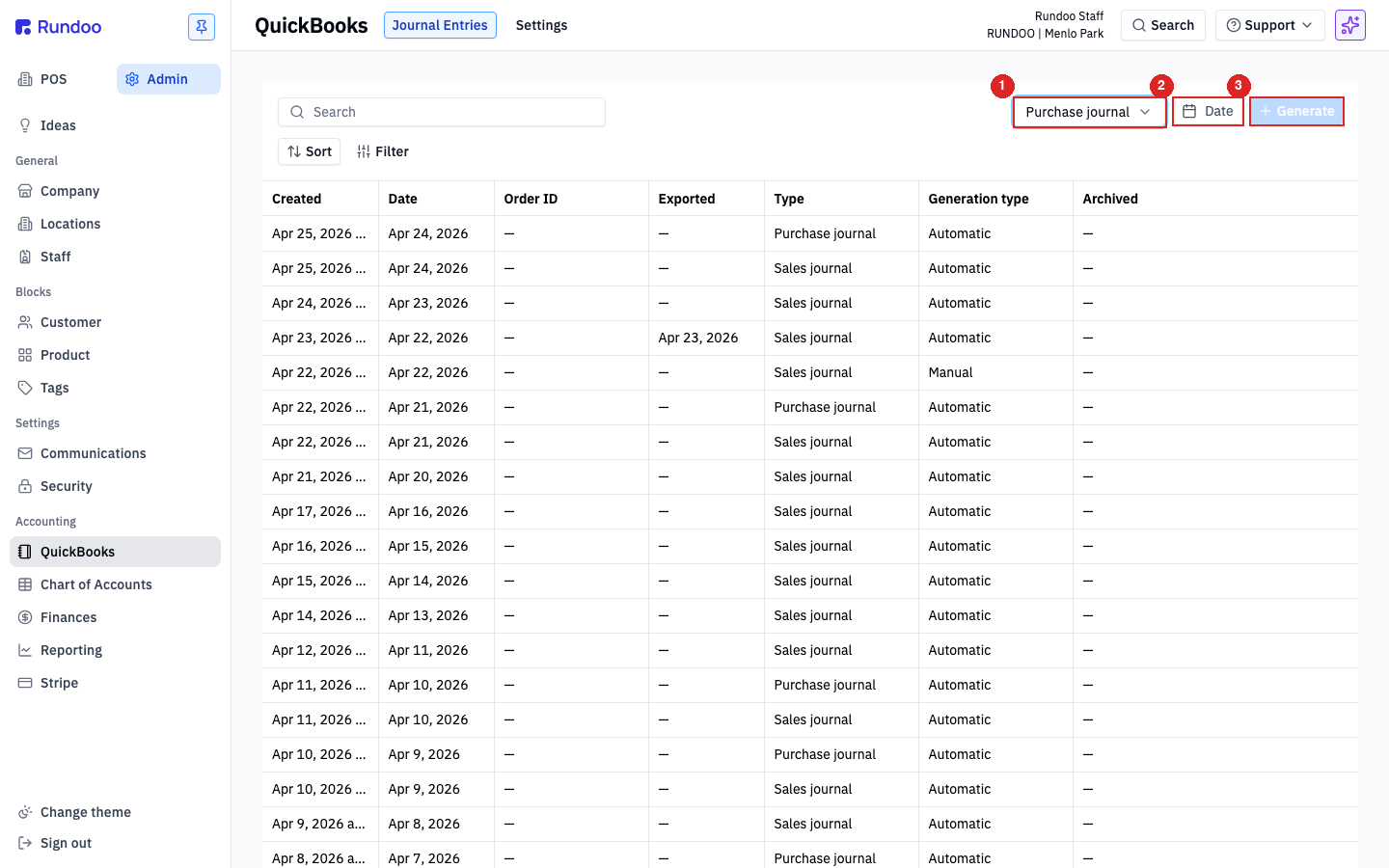
The flow:
-
Open Admin > Integrations > Journal Entries.
-
In the
Select typedropdown, pickPurchase journal. -
Click
Dateand pick the date (or range) that's missing. -
Click
+ Generate. Rundoo re-runs the grouping for that window and posts the entry (on QBO, the nightly sync picks it up on the next run; on QBD, the entry appears in the list ready forDownload IIF).
Before you regenerate, it's worth confirming there's something to regenerate. Three common reasons a date doesn't appear:
-
No vouchered POs that day. Open POS > Orders > Vouchered and filter by the missing date. If the list is empty, nothing got vouchered (Rundoo doesn't produce empty entries, so there's nothing to export). Common over weekends and holidays.
-
Entry exists but hasn't exported. The
Purchase journal - {Date}row is in the list with a blankExportedcolumn. For QBO, this usually means the Intuit OAuth connection expired (open Admin > Integrations > Settings and re-connect), then the next nightly sync catches up. For QBD, blank just means you haven't downloaded the file yet. -
Mapping changed after the entry was generated. If you updated Account mapping and want past entries to reflect the new mapping, regenerate those dates with the
Generateflow above. The new mapping applies on the new run.
Regenerating isn't the same as the nightly automatic run. The entry gets a Generation type of Manual instead of Automatic in the list. The accounting impact is identical; the column just tells you who triggered which entries, which helps if you're auditing a reconciling mistake later.