
Rundocs › Inventory
Inventory counts
Last updated 2026-09-08
Inventory counts are how you reconcile what Rundoo thinks is on your shelves with what's actually there: pick a scope, walk the aisles, enter counts, review the variance, then complete the count. Completing a count is what applies it to your on-hand inventory, so once you finish, your numbers adjust to what you actually have on the shelf. It also writes a journal entry for the dollar variance. (Rundoo labels that final step Complete; you may also hear it called committing the count.)
Entered your counts but your inventory numbers didn't change? That is the most common surprise, and it isn't a bug: typing counts in saves them but does not touch your on-hand, and a count never applies itself. Nothing adjusts until you click Complete (Step 4 below). So if your cycle count isn't adjusting your final numbers, or you counted everything and your on-hand still looks wrong, the count is almost always still sitting in the In progress tab waiting on that last click.
Rundoo supports two methods of inventory count: a Full count for end-of-year / end-of-quarter store-wide walks, and a Cycle count for narrower scopes (one aisle, one vendor, one department) that you run on a regular cadence without zeroing out the rest of the catalog. Pick the scope when you start a new count (Step 1 below). You can run counts from the web POS or continue them in the aisle on the Rundoo POS mobile app.
In the POS mode, open the Counts left tab (every count you've ever run lives here).
Step 1: Start a new count
The top-tab strip (In progress, Completed, Voided) splits counts by where they are in the lifecycle. Completed is the running history of every reconciled count, each one listed with {Location} — {Name} and the timestamp it was committed.
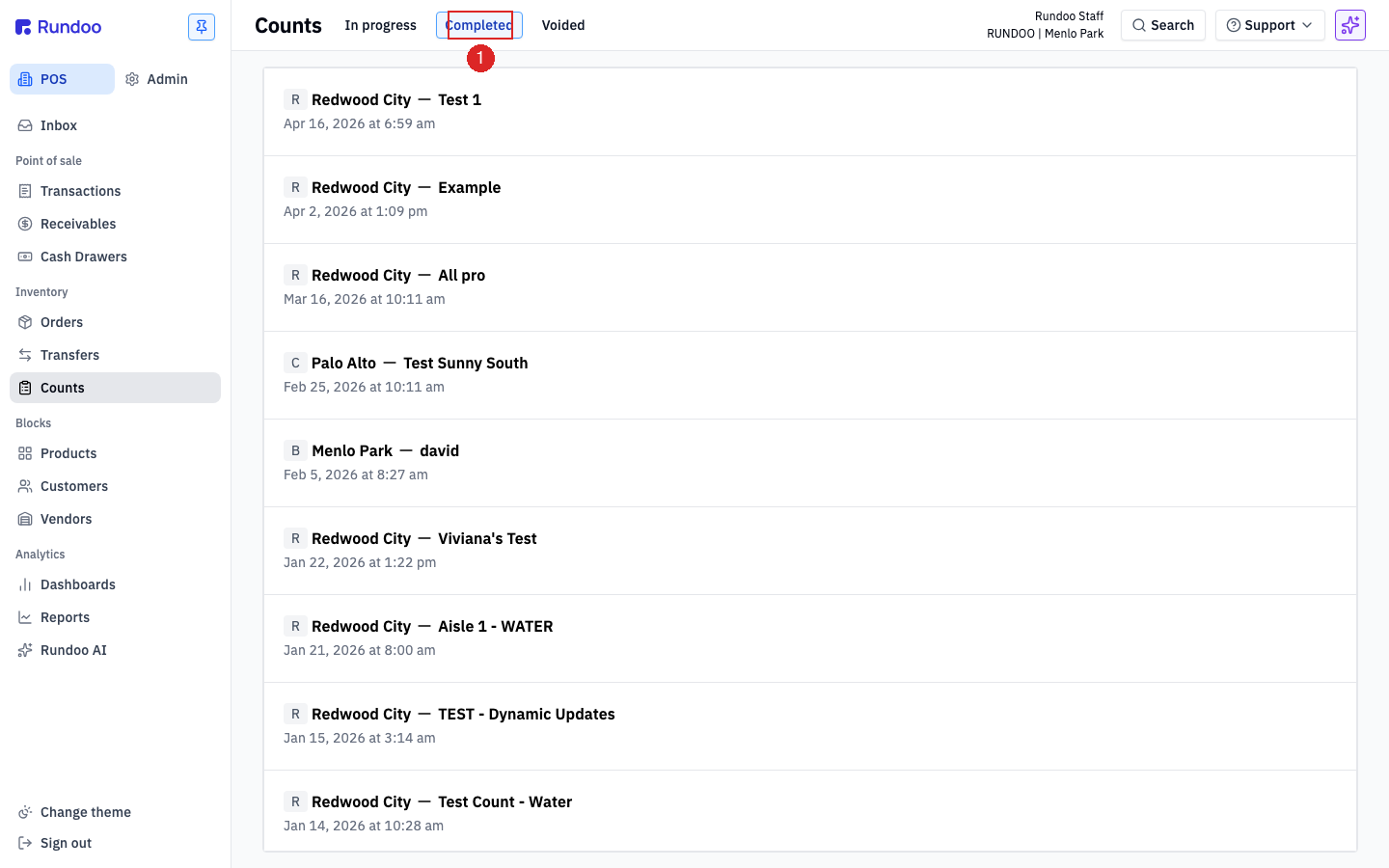
To start a fresh count, flip to the In progress tab and click Start new inventory count in the top-right. That opens the New inventory count modal where you pick the location, give the count a name, and (this is the important decision) choose the scope.
⚠️ Scope by category or by specific products to avoid the "count the whole store" trap. A
Fullcount that nobody finishes is worse than no count at all.
Full vs Cycle
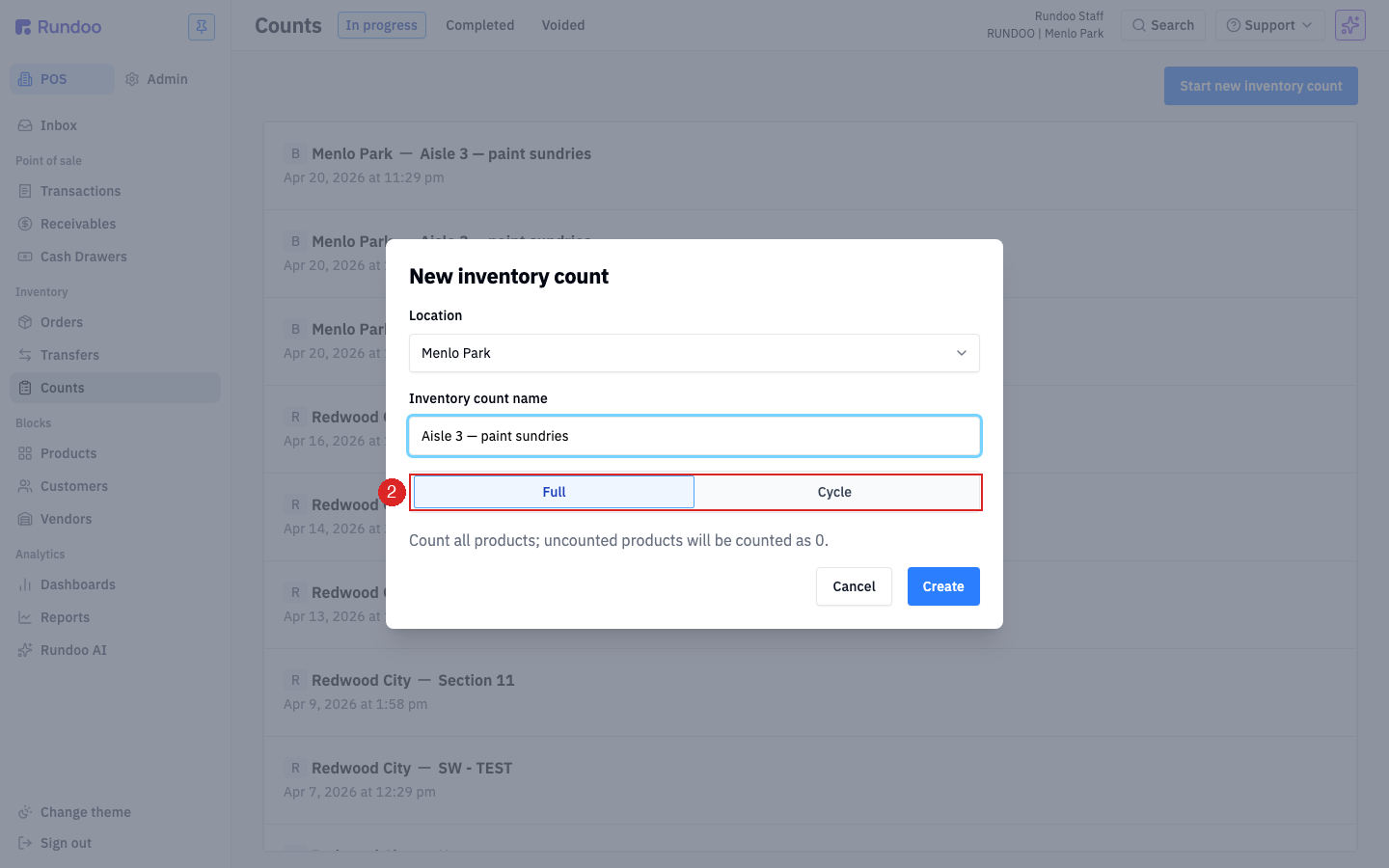
The two scope buttons behave differently:
| Scope | What it counts | When to use |
|---|---|---|
Full |
Every active product at the location. Rundoo prefills the expected on-hand for all of them, and any product you don't touch is counted as 0. |
End-of-year / end-of-quarter reconciliation where you're walking every shelf. |
Cycle |
Only the products you add to the count. You choose them up front with Add products and only those rows get reconciled. | Regular short cycle counts (one aisle, one vendor, one fineline, one department) where you want to leave the rest of the catalog untouched. |
The caption under the scope buttons spells out the Full gotcha: "Count all products; uncounted products will be counted as 0." If you pick Full and miss a product, Rundoo will zero it out on commit. For anything other than a planned full-store walk, Cycle is almost always the right call.
Started a Full count and the Complete button won't light up? A Full count reconciles the whole location, so Rundoo won't let you finish until every active product has a count. That's why Complete / Mark as counted stays greyed out while anything is still sitting in To count. To finish it, account for the products you didn't physically count: on the To count tab, select the rest and click Mark all as 0 (see Step 2) to record them as zero. Once To count is empty, Complete lights up. That is exactly what a Full count means (anything you didn't find on the shelf gets counted as 0).
⚠️ Marking the rest as 0 writes those products' on-hand down to zero when you commit. Only do it for a real full-store walk where everything uncounted truly is gone. If you only meant to count part of the store and don't want the rest zeroed out, void the Full count from its detail page and start a Cycle count instead, it only reconciles the products you add with Add products, so it completes as soon as those are counted.
Click Create to drop into the count.
Step 2: Count the product
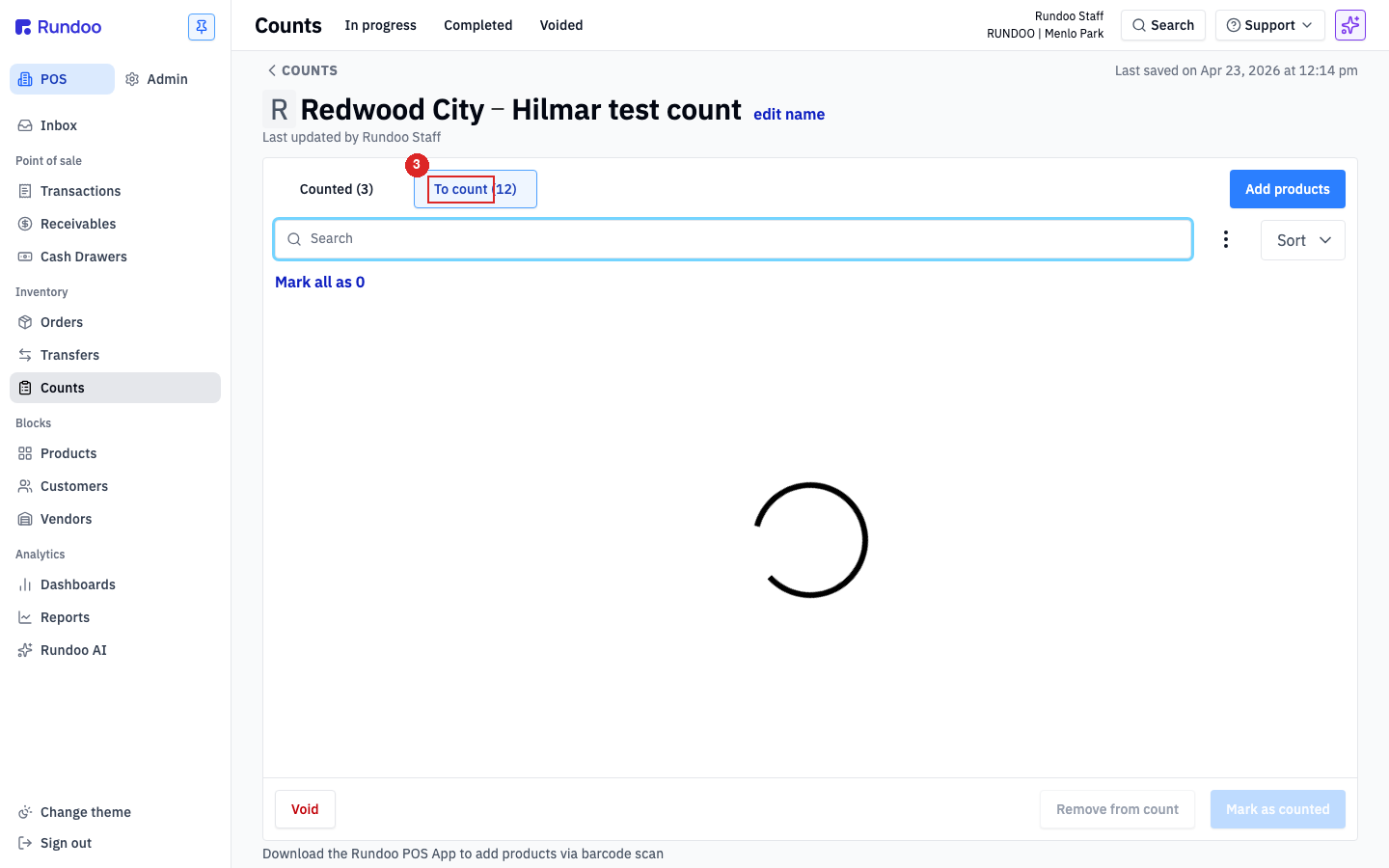
The count detail page has two top tabs: To count (products you haven't counted yet) and Counted (products you've already entered a number for). The tab counts update live, Counted (2) / To count (40) tells you at a glance how far along you are.
Three ways to enter a count on the To count tab:
-
Type the number in the
COUNTEDcolumn. The stepper arrows work too, but typing is faster for anything but small numbers. Tabbing between rows moves the focus down. -
Scan the barcode on the shelf. Scanning a product on the
To counttab fillsCOUNTEDwith1and increments with each subsequent scan. The Rundoo POS App on a phone makes this the natural way to count. The page banner links to it at the bottom. -
Click
Mark all as 0for a subsection you've already walked. Useful when you've physically verified a whole shelf is empty and want to commit that in one click. ⚠️ This zeroes every row in the current visible filter, not just the ones you've physically checked. If you click it on an unfiltered Full count, you'll write off the entire location's inventory. Always filter the list down to the section you actually walked before using this.
The moment you enter a number on a To count row, Rundoo moves that row over to the Counted tab. Products not expected at the location (stuff that shows up on the shelf but isn't in Rundoo's inventory) can be added any time via Add products in the top-right. Added products get an Expected of 0, so whatever you count is pure variance.
Two staffers counting the same product simultaneously: the last save wins. If two people enter different numbers for the same row at the same time, Rundoo keeps the last save and silently overwrites the first. Split sections by aisle, vendor, or fineline before splitting people across the count, don't let two staff walk the same physical shelf in parallel.
Adding products by rule (build a Cycle count fast)
On a Cycle count you don't have to add a hundred products one at a time. The Add products dialog has an Add products by rule mode that bulk-adds a whole group in one shot. Pick a Rule, set its value, and every matching product drops into the count (a running "See N products chosen" line confirms how many the rule matched before you commit to it). The rule options are:
| Rule | Adds… |
|---|---|
Vendor |
Every product from one vendor. |
Categorization |
Every product in a chosen Department, Class, or Fineline. |
Product tag |
Every product carrying a chosen product tag. |
Product |
Individual products you search for by name/SKU (the one-at-a-time path). |
There is no Bin location rule. You can't add products to a count by bin/shelf location. So if you cycle-count by physical section ("add all the items in aisle 1, section B" / "everything in this 4ft bay") and that section spans several vendors and departments, no single rule pulls it in. Bin location isn't one of the fields Add products by rule can match on.
The workaround: mirror the bin into a Product tag. Give every product in a section the same tag (for example Aisle 1 - Sec B), then Add products → Rule → Product tag pulls all of them into the count at once regardless of vendor or department. Tags are applied on the product record (or in bulk from POS > Products), and once they mirror your bin map, tag-based counting stays a one-click add for every future cycle.
Counting on the mobile POS
For any count that involves walking aisles rather than sitting at a register, the Rundoo mobile POS app on a phone is faster than the desktop. The phone-side flow mirrors the web one:
-
Open the count from the Rundoo mobile POS app and pick the count you started on the desktop.
-
Scan barcodes as you walk. Each scan lands the product on the
Countedtab with a quantity of1; scanning the same UPC again increments. The on-screen tab counts (Counted (12) / To count (304)) update in real time so you can pace the walk. -
Search and add via the hamburger menu for products without a barcode handy (type the SKU, pick the match, set the quantity). Same outcome as scanning.
Desktop and phone share the same count, so a counter can start on the phone in the back room and a manager can review on the desktop in the office without re-entering anything.
💡 On a
Cyclecount, Add products is how you build the count in the first place. There's nothing inTo countuntil you add something. On aFullcount, every active SKU is already there waiting.
Step 3: Review the variance
Flip to the Counted tab to audit what you entered before committing. Each row shows five numbers that matter:
| Column | What it means |
|---|---|
EXPECTED |
What Rundoo thought was on-hand right before the count was started. |
COUNTED |
What you entered (editable, you can still change it here). |
VARIANCE |
COUNTED minus EXPECTED. Green + means you found more than expected; red − means you're short. |
COST |
Unit cost, from the product's default cost. |
VARIANCE($) |
The variance in dollars (the P&L impact of this row if you commit). |
EXPECTED and COUNTED are total stock (on hand plus committed inventory). Hover the info icon next to EXPECTED and Rundoo confirms it: "Includes on hand and committed inventory." If a product has 5 on hand and 3 already committed to an open sale, EXPECTED shows 8. Your physical count should be 8 too. When you click Complete, Rundoo adjusts the on-hand portion by the variance amount, not by the full COUNTED number (the 3 already committed keep tracking the open transactions they were attached to).
The Total Variance: pill at the top-right of the tab rolls the dollar variance for every counted row. That's the number to sanity-check before you commit. A big positive total on a Full count usually means you forgot to count a section (it's being zeroed out). A big negative total usually means real shrink, a receiving error, or a miscount (worth pulling a second pair of eyes in on before committing).
The Notes box at the bottom is a free-text field for why the variance looks the way it does ("aisle 3 re-tagged after paint spill," "end-cap display not on the shelf yet"). Notes stay on the count record forever (useful six months later when someone asks why this week's shrink spiked).
Step 4: Commit the count
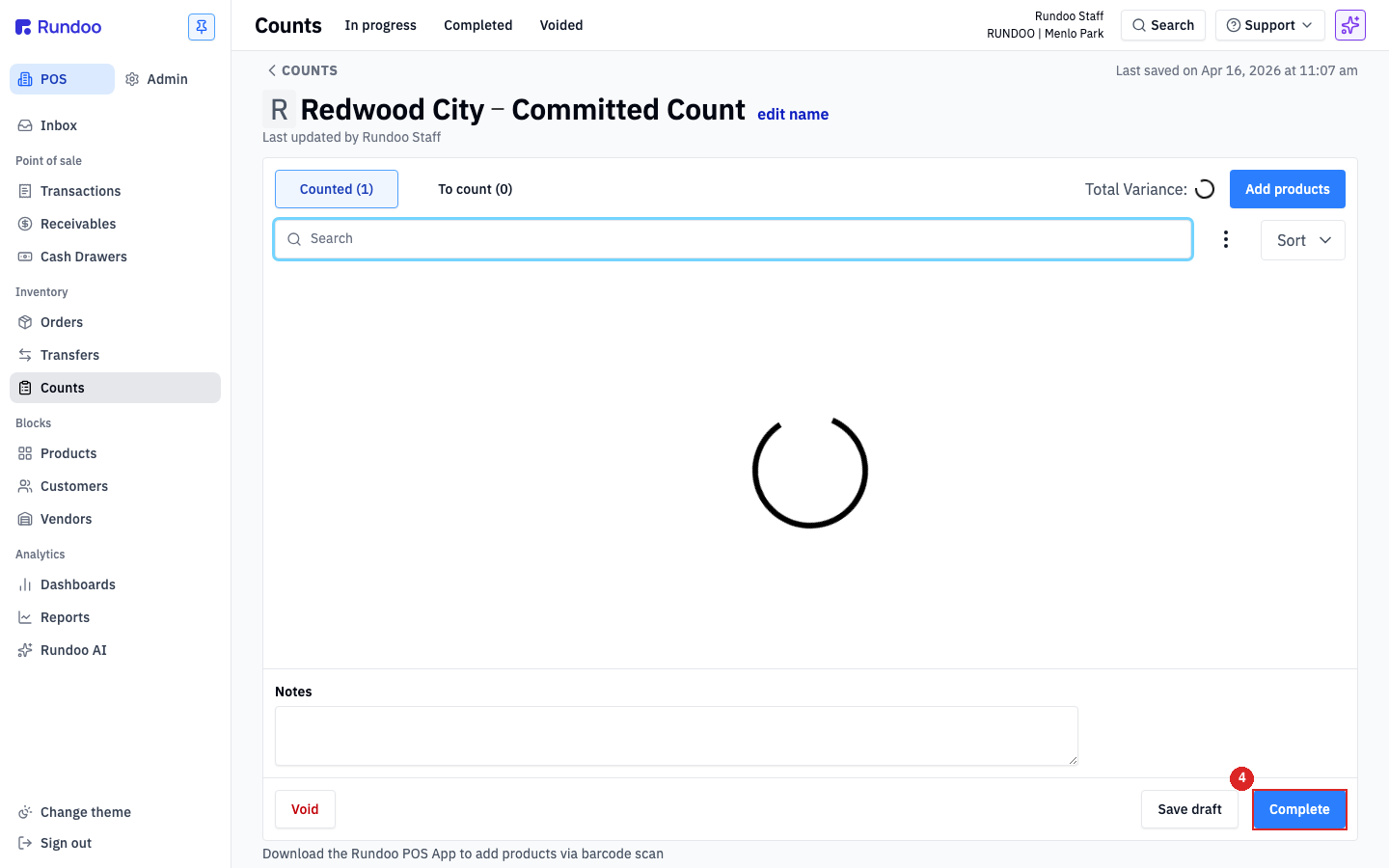
The bottom-right action cluster has three buttons, in order of increasing commitment:
-
Void(throws the count away). Nothing adjusts, the count moves to theVoidedtab. Use it when the count was a false start, not when you're unhappy with the numbers (bad numbers need a recount, not a void). -
Save draft, keeps the count in theIn progresstab so you can come back to it. Use it when you've run out of time mid-count. TheCountedtab still holds everything you've entered, and theTo counttab still holds what's left. -
Complete, the commit, and the step that applies a finished count to your inventory. This is how you make a completed count adjust your on-hand to what you actually counted. Rundoo adjusts on-hand inventory by theVARIANCEon every counted row (see the callout in Step 3 for why it's variance, not the fullCOUNTEDnumber) and writes a journal entry to general ledger for the variance. The count moves to theCompletedtab.
"I entered my counts but my on-hand didn't change" almost always means the count was never completed. Saving numbers on the To count / Counted tabs records them, but it does not adjust inventory on its own, and a cycle count won't apply itself. A count sits in the In progress tab until you click Complete. If your final numbers still look wrong after you've entered everything, open the count and confirm it isn't waiting in In progress for that last click, then Complete it and your on-hand adjusts by the variance.
⚠️ Committing is one-way. The moment you click
Complete, on-hand inventory is adjusted and a journal entry is posted. There's no undo. You'd have to run a second count to reverse the numbers. Review theTotal Variance:and the top few absolute variance rows before clicking.
To print or export a count, do it before you Complete. For a copy you can print or hand to your accountant, click the three dots next to Sort and pick Export Inventory Count Products before the final Complete click. That downloads the counted-vs-expected data (and the variance report) as a spreadsheet you can print. Once a count is completed the export option disappears, so Rundoo only lets you download it while the count is still in progress.
After completing, the Completed detail view still lays out the same EXPECTED · COUNTED · VARIANCE · COST · VARIANCE($) table on screen, so you (or your accountant) can review it, or print that page straight from your browser, to audit the decision later.
Recommended Rundocs
-
Products, the product records whose on-hand counts you're reconciling.
-
Transfers, moving stock between locations, a common source of count variance when transfers go un-received.
-
Cost method, how Rundoo values the variance dollars a count posts to GL.
On mobile
The Rundoo POS mobile app has a Counts bottom-tab for continuing inventory counts in the aisle. It's continue-only, counts are started on the web POS and the mobile app picks them up.
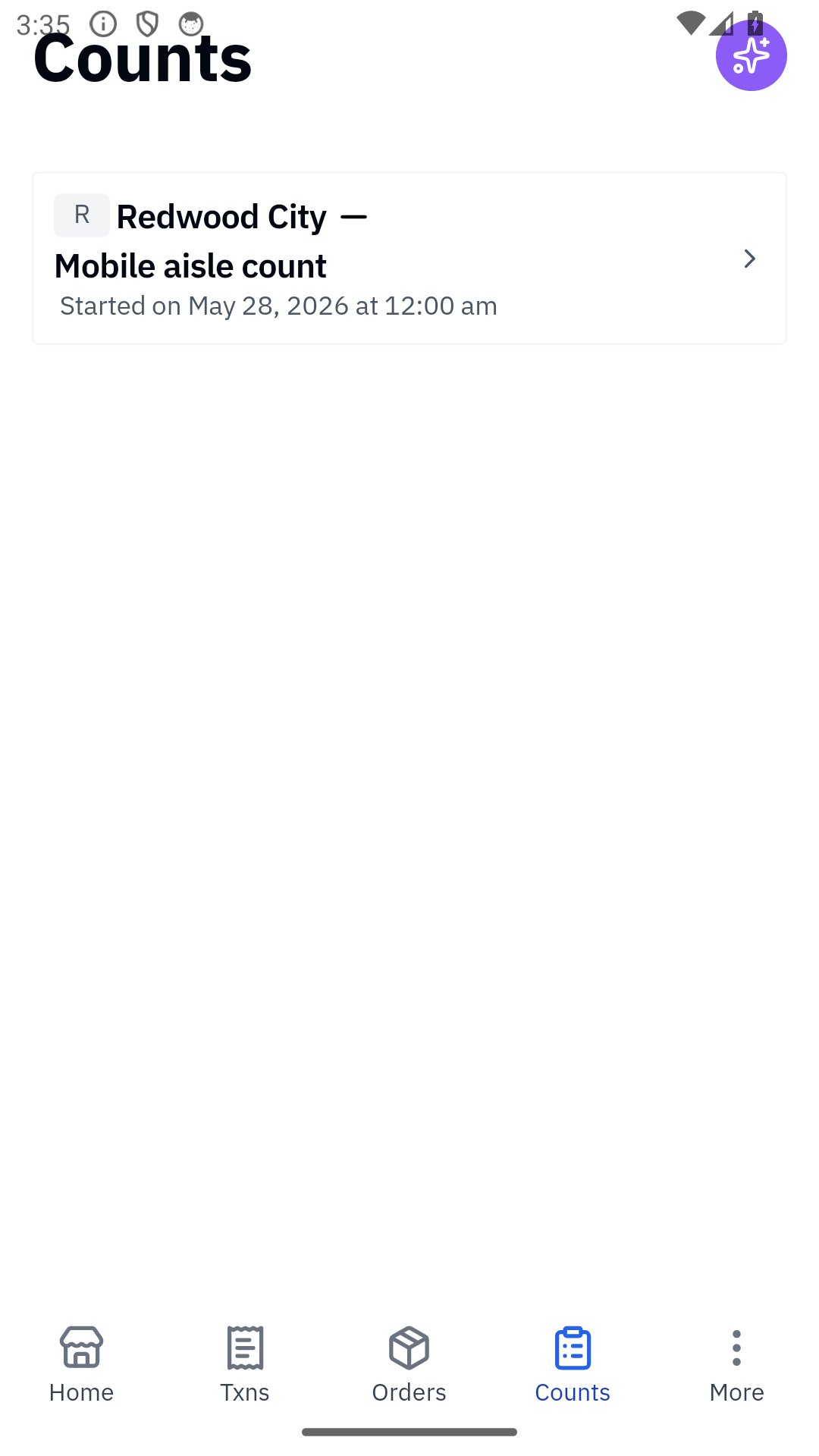
The tab lists every in-progress count at the signed-in staff's location, one row per count with the location pill, count name, and the timestamp it was started on the web. Tapping a row opens the per-product entry surface where staff scan or type counted quantities, one product at a time. Finalizing the count back on the web finishes the run.

Inside a count, the list shows each expected product with the running variance (current count minus expected). The hamburger menu (top-right) lets staff search-and-add a product that wasn't on the expected list.
💡 Mobile-pos doesn't start counts. This is intentional. Count setup (location, scope, expected list) is a desk task; counting itself is an aisle task.