
Rundocs › Accounting
General ledger
Last updated 2026-04-30
The General ledger is Rundoo's per-account transaction log, every journal entry, in date order, for whatever accounts and date range you pick. It's where you go when a total on the Profit & Loss or Balance Sheet looks off and you need to see the underlying postings.
In the Admin > Reporting > General ledger tab, pick a date range, optionally narrow to specific accounts/locations/methods, and click Run. Rundoo pulls every journal entry that matches and lists them with debits, credits, and links back to the originating transaction.
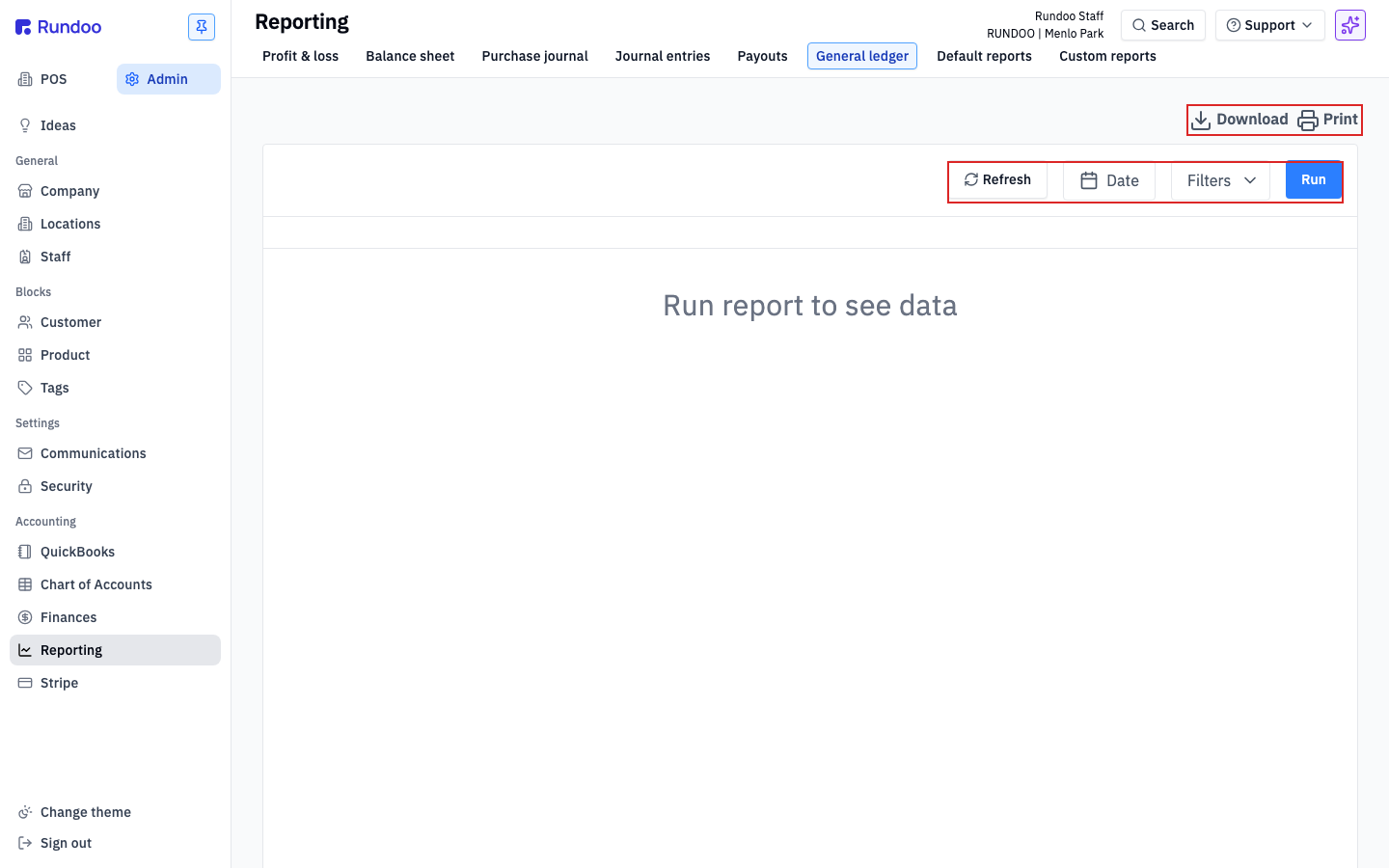
Running the General ledger
The page opens empty. The filter bar is set, but the report doesn't render until you click Run. Pick a date range first: open the Date pill and either pick From/To on the calendar or use a preset (Today, Yesterday, Week to date, Last week, Month to date, Last month, Year to date, Last year).
Use Filters to narrow the scope. The dropdown lists six filter types you can stack:
-
Account, one or more GL accounts from your Chart of Accounts. Check as many as you want.
-
Control account. Filter by the offsetting account on each journal entry (useful for "show me all postings that hit COGS on the other side").
-
Department, Rundoo's product taxonomy roll-up.
-
Location (one or more of your stores).
-
Method. The tender method (cash, card, check, charge, etc.) for postings that carry one.
-
Transaction type. Sale, order receipt, bill payment, inventory count, etc.
Click Run and Rundoo pulls every entry that matches.
If you click Run with no filters set, the report runs unfiltered against the date range (which on a busy month is thousands of rows). Narrow by account first unless you actually want the full journal.
Reading the report
The top-left of the populated report has three summary pills: Total debits, Total credits, and Net change (debits minus credits). For an income account, net change equals the revenue posted in the period; for an asset account, it's the change in that account's balance.
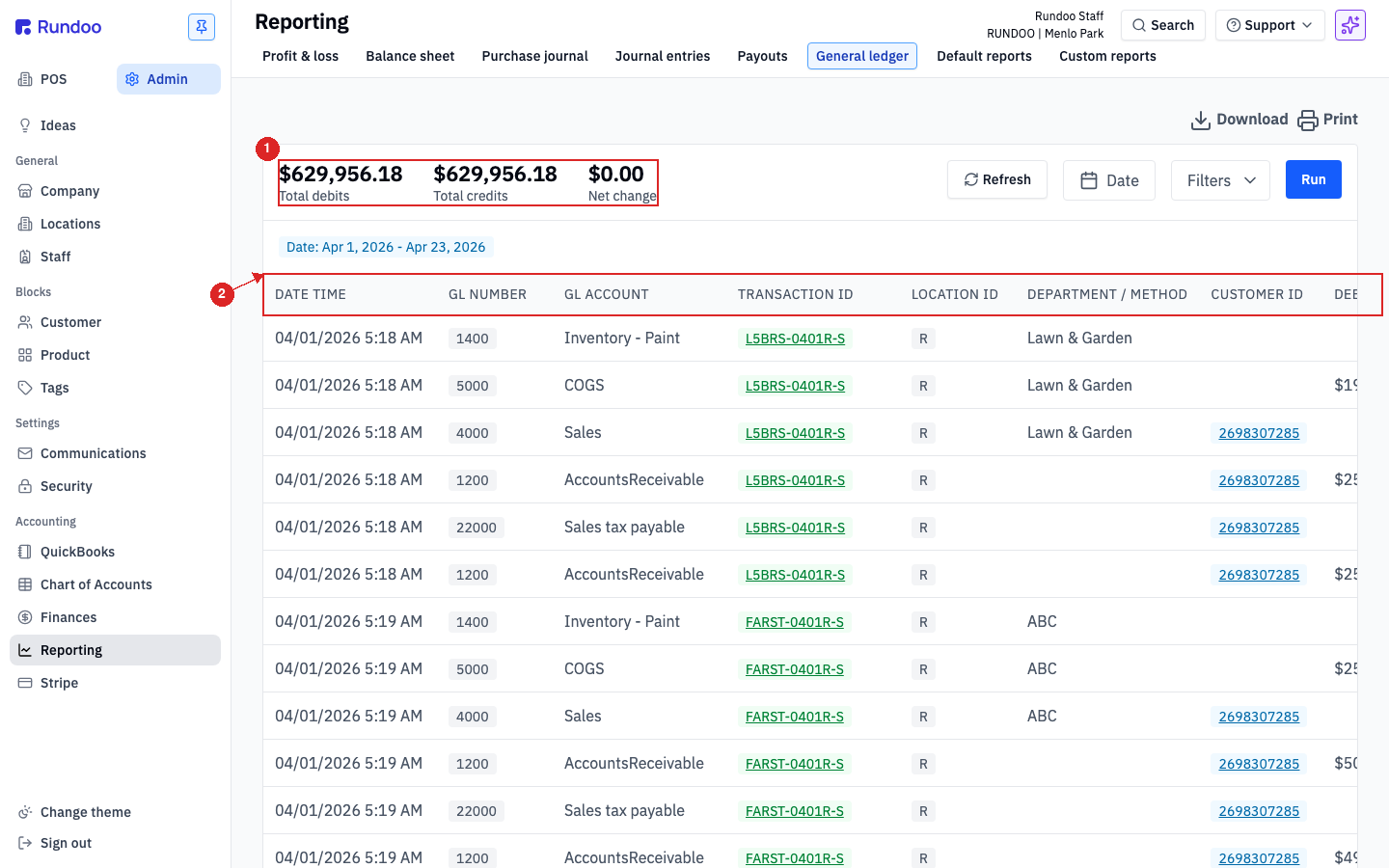
Each row is one journal-entry line. The columns:
-
DATE TIME (when the posting happened, down to the second).
-
GL NUMBER, the account number (e.g.
5000for COGS). -
GL ACCOUNT, the account name.
-
TRANSACTION ID, the originating sale, order, payment, or count. The ID is a link. Click it to open the source transaction in a new tab. This is how you go from "the number looks wrong" to "this specific sale on Tuesday is the problem."
-
LOCATION ID, which store the transaction posted from.
-
DEPARTMENT / METHOD, the product department (for inventory/COGS postings) or the tender method (for cash/card postings).
-
CUSTOMER ID (the customer on the transaction, if any). Also a link (click to jump to that customer's record).
-
DEBIT / CREDIT (the amount, on the side the entry hit). One side is always empty per row.
-
CONTROL ACCOUNT. The offsetting account on the other side of the journal entry. Useful for tracing the full posting without pulling the underlying transaction.
Rows are sorted by Date, Oldest by default (oldest entry at the top) so the ledger reads chronologically.
Filtering
Every filter you apply shows as a pill directly under the summary row.
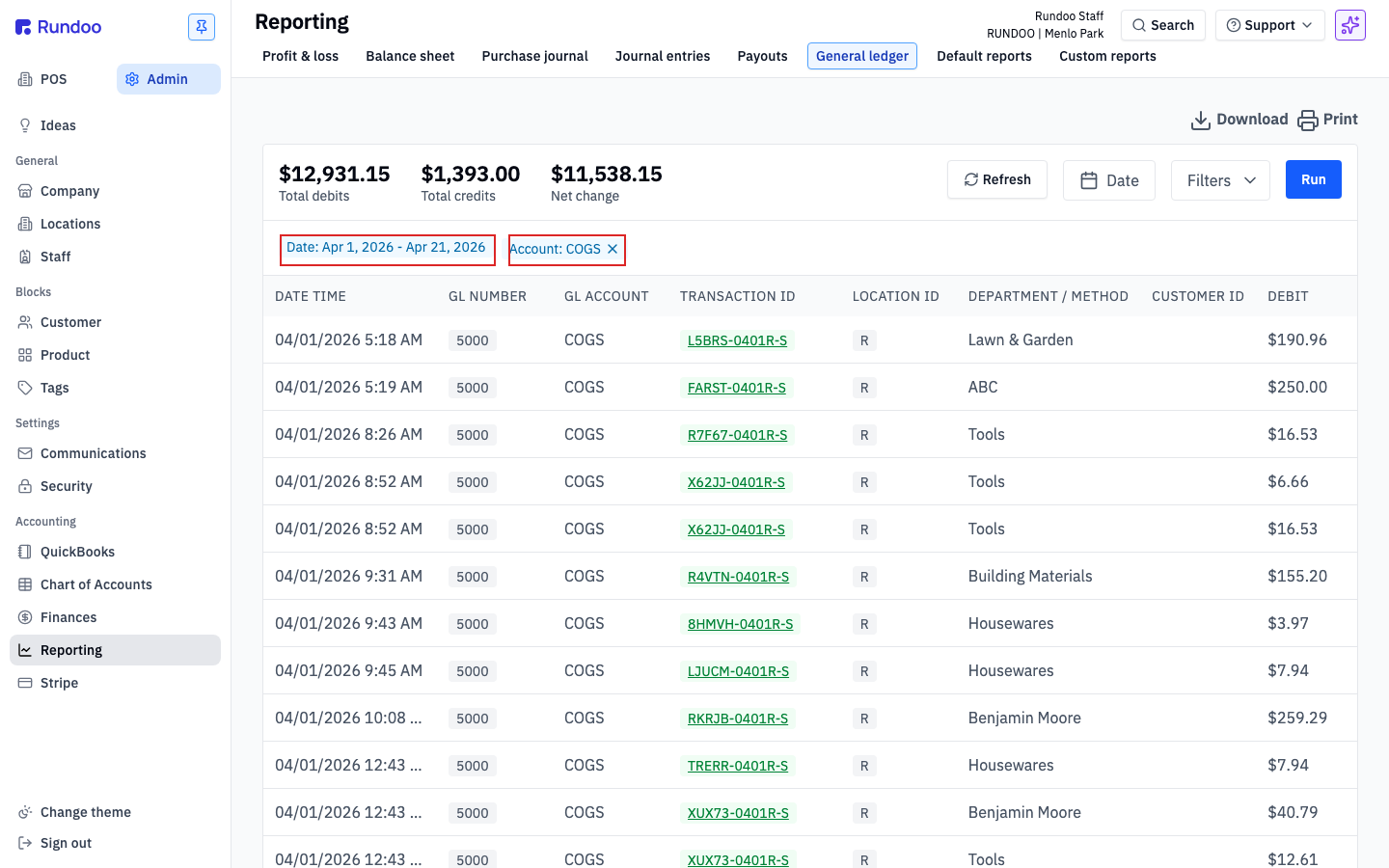
Each pill has an × on the right. Click it to drop that filter and re-run, or click the pill itself to reopen the picker and adjust. This is also how the drill-through from the Profit & Loss lands you here: clicking a dollar amount on the P&L opens this report with the date pill and an account pill already set, so all you do is click Run.
Filters are additive within a type and intersective across types. Checking Menlo Park and Palo Alto under Location shows postings from either store. Adding a Method filter of Card on top narrows that to card postings at either store.
Exporting
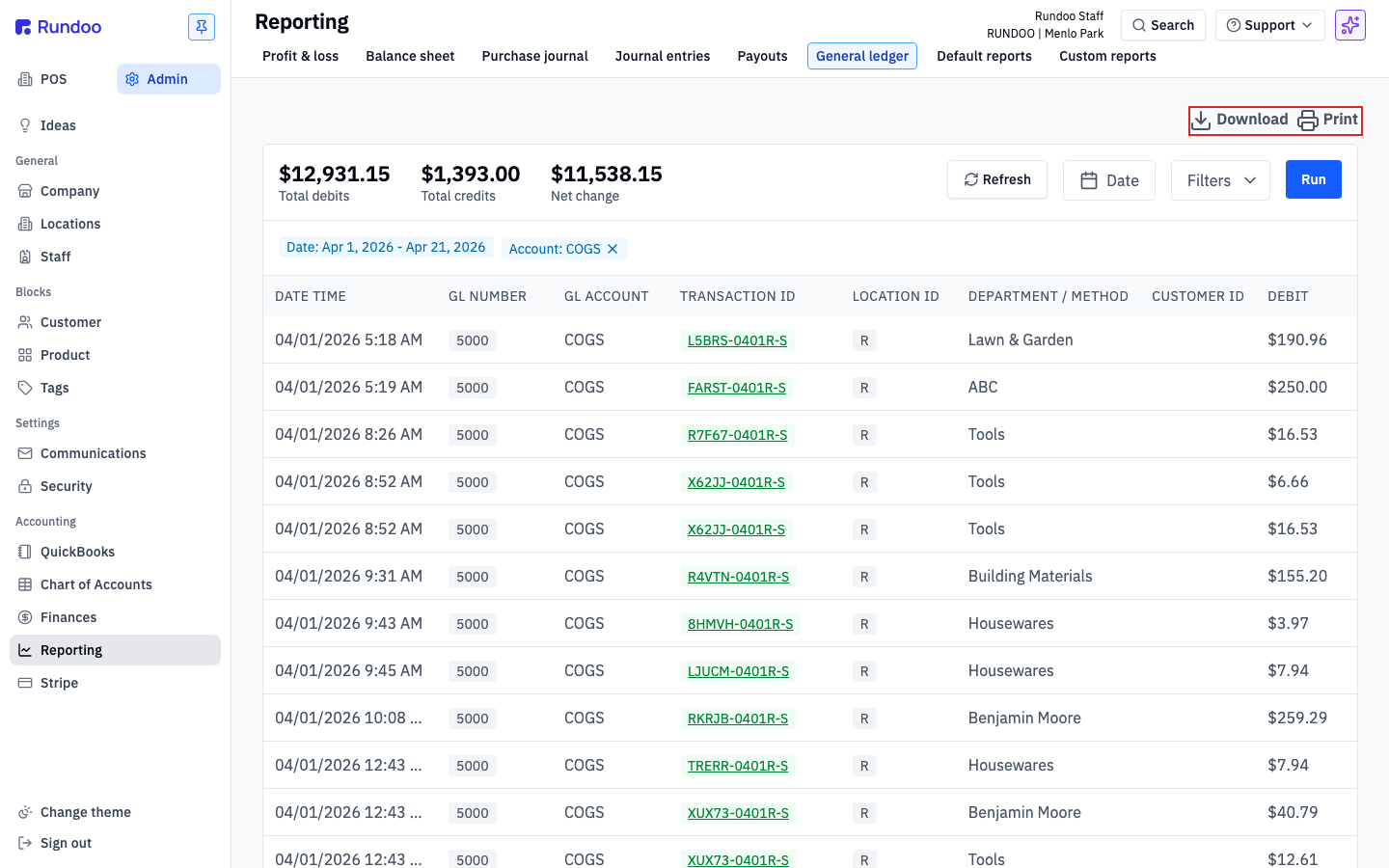
The General ledger is the one Reporting tab with its own export controls. The Download and Print icons sit at the top-right, above the filter bar.
-
Downloadpulls a CSV of every row in the currently-filtered report. The CSV preserves the column order you see on screen, so it opens cleanly in Excel or Sheets and matches what your accountant is looking at. -
Printopens the browser print dialog against a printer-friendly layout (headers, summary pills, and all rows, paginated). Use this when your accountant wants a hard copy at month-end.
The P&L and Balance Sheet tabs don't have their own Download/Print. Export happens here, on the drilled-through General ledger. If you need a PDF of a P&L or BS total, click the dollar amount to drill into the GL, then use Download or Print from this view.