
Rundocs › Integrations
Pittsburgh Paints
Last updated 2026-04-30
Pittsburgh Paints (PPC, formerly PPG) is one of Rundoo's direct-ordering integrations for paint retailers. And PPC lets you spend your co-op dollars on your Rundoo subscription. This Rundoc covers both: how to wire PPC up as a vendor so orders flow to their system, and how co-op funds can cover your Rundoo bill.
In the POS mode, open the Vendors left tab to pair the PPC vendor to Rundoo's integration. In the POS mode, Products left tab, the Integrations top tab, is where PPC catalog items show up for import. Co-op fund questions go to your PPC sales rep directly.
Ordering from PPC
Rundoo's PPC integration is a one-way pipe: when you place a PO against the PPC vendor, Rundoo attaches a standardized Excel (.xlsx) order file to the email it sends to Eplatform@pittsburghpaints.com. PPC's systems read that file and drop the order straight into their queue. No re-typing on either side, fewer errors, faster turnaround. What doesn't come back: cost updates, order acknowledgments, receiving info. Those still get handled manually on your side.
Setting up the PPC vendor
In the POS mode, Vendors left tab, open your PPC vendor row (or add it if it doesn't exist yet). The setup lives across three sections of the vendor's detail page.
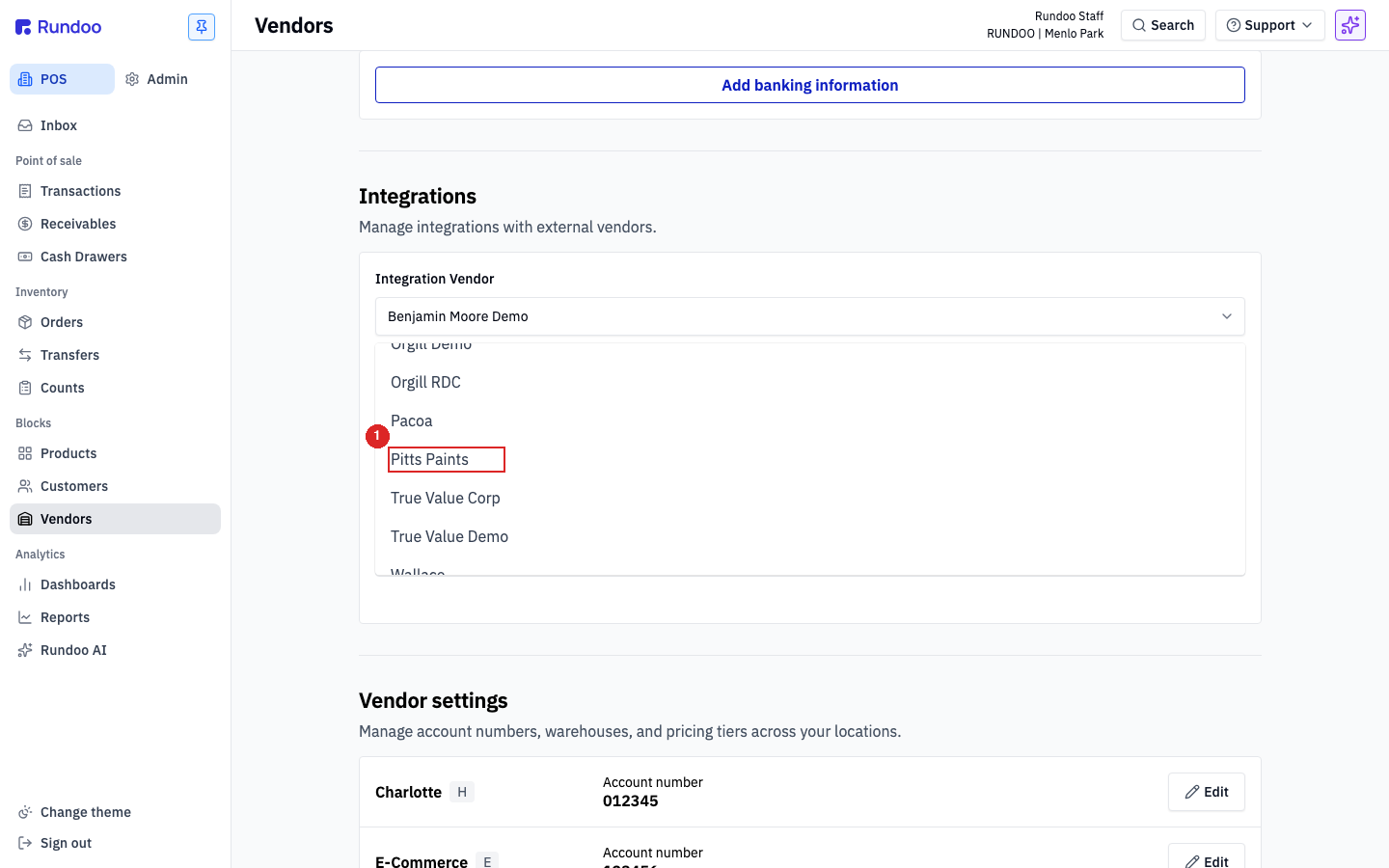
1. Pair the integration. Vendor pairing is server-side. Email support@rundoo.ai with the name of your PPC vendor record and we'll pair it to the Pittsburgh Paints integration on our side. Once paired, a plug icon appears next to the vendor name on the page header and the helper text "Orders will be sent through EDI" shows under the Vendor name field on the Vendor information section. Those two markers confirm the pairing is live; from then on Rundoo attaches the standardized XLSX on every outbound PO.
2. Set the orders email. Scroll to the Ordering section. Enter Eplatform@pittsburghpaints.com in the Orders email field. Turn on the Include XLXS Order in email toggle, the XLSX attachment is what PPC's system reads. Include PDF Order in email is optional; leave it on if you want a human-readable copy attached too. Click Save on the section.
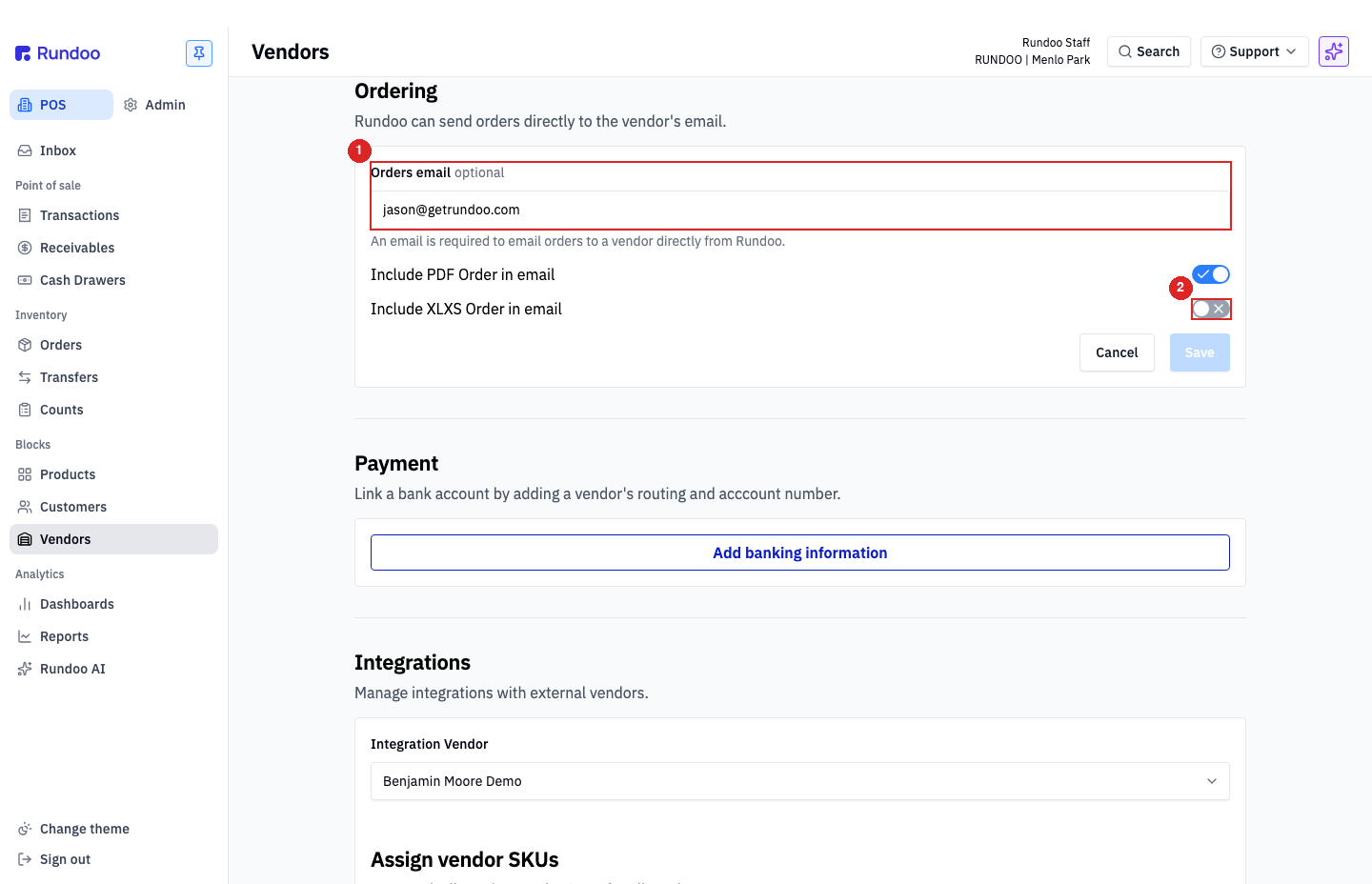
If Include XLXS Order in email is off, PPC won't be able to auto-process the order. A human on their end has to key it in. Double-check the toggle is on.
3. Add your PPC account numbers per location. Scroll to the Vendor settings section. Each of your Rundoo locations gets its own Account number row, this is where your PPC account number for that store goes. Click Edit on each location, paste the account number, and Save.
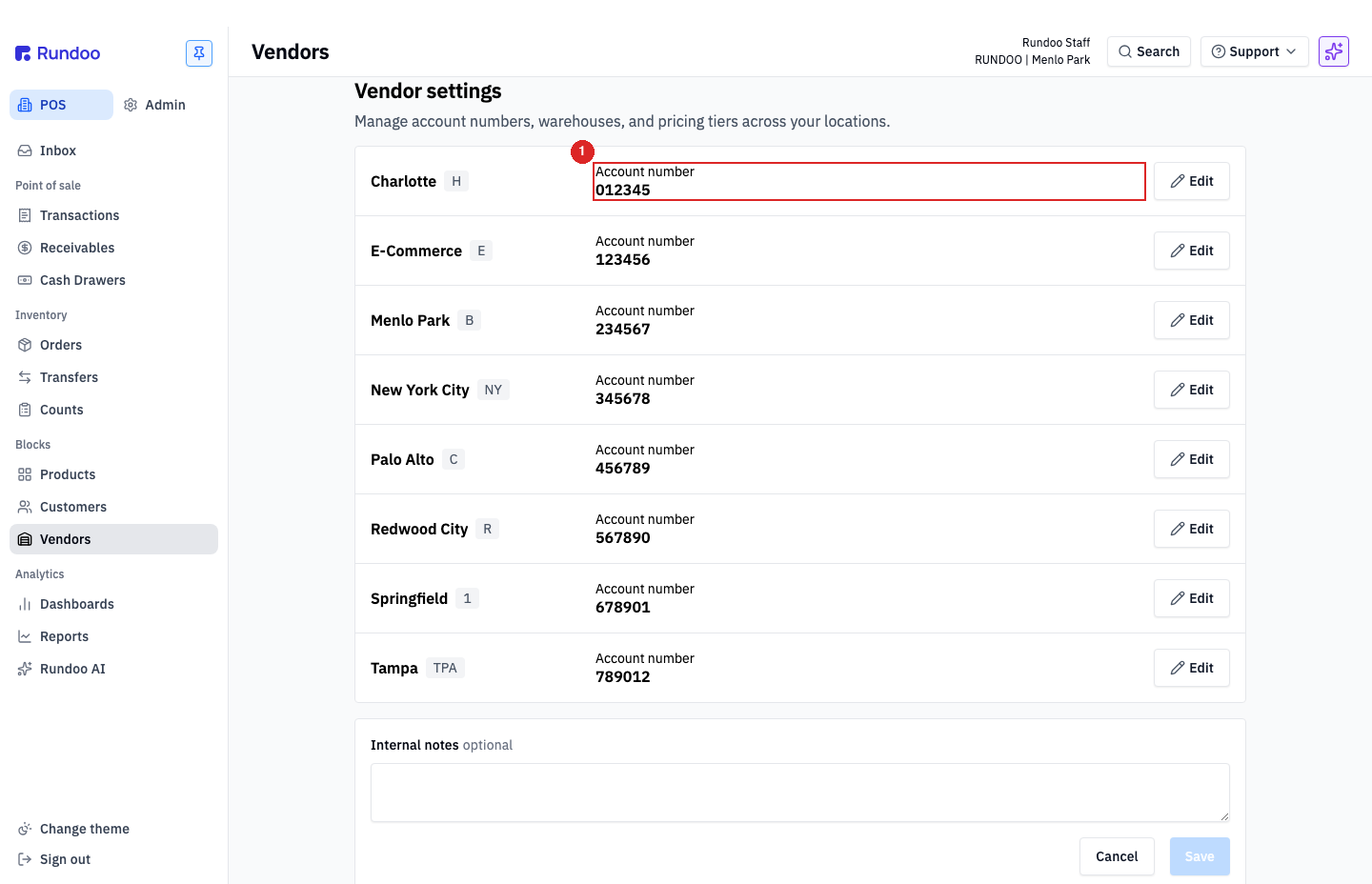
Account numbers are per-location because PPC bills and ships per store. If you have one PPC account across all stores, use the same number on each row.
Placing a PPC order
Once setup is done, PPC orders work like any other emailed PO (see Purchase orders for the generic lifecycle). Create a PO in the POS mode, Orders left tab, pick Pittsburgh Paints as the vendor, add line items, and click Order. Rundoo emails the PO with the XLSX attachment to Eplatform@pittsburghpaints.com; PPC's system picks it up and processes it.
Cost updates, receiving quantities, and vouchering still happen manually on your side (the integration is order-out only).
What you need for PPC's system to read the file
PPC's auto-processor matches your order lines to their catalog using UPCs. For it to work:
-
Every PPC product in Rundoo needs a populated UPC.
-
Each product should have exactly one UPC. The
Additional IDfield on a product can hold multiple UPCs, but PPC's reader only handles one. If a product has two, the order line won't match on their end.
If your PPC rep says "we didn't get the order" or "some lines didn't come through," the first thing to check is UPCs on the products. Missing or multi-UPC products are the usual culprit.
PPC catalog items
In the POS mode, Products left tab, the Integrations top tab shows PPC catalog items you haven't yet added to your inventory. Use the Vendor catalogs dropdown at the top right to switch to PPC. Select the rows you stock and click Import to inventory at the bottom-right to pull them in. For the broader catalog workflow, see Product catalog.
Paying for Rundoo with PPC Co-op Funds
PPC offers its independent dealers a co-op program (the same kind of arrangement most paint manufacturers run), where the manufacturer covers part of the retailer's expenses on certain qualifying activities. Traditionally that's advertising, but PPC has expanded what counts: branded T-shirts, tint machines, and (yes) Rundoo subscriptions.
PPC's view: if the independent dealer grows, PPC sells more product. A POS that actually helps the dealer run their store (catalog, pricing, contractor accounts, real reporting) is a growth lever. So co-op dollars can cover Rundoo.
How to use your co-op funds for Rundoo
The mechanic runs entirely on PPC's side. Rundoo doesn't bill co-op directly or apply credits for you. Your PPC sales rep is the person who approves and disburses co-op funds; talk to them about allocating yours to your Rundoo subscription.
The general shape: you pay Rundoo normally, then submit your Rundoo invoice to PPC through your rep for co-op reimbursement. Rates, caps, and qualifying-expense rules vary by account, PPC sets them.
Questions about co-op eligibility, submission forms, reimbursement timing, or how much of your Rundoo subscription qualifies all go to your PPC rep directly, not Rundoo Support. We can give you a copy of your invoice if you need one; PPC handles everything else.
Co-op program terms can change. PPC controls the rules, not Rundoo. If your rep says Rundoo isn't currently co-op-eligible for your account, reach out to Rundoo Support so we can flag the change.
Recommended Rundocs
-
Vendors, the generic vendor detail page shape used across every integrated vendor.
-
Purchase orders (the PO lifecycle that PPC orders move through).
-
Benjamin Moore, the other major paint-vendor integration, for comparison.