
Rundocs › Customers & Jobs
Sales reps
Last updated 2026-05-01
Sales reps let you assign a staff member to a customer, log the conversations that happen outside the cart (visits, calls, texts, voicemails), and report on who's been talking to whom.
In the POS mode, open Customers in the left sidebar, click a customer, then open the Relationship tab (that's where the rep and the interaction log live).
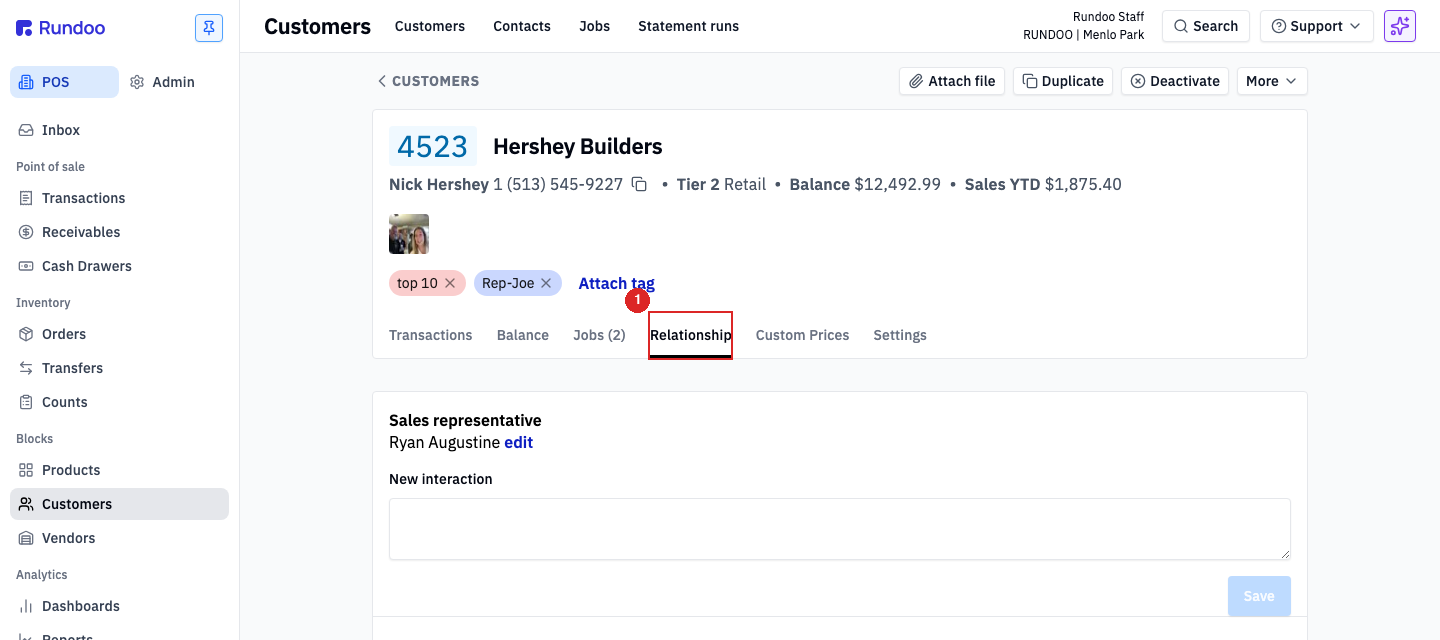
Step 1: Assign a sales rep to a customer
From the customer's Relationship tab, the Sales representative section shows who the customer is currently assigned to (or None if nobody). Click edit to change it.
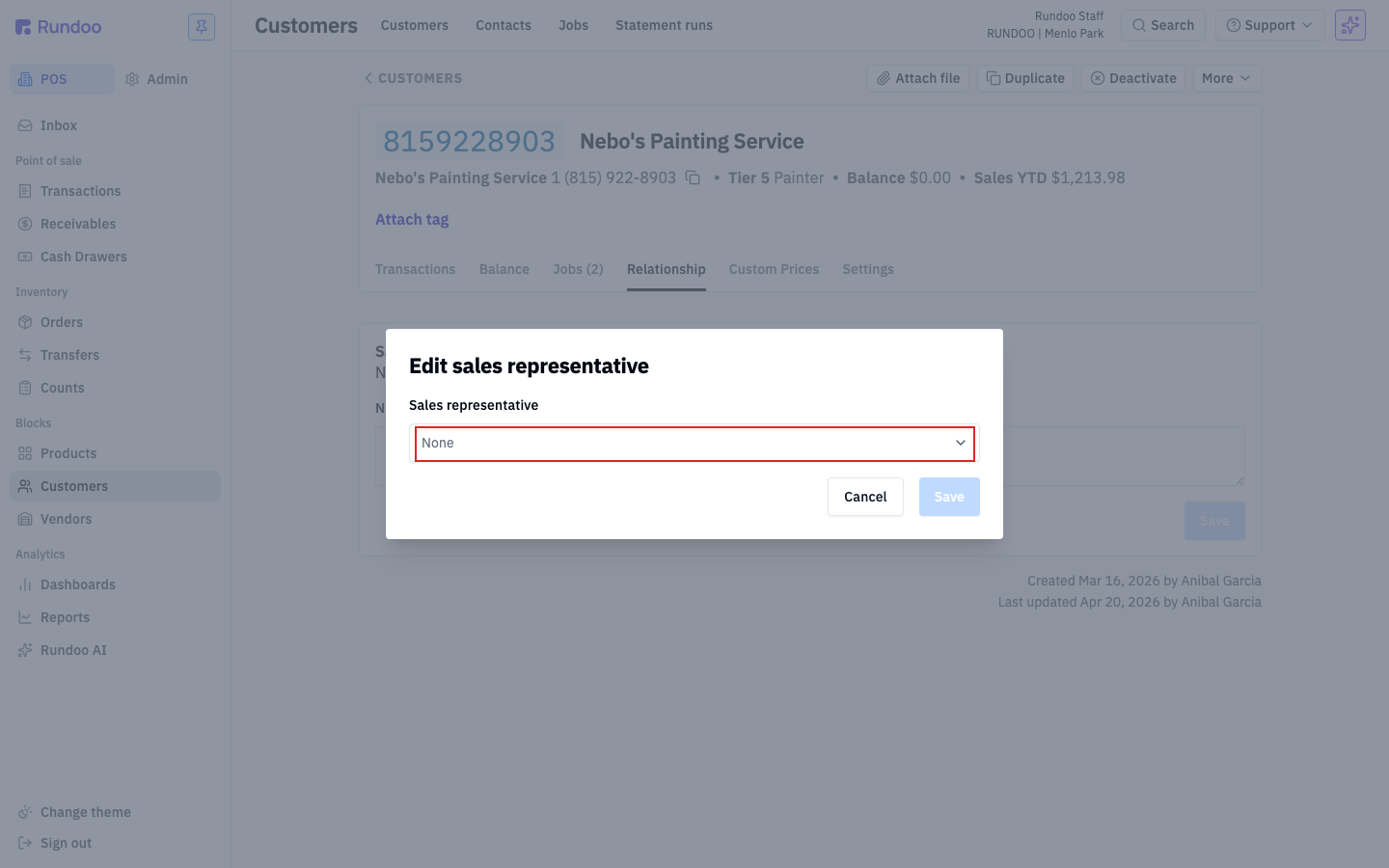
The Edit sales representative modal has a single Sales representative dropdown listing every active Staff member in the company. Pick the rep, click Save, and a green Representative saved toast flashes at the bottom. Pick None to unassign.
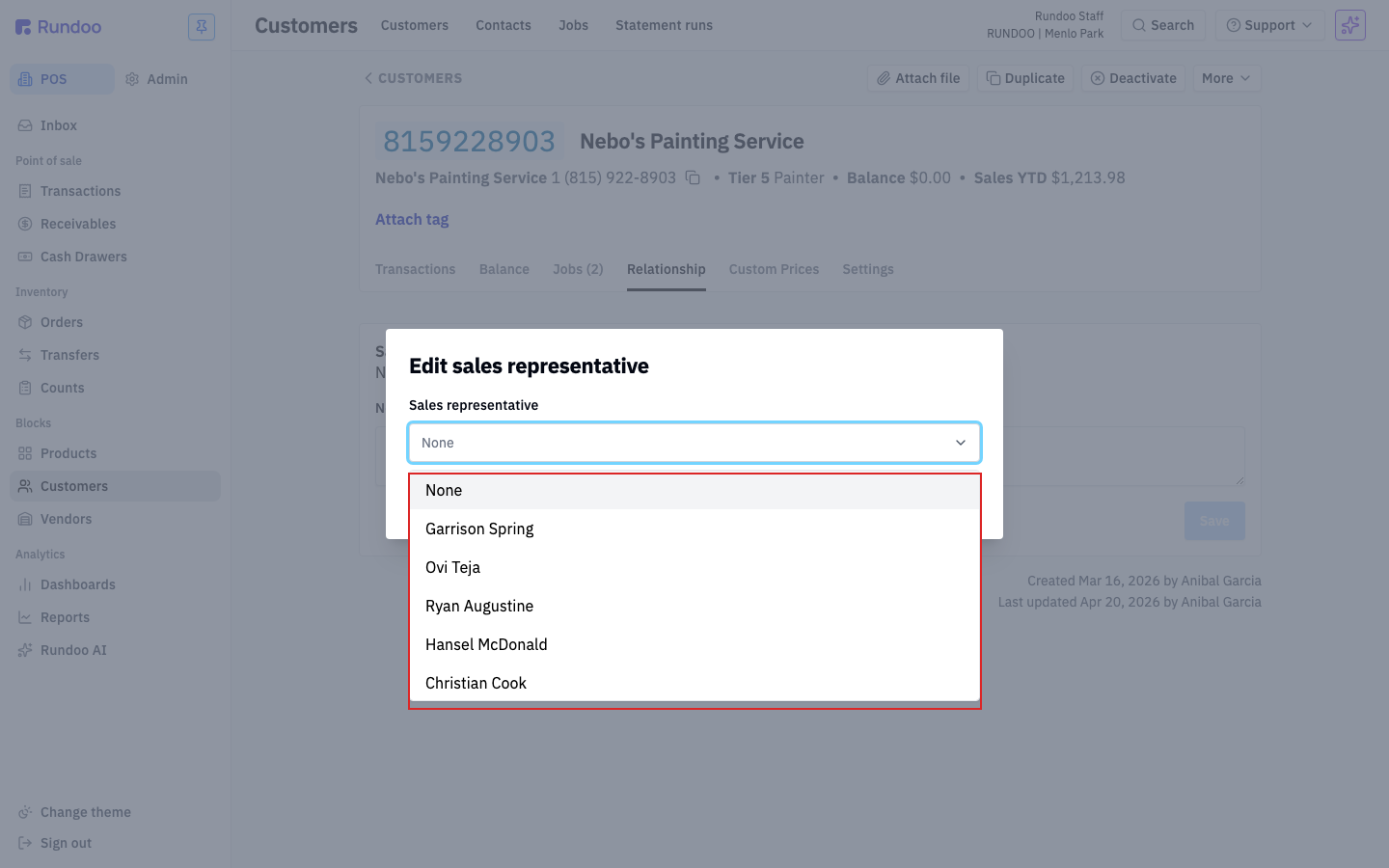
A customer has one rep at a time. If you work in pairs, pick whoever owns the account. The other person can still log interactions against the customer and their name will show up on each entry.
Step 2: Log an interaction
Below Sales representative is a New interaction textarea. Type what happened (a visit, a phone call, a text exchange, a voicemail left, a quote handed off) and click Save.
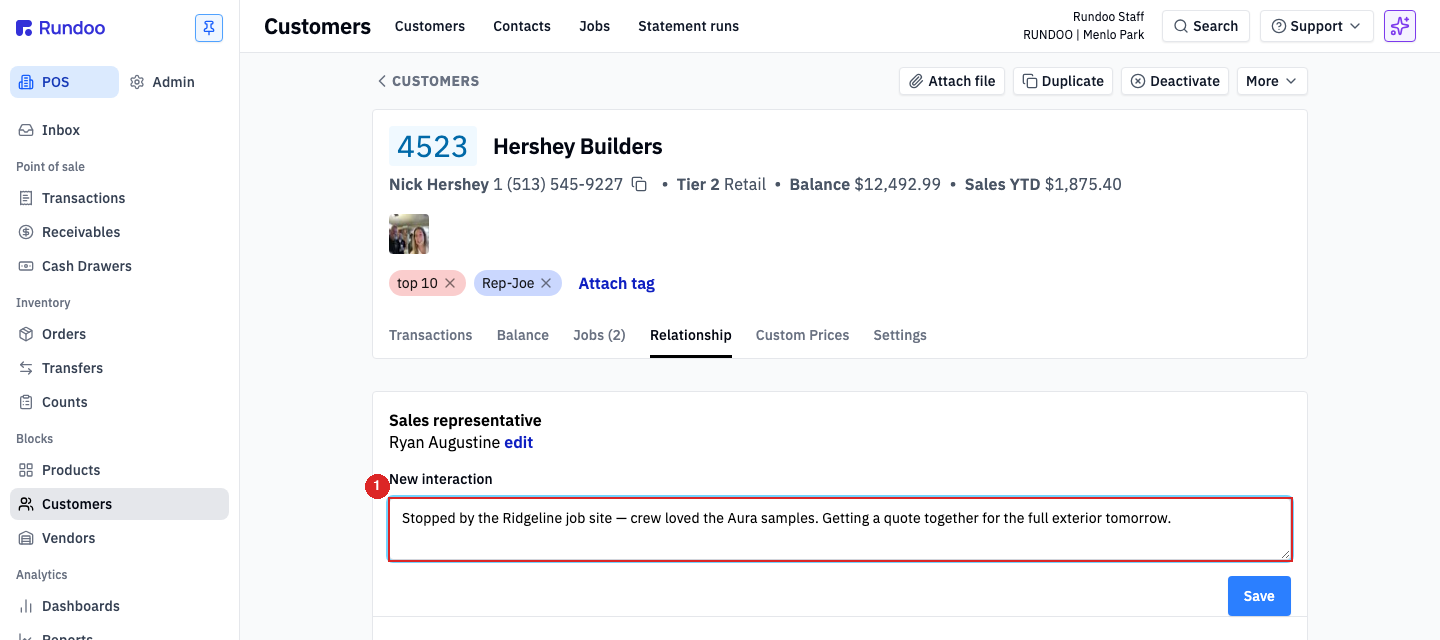
Each saved interaction is stamped with the date and time it was created and the staff member who wrote it. That's the person who gets attributed in reporting, which isn't always the account's assigned rep. If a rep is out and a coworker handles a call, the coworker's name is on the entry.
Interactions show up on the customer's detail page under Relationship, newest on top. You can edit or delete an existing entry from the same surface.
Keep interaction notes short and specific. "Left VM re: exterior quote, following up Thu" beats "talked to them." The notes feed the Interactions report (Step 3) and a useful line today becomes a useful row in next month's pipeline review.
Step 3: Review rep activity in the Interactions report
To see who's been talking to customers across the whole company, and when, open the Interactions report.
In the POS mode, open Reports in the left sidebar, then click Interactions in the Default reports list.
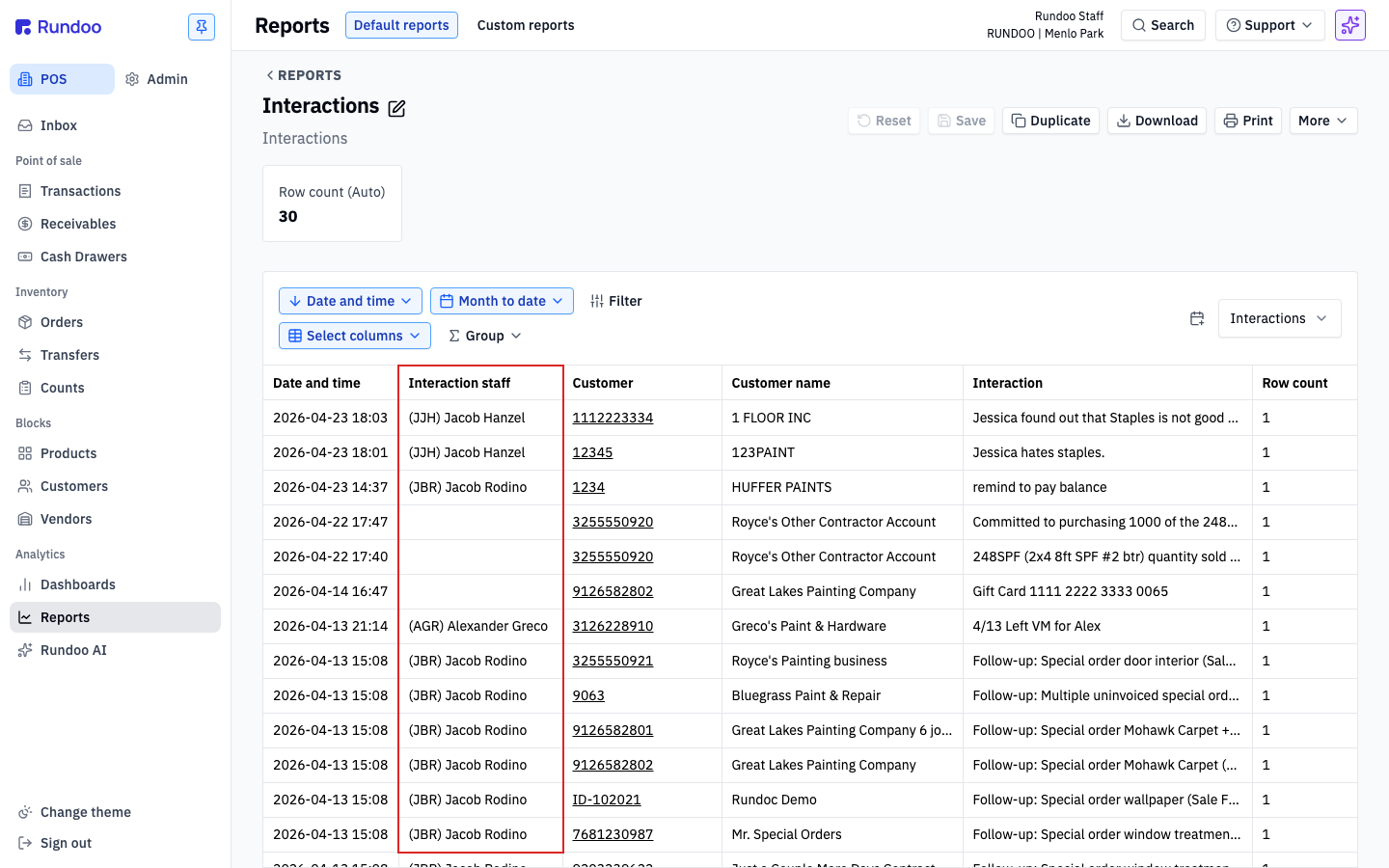
Default columns: Date and time, Interaction staff, Customer, Customer name, Interaction. Use the Date and time control at the top to scope the window (Today, Month to date, or custom), and Filter to narrow by a specific rep, customer, or keyword in the interaction text.
A few common views:
-
"What has my team done this week?" (set the date range to the week, group by
Interaction staff). -
"Who has Jane been in touch with?". Filter
Interaction staffto Jane. -
"Which accounts have gone cold?" (invert the read). Sort by
Date and timedescending and look for customers missing from the top.
See Running Reports for how grouping, filters, and saved custom reports work across every default report, not just this one.
The Interactions report attributes each entry to the staff member who wrote it, not the customer's assigned rep. If you want a pure "my book of business" view, filter by Interaction staff = {your name} (that's your actual activity, regardless of who the account is formally assigned to).
Where else this shows up
The RELATIONSHIP column on the main Customers list shows a Notes preview of each customer's latest interaction, a quick way to scan which accounts have recent touchpoints and which don't. The rep itself doesn't appear there, or anywhere else outside the Relationship tab. Open the tab to see or change who's assigned.
For a quick "which accounts has Joe touched recently?" view without leaving the Customers list, sort by Last interaction (descending = most-recently-touched on top, ascending = stalest at the top, useful for spotting cold accounts) and apply the Filter > Sales rep filter to one rep. The combination is the closest the list view offers to a per-rep book-of-business; the Interactions report is still the cleaner answer for activity-over-time.
Recommended Rundocs
-
Staff (adding the people who'll get picked as reps).
-
Customers, the rest of the customer record the Relationship tab sits on.
-
Running Reports (filtering, grouping, and saving the Interactions report as a custom view).