
Rundocs › Integrations
AllPro
Last updated 2026-04-30
AllPro is a paint-distribution co-op for independent paint and decorating retailers; pairing your AllPro vendor in Rundoo connects ordering and receiving to AllPro's EDI pipeline so orders flow out and shipments flow back without anyone re-keying line items.
In the POS mode, open the Vendors tab in the left sidebar. AllPro is a Rundoo Vendor with an integration paired to it. Once paired, every PO you send to that vendor goes out as an EDI 850, and every shipment AllPro sends back creates an inbound PO automatically in the Orders tab's Ordered view.
What the AllPro integration does
Rundoo's AllPro connection runs two EDI document flows over SFTP, the same shape as Orgill EDI:
-
EDI 850 (Purchase Order). When you send an order to your AllPro vendor from Rundoo, Rundoo transmits an 850 directly to AllPro's system. No emailed PDF, no spreadsheet attachment, no rep keying it in.
-
EDI 856 (Advance Ship Notice). When AllPro ships product to you, their system transmits an 856 back. Rundoo receives the ASN and creates an inbound PO in the
Orderedtop tab automatically (vendor, line items, and quantities pre-filled from the ASN).
The flow most AllPro dealers care about is receiving. A weekly restock from AllPro shows up in Ordered as soon as the truck dispatches, ready to receive against. Instead of you typing a paper packing slip into a blank PO.
On top of EDI, Rundoo indexes AllPro's product catalog (UPC + item name) so you can pull AllPro products into your own catalog without typing them.
The AllPro integration is available to Rundoo customers who are already AllPro members with an EDI account on AllPro's side. If you've never been on EDI with a previous POS, you don't have AllPro EDI credentials yet, that's normal. Email support@rundoo.ai and we'll start a thread with AllPro to get you provisioned.
Enabling AllPro on your Rundoo vendor
Pairing AllPro is two sides meeting in the middle: AllPro provisions its EDI system to talk to your Rundoo company, and Rundoo Support flips your AllPro vendor record to use the AllPro integration. Both sides are work Rundoo Support coordinates, you don't pair the integration yourself in the Vendors UI. Your part is making sure the vendor record exists, has a sensible name, and carries your AllPro account number for each of your locations.
Step 1: Make sure your AllPro vendor exists
From the Vendors list, confirm you have a vendor named AllPro (or All Pro, whatever your team uses). If you don't, see Vendors for how to add one.
Step 2: Add your AllPro account numbers per location
Open your AllPro vendor's detail page and scroll to Vendor settings. Each Rundoo location has its own Account number row, paste your AllPro account number for that store and Save the row. AllPro bills and ships per store, so the account number is per-location even if all your stores share the same AllPro membership.
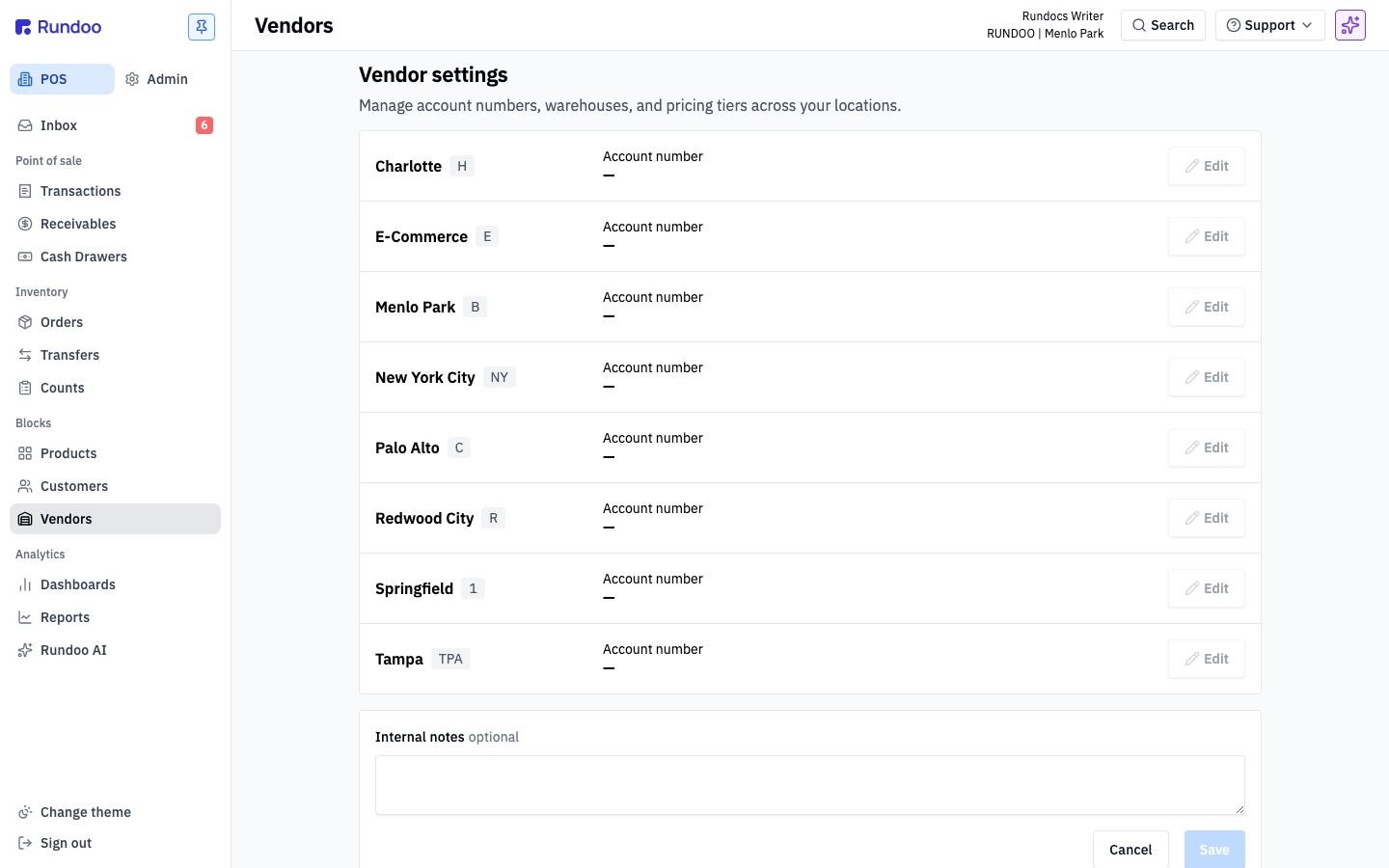
If all your stores share the same AllPro account number, paste the same number on every row. The field exists per-location because most AllPro members maintain separate accounts per store.
Step 3: Email Rundoo Support to finish the pairing
Email support@rundoo.ai and tell us the name of your AllPro vendor in Rundoo. We'll coordinate the AllPro-side handshake and flip your vendor to the AllPro integration on Rundoo's side.
Step 4: Confirm the EDI marker
Once the pairing is live, two things change on your AllPro vendor:
-
A small plug icon appears next to the vendor name on the Vendors list and the vendor's detail page.
-
Under the
Vendor namefield in the Vendor information section, the helper line "Orders will be sent through EDI" appears.
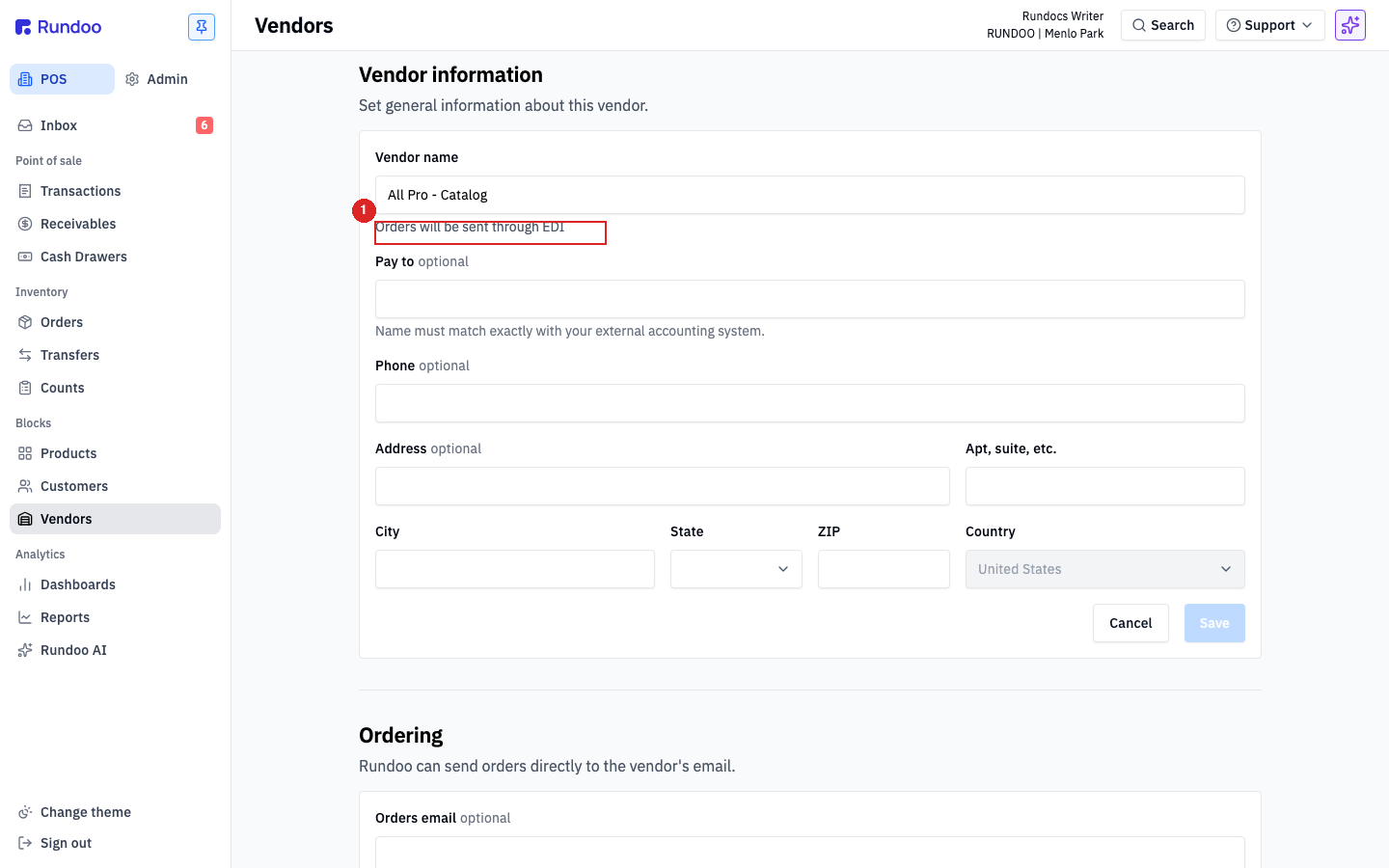
That helper line is your signal that the vendor is live on EDI. Every PO you send to this vendor from now on transmits as an EDI 850.
If you don't see the plug icon or the "Orders will be sent through EDI" helper after a couple of business days, the AllPro-side handshake hasn't completed yet. Email support@rundoo.ai and we'll chase it down.
Day-to-day: ordering and receiving
Once AllPro is paired, the flows you already know work without any change in habit. AllPro just becomes the pipe.
Placing an AllPro order
Build a PO like any other. Open Orders in the left sidebar, click the New top tab, pick your AllPro vendor in the Order from panel, add products, and click Order. With the AllPro vendor selected, the Order method field auto-sets to EDI (read-only) (that's how you can tell at a glance the order will go out over EDI rather than via email).
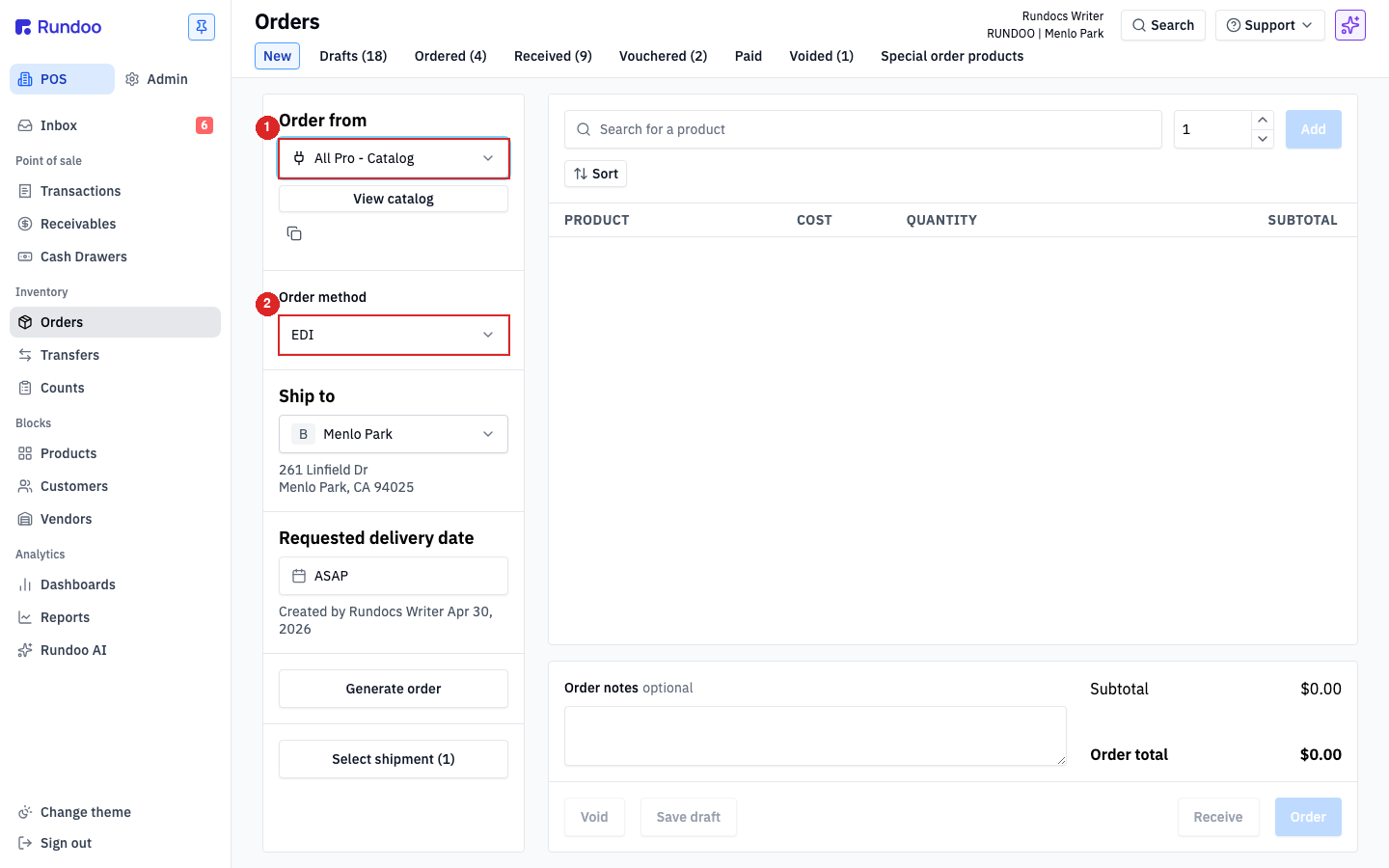
The PO lands in your Ordered top tab; AllPro's system receives the 850 directly and starts picking it. See Purchase orders for the full PO-building flow.
Don't also email the same PO to your AllPro rep. AllPro's system will receive the EDI 850 and a duplicate manual order, and the warehouse can act on both. That's how the same order gets pulled, picked, and shipped twice. EDI is enough.
Receiving an AllPro shipment
When AllPro ships product to you, their EDI 856 ASN flows back to Rundoo so you can receive against the shipment without re-keying line items. Open Orders in the left sidebar and click the Ordered top tab, the AllPro shipment appears in the list, vendor set to your paired AllPro vendor, line items pre-filled from the ASN.
Open it and receive it the same way you'd receive any PO, verify quantities against the physical shipment, then submit. See Order receipts for the receiving flow end-to-end.
Auto-created AllPro POs correspond to shipments you asked for. If an Ordered PO appears for an order you didn't place, something is off on the AllPro side. Bring it to Rundoo Support and AllPro's EDI team rather than receiving it blind.
Browsing AllPro's catalog in Rundoo
Beyond ordering and receiving, Rundoo indexes AllPro's product catalog so you can pull products in without typing them by hand. In the POS mode, open the Products left tab, then the Integrations top tab. The Vendor catalogs mode (the default) lists every product Rundoo has indexed across all your paired vendor catalogs; click the Filter button and add Integration vendor → All Pro to scope the view to just AllPro's items. The table shows each product's UPC and Name.
Check the rows you want, then click Import to inventory at the bottom-right to create those products in your own catalog with AllPro's UPC and description pre-filled. Useful when a customer asks for something you don't stock. Pull it in, add it to a special-order PO, done.
Importing a product from AllPro's catalog creates the product record with catalog data pre-filled; it doesn't stock any on your shelves. Quantity on hand stays at zero until you receive it against a PO. See Product catalog for the product-creation details.
AllPro's catalog data is leaner than Orgill's (UPC and item name only, no separate vendor SKU). That's normal; Rundoo uses the UPC as both the product identifier and the AllPro lookup key.
Recommended Rundocs
-
Vendors, creating and editing the AllPro vendor record the integration pairs to.
-
Purchase orders (building and sending orders, the mechanic EDI 850 rides on).
-
Order receipts (receiving the auto-created
OrderedPOs that ASNs produce).