
Rundocs › Integrations
Stripe
Last updated 2026-07-09
Stripe is Rundoo's processor for card and ACH (every Card sale at POS, every ACH receivables payment, and the nightly payouts to your bank all run through it).
In the Admin mode, open the Stripe tab. The page has an Entity picker at the top and three top tabs: Payments, Payouts, and Account.
Connecting Stripe
Stripe is set up during onboarding, not in the app. Your Rundoo implementation lead collects your business details (EIN, address, owner info), creates a connected Stripe account under Rundoo's platform, and verifies it with Stripe's KYC review. Once that's done, the Admin > Stripe tab lights up with your data, payments start flowing as soon as your first card sale rings up.
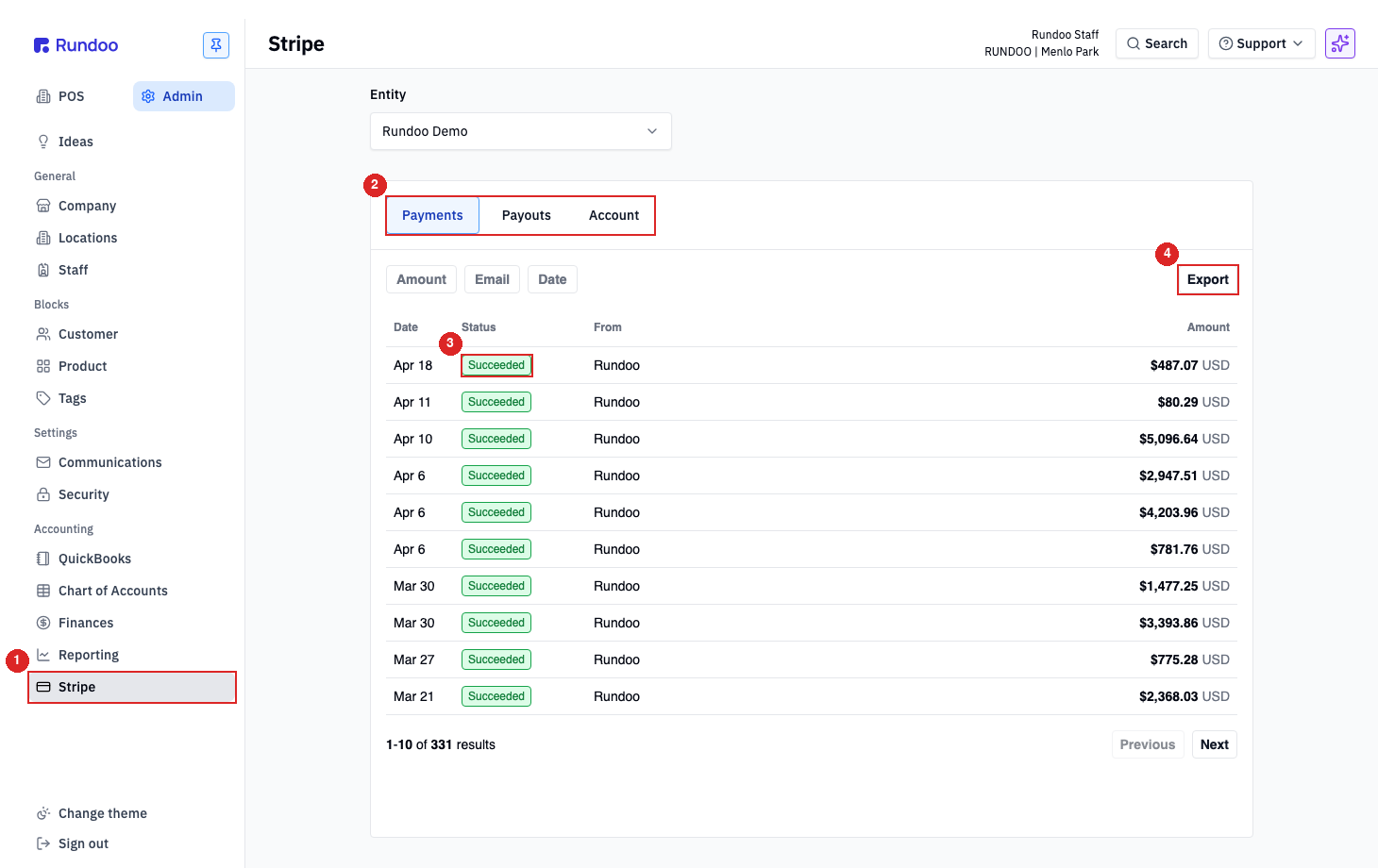
There's no Connect Stripe button in the admin. Connection is a one-time platform action Rundoo handles for you. If you run multiple companies under one Rundoo login, use the Entity picker at the top of the page to switch between their Stripe accounts.
Need a new Stripe entity added (new DBA, new legal entity, acquisition)? Call Rundoo Support at (650) 334-3205 or post on the Idea board. Entities can't be self-added.
What Stripe handles
Three flows all settle through the same connected account:
-
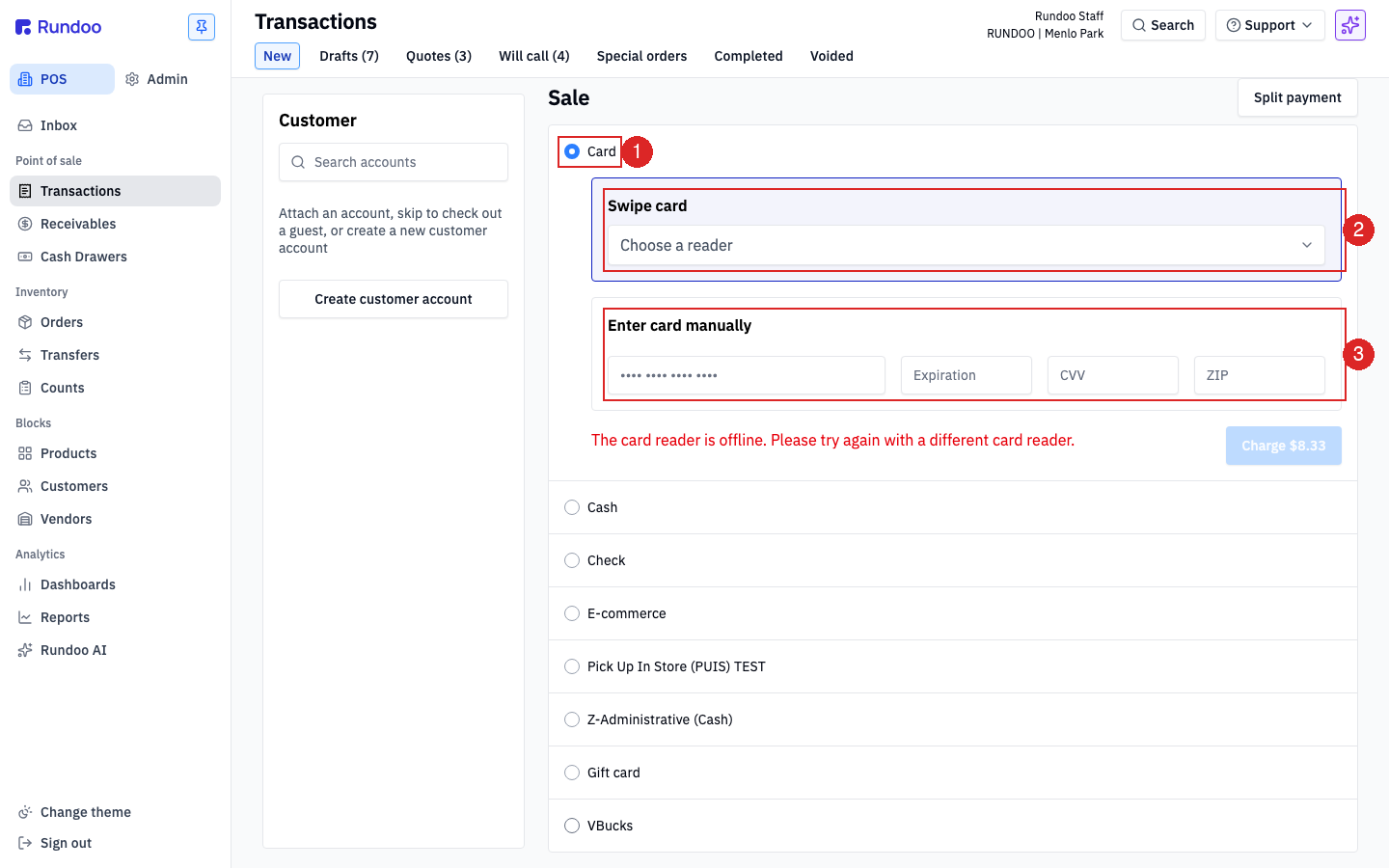
In-person card (swipe, insert, or tap on a paired card reader). The cashier picks a reader from the
Choose a readerdropdown in the payment panel, or usesEnter card manuallyfor a keyed-in number. -
Saved cards, a customer's card on file (added from their Customer record) shows up as a one-click charge option at checkout.
-
ACH (bank-draft receivables payments).
ACHis a default tender in Tender methods, scoped to receivables (paying down an invoice) rather than ringing up a sale.
The Payments tab is a read-only ledger of every transaction Stripe has processed for you, with Succeeded, Refunded, or Failed status pills, an Amount / Email / Date filter row, and an Export button in the top-right for pulling a CSV.
Rundoo uses a blended card rate. There isn't a "card sales by card type" report in the product, because every card processes at the same rate regardless of brand. If you're coming from a legacy split-rate processor, you won't need the breakdown you may be used to.
Restricted businesses: firearms, ammo, and other prohibited categories
Rundoo's integrated card processing runs through Stripe, and only Stripe. You can't connect a second processor for part of your business inside Rundoo (it's a common request and it's on the Idea board, but it isn't built today). That matters if you sell in a category Stripe won't touch.
Stripe keeps a list of restricted and prohibited businesses, and firearms and ammunition are on it. Stripe will not process card payments for gun or ammo sales. So a store with a firearms counter (or a shooting range) alongside a paint, feed, or hardware floor can't run everything through Stripe.
You can still run the general store on Rundoo and Stripe. The clean way to handle the firearms side:
-
Card sales for firearms and ammo run on a separate processor, outside Rundoo (your existing gun-friendly merchant account and terminal). Rundoo and Stripe never see that card transaction.
-
Record those sales in Rundoo with a custom method of tender, or ring them as a cash sale. That keeps your inventory counts, cost of goods, and sales reporting accurate even though the money moved on the outside terminal. Email
support@rundoo.aito add a custom tender (for example,Firearms card) scoped toSales.
Stripe underwrites the whole legal entity, not the individual sale. Even if no gun or ammo sale ever touches Stripe, if your firearms business and your Stripe-connected store are the same legal entity, Stripe can flag, freeze, or close the account at any time. To stay clean, keep the firearms operation as a separate legal entity from the store you run on Stripe. If you keep them as one entity, understand the Stripe account is at risk of being shut down at any moment.
Currency
Your Stripe account is denominated in your business's local currency, set when Rundoo creates the connected account during onboarding. Card sales, refunds, and payouts all settle in that currency, there's no per-transaction conversion.
-
US stores run a USD-denominated Stripe account.
-
Canadian stores run a CAD-denominated Stripe account. Every charge at POS, every refund, and every payout to your bank is in CAD natively.
Card readers
Rundoo uses Stripe Terminal readers (BBPOS WisePOS E is the common model). Reader provisioning, pairing a physical device to your Stripe account and giving it a name like Front counter or Paint desk, is done by Rundoo during install, not in this admin.
Once a reader is paired and assigned to a location, it shows up at checkout in the Choose a reader dropdown:
-
Card is selected by default in the payment panel. Expand
Swipe cardand pick the reader you want to send the charge to; Rundoo remembers your last selection per register. -
If your reader is unplugged or offline, you'll see "The card reader is offline. Please try again with a different card reader." right below the panel. Pick another reader from the dropdown, or fall back to
Enter card manuallyto key the number in. -
New readers, name changes, or moving a reader to a different Location all go through Rundoo Support. Send us the reader's serial number and where it lives.
"The card reader is offline" almost always means power, network, or an update pending on the reader itself. Walk over to it first: check the plug, look at the screen, and if it's asleep tap it to wake it. See Card reader troubleshooting for the full checklist.
Payouts to your bank
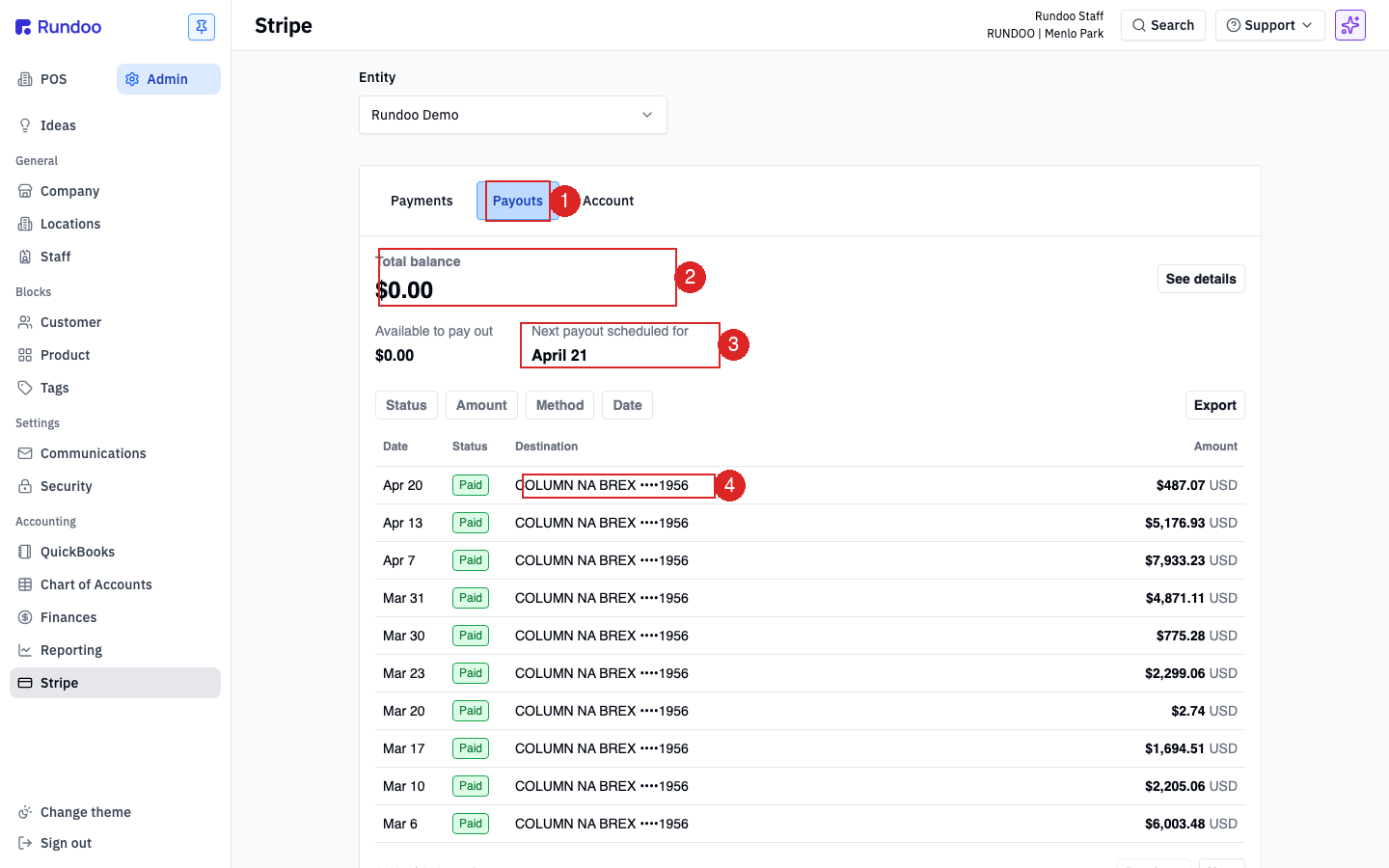
The Payouts tab shows every payout Stripe has sent to your bank account, plus what's pending.
-
Total balanceis everything Stripe is holding on your behalf, including amounts from today's sales that haven't settled yet.See detailsbreaks it intoAvailable to pay out(settled, ready to leave) and in-transit amounts. -
Next payout scheduled foris the next date funds will hit your bank. Rundoo configures daily payouts by default; the dated line tells you when to expect the wire. -
Destinationon each row is the bank account Stripe paid out to (shown as{BANK} ••••{last 4}). -
The filter row (
Status,Amount,Method,Date) and theExportbutton work the same as onPayments. Use them to tie out a specific payout or pull a date-range CSV for your bookkeeper.
See Payouts for how payouts map into your chart of accounts and where to reconcile them against your bank statement.
To change your payout bank account or the payout schedule (daily vs. weekly), call Rundoo Support. Bank-account changes trigger a Stripe re-verification and can't be self-served.
Payout speed, rates, and chargeback protection
The default Stripe configuration is T+2 daily payouts. Cash hits your bank two business days after the transaction. That works for most stores. If you want faster cash flow or chargeback protection, there are paid add-ons your Rundoo card rate can be adjusted to include.
Payout speed options
All examples below assume a base Rundoo card fee of 4.00% and include the flat $0.30 per transaction.
| Schedule | How it adjusts your rate | Example on a $100 card sale |
|---|---|---|
| T+0 (Instant, same day) | Base rate + 0.50% | $100 × 4.50% + $0.30 = $4.80 fee; $95.20 lands same day |
| T+1 (next business day) | Base rate + 0.10% | $100 × 4.10% + $0.30 = $4.40 fee; $95.60 lands T+1 |
| T+2 (default, 2 business days) | Base rate | $100 × 4.00% + $0.30 = $4.30 fee; $95.70 lands T+2 |
Payouts are business days only. Monday–Friday, excluding major US holidays. A Friday card sale on the default T+2 schedule lands Tuesday, the weekend doesn't count. There's also a daily cutoff for Instant payouts to count as same-day; transactions after the cutoff push to the next day.
Chargeback and fraud protection
For an additional 0.40% on your card rate, Stripe + Rundoo handle chargeback risk for you (disputed transactions don't get pulled from your next payout). Useful for stores with a non-trivial chargeback rate (B2B with paper signatures, online orders, high-ticket items).
| Add-on | How it adjusts your rate | Example on a $100 card sale |
|---|---|---|
| Chargeback + Fraud protection | Base rate + 0.40% | $100 × 4.40% + $0.30 = $4.70 fee; chargebacks no longer reduce payouts |
Think of this as insurance: you pay a small premium per transaction in exchange for Rundoo absorbing dispute losses. If your store rarely sees chargebacks, the default (no add-on) is fine.
Opting in
-
Email Rundoo Support at support@getrundoo.com (or message in Intercom) saying which option you want. For Instant payouts, also confirm your bank is on Stripe's Instant Payouts supported banks list.
-
Rundoo Support replies with a rate addendum. Sign it and send it back.
-
The switch flips in ~2 business days. You get a confirmation when the change is live; the next scheduled payout reflects the new rate and speed.
Why your payout doesn't match expected sales
Most reconciliation questions come down to one of five causes, in rough order of likelihood:
-
Refunds. A refund issued today is deducted from today's available balance, so the next payout looks short by the refund amount. Refunds attribute to the date they were processed, not the date of the original sale. So a refund of a Monday sale, issued on Wednesday, hits Wednesday's payout.
-
Disputes / chargebacks. Similar to refunds, if a chargeback is open, Stripe holds the disputed amount back from the payout. Without Chargeback Protection (above), this reduces your payout until the dispute resolves.
-
Stripe fees. Card fees come off each transaction, so a $100 sale doesn't land as $100. The fee math is above under Payout speed options.
-
Delayed transfers. Large or unusual charges may trigger a Stripe risk review that holds the funds for a day or two before payout.
-
Timing mismatch. Refunds and charges sometimes fall into different payout windows. A Friday refund of a Monday sale won't show up in the same payout as the original charge.
To reconcile a specific payout, open Admin > Reporting > Payouts. The Payouts view shows every transaction in a day's net card sales, and that total is guaranteed to match the Card Total in the Analytics Summary Data. If your subscription includes Rundoo Banking, Finances > Internal > Stripe Payout shows exactly which transactions rolled into each payout, with line-by-line detail.
Stripe can pull from your bank account for negative balances. If your refunds exceed your incoming card volume on a given day (rare, but possible during a return-heavy week), Stripe will either delay the next payout to cover the balance, or pull the difference directly from your connected bank account. Watch for this when you process a large refund without offsetting sales.
Account health and Stripe Dashboard
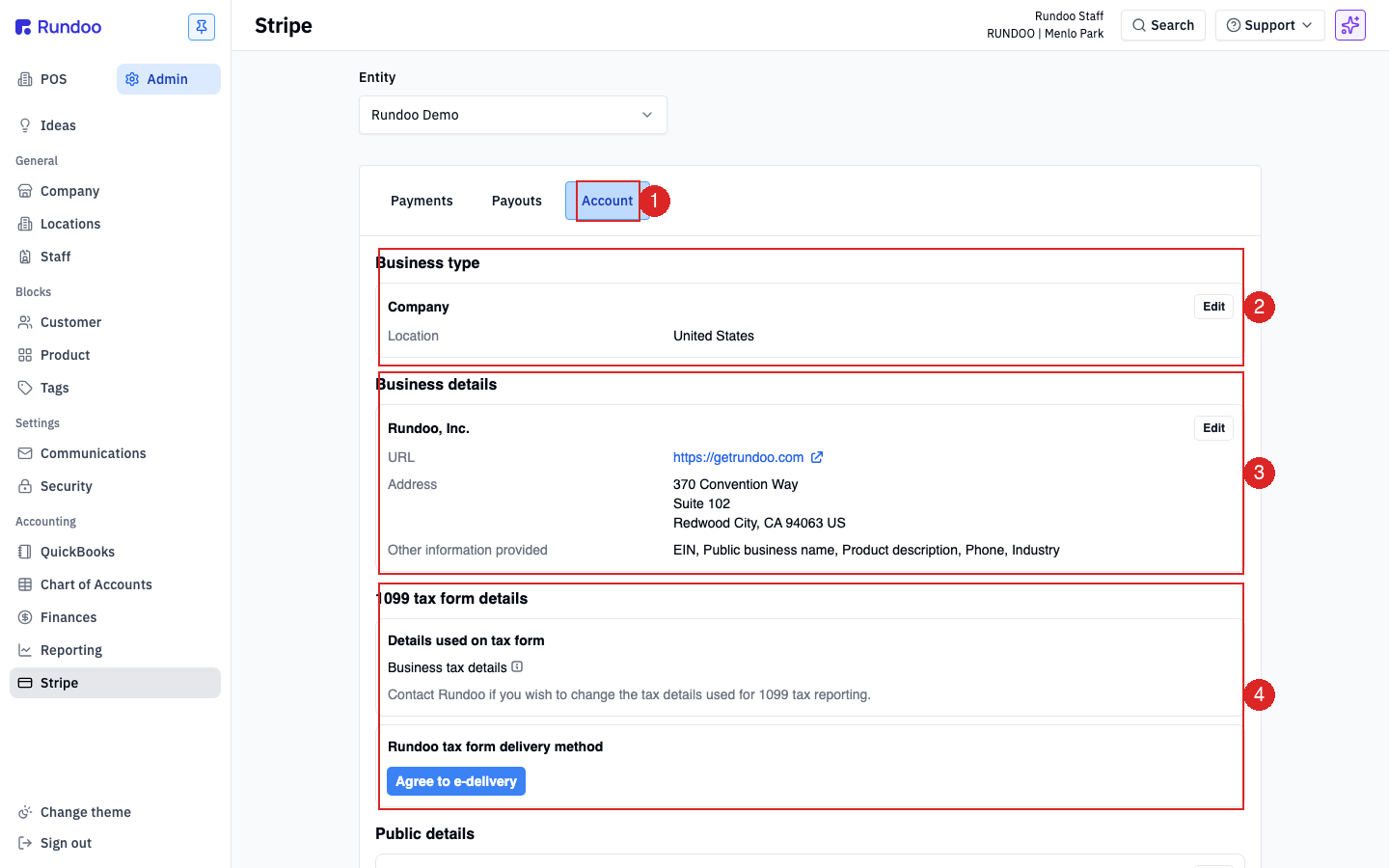
The Account tab is where you confirm Stripe has the right details on file (the data that shows up on customer card statements, tax forms, and any Stripe-side risk review).
-
Business type, your legal entity (Company, Individual, etc.) and country. Click Edit if your structure changes. -
Business details(legal name, URL, physical address, and theOther information providedrow (EIN, phone, industry)). These are what Stripe shows customers on chargeback notices and statement descriptors. -
1099 tax form details, the name, EIN, and delivery preference Stripe will use to mail or e-deliver your year-end 1099-K. ClickAgree to e-deliveryto skip the paper mailing. -
Public details(scrolled off in the screenshot above) is the statement descriptor and support phone that print on customer card statements. Helps customers recognize charges and reduces chargebacks.
Rundoo doesn't expose a direct Stripe Dashboard link from this page. For deep-dive risk tools, disputes, or raw Stripe reporting, contact Support and we'll grant dashboard access on your Stripe account.
Troubleshooting declines
When a card charge fails at POS, the reason shows inline on the sale and also lands in the Payments tab as a Failed row. The most common patterns:
-
Card reader offline. See the Card readers section above. Pick a different reader or key the number in manually.
-
Declined by issuer (
insufficient_funds,card_declined,do_not_honor). The customer's bank refused. Have them try another card or tender; the decline isn't something Rundoo or Stripe can override. -
Expired card. Swap to a different card, or update the saved card on the customer's record.
-
Pending payout / payout delayed. If your
Next payout scheduled foris further out than expected, open theAccounttab and check that Business details and 1099 tax form details are complete. Stripe pauses payouts when KYC fields are missing. -
Everything is failing. If every card is declining (not just one customer), that's usually a platform outage or an issue with your Stripe account. Call Rundoo Support.
For a longer walkthrough of terminal-specific fixes (reader stuck on update, paired-but-unreachable, Wi-Fi drops), see Card reader troubleshooting.
Recommended Rundocs
-
Tender methods. How
Card,ACH, and the other default tenders show up at checkout. -
Card reader troubleshooting (fixing an offline reader, stuck update, or paired-but-unreachable terminal).
-
Payouts, reconciling Stripe payouts against your bank statement and chart of accounts.