
Rundocs › Admin & Settings
Tax
Last updated 2026-09-21
Tax rates apply to every sale. Rundoo sets a default rate for each Location, auto-resolved from the store's address, so the register knows what to charge, and lets you add custom rates for jobs, deliveries, or customers that fall outside the local rate.
In the Admin mode, open the Locations tab. Every tax setting in Rundoo lives on this one page: each location's default rate in the Locations section, an address-based prompt in Delivery tax settings, and everything else in Custom tax rates.
Looking for how much sales tax you've collected? That's a report, not a setting. To see the sales tax you collected (to file and pay it, or for an end-of-month summary), run the Taxes report under Running Reports. This page is only for setting the rates.
How tax works in Rundoo
Every sale picks up a tax rate from one of three places, in priority order:
-
The location's default rate (whichever store the cashier is logged into). This is what applies to a walk-in sale with no extra context (the inline
Menlo Park (9.375%)pill next toSales taxin the cart shows which rate is in effect). In jurisdictions where multiple rates stack (Canadian provinces with federal + provincial sales tax, for example) a location can carry more than one default, and every applicable rate is added to the sale. -
A custom rate, picked on the sale. A cashier can change the rate for a specific sale (ship-to job, a tax-exempt customer, a delivery crossing into a different jurisdiction).
-
Tax exempt, a special custom rate at0.0%that zeroes out tax on the sale. Use this when a customer hands you a resale or exemption certificate.
Rundoo doesn't have per-product tax categories. Tax is applied to the sale as a whole at the rate in effect, not line-by-line. If a line shouldn't be taxed, change the rate on the sale (or use a Tax exempt rate).
Per-location default tax rate
Each row in the Locations table shows a Tax Rate column (that's the default rate for sales rung up at that store).
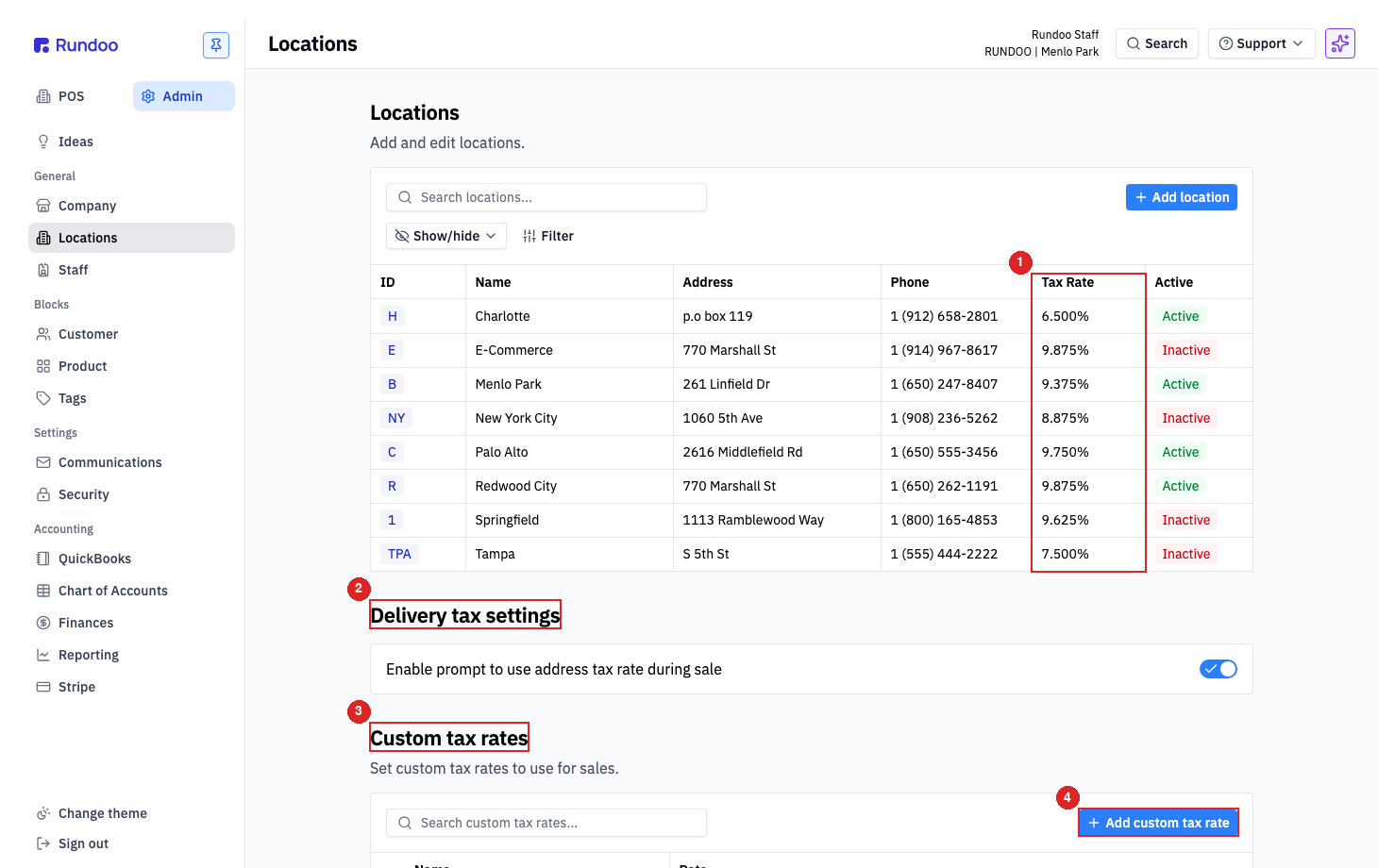
You don't type this rate in. Rundoo auto-resolves it from the location's street address and pulls the correct rate for that ZIP and jurisdiction. Open a location (Admin > Locations > the store > General) and Sales tax shows as a read-only value, calculated from the address you saved. Where a jurisdiction stacks rates (Canadian provinces with federal plus provincial tax, say), every applicable rate shows in the column as a comma-separated list and each one lands on the sale.
So if a store's rate suddenly looks wrong (say it jumped from 6.25% to 8.25%), there's no rate field to edit back to the old number. Check the location's Address first: a wrong or auto-corrected address pulls a different jurisdiction's rate, and fixing the address resets the rate to match. If the address is right, the new rate is the actual rate your jurisdiction charges now, and it isn't something you type in on the location. When one specific sale needs a different rate (a delivery into another county, a tax-exempt customer), reach for a custom tax rate instead (below). Whatever rate a sale was rung at stays on that sale; the default changing never rewrites past sales.
The auto-resolved rate for a whole location is wrong (say your store got annexed into city limits and the tax rate changed)? The address is correct but the rate isn't, and you don't want to make cashiers pick a custom rate on every single sale. Email support@rundoo.ai with the location and the correct rate. Support can update the location's default tax rate for you while keeping the saved address, so the register charges the right rate automatically. Use a custom tax rate only for one-off sales that fall outside your location's rate, not to fix the location's own rate store-wide.
Delivery tax settings (between the Locations table and Custom tax rates) is a separate Delivery tax rate dropdown with three choices, not an on/off toggle:
Always use current location's tax rate, the store's own rate always wins (the old "off" behavior).Prompt which address tax rate to use during sale, Rundoo asks the cashier which rate to apply on any sale that carries a ship-to address.Always use delivery address tax rate if present, the destination address's rate is applied automatically whenever a sale has one.
Where a location sits in a jurisdiction that stacks multiple taxes (Canadian GST, PST, and HST, for example), each part is tracked as its own named rate rather than folded into a single percentage, so a receipt can break the tax out line by line.
Adding a custom tax rate
Custom tax rates are the pool of rates cashiers can pick from on a sale (delivery jurisdictions, special jobs, Tax exempt, anywhere the location's default doesn't apply).
Scroll to the Custom tax rates section and click Add custom tax rate in the top-right.
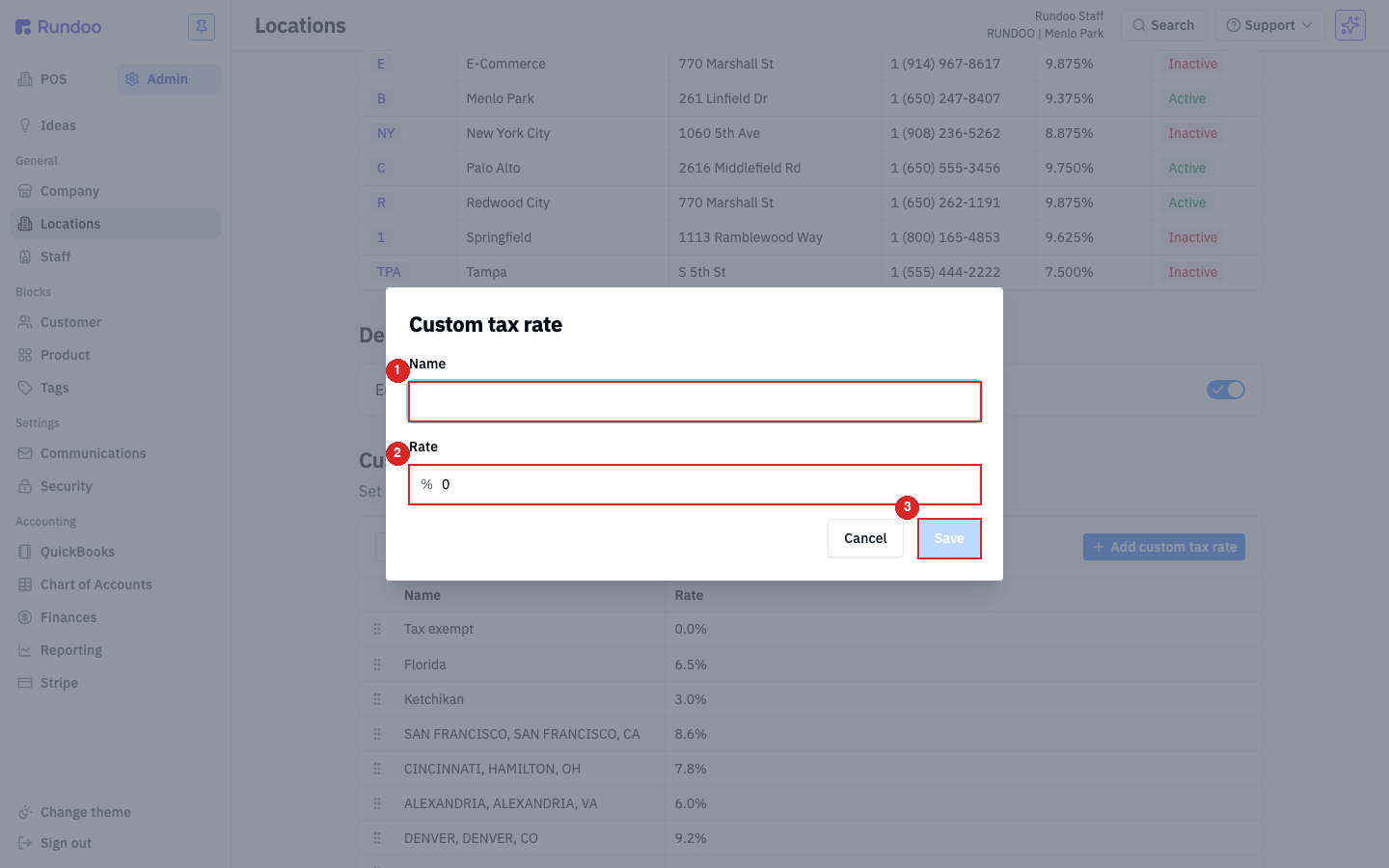
| Field | What it does |
|---|---|
Name |
What the rate is called (shows up in the picker on a sale and on receipts). Use something recognizable (Florida, SAN FRANCISCO, SAN FRANCISCO, CA, Tax exempt) so the cashier knows when to reach for it. |
Rate |
The percentage. Enter the number. The % prefix is baked into the input (so 6.5 means 6.5%, not 0.065). |
Click Save and the rate drops into the Custom tax rates table, ready to pick on any sale.
A name-less or zero-rate entry will save (Rundoo won't block you). If a custom rate isn't showing what you expect at POS, open it and double-check the Name and Rate match the jurisdiction you meant.
Editing or deleting a custom rate
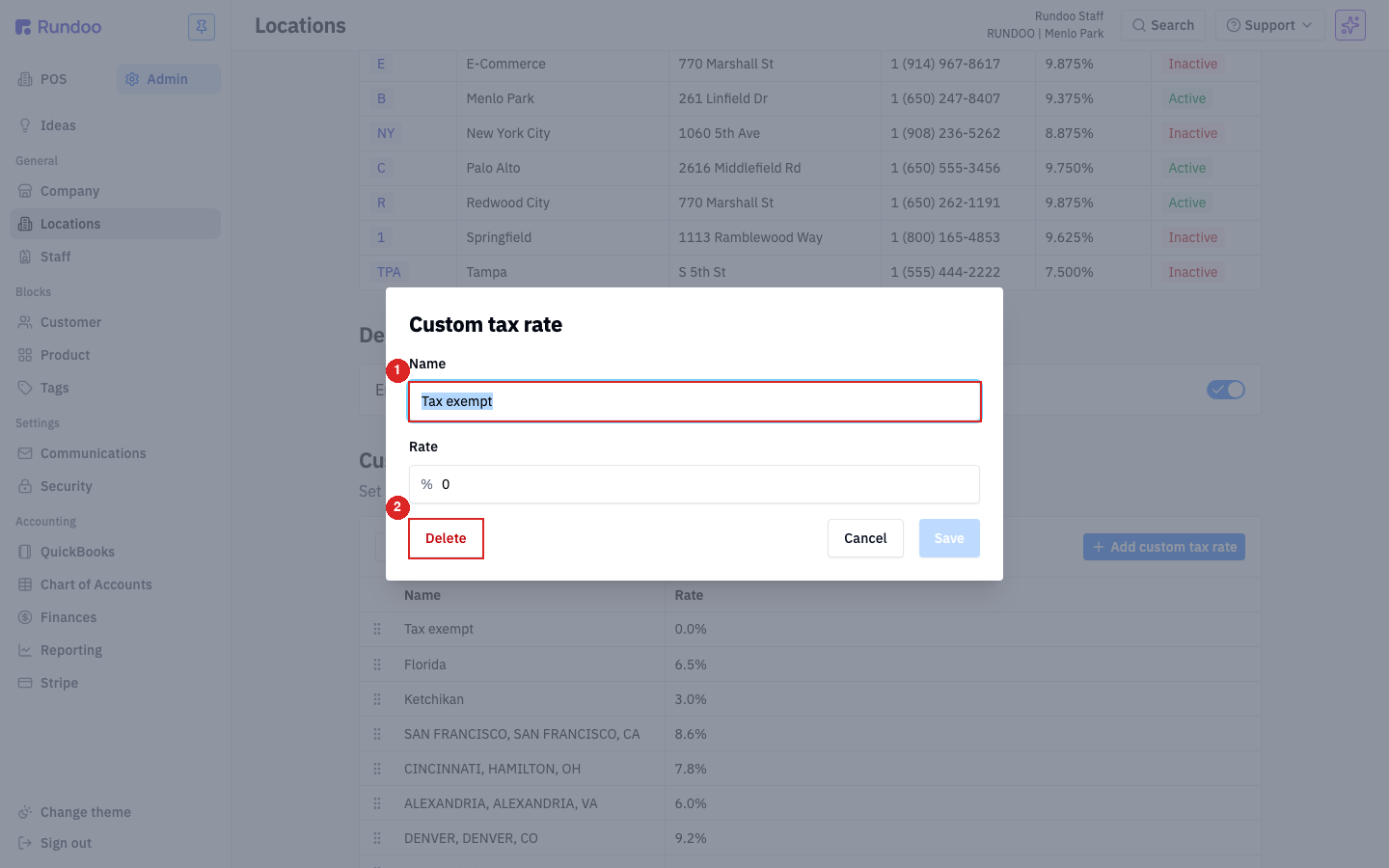
Click any row in the Custom tax rates table to open it.
-
Edit the
NameorRateand click Save. Updates apply to future sales only; historical sales keep the rate they were rung at. -
Delete (bottom-left, red text) removes the rate from the picker. Sales that used it in the past still show the old rate on their receipt. Delete just takes the rate off the menu for new sales.
Tax-exempt customers
Rundoo ships with a Tax exempt custom rate pre-filled at 0.0%. It's there so a cashier can flip a specific sale to no-tax when the customer hands over a resale or exemption certificate.
Rundoo doesn't have a "tax-exempt" flag on a customer record itself. Exemption is applied per-sale by picking the Tax exempt rate. If a customer is consistently exempt, the cashier picks that rate each time after attaching the customer; keep a note on the Customer so the cashier remembers.
Tax-exempt is for tax, not fees. A tax-exempt customer still pays any Additional fees on the sale (only the tax on those fees is dropped). See Additional fees.
If you want a per-customer default, flag it on the Customer and train cashiers to check for the flag when attaching the customer. Rundoo applies the sale's tax rate at payment time, so the switch happens in the cart, not on the customer record.
Fixing tax on a completed sale
A completed sale's tax rate is read-only. The Sales tax line on a sold-sale detail page is a plain total, not an edit affordance, and the rate pill that lets a cashier change rates only appears in the in-flight cart. There's no "edit tax" or "tax adjustment" path on a completed transaction, and tax-only credits aren't a separate flow in Rundoo.
If tax was wrong on a sale that's already rung, the supported fix is to return the affected lines and re-ring at the right rate:
-
Open the sale (in the POS mode, the Customers left tab, the customer's Transactions top tab; click the sale ID).
-
Click Return in the action cluster, step the affected lines back to full quantity, and refund to the original tender. See Returns.
-
Ring a new sale for the same lines with the correct rate picked on the cart.
Tax exemptIf the customer hands over a resale/exemption certificate, or anotherCustom tax rateif the original sale carried the wrong jurisdiction.
Void won't help here. On a cash sale that's already tendered, Void is disabled in the action cluster; on a card sale where it's enabled, Void reverses the whole transaction (lines and tax together). There's no "void just the tax" path. The return-and-re-ring flow is the one Rundoo supports.
Why not just refund the tax in cash? Returns in Rundoo are line-driven (tax refunds proportionally to the lines coming back, not on its own). Cutting a $X.XX cash credit without a return record means the sale's books say one thing and the drawer says another. Re-ringing keeps the audit trail clean.
How tax appears at POS
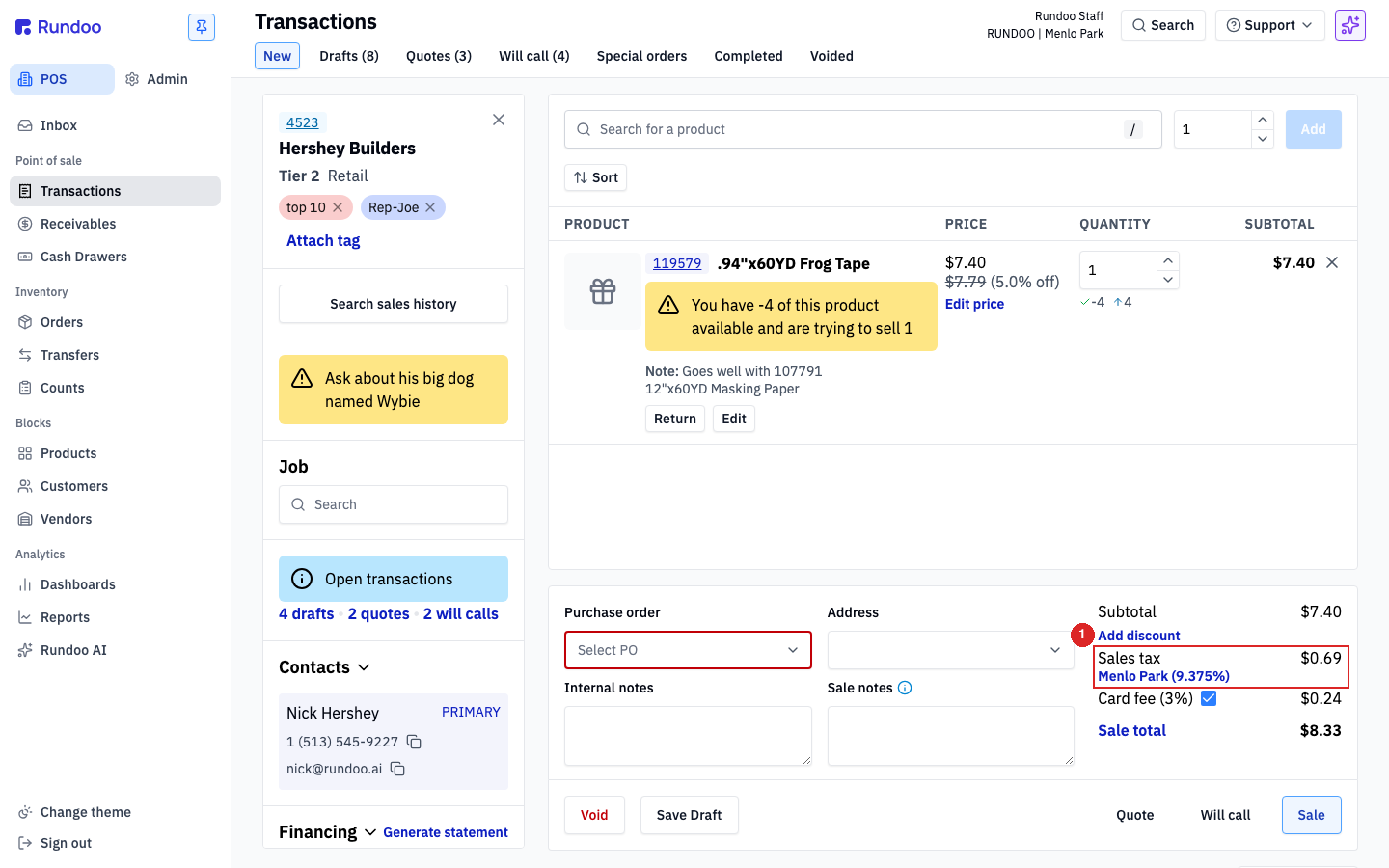
On the cart, tax shows up as a Sales tax line in the totals, with an inline pill naming the rate in effect (Menlo Park (9.375%)) directly underneath.
A couple things worth knowing about how this feels at the counter:
-
The rate defaults from the location. A fresh cart picks up the default rate for whichever
Locationthe cashier is logged into. The pill shows which rate is in effect. -
Tax recalculates live. Change a line price, add a discount, or change the rate mid-sale and the
Sales taxamount updates immediately. TheSale totalat the bottom always reflects current tax. -
Receipts show the rate and amount. The tender method and tax rate both print on the receipt. See Sales for the full checkout walkthrough.