
Rundocs › Support & Help
Common errors
Last updated 2026-09-10
Rundoo flags problems with red banners, disabled buttons, and silent validation gates. This page answers "Rundoo says X. What does it mean?" and "Why can't I do Y?". Browse by category below, or search the page (Ctrl+F / Cmd+F) for the exact message you're seeing.
Most messages have a one-line fix and you'll be moving again in 30 seconds. The ones that don't always end with a path back to Rundoo Support. Never fight an error alone for more than a few minutes.
Sales & checkout errors
These come up at POS, usually mid-cart, mid-payment, or right when the customer's reaching for their wallet.
A customer account is required to send a quote
You clicked Quote without attaching a customer first. A quote has nowhere to go without one. No email address, no name on the printed copy.
Fix it. In the cart's left Customer panel, click Search accounts and pick the customer (or Create customer account for a new one), then click Quote again. The red banner clears and the Save, Save & Print, and Save & Email buttons unlock.
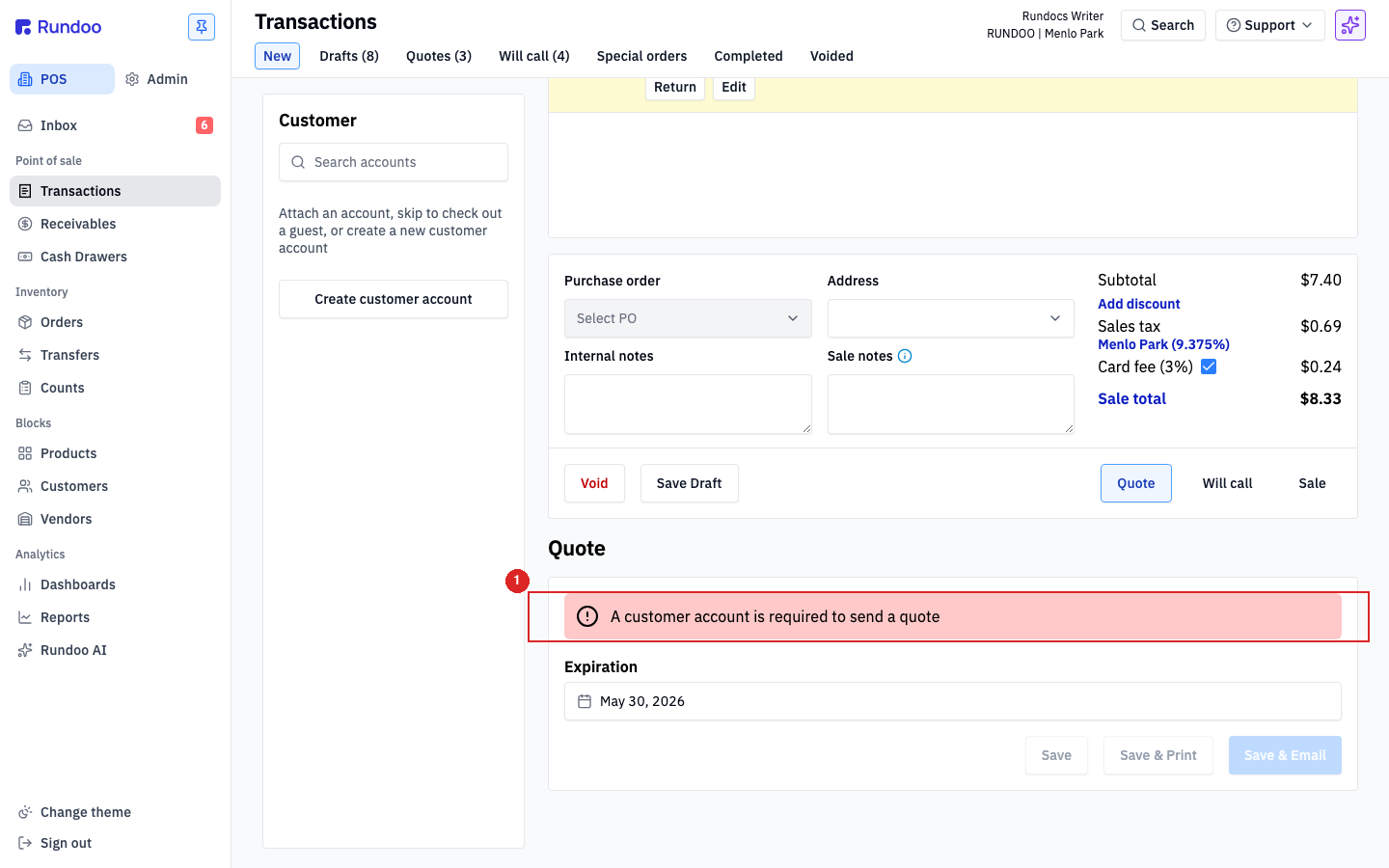
Drafts don't have this problem (Save Draft works without a customer because a draft is internal-only). If you want to hold the cart but don't have a customer yet, save a draft instead. See Drafts, quotes & will-calls.
Card payments need to be at least $0.50. Please increase the payment amount
Stripe, Rundoo's processor, has a $0.50 minimum on every card transaction. You can't process a $0.10 sale on a card.
Fix it. Either bump the sale total to at least $0.50 (add a small line, or charge a postage/handling fee), or switch to a different tender (Cash and Charge account have no floor).
Inventory will go negative for these products on completion of this sale
A Confirm transaction details dialog when the cart has more of a product than you have on hand. Not a hard block. Rundoo lets you finish, but wants you to acknowledge the inventory math.
Fix it. Click Confirm if you're knowingly selling something you'll restock today, or Cancel to fix the line first. If this fires often on products you actually have, you've got a counting drift between Rundoo and the shelf. See Inventory counts.
This sale can't complete — one or more items are priced below cost
Your company's Below cost policy is set to block the sale (configured in Admin > Company). The cashier overrode a price below the line's cost, and the policy says don't ring it.
Fix it. Either bump the line price back above cost by clicking the line's price, or get a manager with the override below-cost permission to ring it through. The policy itself can be loosened in Admin > Company (see Staff permissions for who can change it).
Charge button stays disabled
The blue Charge $X.XX button only enables when the payment side is valid. Common causes:
-
Cardselected, no card details yet. Either pick a reader fromChoose a reader, or clickEnter card manuallyand fill the number, expiration, CVV, and ZIP. -
Charge accountmissing for a customer who should have one. They aren't actually a charge account. Open their record and check Settings > Financing > Finance term. ACashterm means they're retail; pick a statement-based term to give them a tab. See Customers. -
Split paymentdoesn't add up. Each tender row needs a non-zero amount, and the sum has to equal the sale total. Check the math at the top of the panel.
Card reader & payment errors
When the reader's involved, "what now" depends on whether the customer was charged. Always check the Payments tab in Admin > Stripe before retrying (see Card reader troubleshooting for the full ladder).
The card reader is offline. Please try again with a different card reader
The reader can't reach Stripe right now (power, network, or a pending firmware update).
Fix it. Walk over to the reader: tap the screen to wake it, check the power cable, and if it shows Updating let it finish. Then either retry, switch to a second reader from the Choose a reader dropdown, or click Enter card manually to key the number in.
Card declined
The customer's bank refused the charge. Could be Insufficient funds, Do not honor, Card expired, or another bank-level rule. Stripe and Rundoo can't override it, the bank gets the last word.
Fix it. Ask the customer for a different card or a different tender. If Card expired shows on a saved card, swap to a fresh one and update the saved card on their record.
Reader missing from Choose a reader dropdown
Reader was there yesterday and isn't today.
Fix it. Hard-refresh the checkout page (Cmd+Shift+R on Mac, Ctrl+Shift+R on Windows). The dropdown reads the reader list when checkout loads, and a refresh pulls a fresh list. If still missing, tap the reader to wake it, wait 30 seconds, and refresh again. If multiple readers are gone at once, the network's down. See Connectivity troubleshooting.
Charge stuck "pending" for over a minute
The reader and Rundoo got out of sync.
Fix it. Don't retry. Open Admin > Stripe > Payments and look at the most recent row, if it's Succeeded, the customer was charged and the sale just needs to be finalized on Rundoo's side (call Support). If it's Failed, the charge didn't go through and you can retry. Charging a customer twice is much harder to unwind than waiting 30 seconds.
Customer, vendor, and product duplicates
Every list-page bulk-create modal has its own duplicate behavior, and the type of failure isn't consistent across them. Knowing which silently fails vs which throws a banner saves you the "wait, did that save?" spiral.
A vendor with the same name already exists in the company.
A red banner on the Add vendor modal. The save is blocked; the modal stays open so you can rename.
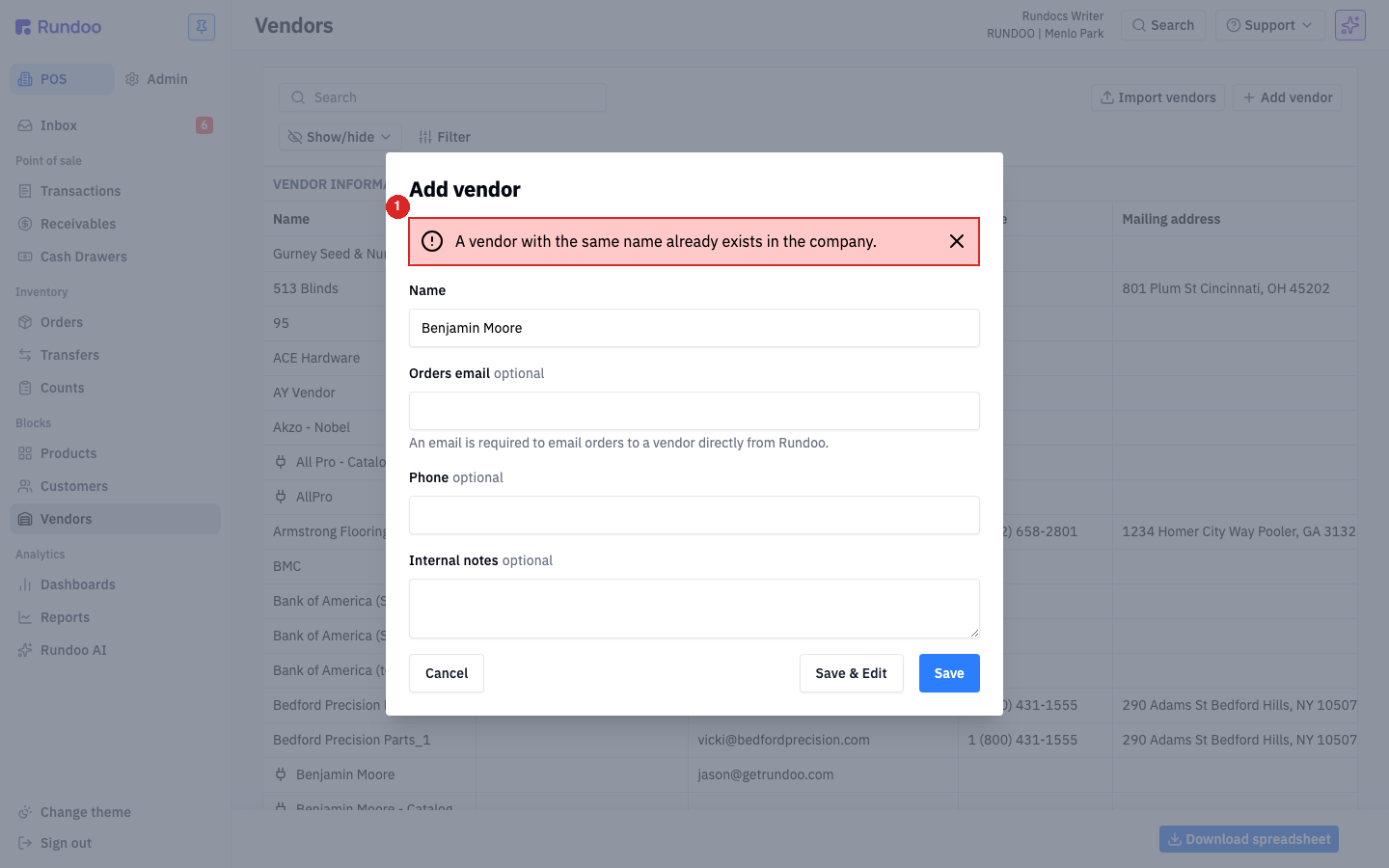
Fix it. Pick a name that distinguishes the new record (append the city, the rep's initials, or the catalog year). If it's actually the same vendor and you're trying to update them, close this modal and open the existing vendor's detail page from the Vendors list instead.
A vendor with the same name already exists (Vendor imports)
Same banner shape, different surface. The Import vendors uploader rejects rows whose Name collides with an existing vendor when no Token is provided. The row fails; other rows in the spreadsheet still process.
Fix it. Update the row's name in the spreadsheet, or fill in the existing vendor's Token so the import treats it as an update instead of a create. See Vendor imports for the full token mechanic.
Customer save closes silently with no record created
A duplicate phone number on Add customer doesn't throw a banner (Rundoo just closes the modal without creating the customer). If you didn't notice, you'll be confused why they aren't in search.
Fix it. Search the customer list for the phone first. If you find them, edit the existing record. If you don't and the create is still silently failing, use Save & Edit instead of Save when adding, that drops you onto the new customer's detail page, so a missing detail page tells you the create didn't land.
Email address is not valid.
A red banner under the email field on Add vendor or Add customer when the value isn't a valid address. Save stays disabled until you fix it.
Fix it. Common causes: a leading or trailing space (paste from Outlook is the usual culprit), a missing @ or domain, or a comma where there should be a period. Type it fresh.
Duplicate product on Duplicate
Click Duplicate on a product detail page and Rundoo creates a copy with _1 appended to the Primary ID (05482X-001 becomes 05482X-001_1). If 05482X-001_1 already exists (you've duplicated this product before), the save fails on the uniqueness check and you'll see a validation error.
Fix it. Change the Primary ID on the new record to something unique before saving. Duplicate doesn't collision-check before appending.
Permission and validation gates
These aren't errors so much as "you're not allowed to do that here" or "you haven't filled in enough yet."
Empty form submit does nothing. No toast, no banner
Most create modals (Add vendor, Add location, Add contact, New PO, New transfer, New count) silently fail an empty submit. No red border, no error toast, no list update.
Fix it. Fill in the required fields (Name is required on most; the others vary). Save again. If you're sure you filled everything in and it still does nothing, check that you actually have the permission to create. See Staff.
Note field required on a sale
Your company's POS security policy requires a sale note on guest (no-customer) sales or returns. The cashier has to type something into the Sale notes field before the sale will commit.
Fix it. Type a brief reason, "Cash walk-in", "Return without receipt", etc. The policy is set per company, and individual customer records can override it.
Charge account tender missing at payment
Two reasons it might not show up:
-
No customer attached. Charge account is customer-scoped. Go back to the cart and click Search accounts.
-
Customer is on a
Cashfinance term. They aren't actually a charge account. Open their record, go to Settings > Financing, and change the Finance term to a statement-based one (Net 30 Statement, etc.). See Customers.
Charge account tender appears but is greyed out
The customer has a charge account, but the sale would push their balance over their Credit limit. Rundoo blocks the charge until they pay some down.
Fix it. Either take payment via a different tender today, or have the customer pay down their balance via Bill payments and try again. To raise the limit (or set it to $0.00 to put them on hold), go to their record's Settings > Financing > Credit limit and click edit.
edit link missing on a customer's sales rep
You don't have the Assign and change the sales representative for a customer permission. The rep field shows but reads-only.
Fix it. Ask an admin to grant you the permission under Admin > Staff > {your name} > Permissions > Customer Management. See Staff.
QuickBooks export errors
Most QuickBooks Online sync hiccups surface as a one-line message on the failing entry in Admin > Integrations > Journal Entries. Read the message first, Intuit's text is usually self-fixable.
Business Validation Error: When you use Accounts Receivable, you must choose a customer in the Name field
QuickBooks rejected an AR-touching journal entry because no customer was attached. The Accounts receivable customer field on Settings isn't set or points to a customer that doesn't exist in QuickBooks.
Fix it. Open Admin > Integrations > Settings, set Accounts receivable customer to a generic Customers lump in your QuickBooks file (create one in QuickBooks if needed), and regenerate the failed entry. See QuickBooks.
Duplicate Document Number Error. This number has already been used
The journal entry's doc number collides with one already in QuickBooks. Usually means an earlier entry posted, you regenerated it, and the regen tried to use the same doc number.
Fix it. The original entry already landed in QuickBooks. Don't double-post. Archive the regenerated entry on the Rundoo side and confirm the original is correct on the QuickBooks side. If it's wrong on the QuickBooks side, void it there first, then regenerate from Rundoo.
Journal entry has a blank Account number on a line
Rundoo knows what happened (debit/credit, amount, control account) but doesn't know which GL account to post to. The control account isn't mapped.
Fix it. Open Admin > Chart of Accounts > Mapping, find the unmapped control account, and pick a GL account. Regenerate the entry on Journal Entries with Select type + Date + Generate. See Account mapping.
Journal entry totals don't match (debits ≠ credits)
The entry's totals card shows a different number for Total debits and Total credits, and QuickBooks rejects the post (or the CSV/IIF won't import). A journal entry is meant to balance, so an out-of-balance one means one of the lines couldn't be posted. In the line-items table you'll usually find a row with a blank Control account and no Department / Method / Fee, Rundoo knew the amount but not which GL account to post it to, so it never wrote the offsetting line. That's almost always a department with no mapping row.
Fix it. Open Admin > Chart of Accounts > Mapping (see Account mapping) and check three things, in order:
-
A department with no mapping row. Confirm every department that had activity that day has
Inventory,Inventory COGS, andSalesrows. A department created after setup, or introduced by a product import, won't have been pre-seeded. -
Products sitting in an unassigned or
Unknowndepartment. Those lines have no department to look up. Assign the products to a real department so their lines can resolve. -
A department name with a leading or trailing space.
Snacks + DrinksandSnacks + Drinksdon't resolve to the same mapping row, and the extra space is invisible on screen. Rename the department to clear it.
Then regenerate the affected journal entry (Select type + Date + Generate) and re-check the totals card before exporting.
Entry sat all day with a blank Exported column
For QuickBooks Online, the OAuth connection probably expired (Intuit tokens time out periodically). For QuickBooks Desktop, blank Exported just means your bookkeeper hasn't imported the file into QBD yet.
Fix it (QBO). Open Admin > Integrations > Settings. If the Connect QuickBooks Online button is back, the connection dropped, click it to re-authorize, then regenerate the missed entries.
Generate button stays grey
You haven't picked both Select type and Date yet. The button enables only when both are set.
Can I delete this?
Rundoo keeps as much data as possible so you can drive decisions off it. That means most things deactivate or void rather than delete. Historical records stay intact even when an entity is "gone." Below is the canonical list.
Customers, vendors, products, jobs, staff, locations
Deactivate (soft archive). They disappear from the default list view and from pickers, but their history (sales, orders, balances, custom prices) stays intact. Reactivatable from the list's Status filter.
You can't delete them outright. Past transactions reference these records, and deleting would orphan that history.
-
Customer (Deactivate in the action cluster on their detail page). Don't deactivate a customer with an unpaid balance unless you're writing it off.
-
Vendor. Deactivate on the vendor detail page. Don't deactivate one with open POs or unpaid invoices.
-
Product. Deactivate on the product detail page. The SKU stops appearing in POS search and the default Products list.
-
Job. Deactivate on the job detail page (or via the customer's Jobs tab).
-
Staff account (
Deactivate*(admin-only)). Phone numbers can't be modified. If a staff member changes phones, deactivate the old account and create a new one with their new number. -
Location. Locations can't be self-deactivated. Call Rundoo Support and we'll handle it on our side.
Sales (completed transactions)
Voiding a paid sale isn't a one-click action. The payment has to be refunded first via the Return flow on the original sale (see Refunds), and only then can the sale be voided. Charge-account sales can be voided directly because no payment has cleared yet.
You can't delete a completed sale. Voided sales move to the Voided top tab on POS > Transactions for your records. They stay accessible but stop counting against reports.
Held sales (drafts, quotes, will-calls, special orders)
Void freely. Open the held sale from its top tab, click Void in the action cluster. No payment has been taken, so there's nothing to refund.
Voiding a will-call returns the reserved inventory to stock. That's the only way to release the hold short of completing the pickup.
-
Drafts (void anytime).
-
Quotes (void anytime); quotes don't reserve inventory either way.
-
Will calls. Void to release the inventory hold; otherwise the stock stays committed until pickup.
-
Special orders. Void on the special order's detail page; cancel the linked PO line if the order's already on a PO. See Special orders.
Orders, transfers, counts
Void on the document's detail page. Voiding a received order or a committed transfer doesn't undo the inventory move. For that, ring a return PO, a reverse transfer, or a count adjustment.
-
Order drafts (void freely).
-
Vouchered POs. Void via the action cluster; voiding doesn't unwind the AP entry, so confirm with your bookkeeper before voiding a posted PO.
-
Transfer drafts and In-transit transfers (void from the document).
-
New counts (uncommitted). Void freely. Committed counts adjust inventory; reverse via another count.
Saved cards, contacts
Delete (permanent). A customer's saved cards live under their record and can be removed; secondary contacts on a customer or vendor can be removed via the trash icon on the contact card.
-
Saved cards on a customer. Delete from the customer's detail page when a card expires or the customer asks you to remove it.
-
Secondary customer contacts. Delete via the trash icon. Primary contact stays.
Admin records (tags, tiers, finance terms, charges, categories, fees)
Delete (admin-only). These are configuration records that don't have transactional history once they're not in use anywhere.
-
Product tags, customer tags. Delete from the admin list.
-
Pricing tiers, delete only if no products or customers reference the tier.
-
Finance terms (delete only if no customers are on the term).
-
Finance charges (delete only if not the default). The default charge can't be deleted in place. Set a different charge as the default first, then delete the old one. See Finance charges.
-
Departments, classes, finelines (delete only when no products are tagged with them).
-
Additional fees (delete from Admin > Product > Additional fees).
-
Custom tax rates. Delete from Admin > Locations > Custom tax rates when no customer or location is pinned to the rate.
Write-offs
Ask Rundoo Support. Write-offs aren't self-deletable. They're an accounting move with implications for your AR aging. Call Rundoo Support and explain what you're trying to undo.
What you can't delete or undo
A few things aren't reversible from the UI no matter what:
-
A successful refund. Once Refund $X.XX fires, money has moved. To put it back, ring a new sale for the returned lines.
-
A successful Stripe payout. Funds have left Stripe and hit your bank.
-
A submitted Bill payment that already cleared the customer's saved bank or card. Refund through the customer's record if the payment landed in error.
-
Customer-merge operations. Once two customer IDs are merged, the secondary ID is retired. Double-check both IDs before asking Rundoo Support to merge.
-
A committed Inventory count. The count adjusts on-hand levels at commit; reverse via another count, not by deleting the original.
If you're staring at a record that needs to be undone and none of the above fits, Rundoo Support can usually help (much easier to ask before you ring something else than to unwind compounding fixes after).
Other validation gates
A few smaller "why won't this let me…" cases that don't fit the categories above.
Sales tax payable vendor not set in QuickBooks
QuickBooks rejects sales-tax journal lines because the field on Admin > Integrations > Settings points to a vendor that doesn't exist in your QBO file (or isn't set at all). Fix the field, regenerate the entry. Same shape as the Accounts receivable customer issue above.
Confirmation banner flashed and disappeared
Rundoo flashes a small green banner at the bottom of the screen on a successful save (Vendor saved, Sale completed, etc.) for about two seconds. If you didn't see it, you might have looked away, but more often, the save didn't actually commit because a section had unsaved validation issues. Scroll back through the form and look for required fields you missed; if everything looks right, save again and watch for the green banner.
Tax exempt customer still being charged tax
There's no Tax exempt toggle on a customer. Exemption is really an assignment to a custom tax rate at 0.0% via Settings > Tax exemptions > Use custom tax rate. The text fields on the same section (Exempt: Sales tax number, etc.) are for your records, they don't change the tax math.
Fix it. Make sure you've defined a 0.0% rate in Admin > Locations > Custom tax rates, then on the customer's record, set Use custom tax rate to it. See Customers.
Recommended Rundocs
-
Troubleshooting basics, first-line triage ladder when something feels off and you don't have a specific message yet.
-
Card reader troubleshooting (the full ladder for offline readers, missing readers, and stuck mid-swipe).
-
Connectivity troubleshooting (when the network's the real problem).
-
Rundoo Support, phone, chat, and email for the things that don't fit a self-fix.