
Rundocs › Getting Started
Mobile apps
Last updated 2026-07-24
Rundoo runs in your browser on every device you own, but some jobs are faster with one of Rundoo's mobile apps, and a tablet on the counter can replace a full register.
Rundoo ships two mobile apps and works on tablets. The Rundoo POS app (blue icon) is for staff on the go (analytics, stock checks, customer notes, inventory counts, bank balances). The Rundoo app (black icon) is for your customers. They check their balance, view invoices, and pay you. And because Rundoo is web-based, the full web app runs on any iPad or Android tablet at the counter.
💡 Where to find specific workflows on mobile. This page is the cross-cutting overview of the two mobile apps. For task-level walkthroughs, jump to the topic Rundocs:
Screenshots in those sections are Android. iOS screens look slightly different but the workflows are identical.
Analytics on the go
Managers with the GetGrossProfitAndRevenueByLocation permission land on a Home dashboard when they open the Rundoo POS app (same revenue + gross-profit metrics as the web Analytics, scoped to today by default, with a per-location breakdown underneath).
The Today / Revenue / Gross profit chips at the top change the time window and which metric the donut shows. Tapping a location row drills into that location's analytics report. Staff who don't have the analytics permission skip the Home tab entirely and land on Txns as their post-login screen.
Rundoo POS (staff app)

Download Rundoo POS (the blue icon). Get it on the App Store or Google Play.
The Rundoo POS app is for your team. It's a companion to the web app, not a replacement (you won't ring up sales or receive POs in it today), but you can check on the business from anywhere your phone goes.
Who uses it: owners, managers, and any staff with analytics permissions. Anyone with a Rundoo login can sign in.
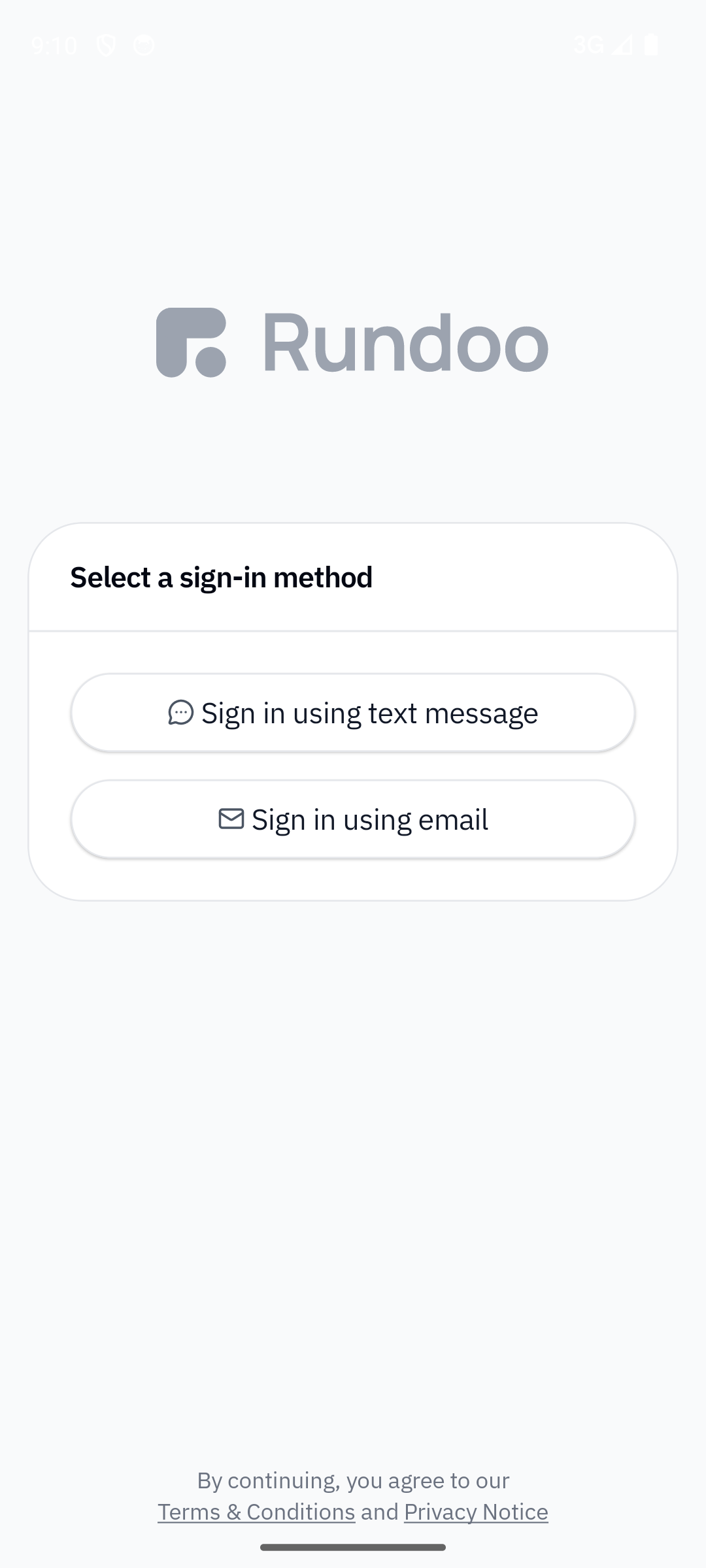
How to sign in: open the app and sign in with your cell phone number. Rundoo texts a code; enter it and you're in. If you don't have a Rundoo login yet, someone at your company needs to add you first (see Staff).
What you can do today:
-
Check analytics. Revenue, gross profit, and margin over any date range (if your
Staffpermissions allow). -
Search your data. The same search you use on web (products, customers, sales, orders). Type or speak; Rundoo pulls up the match.
-
Leave customer notes. Pull up a customer, drop a note from the road. It shows up for the rest of your team back at the counter.
-
Count inventory. Walk the aisle and scan with your phone's camera (counts land straight in Rundoo). See Inventory counts for how counts work end-to-end.
-
Check your bank. View the Rundoo-managed bank balance you set up during Go-live.
What it doesn't do (yet): rings up sales, receives purchase orders, prints receipts, takes card payments. For those, use the web app.
If you need to ring up sales or receive purchase orders in the app, these are popular feature requests. Want this? Vote for it on the Idea board at rundoo.nolt.io/124.
If you search "Rundoo" and see two apps, the blue one is Rundoo POS (this one). The black one is the customer-facing app (see below).
Rundoo (customer app)

Customers download the Rundoo app (the black icon). Point them to the App Store or Google Play.
The Rundoo app is for your customers, the painters, contractors, and pros who buy from you on a charge account. They use it to browse your products, see what they owe, and pay you without calling or stopping by.
Who uses it: your customers. Not your staff.
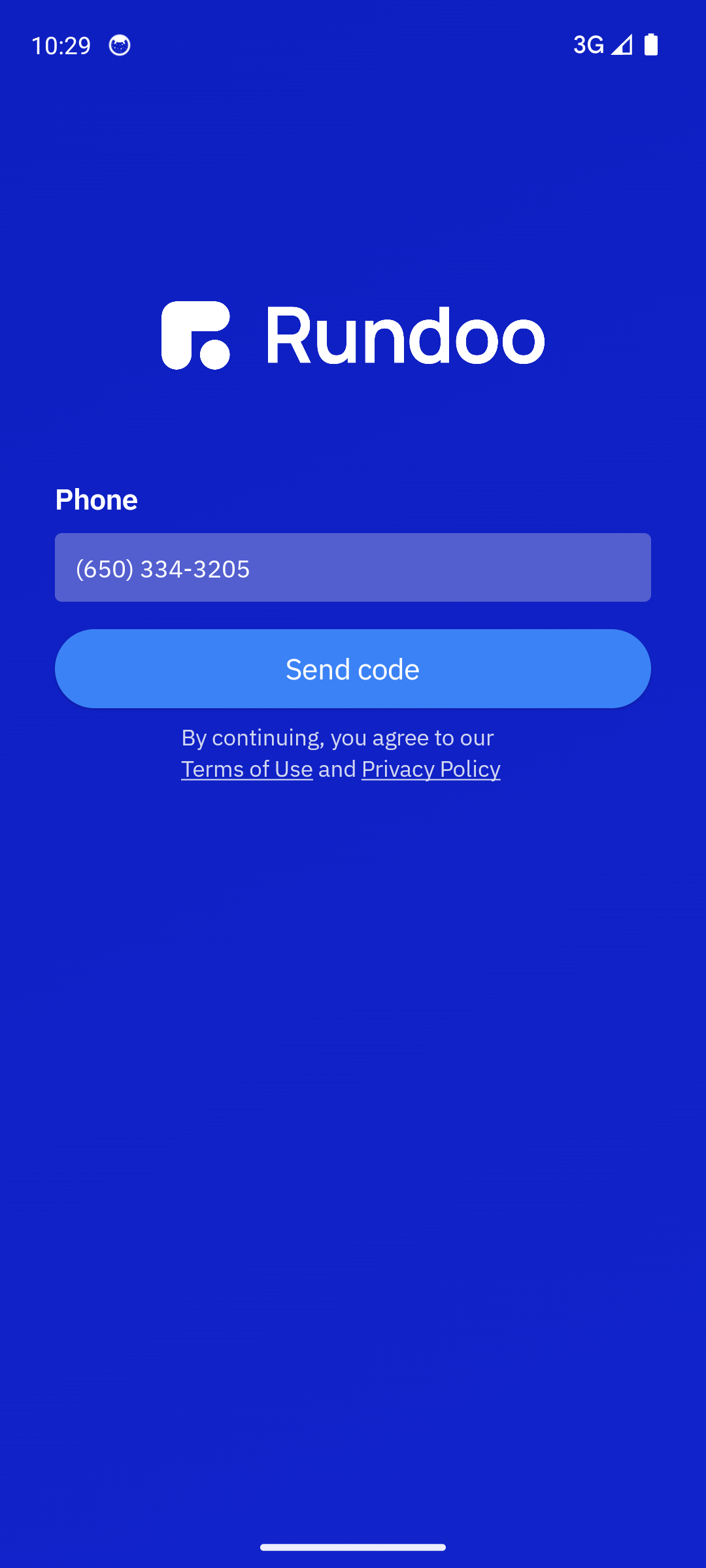
How customers sign in: with the cell phone number on their Rundoo contact. Rundoo texts them a code, they enter it, they're in. Which means one thing has to happen first:
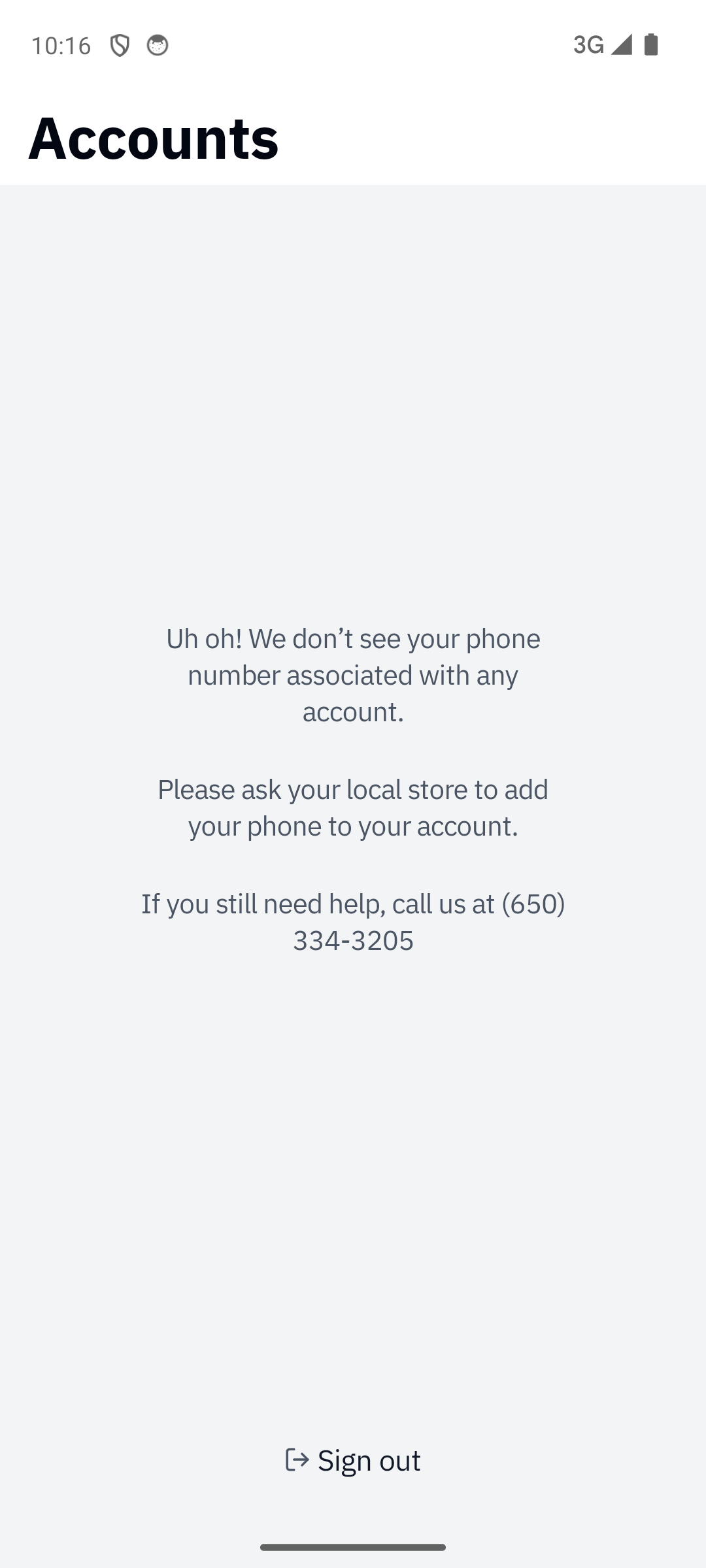
Add the customer's cell phone to their contact before they try to sign in. Open the customer in Rundoo, go to Contact, and make sure a contact record has their cell number. If a customer tries to sign in with a number that isn't on file, the app tells them to call your store.
Account picker (when a contractor has multiple accounts)
If a contractor's phone is wired to contacts on more than one of your customer records, say they have a personal account and a business account, or they buy at two of your locations as separate customers, the Rundoo customer app shows an Accounts picker right after sign-in. They tap which account to enter for this session; subsequent sessions go through the picker again (it's per-session, not stickied).
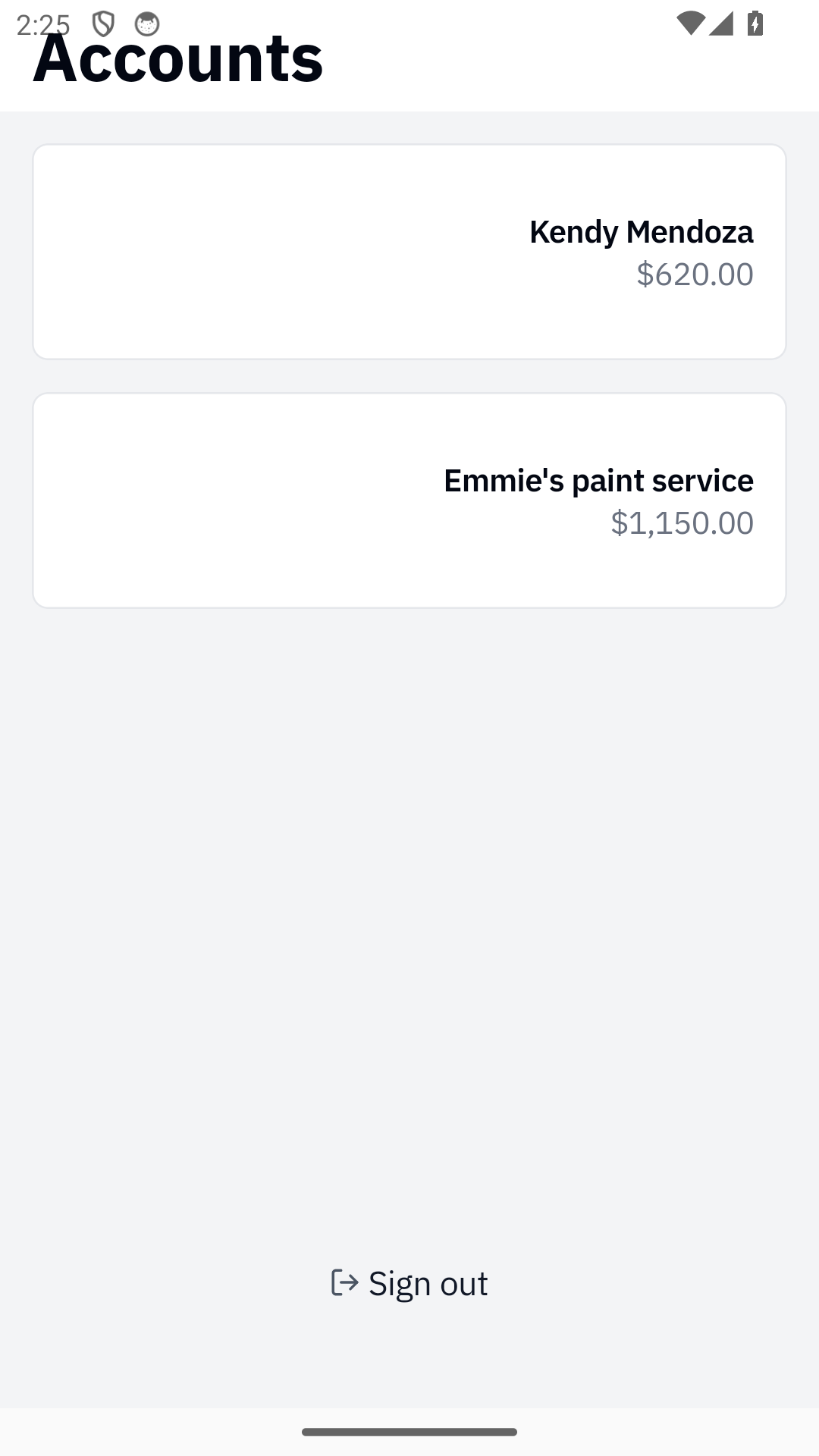
The balance shown next to each account name is that account's total remaining balance (same number that lands on the Billing tab once they tap in). A contractor with one account still sees this screen, just with one row to tap.
💡 If a contractor is missing an expected account here, the fix lives in Customers → Contacts. Add their phone to the customer record they're missing. The picker re-checks on the next sign-in.
What customers can do:
-
Browse your products. Search your catalog, open a product detail page with an image carousel, and narrow results with sort and filter options by department, class, and fineline.
-
See their balance. Total balance, current statement, and every open invoice.
-
View purchase history. Every sale, every receipt. Filterable by status, including Canceled for voided orders. Tap any line on a past sale to open a read-only product detail page. If your store has Rundoo's e-commerce enabled, Online orders is the default view customers land on.
-
Pay their bill. By statement balance, total balance, or specific invoices, with a saved card or a new one. Payments land in Rundoo as bill payments, same as if they'd paid at the counter. See Bill payments for how those reconcile.
-
Manage payment methods. Save cards, remove old ones.
-
Set up autopay. Opt in to pay the statement balance automatically when a statement runs.
How to get customers onto the app: every statement Rundoo sends includes a QR code and a "Pay in app" button that deep-link to the correct app store. The monthly statement is your best pitch. Customers are already looking at what they owe.
Hand customers a flyer. Print this and leave a stack at the counter. It walks customers through downloading the app, signing in, and paying their bill.
Walking a customer through paying their balance
When a customer asks how to pay their bill in the app, here's the exact flow they'll see (worth knowing so you can guide them on the phone or print a quick reference for the counter).
-
Search
Rundooin the App Store or Google Play. Make sure they pick the black icon (the customer app), not the blue icon (which is the staff app and won't show them their balance). -
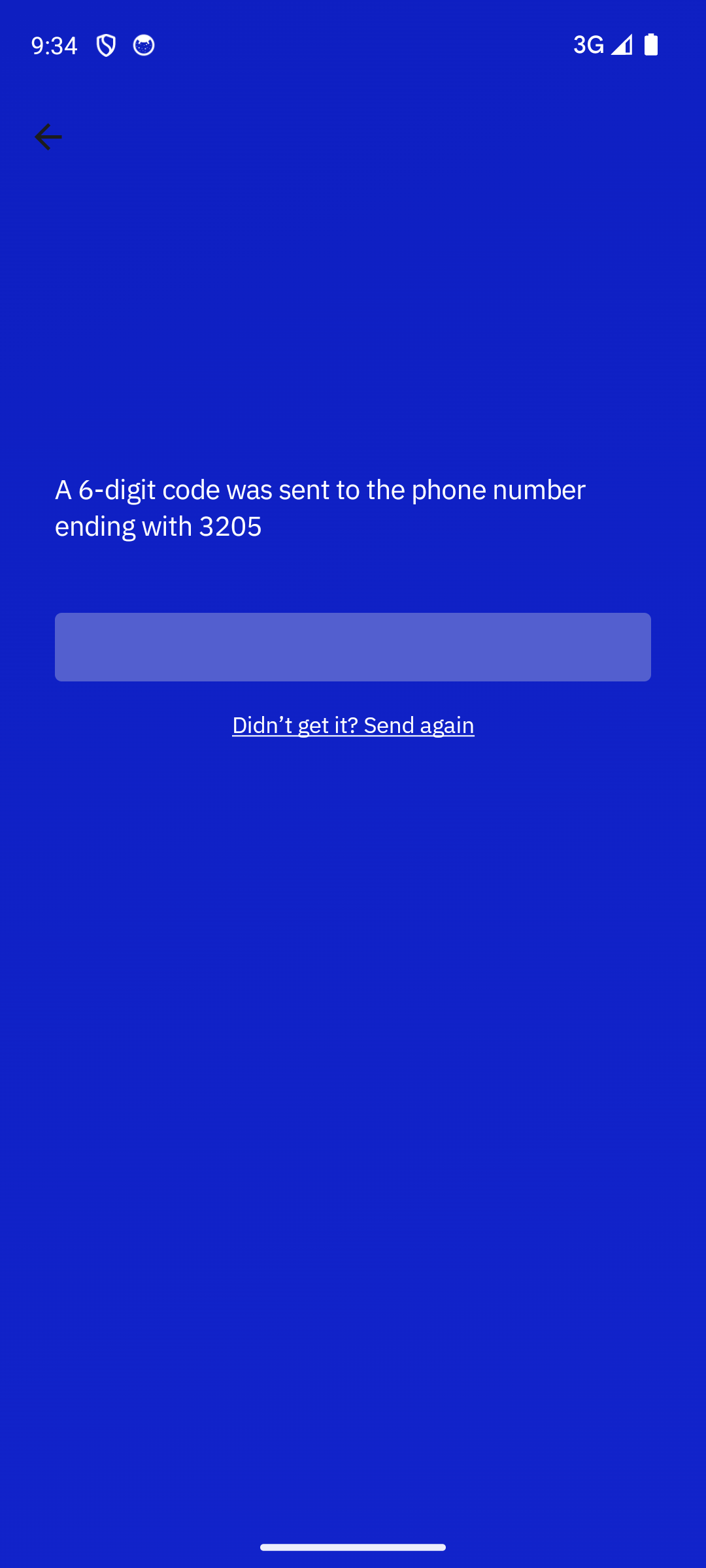
Sign in with the cell phone number that's on their Rundoo customer record. Rundoo texts them a 6-digit code; they enter it to finish signing in.
-
Tap the profile icon (top-right or bottom-tab depending on platform).
-
Tap
Pay Balance. -
Tap
Pay Total Balanceto settle the full open balance. If they want to pay specific invoices instead, the screen also lists each open statement. They can tap into one and pay it individually. -
Tap
Continue, thenPay. -
Add a payment card if they don't have one saved. Card number, expiration, CVV, ZIP, same fields as any online checkout. The card saves to their profile so the next payment is one-tap.
-
Confirm. The payment lands in Rundoo as a Bill payment immediately (it shows on their balance and on your POS > AR view within seconds).
"I tried to sign in and it said I don't have an account." Their cell phone isn't on their Rundoo customer record yet. The app matches on phone number. Open their customer in Rundoo, go to Contact, add their cell number, and ask them to try again. Cell, not landline, not office line. The OTP code is delivered via SMS.
Rundoo on an iPad or tablet
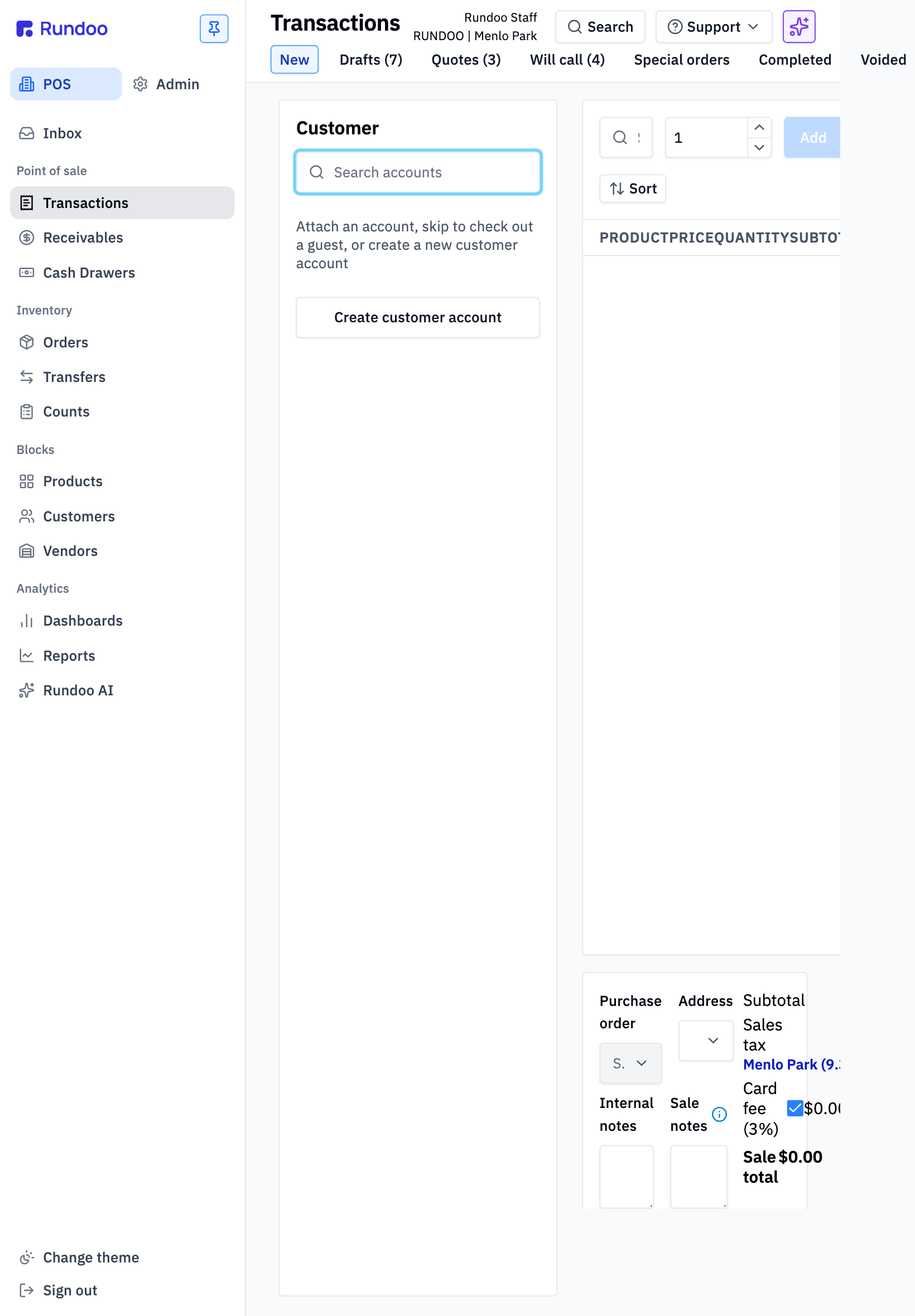
Rundoo is web-based, so the full web app runs on any iPad or Android tablet. This is how a lot of stores keep Rundoo on the counter without a full computer (a tablet, a barcode scanner, and you're ringing up sales).
Who uses it: cashiers, counter staff (anyone who needs the full web app without a full computer).
How to sign in: open your subdomain (yourcompany.rundoo.app) in Safari or Chrome on the tablet and sign in like normal. See Sign-in for the specifics. Rundoo runs the same in the tablet browser as it does on the desktop.
What you get: the entire web app. Sales, returns, customers, products, orders, reports. All of it. Nothing is missing.
Tips for tablet-sized screens:
-
Collapse the left sidebar. Tap the collapse button at the bottom of the sidebar to free up horizontal space for the cart and product panels.
-
Zoom out in your browser. Most browsers support a 90% or 80% zoom (two-finger pinch, or the browser's zoom control). Shrinks everything by a hair so more fits on screen.
-
Keep it in landscape. The transaction builder's three-panel layout (customer · cart · totals) was designed for wider screens; landscape gives it room to breathe.
Barcode scanner setup: two ways to go.
-
Wired scanner + USB-C adapter (cheaper). A reliable wired scanner like the Zebra DS2208 (~$90) plus a USB-C to USB-A adapter (under $10) works great. You'll need to configure the scanner to wrap each scan with a
|(pipe) character on each side so Rundoo recognizes the input. -
Bluetooth scanner (cleaner). A Bluetooth scanner like the Socket Mobile SocketScan S720 (~$300) skips the cord. Same pipe-wrapping configuration applies.
See Hardware setup for full configuration guides.
A reasonable starter bundle: an iPad (10th gen or newer), a rugged case with a stand, a wired Zebra DS2208 scanner, and a USB-C adapter. You can be ringing up sales for under $500 before tax.
A tablet at the counter is a real register, not a fallback. Many Rundoo customers run their whole store this way. If you're not sure whether to buy a full computer or a tablet, a tablet works.