
Rundocs › POS
Scheduled deliveries
Last updated 2026-09-01
Schedule deliveries for the transactions that need to go out on a truck, group them into stops by address, and put a driver and a departure date on each run.
In the POS mode, open the Deliveries tab in the left sidebar. It opens on the Calendar view; a List view sits next to it. A delivery is a truck run for a departure date: it holds one or more stops (one stop per address), and each stop carries the transactions going to that address.
Calendar vs List
The two tabs at the top of the page are two ways to look at the same deliveries.
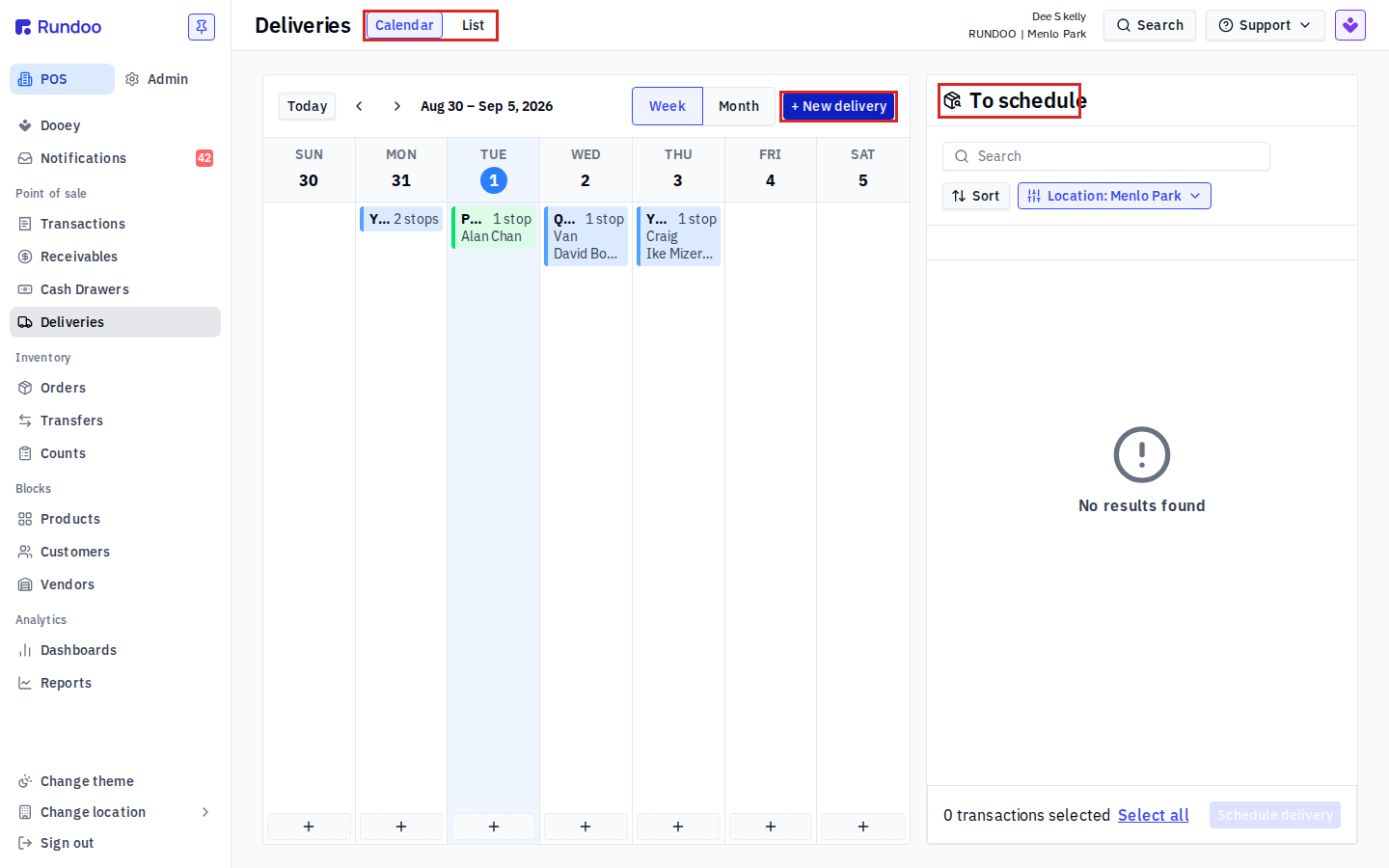
- Calendar lays deliveries out by day. Use Today, the arrows, and the Week / Month toggle to move through dates. Each card shows the delivery's ID, how many stops it has, and the assigned driver. The To schedule panel on the right lists transactions that are staged for delivery but not yet on a run.
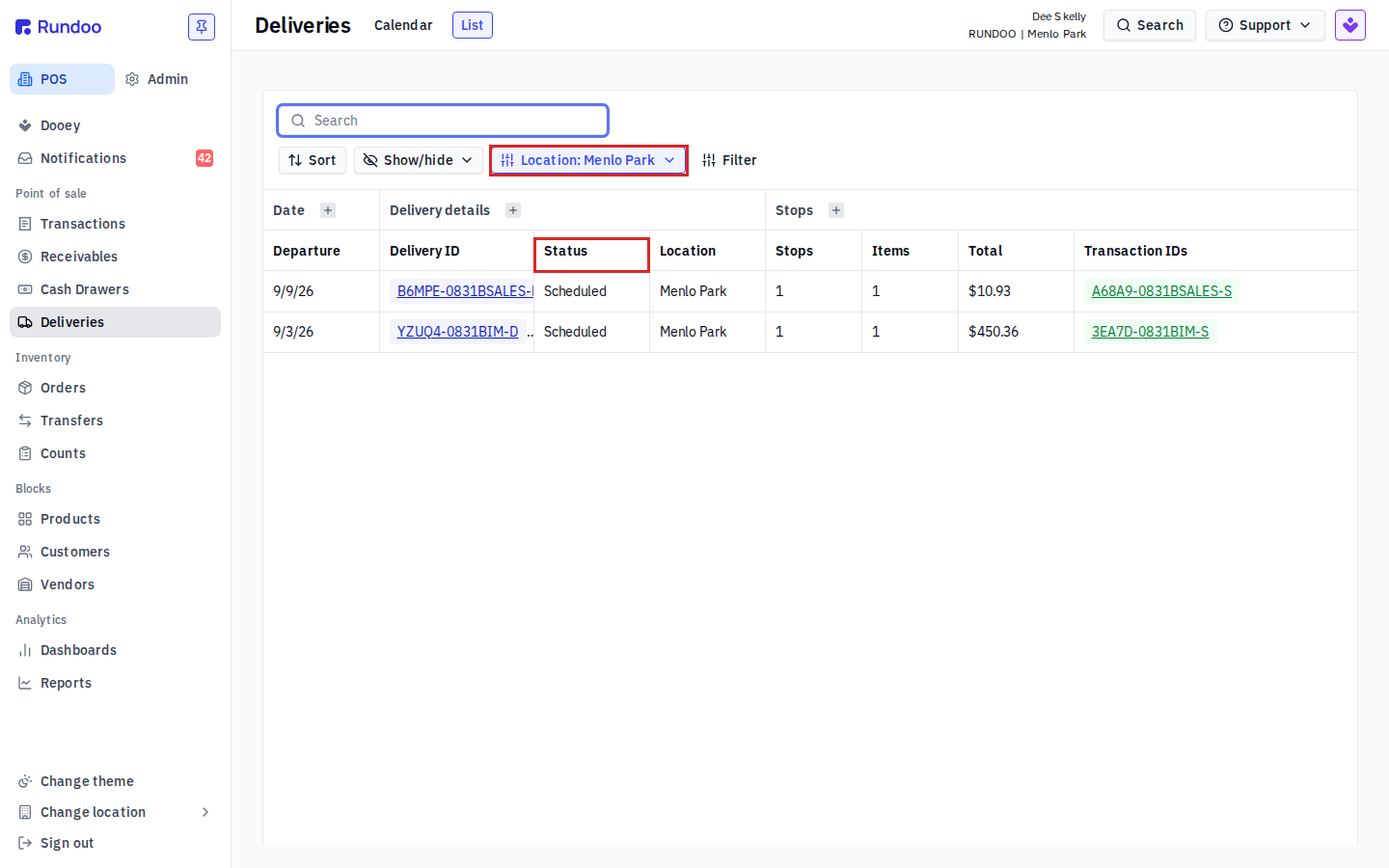
- List is a table of every delivery: Departure date, Delivery ID, Status, Location, number of Stops, Items, Total, and the Transaction IDs on it. Use Sort, Show/hide, and Filter to narrow it down.
Scheduling a delivery
There are two ways to build a run.
From the To schedule queue. On the Calendar view, the To schedule panel holds transactions that are staged for delivery and waiting for a run. Tick the ones going out together (or Select all), then click Schedule delivery.
From scratch. Click + New delivery and fill in the run.
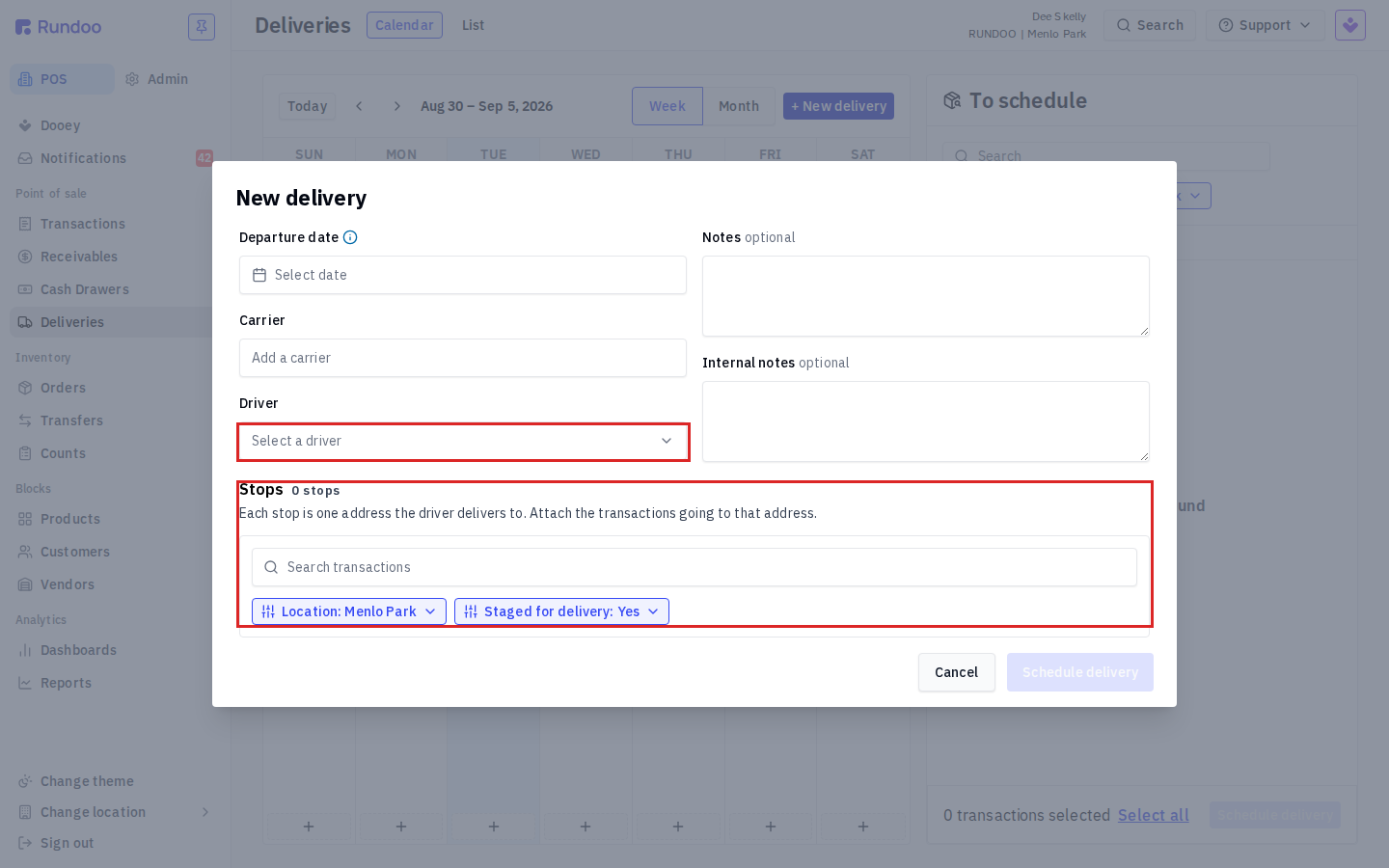
- Departure date — the day the truck goes out.
- Carrier — the delivery company or service, if you use one. Add a carrier to create one.
- Driver — pick who's driving from Select a driver.
- Notes and Internal notes — both optional. Notes travel with the delivery; internal notes are for your team.
- Stops — a stop is one address the driver delivers to, so attach the transactions going to that address. Search transactions to find them (the search is filtered to the current Location and to transactions Staged for delivery). Add a stop per address on the run.
Schedule delivery stays greyed out until the run has at least one stop with a transaction on it.
A transaction has to be staged for delivery to show up here. Both the To schedule queue and the New delivery transaction search only surface transactions that are staged for delivery, so if a sale isn't appearing, check that it was marked for delivery on the cart rather than pickup or carry-out.
How the driver gets the run
You put a driver on the delivery with the Driver field, and the run then shows on the Calendar and List views (and on the delivery's card) under that driver's name. There is no separate setting in the scheduling flow that automatically texts or emails a driver when they're assigned, so how your driver picks up their route (you show them the day's calendar, print the run, or have them check it themselves) is a workflow you set up on your end.
Want an automatic driver notification? That isn't part of the scheduling flow today. If an auto-text or driver-app hand-off matters for your operation, let Rundoo Support know so we can log the request and tell you where it stands.
Multi-location deliveries
If one logistics team dispatches for several stores, the view you want is List, not Calendar.
- The Calendar is scoped to one location at a time, set by the Location picker. A central dispatcher would have to switch locations one by one to see every store's runs on the calendar.
- The List view has its own Location filter and defaults to the location you're signed in to. Open the filter and pick the locations you dispatch for to see deliveries across stores in one table. This is the way to run all of a chain's deliveries from one desk today.
One shared calendar across all locations isn't available yet. The all-in-one view for a central logistics team is the List view with the location filter widened. If a single cross-location calendar would help you, it's worth a note to Rundoo Support so the request is on record.
Recommended Rundocs
- Sales — how a transaction is rung up and marked for delivery before it lands in the To schedule queue.
- Drafts, quotes & will-calls — the other ways a sale waits before it's completed or handed off.
- Locations — how the locations the Deliveries filters use are set up.