
Rundocs › Admin & Settings
Product settings
Last updated 2026-09-11
Product settings are the company-wide toggles and defaults that change how every product behaves, at the counter, on an order, and in a count. They live alongside a handful of bigger product-admin surfaces (fees, categories, forms, units of measure, labels) that each have their own Rundoc.
In the Admin > Product tab, scroll to the Deposits, Order product settings, Sale product settings, and Inventory settings sections near the bottom of the page.
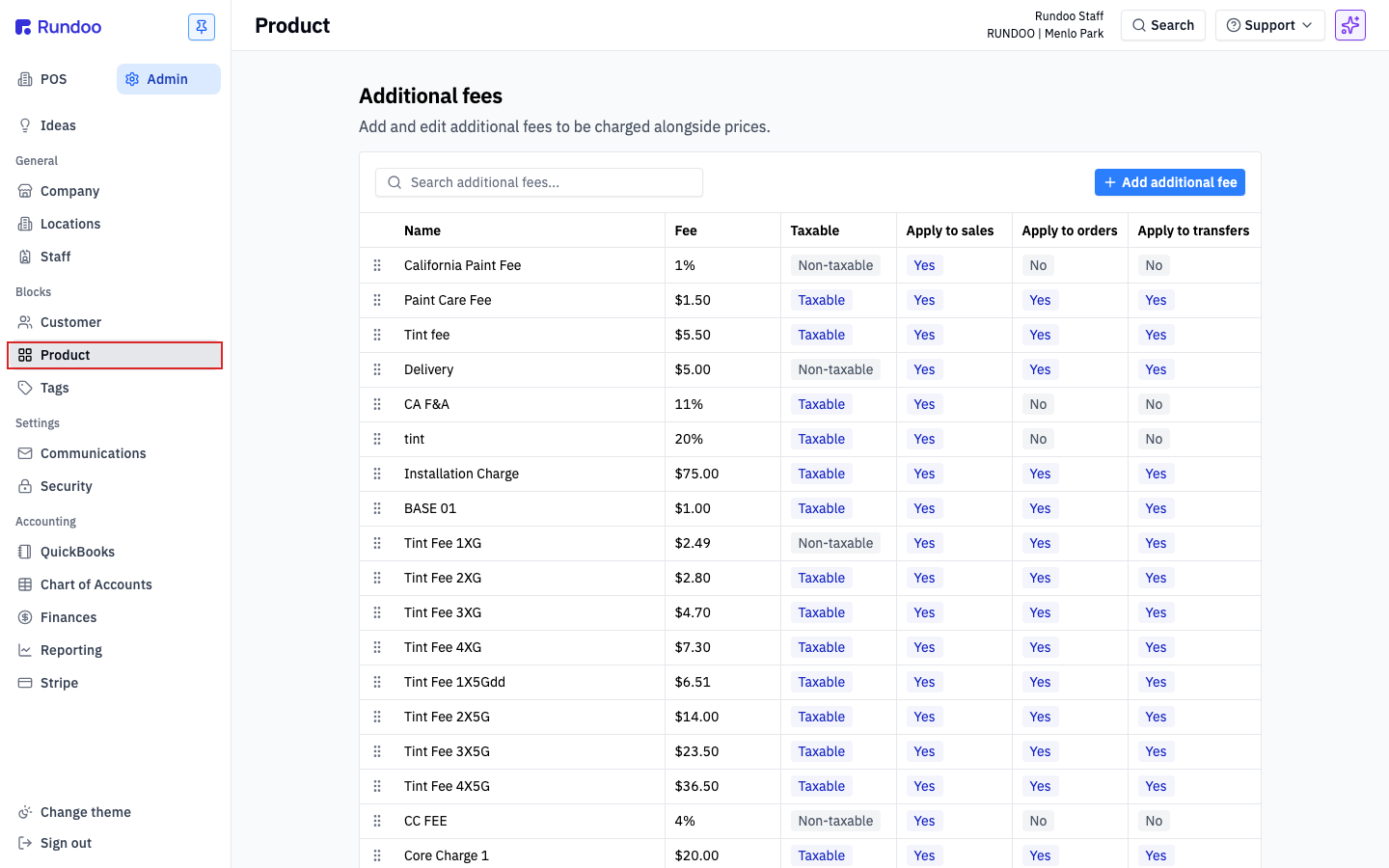
What's on the Admin > Product page
The Admin > Product page is one long stack of sections. Some are their own Rundocs, some are the product-wide toggles this Rundoc covers. Top to bottom:
-
Additional fees(per-sale surcharges (paint care, tint, delivery, card surcharges)). See Additional fees. -
Product categories, theDepartment > Class > Finelinetaxonomy that organizes every product. -
Sale forms, the printable checkout documents (receipts, invoices, quotes). See Sale forms. -
Deposits. Default deposit percent for non-stock products. Covered below. -
Units of measure, alternate UOMs (gallons, quarts, pints) on the same SKU. See Units of measure. -
Order product settings(the toggle for how PO receiving starts). Covered below. -
Sale product settings, the toggle for what happens to edited prices when you duplicate a sale. Covered below. -
Inventory settings(the toggle for how inventory counts start). Covered below. -
Custom Label Designer(builds the label templates used for product shelf and barcode labels). See Product labels.
Everything below is the "settings proper" (four small sections that change default behavior everywhere a product shows up).
Deposits
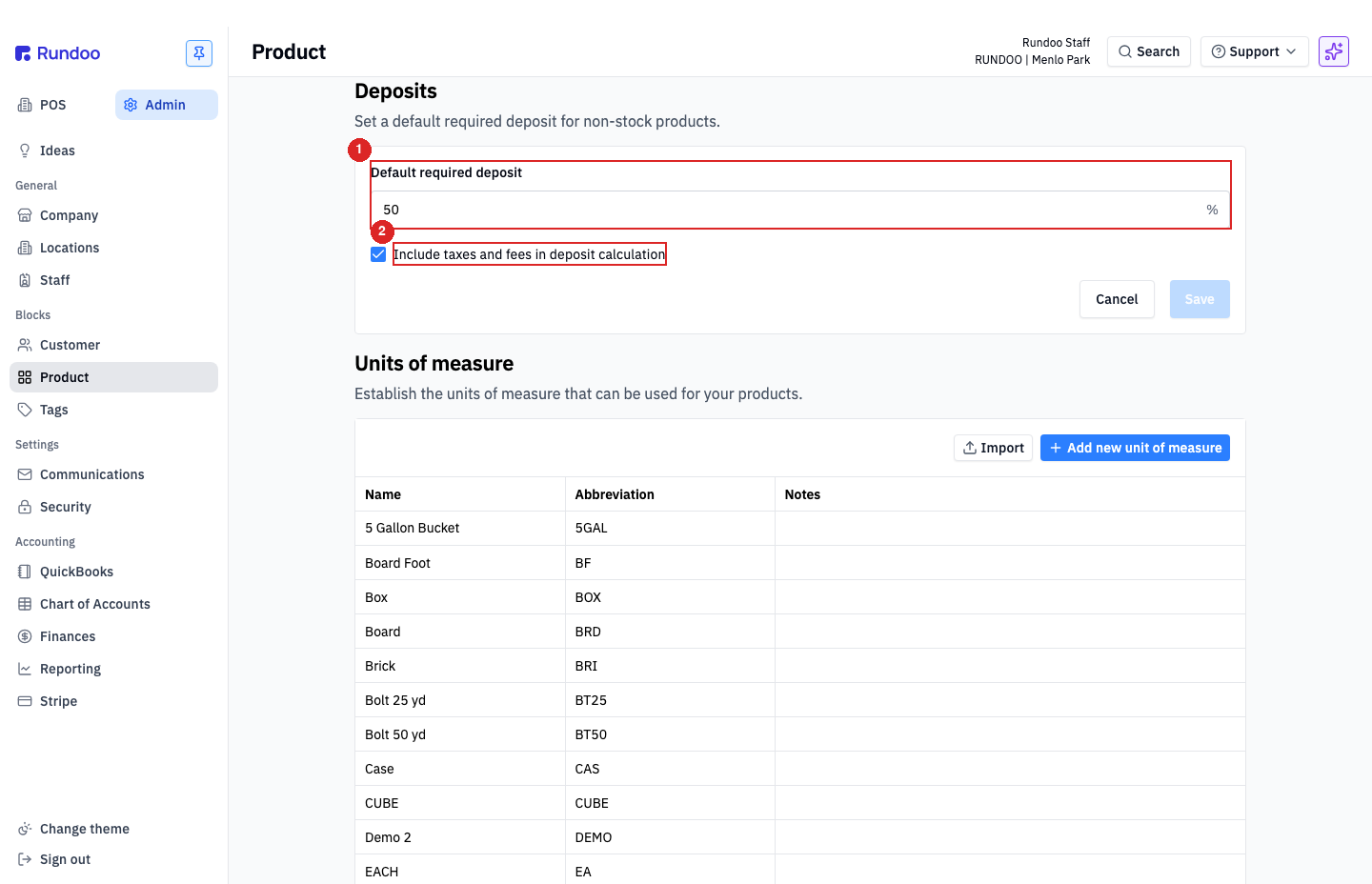
Sets the default required deposit when a cashier rings a non-stock product (a special-order paint color, a custom-cut item, anything that isn't on the shelf). One control:
Default required deposit, a percentage (e.g.50%). When a cashier adds a non-stock product to a cart, this is the deposit Rundoo pre-fills on the transaction. It's a percent of the order's all-in total (subtotal plus tax and fees), so the deposit already covers what the customer will owe, there's no separate toggle for including taxes and fees.
Click Save to apply. The default takes effect on new transactions immediately; it doesn't back-fill open drafts or quotes.
See Special orders for how non-stock products and deposits flow through the special-order workflow.
Order product settings

Two toggles:
-
Start all Ordered Orders at zero quantity to receive, when on, a newly-ordered PO starts each line at0received and the receiver types in what actually showed up. When off (default), each line starts at the ordered quantity, and the receiver adjusts down if the shipment is short. Flip this on if you always verify shipments line-by-line against the packing slip (safer, slower); leave it off if "what we ordered is what we got" is the common case at your store (faster, trusts the vendor). -
Generate orders when below min stock (off = at minimum), controls when reorder suggestions kick in on Purchase orders and Transfers. Off (default) is the legacy behavior: a product flags for reorder when on-hand plus on-order is at or below itsMin. On flips the trigger to strictly belowMin. A product sitting exactly at its minimum no longer suggests a reorder. Useful when you carry lots of special-order items, custom-cut SKUs, or anything else whereMin = 0is the normal stocking state and "at min" doesn't mean you're out. The setting applies wherever Rundoo runs Min/Max math (Generate orderon the PO builder and reorder suggestions on Transfers).
See Purchase orders for the rest of the PO workflow, and Generate order: Replenishment, Min & Max, and Predictive for how this toggle interacts with the Min & Max algorithm.
Sale product settings
One toggle:
When duplicating, preserve edited prices on sale. When on (default), duplicating a sale keeps any line-level price edits the cashier made. When off, the duplicate reverts every line to the product's current tier price.
The default (on) is usually what you want: if a cashier gave a specific customer a one-off price on a big job and later duplicates that sale to reorder, the same deal carries forward. Turn it off if you'd rather force cashiers to re-justify any discount on each transaction.
See Product prices and Custom prices for how line-level pricing works at the counter.
Inventory settings
One toggle:
Start inventory counts at on hand for a product. When on, a new count pre-fills each line with what Rundoo thinks is on hand, and the counter types over the number only when they find a discrepancy. When off (default), each line starts blank, forcing a real physical count on every SKU.
Most stores leave this off. Pre-filling to "on hand" invites confirmation bias (staff eyeball the shelf, the expected number is already there, they click next). If you're running a small spot-check count and trust your staff to override when reality disagrees, flipping it on speeds things up.
See Inventory counts for the full count workflow.
Each section saves independently. The Deposits card has its own Cancel / Save; the three toggle sections save the moment you flip the switch. Changing Deposits doesn't affect the toggles, and vice versa.
Recommended Rundocs
-
Additional fees, per-sale surcharges configured at the top of the same page.
-
Units of measure (alternate UOMs, also configured here).
-
Products (what you're configuring settings for).
-
Sale forms, printable receipts, invoices, and quotes.