
Rundocs › Pricing
Product prices
Last updated 2026-05-14
Product prices are the per-tier selling prices carried on a single product. What Tier 1 MSRP rings at, what Tier 5 Painter rings at, what every other tier in your company rings at. Managed on the product's Pricing tab.
In the POS mode, open Products in the left sidebar, click a product's row, and open the Pricing top tab.
How tier prices work
Every product carries one price per Pricing tier. On REGAL SELECT MATTE -BASE 2 the Tier 1 MSRP price is $77.99, the Tier 2 Retail price is $70.99, the Tier 5 Painter price is $64.99, and so on, one row per tier. When a customer is attached to a sale, Rundoo looks up their assigned tier and rings each line at that tier's price automatically.
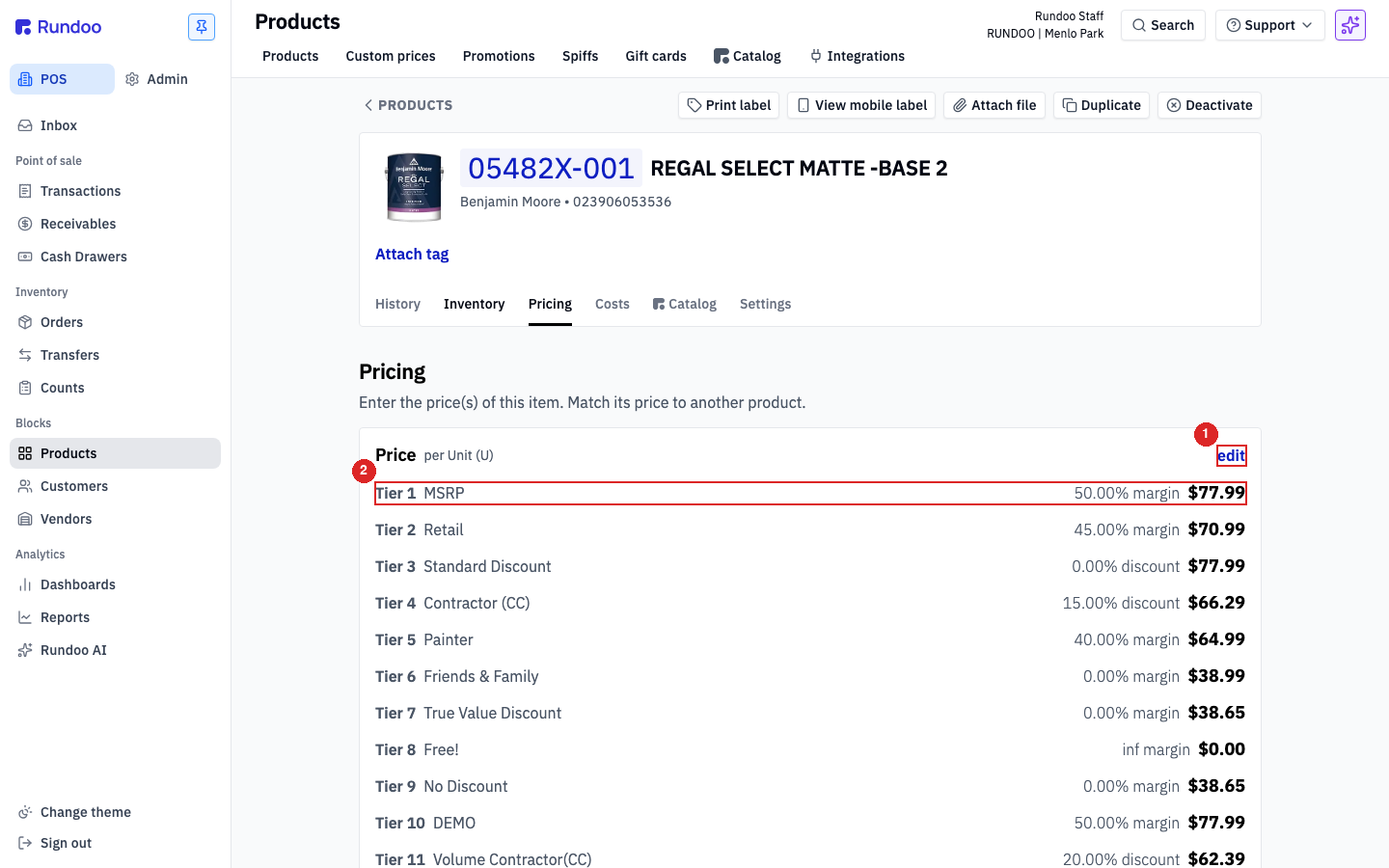
The Pricing tab is split into four sections that stack top to bottom:
-
Price, the tier grid itself. Every tier lists its current price on the right; the view mode also shows each tier's margin (or discount) as a percentage in the middle column so you can eyeball profitability at a glance. For rule-based tiers, the price is grayed out and a See tier rules link jumps to that tier's rule definition.
-
Alternate pricing. Price breaks at a quantity threshold, or different prices at alternate units of measure. How you configure volume discounts (buy 12, get 5% off) and per-UOM pricing (per-gallon vs. per-case). See Alternate pricing (quantity breaks) below.
-
Custom prices (per-customer overrides layered on top of this product's tier prices). Managed from the Custom prices Rundoc; the Pricing tab just lists what's active.
-
Promotions, time-bounded discounts currently active on this product. Managed from Creating Promotions.
Rule-based tier prices are derived, not typed. Tier 3 Standard Discount on this product shows 0.00% discount $77.99 because the tier's rule is "0% off of MSRP" and no typed override has been set. To change it, either edit the tier's rule (affects every product on that tier) or type an override here on the Pricing tab (affects this product only). See Pricing tiers for how rules work.
Editing prices on one product
Click edit in the top-right of the Price card to flip the tier grid into edit mode. Every tier's price becomes editable; the Unit of measure, Price rounding, Match price, Cancel, and Save controls appear.
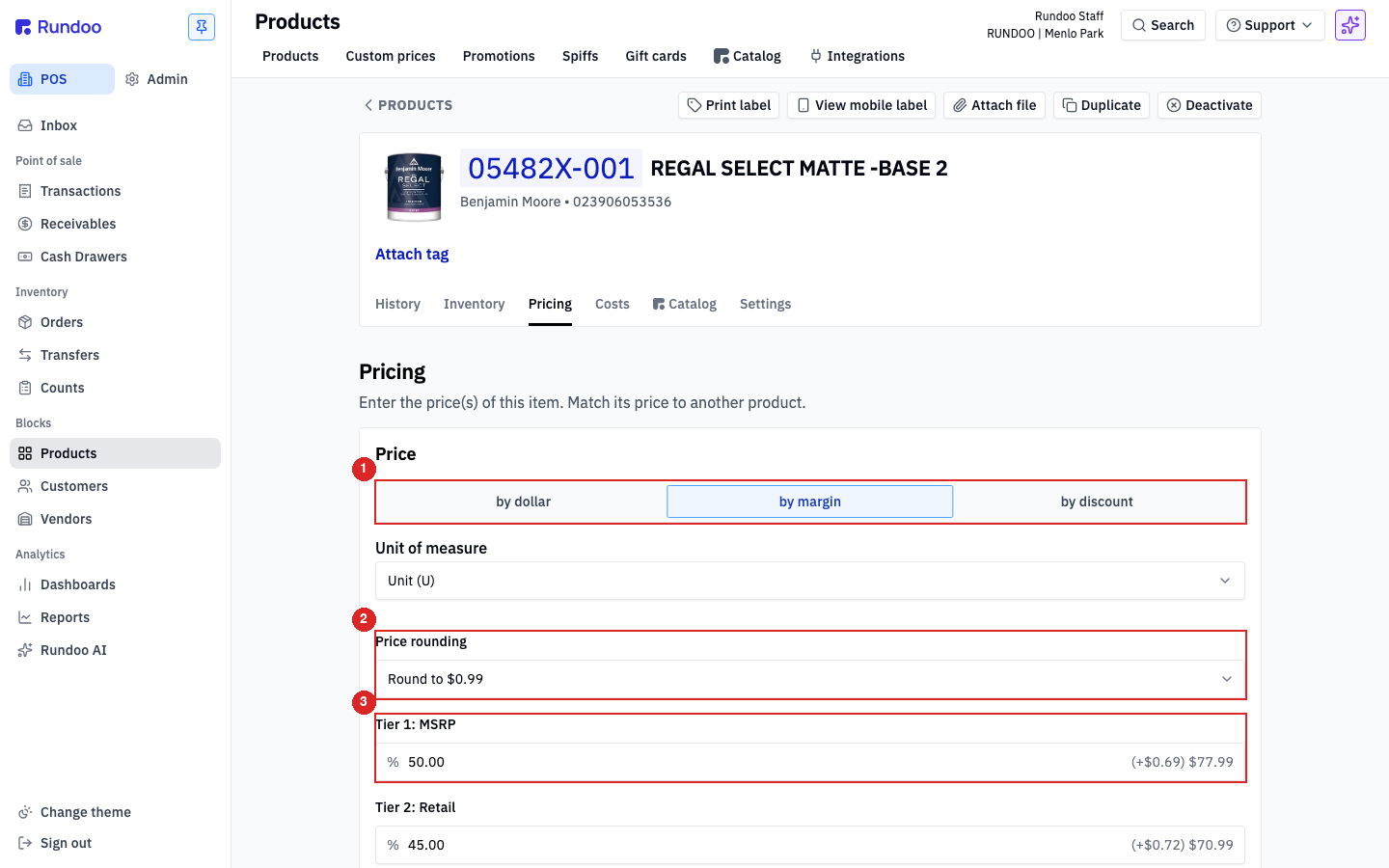
At the top of the card is a segmented control with three entry modes:
| Mode | What you type | What Rundoo computes |
|---|---|---|
| by dollar | The price itself, in dollars. $64.99. |
The margin and discount shown beside each tier. |
| by margin | A margin percentage against cost. 40.00. |
The dollar price, using the product's Standard cost. Shown on the right as (+$0.57) $64.99, the first number is the dollar delta from the previous save. |
| by discount | A discount percentage off the Tier 1 price. 15.00. |
The dollar price. $66.29 at 15% off $77.99. |
The mode is a view toggle, not a persistent attribute. Switching modes re-expresses the same prices in different units; it doesn't change what's saved. Save a tier at 40.00% margin and switch to by dollar and you'll see $64.99 in the input. Same thing, different lens.
Unit of measure picks which UOM the main tier prices apply to. Default is the product's base unit (Unit (U) on the canonical paint); switch to a different UOM if you maintain per-pack or per-case prices. Alternate UOMs that aren't the current pick show up in the Alternate pricing table below.
Price rounding applies a rounding strategy to every computed price (relevant in by margin and by discount modes). Round to $0.99 is the default. $64.62 becomes $64.99. Other options include no rounding and common end-digit choices.
Save commits every tier's price in one write; Cancel drops edits without saving. There's no per-tier save. It's all or nothing on the card.
Editing a rule-based tier's price here overrides the rule for this product only. If Tier 3 Standard Discount is rule-based and you type a price in on this product, that product's Tier 3 price stops following the rule. Every other product on Tier 3 still follows the rule. Useful for single-product exceptions; confusing if you forget you did it. To drop back to the rule, clear the input and save, Rundoo recomputes from the tier's rule.
Match Price
Match price copies every tier price from another product onto this one in a single click. Useful when you set up a new SKU that's a pack-size variant or close substitute of an existing product and want its whole tier ladder to start identical.
Click Match price at the bottom-left of the edit card. A Match Price modal opens with a product picker.
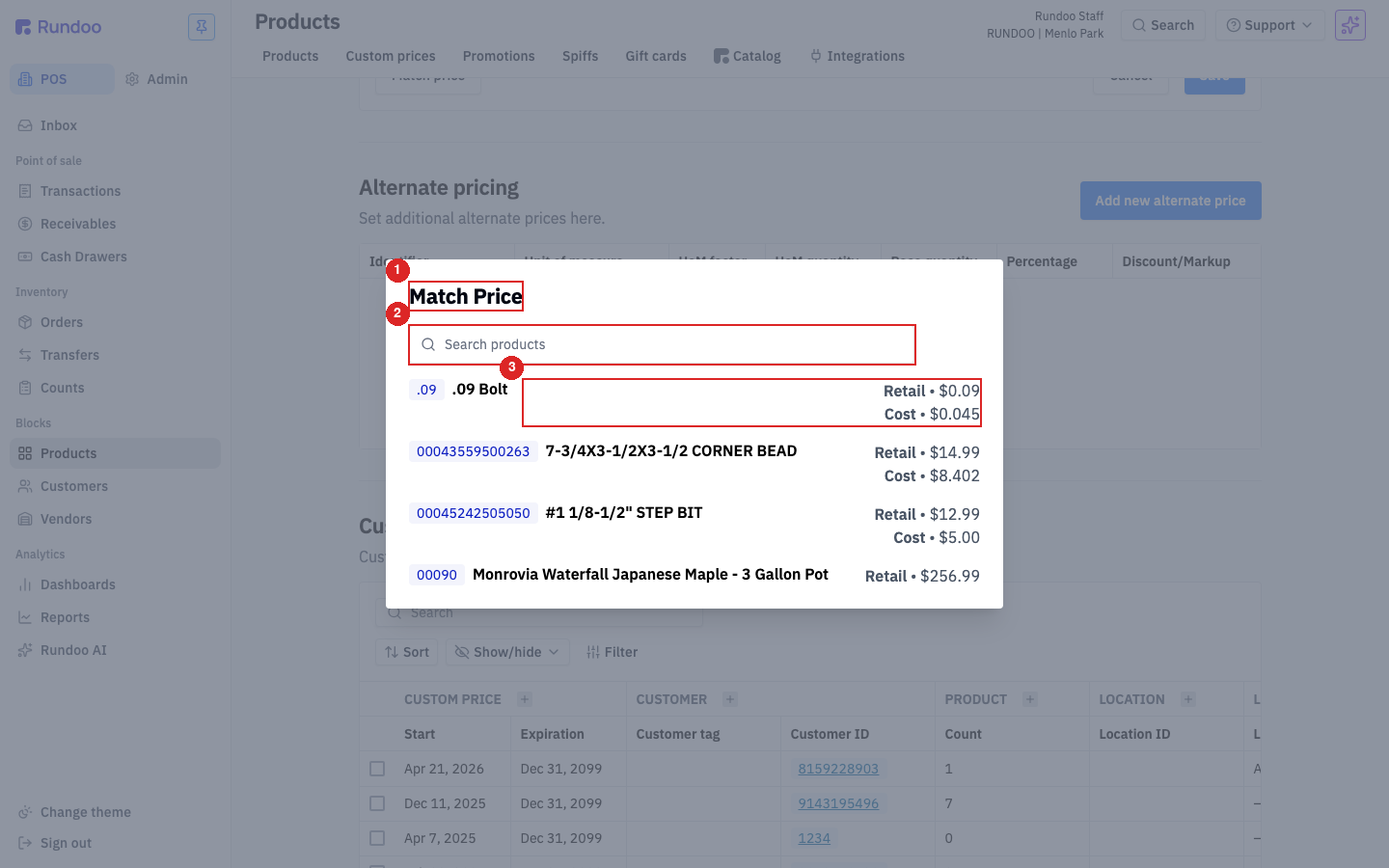
Type into Search products. Rundoo matches on name or any ID (Primary ID, additional IDs, barcodes). Each result shows the other product's Retail and Cost on the right so you can sanity-check before clicking. Pick the one whose prices you want to copy, and the modal closes; every tier in the edit card fills with that product's prices. Save commits them to this product.
Match Price is a one-time copy, not a link. If the source product's prices change later, this product's prices don't update. They're just values now. Use rule-based Pricing tiers when you want an ongoing relationship between prices, not a snapshot.
Cost-based pricing and margin
by margin pairs with the product's Standard cost to lock prices at a target gross margin. If REGAL SELECT MATTE -BASE 2 costs $38.65 and you want to sell at 40% margin, type 40.00 into the Tier 5 margin input and Rundoo computes the price: $64.42. If your cost goes up (the vendor raises the gallon to $42.00, for example) update Standard cost on the Costs tab and every tier priced by margin recomputes. Tiers priced by dollar don't move with cost changes.
The resulting dollar price is shown on the right of each input as (+$X.XX) $YY.YY. The (+$X.XX) is the change from the last-saved price, so you can see at a glance how much each tier moved when you re-enter margins.
by discount is the mirror mechanic against the Tier 1 price instead of cost. Type 15.00 into Tier 4 Contractor and Rundoo rings Tier 4 at 15% off MSRP. If MSRP moves, Tier 4's dollar price moves with it, but unlike rule-based tiers, this is typed on the product, not defined at the tier level, so the relationship is local to this one SKU.
Converting a discount to a margin
If you know a discount you want to give and need the equivalent margin (or vice versa), useful when a vendor quotes you in one and your tiers run in the other, the formula is:
new margin = (margin - discount) / (1 - discount)
Worked example: a tier priced at 50% margin from cost, applying a 10% discount off the resulting price, lands at an effective margin of (0.50 - 0.10) / (1 - 0.10) = 0.444, or 44.4%. So a Painter tier at 50% margin running a 10% promo is really selling at 44.4% margin, not 40%.
If Standard cost is $0.00, margin computations become meaningless. by margin tier prices will show inf margin (infinite margin, you're selling something that costs you nothing) and the price won't compute sensibly. Set Standard cost on the Costs tab before relying on by margin. See Products for where cost lives on the product.
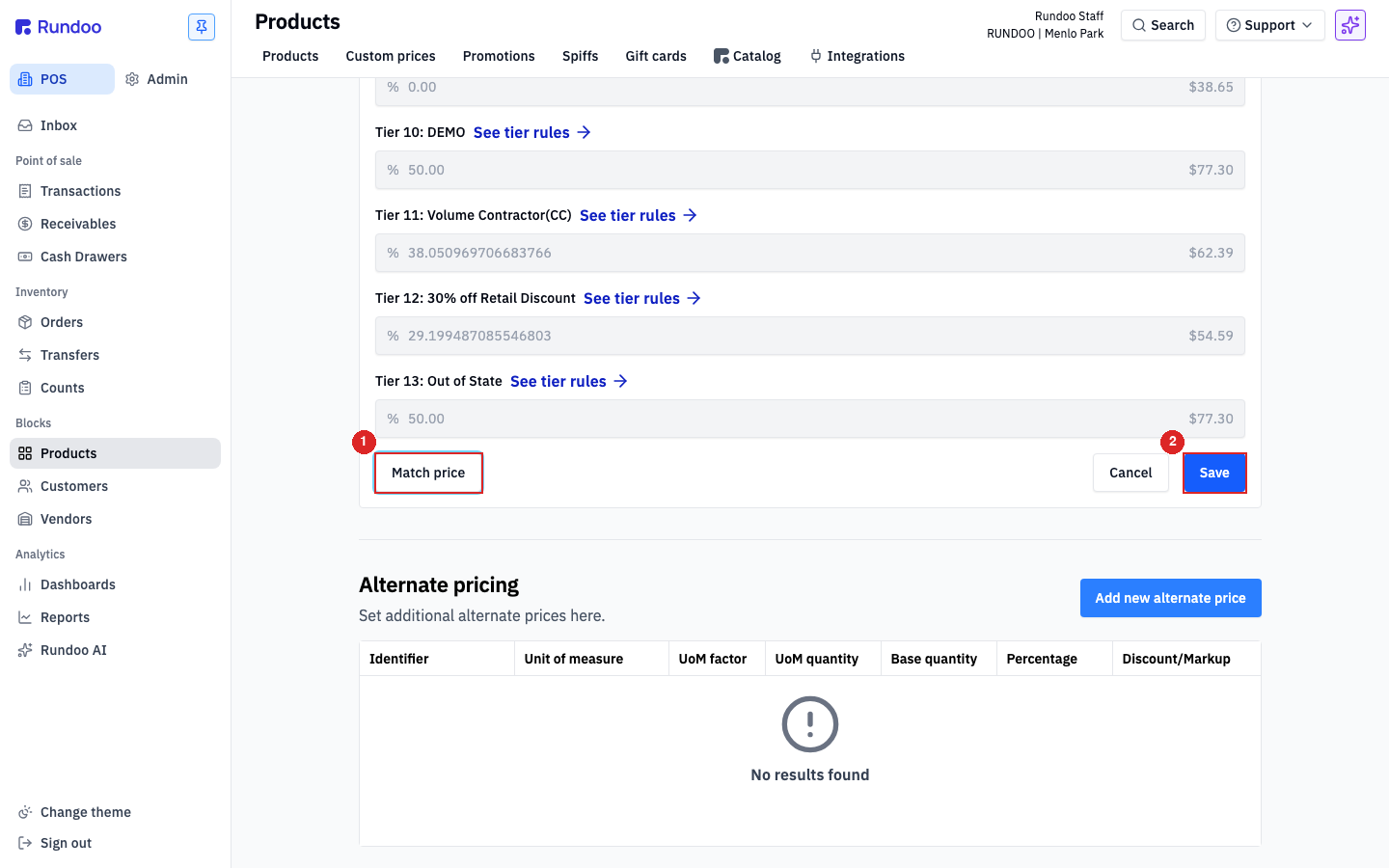
The action row at the bottom of edit mode pairs Match price on the left with Cancel / Save on the right. Match price is always available in edit mode; Save commits every tier on the card.
Alternate pricing (quantity breaks)
The Alternate pricing section under the Pricing tab is where you set price breaks that kick in at a quantity threshold (what most stores call quantity breaks or volume discounts). It's also where you set per-UOM prices (one price per gallon, a different price per 5-gallon pail) on products with alternate Units of measure.
Click Add new alternate price in the top-right of the Alternate pricing section. The Add new alternate price modal opens.
The modal fields, top to bottom:
| Field | What it does |
|---|---|
| Unit of measure | Which UOM this alternate price applies to. Defaults to the product's base unit (Unit (U)). Switch to a different UOM (gallons, case, pail) if this price is for that pack size. |
| Preview price tier | Which tier's base price the preview calculates against. Doesn't affect what's saved (it's just so you can sanity-check the math for the tier you care about before clicking Save). |
| Product ID (optional) | An alternate SKU or UPC that should trigger this alternate price directly. Useful when the vendor packs a case with its own case-level UPC. Scanning the case barcode rings this alternate-price row automatically, instead of the cashier manually bumping the quantity. Leave blank if the price should just kick in on quantity alone. |
| Quantity | The threshold quantity at which this price applies. 12 means "buy 12 or more and this price rings"; 1 means "this price always applies for this UOM." |
| Adjustment type | Discount (a percentage off the tier price) is the default. Use Amount next to it to type the percentage. |
| Amount | The percentage (when Adjustment type is Discount). 5% means 5% off the tier price when the threshold is met. |
| Estimated price | The resulting per-unit price after the adjustment, shown live next to Amount. Typing in this field back-solves the adjustment (handy when you know the target price but not the percentage). |
Click Save to add the row. Cancel drops the draft.
The saved row shows up in the Alternate pricing table with these columns: Unit of measure, UoM factor, UoM quantity, Base quantity, Percentage, Discount/Markup. Base quantity is the threshold you entered as Quantity (that's what Rundoo watches for at POS).
Alternate prices don't stack. If you configure 12 units → 5% off and 60 units → 10% off, a cart of 60 rings at 10% off, not 15%. To build ladders, add a row per break: 12 at 5%, 60 at 10%, 120 at 15%.
Case quantity on the Inventory tab is a different knob. Under Inventory > Case quantity you set how many units come in a vendor case, that controls reordering (order 1 case = receive 20 units), not selling price. If you want a case to sell at a volume discount, that's an Alternate pricing row. Set both when you want both.
Bulk editing across products
There's no bulk "Edit prices" mode that spans multiple products from the Products list. The Pricing tab is one-product-at-a-time. For bulk price changes across many SKUs, two options:
-
Product imports. Export the current catalog as a spreadsheet, edit the
Tier N pricecolumns, re-import. This is the right path for raising a whole vendor's Tier 1 prices 3%, for example. See Product imports. -
Rule-based tiers. If the change has a pattern (all Benjamin Moore products at 10% off MSRP, Painter tier priced at cost + 25%), define it as a rule on the tier itself rather than typing on every product. The rule recomputes automatically as source prices or costs change. See Pricing tiers.
Per-customer exceptions (one painter who gets a flat $48 on a specific paint) don't go on the product either. Those live in Custom prices, layered on top of the tier price.
Recommended Rundocs
-
Pricing tiers (the list of tiers themselves, rule-based vs. manual, and how they attach to a customer).
-
Custom prices (per-customer overrides that layer on top of a tier's price).
-
Products (the rest of the product detail page, including
Standard coston the Costs tab). -
Creating Promotions, time-bounded discounts that reference tier prices as their baseline.