
Rundocs › Dooey
Routines
Last updated 2026-07-29
Routines used to be called Agents. Same feature, new name. You'll see the Routines tab (and the Add routine button) where the old Agents tab used to be, and everything works exactly as it did.
Routines are Dooey workers you set up once, they run on a schedule and do the work. Summaries, draft orders, reports, counter alerts, whatever the routine is built to produce, it produces without you opening the app.
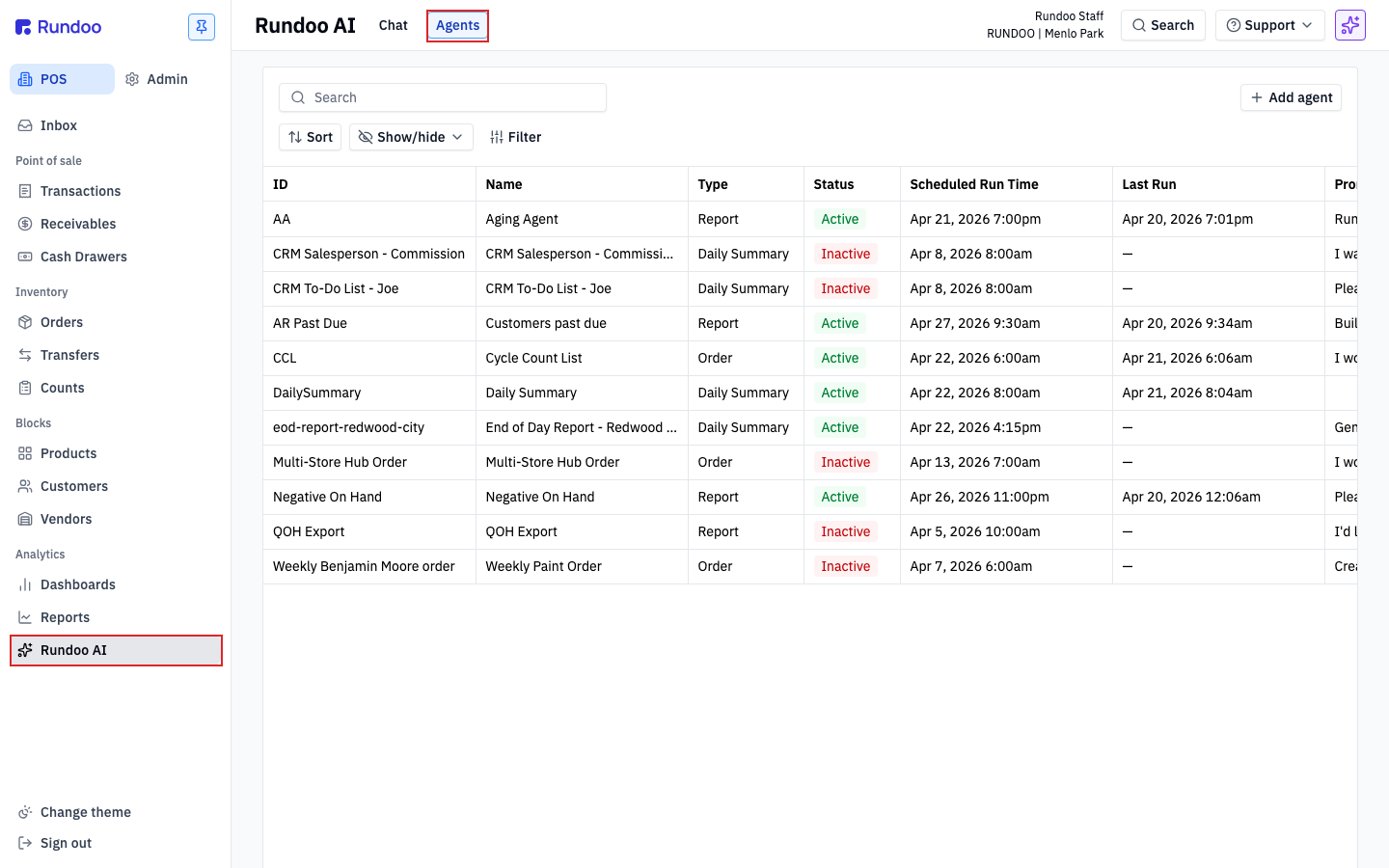
In the POS mode, open Dooey at the bottom of the Analytics group, then switch to the Routines tab at the top of the page.
What a routine is
A routine is Dooey set up to run on its own. You write one natural-language prompt, pick a schedule and the Staff who should get the result, and Dooey runs it every day, week, or month. The output lands however the routine is built to deliver it, a text, an email, a drafted order waiting in Orders, a report sitting in your inbox.
The split is: Chat is ask-now; Routines is schedule-and-forget. Same model, same data, same plain-English prompts, just the difference between you sitting down to ask a question and the answer showing up at 6pm without you opening the app. Start in Dooey to get a feel for how Dooey answers; come back here when the same question is worth asking every day.
Think of a routine as your night manager. While you're locking up, it's reviewing the day and deciding what you need to know in the morning.
The three types
Every routine is one of three Types. The Type is the mental shape of what the routine produces. Pick it first, then write the prompt.
Daily Summary
Inspects yesterday's activity and texts you what's worth noticing. Good for the morning-coffee read: sales totals, margin outliers, lapsed customers, inventory that slipped under the line. The flagship is the Daily AI Summary itself, a Rundoo-shaped version of "how did yesterday go?" that real owners tap into before they drive to the store.
Prompt pattern: "At 6pm each day, review yesterday's sales and flag anything unusual, low-margin transactions, customers who went quiet, inventory running low. Text me the top 3–5 issues with transaction IDs and a one-line reason each."
Order
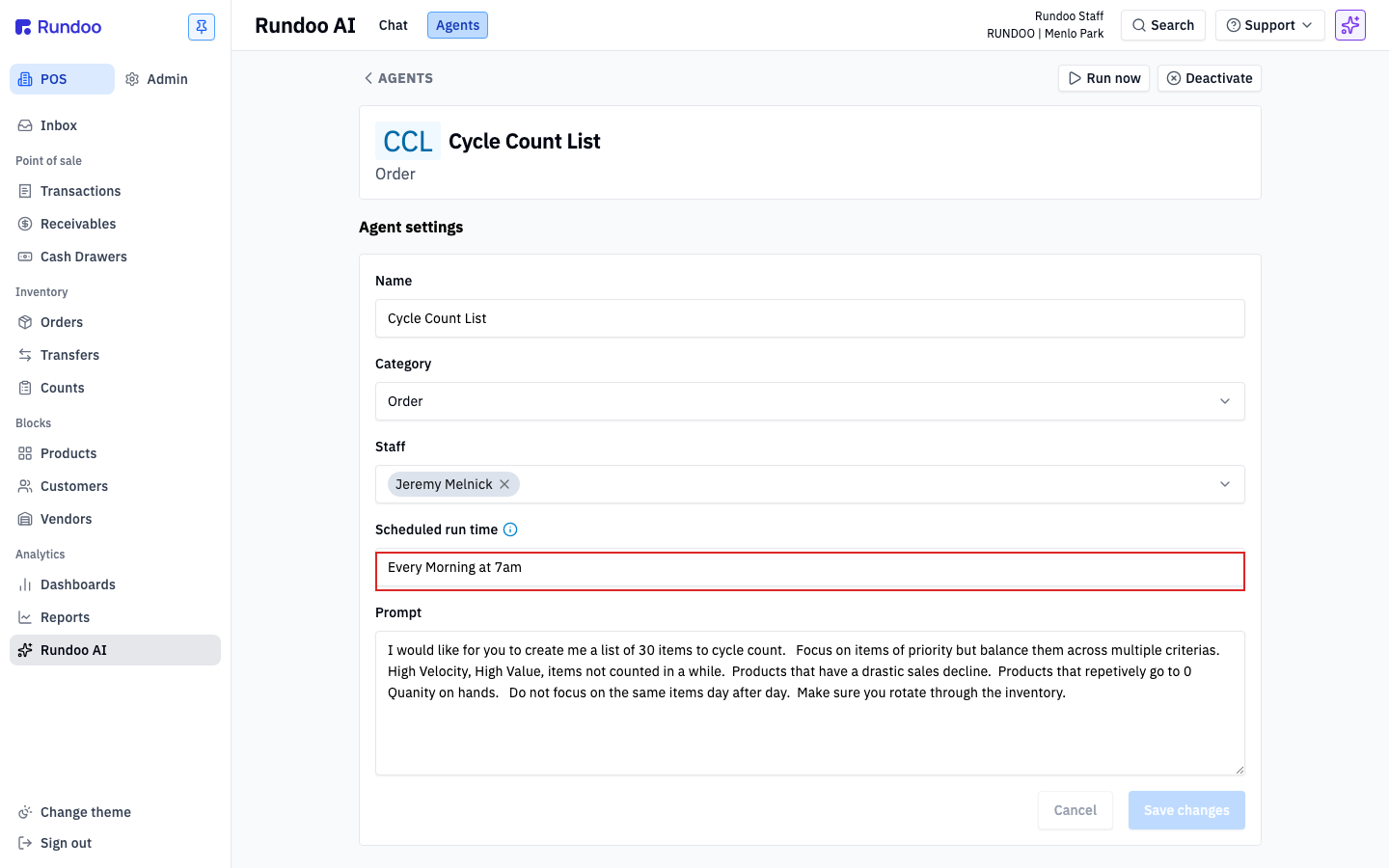
Proposes a purchase order or similar action-oriented output. Good when a restock or reorder question recurs on a predictable cadence: a weekly reorder, monthly cycle count list, seasonal catch-up on slow-moving SKUs. The routine doesn't place the order, it drafts the list so you can review, adjust, and submit.
Prompt pattern: "Every Friday at 7am, review product levels across Menlo Park and Redwood City. Text me a proposed order with SKUs and quantities based on sales the past 4 weeks and current stock."
Report
Answers a recurring business question. Anything you'd otherwise pull a Report for every Monday morning, customers past due, aging balances, top-20 price vs competitors, negative-on-hand. One prompt; one scheduled answer.
Prompt pattern: "Every Monday at 8am, check our top 20 SKUs against nearby competitors. Text me any SKU priced more than 5% above competitors, with the gap and competitor name."
Creating a routine
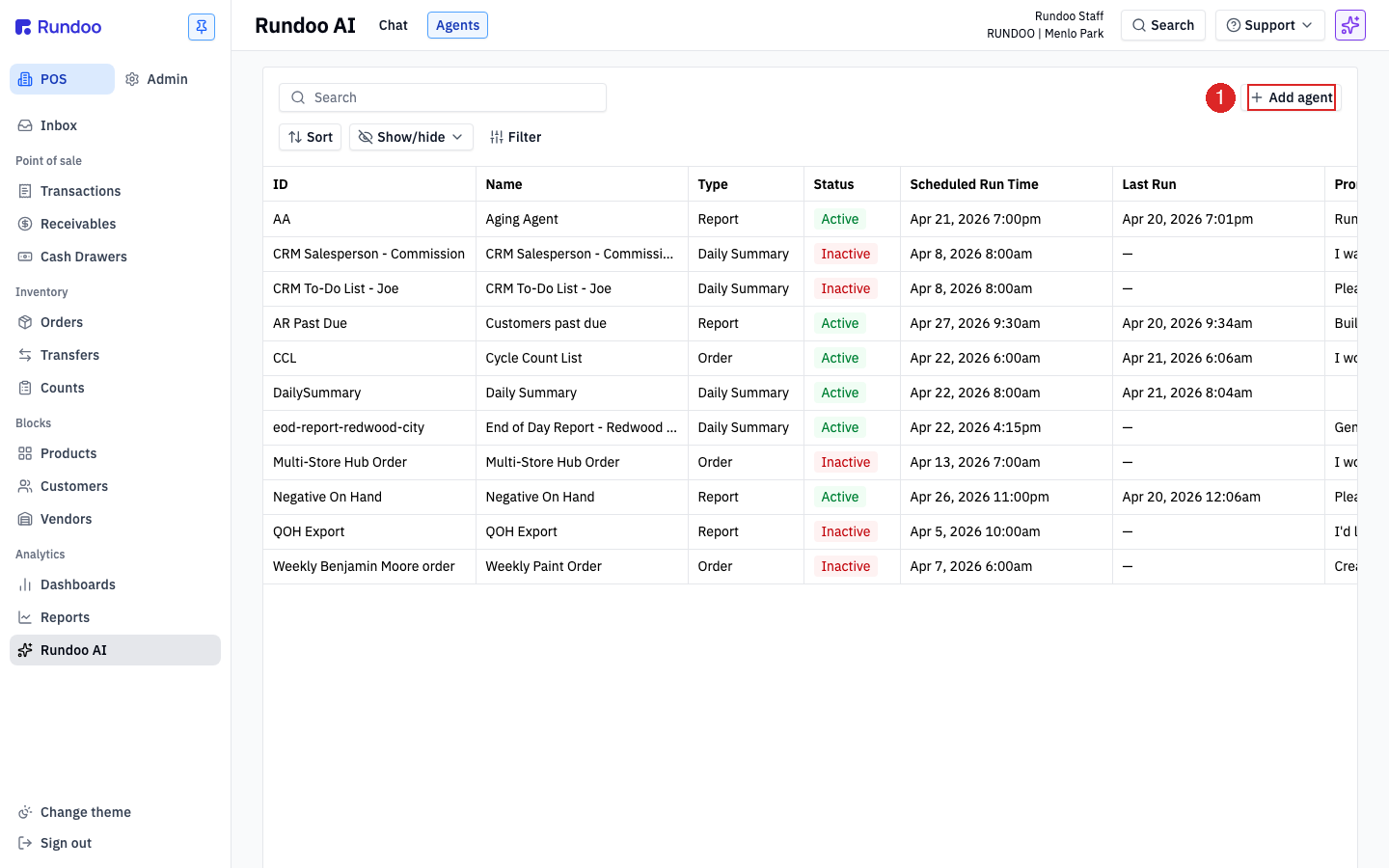
From the Routines list, tap Add routine top-right. A modal opens. Every field is hand-authored, no templates, no presets.
Step 1: Open the Add routine modal
In the POS > Analytics > Dooey tab, flip to Routines, then click Add routine in the top-right. The list shows every routine in your store, name, type, status, scheduled run time, last run, so this is also where you come back to edit or disable one later.
Step 2: Name it and pick a Type
Fill in Name (e.g. "Daily AI Summary") and Identifier (a 2–4 letter shorthand (DAS, CCL, AA) that shows up in the list's ID column). Then pick Type (Daily Summary, Order, or Report). That's the whole menu.
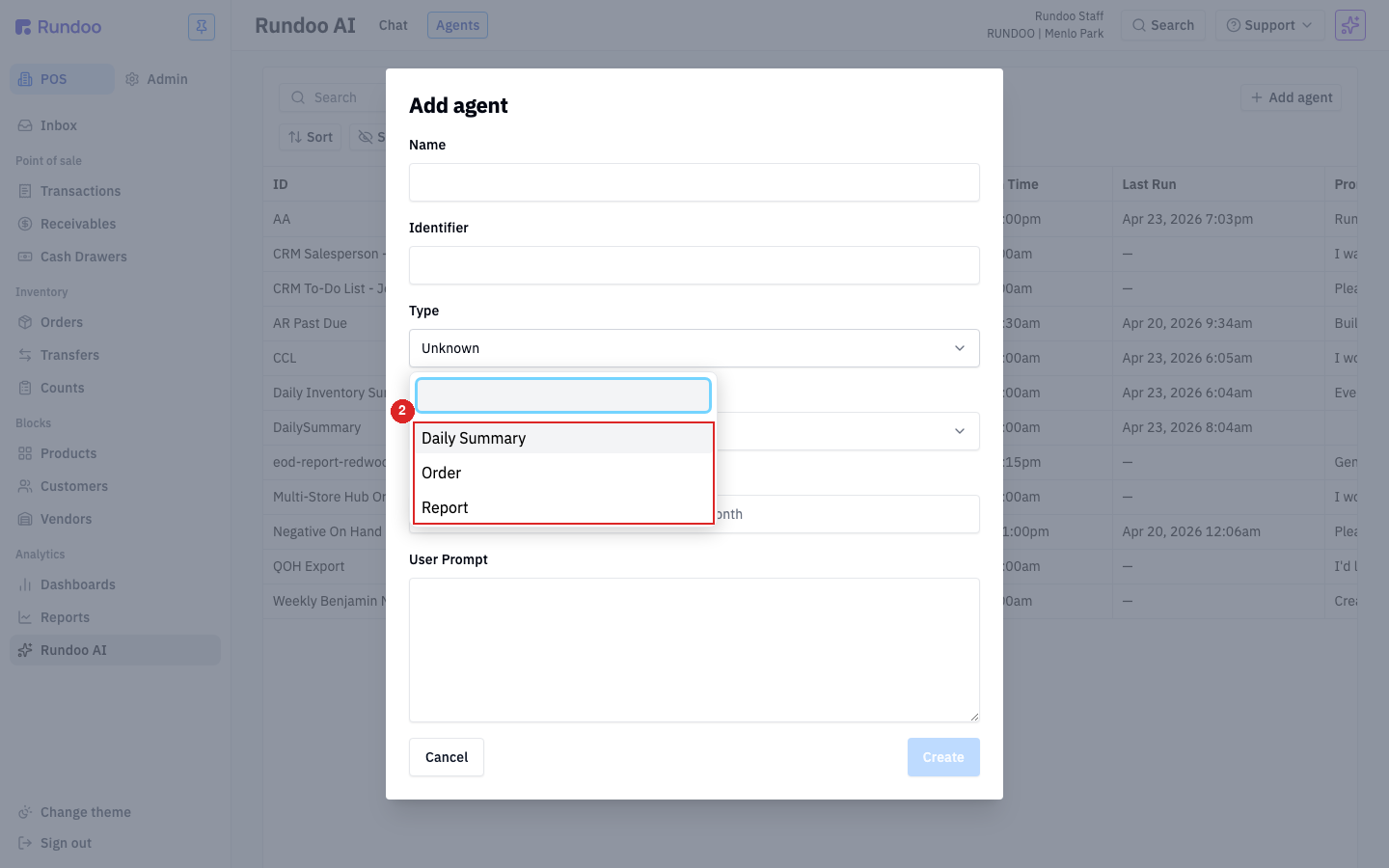
The Type shapes what Dooey expects to produce: a summary, a draft order, or a recurring-question answer. Pick the one closest to what you'd ask for out loud.
Step 3: Assign Staff and set the Schedule
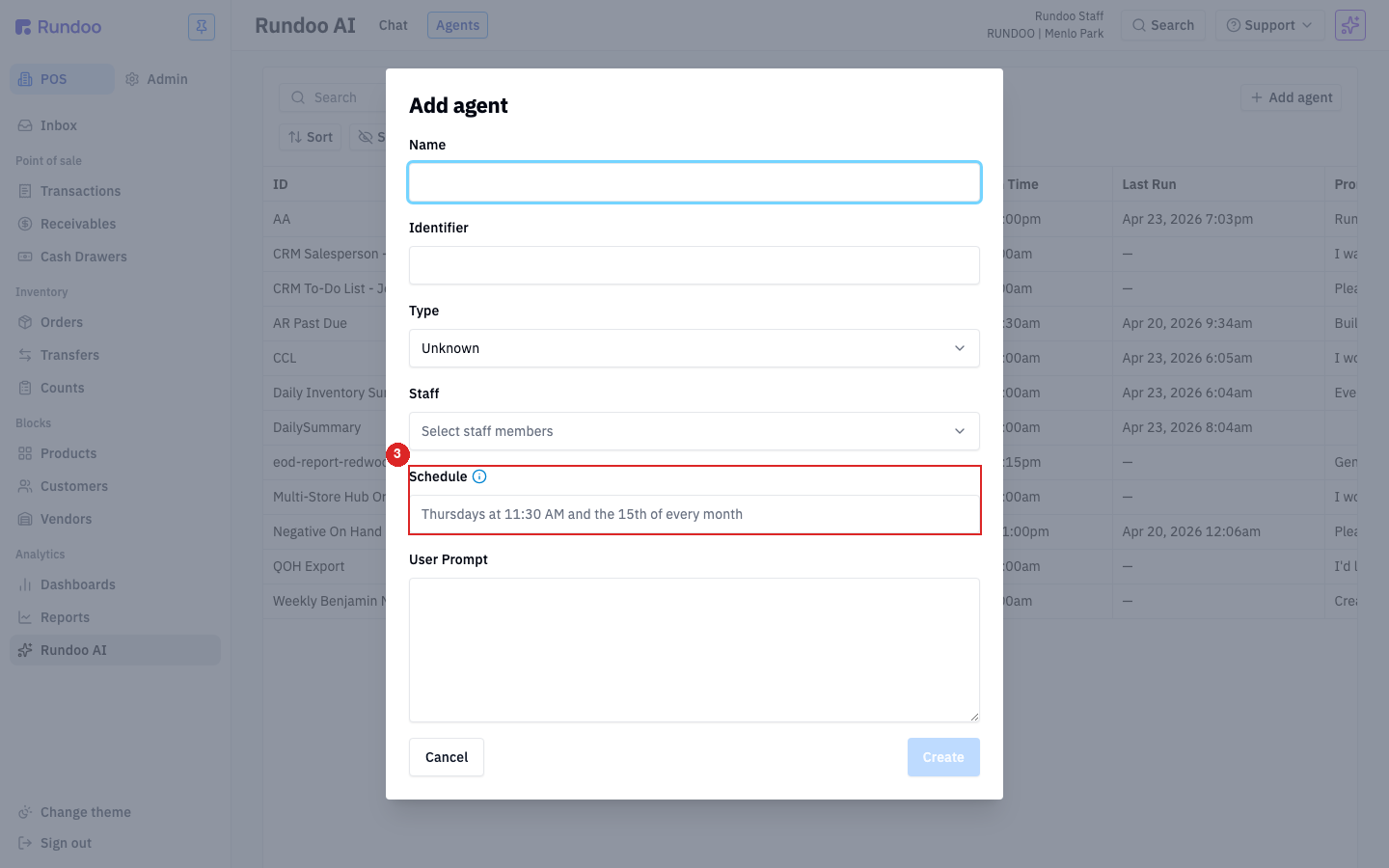
Add Staff in the Staff field (each assigned person gets the routine's output on their phone). Then type the cadence into Schedule in plain English: Every morning at 7am, Fridays at noon, Every day at 8pm Eastern Time.
Whoever's in the Staff field gets the output, and only them. Each assigned person receives it on whichever channels they've turned on under their Notifications tab (App, Email, or SMS); out of the box that's a text. To get a routine's report by email, the assigned staff member checks Routine run → Email on their own Notifications tab (see Staff), with email consent on. Reports can only go to assigned staff members' own email or phone. There's no way to send a routine's output to an outside address like a customer's inbox.
If two people are assigned, they both get it. Useful for owner + manager coverage, or for making sure nothing depends on one phone being on.
Dooey reads your schedule as plain English. Type it how you'd say it (Every morning at 7am, Weekdays at 8pm, Fridays at noon). Specific beats vague.
Name your store's timezone in the Schedule, or a run can fire at the wrong local hour. The Schedule field accepts a named timezone, spell it out: Every day at 7am Pacific Time, Weekdays at 8pm Eastern Time. If you leave the zone off, the run can land hours from what you meant, which is what's behind a routine texting at 4am or a daily briefing arriving at 1pm instead of 8am. Fix it by editing the routine and adding your local zone to the Schedule, then check the Scheduled Run Time the list recomputes. If a run time looks like it drifted on its own, re-open the routine and confirm the Schedule still names your zone before assuming anything else.
Step 4: Write the User Prompt and create
The User Prompt is the routine's whole instruction. Tell it what to look at, what to flag, and how to format the output. Keep it concrete. Date ranges, thresholds, what "unusual" means to you. End with "…text it to my phone" so the delivery is explicit.
When every required field is filled, the Create button in the bottom-right turns blue. Click it. The new routine lands at the bottom of the Routines list with Status = Active and the next Scheduled Run Time already computed from your plain-English schedule.
Example routines to try
Three worked examples. Copy the prompt into a new routine, tweak the thresholds to match your store, and you're running.
The text arrives short on purpose. Tap the link in the message to jump into the app and see the full context (the transaction, the customer, the report the number came from).
Daily AI Summary
The flagship, a daily text at 6pm with yesterday's sales plus anything worth looking at. Best shown with a real story: Jason, a paint-store owner, got his Daily AI Summary one evening. It flagged sale CUN6A-1213LPJE-S, ULTRA SPEC 500 EGG -BASE 3 QT, priced at or near cost. He tapped in, pulled the customer's history, and found a 10-week pattern. The same SKU sold at cost over and over. A clerk had entered a one-time competitive price months back; the old POS saved it as permanent. Undetected margin loss: $4,200+. Jason called the customer, repriced the line, retained the account.
~10 minutes a day with the summary caught what 5–8 hours a week of report-diving hadn't.
-
Type:
Daily Summary -
Schedule:
Every day at 6pm -
Prompt: "At 6pm each day, review yesterday's sales across all locations and flag anything unusual, low-margin or below-cost transactions, customers whose order cadence broke, SKUs running low on hand. Text me the top 3–5 items with the transaction ID and a one-line reason each."
Weekly reorder
Classic counter use case. Instead of pulling a Buyer's List by hand every Friday, the routine proposes the order and delivers it. You review, adjust quantities, and submit in Orders.
-
Type:
Order -
Schedule:
Every Friday at 7am -
Prompt: "Every Friday at 7am, review product levels across Menlo Park and Redwood City. Text me a proposed order with SKUs and quantities based on sales the past 4 weeks and current on-hand stock. Prioritize top-selling SKUs."
Competitor pricing watch
A Report-type routine for price discipline. Runs every Monday and pings you only when something's out of line (no noise on weeks where nothing moved).
-
Type:
Report -
Schedule:
Every Monday at 8am -
Prompt: "Every Monday at 8am, check our top 20 SKUs by revenue against nearby competitor prices. Text me any SKU priced more than 5% above competitors, with the price gap and competitor name. Skip any SKU where we're within 5% or where we're already lower."
A routine's output is AI-generated from your live data. Before acting on a dollar figure (sending a PO to a vendor, crediting a customer, repricing a line) open the matching Report or detail page the text references and verify. Dooey can still miscount, misread a date range, or round the wrong way.
Running, editing, and deactivating
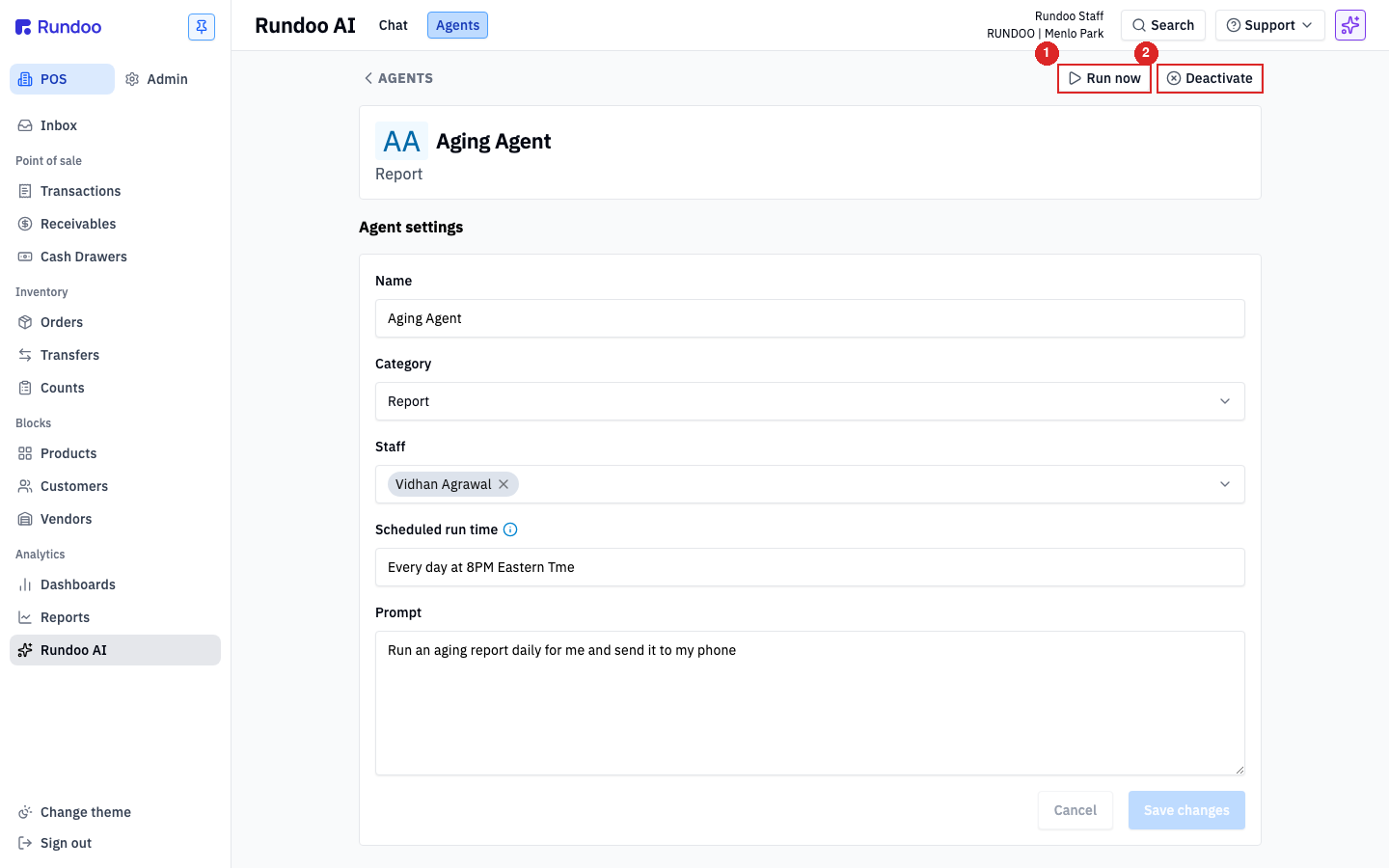
Click any row in the Routines list to open its detail page. Same fields as the modal, with two labels relabeled: Type becomes Category, Schedule becomes Scheduled run time. The form is a Routine settings block, edit any field, then Save changes at the bottom.
Two buttons live in the top-right:
-
Run now. Fires the routine immediately, regardless of schedule. Good for testing a prompt rewrite or grabbing a mid-week pulse without waiting for the next run.
-
Deactivate. Flips
StatustoInactive. The routine stays in the list (so you don't lose the prompt) but stops running on its schedule. Toggle back to Activate when you want it running again.
The list's Last Run column is the only run history Rundoo surfaces (the timestamp of the most recent execution). For a routine you want to audit deeper, the delivered text on the assigned Staff's phone is the record.
Recommended Rundocs
-
Dooey, the ask-a-question Chat mode.
-
Common AI workflows, a menu of prompts and routine setups by business area.
-
Running Reports, the report library routines reference.
-
Staff (add phone numbers so assigned Staff actually get routine texts).