
Rundocs › Pricing
Custom prices
Last updated 2026-09-10
Custom prices are per-customer overrides that sit on top of your pricing tiers (one-off deals for a specific customer (or customer tag) on a specific product (or slice of the catalog)). Nebo's Painting Service gets a special price on REGAL SELECT MATTE -BASE 2, regardless of their Painter tier.
In the POS mode, open Products in the left sidebar (Custom prices is the second top tab across).
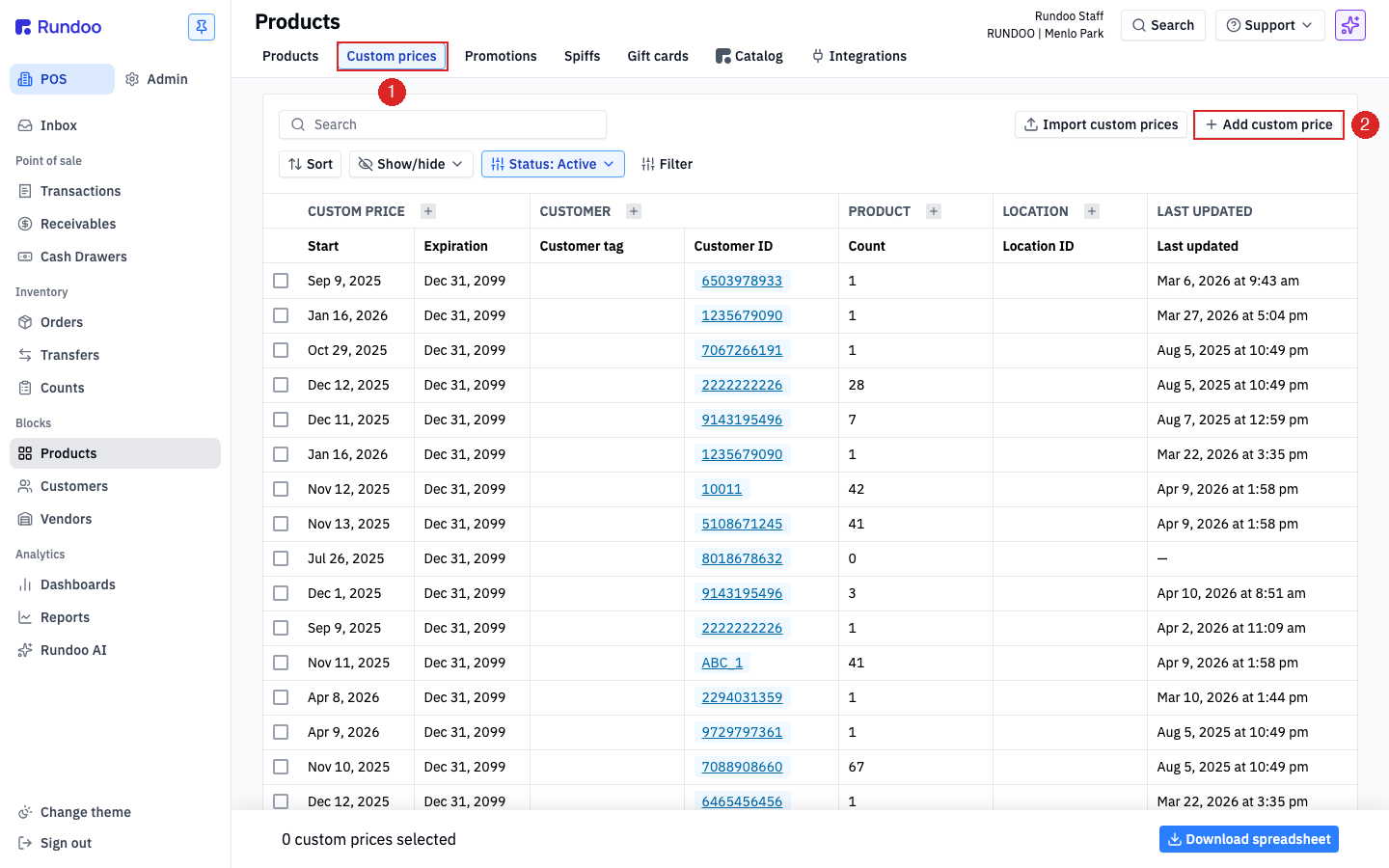
How custom prices work
When a customer is attached to a sale, Rundoo rings each line like this:
-
Is there an active custom price for this (customer, product) pair that matches the location and date? Use it.
-
Otherwise, use the customer's assigned pricing tier.
A custom price isn't just one row for one product at one price, it's a small rule with four parts.
| Part | Choices | What it means |
|---|---|---|
| Assign to | Customer · Customer tag |
Who this price applies to. Customer targets one customer (optionally narrowed to a specific Job). Customer tag targets every customer carrying that tag (handy for broad cohorts like VIP or Employee). |
| Products | By rules · By product · All products |
What this price applies to. By product picks items one at a time. By rules scopes by Vendor, Department, Class, Fineline, or Product tag, so you can say "all Benjamin Moore, all paint sundries, this whole fineline." All products is the blanket option. |
| Pricing strategy | Discount · Margin · Dollar |
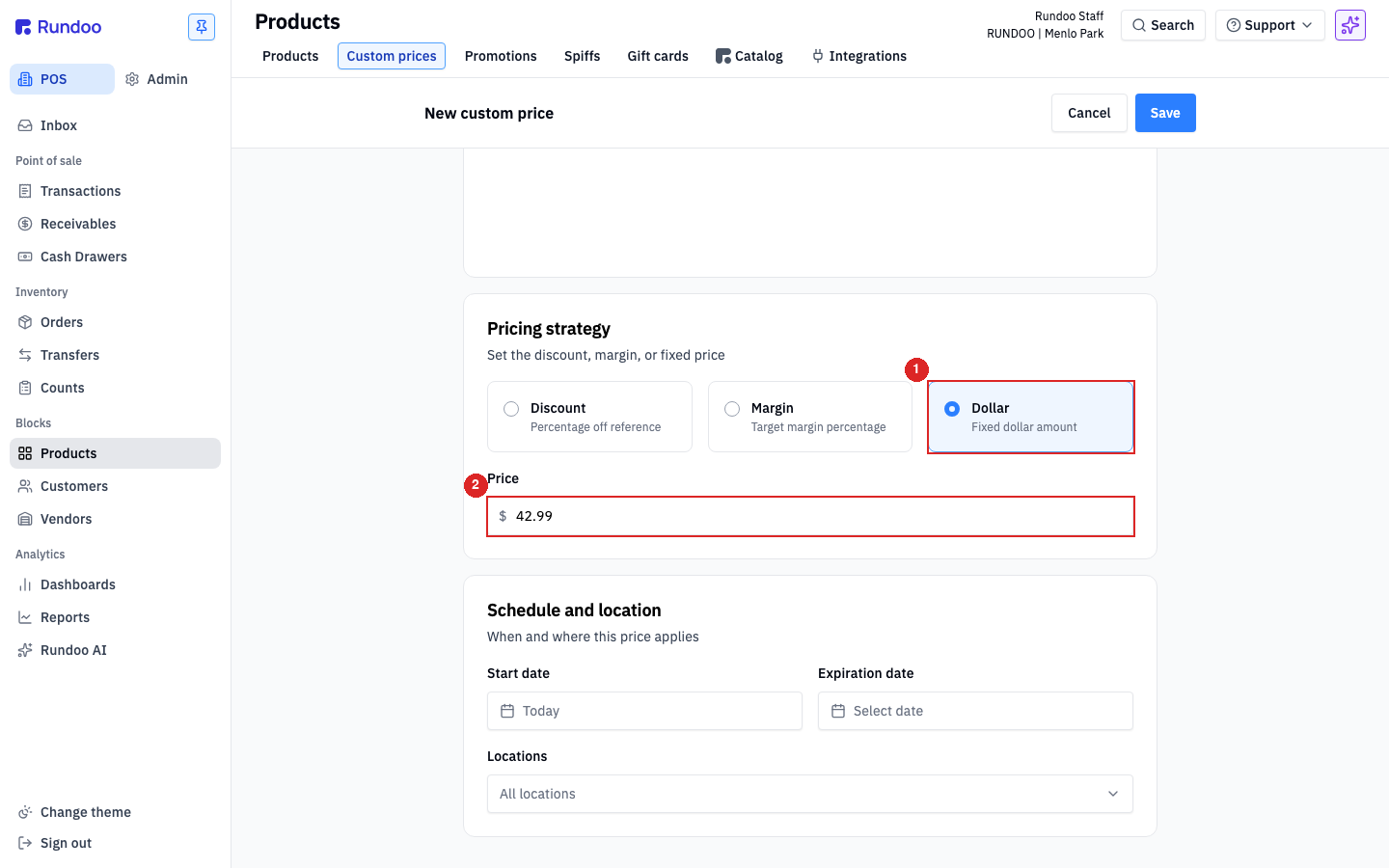
How the price is computed. Discount is a percentage off a reference tier (15% off Tier 1 Msrp). Margin targets a gross margin percentage off cost (30% margin). Dollar is a fixed price ($42.99). |
| Schedule and location | Start date, expiration date, one or more locations | When and where the price is live. A price that started yesterday with no expiration applies indefinitely at every location you picked. Set an expiration to auto-retire it, useful for short-term deals you don't want to remember to turn off. |
Custom prices stack on top of tiers (they don't replace the tier assignment). If a customer has 3 custom prices for specific SKUs, those 3 items ring at the custom price and every other item rings at their tier price. You don't have to duplicate the whole tier.
Adding a custom price
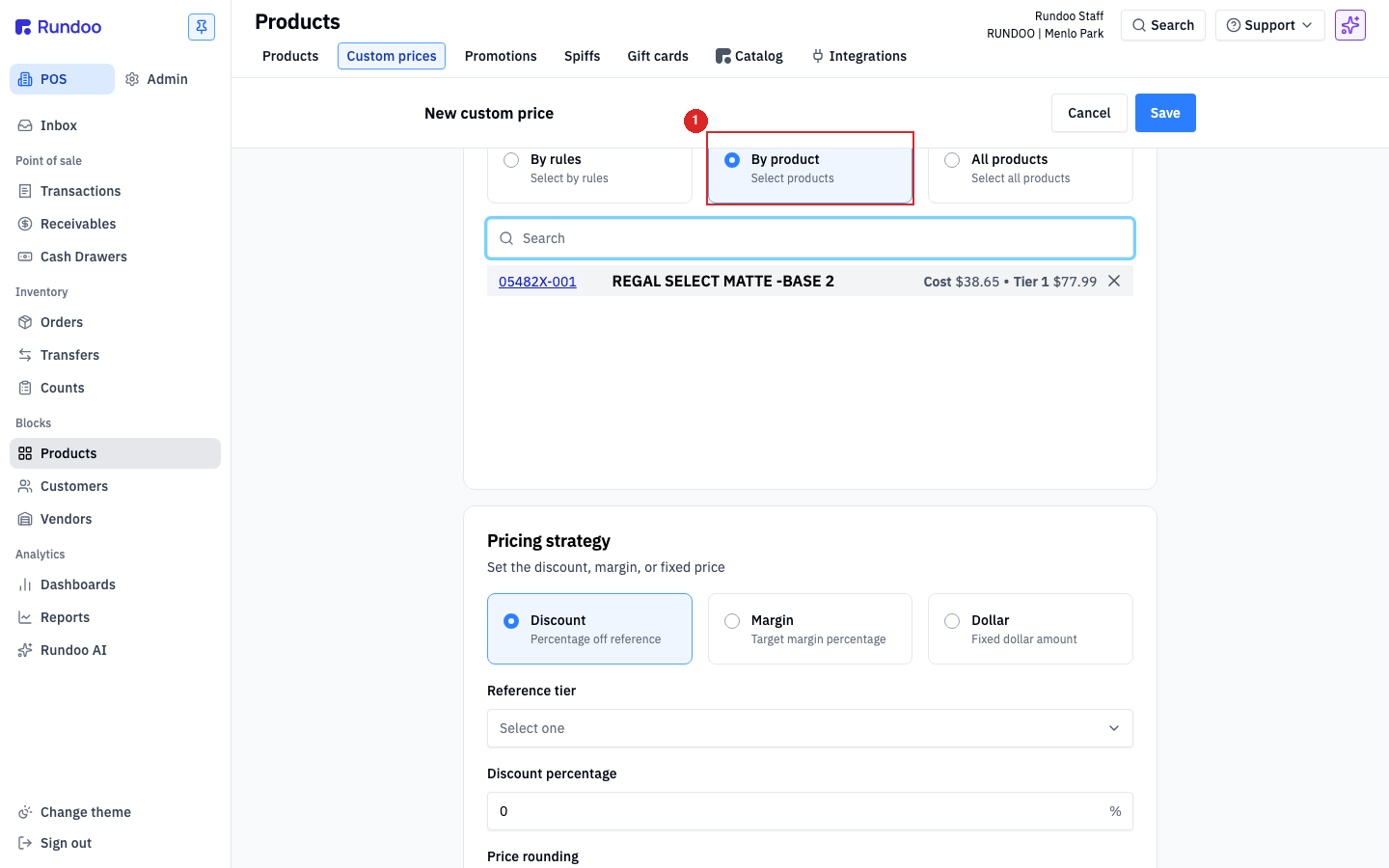
From the Custom prices tab, click + Add custom price in the top-right. The New custom price form opens as a full page (not a modal) with four sections to fill in top-to-bottom.
-
Assign to. Leave
Customerpicked and choose the customer from the dropdown (Nebo's Painting Servicein the example above). Attach a specificJobif this price should only apply when that job is selected on the sale. -
Products. Pick
By productto target specific items, then search and add as many SKUs as the rule should cover. One rule can carry multiple products. The pricing strategy and dates apply to all of them. UseBy rulesfor catalog slices (vendor, department, class, fineline, or product tag) andAll productsfor blanket overrides. -
Pricing strategy. Pick
Discount,Margin, orDollar, then fill in the corresponding input.DiscountandMarginrequire a Reference tier (so the system knows what to discount from);Dollardoesn't.Price roundinglets you snap computed prices to a cleaner number (.99,.95, nearest dollar) (optional). -
Schedule and location.
Start dateDefaults to Today,Expiration datedefaults to Dec 31, 2099 (effectively never). Narrow to specific Locations or leave All locations selected.
Click Save in the top-right. The new entry lands in the list and starts applying on the next sale.
Searching for a product won't surface a rule that covers it via department/class/fineline/tag. If you set up 10% off Benjamin Moore for a customer, then later open Custom prices and search for REGAL SELECT MATTE -BASE 2, the search won't return the BM rule, even though that paint is in the BM department and is getting the 10%. Search is rule-name and exact-product based, not coverage-based. To audit what's covering a specific product, click into each rule and look at its scope.
Bulk-extending expirations. If a batch of custom prices is about to expire and you want to push them all out, check the rows on the Custom prices list, click Change expiration dates in the bulk-action bar that appears, pick the new date, and Save # changes. Faster than opening each rule individually.
Custom prices follow Match Price. When REGAL SELECT MATTE -BASE 2 is price-matched to REGAL SELECT EGGSHELL -BASE 2 (via Match Price on the source product), any custom prices on the matched-to product also apply when the original rings. Useful when you maintain customer-specific deals on one canonical SKU and want them to flow to its variants automatically.
Bulk-setting uses By rules or All products, not a spreadsheet. The rule-based slice is how you do "every Benjamin Moore product at 10% off for contractors" in one entry instead of one row per SKU. For importing a long list of product-level overrides from a spreadsheet, use Import custom prices (top-right of the list) (same CSV-shape workflow as Customer imports and Product imports).
Editing or removing a custom price
Click a row in the Custom prices list to open its detail page. The page is the same form you filled out to create it. Every field is editable, including Assign to, Products, and Pricing strategy.
-
Edit. Change any field, then click Save in the top-right. The update applies on the next sale.
-
Remove. Click Deactivate in the top-right. Deactivated custom prices disappear from the Active status filter (the default) and stop ringing at POS immediately. They're not hard-deleted. Switch the status pill to Not archived or All if you need to see historical entries.
Changes apply on the next sale, not retroactively. Sales already rung (or drafts already saved with their line prices locked) keep the price they were created at. If a customer should have gotten a lower price on a past sale, that's a refund or adjustment, not a custom-price edit.
Editing custom prices inline in the list
Click into the Price, Margin %, or Discount % cell on any row to edit a rule in place. No need to open the rule's detail page. Which column accepts edits depends on the rule's Strategy:
-
Dollar strategy → Price is editable.
-
Margin strategy → Margin % is editable.
-
Discount strategy → Discount % is editable.
The other two cells stay locked on that row. They're derived from the live one (a 30% margin rule doesn't have a fixed dollar price to edit).
To bump many prices at once, edit each row you want, then click Update N… in the action bar at the bottom-right and confirm. Update N… is the primary action; Download spreadsheet is the secondary. Default columns lead with Strategy · Price · Margin · Discount under the CUSTOM PRICE group; older columns (Customer ID, Location, Count) tuck behind Show/hide if you need them back.
The per-customer and per-product panels share the behavior. Inline editing works the same on the Custom prices section of a customer's detail page (POS > Customers > [Customer]) and a product's detail page (POS > Products > [Product]), and the redundant customer columns are dropped on those single-customer views.
How custom prices appear at POS
On a sale with a matching customer attached, Rundoo rings the line at the custom price automatically, no cashier action, no prompt. The line shows the custom price in the PRICE cell, with the customer's tier price crossed out directly beneath and the discount percentage called out. It's the same visual pattern as a promotion, tier line crossed out, effective line in full strength.
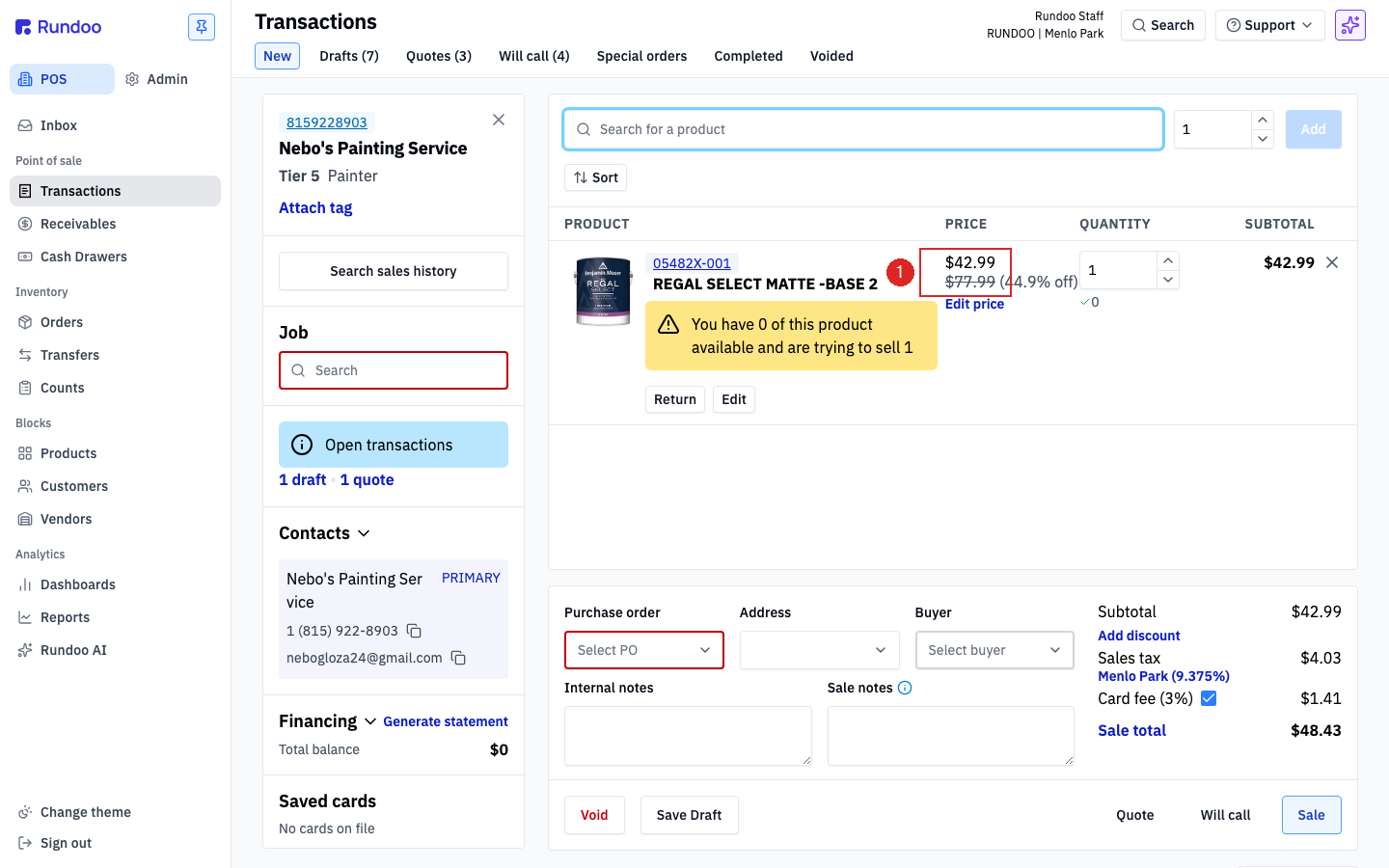
Here, Nebo (Tier 5 Painter) is getting REGAL SELECT MATTE -BASE 2 at a custom $42.99 instead of the $77.99 tier price, a 44.9% off saving versus the tier. No cashier input needed, no override to remember.
If the same product shows up on a sale without the custom-priced customer attached, it rings at the buyer's tier price (the custom price is scoped to the customer, not to the product).
The cashier can still edit the line price. A custom price is a starting price, not a floor. Clicking the cart line's price opens the Edit Price modal where the cashier can set any price they want, subject to the store's permissions. If you need the custom price to be firm, talk to Support about locking it via Admin > Security > POS security.
Why a custom price isn't applying at POS
If you set up a custom price and the system isn't changing the price in a transaction (the line still rings at the tier price, or comes out at something unexpected like cost), it's almost always one of the reasons below. Work down the list in order.
-
The customer isn't attached to the sale. Custom prices only ring when that specific customer (or a customer carrying the tag the rule targets) is on the transaction. A walk-in with no customer attached rings at your default tier, never a custom price.
-
The rule is scoped to a Job that isn't selected. This is the sneaky one. If the custom price was created with a specific
Jobpicked under Assign to, it only fires when that same job is selected on the sale. On a sale with no job, or a different job, it silently won't apply, even though the custom price still shows up under the customer. The fix is to open the rule and clear the Job, or add a second rule with no job so it covers the whole account. -
The product isn't actually in the rule's scope. A
By productrule has to list that exact SKU; aBy rulesrule has to have aVendor/Department/Class/Fineline/Product tagthat covers it. Remember that searching Custom prices for a SKU won't surface a rule that covers it by department or class (see the search callout above). Click into each rule and read its scope instead of trusting search. -
The schedule or location doesn't match. The rule has to be active for the sale's date and the register's location. A
Start datestill in the future, anExpiration datealready passed, or a location the rule doesn't include will all leave the price dormant. -
The sale or draft is older than the rule. Changes apply on the next sale, not retroactively. A sale already rung, or a draft saved before the rule existed with its line prices locked, keeps the price it was created at.
A price that rings too low (or looks like cost) usually means a broader rule is winning. If a line comes out lower than the tier price, or near cost, look for a wide custom price rather than a missing one: an All products rule, a By rules catalog slice, or a customer-tag rule can blanket the whole catalog for that customer and override what you expected on specific items. Check every rule that could touch the customer (including tag-based ones), not just the per-product entries, then deactivate or narrow the one that's overreaching. If the whole tier looks wrong instead of one item, that's a tier question, not a custom-price one, see Pricing tiers.
Still ringing wrong after you've checked all of these? Email support@rundoo.ai with the customer account and the SKU that's pricing incorrectly, and support can trace which rule is (or isn't) firing.
Recommended Rundocs
-
Pricing tiers, the named price lists custom prices layer on top of.
-
Products, where each product's list price and tier prices live.
-
Customers, where you assign the tier that custom prices override.