
Rundocs › Pricing
Product categories
Last updated 2026-08-06
Every product in Rundoo belongs to a three-level hierarchy (Department > Class > Fineline) that drives how sales, inventory, and margin roll up in reports, labels, and the Products list. This page covers what each level is for, creating and editing categories, what happens to products when you delete one, and how to assign products to categories.
In the Admin mode, open Product in the left sidebar, then scroll to the Product categories section.
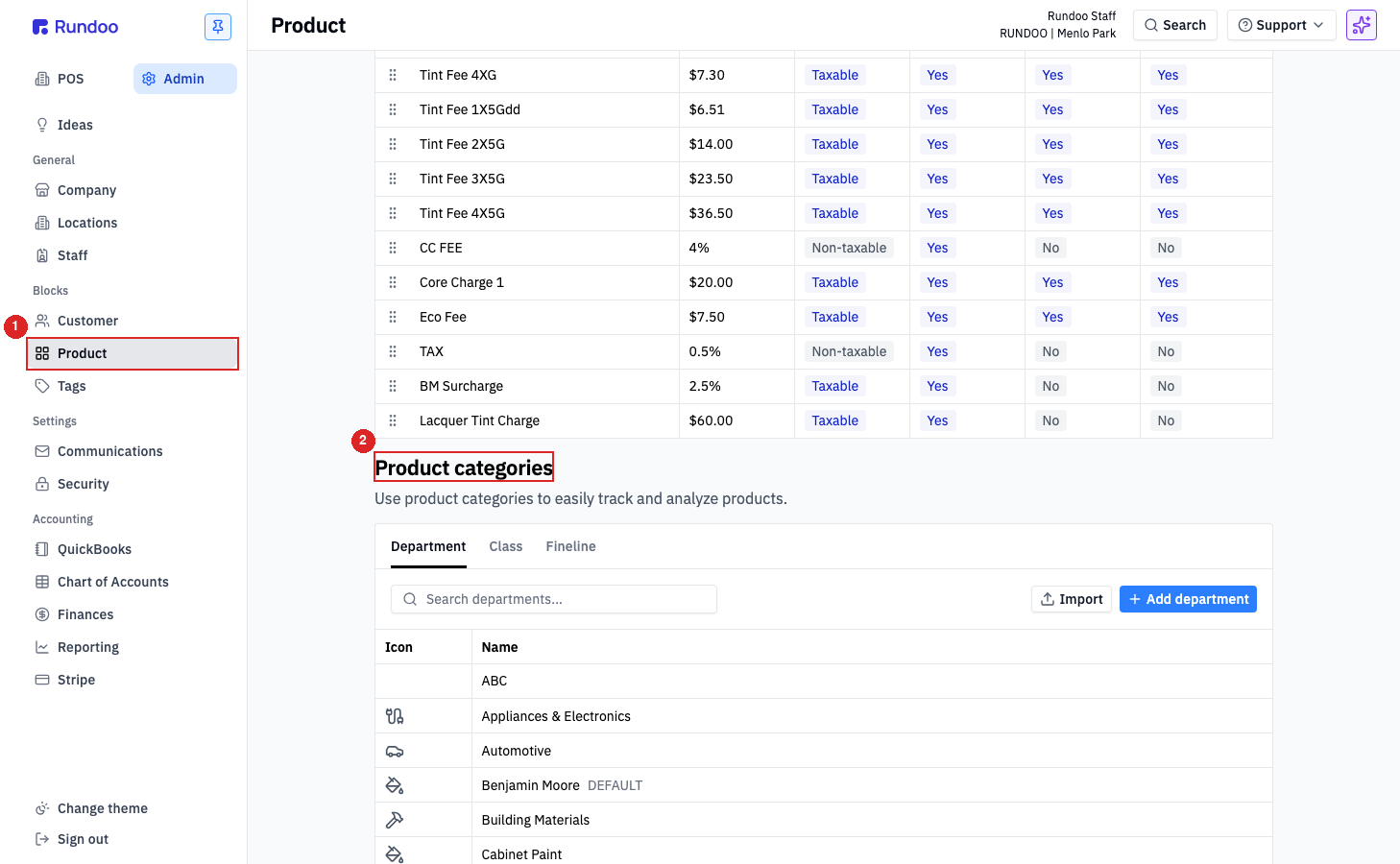
Department, Class, Fineline
The three levels nest: every Fineline belongs to a Class, and every Class belongs to a Department. Only Department is required on a product. Class and Fineline are optional refinements that let you slice the same department into finer reporting buckets.
-
Department. The top level. The broadest grouping, the one reports default to, and the only level required when you add a product. A paint store typically has departments like
Benjamin Moore,Cabinet Paint,Exterior Stain,Floor Coatings,Sundries. A hardware store hasBuilding Materials,Electrical,Plumbing,Tools,Paint. A farm & feed store hasFeed,Seed,Livestock Supplies,Animal Health. -
Class, a mid-level bucket inside a department. Use it when one department needs to split into meaningfully different sub-groups (
Interior Paintvs.Exterior PaintinsideBenjamin Moore,Hand Toolsvs.Power ToolsinsideTools,Horse Feedvs.Cattle FeedinsideFeed). -
Fineline, the most specific level, inside a class. Use it when you want a report line for a narrow product family (
Regal Select Matte,Regal Select Eggshell,Regal Select Semi-Glossinside theInterior Paintclass).
You don't have to use all three. Smaller stores often stop at Department; large stores with dozens of vendors usually ride Class too; Fineline gets serious use for SKU-by-SKU reporting in paint and chemicals.
Suggested categorization
If you're seeding a new tenant, the tables below are reasonable starting points by vertical (not prescriptive, just patterns Rundoo customers in each segment have landed on). Adjust to your store; nothing here is locked once products are imported.
Paint store
| Department | Class examples | Fineline examples |
|---|---|---|
| Benjamin Moore | Interior Paint, Exterior Paint, Primers, Stains | Aura Interior, Regal Select Interior, ben Interior, Aura Exterior, Regal Select Exterior |
| Cabinet Paint | Advance, INSL-X Cabinet Coat | Advance Satin, Advance Semi-Gloss |
| Floor Coatings | Garage, Industrial | Epoxy, Urethane |
| Sundries | Brushes, Rollers, Tape, Drop Cloths, Caulk, Spackle | Wooster Brushes, Purdy Brushes, Frog Tape |
| Wallcovering | Wallpaper, Adhesives, Tools | () |
| Spray Equipment | Sprayers, Tips, Hoses | Graco Sprayers, Titan Sprayers |
Hardware store
| Department | Class examples | Fineline examples |
|---|---|---|
| Building Materials | Lumber, Drywall, Insulation, Roofing | 2x4 Studs, Sheetrock, Shingles |
| Electrical | Wire, Outlets, Switches, Lighting | Romex, GFCI Outlets, LED Bulbs |
| Plumbing | Pipe, Fittings, Fixtures, Tools | PEX, Copper Fittings, Faucets |
| Tools | Hand Tools, Power Tools, Storage | Hammers, Drills, Tool Chests |
| Hardware | Fasteners, Hinges, Locks | Screws, Bolts, Deadbolts |
| Paint | Interior, Exterior, Sundries | Latex, Oil-Based, Brushes |
| Lawn & Garden | Tools, Soil, Plants | Shovels, Potting Mix, Fertilizer |
For farm & feed, lumber, lawn & garden, or flooring. Message Rundoo Support and we'll share starter taxonomies from comparable customers.
One department is marked Default (shown with a DEFAULT pill next to its name in the list). New products created without a department picked land here. Use the Set as default checkbox in the Add/Edit modal to move the default to another department.
Adding a category
Which level you're adding depends on which top tab is selected (Department, Class, or Fineline). Pick the tab first, then click Add department / Add class / Add fineline in the top-right. The same shape of modal opens each time; the fields are slightly different per level.
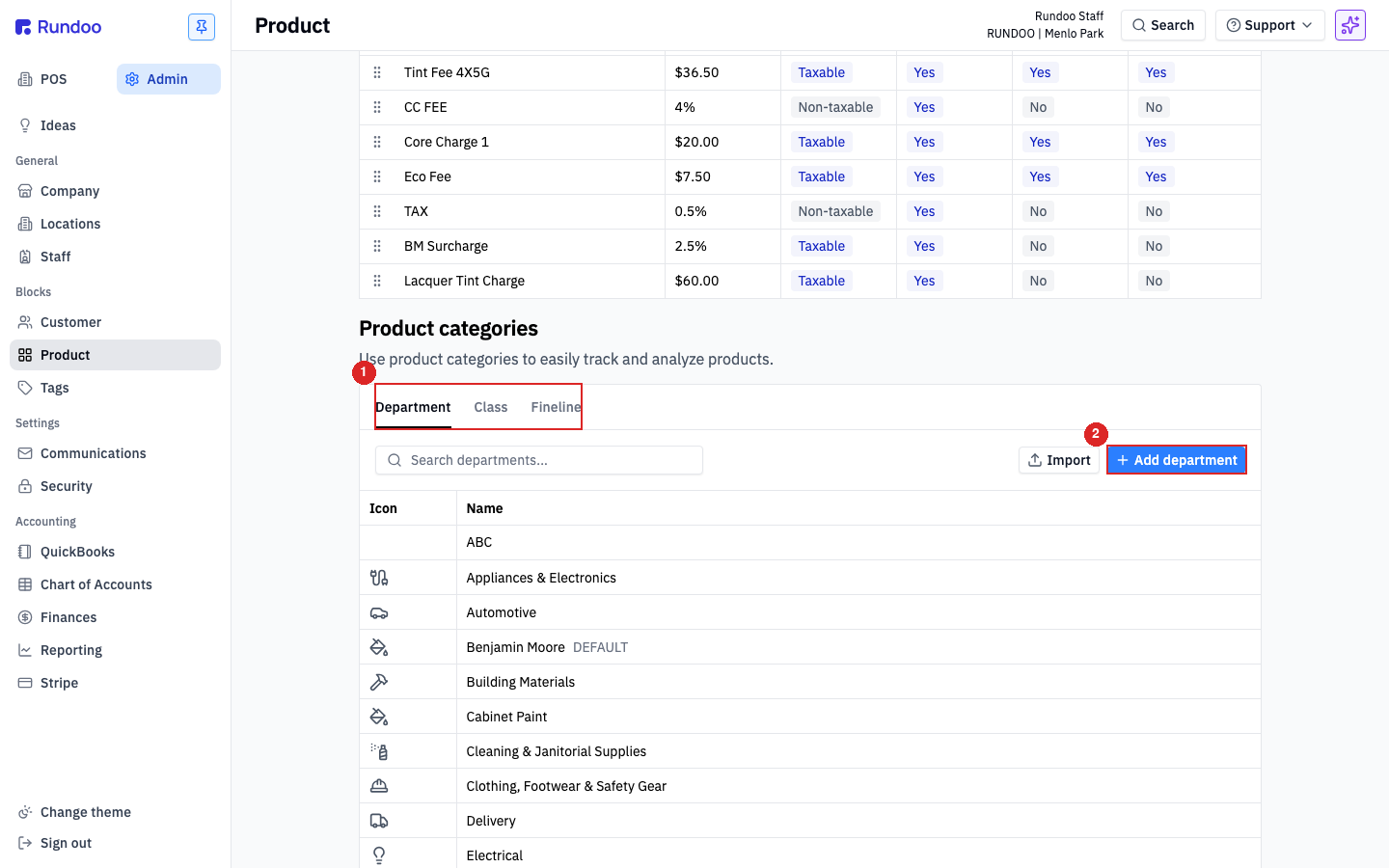
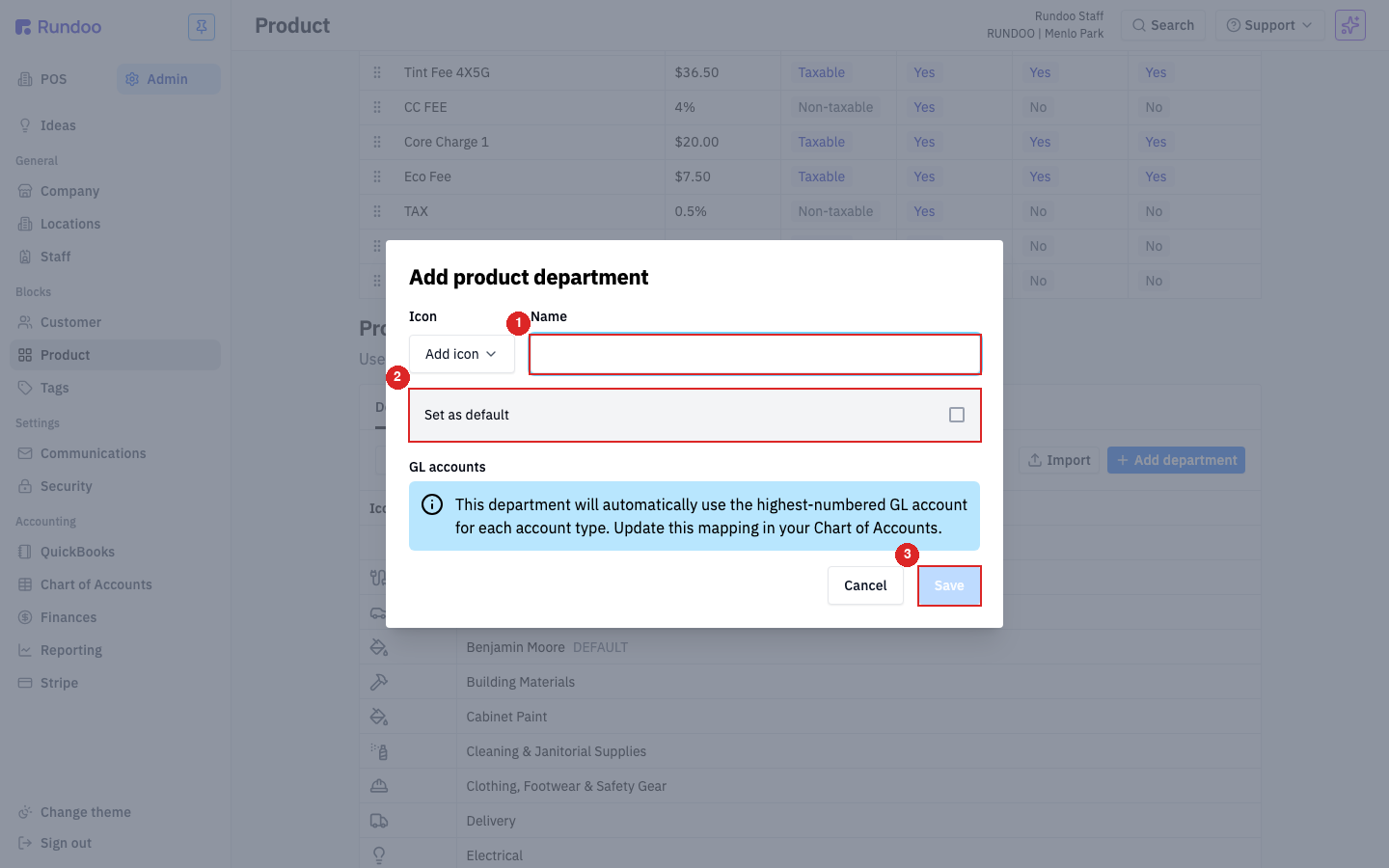
| Field | Department | Class | Fineline |
|---|---|---|---|
Icon |
Optional. Shows next to the department name in the list and on labels. Pick from the Add icon dropdown. |
Optional, same picker. | Optional, same picker. |
Name |
Required. What shows up in reports, on labels, and in the Add/Edit product modal. | Required. | Required. |
Department |
. Required. The parent Department this class sits under. |
() | |
Class |
() | () | Required. The parent Class this fineline sits under (and by implication, the department above it). |
Set as default |
Optional. Makes this the default department for new products. Only one department can be default (setting this clears the previous default). | () | () |
GL Account |
Required. The General Ledger account this department posts to. Pick from the Select one dropdown; a new department won't save until one is chosen. |
() | () |
Departments (unlike classes and finelines) also carry a required GL Account picker. Pick the account this department posts to from the Select one dropdown, a new department won't save until you do. The subtext, For further customization, go to the Mappings page, points to Account mapping, where you refine how a department maps to individual GL accounts. You set the GL account once here, at creation; to change it afterward you go to Account mapping, not the department's edit modal (the Edit modal has no GL field).
Click Save to commit, or Cancel to back out without creating the category.
A department needs both a Name and a GL Account, and the two fields fail differently. An empty Name keeps the Save button greyed out (no error styling, just a disabled button). A Name with no GL Account looks saveable, but clicking Save turns the picker red with a GL account is required message and blocks the save until you pick one.
Editing a category
Click any row in the Department, Class, or Fineline list to open the edit modal for that category. The modal shape is the same as Add, prefilled with the current values.
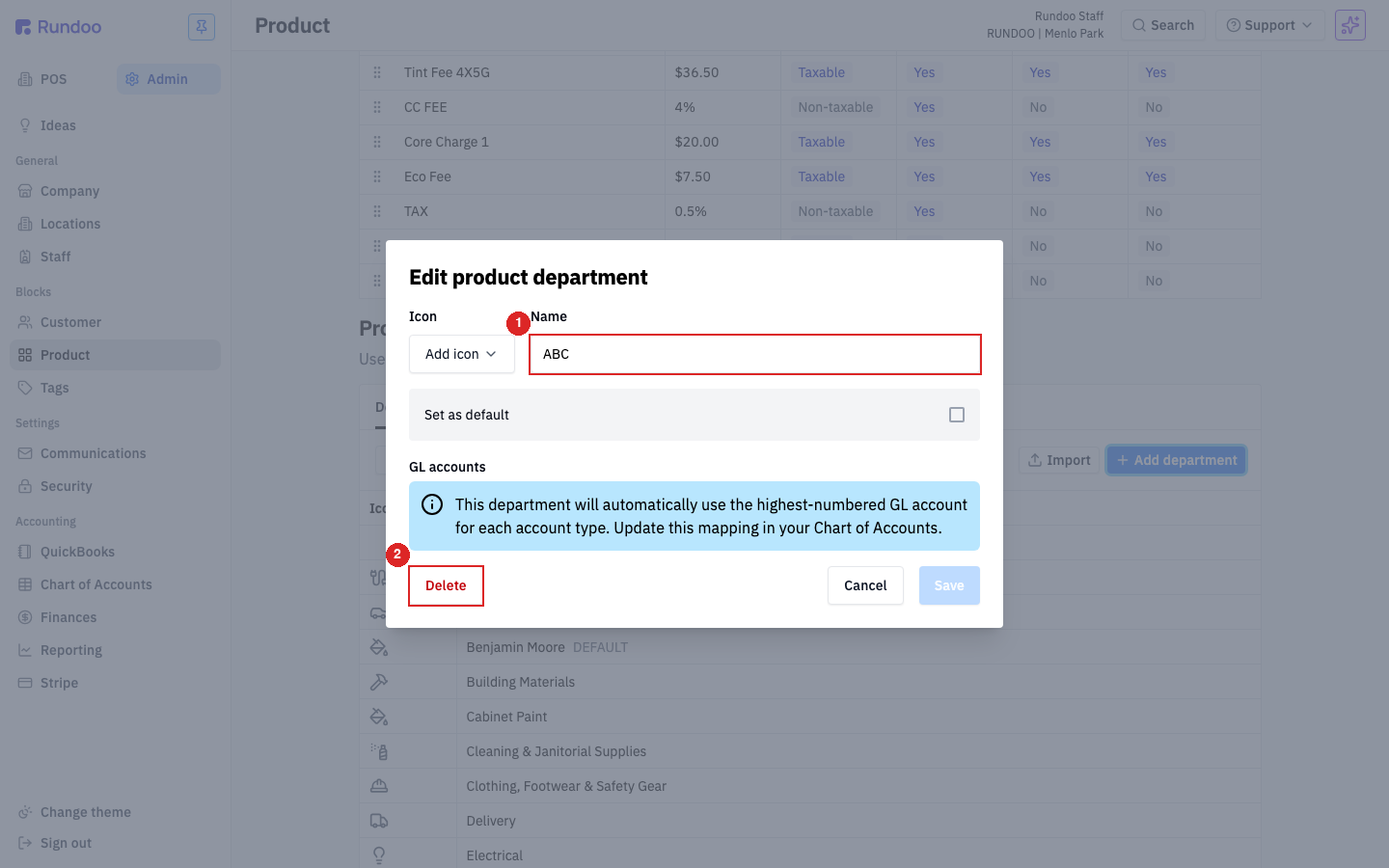
The editable fields depend on the level:
-
Department:
Icon,Name,Set as default. TheGL Accountset at creation is not editable here, change it on Account mapping instead. -
Class:
Icon,Name, parentDepartment. Moving a class to a different department also moves every fineline inside it and every product currently assigned to this class. -
Fineline:
Icon,Name, parentClass. Moving a fineline to a different class reassigns every product on that fineline to the new class/department path.
Changes save when you click Save; Cancel backs out without committing.
Renaming a category is safe. Products stay attached to the same underlying category, they just show the new name from then on in reports, labels, and the Products list. No need to re-save products.
Deleting a category
The edit modal has a Delete button bottom-left. What happens to products currently assigned to the category depends on the level you're deleting:
-
Deleting a Department. Every product currently assigned to that department falls back to whichever department is marked Default. If the department you're deleting is the default, Rundoo blocks the delete until you pick a new default first.
-
Deleting a Class. Every product on that class keeps its
Department, and itsClassis cleared. The product isn't touched in any other way. -
Deleting a Fineline. Every product on that fineline keeps its
DepartmentandClass, and itsFinelineis cleared.
Deletes are immediate (there's no archive state for categories and no undo). If you're cleaning up a taxonomy and you want the option to bring a category back, consider renaming (e.g. Cabinet Paint → Cabinet Paint (retired)) instead of deleting.
Deleting a department with no other default set leaves products orphaned with no department, which breaks the required-field rule the next time you open those products. Always verify a default department is in place before deleting, and always use the Default fallback to catch products that slip through.
Assigning products to categories
Products get a Department at creation (the Add product modal requires one), and it defaults to whichever department you've marked Default. Class and Fineline aren't on the Add modal; they're filled in after the product exists.
To assign or change Class and Fineline on an existing product:
-
In the POS mode, open Products in the left sidebar.
-
Click the product's row to open its detail page.
-
Click the Settings top tab.
-
Scroll to the Categorization section.
-
Pick the
Department,Class, andFinelinedropdowns.Classoptions are filtered by the selectedDepartment;Finelineoptions are filtered by the selectedClass. -
Click Save on the Categorization section. Each settings section has its own Save (saving Categorization doesn't touch the other sections).
For bulk assignment (hundreds of products at once), use Product imports. The spreadsheet has Department, Class, and Fineline columns that match on name.
Recommended Rundocs
-
Products, the product record itself, the detail page, and where the Categorization section lives.
-
Product prices, category-level pricing rules layered on top of the tier system.
-
Product imports, bulk-assigning
Department,Class, andFinelineon existing products.