Turn it into a return
Set the quantity to negative
-1 flips the line into a return.

Getting Started with Rundoo · Transactions
Handle exchanges and no-receipt returns right at the register.
A customer walks up with something to bring back, but no receipt. Or they want to return one item and grab another in the same trip. You can handle all of it right from the main sales screen, no original sale required. Rundoo calls this an unlinked return, and it takes just a couple of small moves you might not spot on your own.
First, a quick check
This works only if your store has no-receipt returns turned on in Admin settings. If you do not see the steps below on your screen, that setting is off. Your Rundoo guide can switch it on for you.
Whenever you can, it is better to pull up the original sale and link the return to it. But plenty of everyday returns simply have nothing to link to, and that is exactly what the unlinked path is for:
On a new transaction, add the product the customer is bringing back, the same way you would ring up any sale. For example, an Estwing Claw Hammer.
In the quantity field for that line, change 1 to -1. That negative is the signal to Rundoo that this is a return, not a sale.
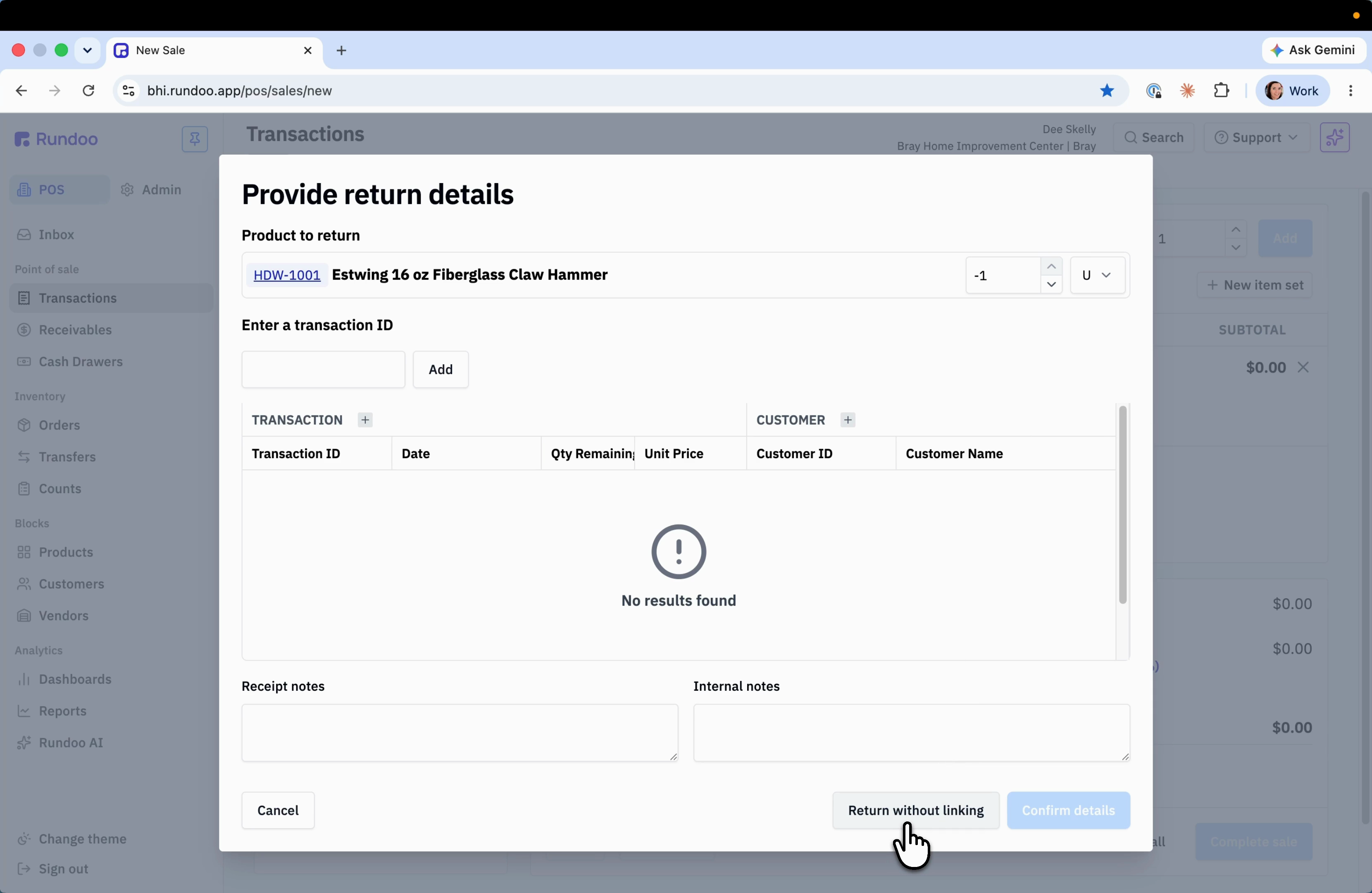
Because this is not tied to a past sale, Rundoo opens a Provide return details box and looks for a matching transaction. When there is nothing to link, click Return without linking. The line gets a Return pill marked Unlinked, the totals flip negative, and the button at the bottom changes from Sale to Return.
If the customer also wants to buy something, like a Level, just add it to the same cart like a normal sale. Rundoo does the math and shows the net difference. Here we still owe the customer money, but less than the full price of the hammer.
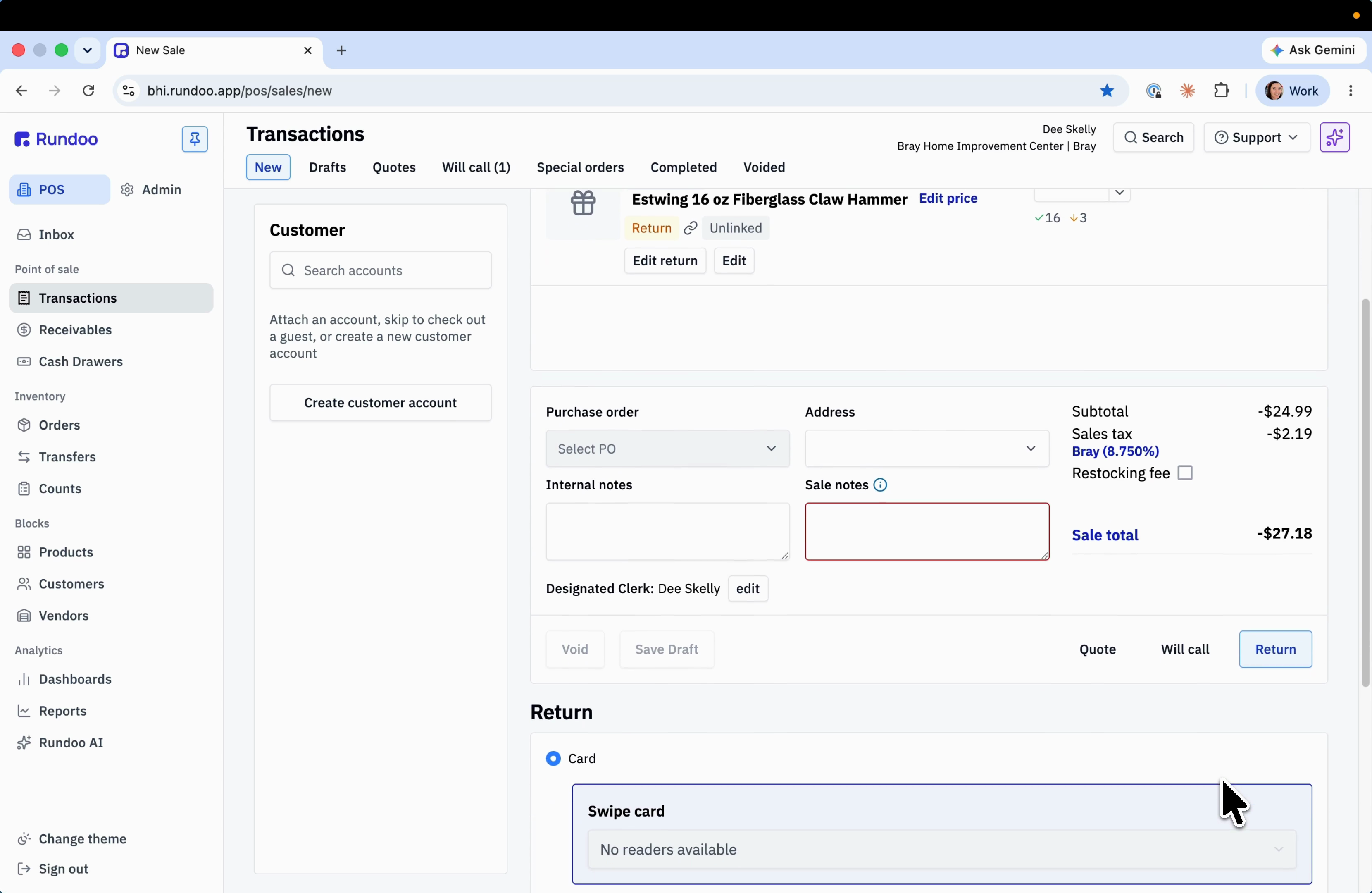
The Sale notes box is outlined in red and the Return button is greyed out, because a reason is required on every return. Click in and type something like No receipt for return. This note prints on the receipt. As soon as it's filled, the refund button lights up.
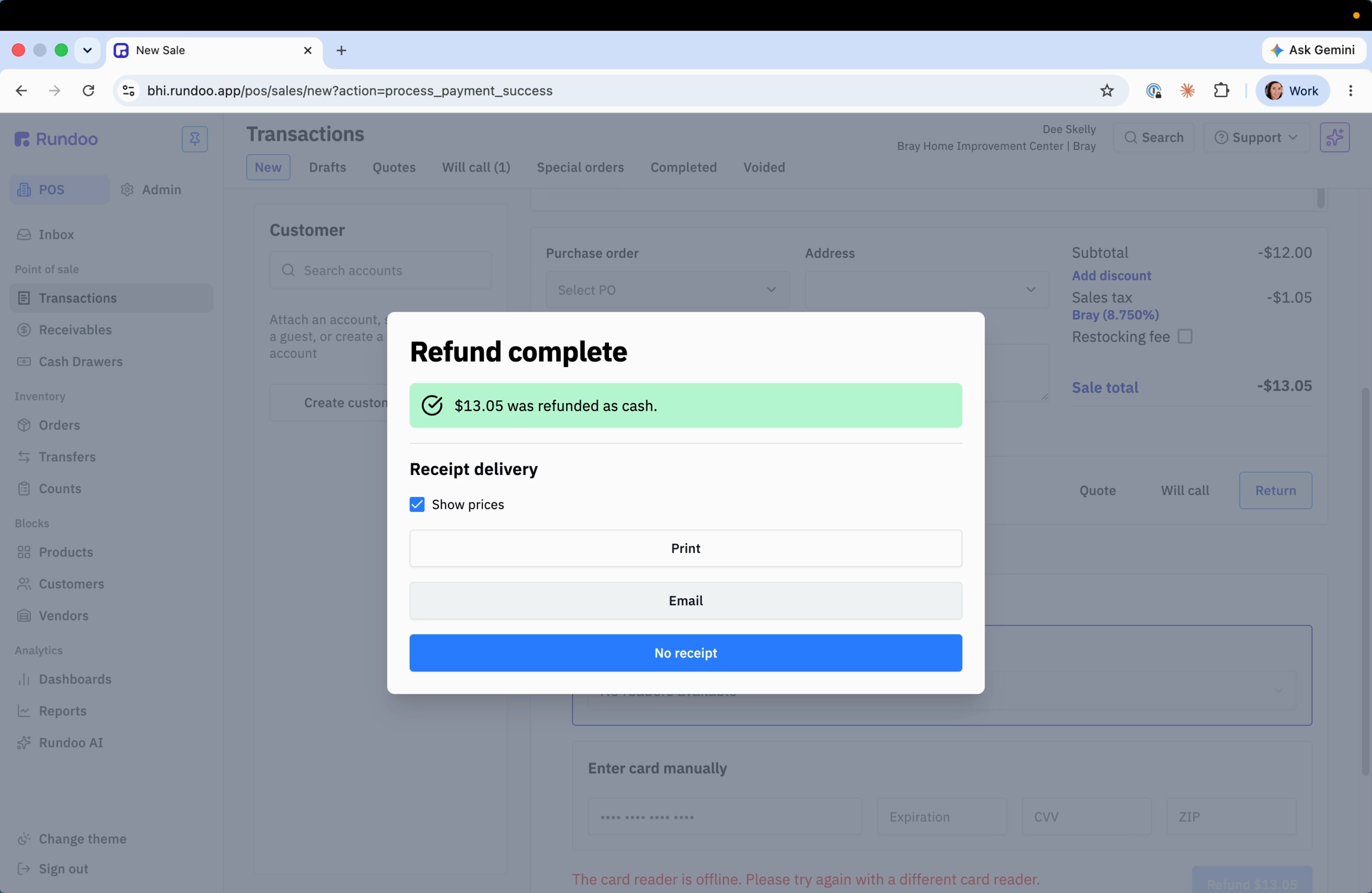
Click Return, pick the refund tender (we'll use Cash), and click the blue Refund button for the net amount. Confirm, and you're done. Rundoo gives you the usual receipt options: print, email, or none.
Worth knowing: the card-fee catch
If you send an unlinked refund back to a card instead of cash, Rundoo runs it as a brand new card charge, so it carries the usual card fee. A linked refund returns the money to the original charge with no new fee. That's one more reason to pull up the original sale and link the return whenever you can.
Turn it into a return
Set the quantity to negative
-1 flips the line into a return.
No sale to link
Return without linking
In the Provide return details box.
Unlock the refund
Fill the red Sale notes box
A reason is required. It prints on the receipt.
Make it an exchange
Add the new item to the cart
Rundoo nets the difference for you.
Good to know